Change message format
The Change message format action converts the body of the message between plain text and Html. Use it to give plain text mail from scripts, ticketing systems or old clients a consistent Html look, or to turn Html mail into plain text for archives, ticket queues and recipients that read text only.
The action is in the Other group of the action menu, next to Run executable. In the rule summary it is shown as Change format.
Convert the message body
- Text to Html - the plain text body becomes an Html body. The Look and Content tabs hold its options.
- Html to text - the Html body becomes a plain text body. The Options tab holds its options.
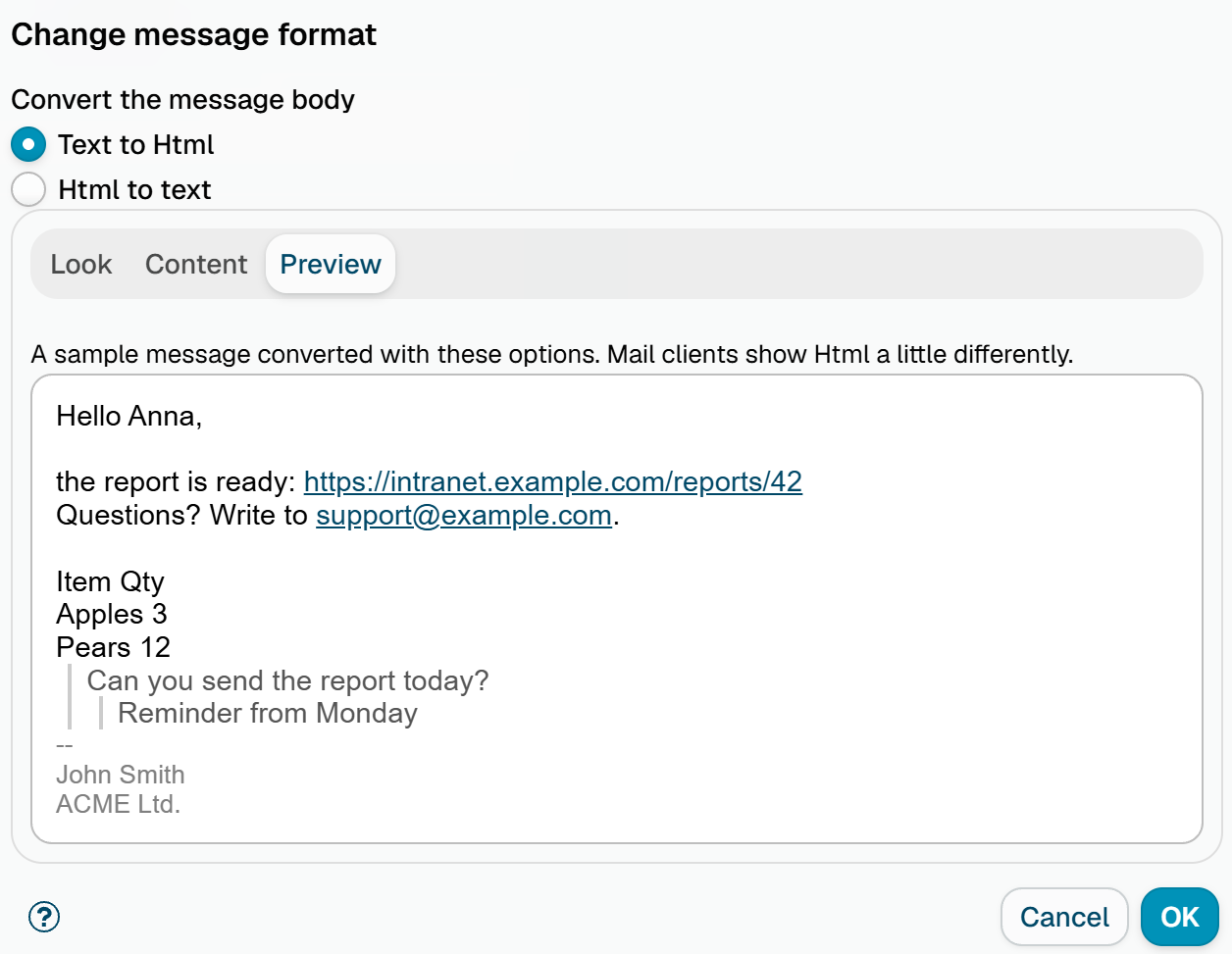
The Preview tab shows a sample message converted with the current options, and follows every change. For Html the preview is drawn by the browser, and mail clients show Html a little differently.
Text to Html
Look
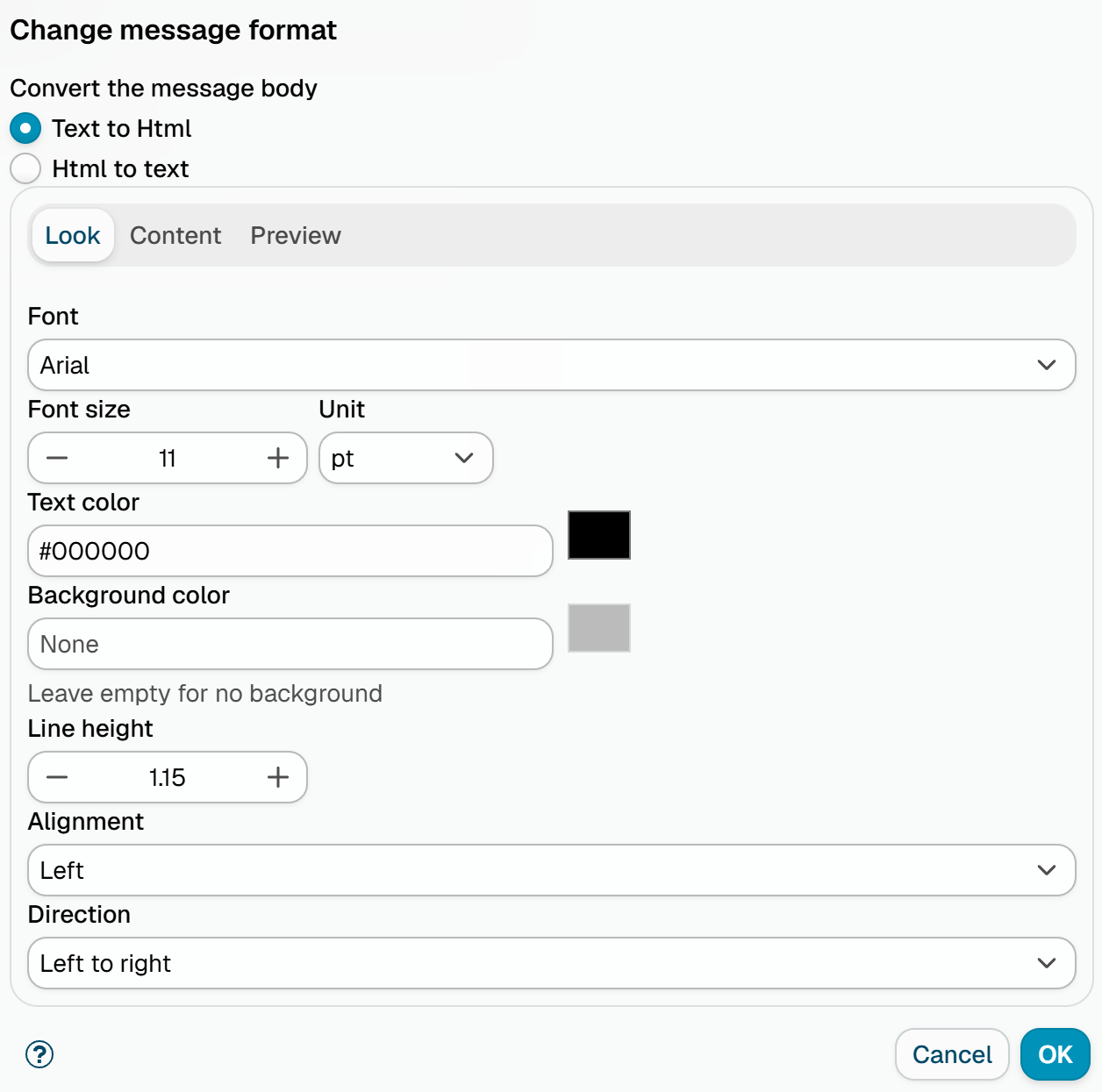
- Font - the font family of the text,
Arialby default. Pick one of the web safe fonts offered (Arial, Calibri, Verdana, Tahoma, Segoe UI, Georgia, Times New Roman, Courier New) or type any other name. - Font size and Unit -
11 ptby default; the size can be given inptorpx. - Text color - a hex color such as
#1F3864,#000000by default. A color picker sits next to each color field. - Background color - optional; leave it empty for no background.
- Line height - from 1.0 to 2.0,
1.15by default. - Alignment - Left or Right.
- Direction - Left to right or Right to left, for scripts written from the right.
Content
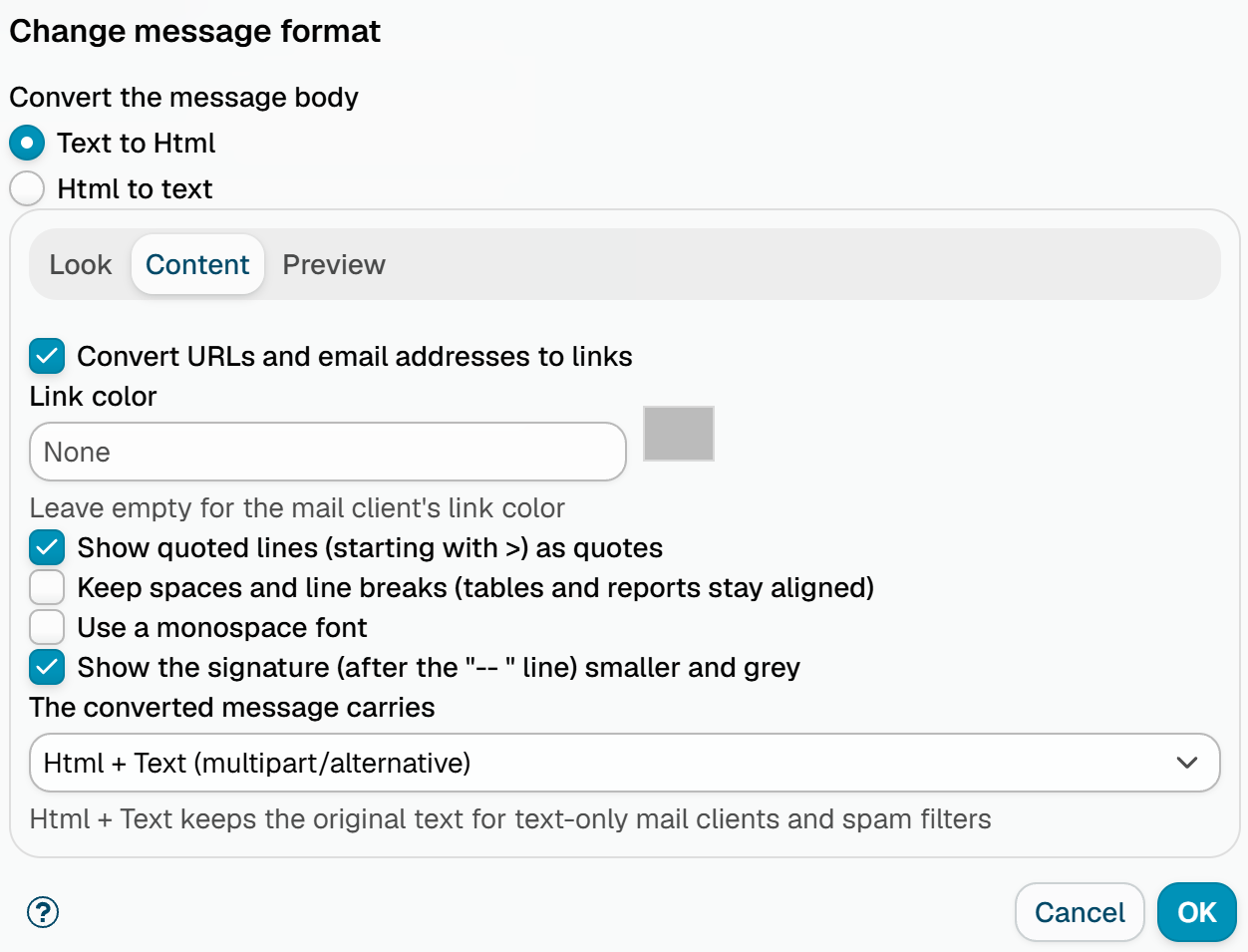
- Convert URLs and email addresses to links - on by default. With it, Link color can be set; leave it empty for the mail client's link color.
- Show quoted lines (starting with >) as quotes - on by default; quoted lines become block quotes, nested quotes included.
- Keep spaces and line breaks (tables and reports stay aligned) - off by default. Turn it on for text with columns, such as reports and tables, so the alignment survives.
- Use a monospace font - off by default; when on, the Font setting is not used.
- Show the signature (after the "-- " line) smaller and grey - on by default; the signature block after the usual
--separator is styled apart from the message. - The converted message carries - Html + Text (multipart/alternative) (default) keeps the original text as an alternative for text-only mail clients and spam filters; Html only sends the Html part alone.
Html to text
Options
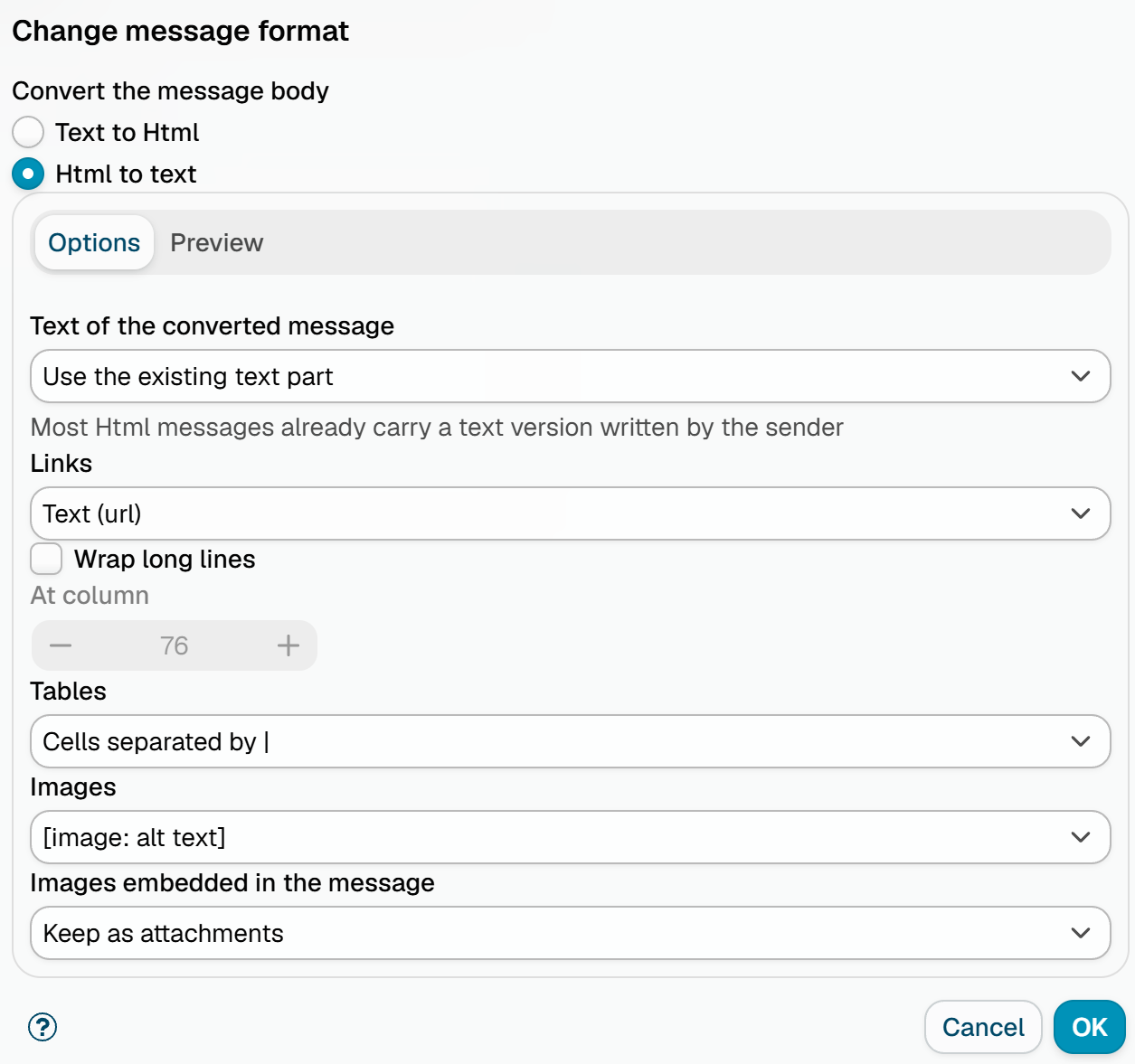
- Text of the converted message - Use the existing text part (default) keeps the text version written by the sender's mail client, which most Html messages carry; when a message has none, the text is made from the Html. Always regenerate from Html makes the text from the Html for every message, with the options below.
- Links - Text (url) (default) puts the address in brackets after the link text; Numbered footnotes numbers the links and lists them at the end; Text only drops the addresses.
- Wrap long lines and At column - off by default; when on, lines are wrapped at the given column, from 40 to 998,
76by default. - Tables - cells are separated by
|(default) or by a tab. - Images - an image becomes
[image: alt text](default) or is removed from the text. - Images embedded in the message - pictures embedded in the Html (CID images) are kept as ordinary attachments (default) or removed with the Html.
OK is enabled while the options are complete: for Text to Html a font must be given and every color must be a valid hex color.
What is converted
Only the body changes. Attachments stay, including files that Apple Mail puts between the parts of the Html; such parts are kept as attachments and the trace counts them. The Content-Type, Content-Transfer-Encoding and MIME-Version headers follow the new body.
Signature and disclaimer rules run after policy rules and add the template variant of the new format, so a text message converted to Html gets the Html signature.
The following messages are left alone, with a note in the processing trace:
- signed and encrypted messages - changing their body would break the signature or the encryption,
- calendar invitations,
- messages already in the target format, and messages without a text body.
Processing trace
The message processing trace names the result, for example:
Text converted to Html (multipart/alternative).Html converted to text (existing text part kept), 2 inline images kept as attachments.Html converted to text (regenerated from Html), 1 other parts of the body kept as attachments.Message format not changed: the message is already Html.Message format not changed: the message is signed, changing its body would break it.Message format not changed: the message is a calendar invitation.
Additional resources
- Signature rules and Disclaimer rules - add the template variant of the new format
- Message type - find the signed and encrypted messages the action leaves alone
- Rules tester - a test message written as Text is sent as plain text, so the conversion can be tried