Rules group
The Rules Groups panel is the central view of the Policy Rules section. It lists all configured rule groups in a table showing whether each group is active, how many rules it contains, and how many of those rules are currently active. Each row also includes an icon with a tooltip describing the configured behaviour - what happens when a rule is applied and what happens when no rules are applied.
A policy rules group is a set of rules that control how messages are handled by the application. You can create as many rules as you need inside each group.
Each group has its own logic to decide what happens next. For example:
- If at least one rule is applied, you can choose to go to the next rules group or stop processing.
- If no rules are applied, you can also choose to go to the next group or stop processing.
Creating a group
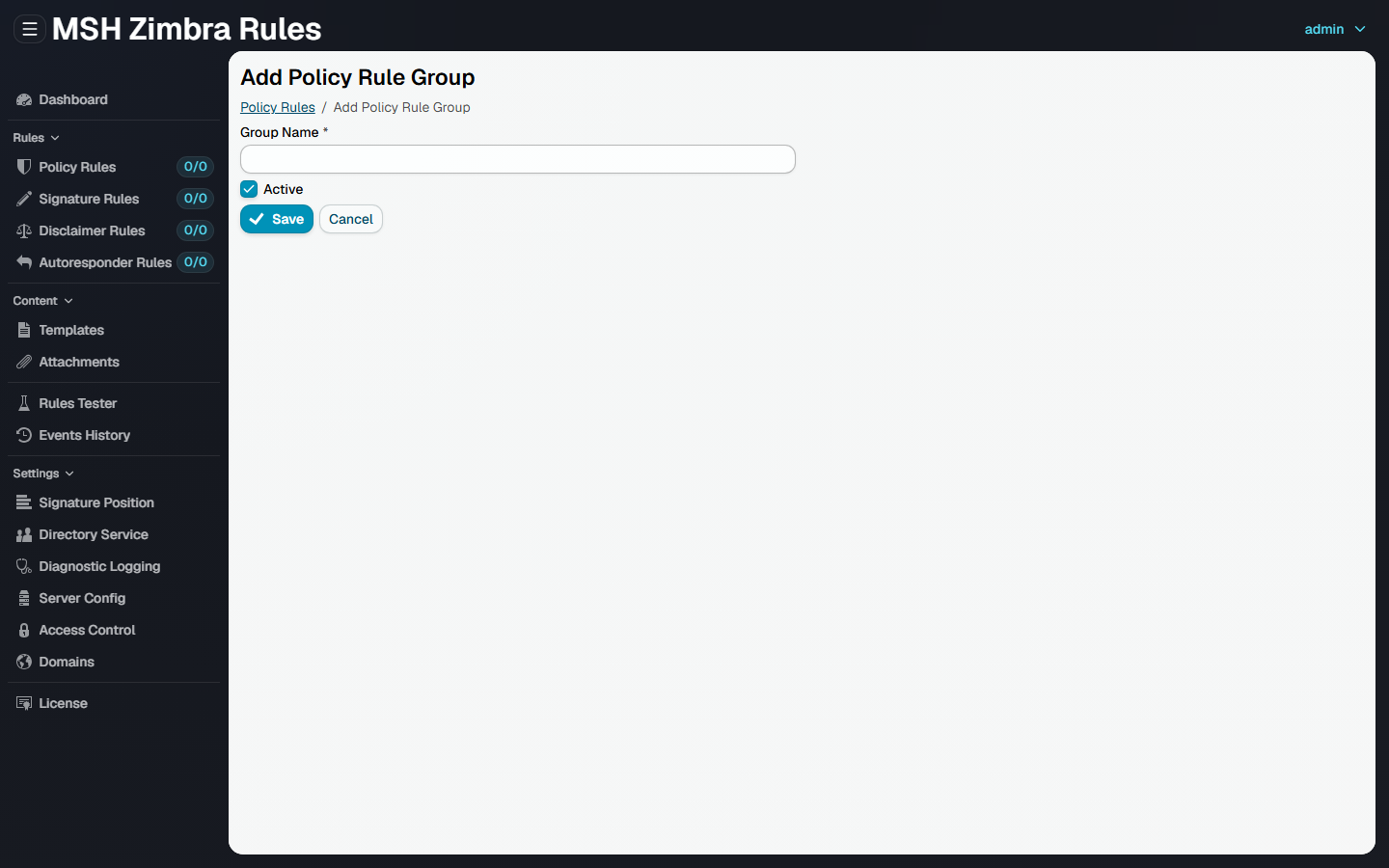
Click Add Group... to create one. A group needs only a name, and whether it is active - the rules themselves are added afterwards, from inside the group.
Removing groups and rules
Remove deletes the selected groups and Remove All every group; the rules of a group inside it go with it. Both ask for confirmation first, as do Remove and Remove All in the list of rules of a group: one item is named, several are counted, and removing a group says that its rules are removed with it.