Add attachment
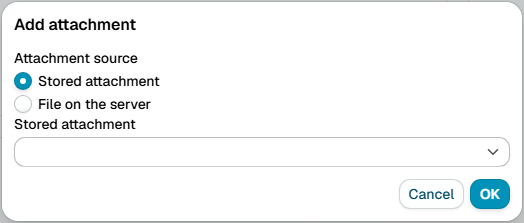
The Add attachment action attaches a file to the message when a policy rule matches. The file can be a stored attachment managed on the Attachments page, or a file read from the milter host.
Messages in a signed or encrypted container (S/MIME, PGP/MIME) are left untouched: an opaque S/MIME message is not wrapped into a new multipart, and a signed message keeps its signature. A message whose text merely begins with a typed PGP armor line does not count, so the attachment is added as usual.
Stored attachment
Select one of the attachments uploaded on the Attachments page. This is the recommended option: the file is uploaded once from your local machine and stored on the mail server, so it does not have to be copied to the server manually.
The Rules Tester attaches the real stored attachment, so the tested message shows exactly what recipients will receive.
Absolute file path on mail server
The absolute path to the file to attach.
Example:
/opt/msh-zr/attachments/disclaimer.pdf
The file must be located on the mail server and be readable by the msh user. If the path does not exist, or points to a directory, the attachment is skipped.
Variables can be used in the file path field, so the file can be chosen based on the message being processed.
Additional resources
- Attachments
- How to use Variables