Throttle Newsletters Sent from a Normal Mailbox in Zimbra
Someone in sales exports the customer list, pastes 800 addresses into Bcc and clicks Send. Zimbra delivers it, and that one message can cost the whole company its mail: the big providers slow down or refuse a burst from one server, old addresses bounce, a few recipients click Report spam, and your server ends up on a blocklist. Two rules of MSH Zimbra Rules stop that: one caps the recipients of a single message, the other the recipients a user reaches per hour. An account that really sends newsletters gets an exception.
Why mass mail from a normal mailbox is risky
- One server, one reputation. Gmail, Microsoft and the others judge mail by the server it comes from. A newsletter that draws complaints or bounces lowers the reputation of every message your server sends, invoices and replies to customers included.
- Old lists bounce. Addresses collected over years no longer exist. Many bounces at once look like a spammer guessing addresses.
- No way to unsubscribe. A message from a normal mailbox has no unsubscribe link and
no
List-Unsubscribeheader, which Gmail and Yahoo expect from bulk senders. A reader who does not want it any more has only the Report spam button. - Blocklists hit everyone. Once the server's address is listed, other servers refuse mail from all your users, not only from the one who sent the newsletter.
- Zimbra does not stop it. Postfix accepts up to 1000 recipients per message by
default (
smtpd_recipient_limit), and by default nothing limits how many messages a user sends per hour.
Step 1 - At most 50 recipients per message
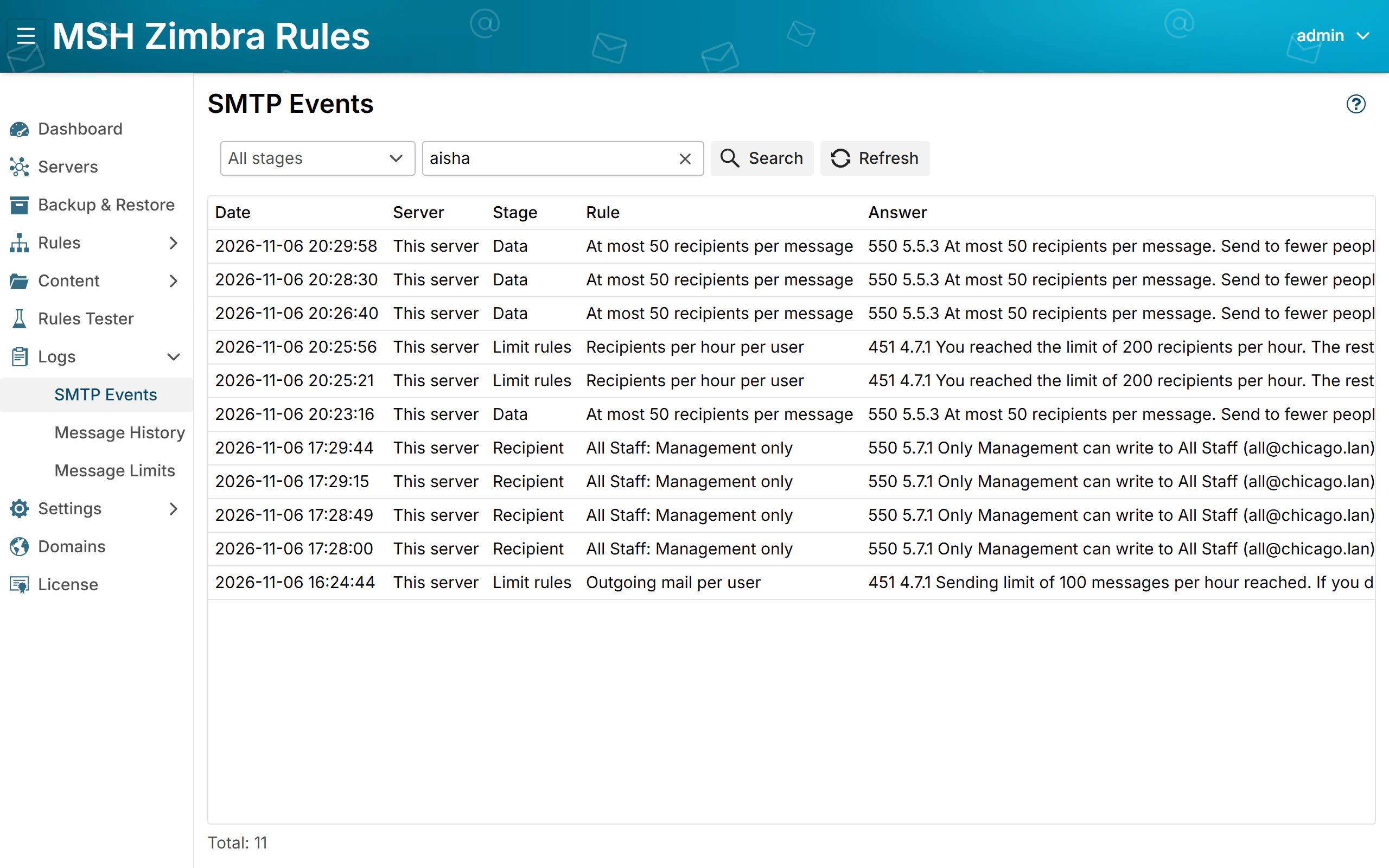
An SMTP rule of the Data stage sees every recipient of the message before its content is sent, and refuses the whole message with your reply.
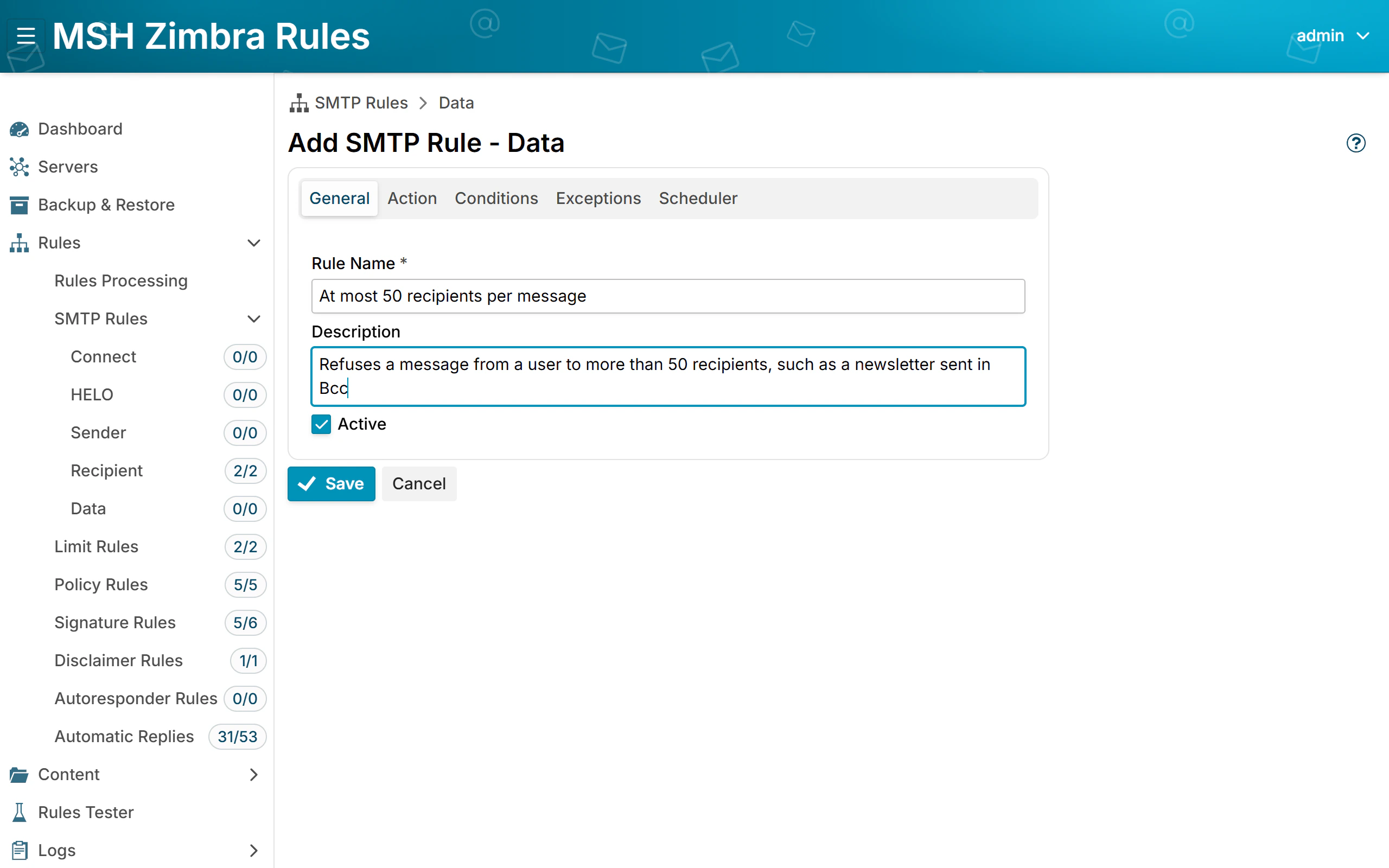
Open Rules > SMTP Rules > Data, click Add Rule... and name the rule
At most 50 recipients per message:
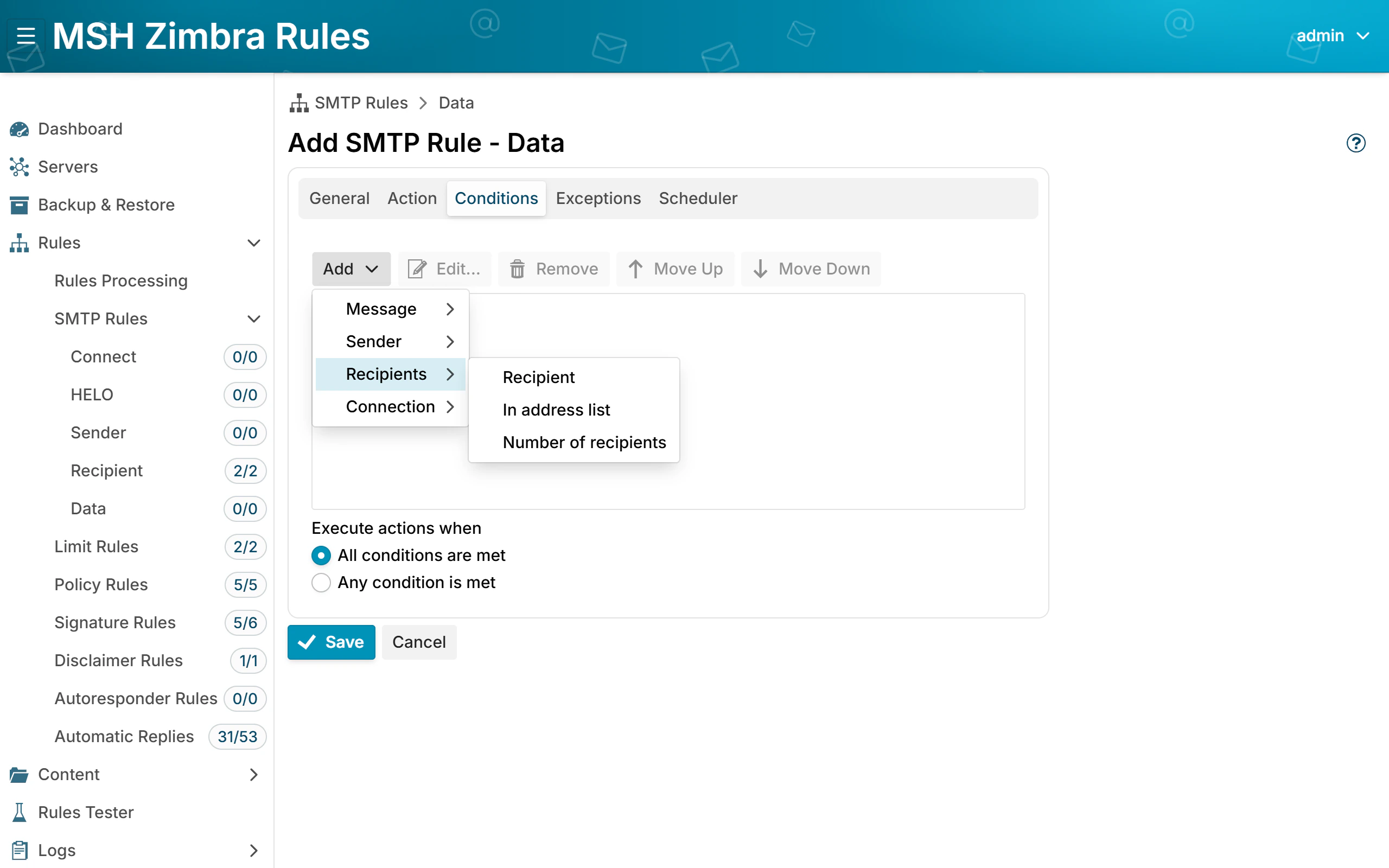
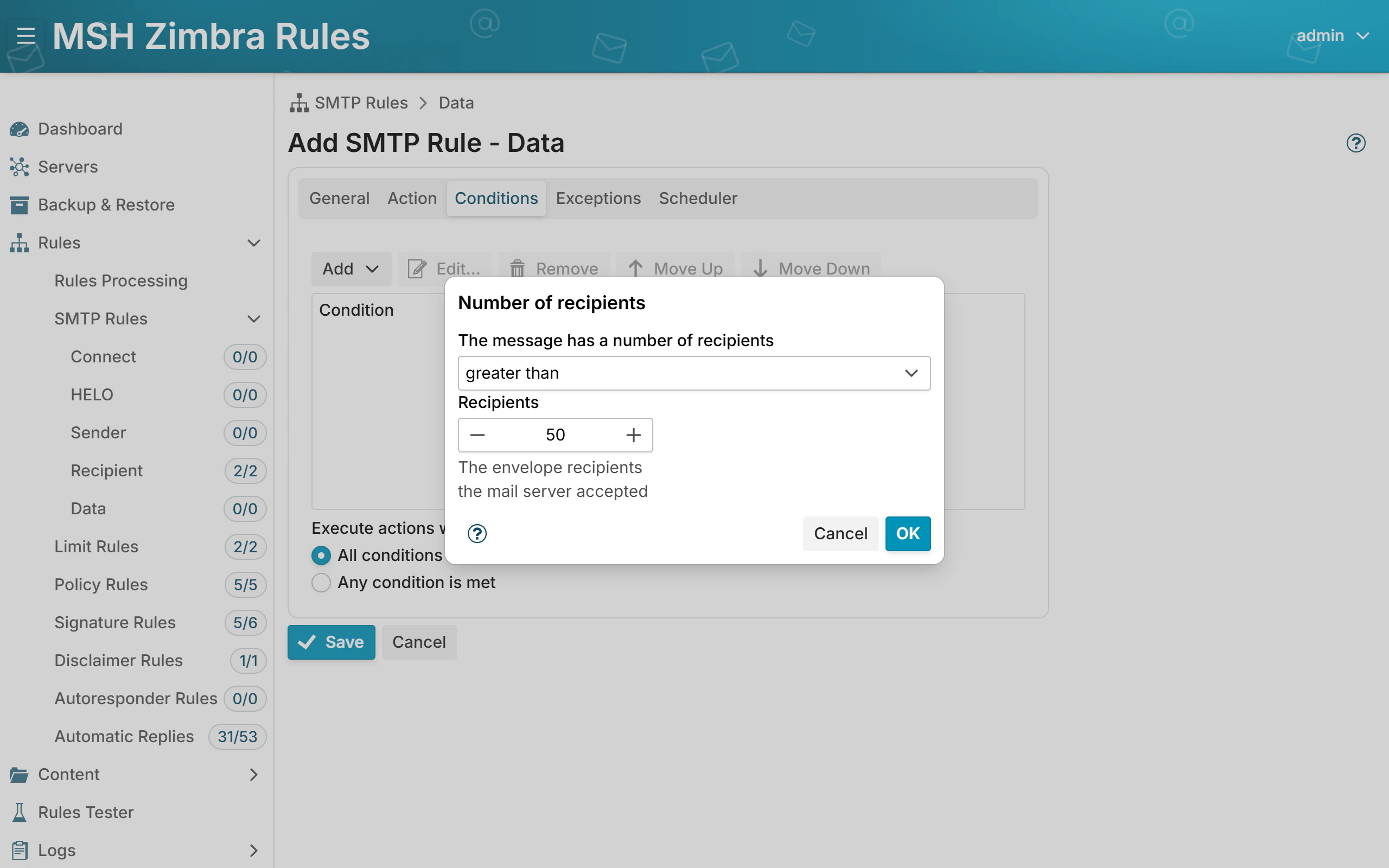
- Conditions (all): Recipients > Number of recipients, greater than
50; and Connection > Received through, with Submission and Mailbox server ticked and Incoming unticked. - Action: With custom reply, Response code
550, Status5.5.3(too many recipients), and a Message that says what to do, for example At most 50 recipients per message. Send to fewer people at a time, or ask the IT help desk how to send a newsletter.
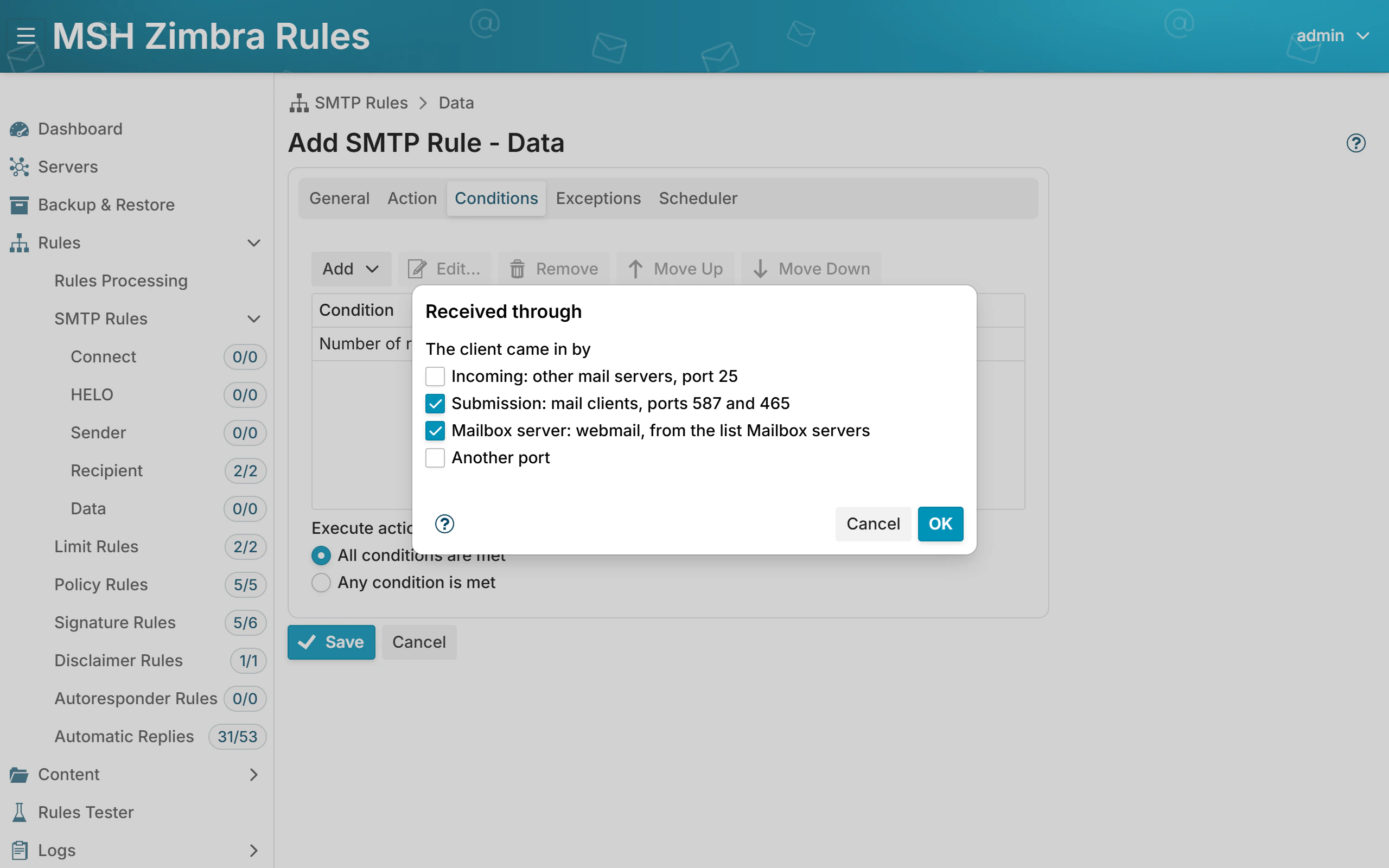
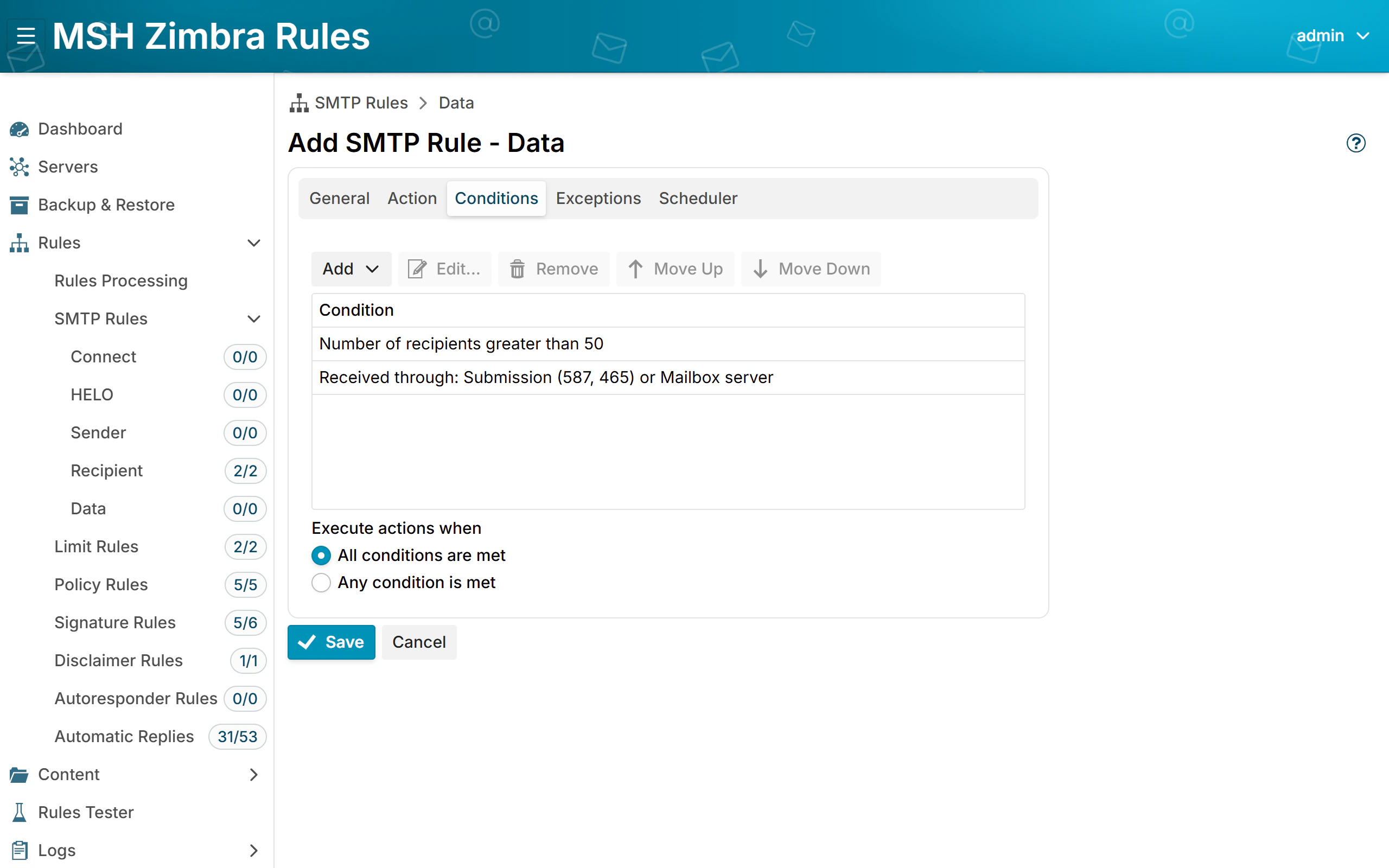
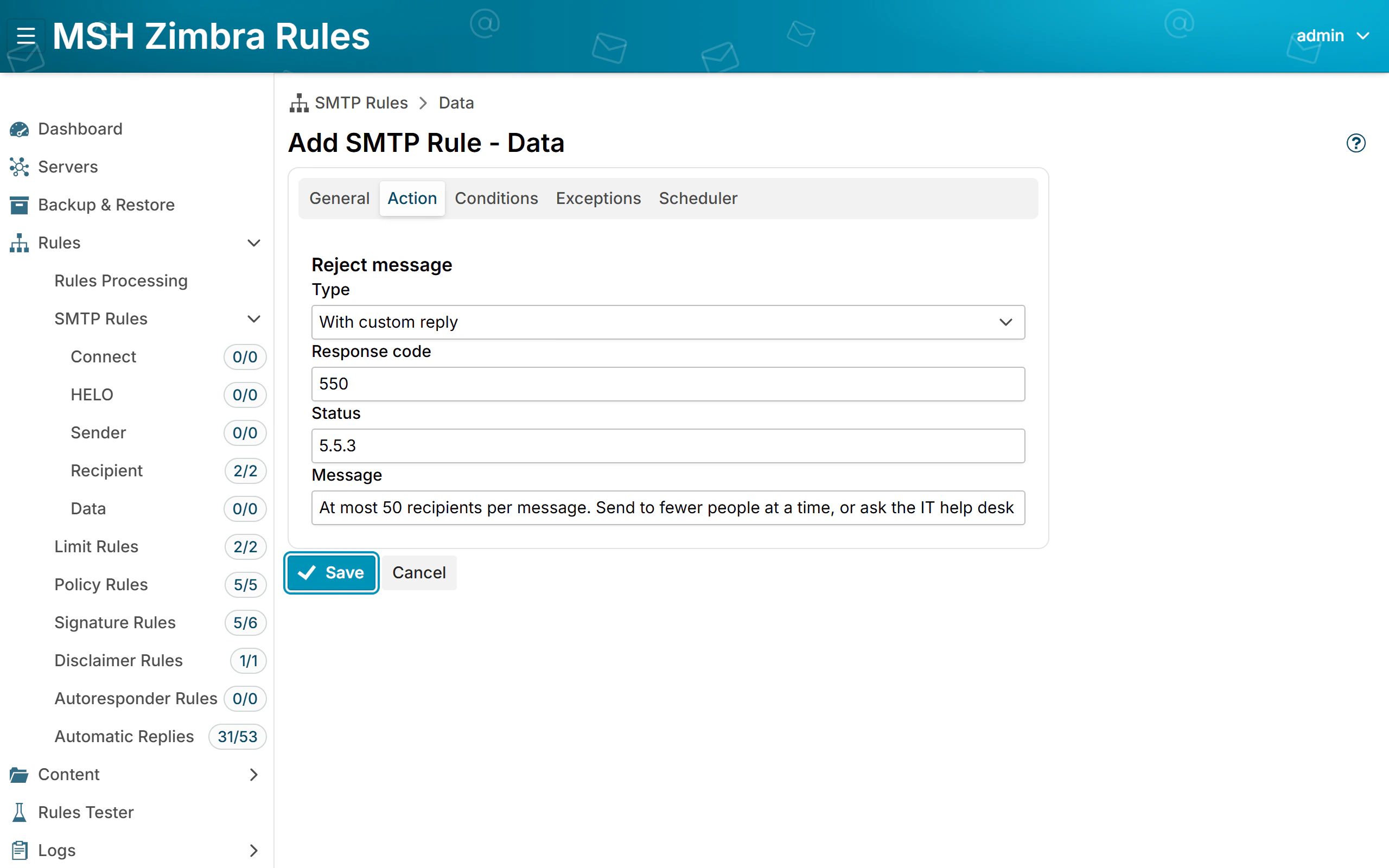
Received through keeps the rule to your own users: their mail clients (Submission) and the web client (Mailbox server). Mail from the internet to many of your users, such as a supplier's announcement, is left alone. Fill in the address list Mailbox servers first, or the rule does not see webmail, see Step 1 of Stop a Compromised Zimbra Account from Sending Spam.
The rule counts the envelope recipients, so To, Cc and Bcc count alike. A Zimbra distribution list counts as one recipient: the list is expanded only after the rules have run. Keep large lists of outside addresses for the people who may write to them, as in Limit Who Can Write to All Staff and Other Large Lists.
Step 2 - At most 200 recipients per hour
The first rule lets a user split the 800 addresses into 16 messages of 50 and send them within a minute. A limit rule spreads them over time.
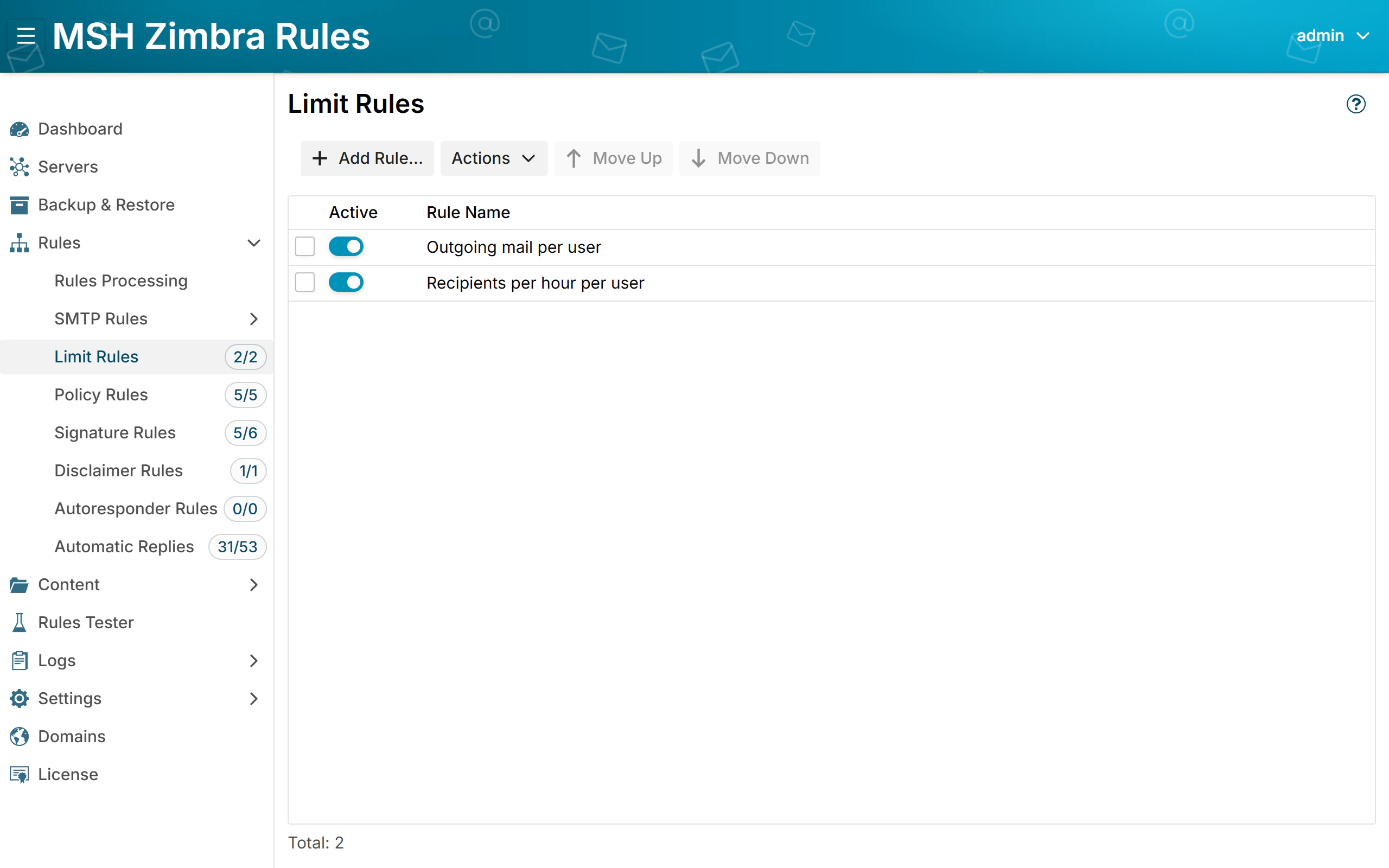
Open Rules > Limit Rules, click Add Rule... and name the rule
Recipients per hour per user:
- Conditions: Connection > Received through, Submission and Mailbox server, as in step 1.
- Action > Limit: Number of messages, at most
200per1hours. - Action > Counting: Counted for each Sender, and Count set to each recipient (a message to 5 recipients counts 5).
- Action > When exceeded: Defer the message, a Reply such as You reached the limit of {limit} per {period}. The rest can be sent in {retry-after}., and your address under Notify.
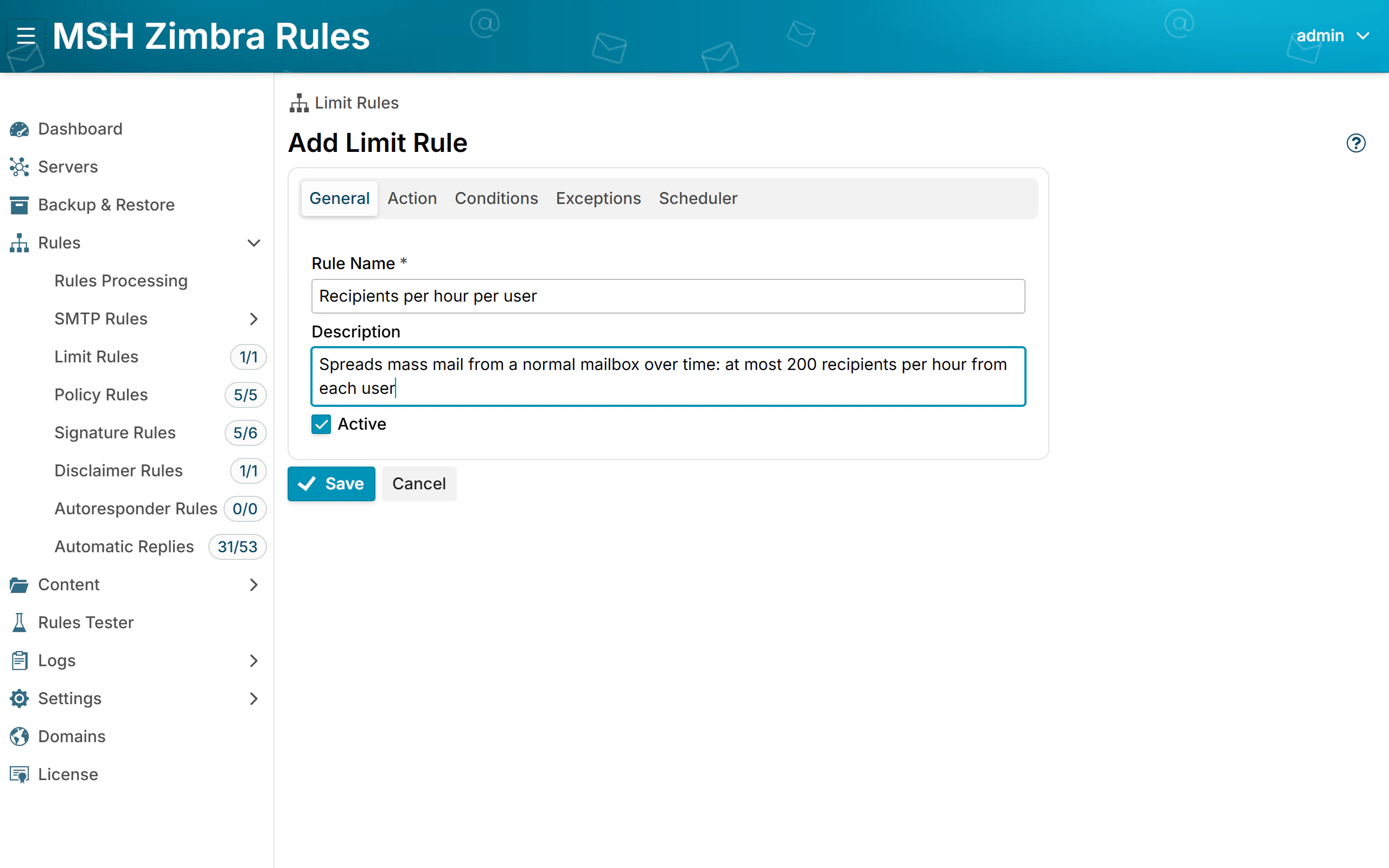
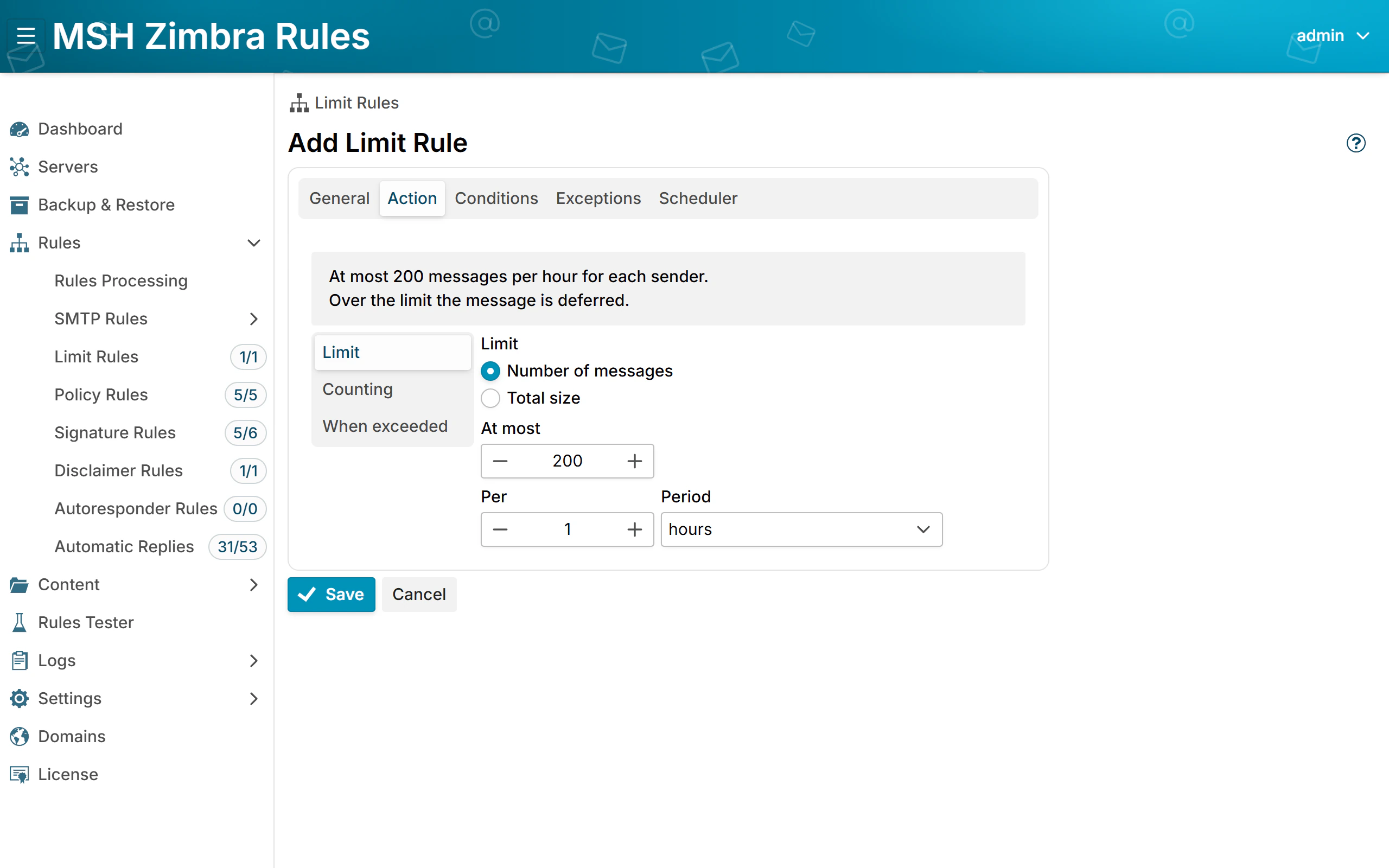
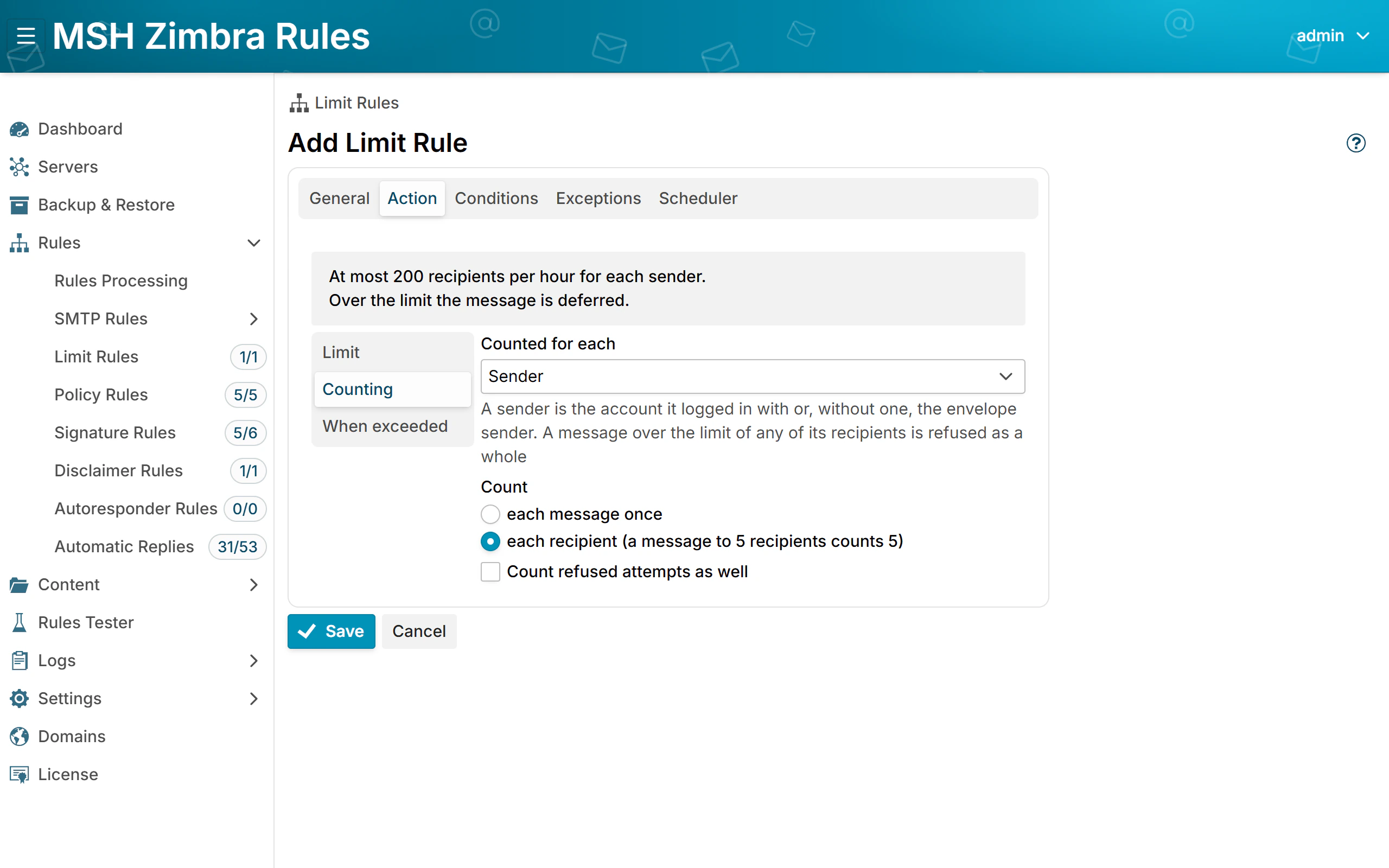
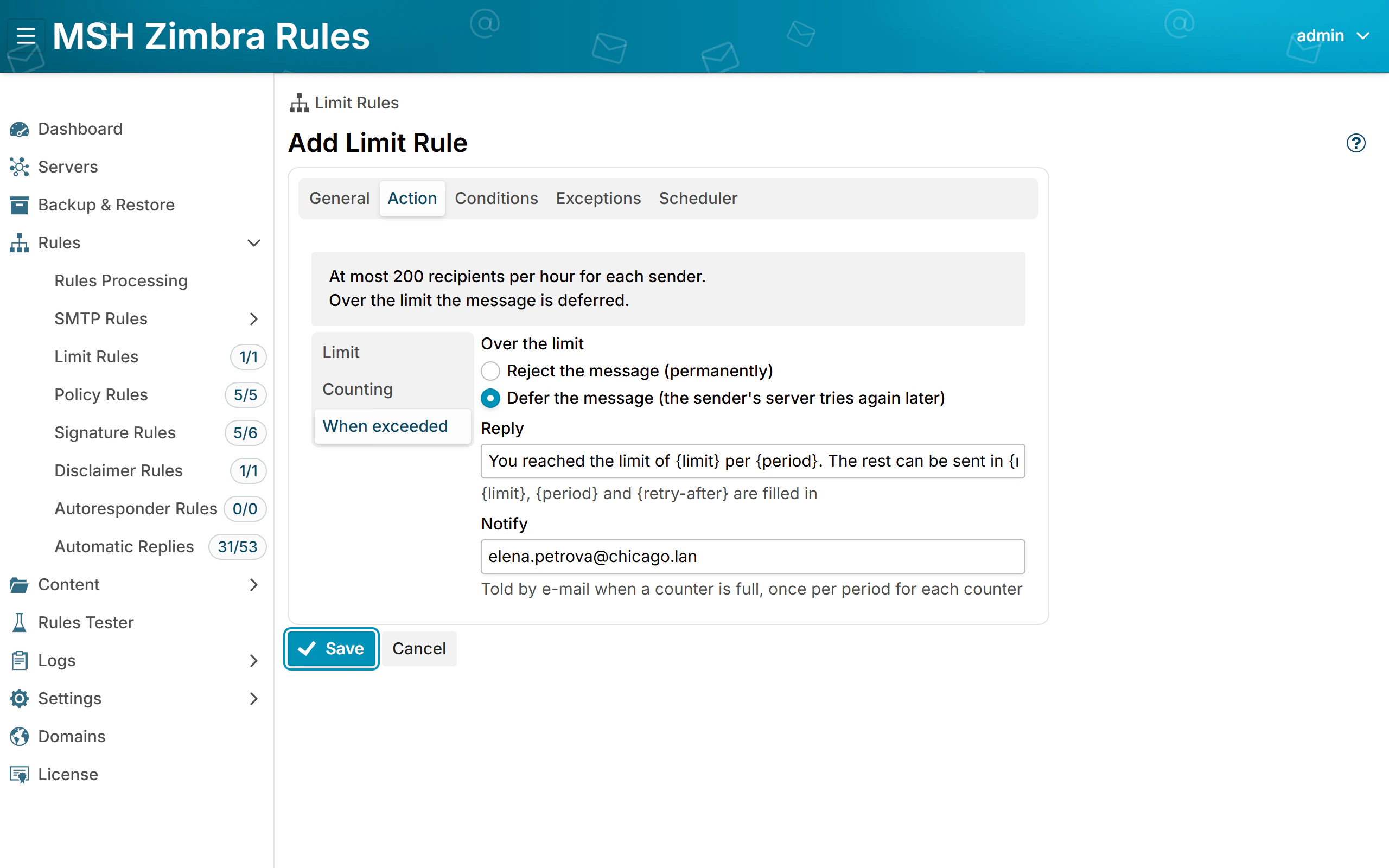
With each recipient, four messages of 50 fill the hour. The fifth is deferred with
451 4.7.1 and your reply, with the variables filled in:
451 4.7.1 You reached the limit of 200 recipients per hour. The rest can be sent in 58 minutes.
The period slides: an hour after the first batch, its 50 recipients are free again. Defer suits a limit about timing, and Count refused attempts as well stays off, so a user who tries too early can send the rest once the hour has room. Keep the hourly limit a few times the limit per message, so that a user can still send some batches.
Step 3 - An exception for the newsletter account
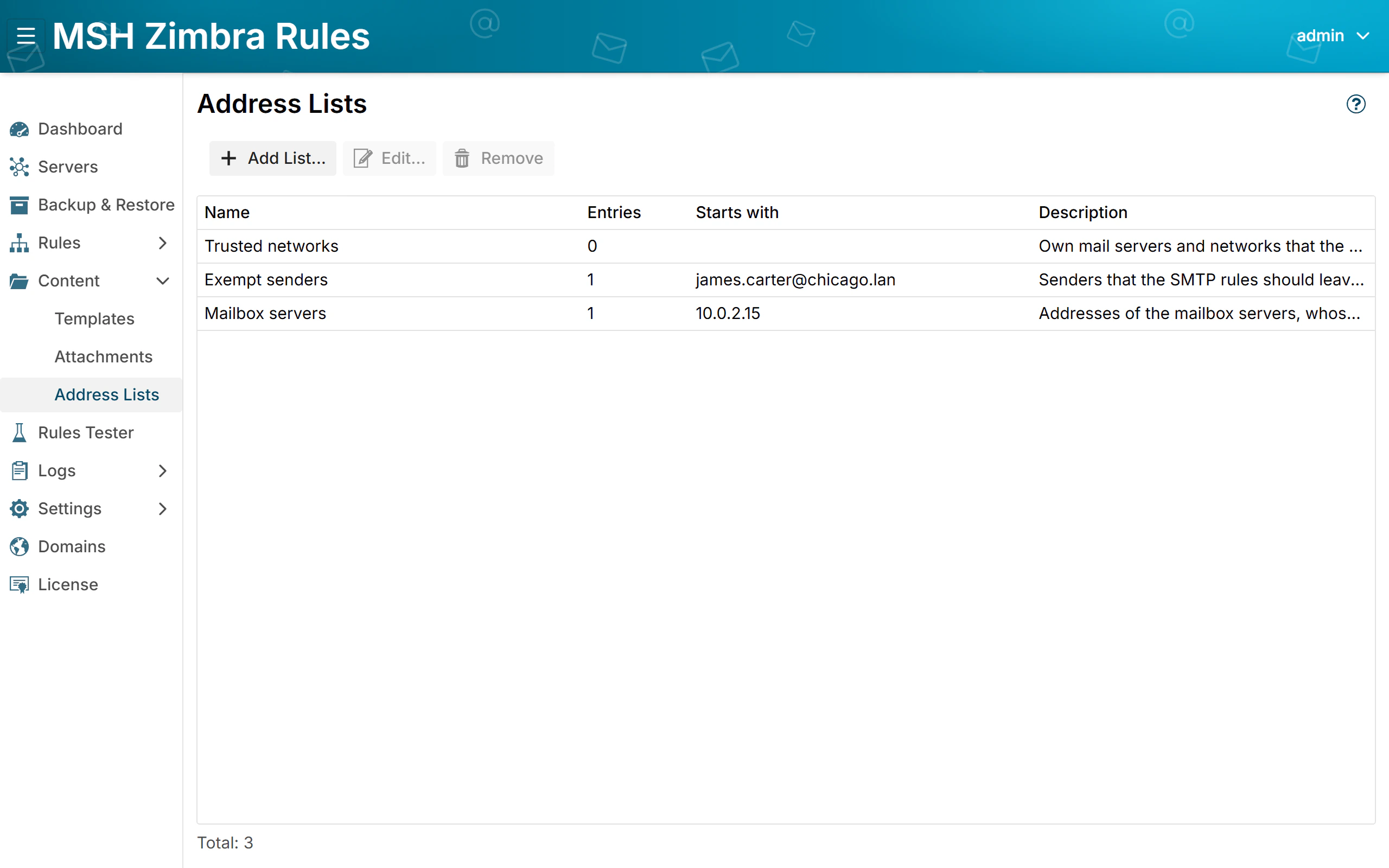
When someone does send a newsletter from Zimbra, give that one account room instead of raising the limits for everybody. The address list Exempt senders is meant for it.
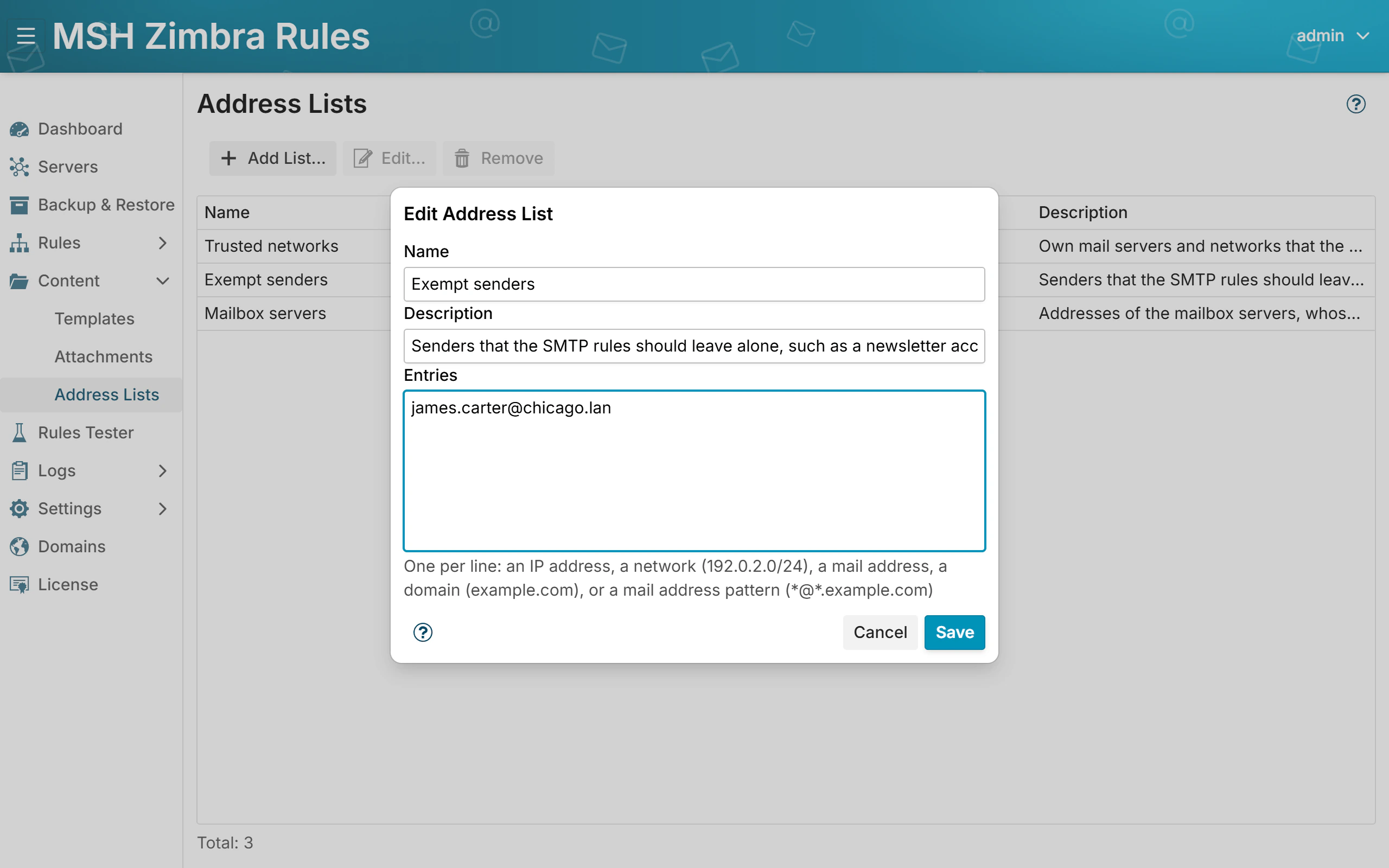
- Open Content > Address Lists, double-click Exempt senders and enter the
address of the account, for example
newsletter@example.com. - In both rules, on Exceptions, add Sender > In address list and choose Exempt senders.
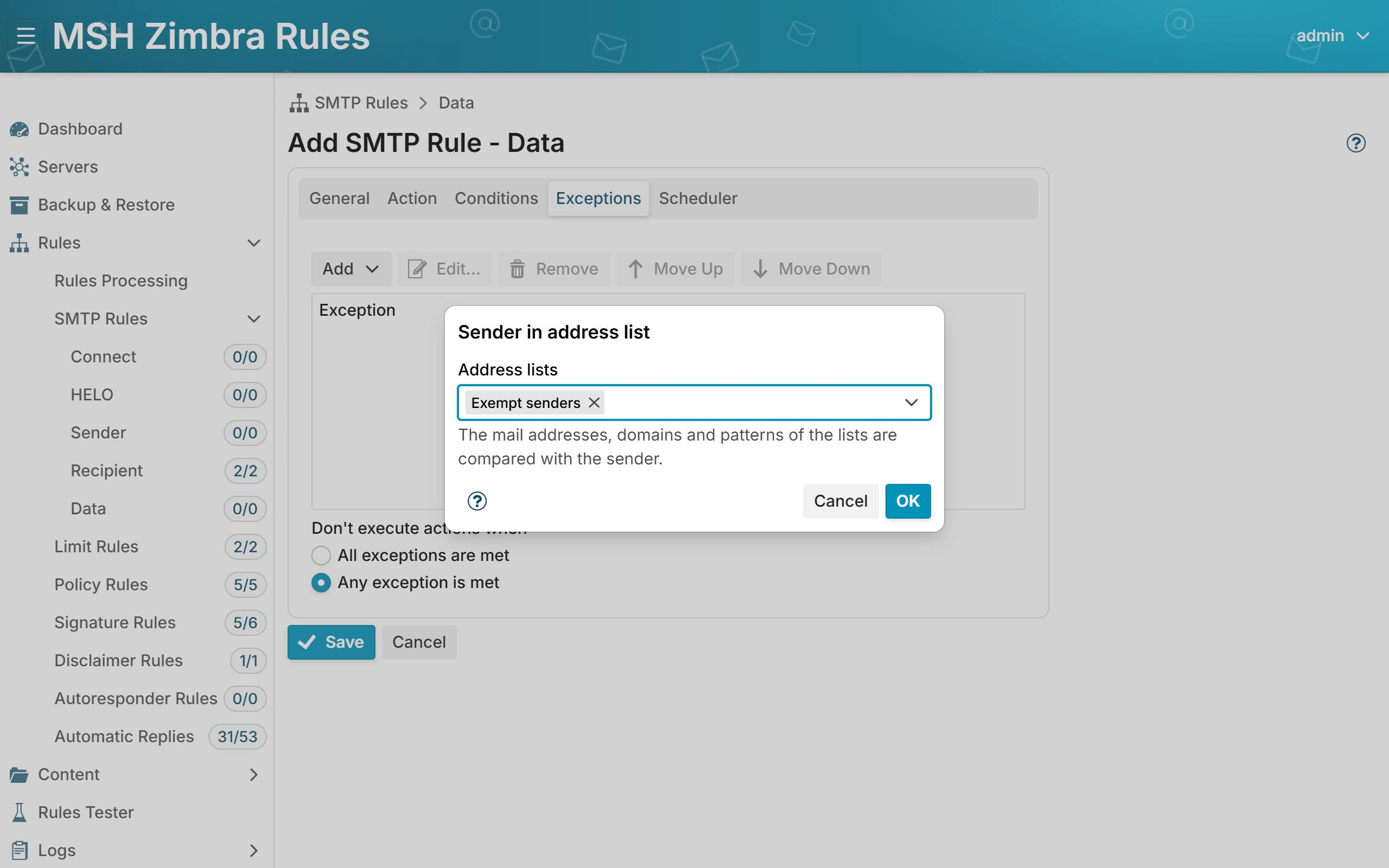
The exception compares the envelope sender. A mail client that logs in as the newsletter account sends with its address, and so does the web client of that account.
An exempt account is not limited by these two rules, but it is still counted by any other limit, such as the sending limit of Stop a Compromised Zimbra Account from Sending Spam. Keep it there, with a higher limit of its own if needed, so that a stolen password of the newsletter account cannot send without limit either.
Better: a mailing service
For a real newsletter, sent every month to thousands of readers, a mailing service does
what a mailbox cannot: an unsubscribe link and header in every message, removal of
bounced addresses, pacing per receiving provider, and statistics. Send it from a
subdomain such as news.example.com with its own SPF and DKIM records, so that its
reputation stays apart from the mail of your users. Then the exception is not needed
at all, and the two rules catch only the mass mail that should not leave a normal
mailbox.
What senders see
| Sender | Comes in by | Result |
|---|---|---|
| Any user, 51 or more recipients, in a mail client | Submission | 550 5.5.3 with your reply. Nothing is sent. |
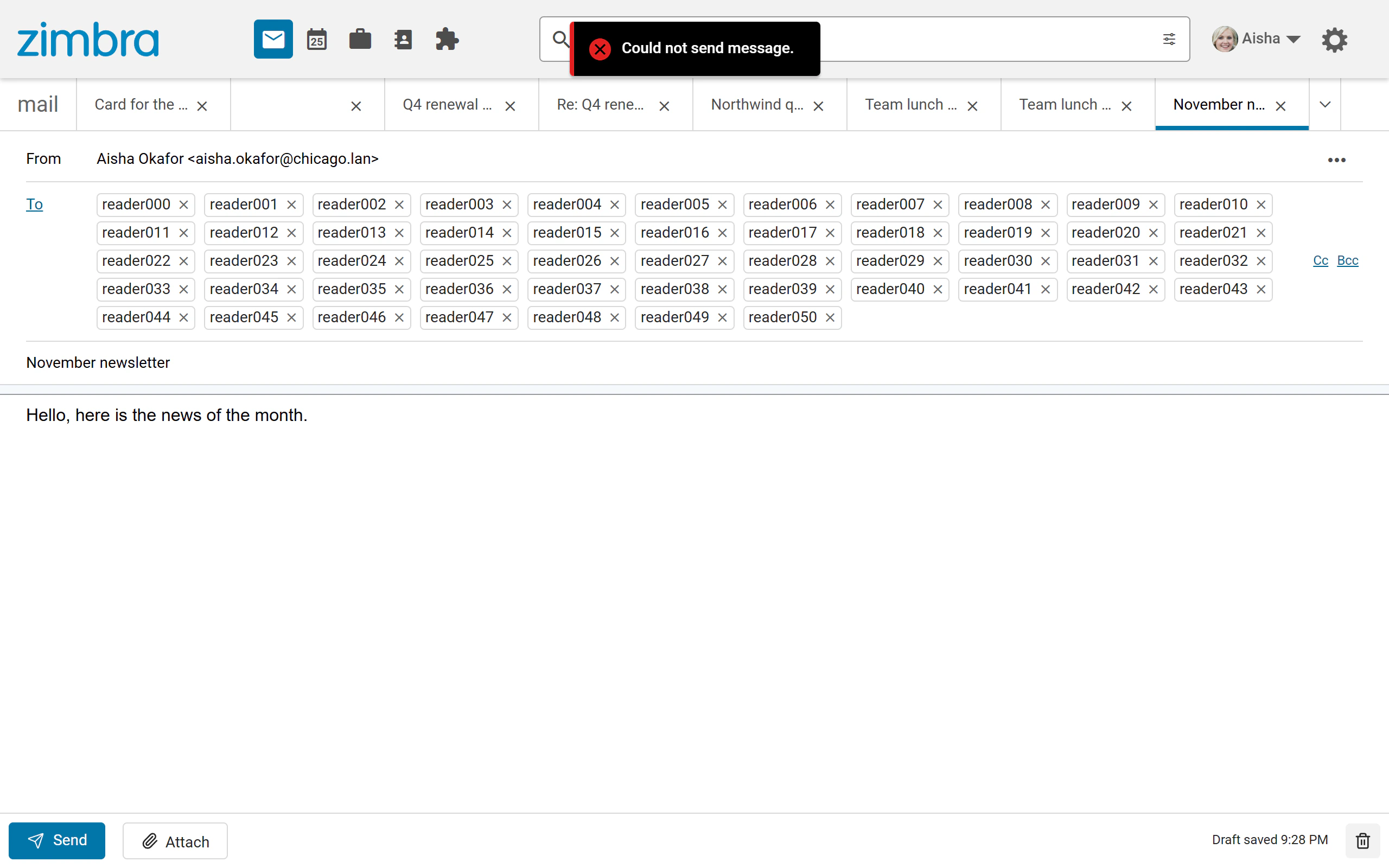
| Any user, 51 or more recipients, in the web client | Mailbox server | Could not send message. The message stays open as a draft. |
| A user over 200 recipients in the hour | Submission, Mailbox server | 451 4.7.1 with your reply, or Could not send message. in the web client |
| The account on Exempt senders | Submission, Mailbox server | Sent, also 250 recipients within the hour |
The web client does not show your reply, only Could not send message., so tell your users about the limits once, for example in the announcement that introduces them.
Variations
- A daily cap. Add a third rule like the one of step 2, with at most
500per calendar day (from midnight), for a user who sends 200 every hour all day. - Only mail that leaves the company. Add Message > Message direction, Outgoing, to the conditions of both rules, so that internal announcements are not limited. The condition matches when at least one recipient is outside, and then every recipient of the message counts.
- Different limits per team. Make the rules for Sender > Sender, In Group, for example a higher limit for Sales and the default one for everyone else, with Sales as an exception there.
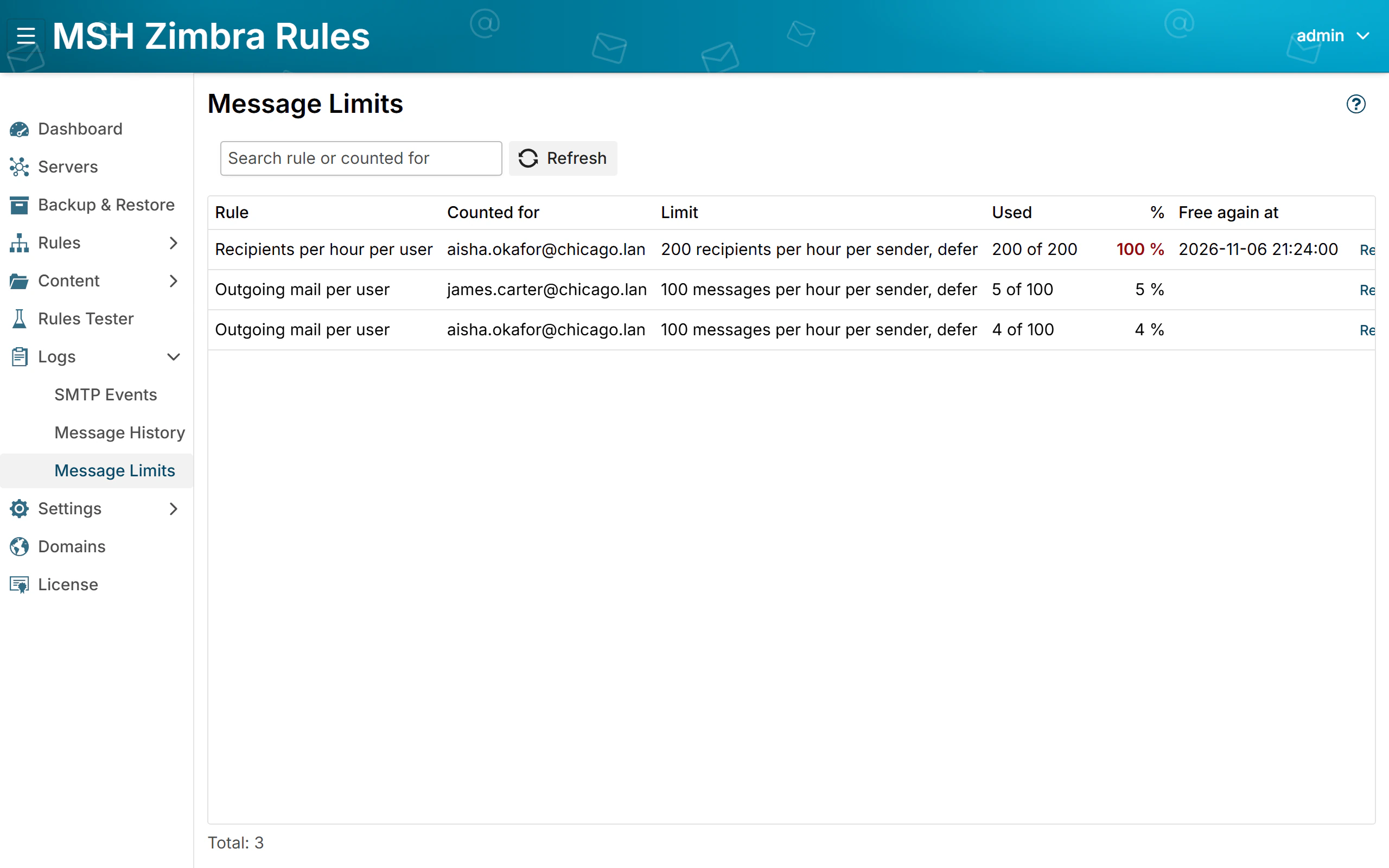
- Trying it first. Leave the rules on for a week with high limits and watch Logs > Message Limits and SMTP Events. Then lower the limits to well above what your busiest real user sends.
Related reading
- Number of recipients - the condition of step 1
- Action of limit rules - limit, counting and what happens when exceeded
- Sender in address list - the exception for Exempt senders
- Message limits - the counters and how to reset one
- Stop a Compromised Zimbra Account from Sending Spam - the sending limit per user that goes with these rules
Want to try it on your own server? Start a free trial.