Limit Who Can Write to All Staff and Other Large Lists in Zimbra
A list such as all@ reaches everyone in the company, which is exactly why it goes
wrong: a lunch invitation to three hundred people, a reply-all storm under the
announcement of a new coffee machine, or spam that found the address on the website.
Two SMTP rules of MSH Zimbra Rules keep the list for the people who
should write to it: everyone else is refused with a reply that says what to do, and mail
from the internet does not reach the list at all.
Why an SMTP rule
SMTP rules decide during the SMTP conversation, before the message is sent. A rule of the Recipient stage is asked once for each recipient, so it refuses only the list address:
- a mail client gets the refusal with your reply for that one address, and the other recipients of the message still get it,
- the refused copy is never received, so it costs no disk and sends no bounce, and
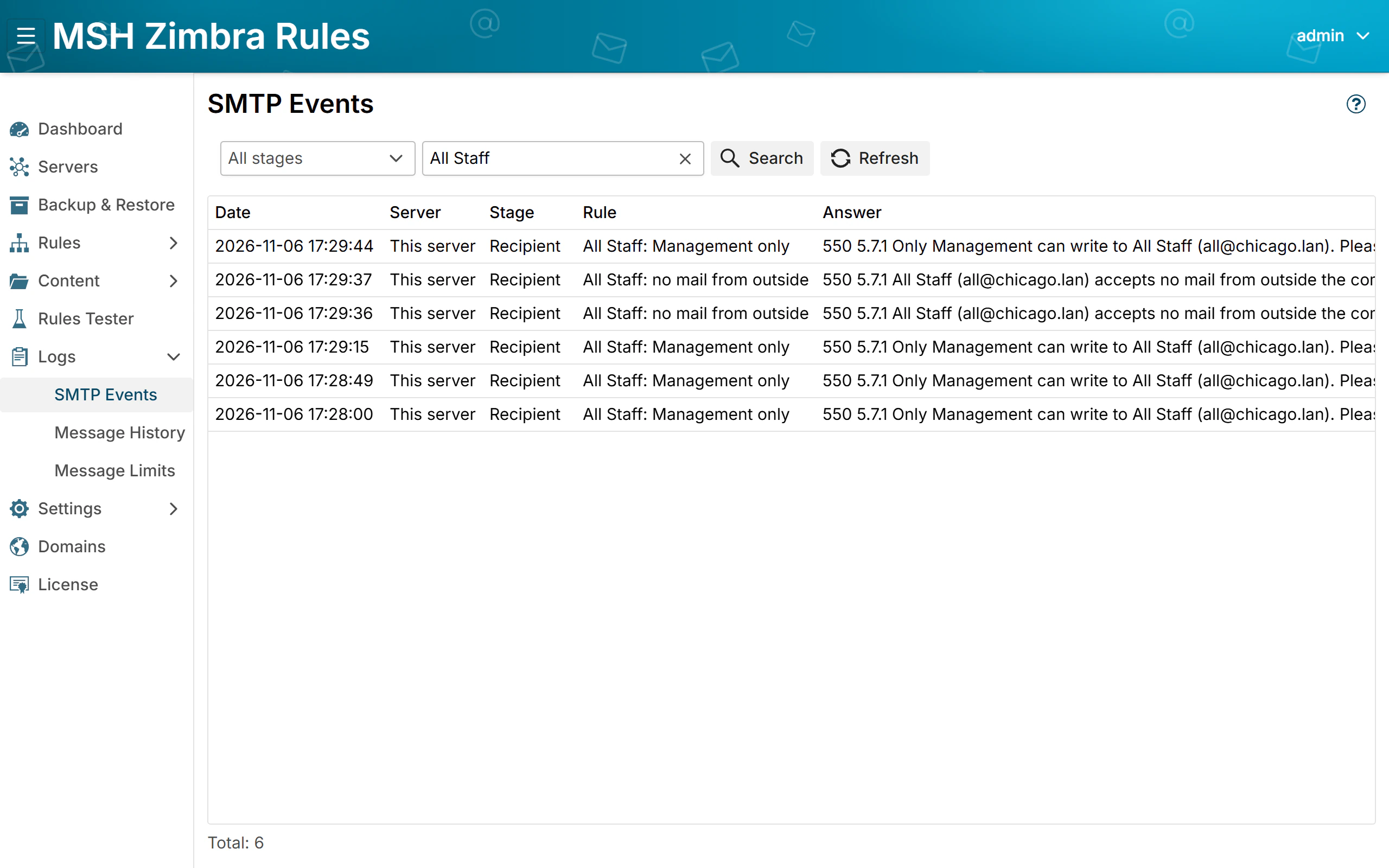
- every refusal is listed on the SMTP Events page.
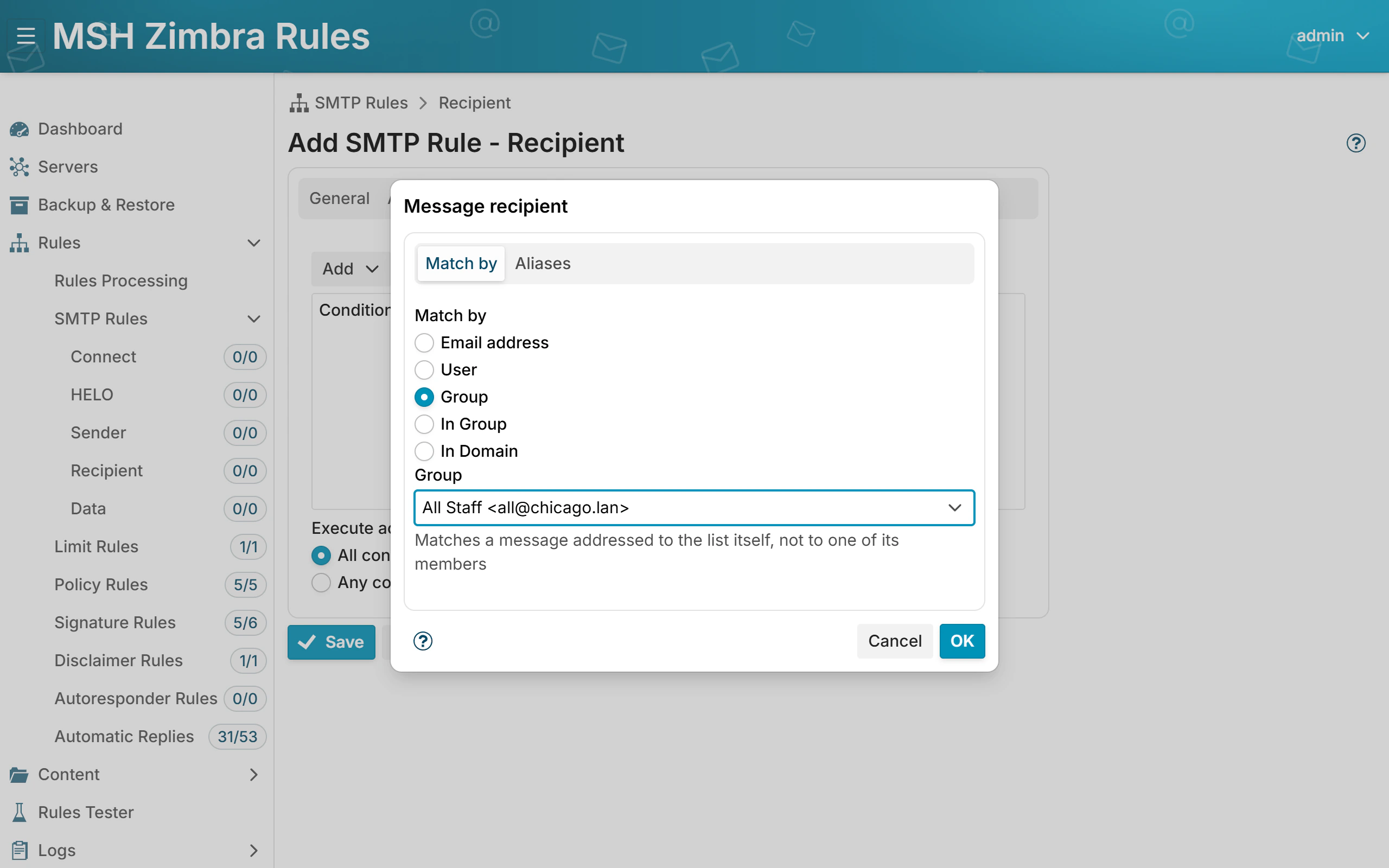
At this stage the recipient is still the list address, as the sender wrote it: Zimbra expands the list into its members later. That is what the condition Recipient with Group matches.
Zimbra itself can restrict a list with the sendToDistList right, checked by its own
built-in milter. The rules here do the same from the web admin, with your own reply, a
separate rule for mail from outside, and a record of each refusal.
Step 1 - Only Management may write to the list
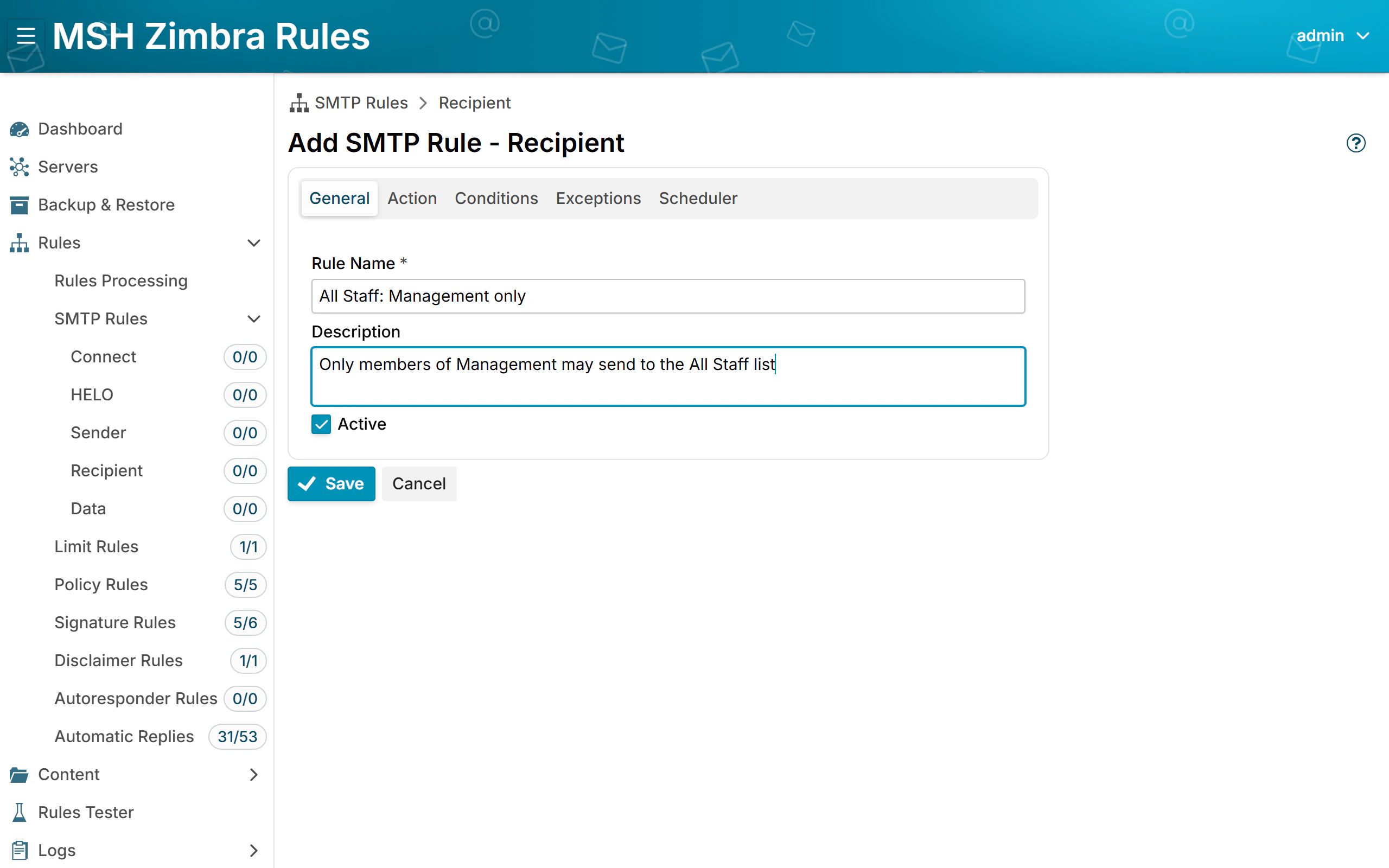
Open Rules > SMTP Rules > Recipient, click Add Rule... and name the rule
All Staff: Management only:
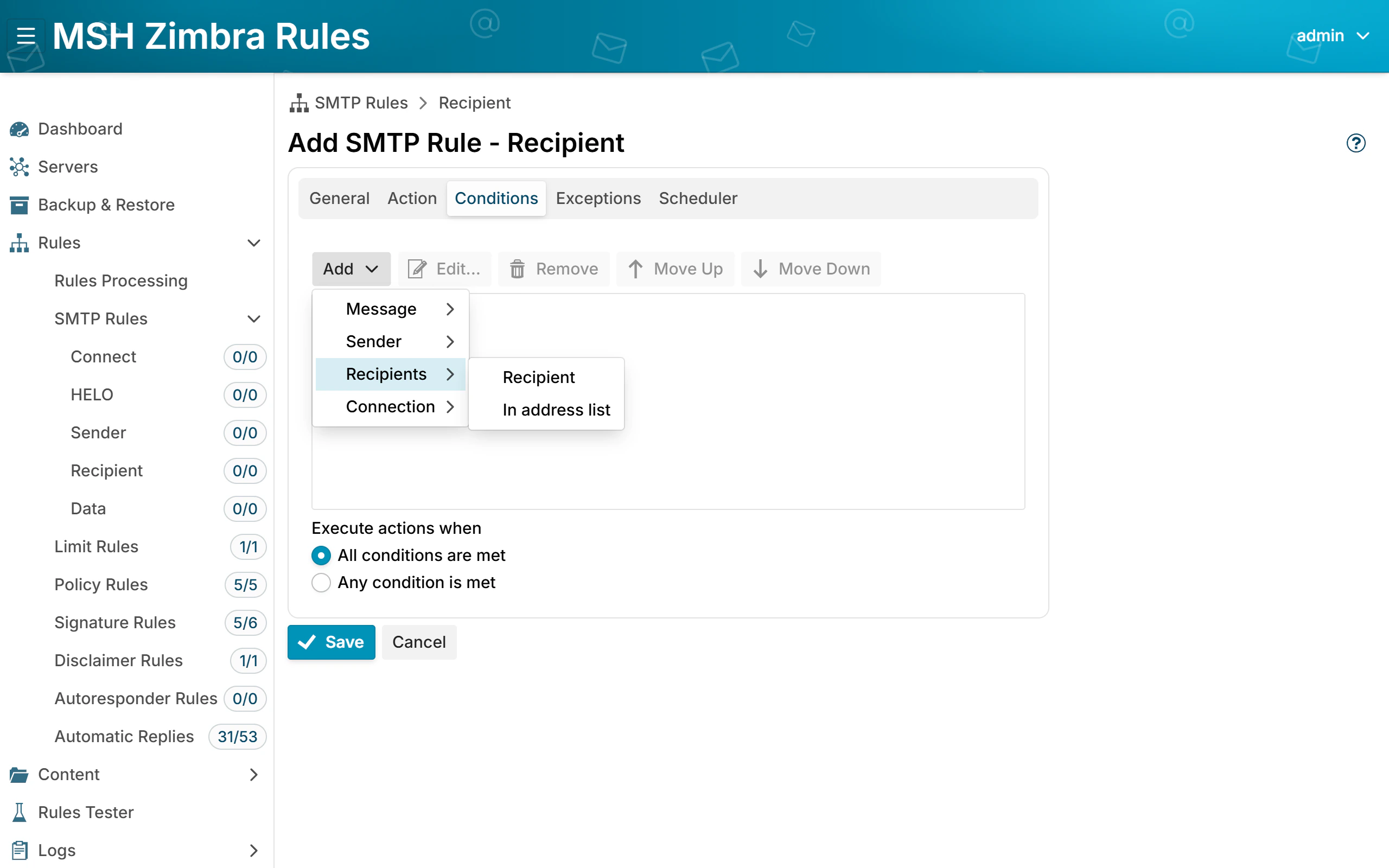
- Conditions: Recipients > Recipient, Group, the list, here All Staff.
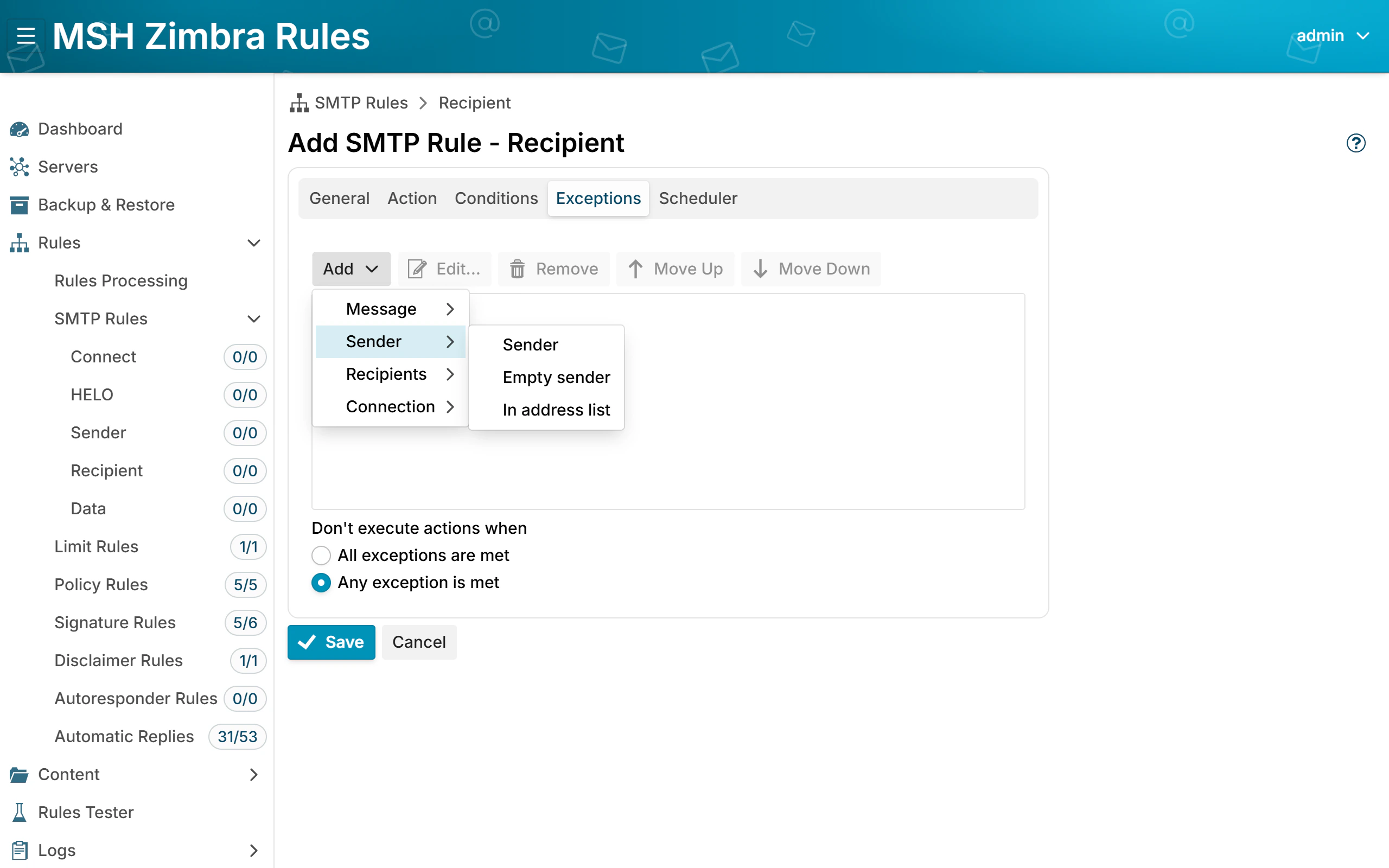
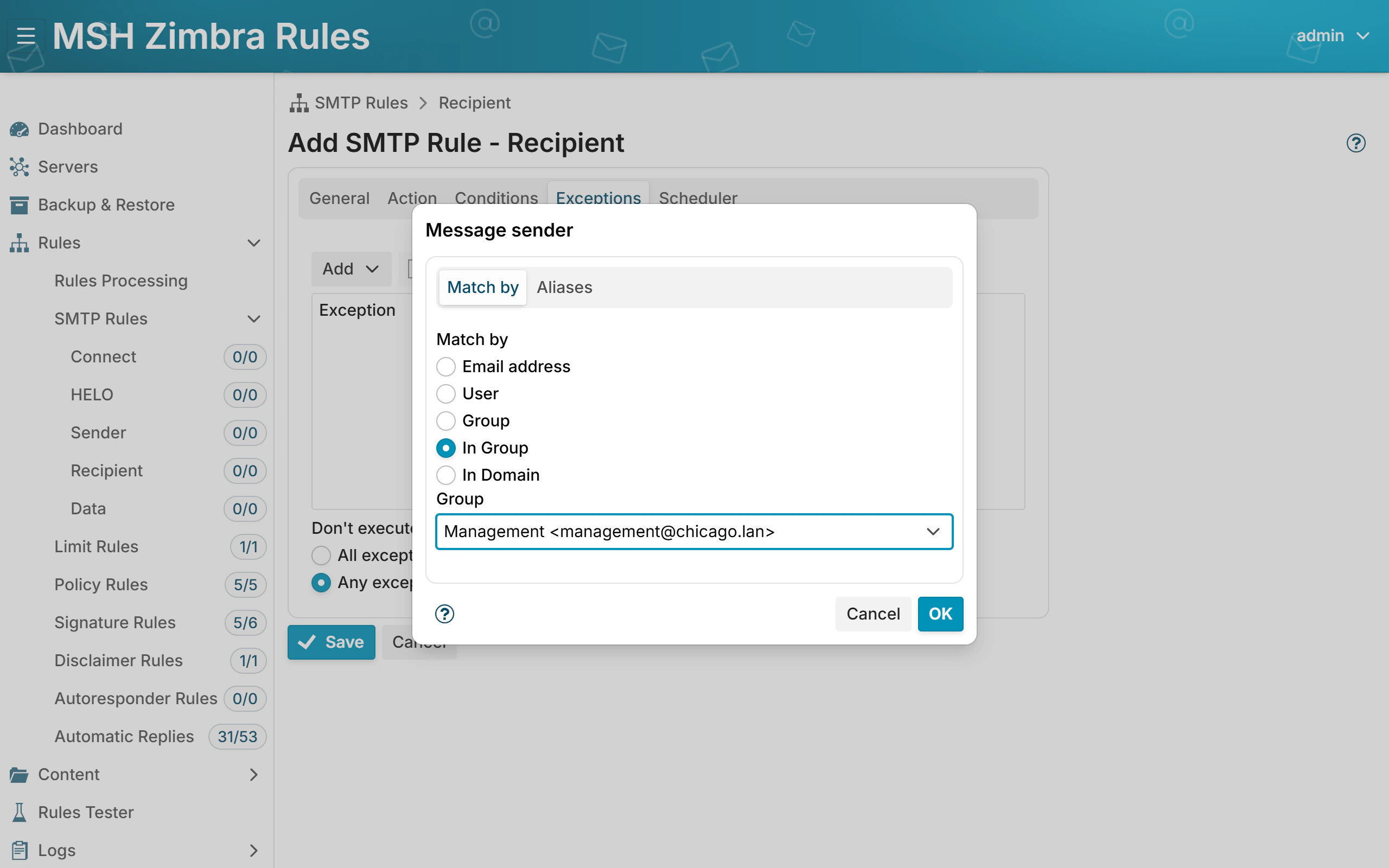
- Exceptions: Sender > Sender, In Group, the group whose members may write to the list, here Management.
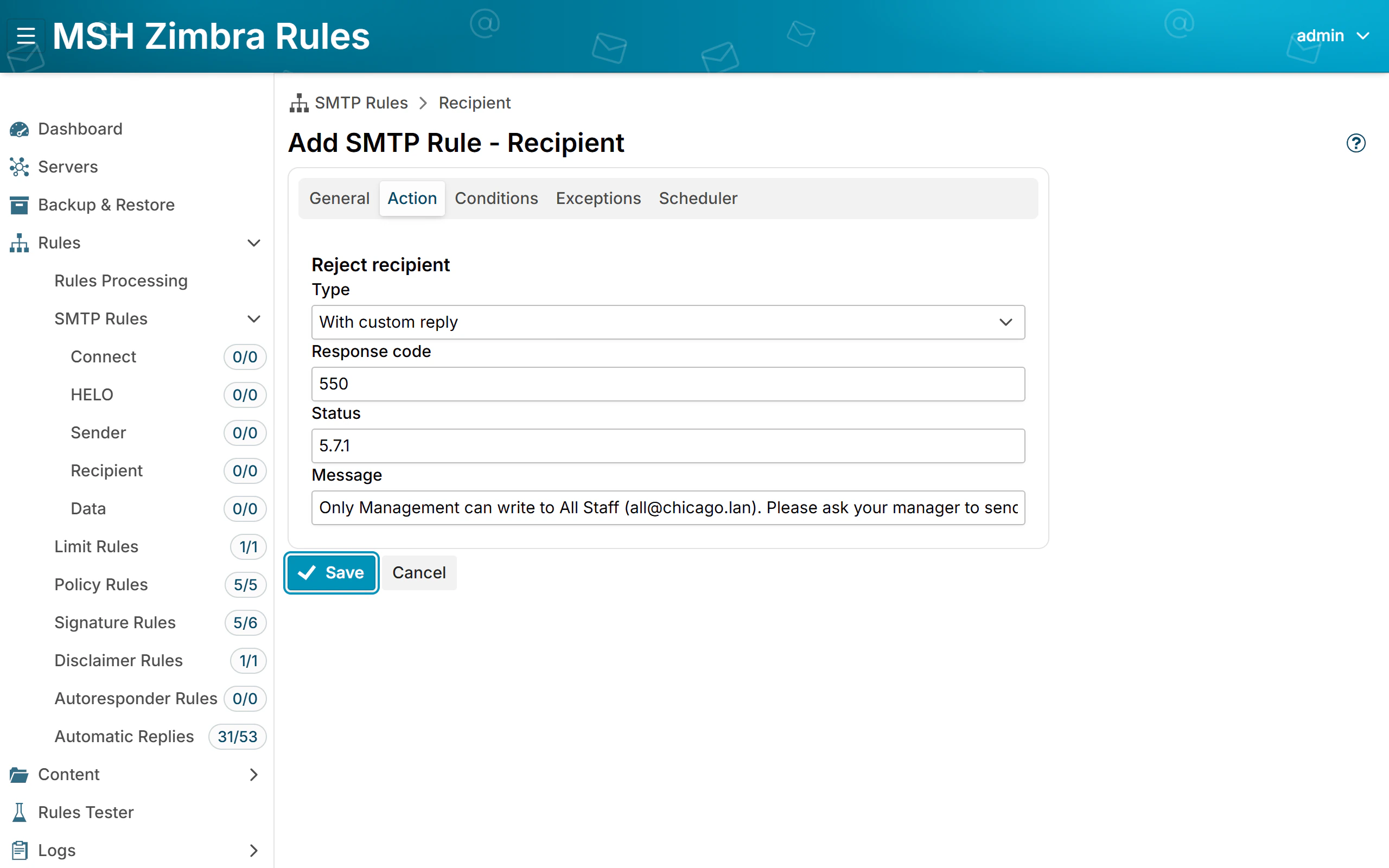
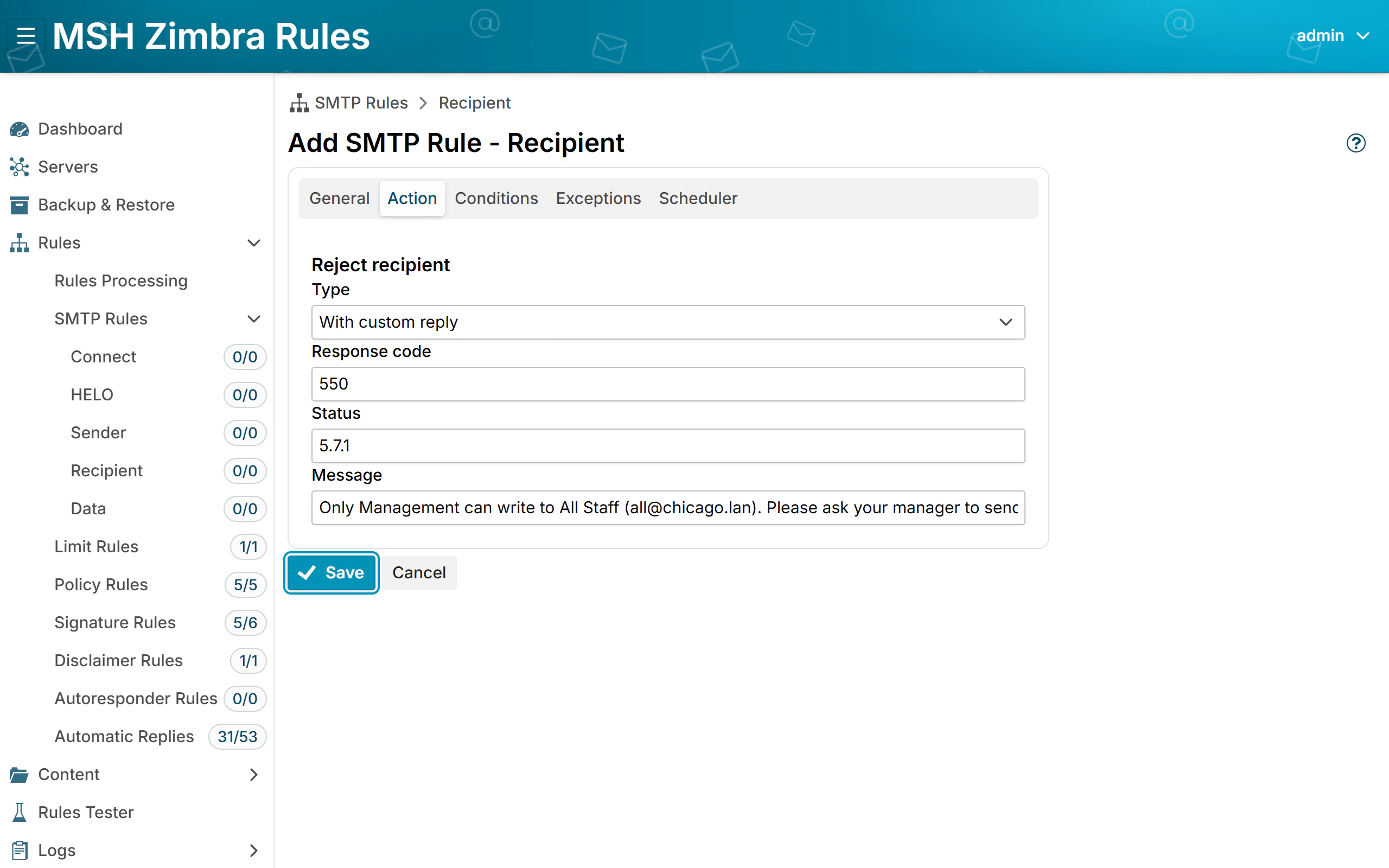
- Action: With custom reply, Response code
550, Status5.7.1, and a Message that says what to do instead, for example Only Management can write to All Staff (all@example.com). Please ask your manager to send the announcement.
The rule also ends reply-all storms: a reply to an announcement goes to the list address, and only the people who may write to the list get it through.
Step 2 - No mail from outside
The exception in step 1 looks at the sender address, and mail from the internet can carry any sender address, a manager's included. A second rule refuses the list to mail that came in from other mail servers, whatever its sender says.
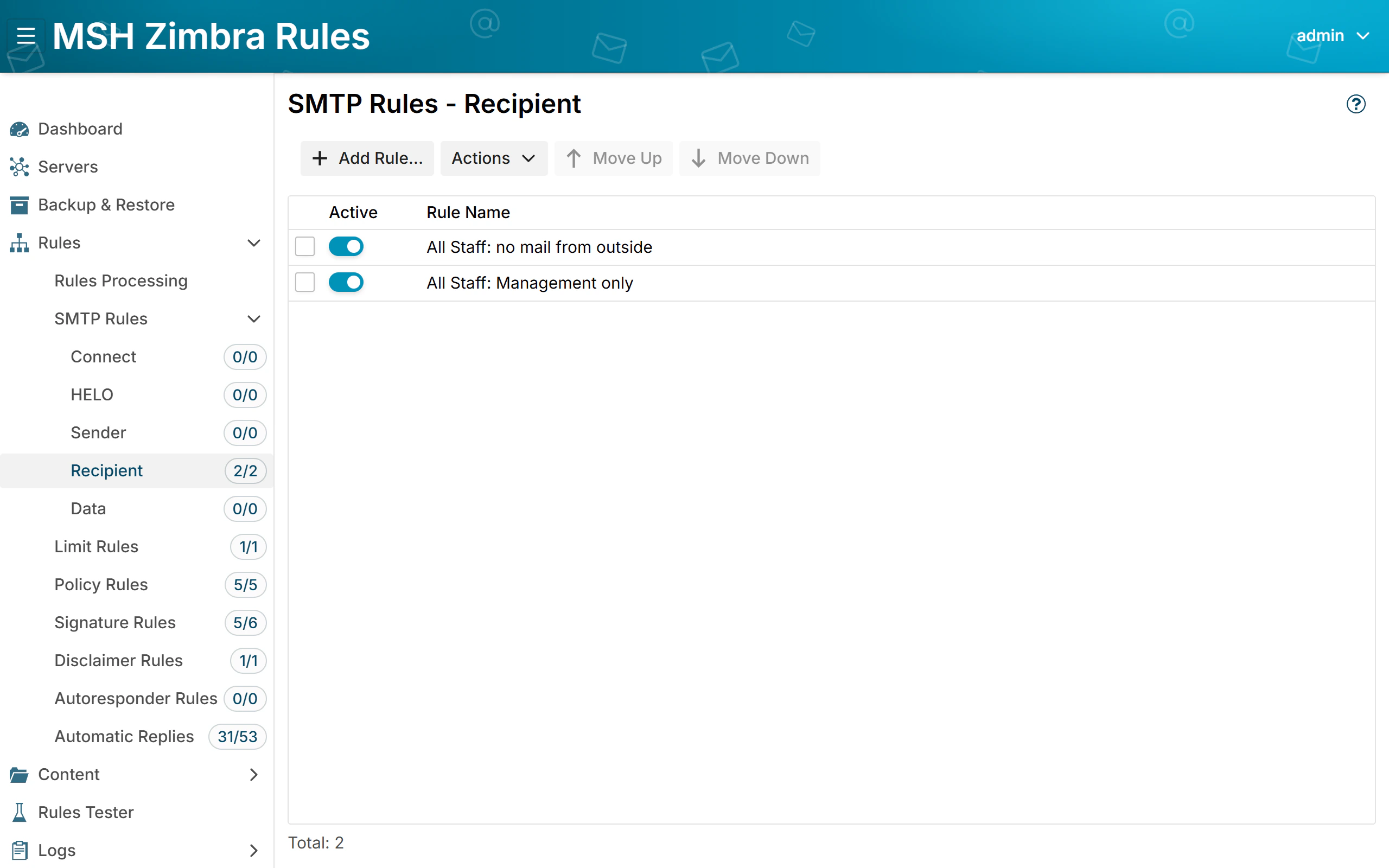
Add a rule All Staff: no mail from outside to the same stage:
- Conditions (all): Recipients > Recipient, Group, All Staff; and Connection > Received through, Incoming: other mail servers, port 25.
- Action: With custom reply,
550,5.7.1, for example All Staff (all@example.com) accepts no mail from outside the company.
Then select it and click Move Up, so that it runs first. Every active rule of a stage runs in order until one refuses, and the first refusal gives the reply.
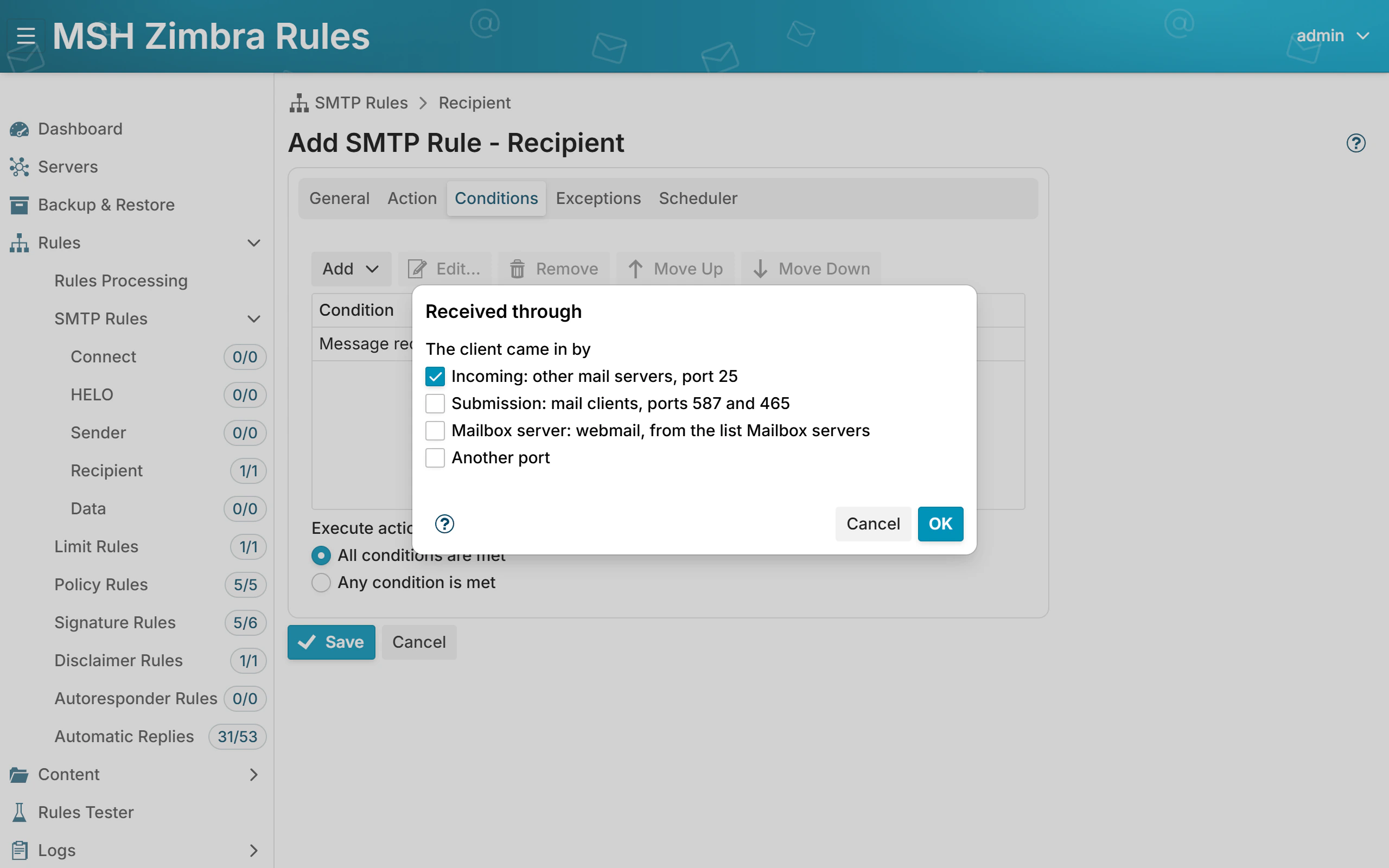
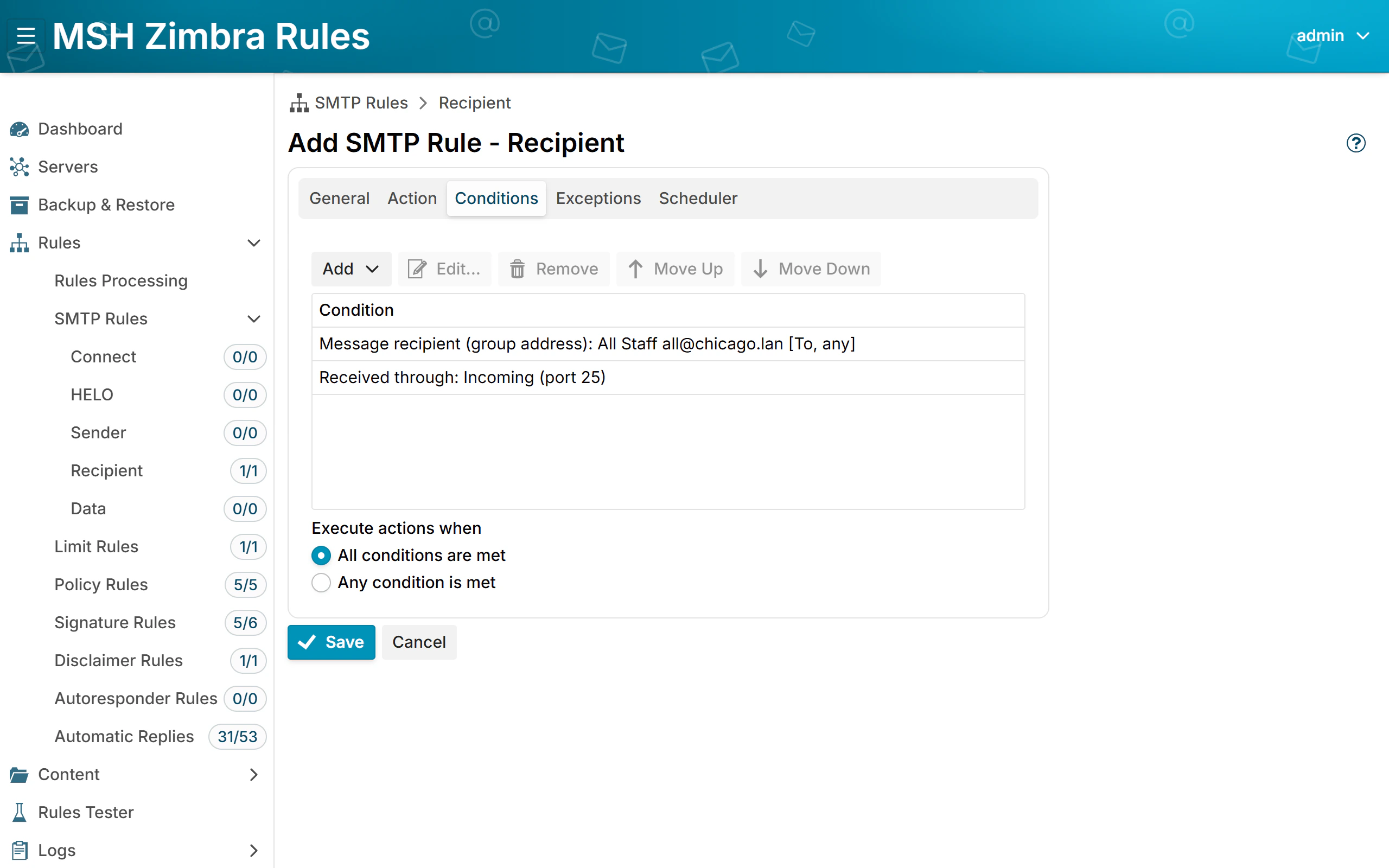
Received through tells your users' mail from mail of other servers by how it came in. Zimbra's web client hands mail to port 25 too, so fill in the address list Mailbox servers first, or webmail counts as mail from outside. See Step 1 of Stop a Compromised Zimbra Account from Sending Spam.
What senders see
| Sender | Comes in by | Result |
|---|---|---|
| A member of Management, in the web client or a mail client | Mailbox server, Submission | Delivered to the list |
| Anyone else in the company, in a mail client | Submission | The list address is refused with your reply. The other recipients get the message. |
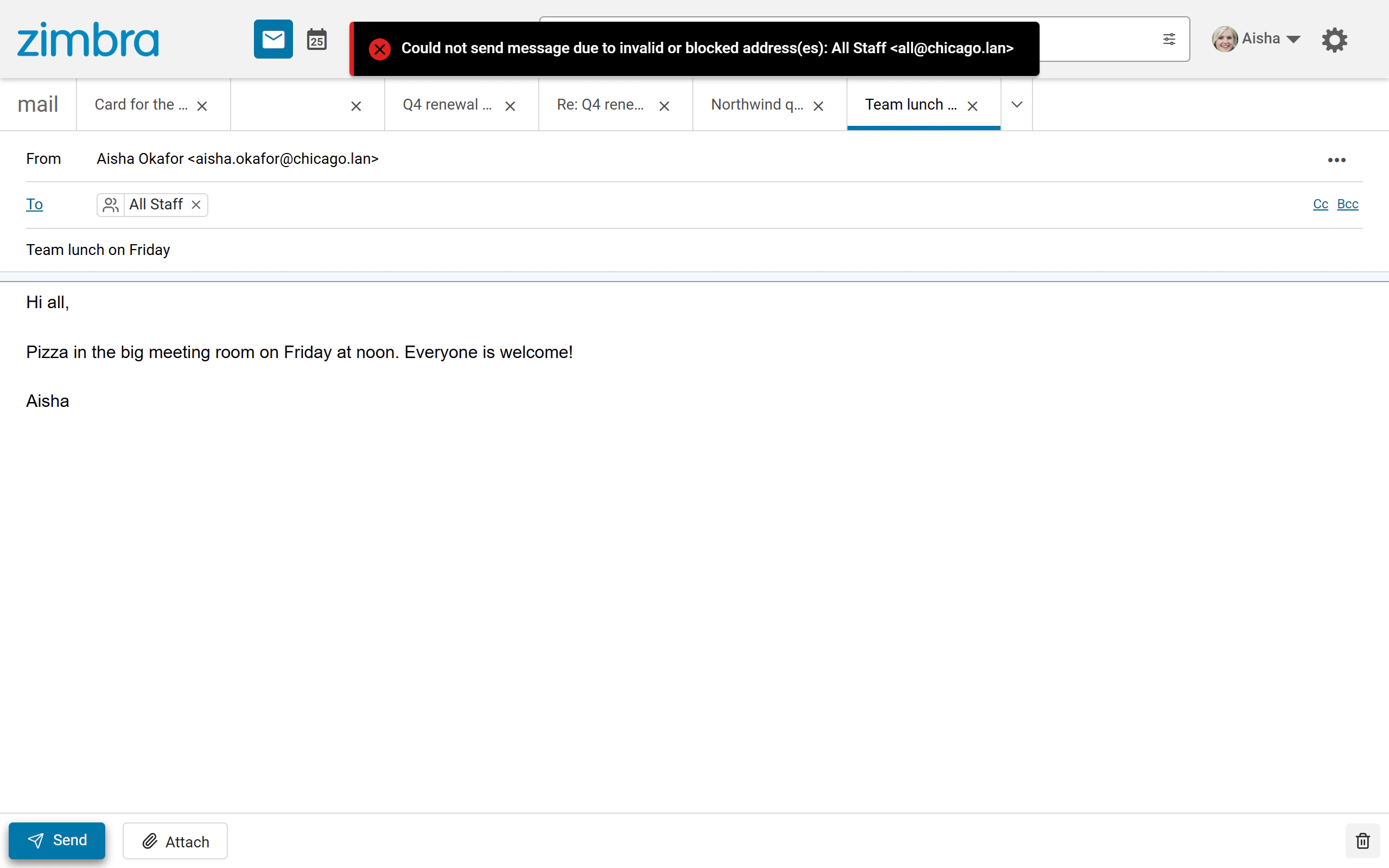
| Anyone else in the company, in the web client | Mailbox server | The whole message is not sent, see below |
| Anyone on the internet, also with a forged Management sender | Incoming | The list address is refused with the reply of the second rule |
The web client does not show your reply. It says Could not send message due to invalid or blocked address(es) and names the list, and it sends the message to nobody, the other recipients included, until the list is taken out of the message. So tell people about the rule once, for example in the announcement that introduces it.
Variations
- Several lists. In both rules, use Recipient with Email address instead of
Group, and enter the list addresses separated by
;, for exampleall@example.com;staff@example.com. - More people who may write. Add exceptions: Sender > Sender with User for an assistant who sends announcements, or In Group for a second group. Or make a group of its own, such as List senders, and keep it up to date in Zimbra.
- Trying it first. Start with Temporarily instead of a custom reply: a sender wrongly refused keeps the message and sends it once you change the rule. Watch SMTP Events for a few days, then switch to the reply.
- A list that should get mail from outside, such as
sales@: leave out the second rule for it, and keep only the first one, or none.
Related reading
- SMTP rules - the stages and how the rules of a stage run
- Message recipient - why Group matches the list address
- Received through - port 25, submission and webmail
- Action of SMTP rules - the custom reply
Want to try it on your own server? Start a free trial.