Add a Legal Disclaimer to External Mail Only in Zimbra
Many companies have to, or want to, end every outgoing email with a confidentiality notice and the company's registered details. Colleagues do not need to read it fifty times a day, and a customer thread should not collect one copy per reply. With MSH Zimbra Rules, one disclaimer rule adds it on the server to mail that leaves the organization, from every mail client, and leaves internal mail alone.
What you get
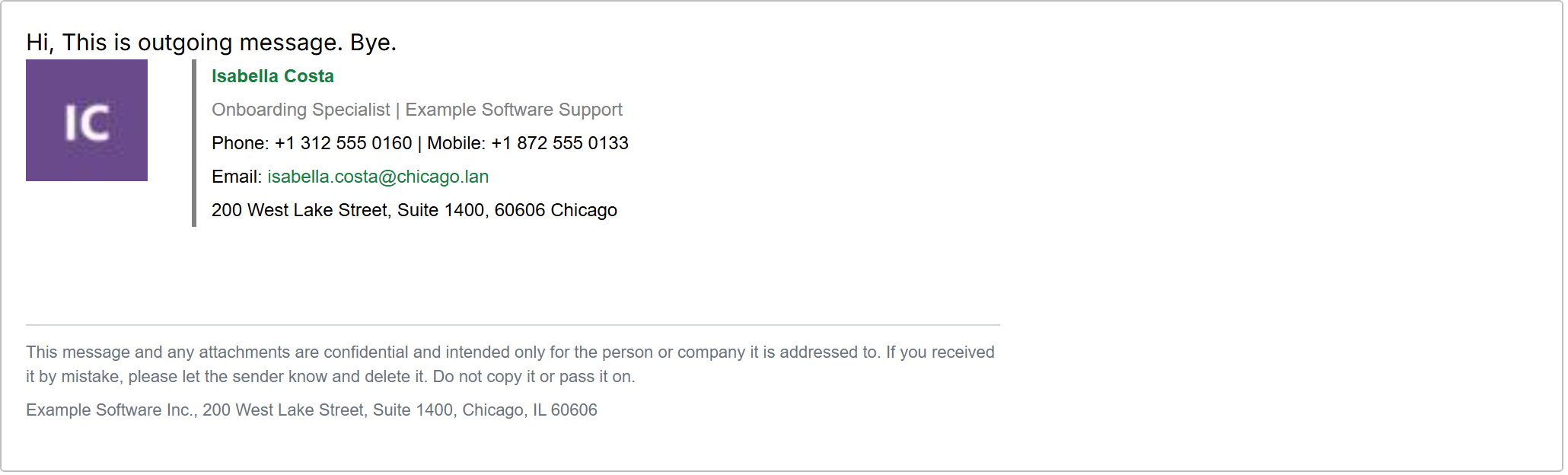
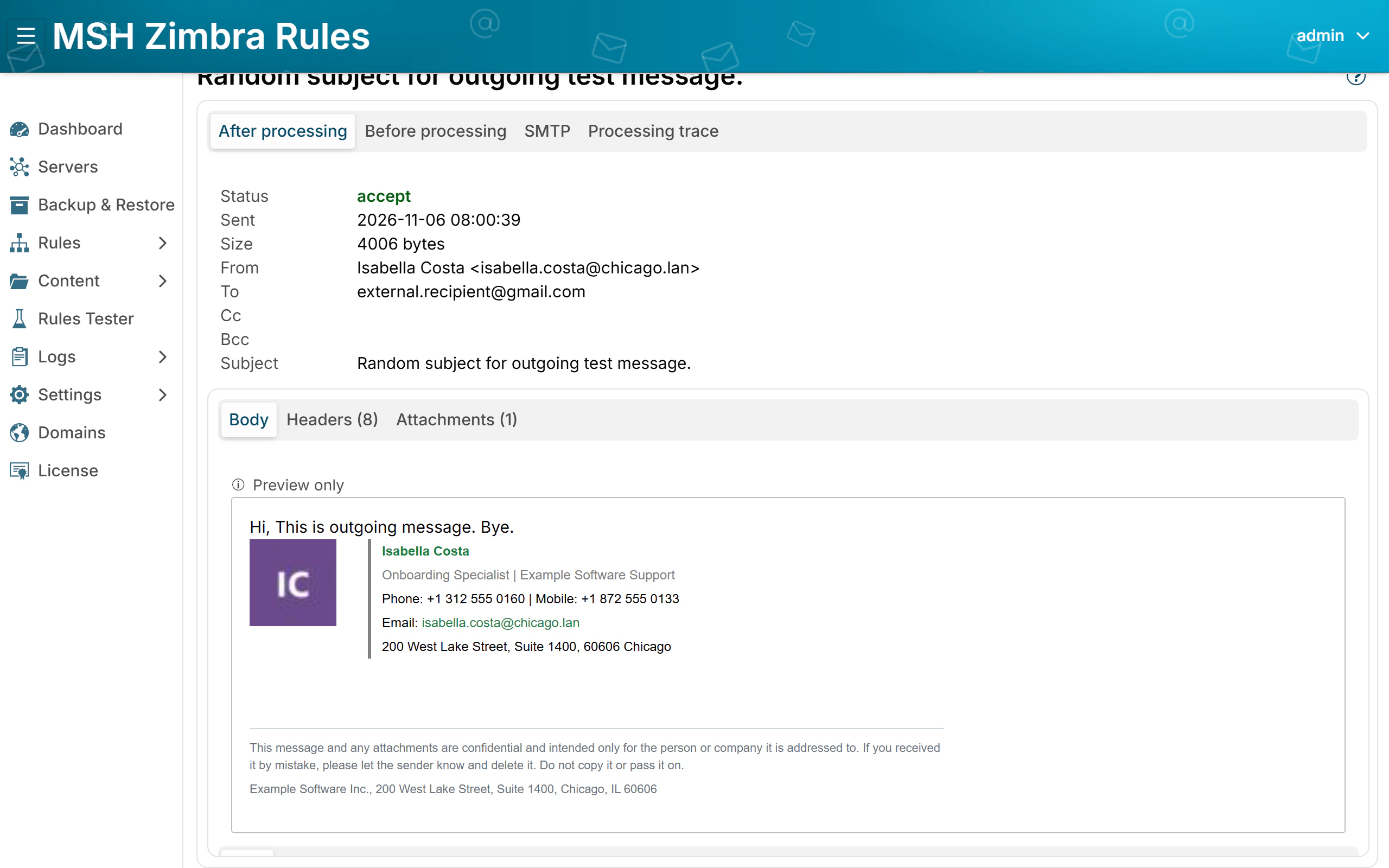
A message to a customer ends with the disclaimer, below the sender's signature:
| Message | Disclaimer |
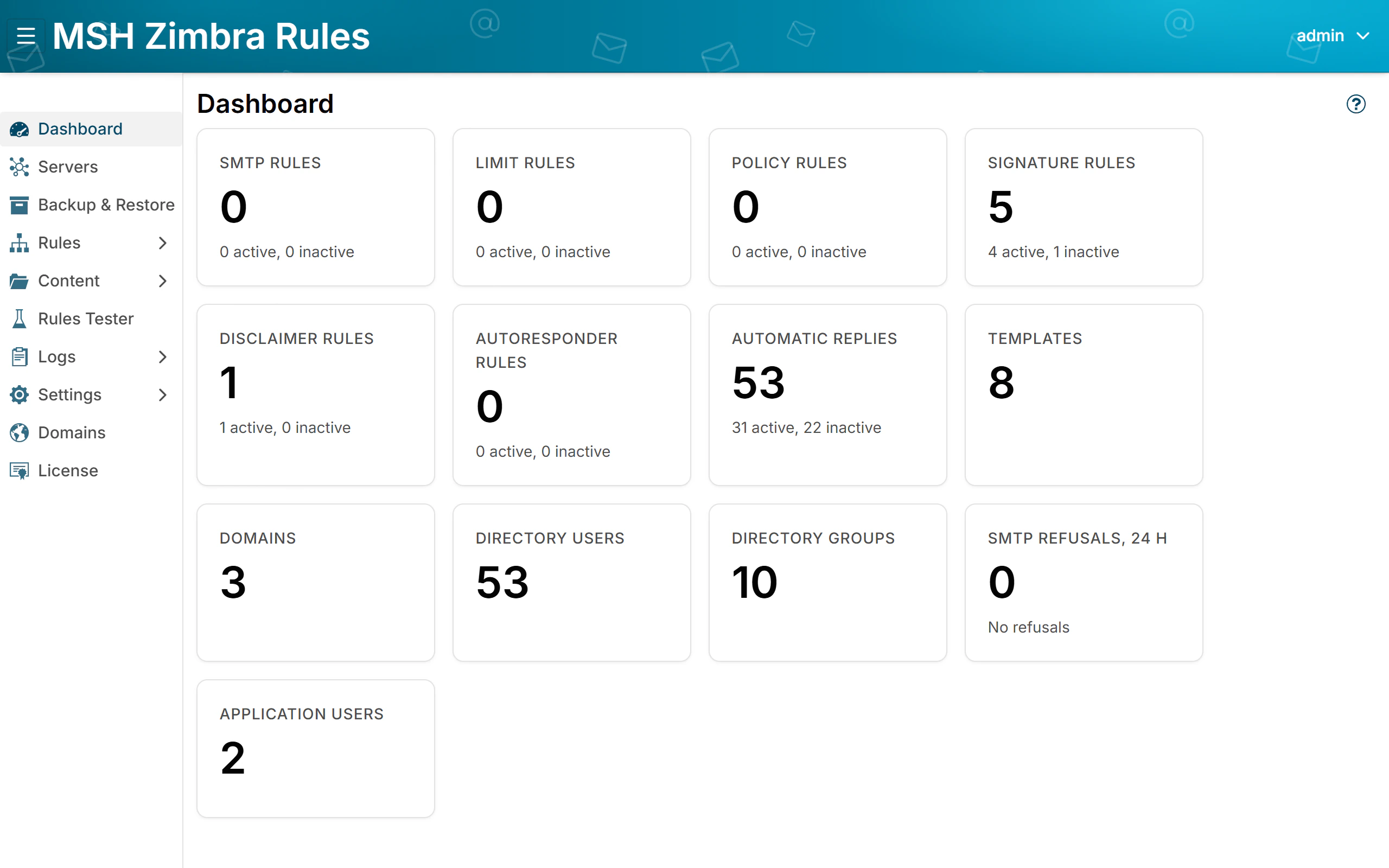
|---|---|
| To a customer | Added at the bottom |
| To a colleague | None |
| To a colleague and a customer | Added, for both |
| A reply that already quotes the disclaimer | Not added again |
| Signed or encrypted | None, the message is left untouched |
What you will build
| Part | Setting |
|---|---|
| Template | Legal disclaimer, imported from an Html and a text file |
| Disclaimer rule | Condition: Message direction Outgoing, Position: bottom, Duplicates protector on |
Before you start
- MSH Zimbra Rules 1.4 or later, installed on the Zimbra server, see the installation guide.
- The directory service configured. The rule tells internal from external recipients by the domains it syncs from Zimbra, see Directory service. A domain you host but that is missing there counts as external.
- The text of the disclaimer, approved by whoever is responsible for it in your company. The example below is a placeholder, not legal advice.
Step 1 - Write the disclaimer
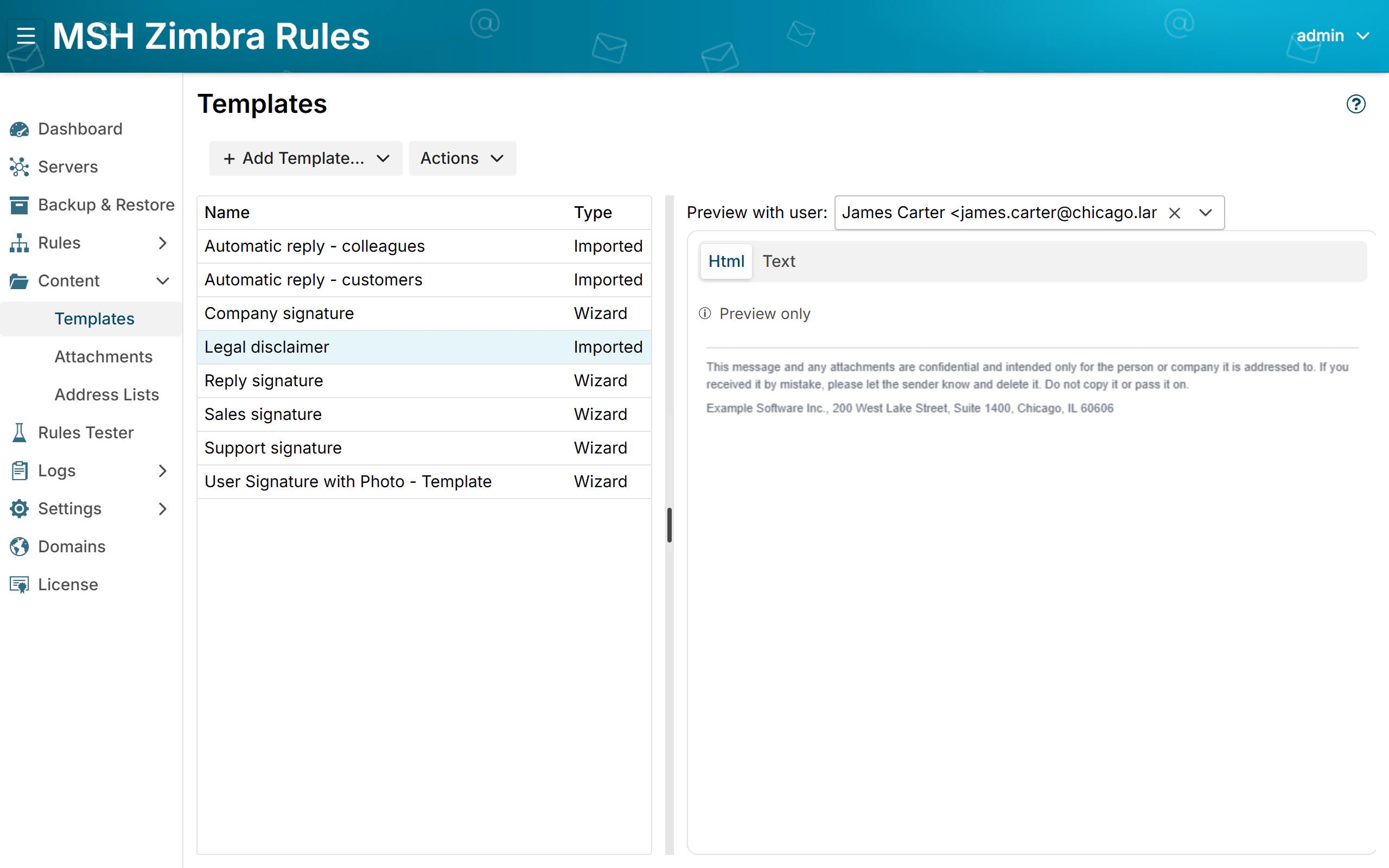
Keep it short and quiet: a thin line, small grey text, no images. It sits under every external message, so it should not compete with what the sender wrote.
<div style="margin-top:20px;padding-top:10px;border-top:1px solid #d0d7de;font-family:Arial,Helvetica,sans-serif;font-size:11px;line-height:1.45;color:#6b7280;max-width:640px">
  <p style="margin:0 0 6px 0">This message and any attachments are confidential and intended only for the person or company it is addressed to. If you received it by mistake, please let the sender know and delete it. Do not copy it or pass it on.</p>
  <p style="margin:0">Example Software Inc., 200 West Lake Street, Suite 1400, Chicago, IL 60606</p>
</div>
--
This message and any attachments are confidential and intended only for the person or company it is addressed to. If you received it by mistake, please let the sender know and delete it. Do not copy it or pass it on.

Example Software Inc., 200 West Lake Street, Suite 1400, Chicago, IL 60606
The text version goes into plain-text messages. Leave out <html>, <head> and
<title>: the disclaimer is inserted into a message that already has them.
Disclaimer templates replace only message and misc variables, such as
{message:subject} or {misc:date:yyyy}. User attributes such as {firstName} are
removed, see Disclaimer. Put anything
personal in the signature instead.
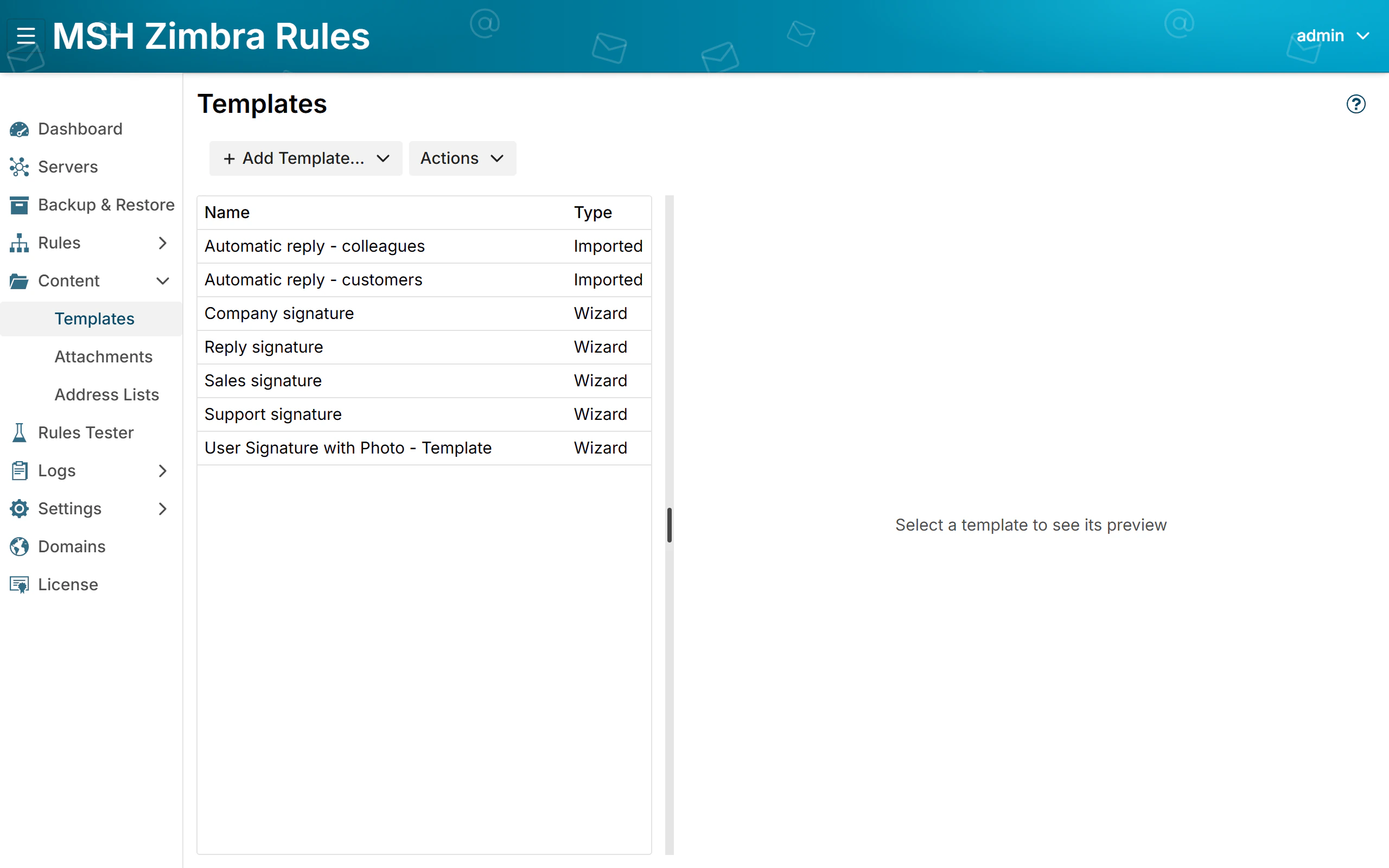
Step 2 - Import the template
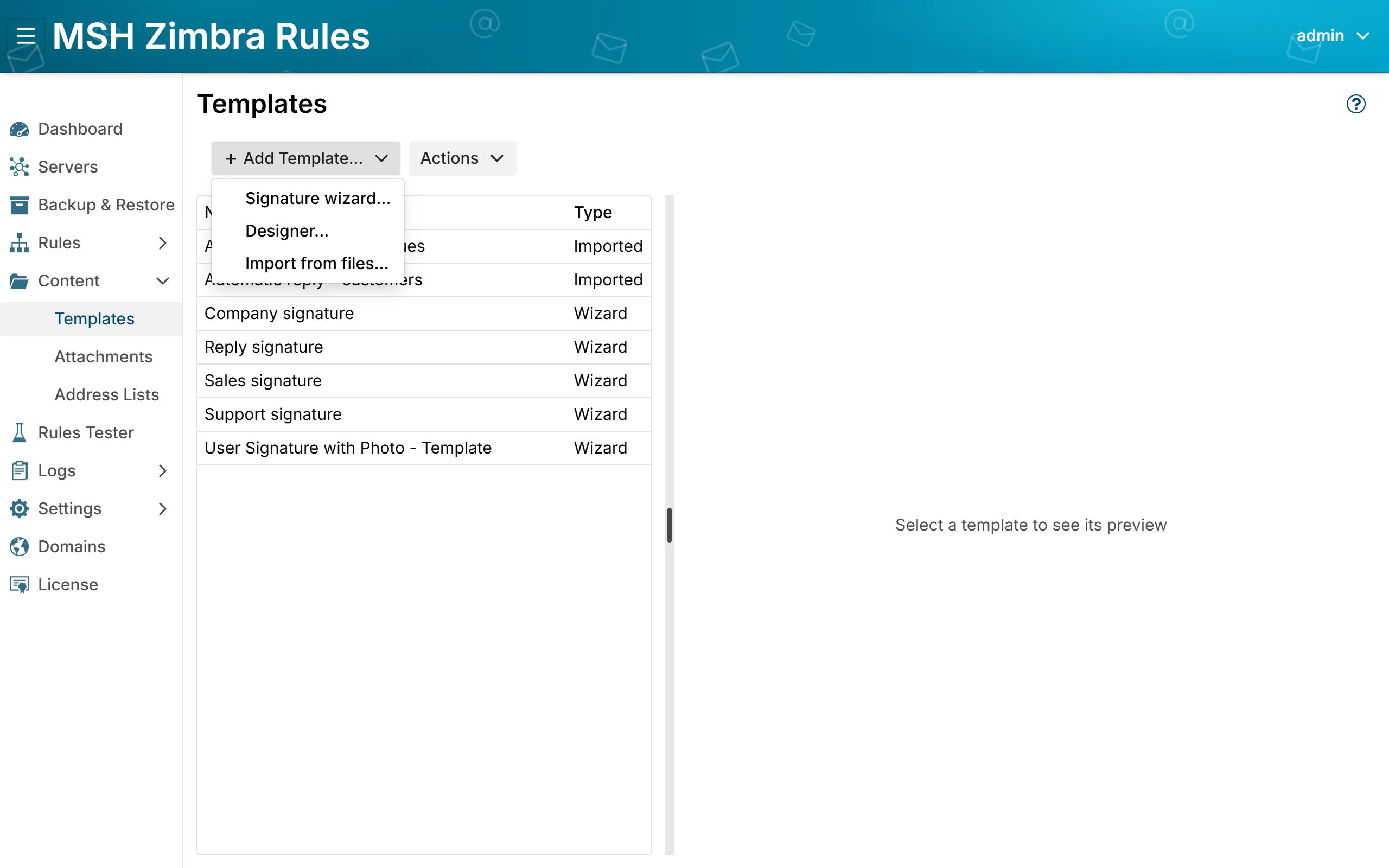
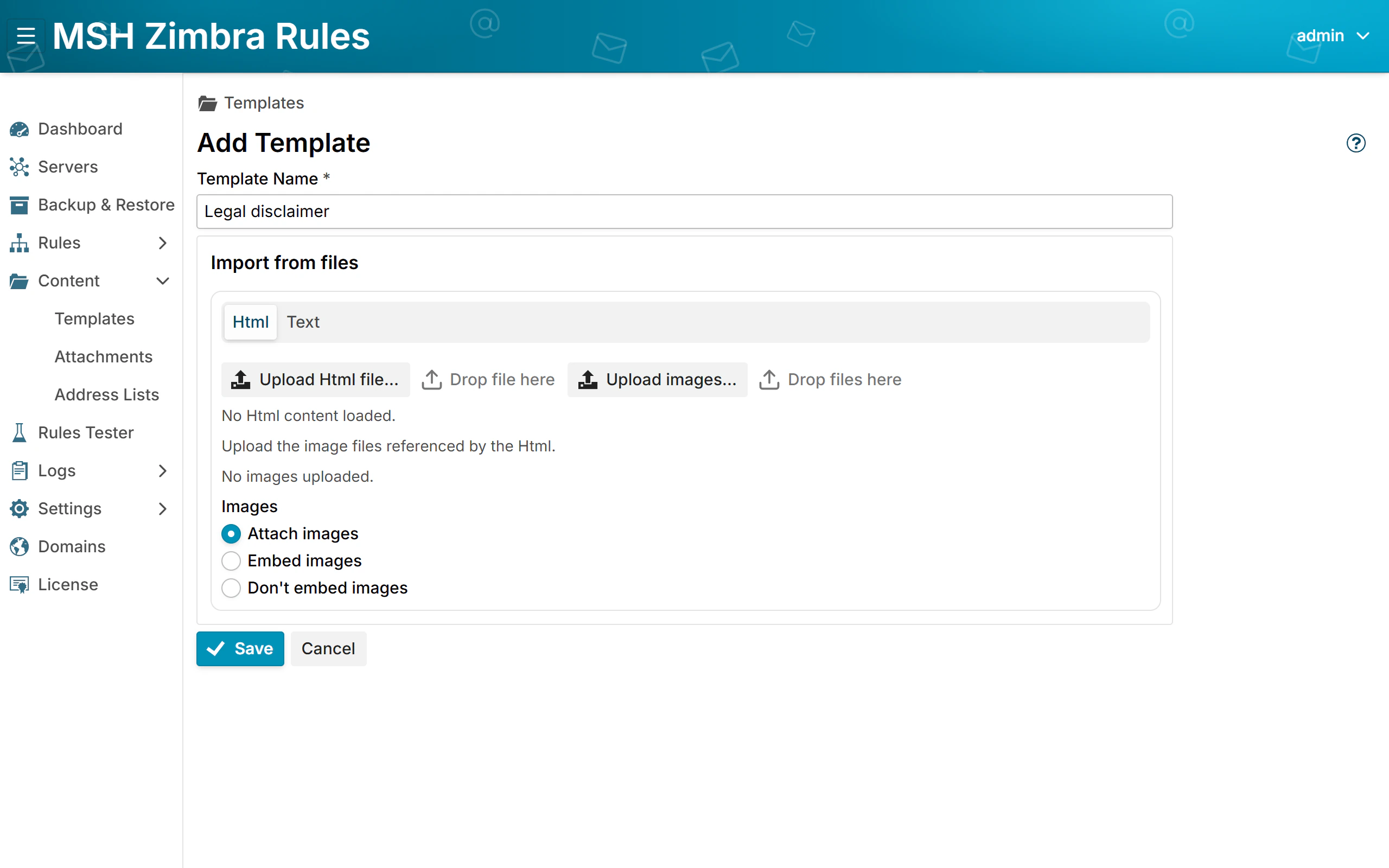
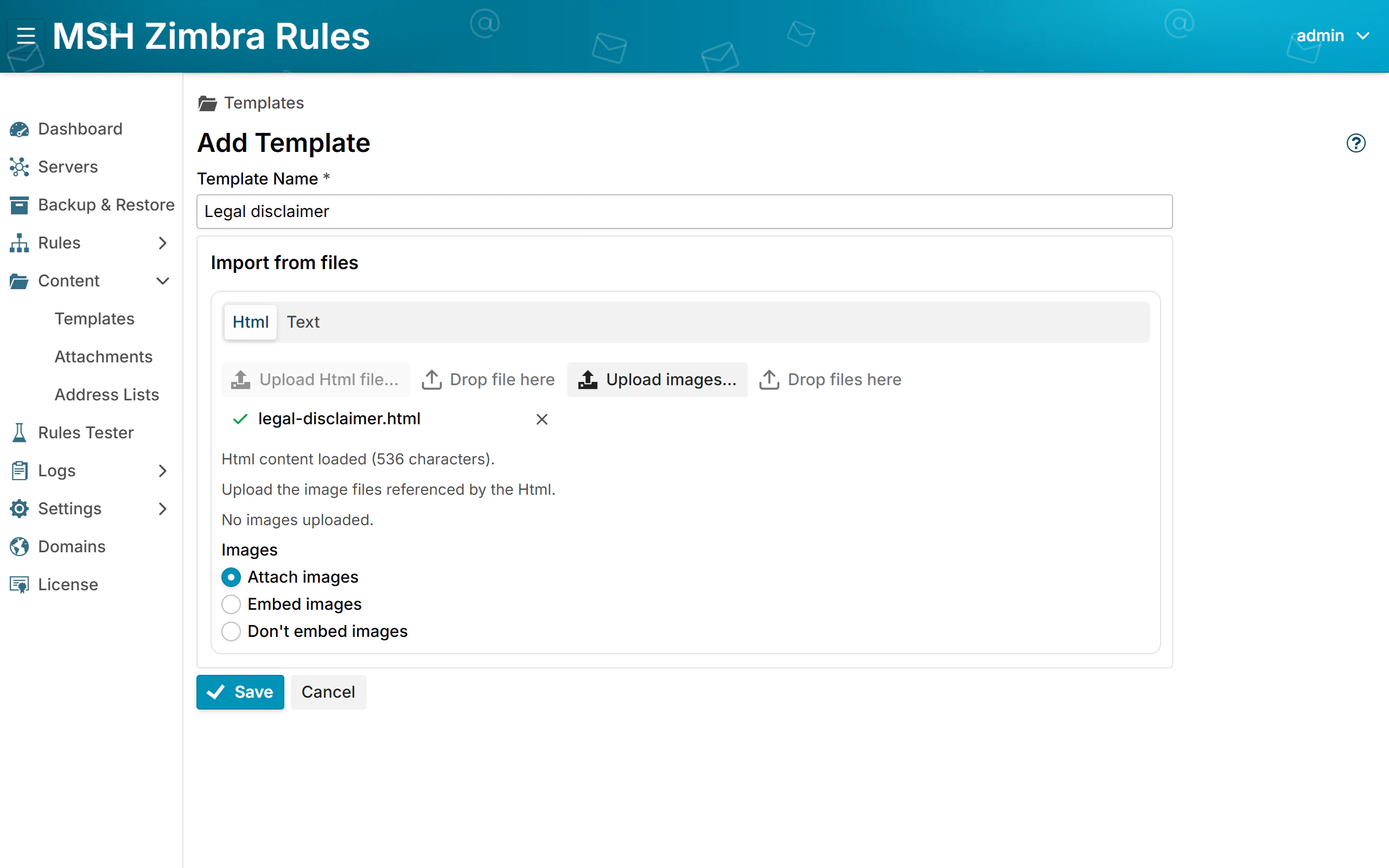
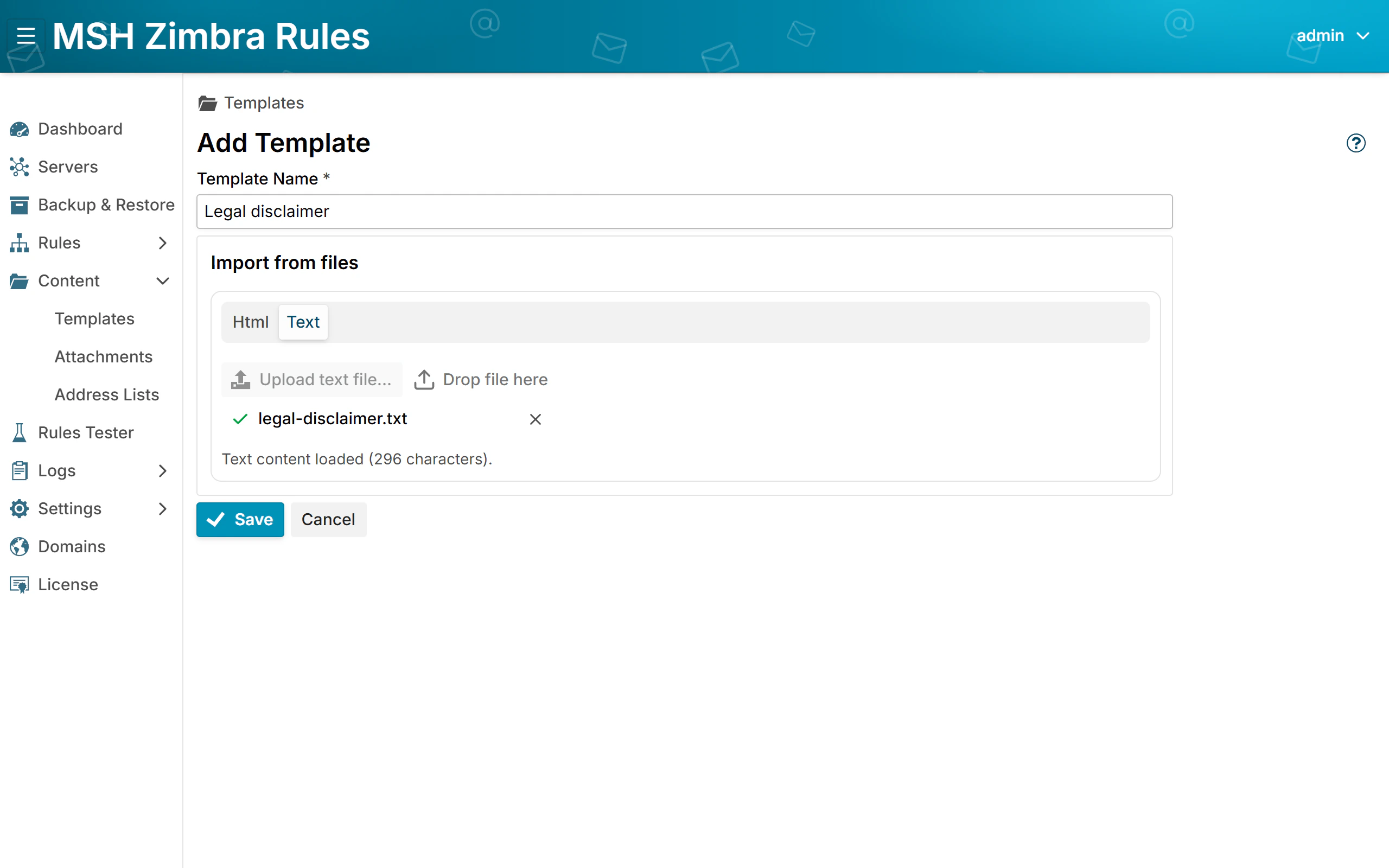
Open Content > Templates, click Add Template... and choose Import from
files.... Name the template Legal disclaimer. On the Html tab click Upload
Html file... and choose legal-disclaimer.html. On the Text tab click Upload
text file... and choose legal-disclaimer.txt. Click Save.
Step 3 - Create the disclaimer rule
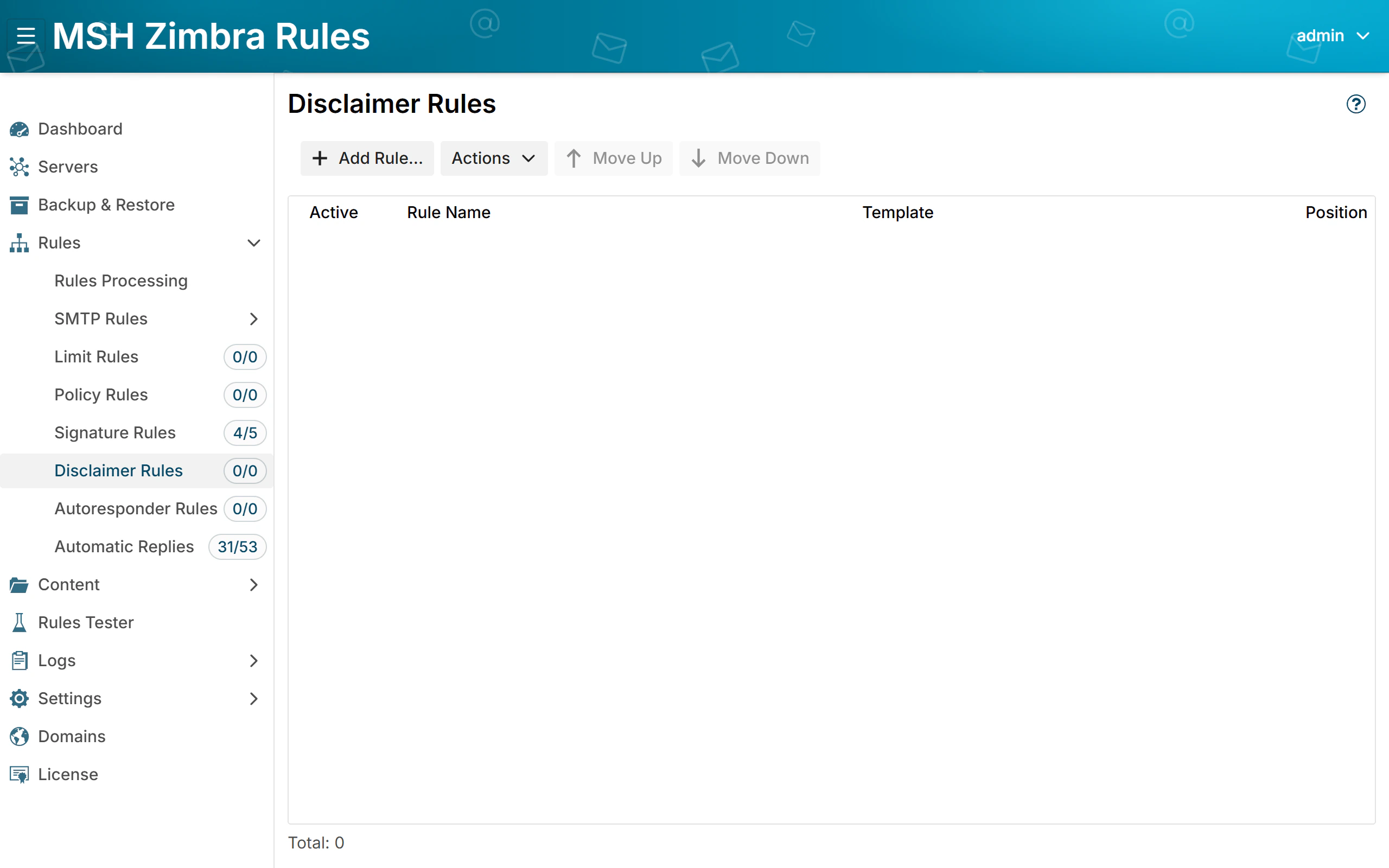
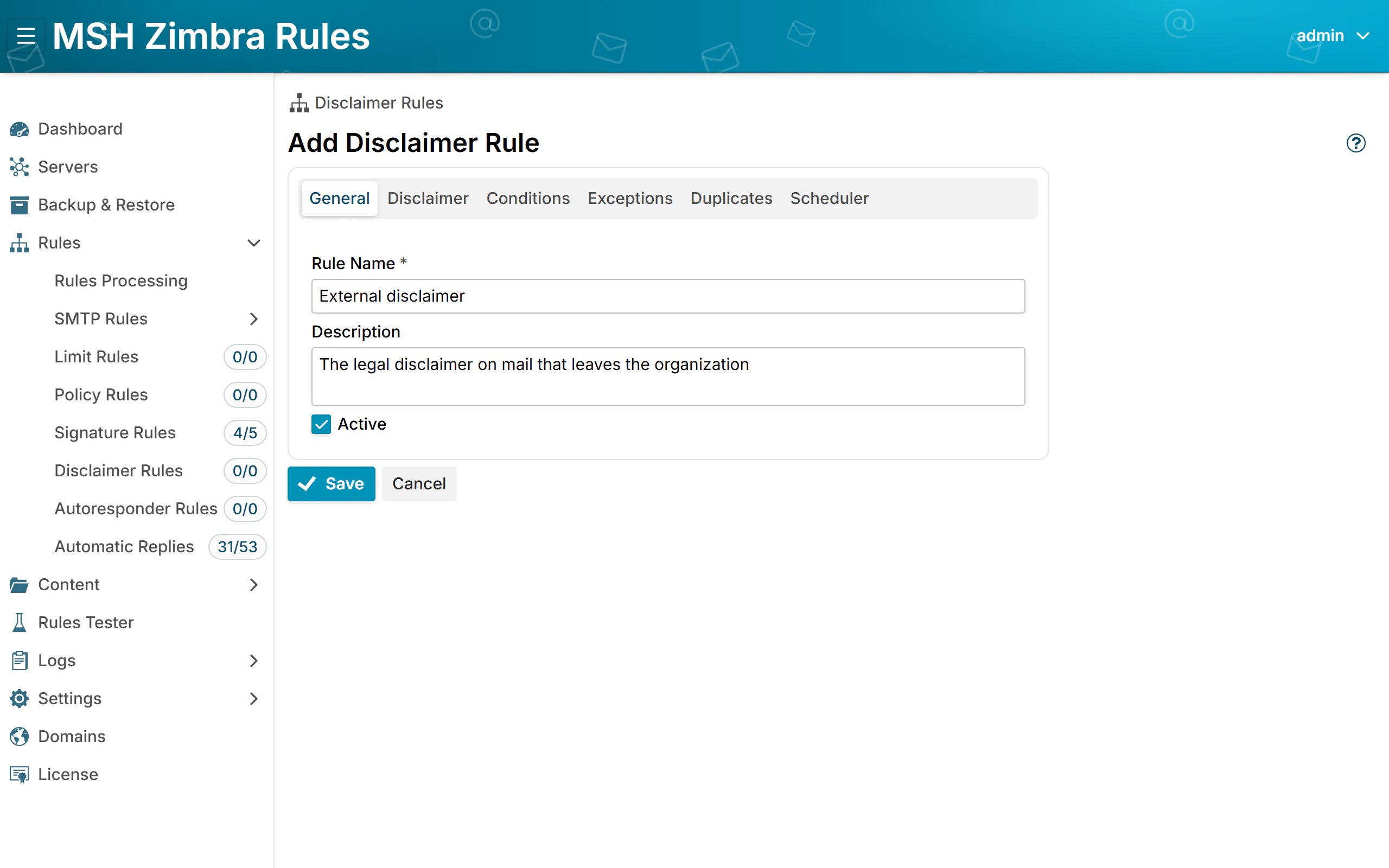
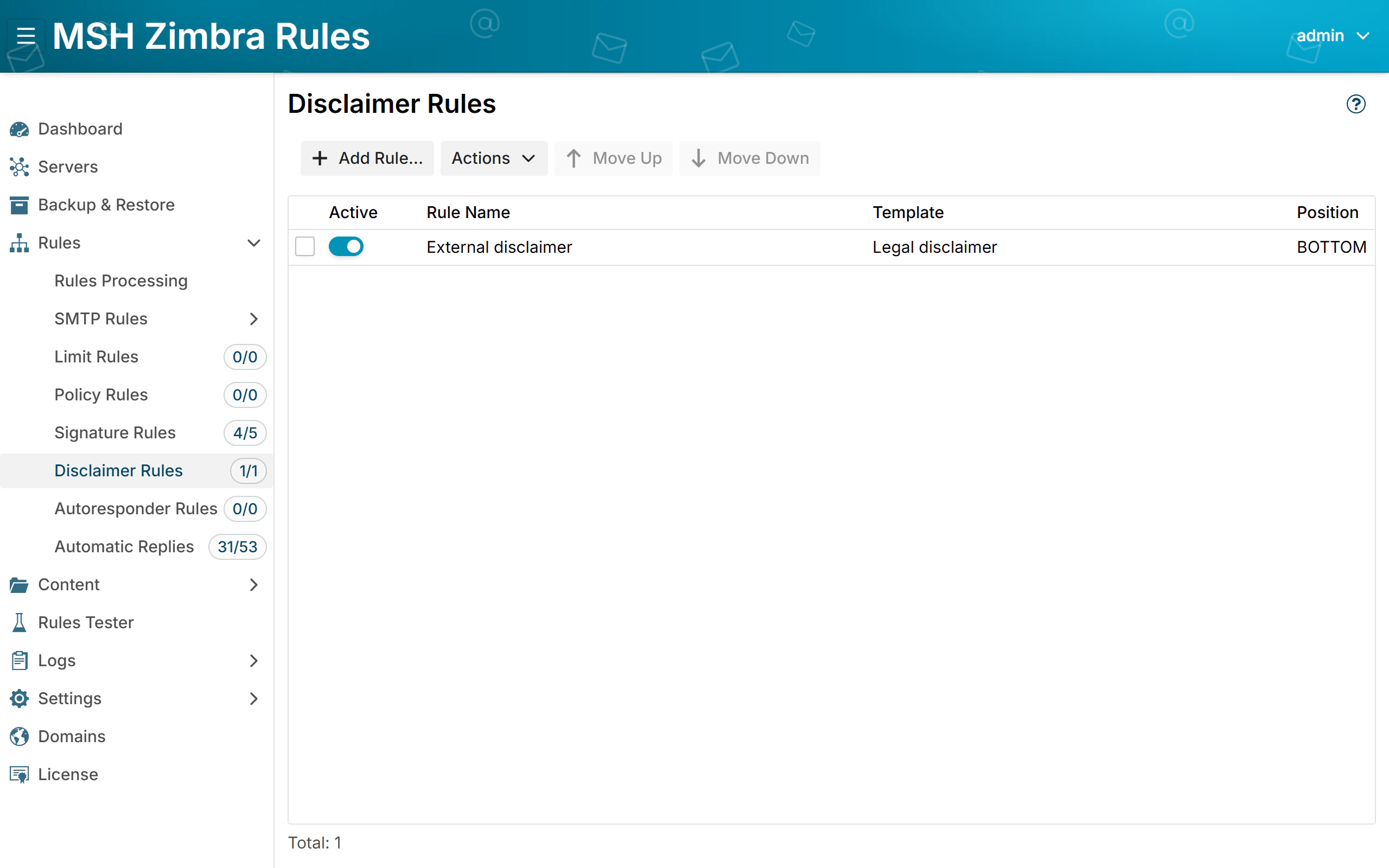
Open Rules > Disclaimer Rules, click Add Rule... and name the rule
External disclaimer.
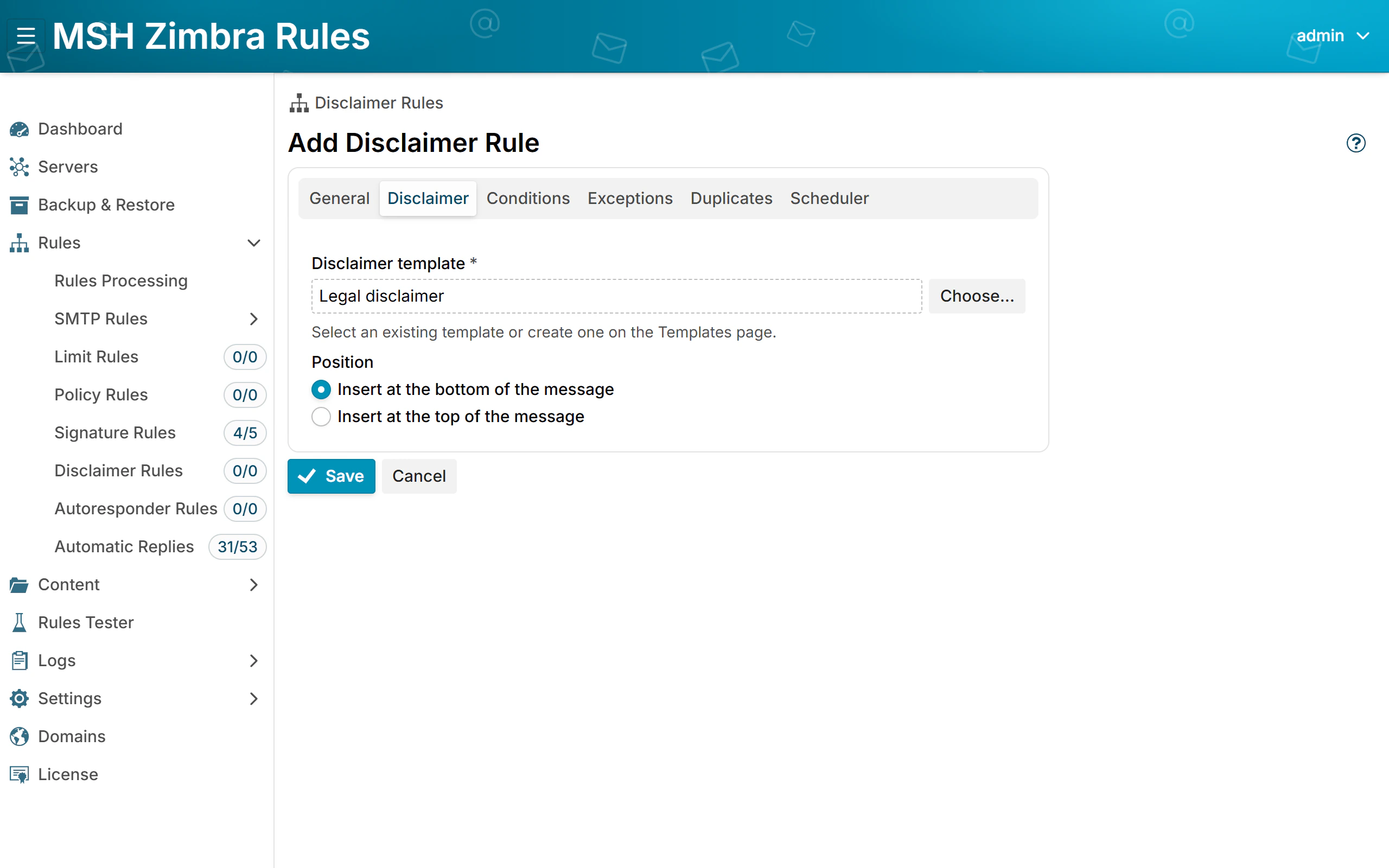
- On the Disclaimer tab, choose the template
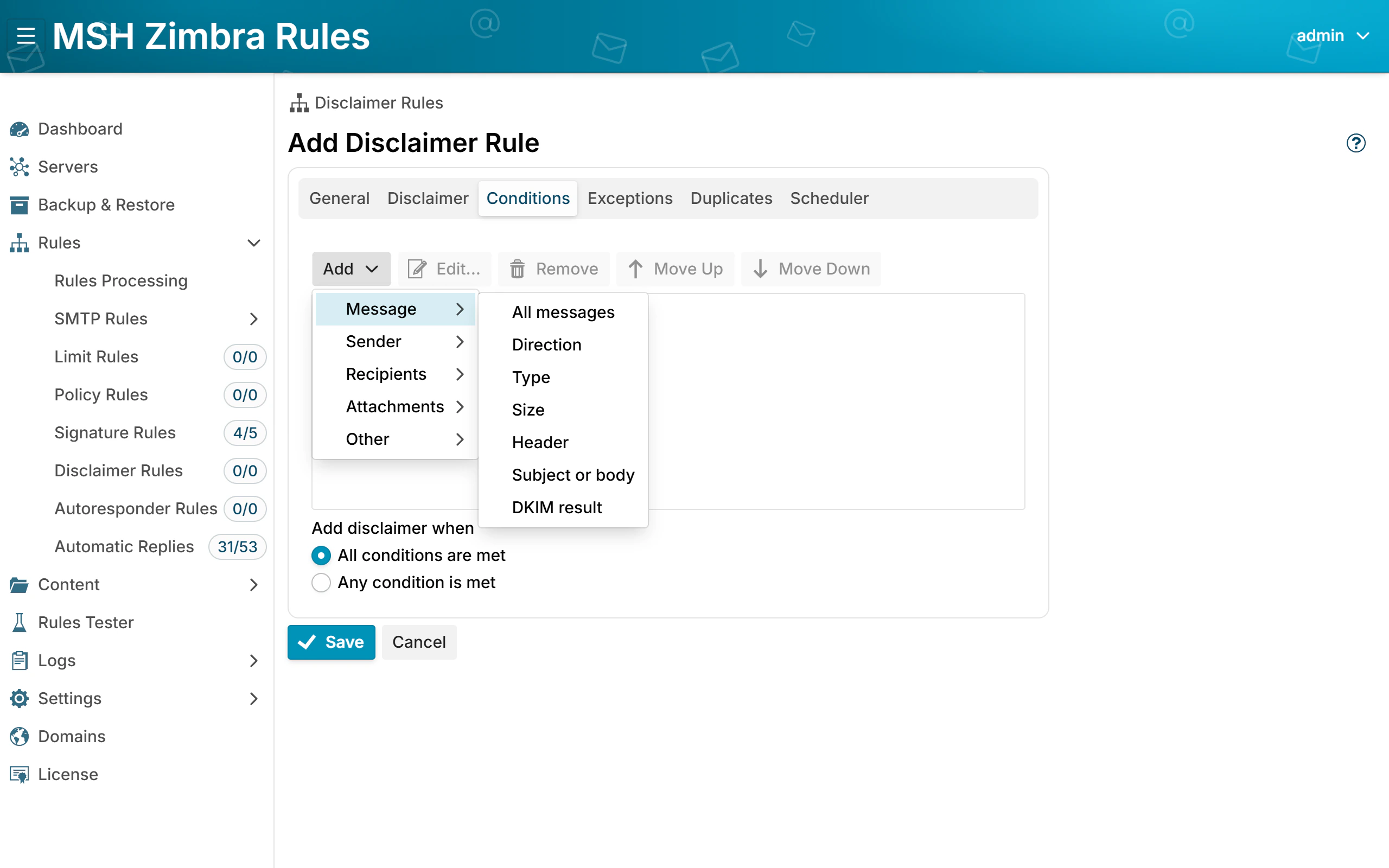
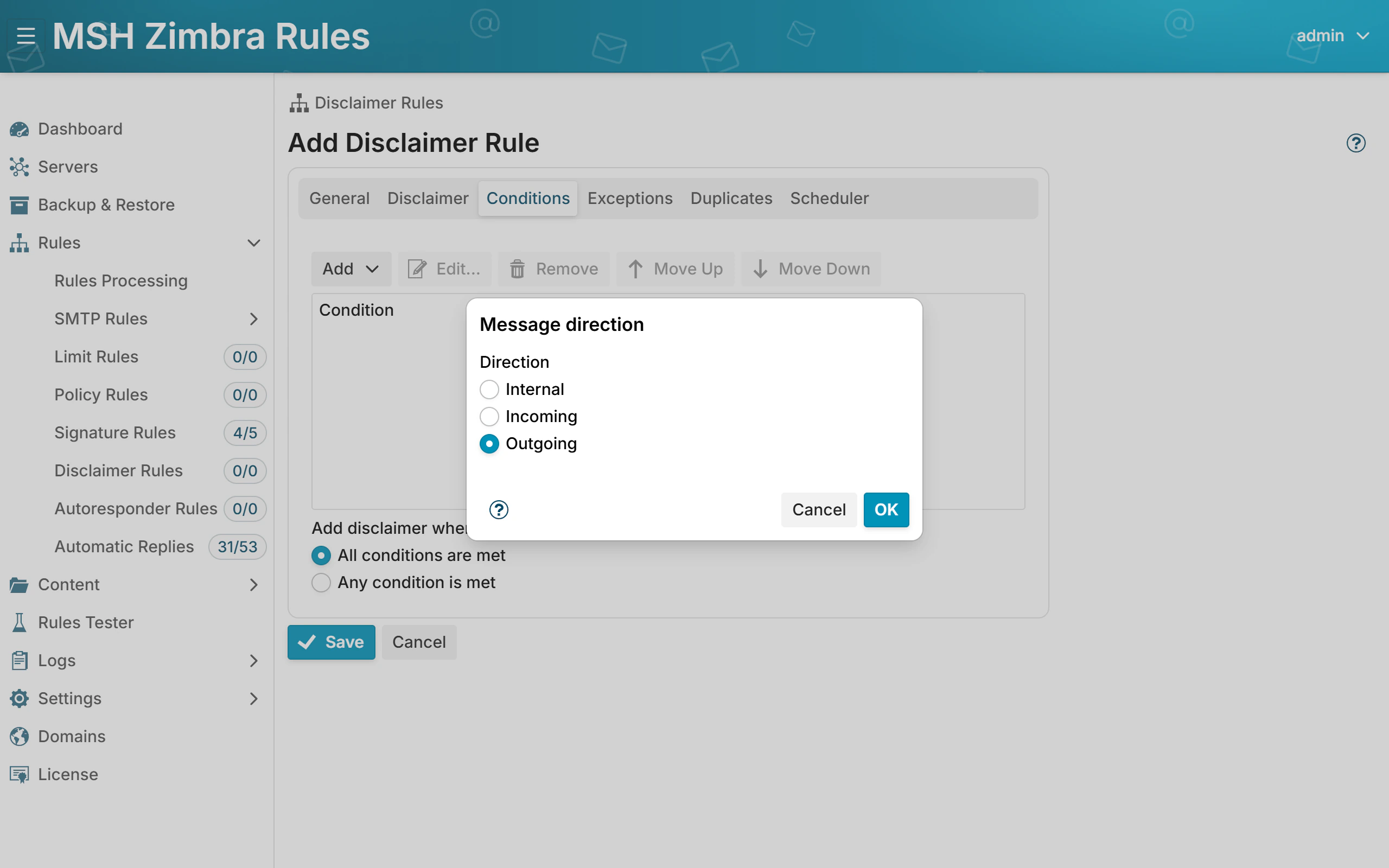
Legal disclaimerwith Choose... and select Insert at the bottom of the message. - On the Conditions tab, click Add, choose Message > Direction, select Outgoing and click OK.
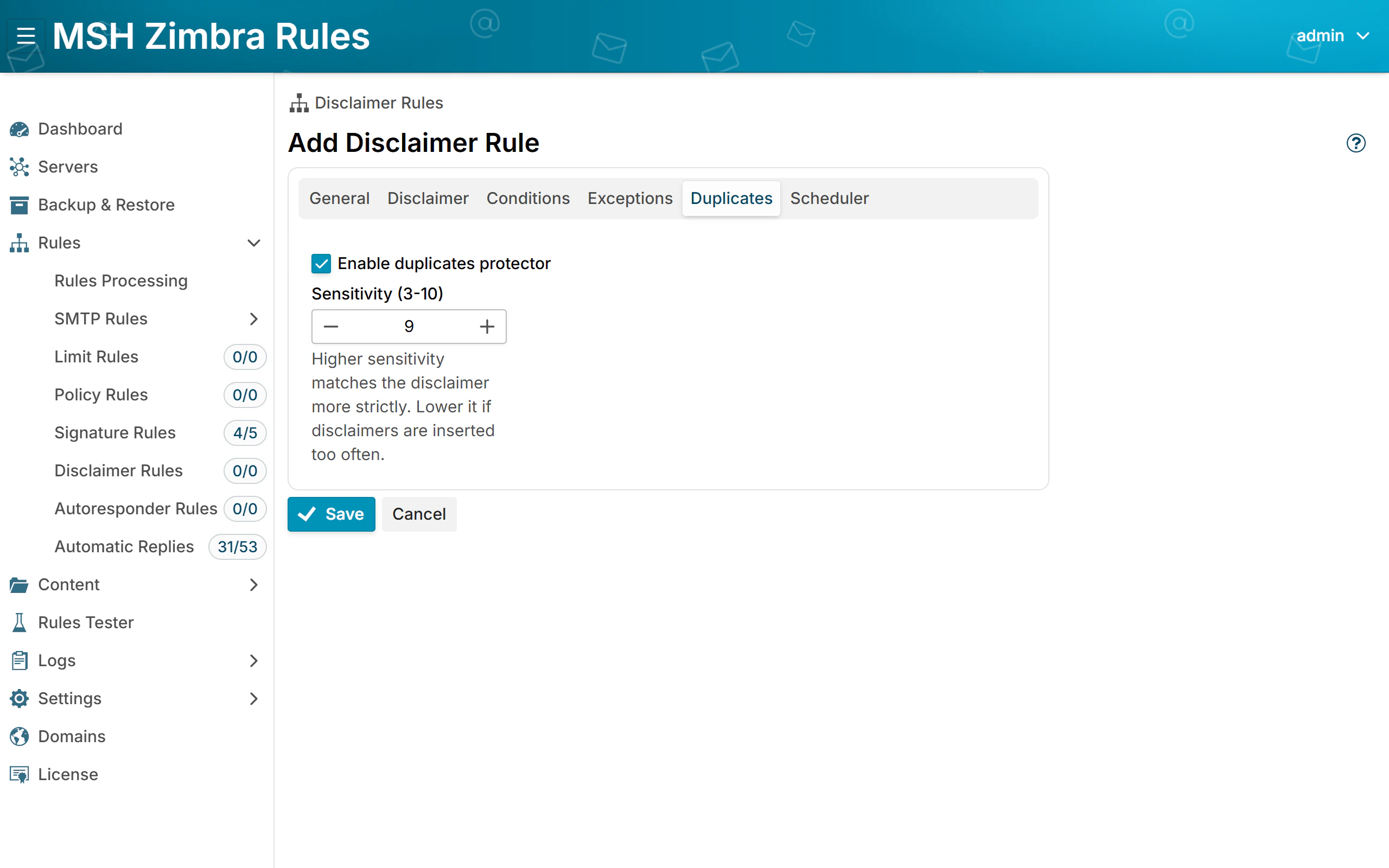
- On the Duplicates tab, leave Enable duplicates protector ticked. It is on for a new rule.
Click Save.
Why Outgoing is the right condition
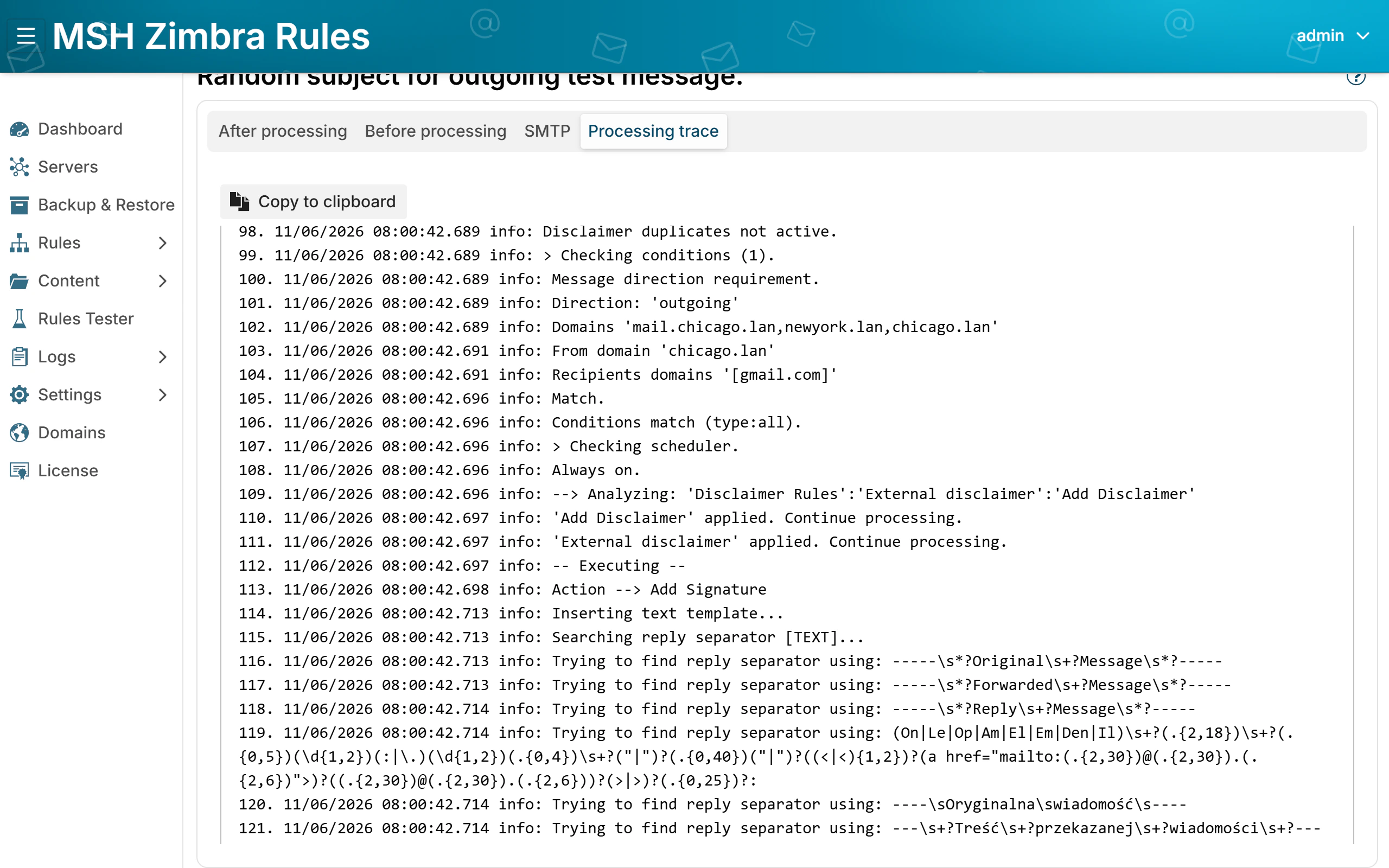
Outgoing means a sender in your organization and at least one recipient outside it, see Message direction. That has two consequences worth knowing:
- A message to a colleague and a customer gets the disclaimer. It is one message, so the colleague sees the same disclaimer as the customer. That is what a legal text needs: the copy that leaves the company carries it.
- Mail from outside never gets it. Incoming messages are left alone, so the disclaimer is never added to what customers send you.
Step 4 - Test it in the Rules tester
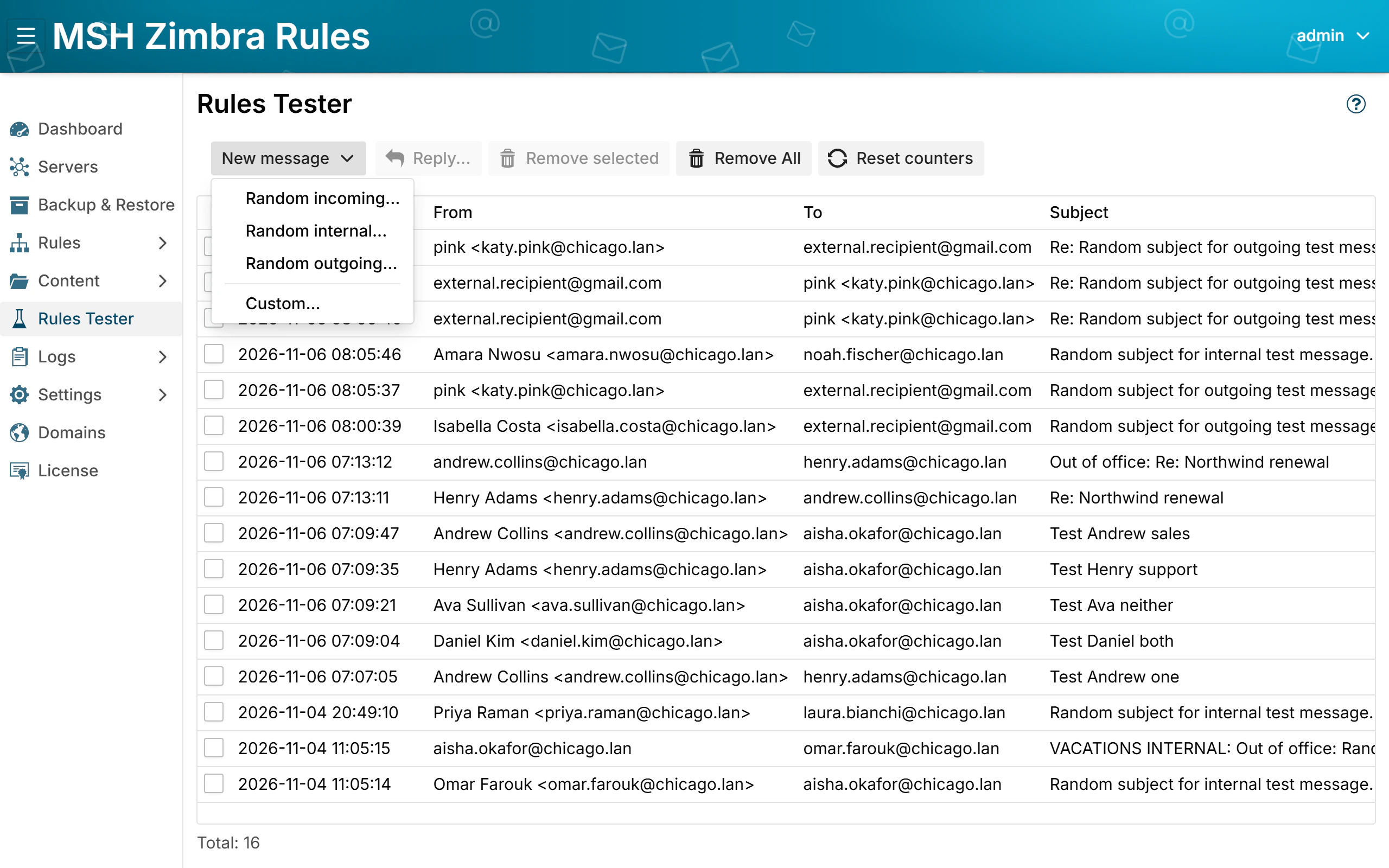
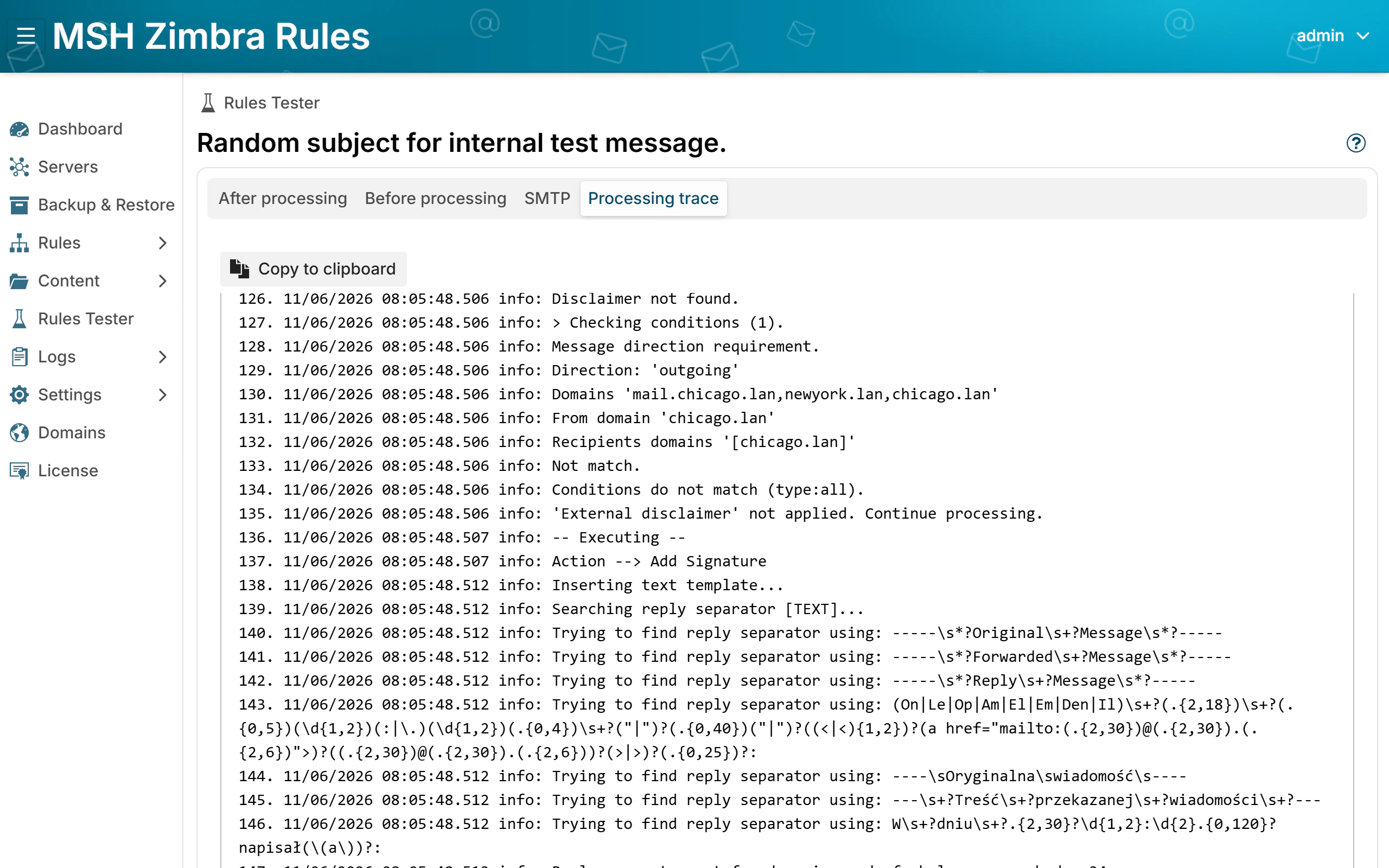
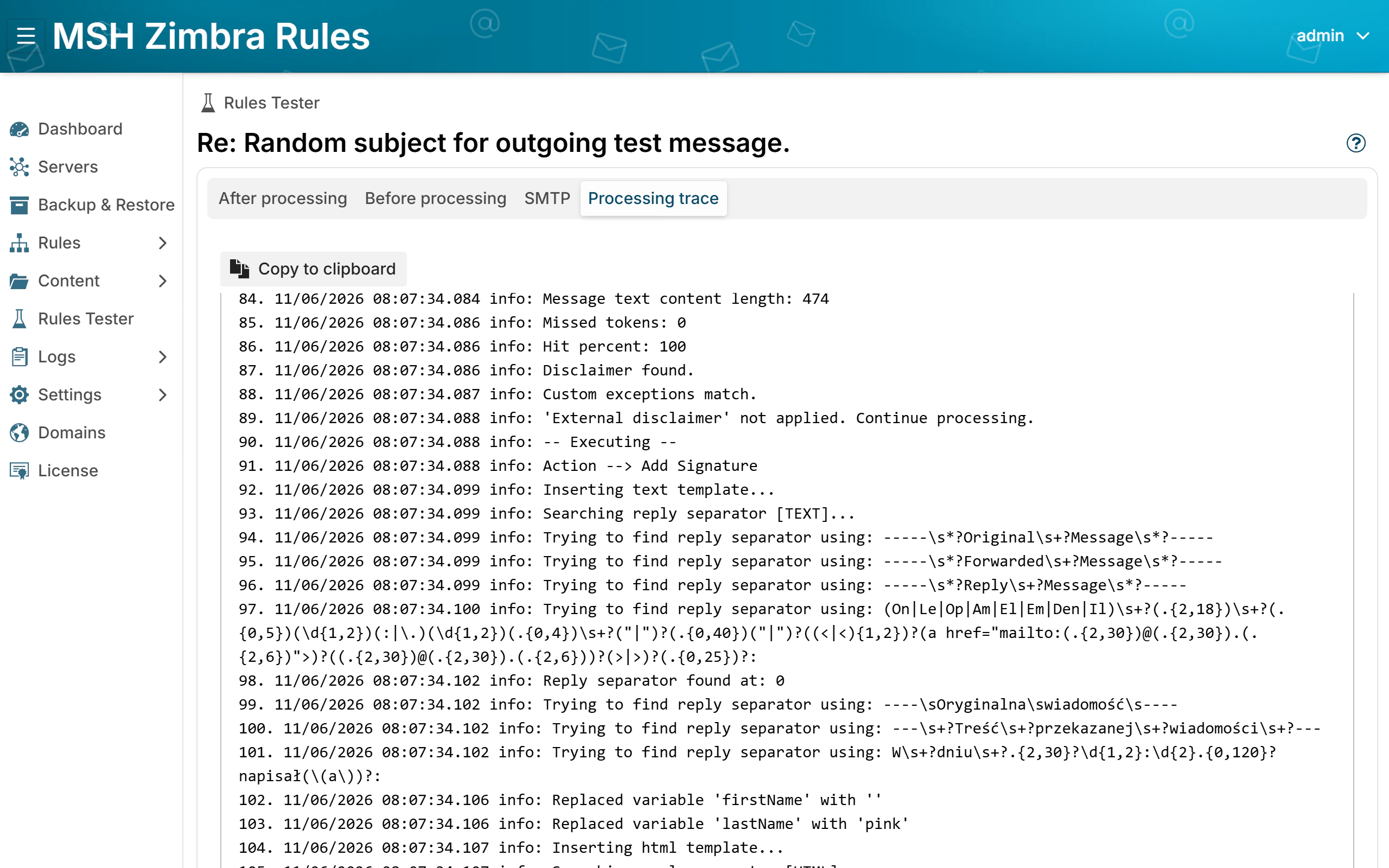
The Rules tester runs a test message through the rules without sending it. Open Rules Tester, choose New message > Random outgoing... and click Send. Open the message: After processing shows the disclaimer at the bottom, and Processing trace shows why. Then send a Random internal... message, and reply to the outgoing one twice with Reply..., so that the last reply goes out and quotes the disclaimer.
Top or bottom?
Insert at the bottom of the message puts the disclaimer after the text and the signature, where readers expect small print. Insert at the top of the message puts it above everything, where nobody can miss it, at the cost of pushing the message down. Choose it on the Disclaimer tab of the rule.
If the disclaimer is not what you expect
- It is missing on mail to a customer. The recipient's domain is one of yours in the directory sync, or the sender is not. The trace lists the domains of the organization and the sender and recipient domains it compared.
- It shows up on internal mail. One of the recipients is outside the organization, or one of your domains is missing from the directory sync.
- It appears twice in a thread. The quoted copy was changed enough that the protector no longer recognizes it, for example by a mail client that rewraps text. Lower Sensitivity on the Duplicates tab, see Duplicates.
- A signed or encrypted message has no disclaimer. Adding text would break the signature, so disclaimer rules leave such messages untouched, see Disclaimer rules.
Related reading
- Disclaimer rules - every tab of a disclaimer rule
- Message direction - how internal, incoming and outgoing are told apart
- One Email Signature for the Whole Company in Zimbra
- the signature the disclaimer goes under
Want to try it on your own server? Start a free trial.