A Short Signature for Replies in Zimbra
A full signature with a photo and an office address is what a new contact should see. By the fifth reply in a thread it is noise: every message repeats it, and the text people actually wrote disappears between the photos. This article keeps the full signature for new messages and forwards, and gives replies a short one: name, job title, company and phone.
What you get
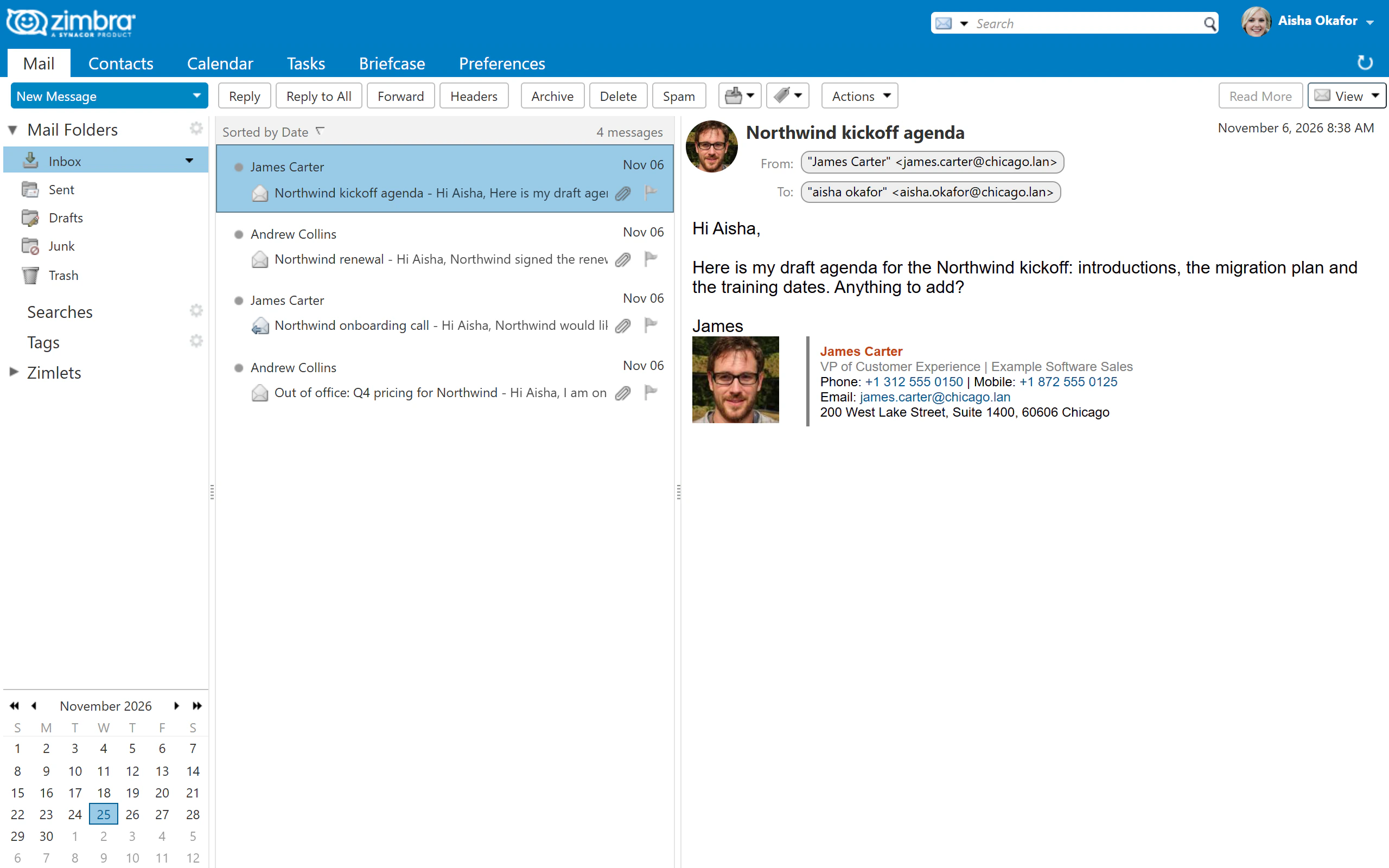
Here is a thread of three messages between James and Aisha, as Aisha sees the last one:
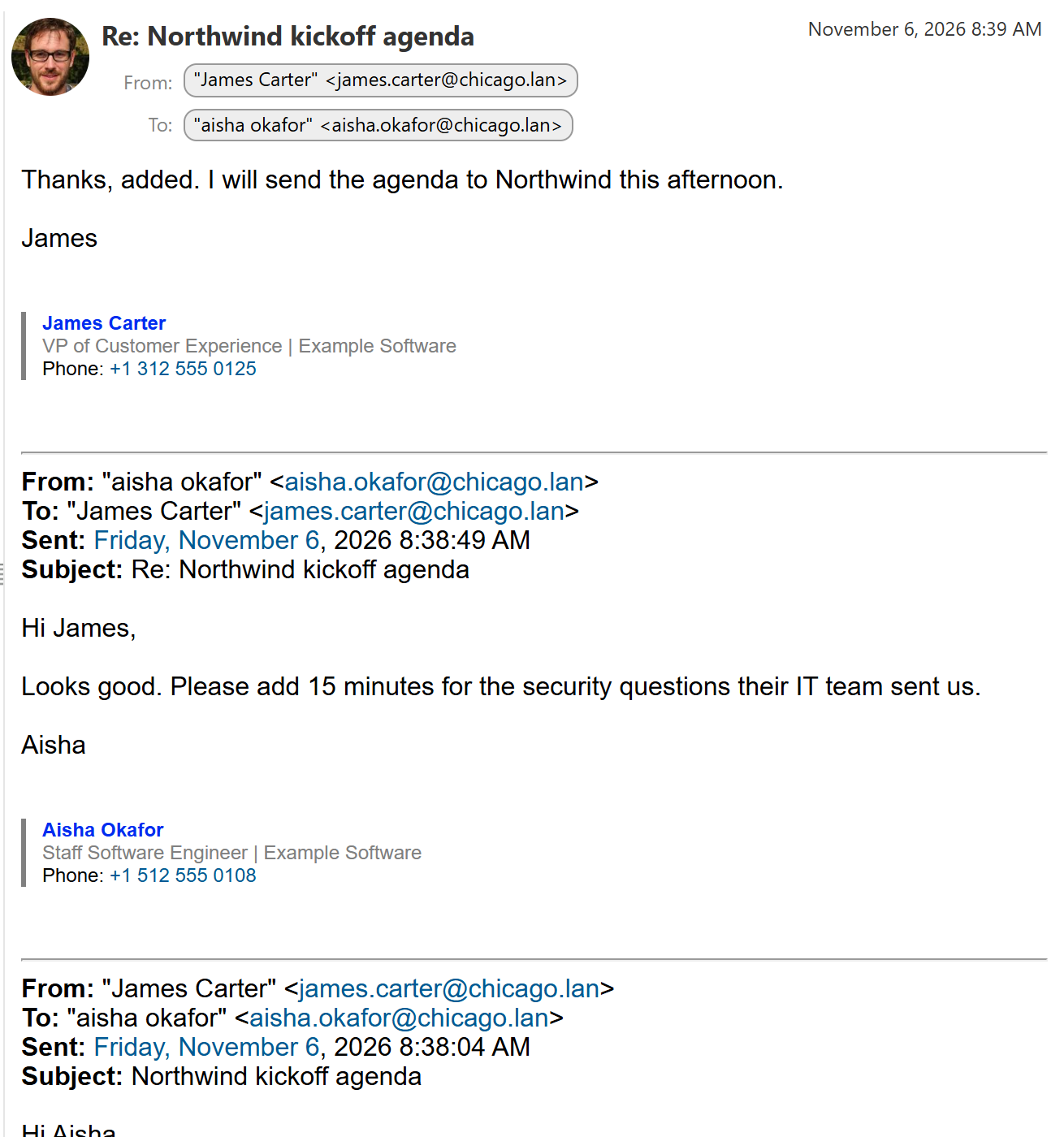
- The first message carries James's full signature, with his photo and address.
- Each reply carries a short signature of three lines.
- The thread keeps the full signature once, at the bottom, where it was first sent.
What you will build
| Rule | Condition | Exceptions |
|---|---|---|
| Reply signature (new) | Sender in the domain, and message type Reply | none |
| Company signature | Sender in the domain | Message type Reply (added) |
| Department rules, if you have them | Sender in the department's group | Message type Reply (added) |
Every signature rule that matches adds its signature, so the full rules have to step aside for replies. Otherwise a reply would get the short and the full signature.
Before you start
- A full signature rule, such as the one from One Email Signature for the Whole Company in Zimbra. If you also made department signatures with Different Email Signatures per Department in Zimbra, each of those rules gets the same exception.
- Forwards stay full. A forward usually goes to someone who has not seen the thread, so this article treats it like a new message. Choose Reply or Forward instead of Reply below to give forwards the short signature too.
Step 1 - Make the short template
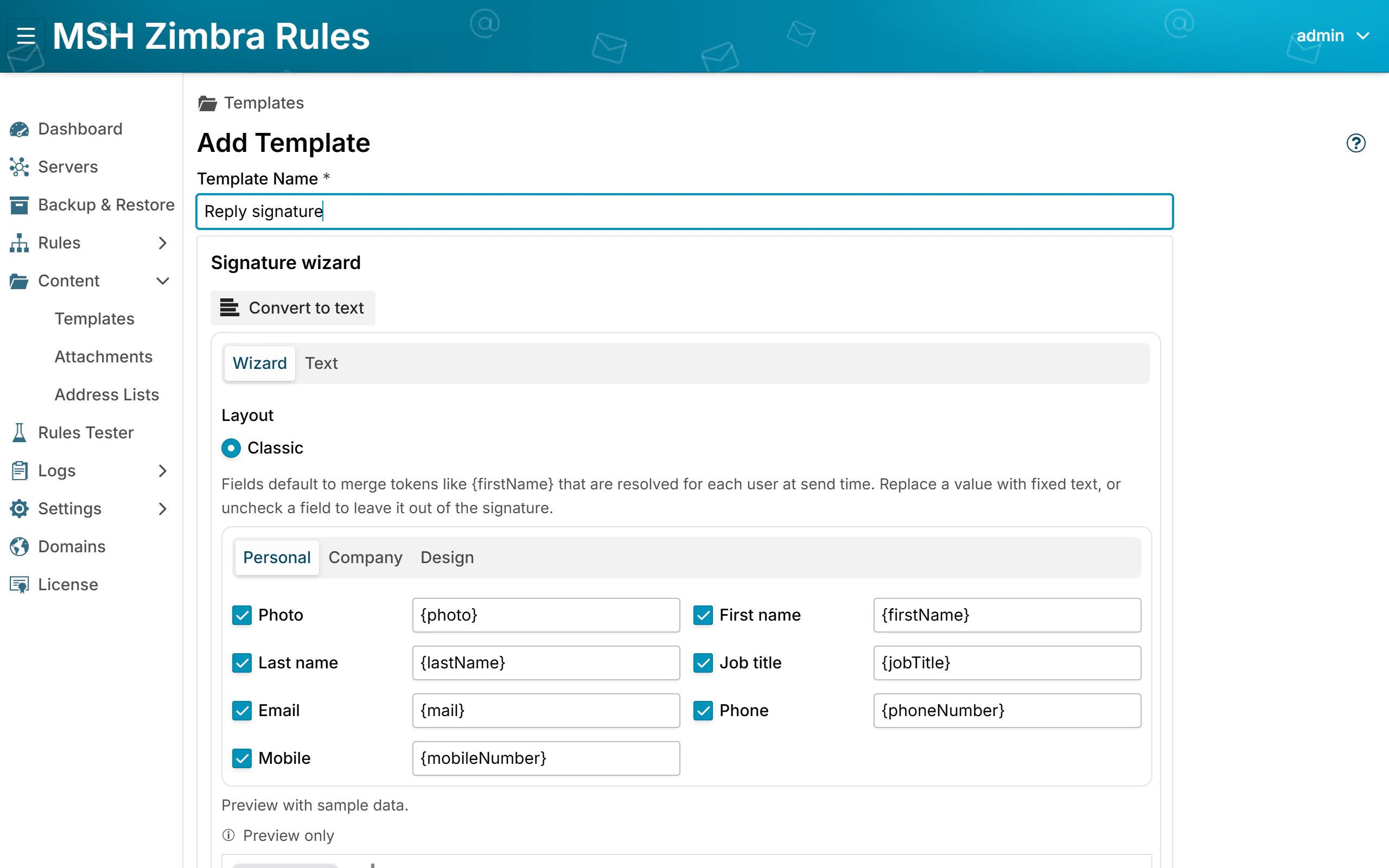
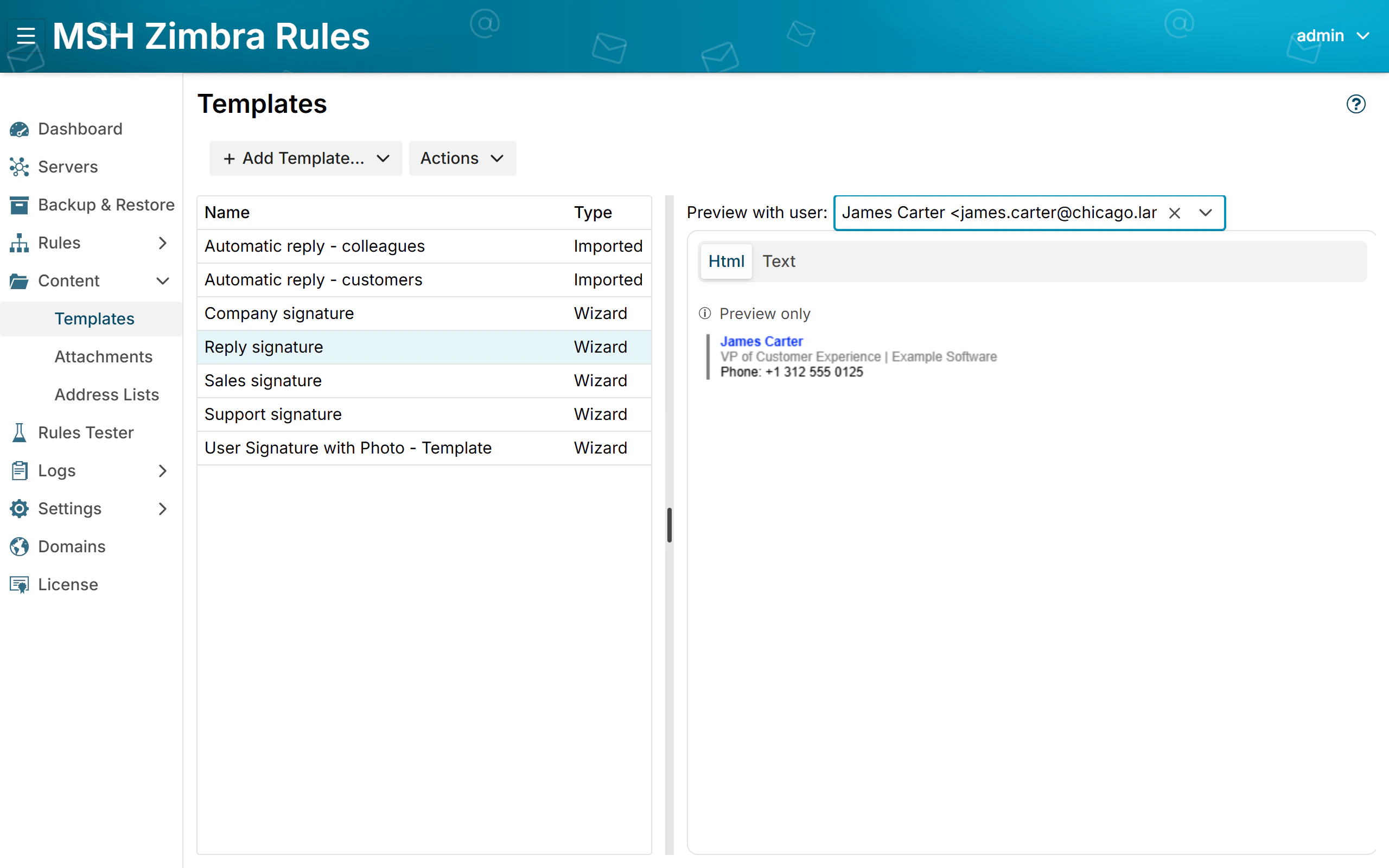
Open Content > Templates, click Add Template..., choose Signature
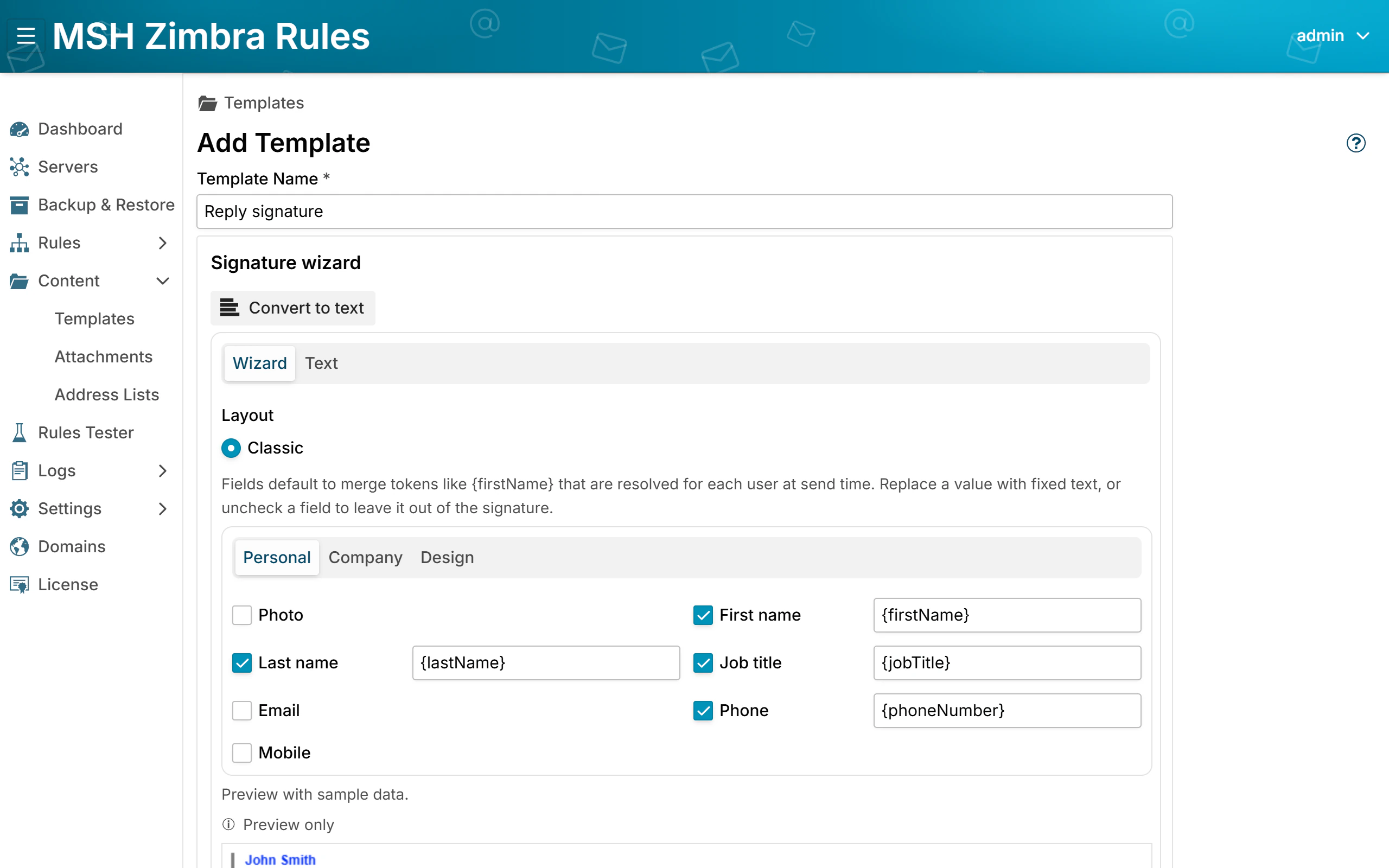
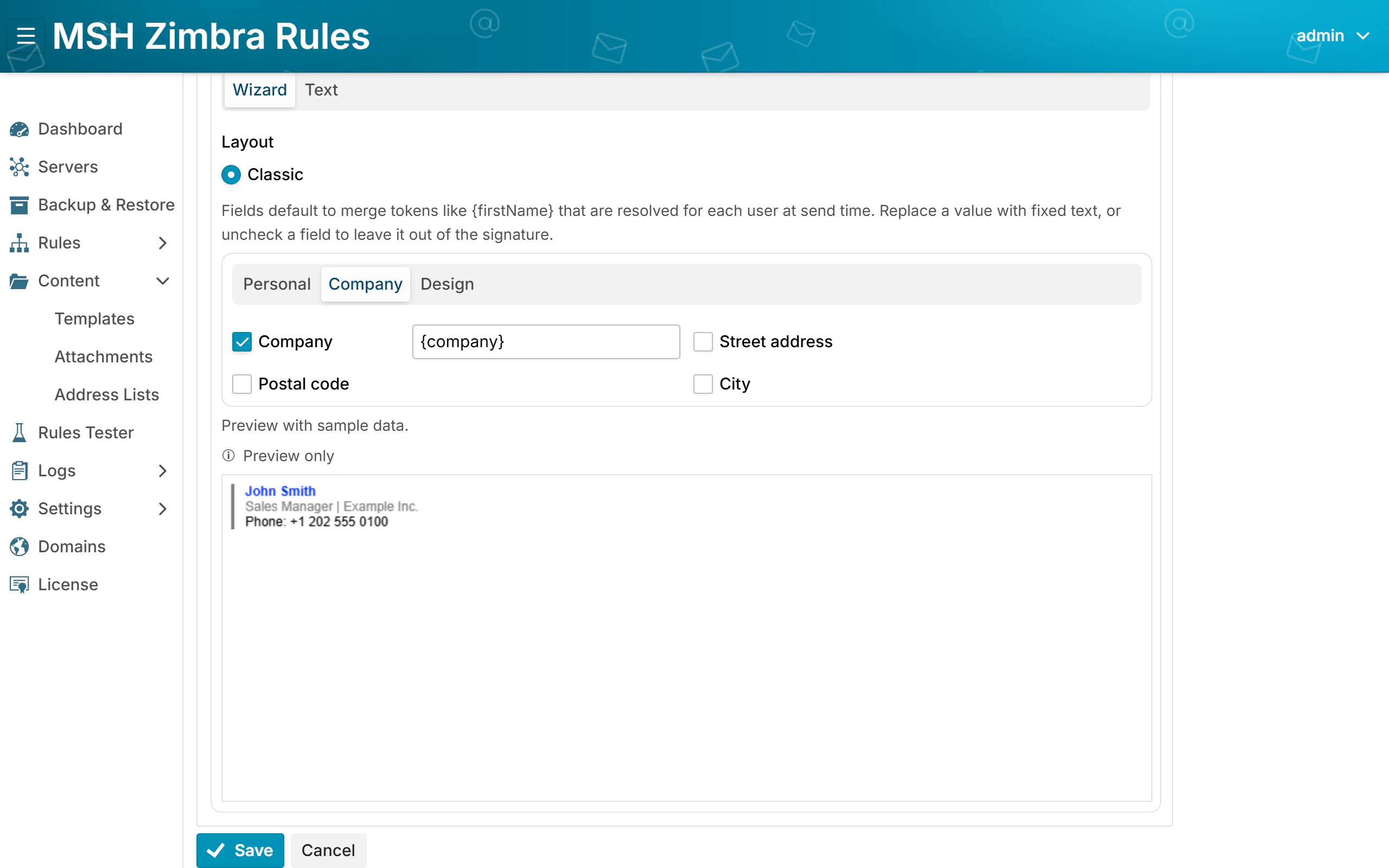
wizard... and name the template Reply signature. On the Personal tab, untick
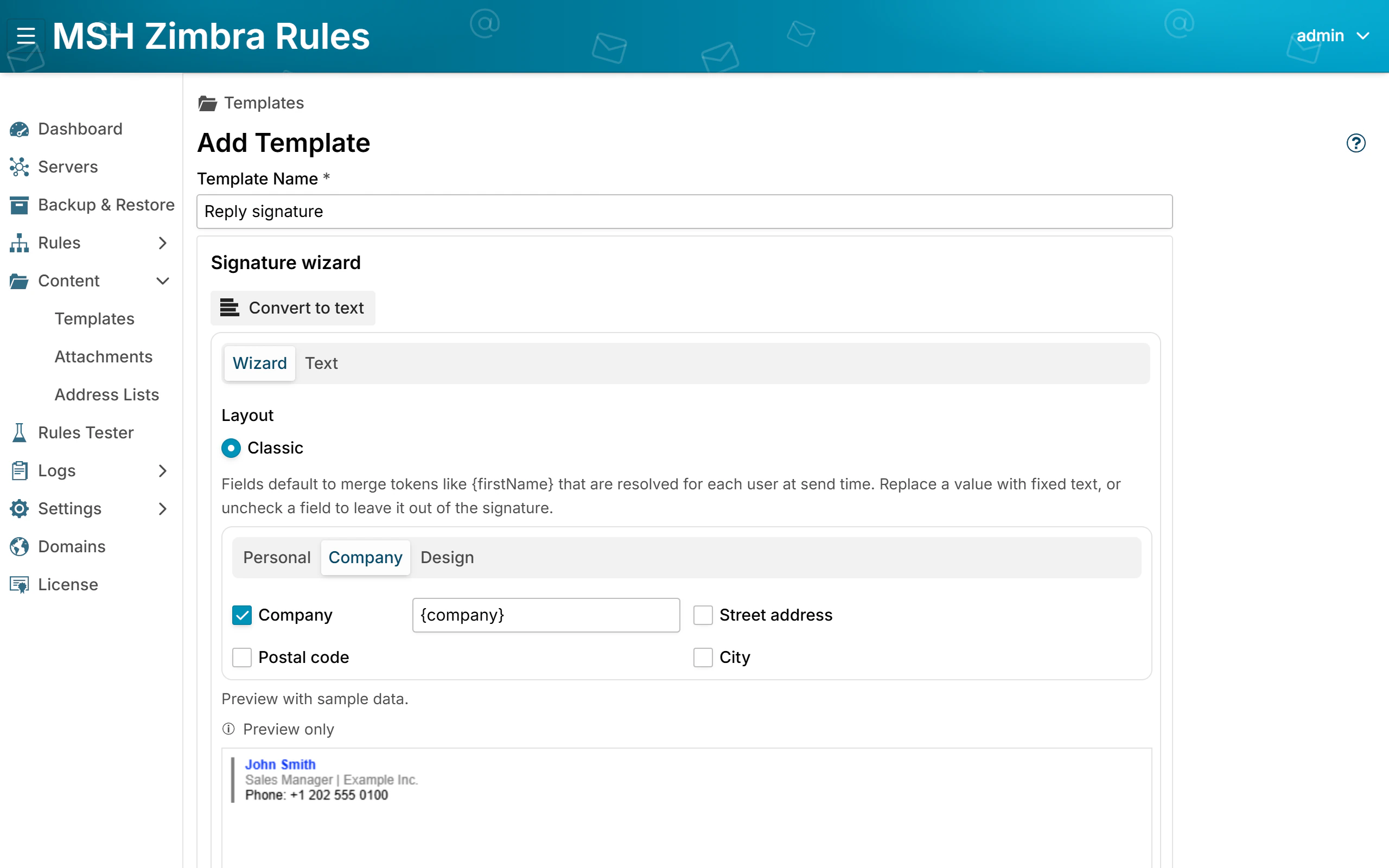
Photo, Email and Mobile. On the Company tab, untick Street address,
Postal code and City. Keep the name, the job title, the company and the phone.
Click Save, then check it with Preview with user.
Step 2 - Add the rule for replies
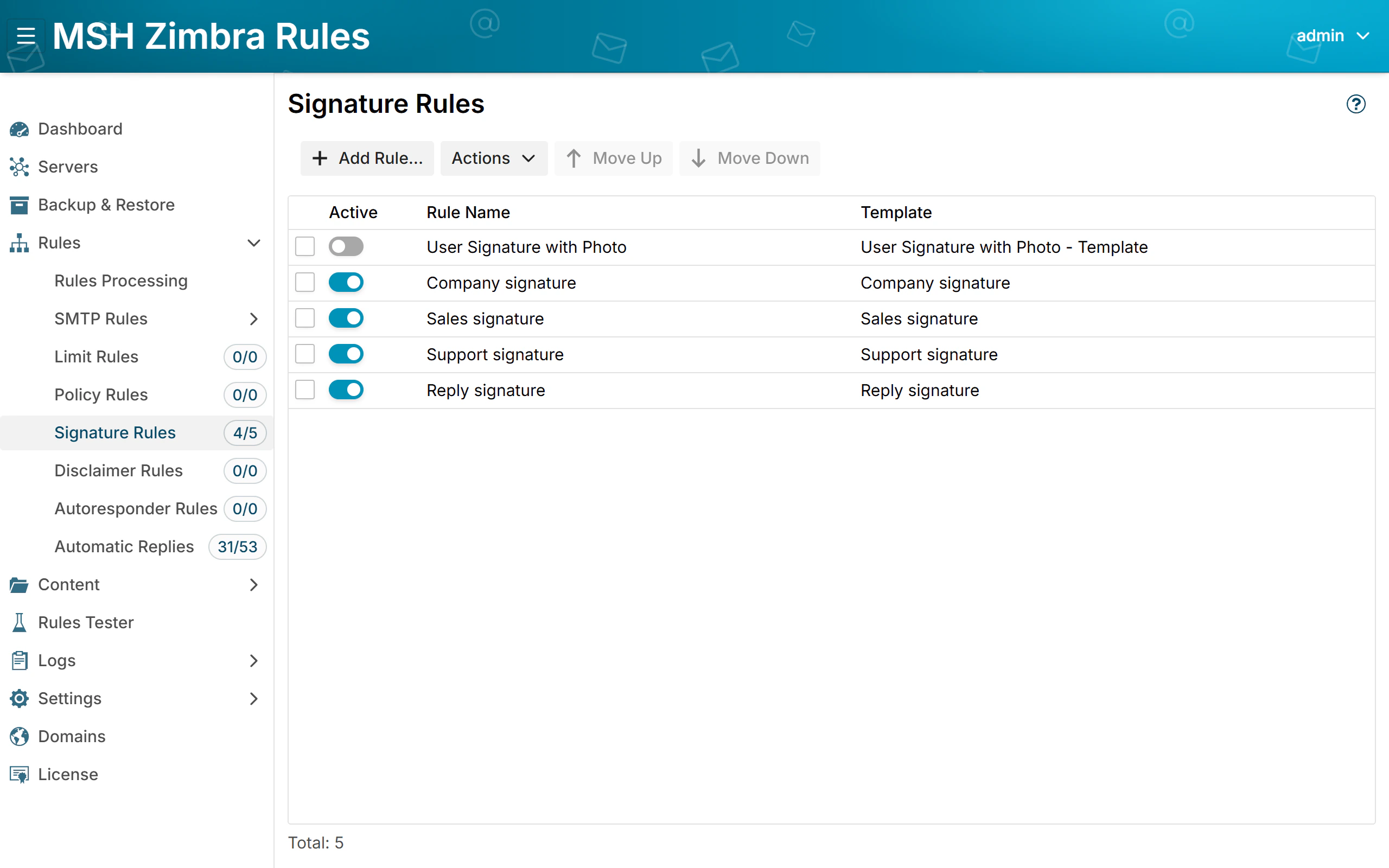
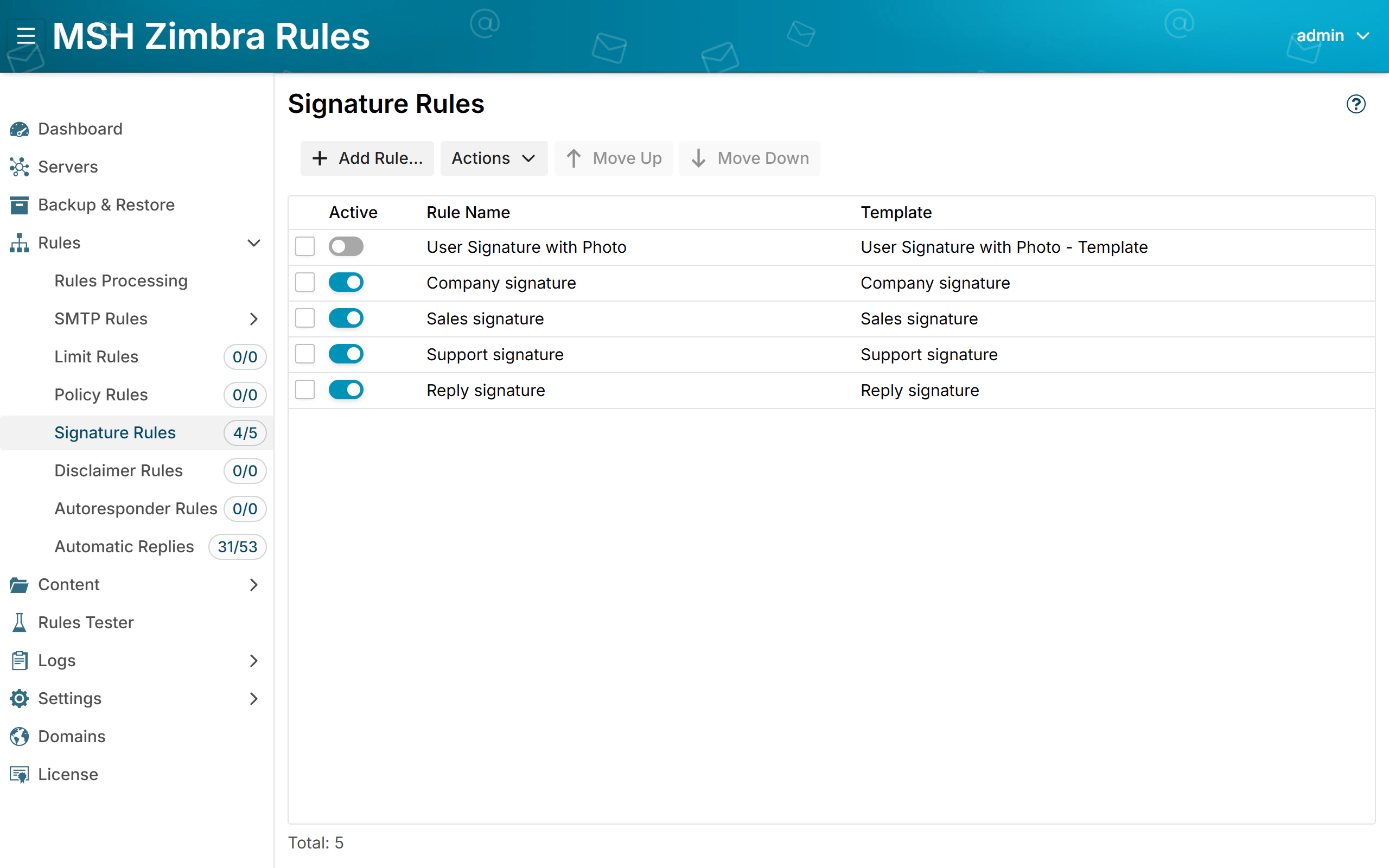
Open Rules > Signature Rules, click Add Rule... and name the rule
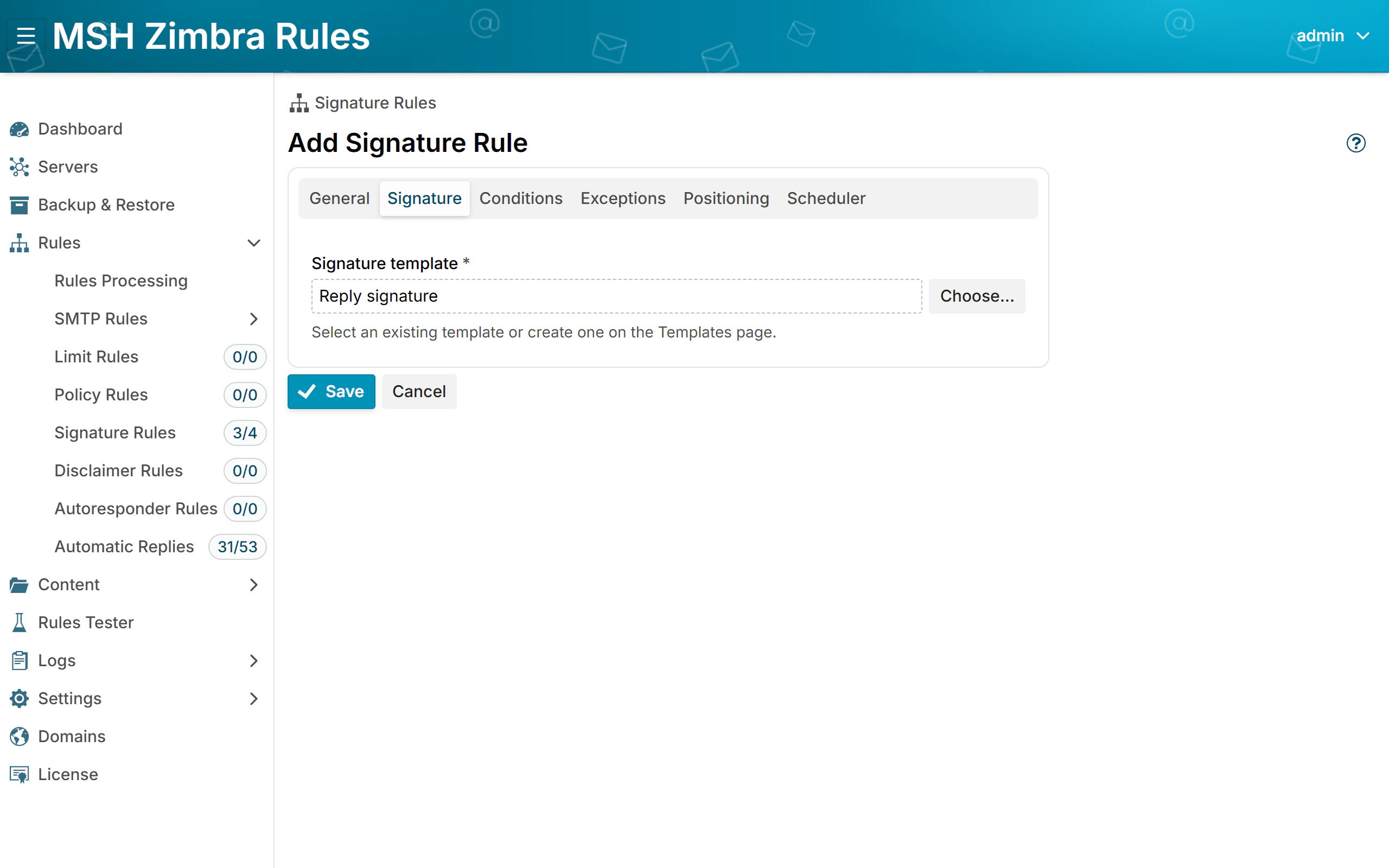
Reply signature. On the Signature tab choose the template Reply signature.
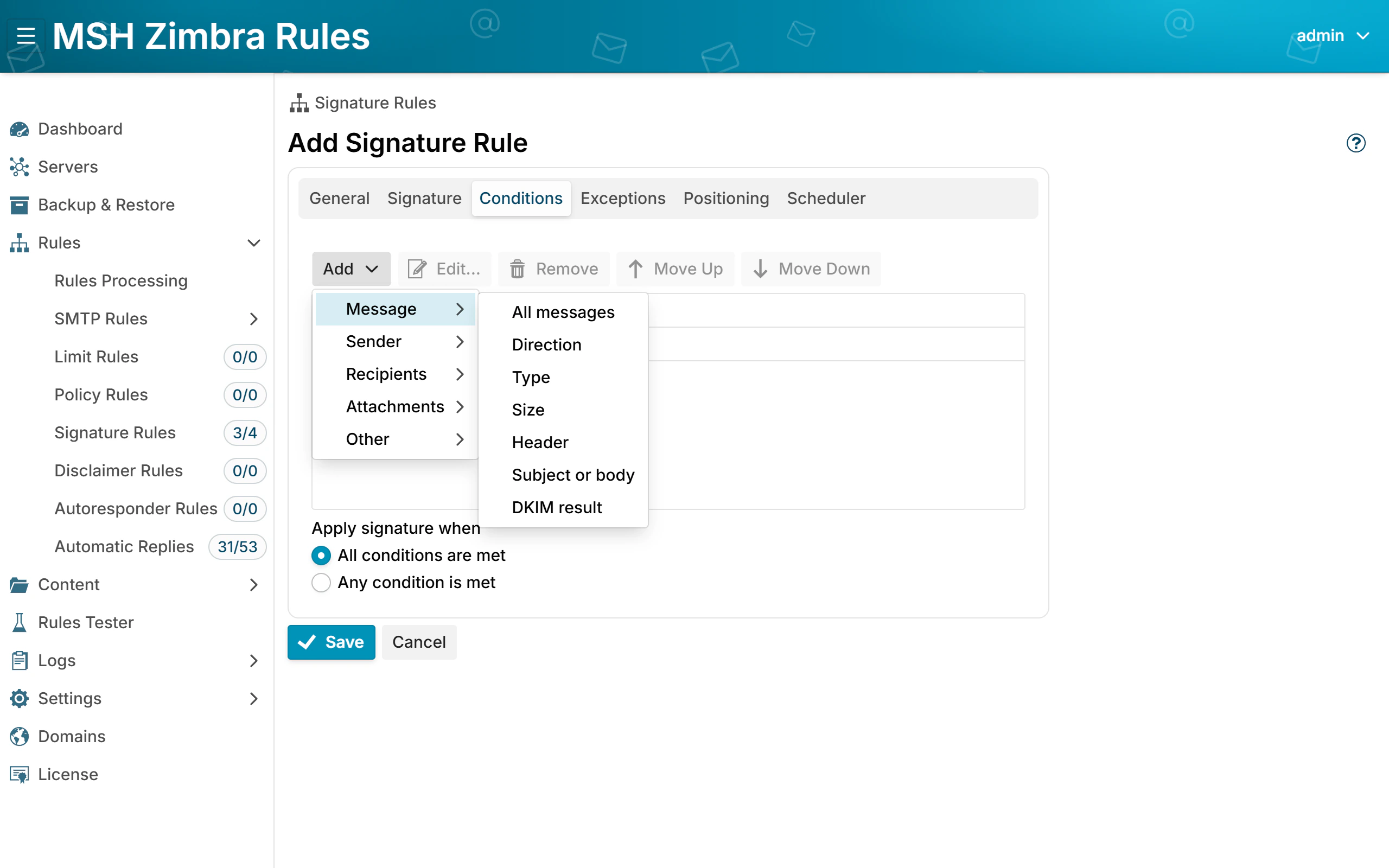
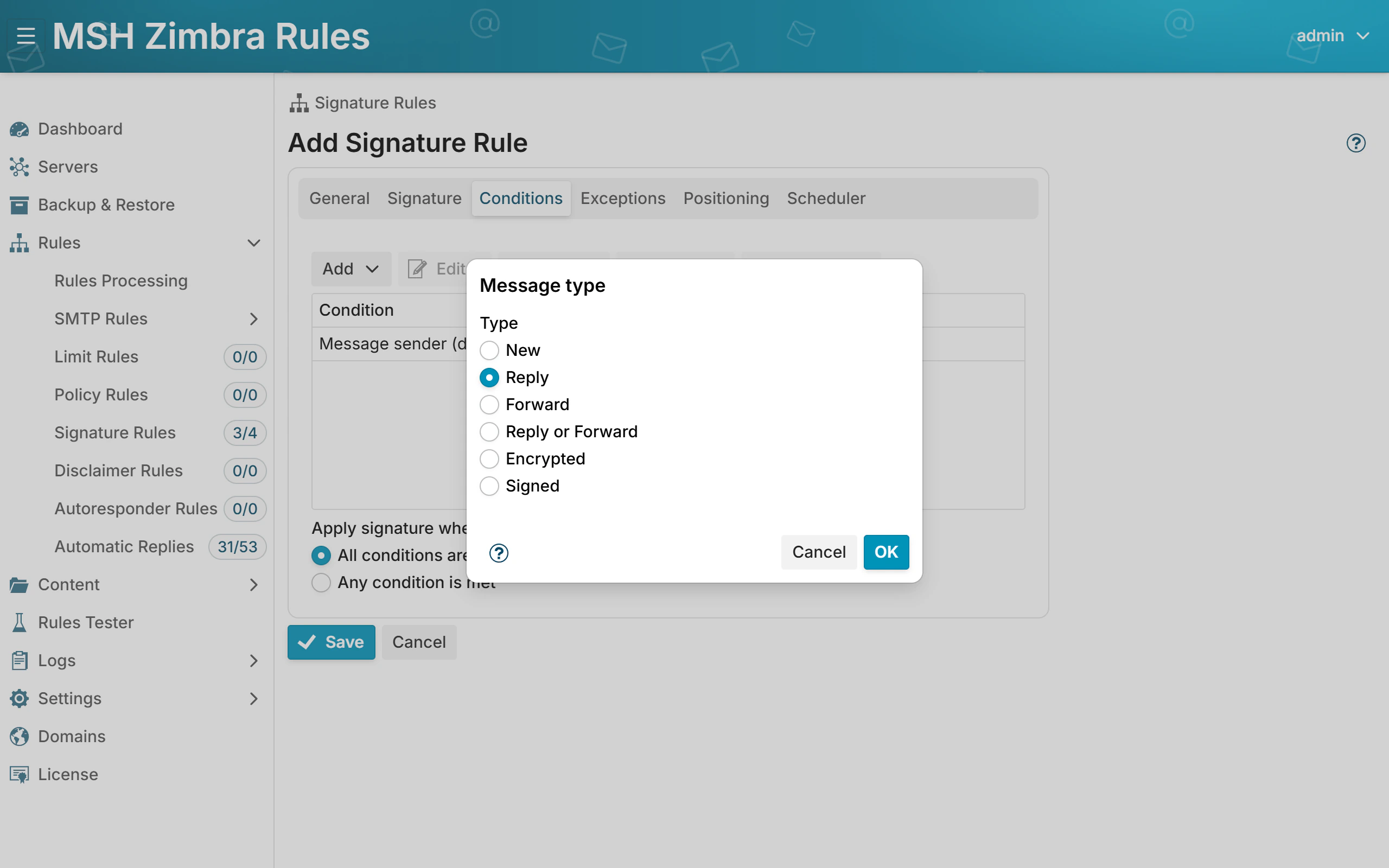
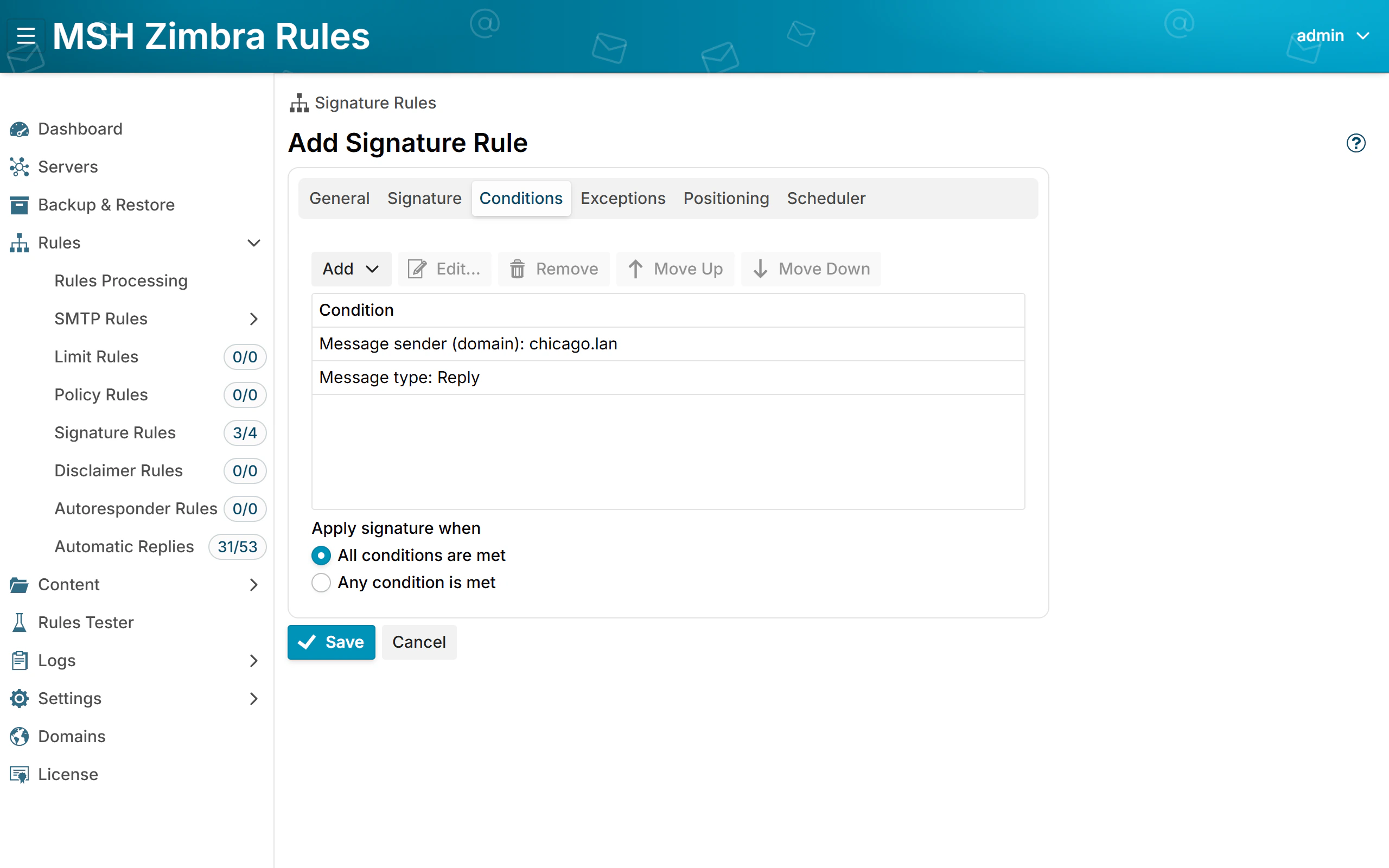
On the Conditions tab add two conditions and keep All conditions are met:
- Sender > Sender, In Domain, your domain.
- Message > Type, Reply.
Click Save.
MSH Zimbra Rules recognizes a reply by its subject, which starts with Re:, together
with the In-Reply-To header that mail clients add when the user clicks Reply, see
Message type. A new message
that the user types Re: into by hand is still a new message.
Step 3 - Keep the full signatures off replies
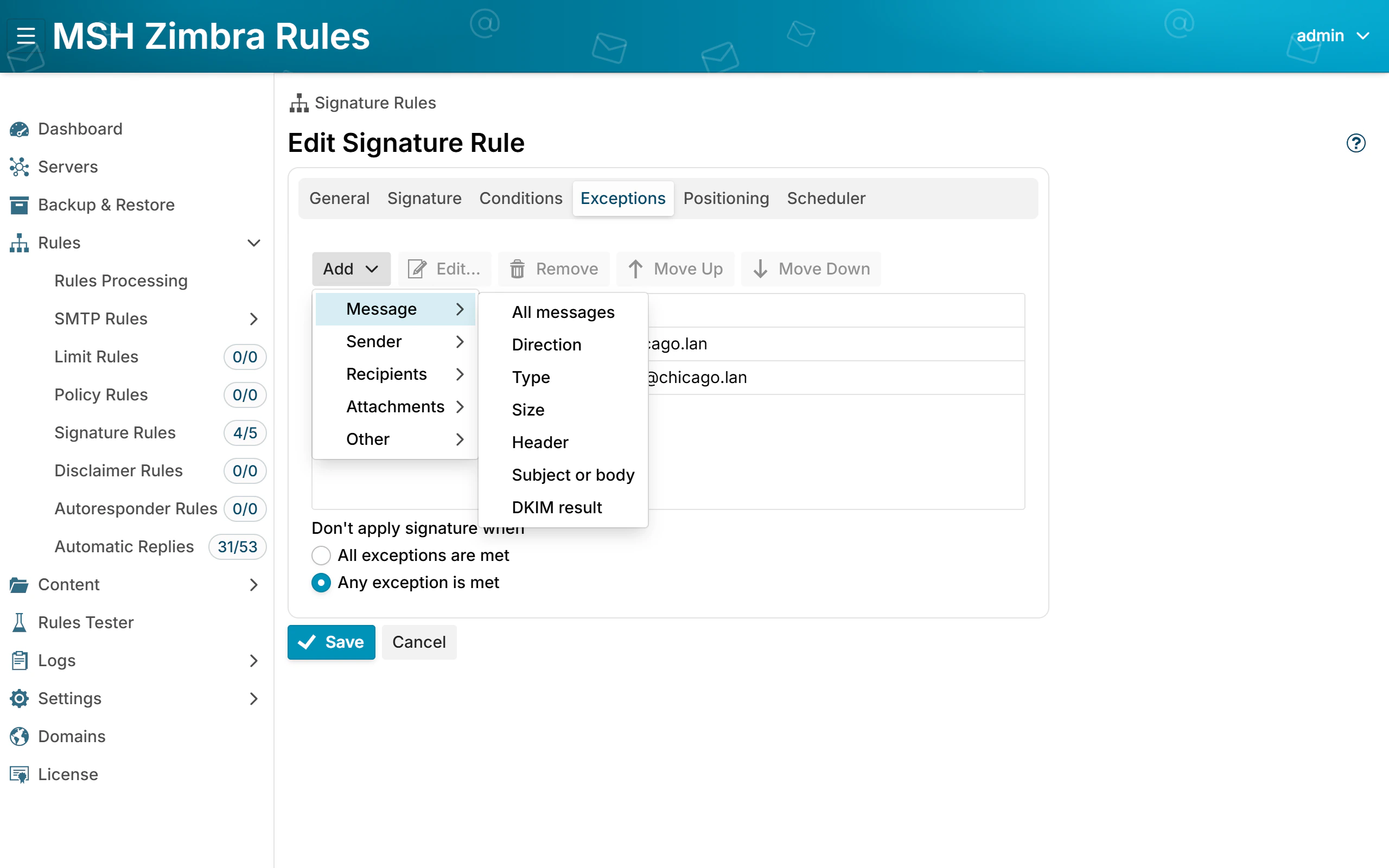
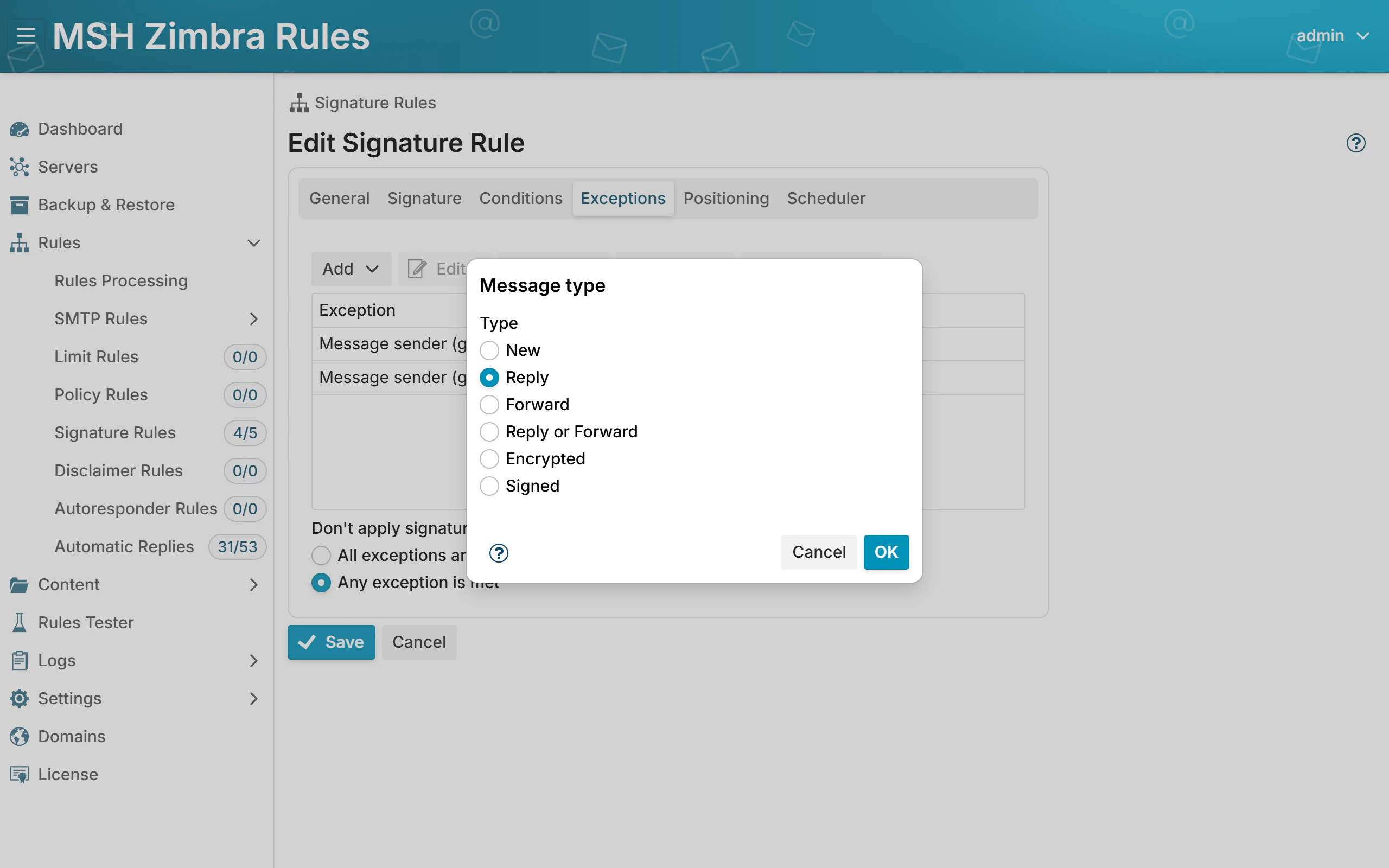
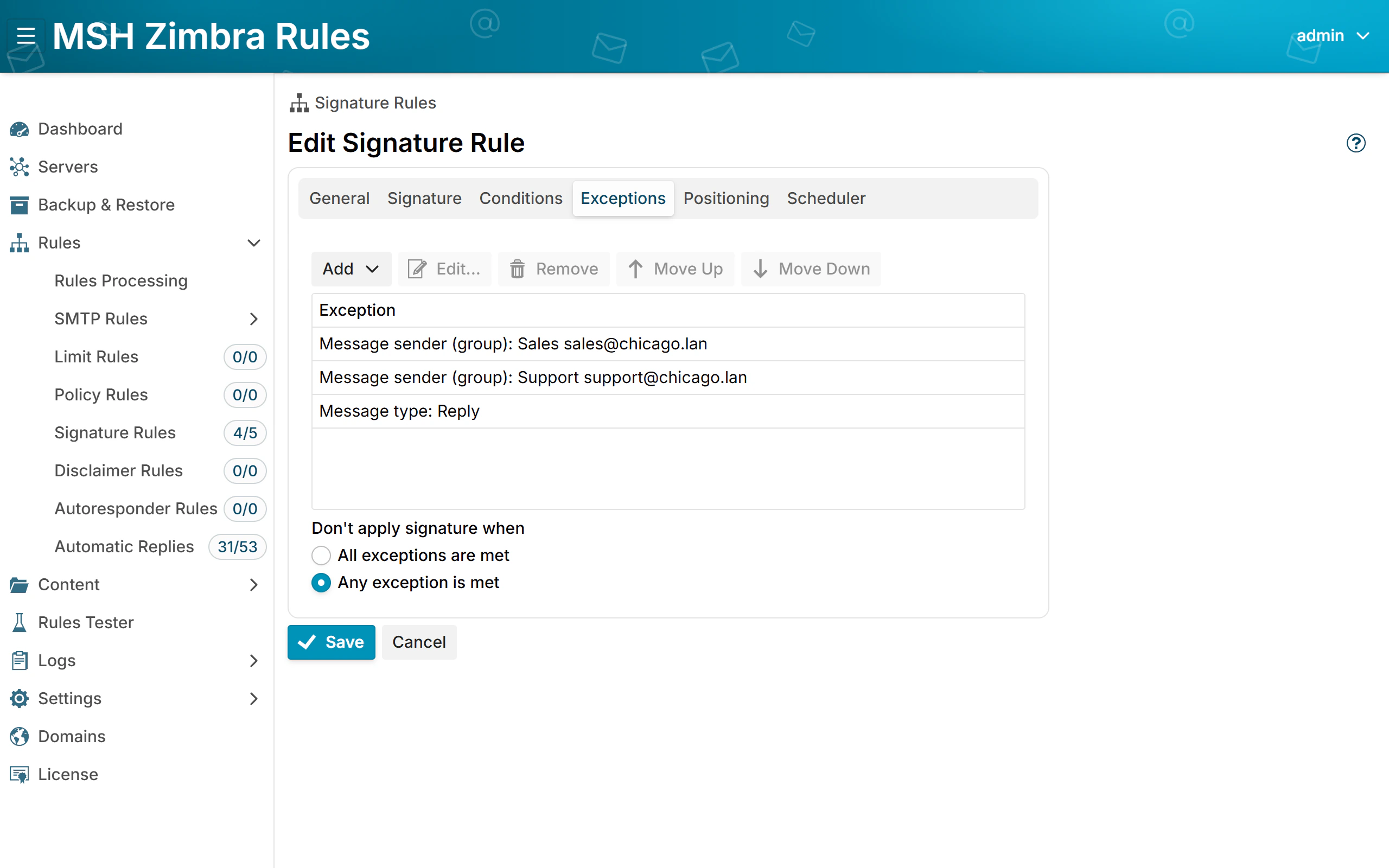
Double-click the rule Company signature, open Exceptions, click Add, choose
Message > Type and then Reply. Click OK and Save. If the rule already
has exceptions, keep Any exception is met: the rule is then skipped for a reply as
well as for everything it skipped before.
Do the same for every other full signature rule, such as the department rules.
Step 4 - Test it with a thread
Send a new message from one user to a colleague, reply to it as the colleague, and reply once more as the first user:
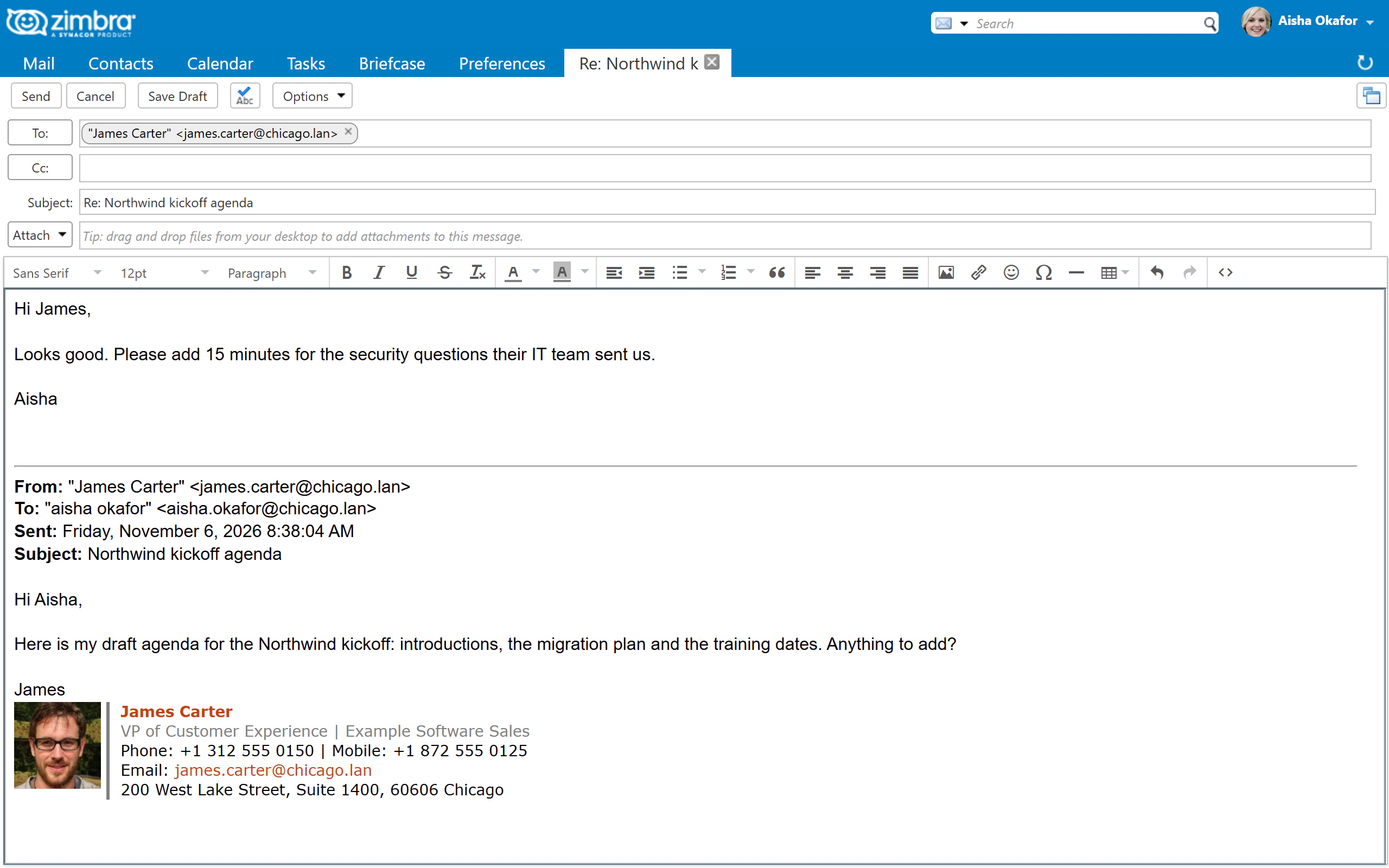
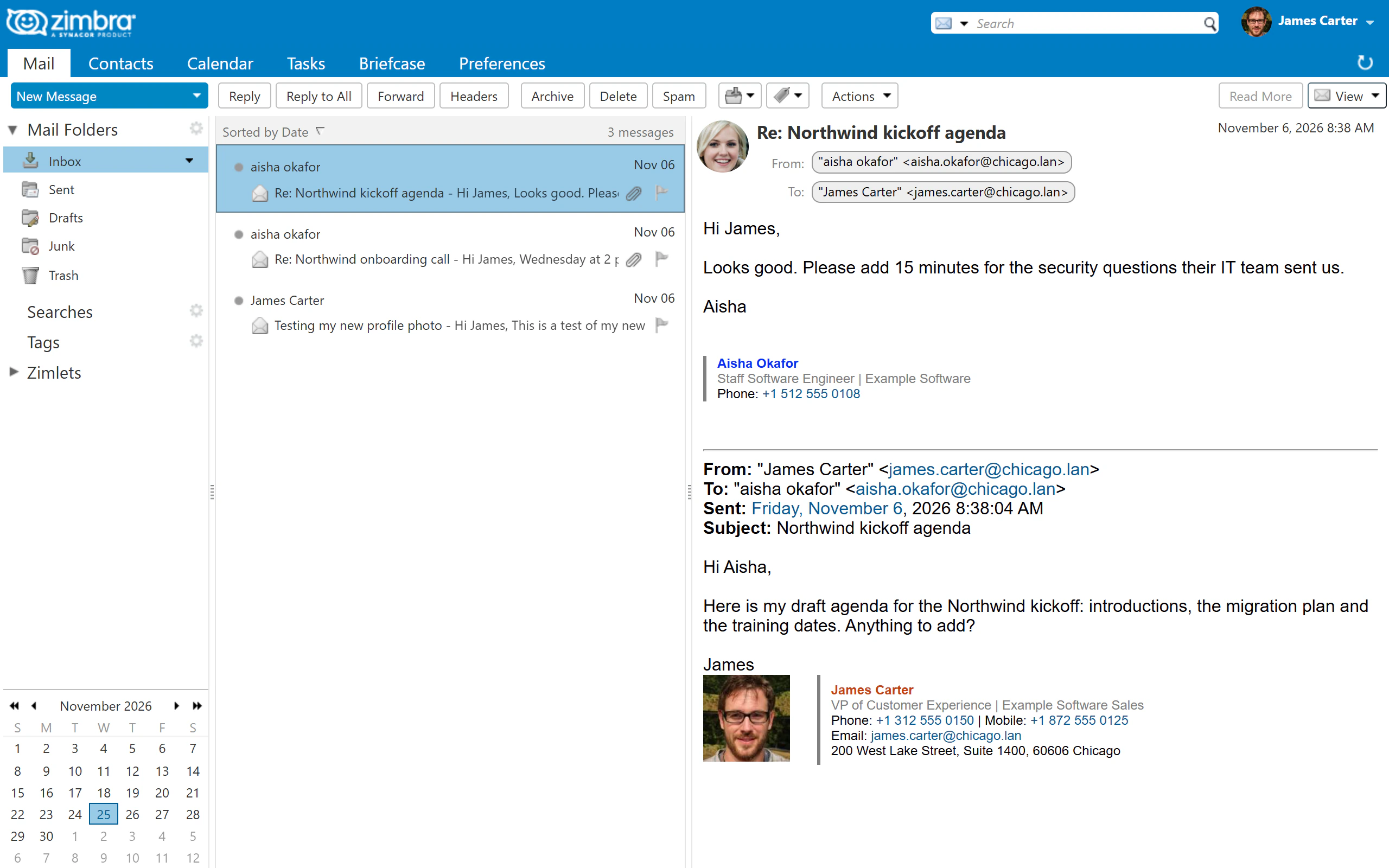
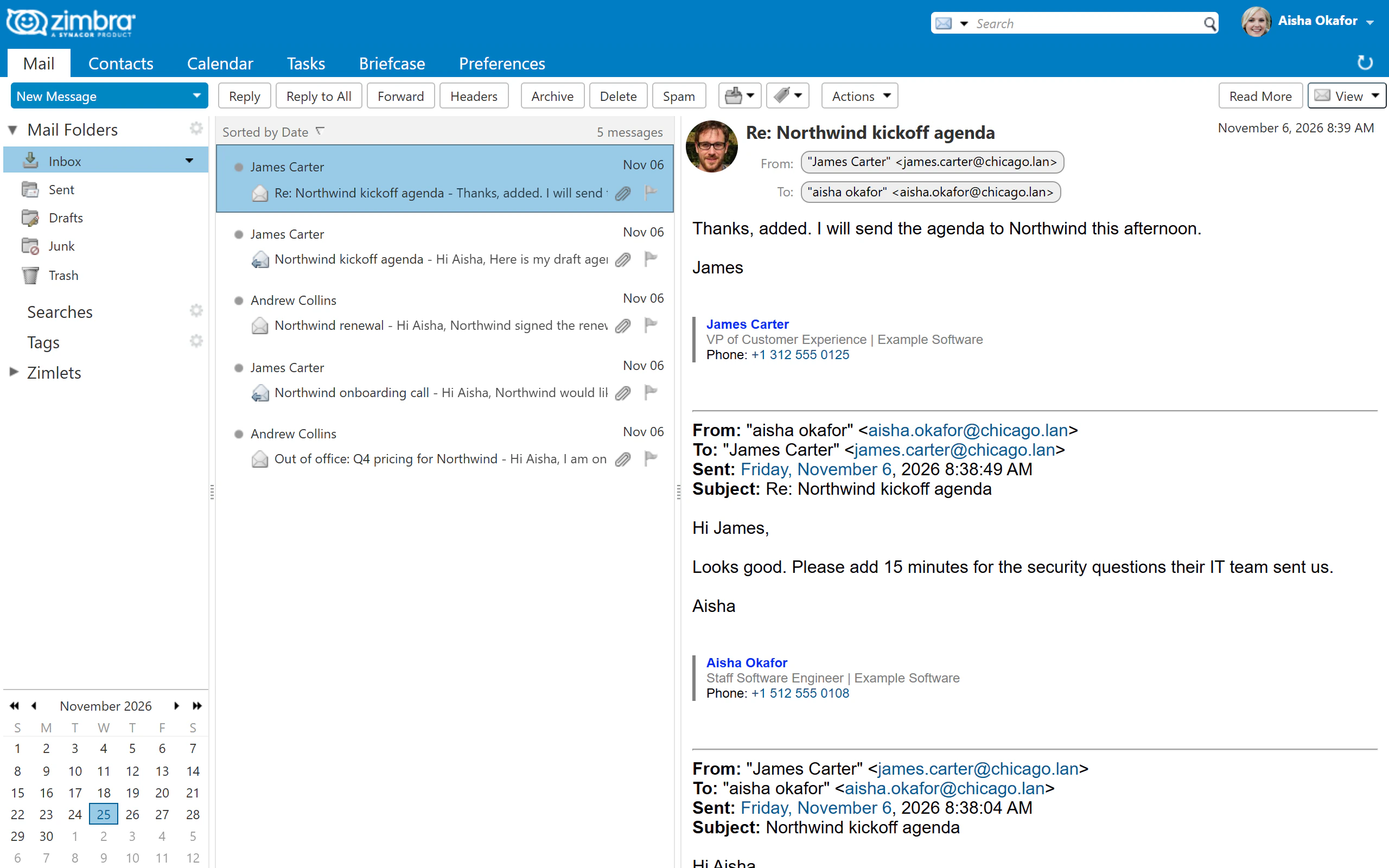
The short signature goes above the quoted message, where the reader expects it, see Positioning. MSH Zimbra Rules does not change the quoted messages, so the signatures already in the thread stay as they were sent.
Variations
- A short signature per department. One
Reply signatureuses the default colors for everyone. For the department colors in replies too, make a short template per department and give each department's reply rule the condition In Group with the same exceptions as its full rule. - No signature at all on replies. Skip steps 1 and 2 and only add the exceptions of step 3.
If replies do not get the short signature
- A reply has both signatures. A full signature rule has no Reply exception. Open the message's processing trace in the Rules tester or in Message history: every rule that says applied added a signature.
- A reply gets the full signature. The message was not recognized as a reply. The
trace shows the detected type, for example
Message is: 'New'. Messages written with New Message and a typedRe:are new messages. - Forwards get the full signature. That is the setup of this article. Choose Reply or Forward in the rule and in the exceptions to change it.
Related reading
- Message type - how new messages, replies and forwards are told apart
- Positioning - where the signature goes in a reply
- Templates - the signature wizard
Want to try it on your own server? Start a free trial.