Send an Automatic Reply Outside Working Hours in Zimbra
A customer who writes at seven in the evening and hears nothing until the next afternoon does not know whether the message arrived. One automatic reply fixes that: it says that the office is closed, when it opens again, and whom to call if it cannot wait. This article sets one up in the Zimbra web client in about ten minutes. It answers only outside the user's working hours, every working day, without being switched on in the evening and off in the morning.
Why Zimbra's Out of Office is not enough
Zimbra's own Out of Office is made for a holiday: it is on from one date to another, or until the user turns it off. It has no schedule that repeats, so it cannot answer every evening and stay quiet during the day. Users who try end up turning it on before they leave and off when they come in, and the first morning they forget, every customer gets told they are away.
A Sieve filter can reply, but the hours go into the script by hand, it answers every single message unless you add the conditions yourself, and an administrator has to write it.
The Automatic Replies of MSH Zimbra Rules take the working hours each user already has in Zimbra. A rule for Outside my working hours replies when a message arrives on a day the user does not work, or before or after their hours that day, in their own time zone.
What the sender gets
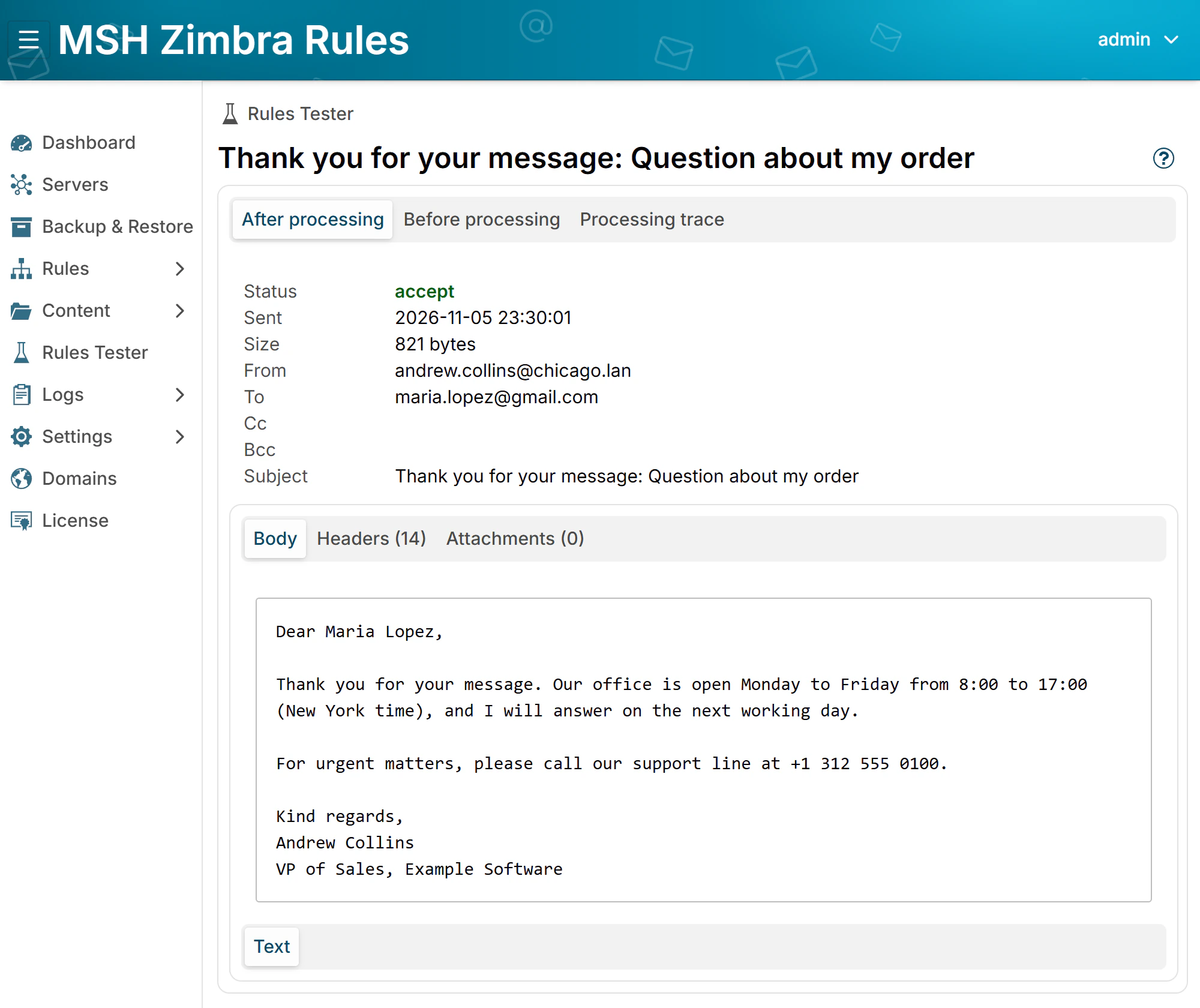
A customer who writes after 17:00 gets a reply like this one, from the address they wrote to, with their name and the user's details filled in:
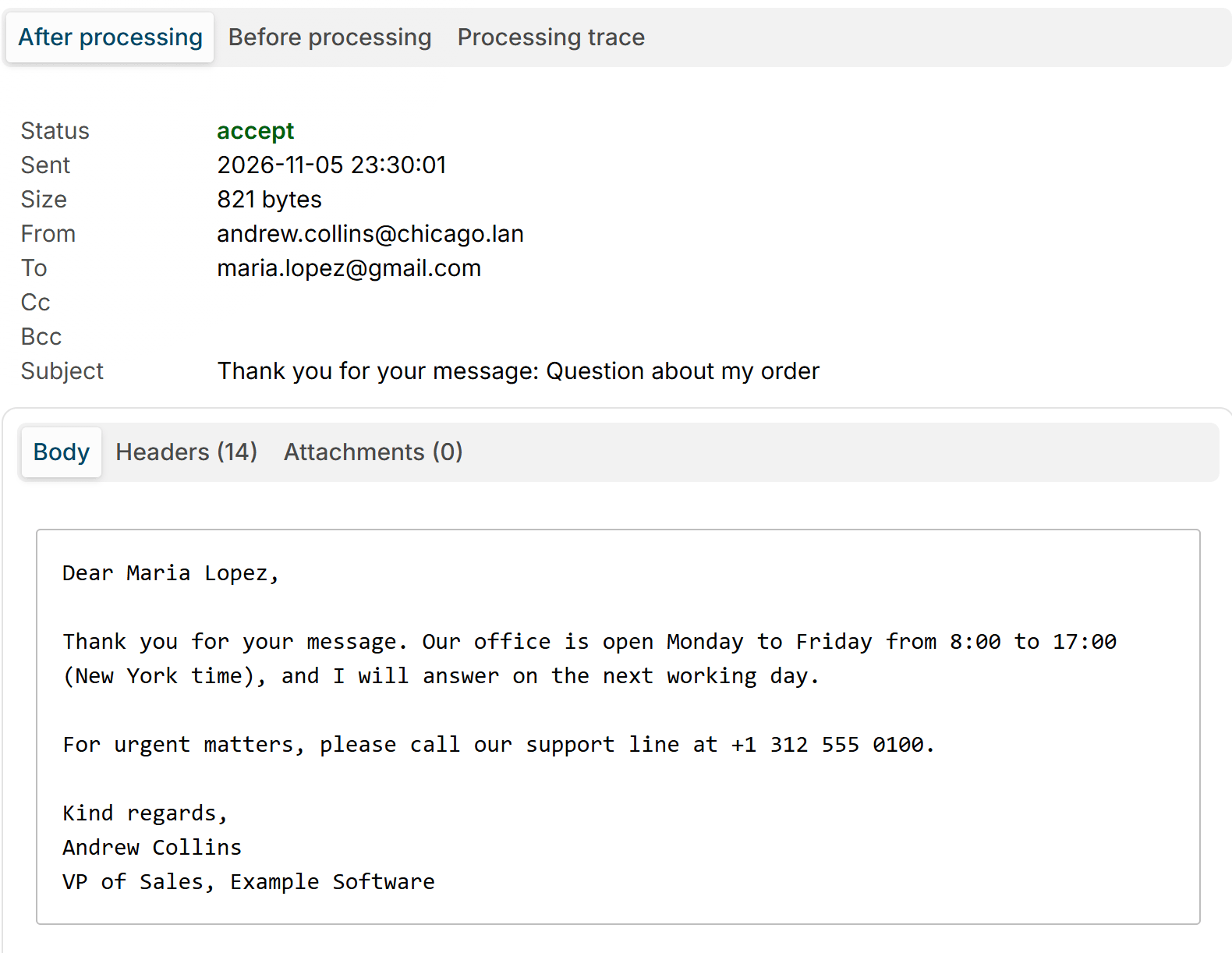
Colleagues get a shorter text of their own. During the working hours nobody gets anything.
What you will build
One rule in the user's Automatic Replies:
| Setting | Value |
|---|---|
| When should it reply? | Outside my working hours |
| For mail sent to | Any of my addresses |
| Reply to colleagues | Outside working hours: {subject}, a short note |
| Reply to people outside | A different text: Thank you for your message: {subject}, the opening hours and a phone number |
And two settings for everyone, on Settings > Automatic Replies:
| Setting | Value |
|---|---|
| How often a sender gets a reply | 1 in 1 Days |
| Users may reply to senders outside the organisation | On |
Before you start
- MSH Zimbra Rules 1.4.1 or later, installed on the Zimbra server, see the installation guide. Automatic Replies came with 1.4.1.
- The Automatic Replies zimlets deployed, with the Zimbra extension on every mailbox server, see Zimlet configuration.
- The directory service configured. It reads each user's working hours and time zone from Zimbra, see Directory service.
Step 1 - Let users answer customers, once a day
This step is for the administrator, once for everybody. Log in to the administrator
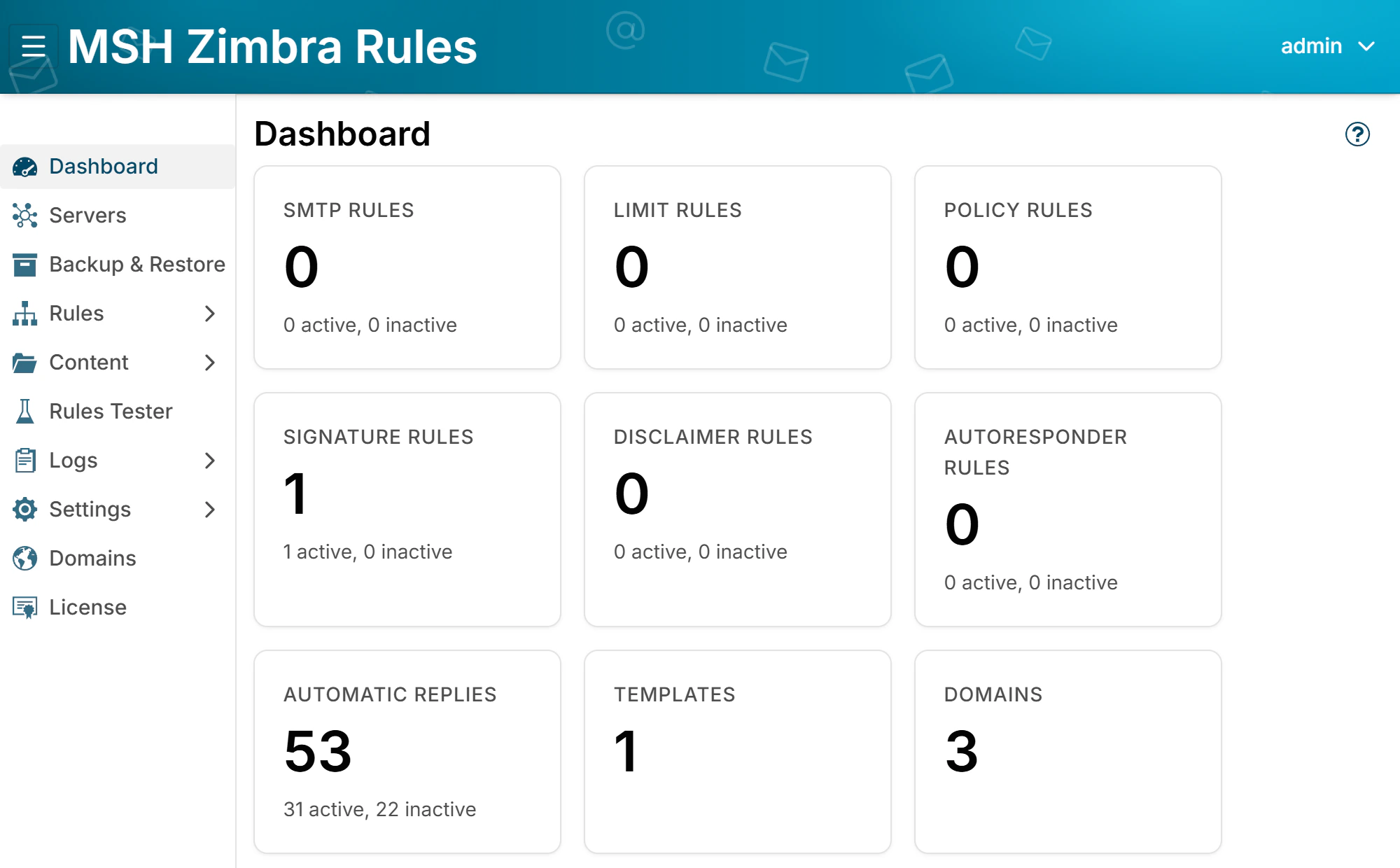
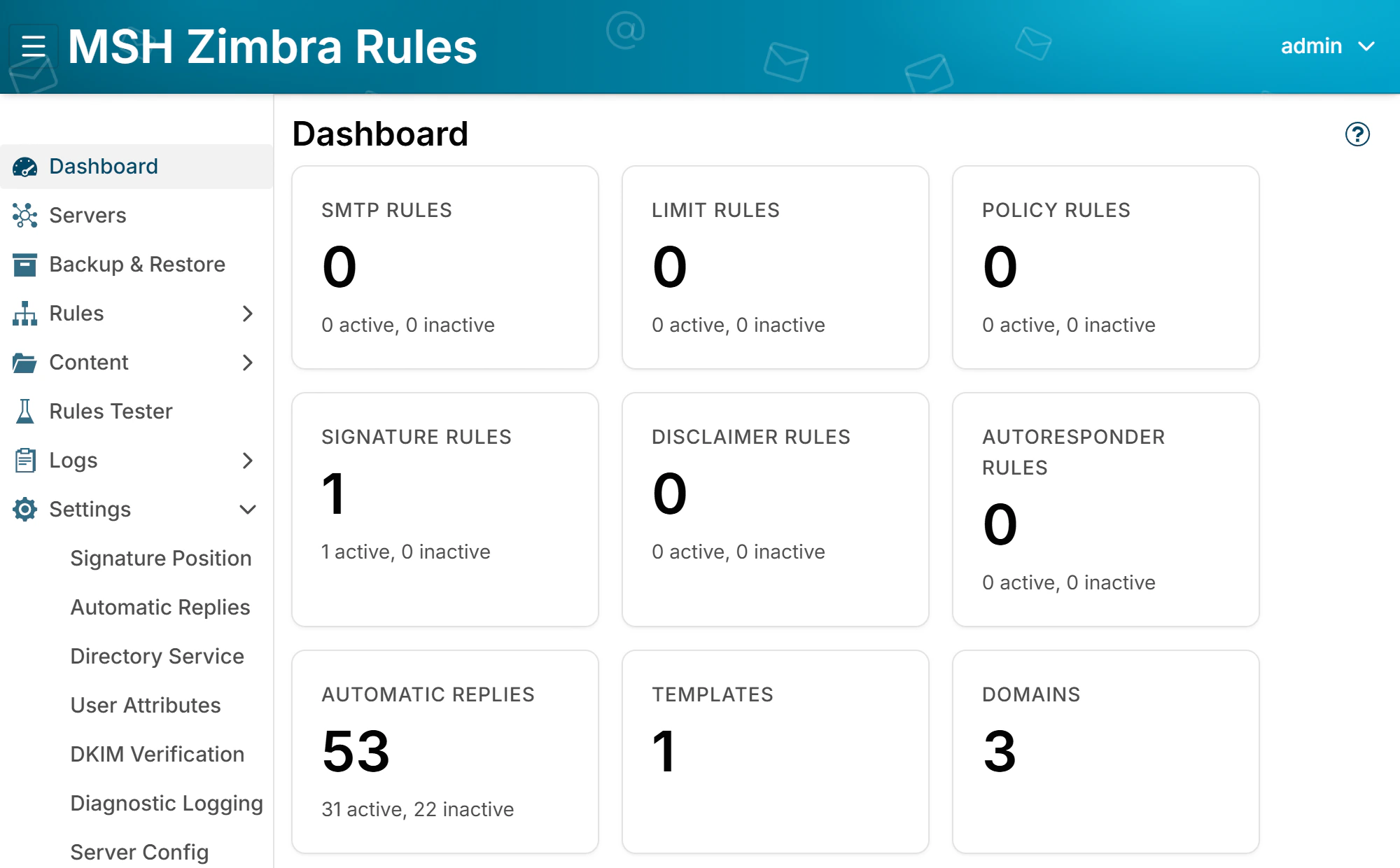
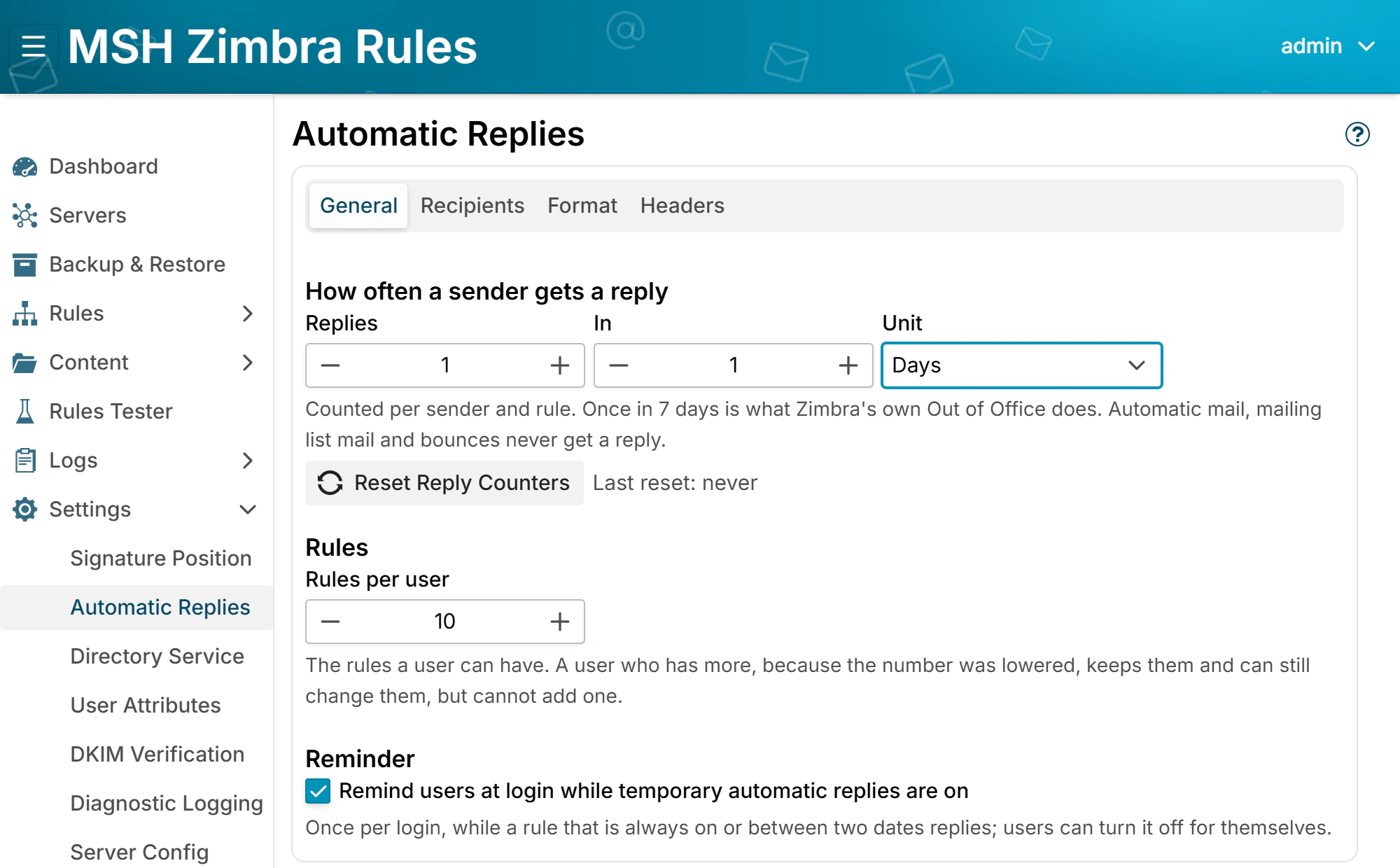
panel at https://<host>:9010 and open Settings > Automatic Replies.
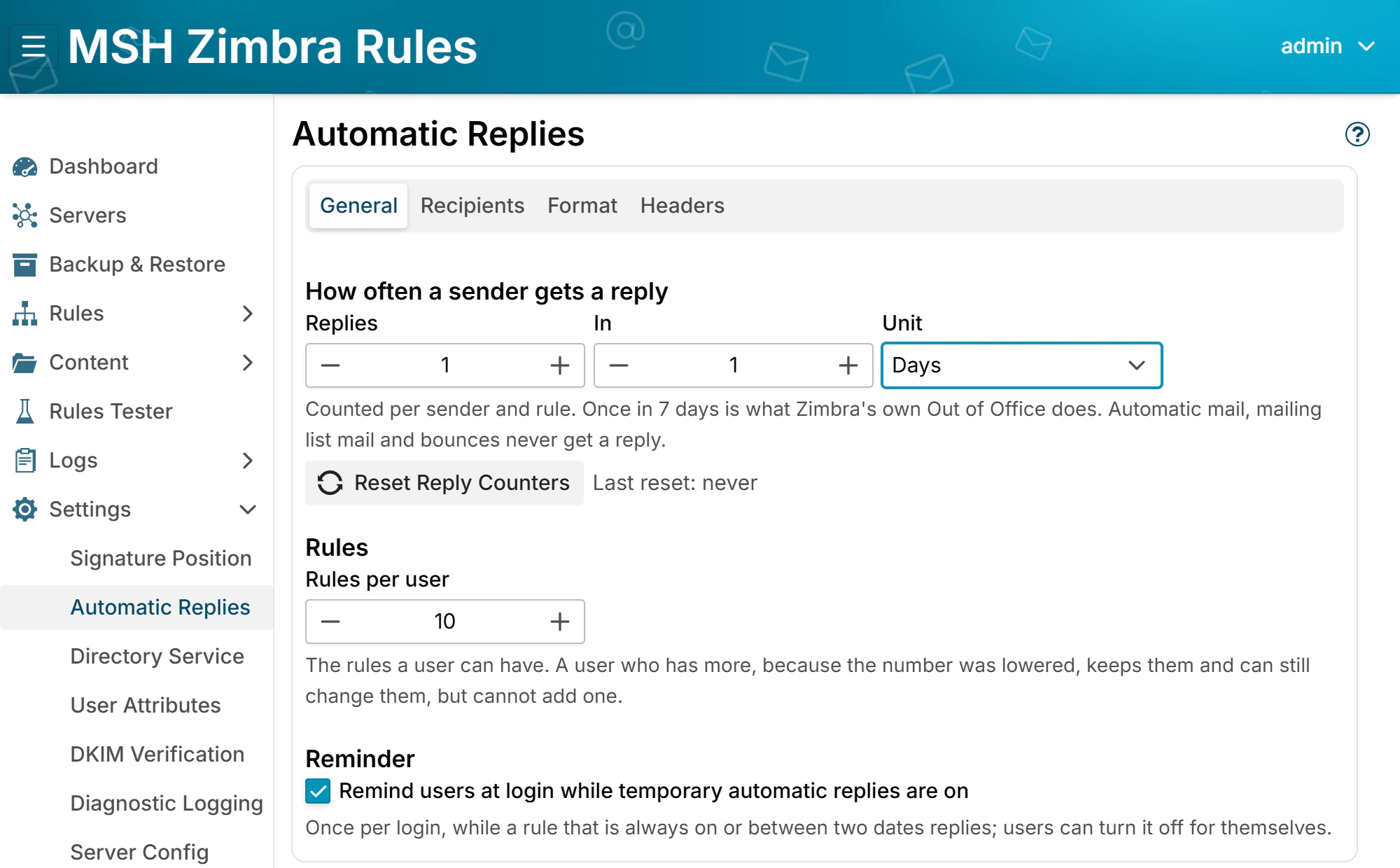
On the General tab, set how often a sender gets the reply to 1 in 1 Days. The count is per sender and rule, so a customer who writes on Monday evening and again on Tuesday evening gets the reply both times, but not ten times in one night. Zimbra's own Out of Office answers once in 7 days, which suits a holiday better than an evening.
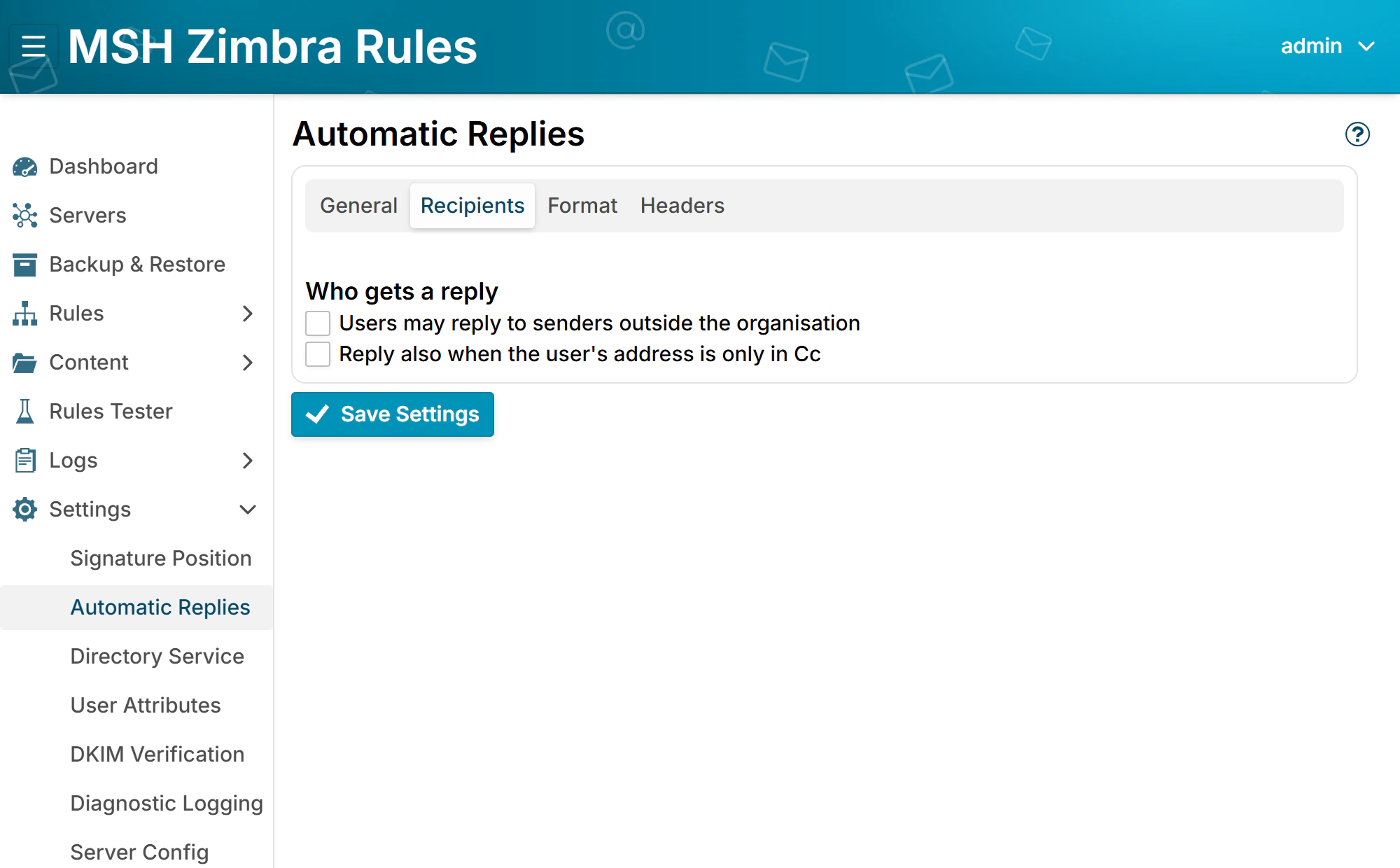
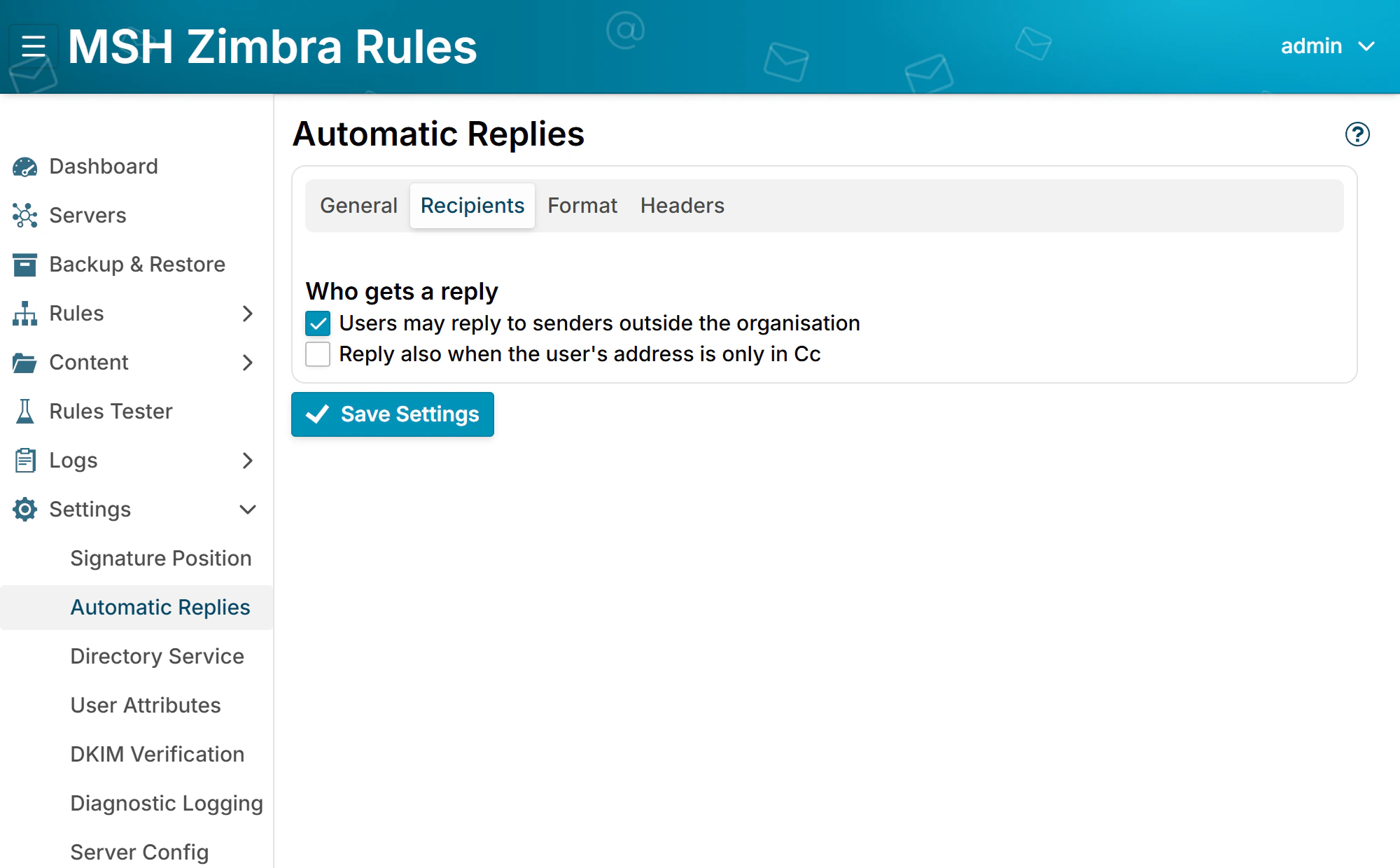
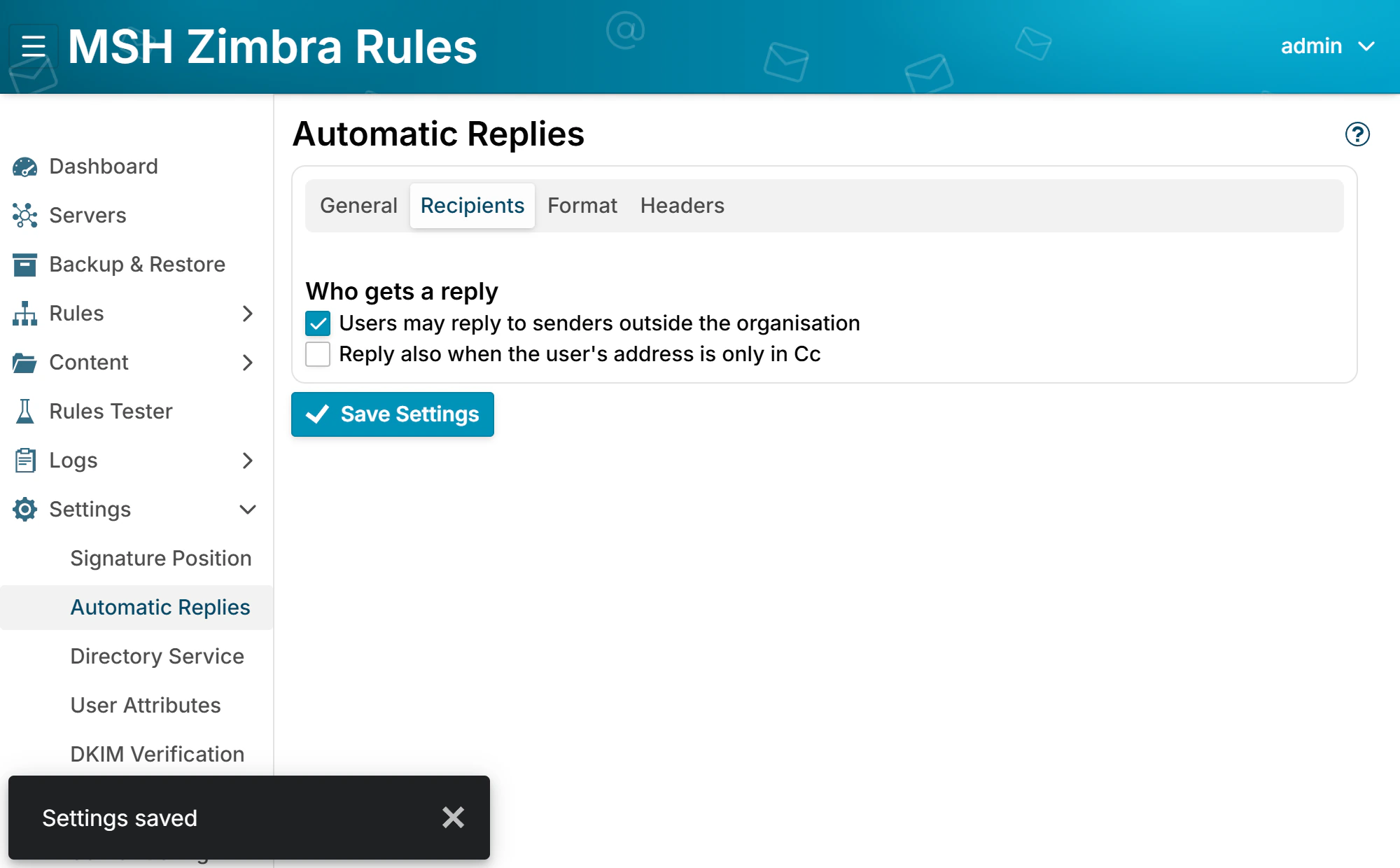
On the Recipients tab, tick Users may reply to senders outside the organisation. Without it the users' rules answer only colleagues, and the rule window has no reply for people outside. Click Save Settings.
Step 2 - Check the working hours
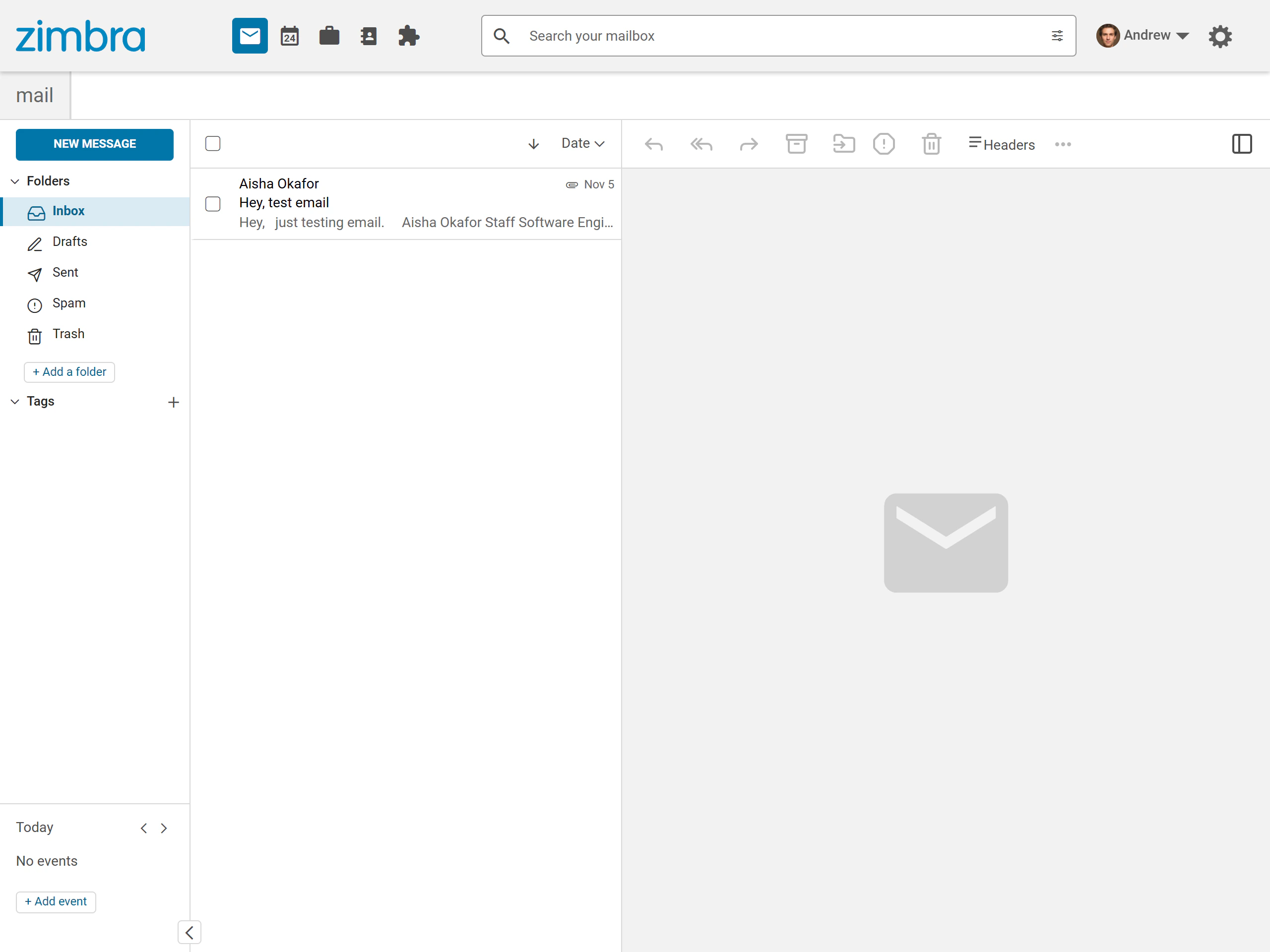
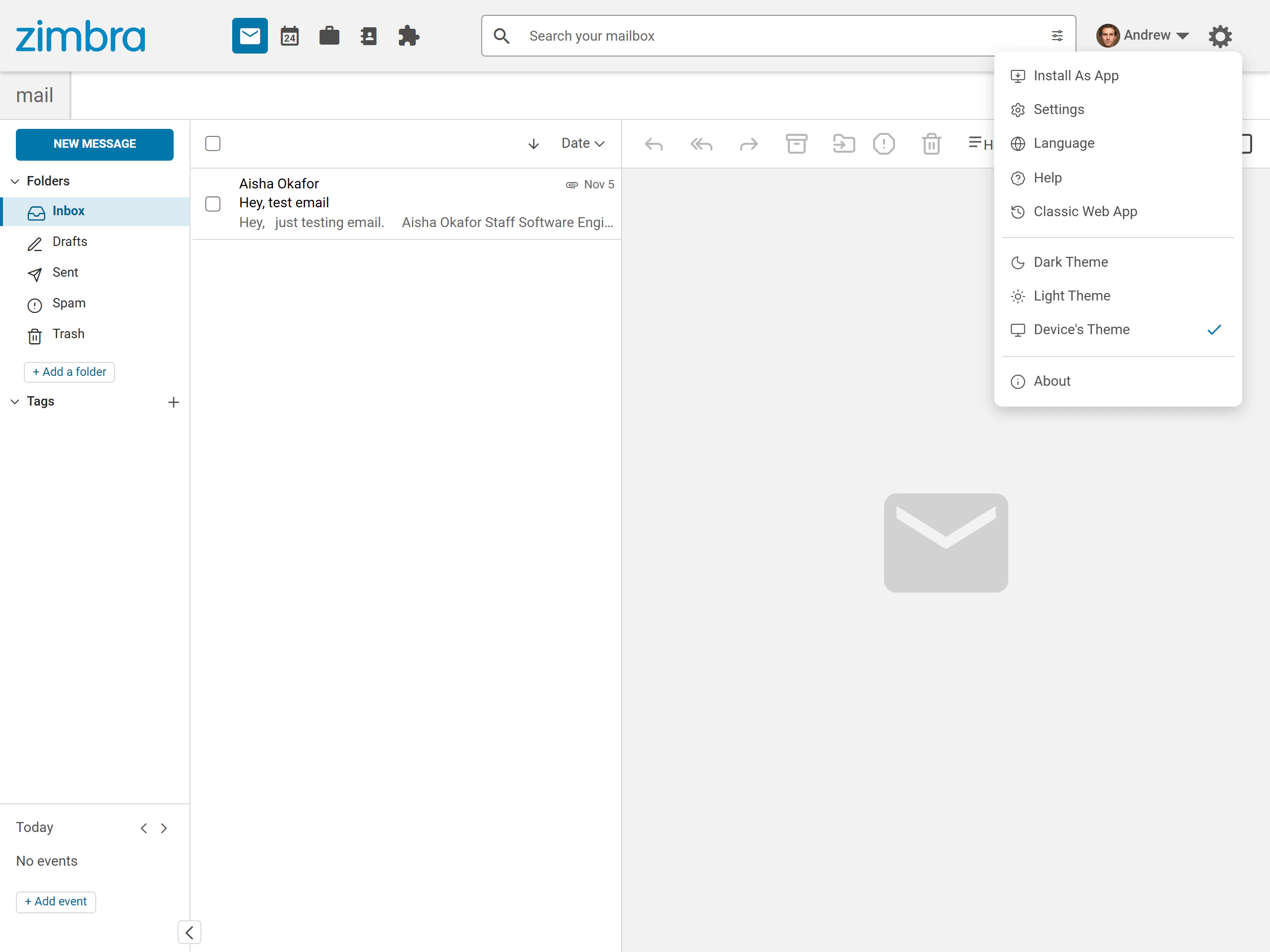
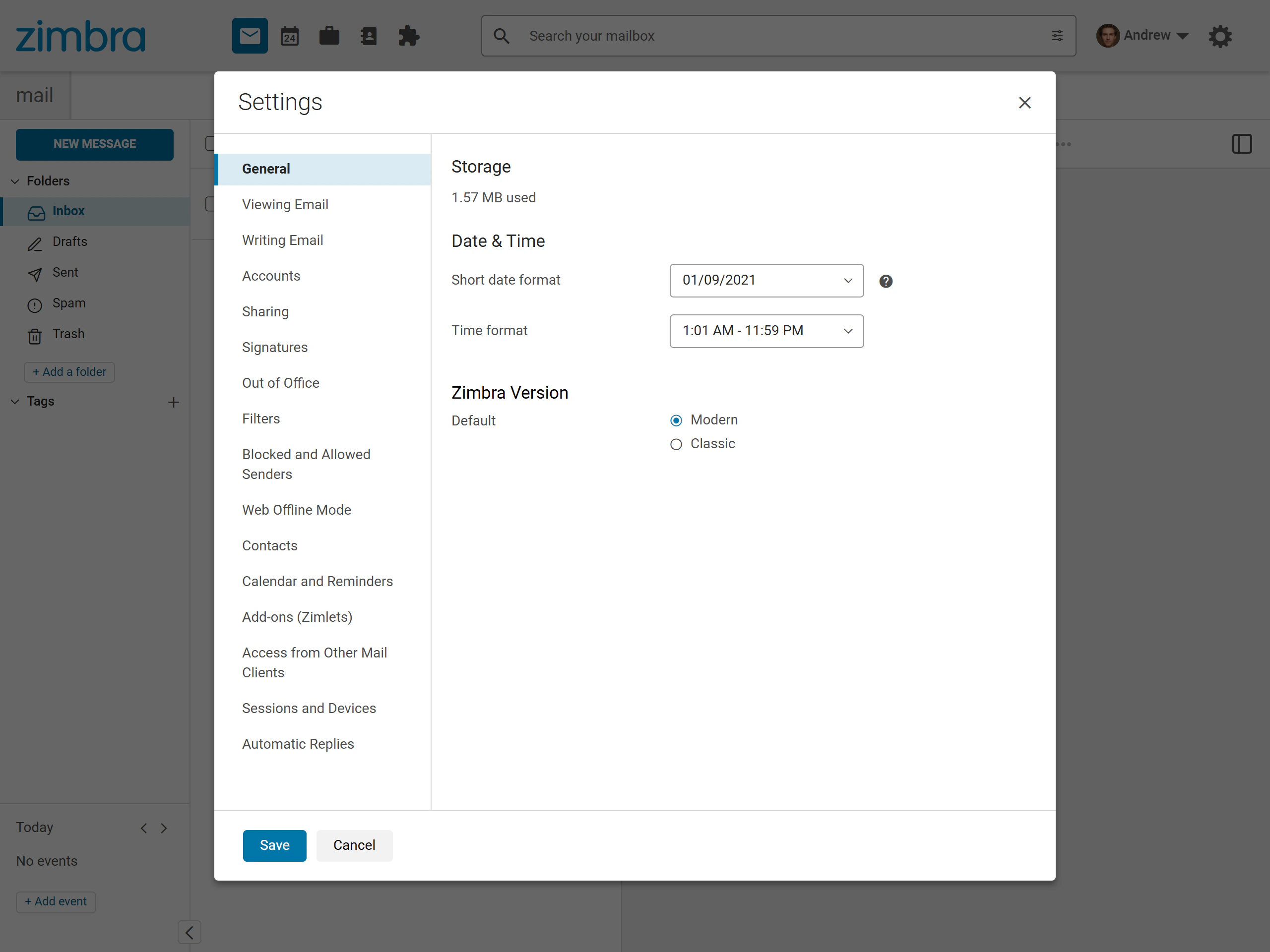
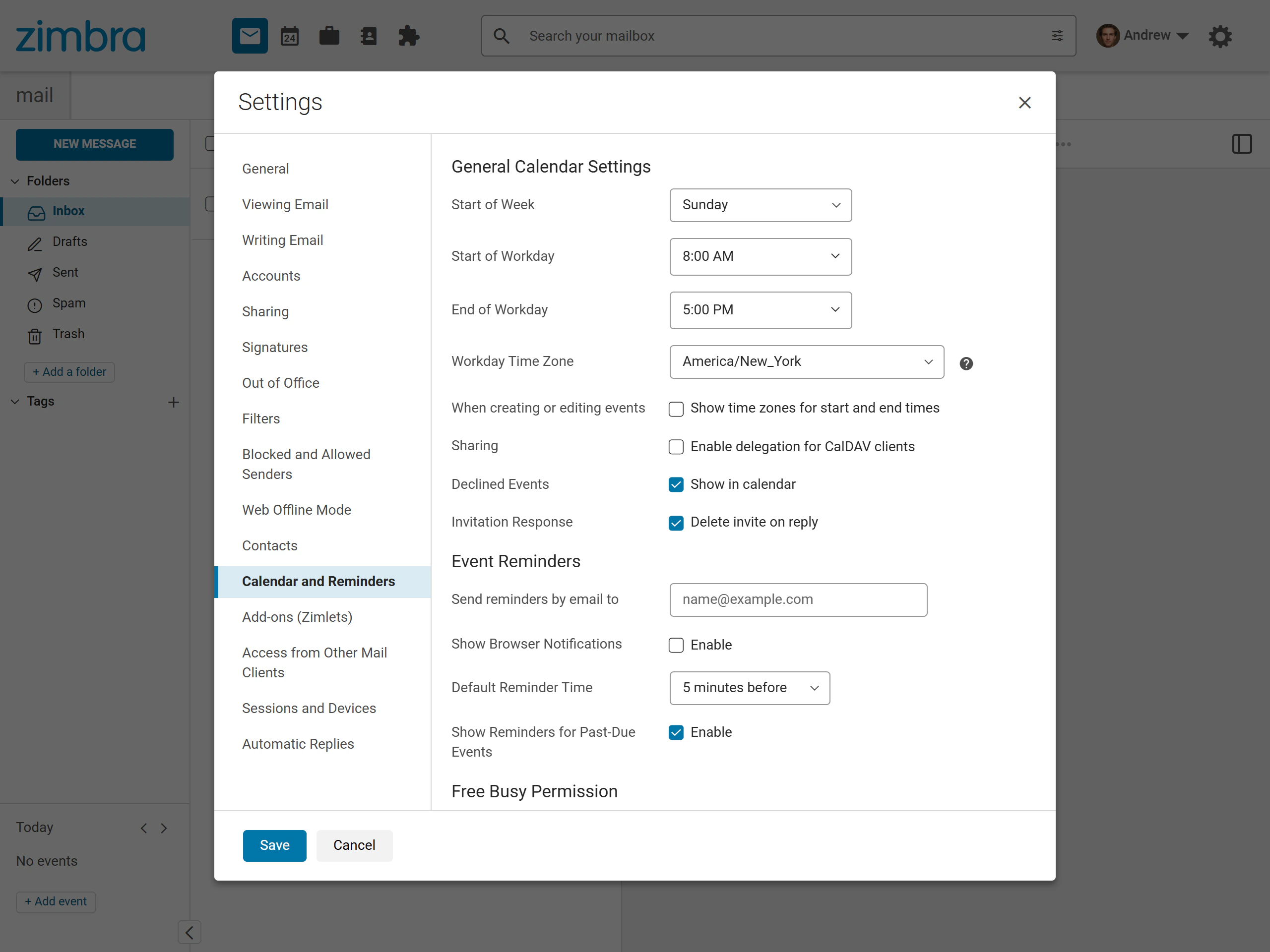
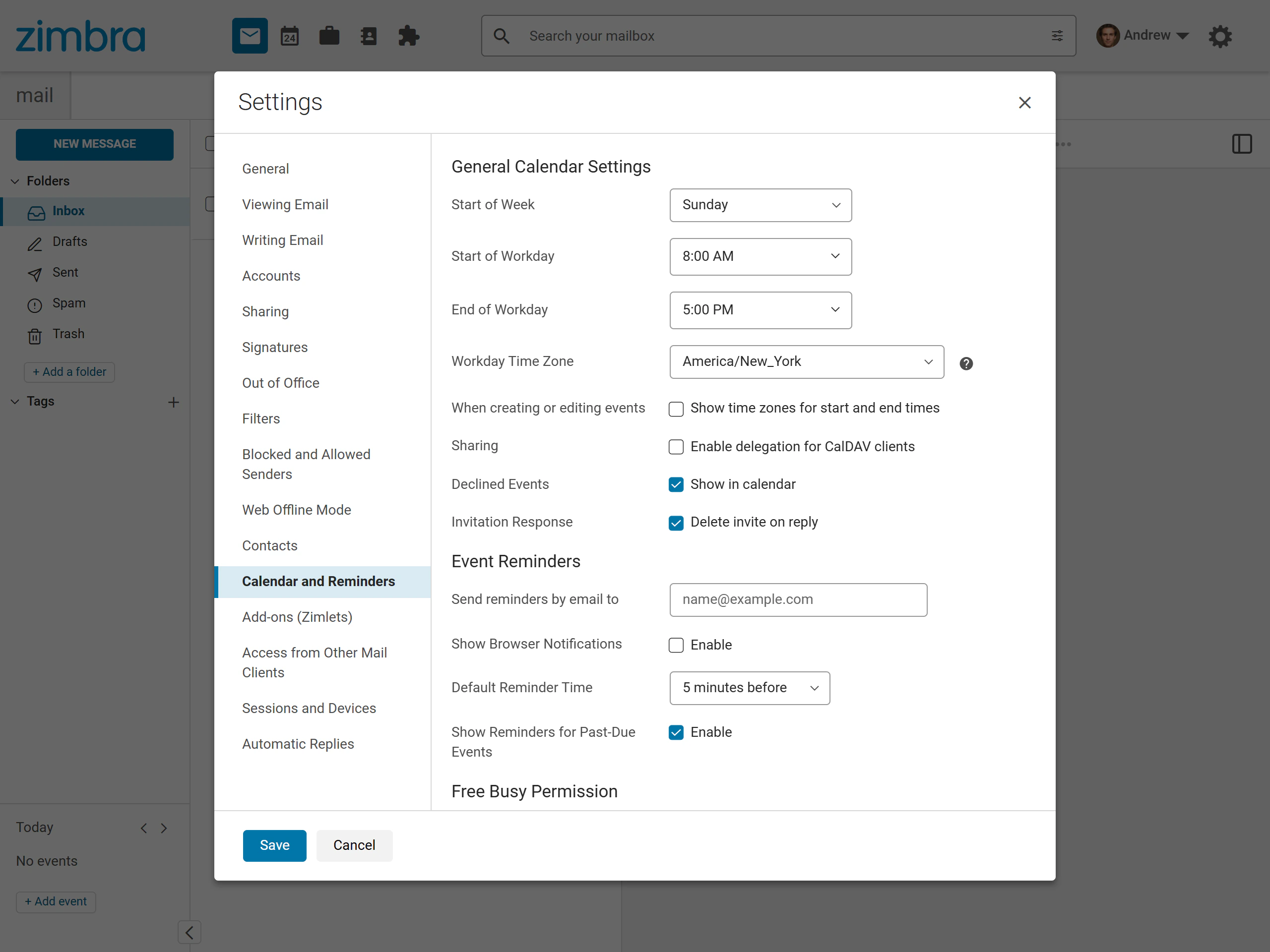
The rule replies outside the hours the user has in Zimbra, so check them first. In the Modern web client, click the gear, choose Settings and open Calendar and Reminders. Start of Workday, End of Workday and Workday Time Zone are the hours and the time zone the rule follows. The Classic web client has them under Preferences > Calendar.
A user who never set them has Zimbra's default, Monday to Friday from 08:00 to 17:00. A change reaches the rule with the next directory sync, and the rule itself needs no change.
Step 3 - Create the rule
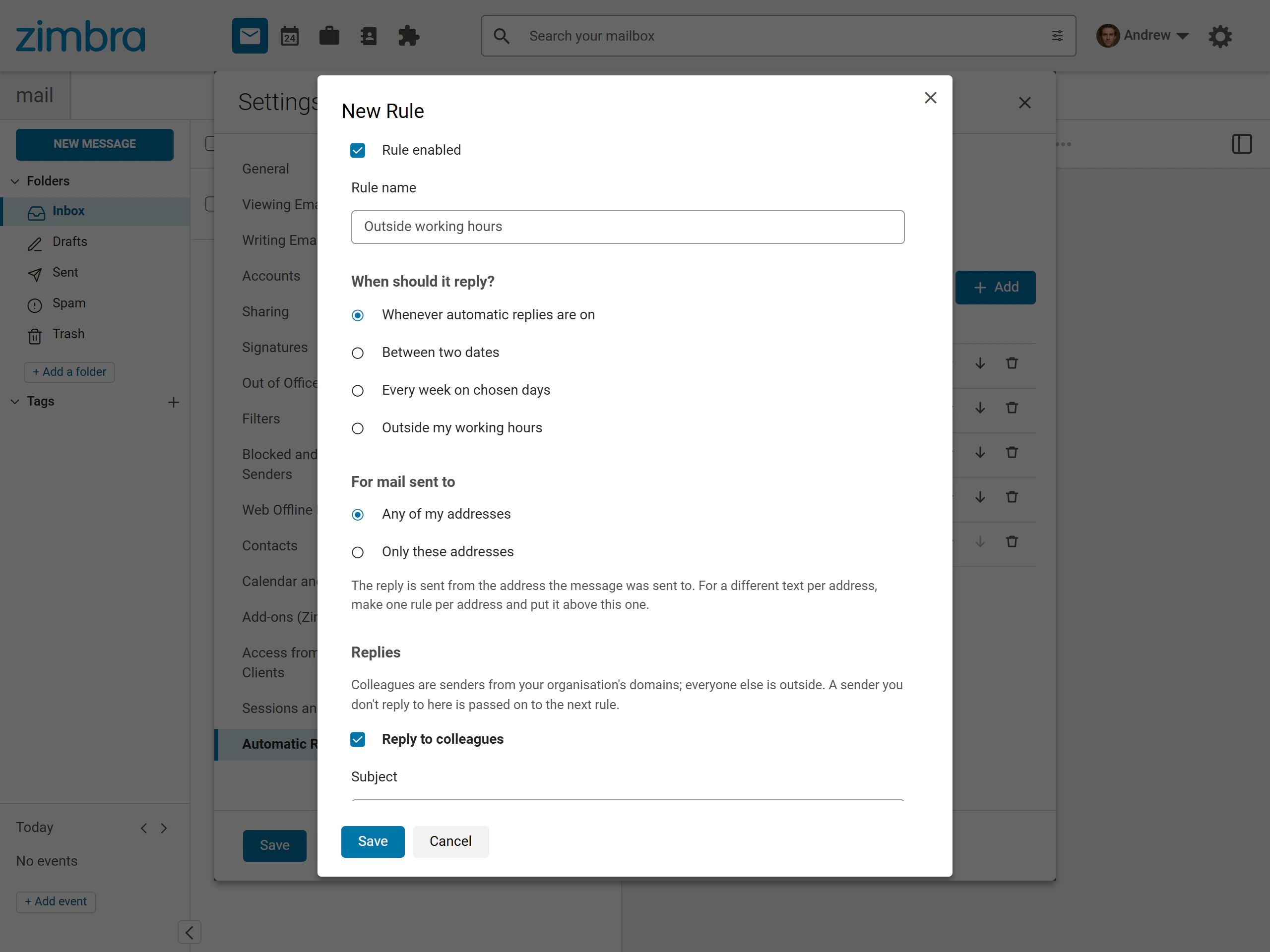
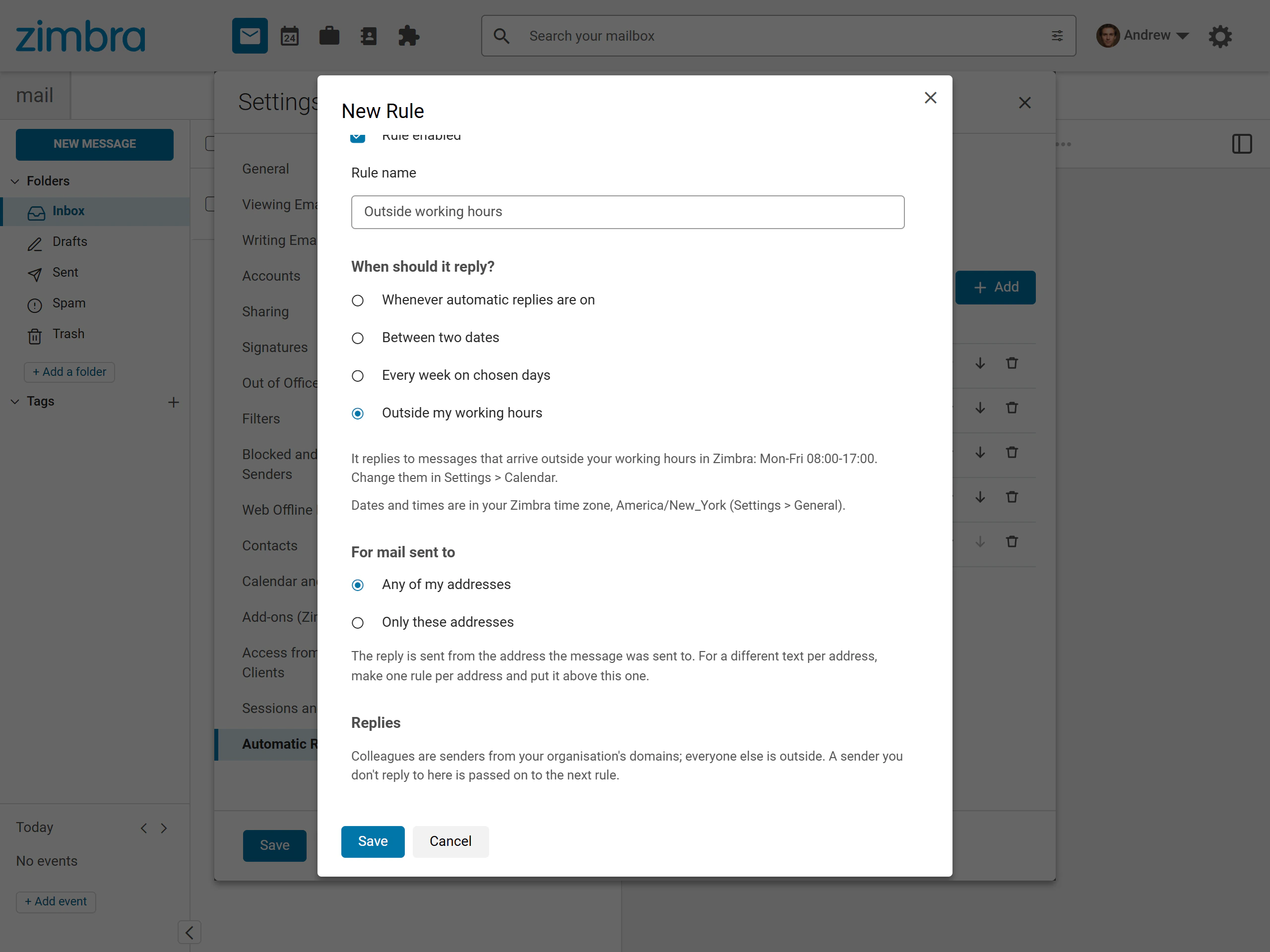
Still in Settings, open Automatic Replies and click Add. Name the rule
Outside working hours and choose Outside my working hours under When should it
reply?. The window shows the hours it found, for example Mon-Fri 08:00-17:00, and the
time zone.
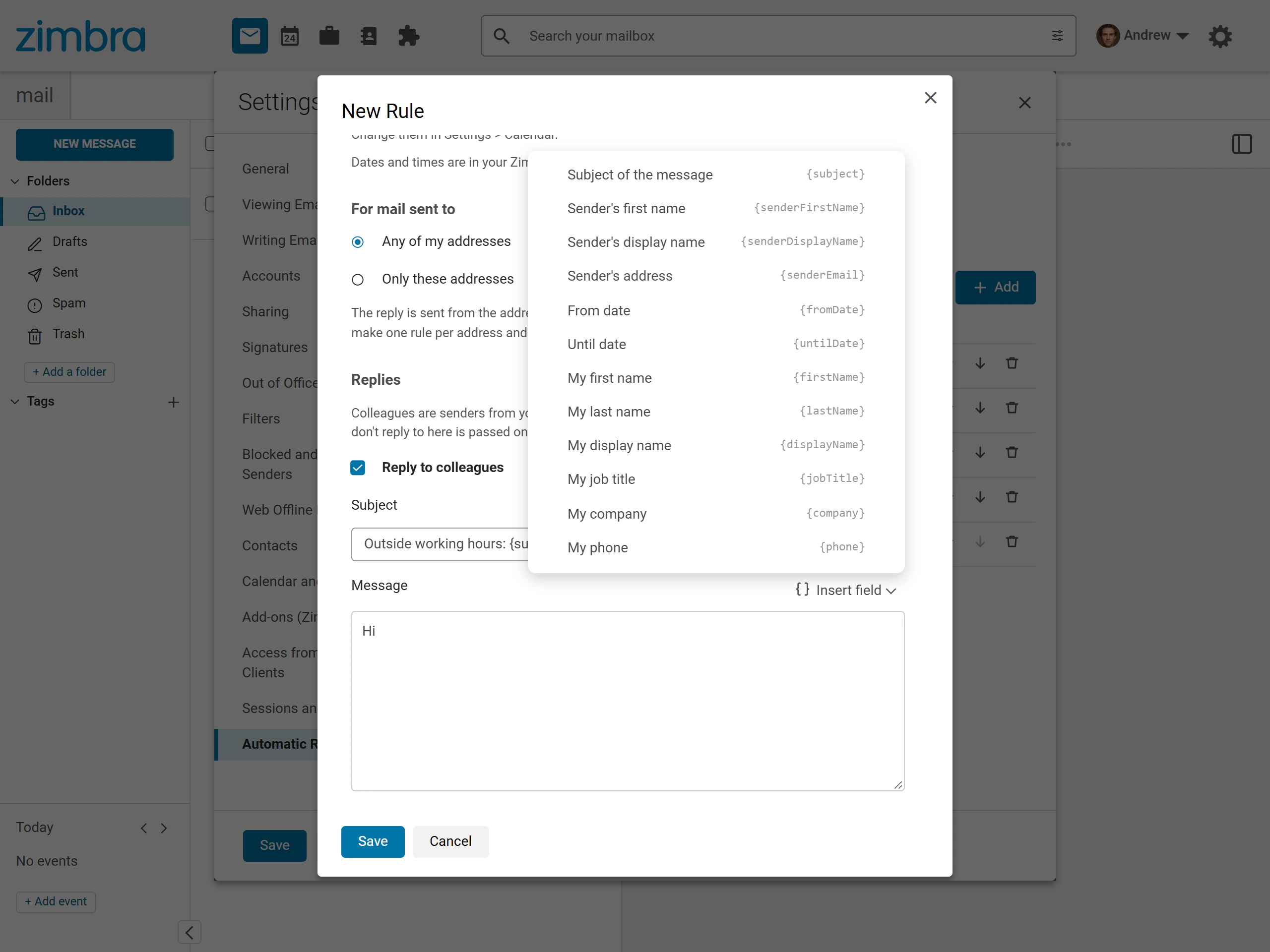
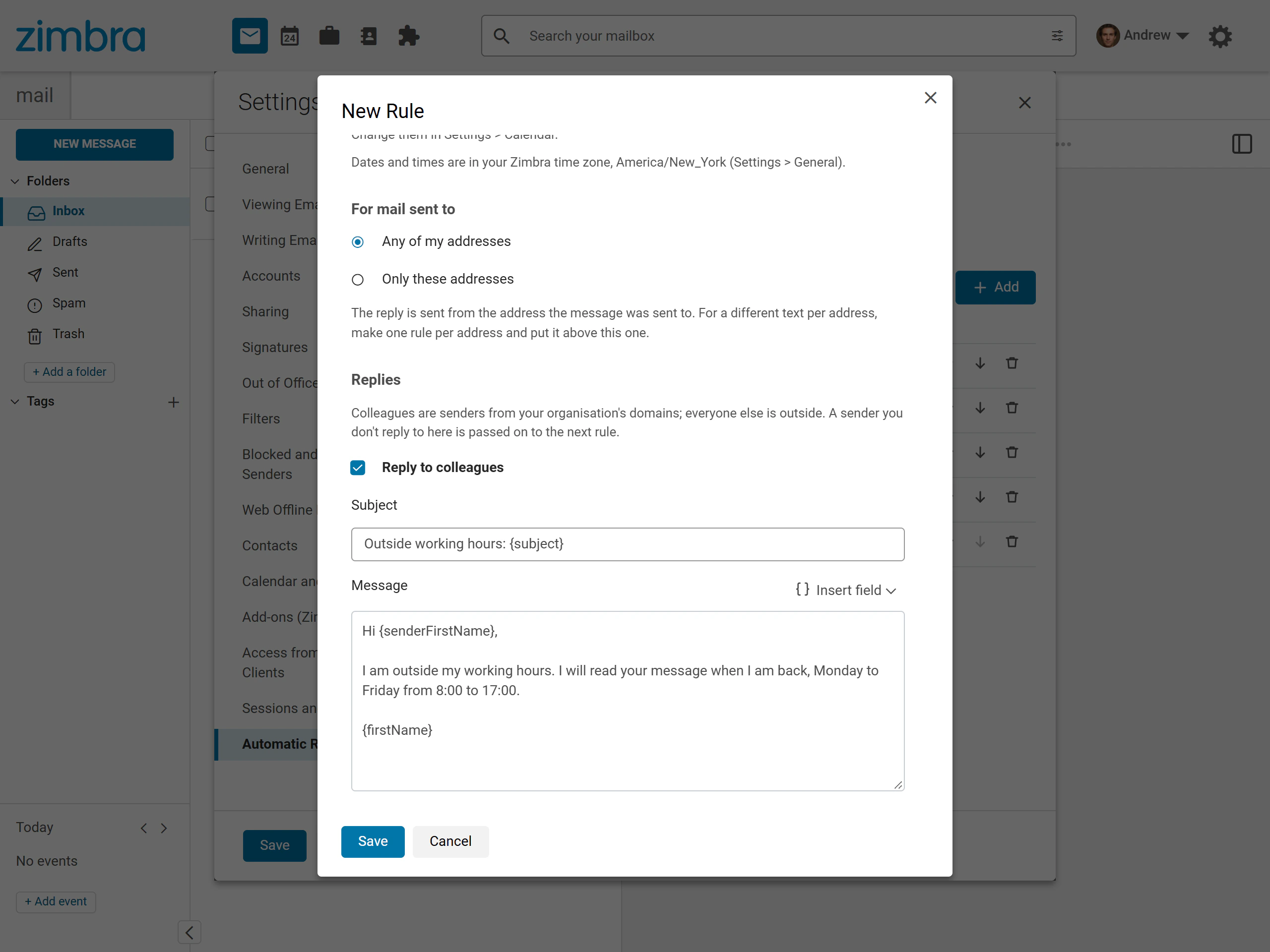
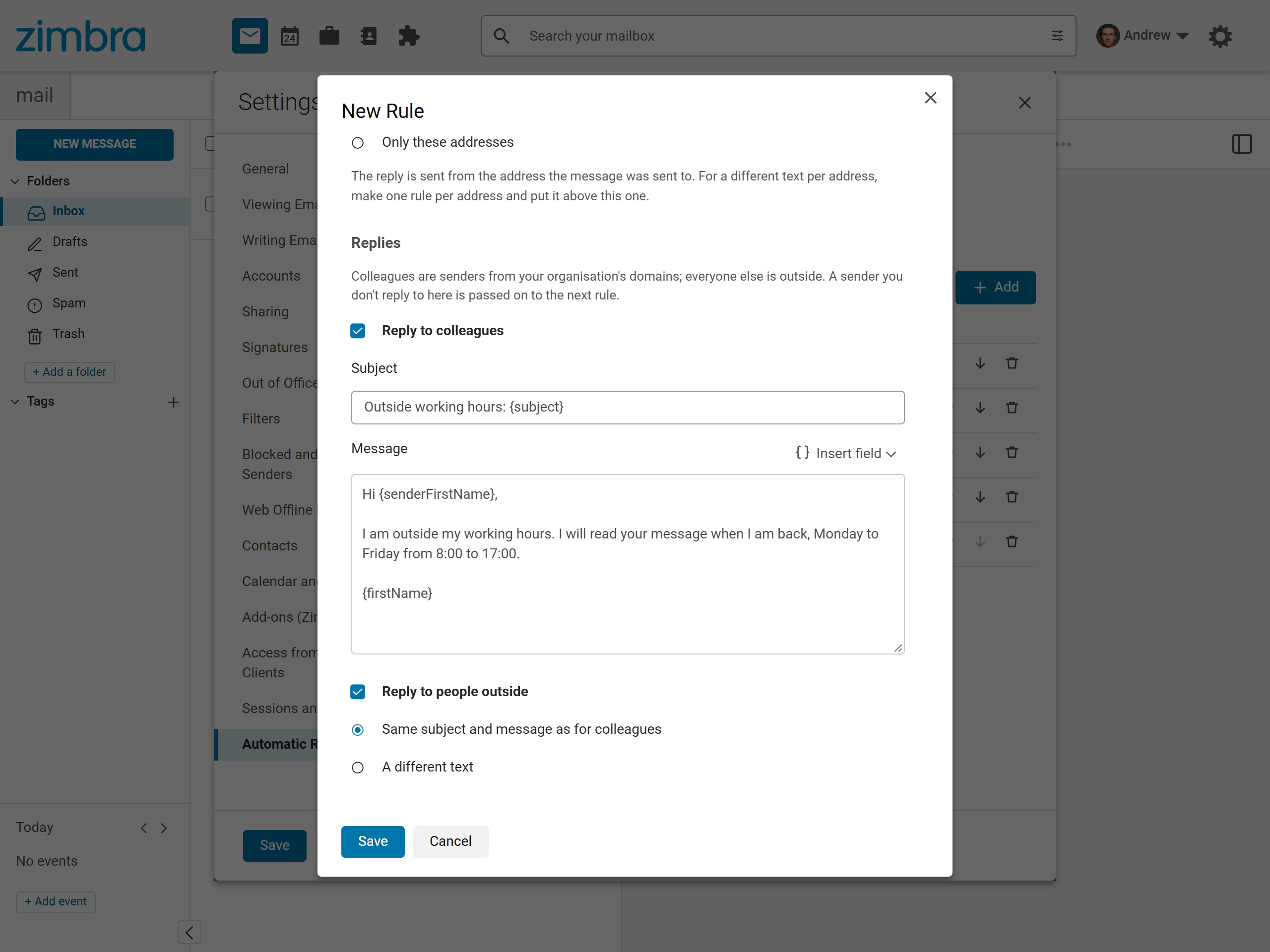
Under Replies, write the reply to colleagues. Insert field puts in a field such as the sender's first name, which is filled in for each message:
Subject: Outside working hours: {subject}

Hi {senderFirstName},

I am outside my working hours. I will read your message when I am back,
Monday to Friday from 8:00 to 17:00.

{firstName}
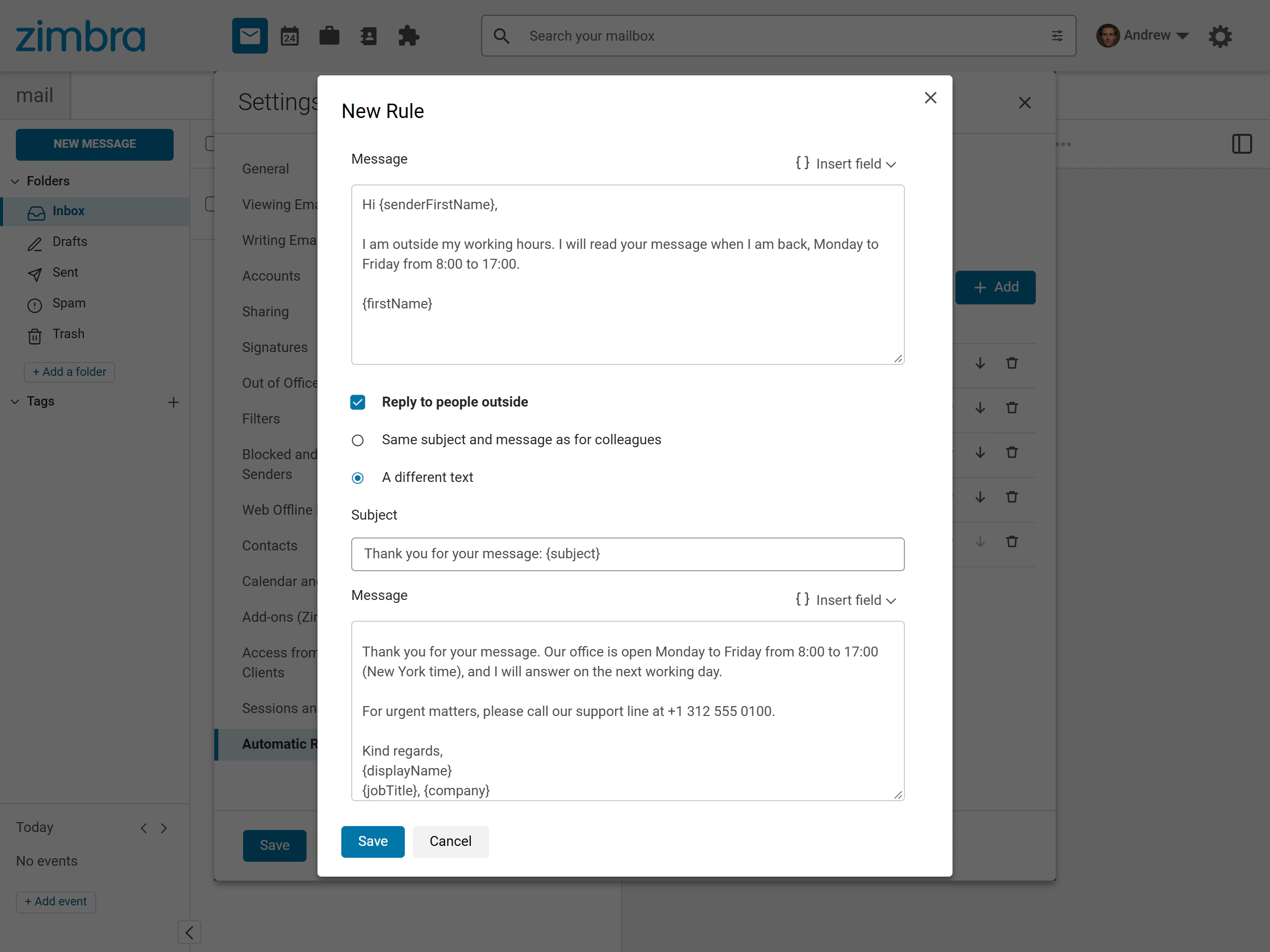
Leave Reply to people outside ticked, choose A different text and write what a customer should read:
Subject: Thank you for your message: {subject}

Dear {senderDisplayName},

Thank you for your message. Our office is open Monday to Friday from 8:00 to 17:00
(New York time), and I will answer on the next working day.

For urgent matters, please call our support line at +1 312 555 0100.

Kind regards,
{displayName}
{jobTitle}, {company}
{displayName}, {jobTitle} and {company} come from the user's details in the
directory, so the same text works for everyone in a team. All fields are listed under
Variables. Click Save.
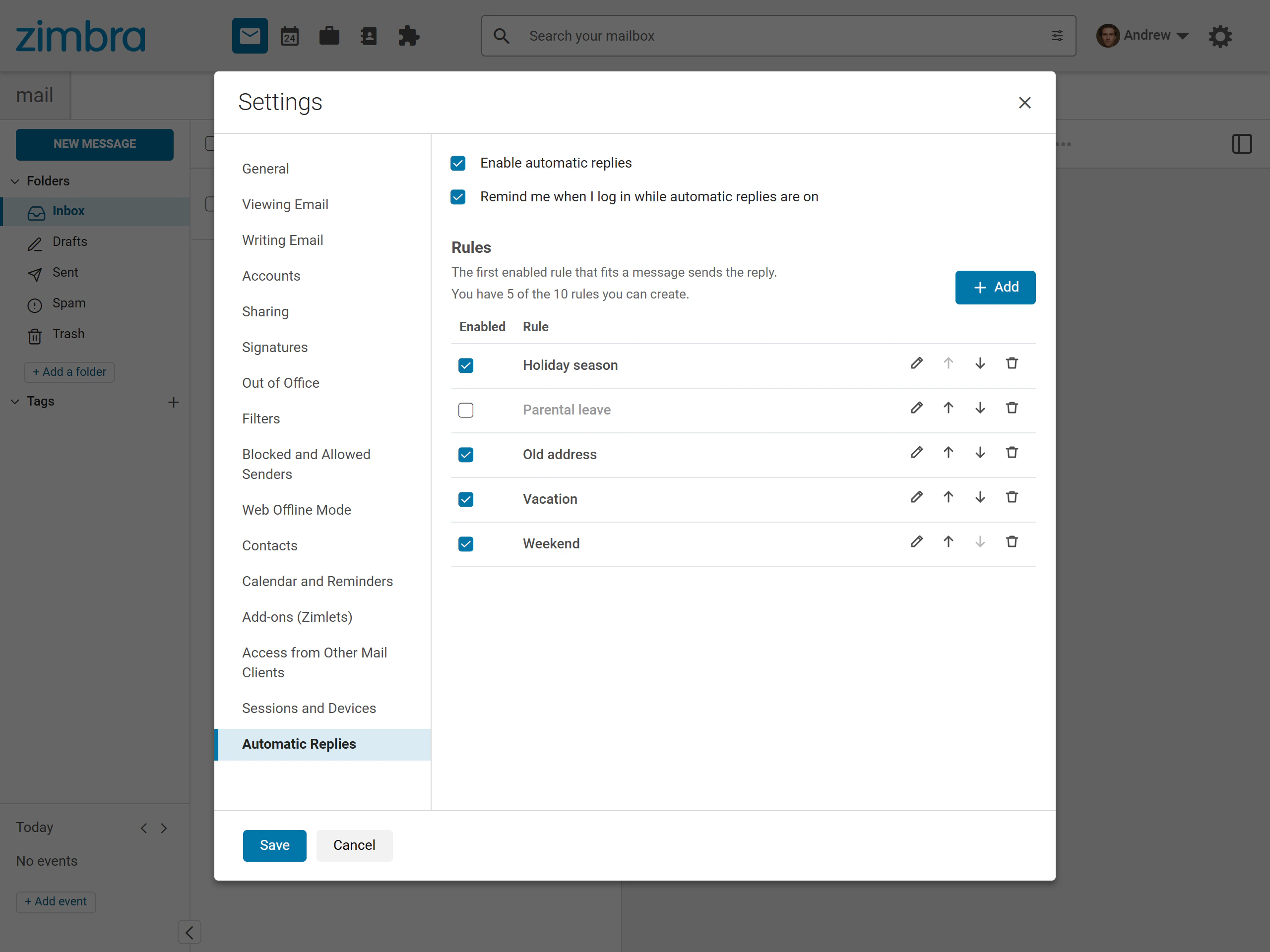
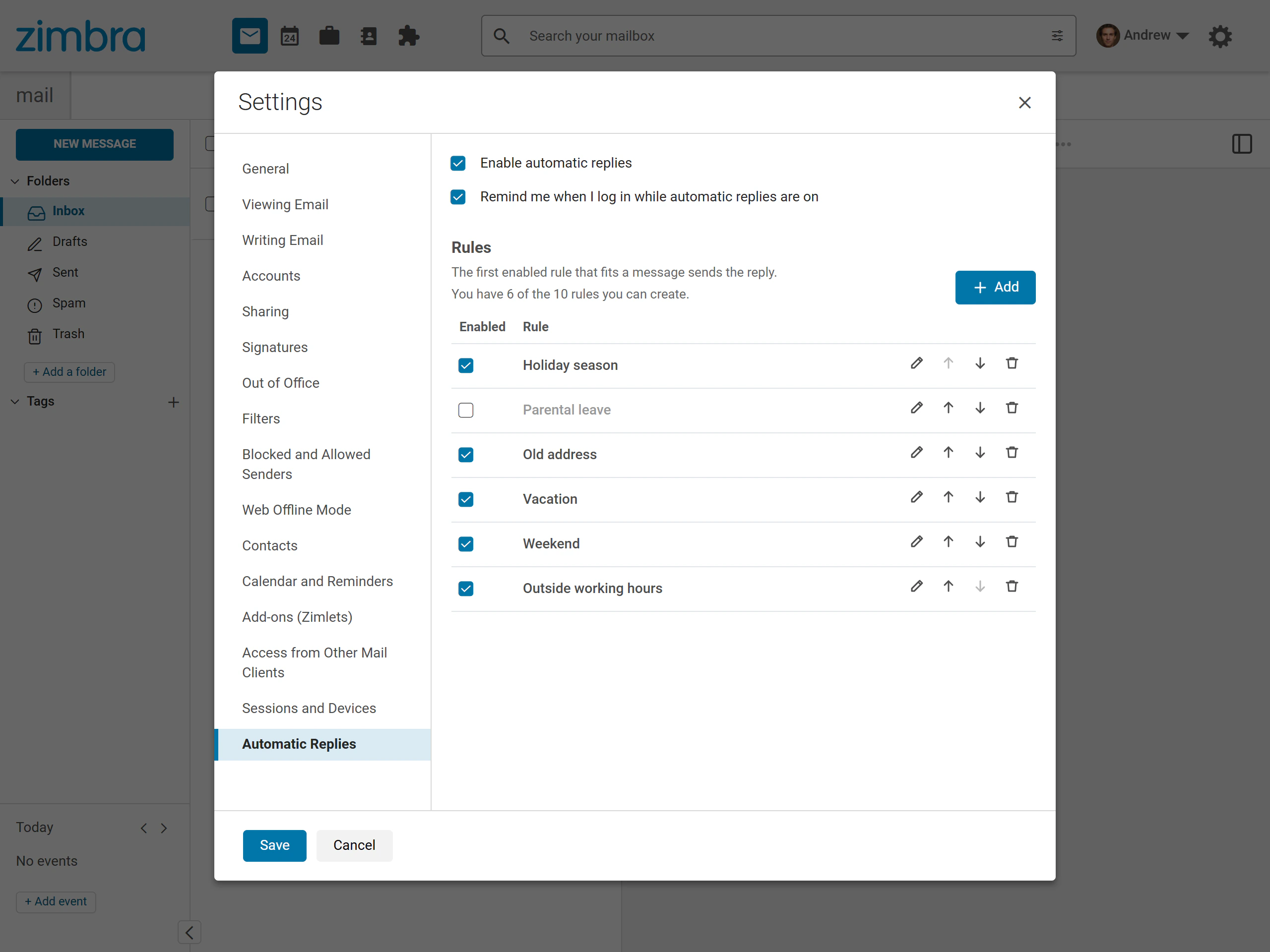
The first enabled rule that fits a message sends the reply, and the others stay quiet. With the out-of-hours rule last, a Vacation rule between two dates answers during the holiday, and a Weekend rule above it answers on Saturdays and Sundays with its own text. The rest of the time, this one answers in the evening and at night.
The rule does not trigger the reminder at login, which is only for replies that are meant to end, such as a vacation, see Reminder at login. Enable automatic replies at the top of the page switches all of the user's rules off and on at once.
Step 4 - Test it
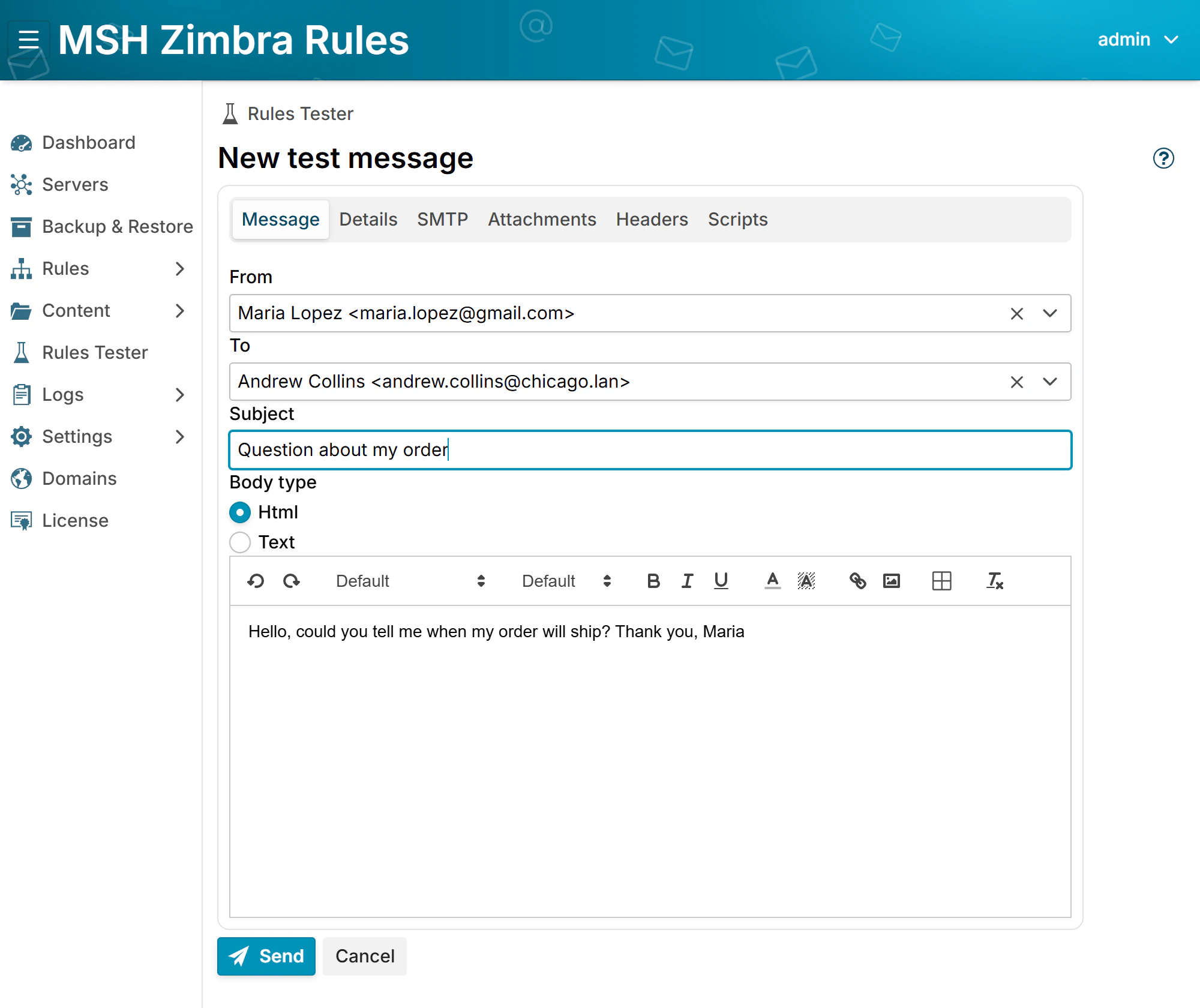
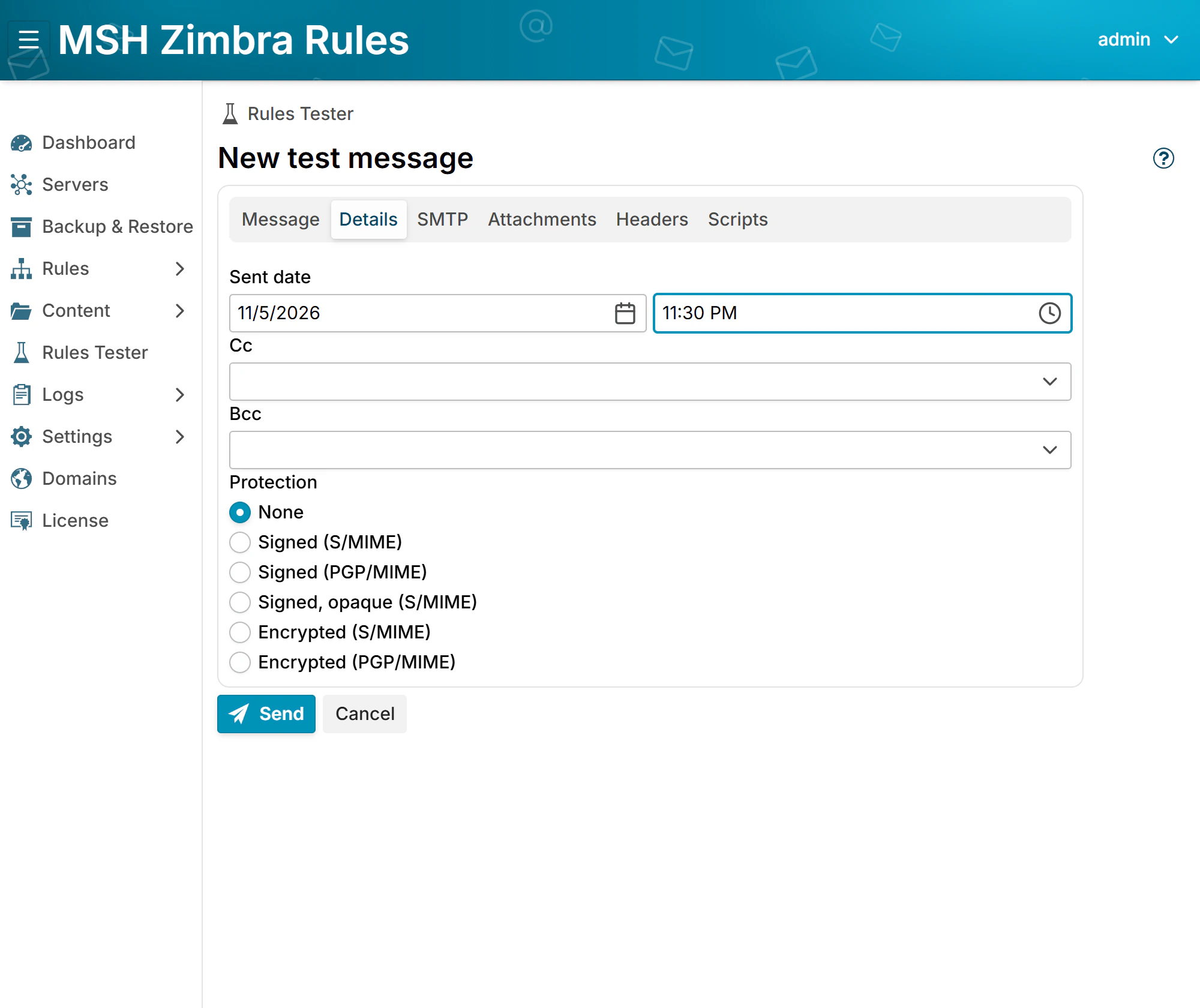
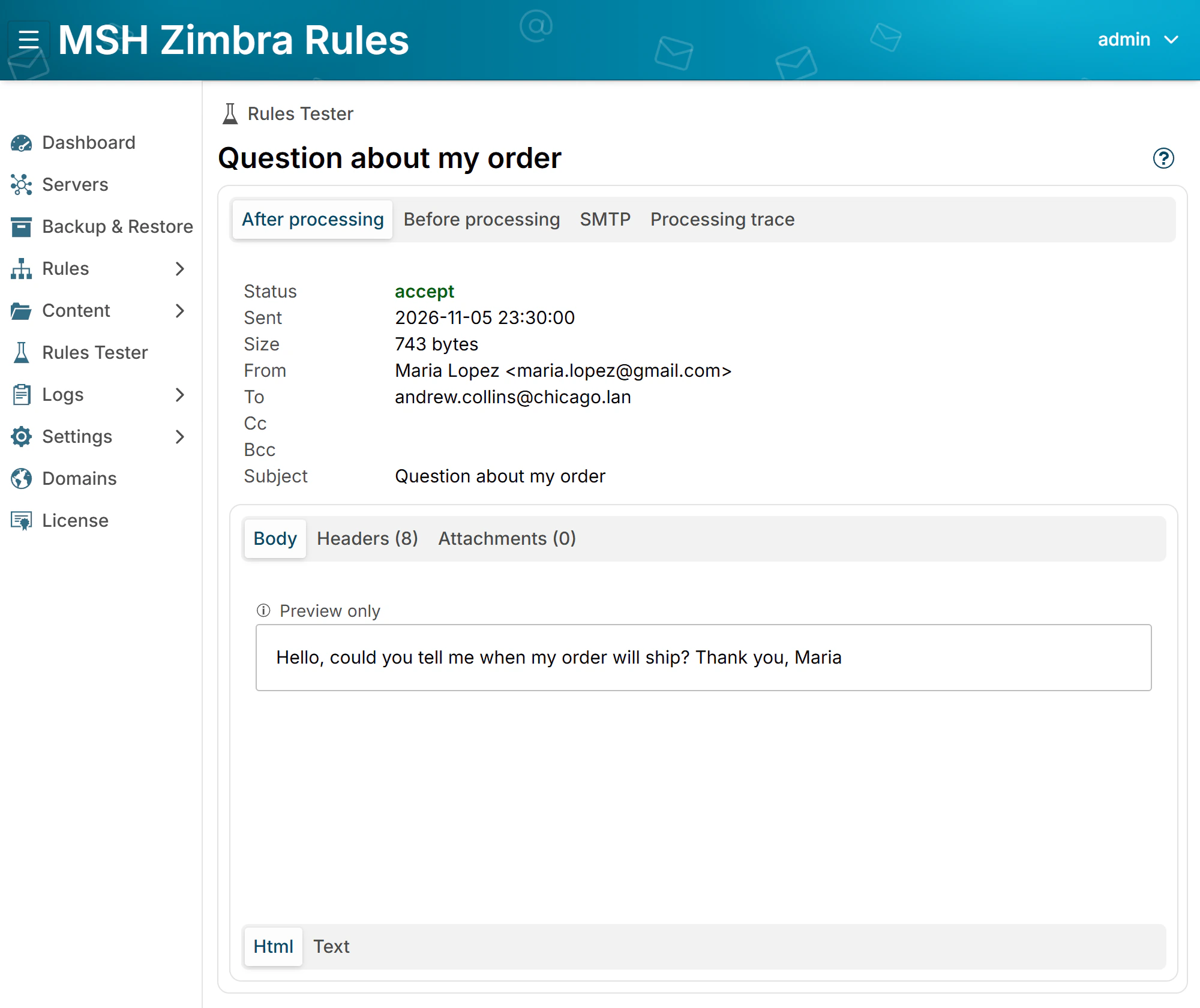
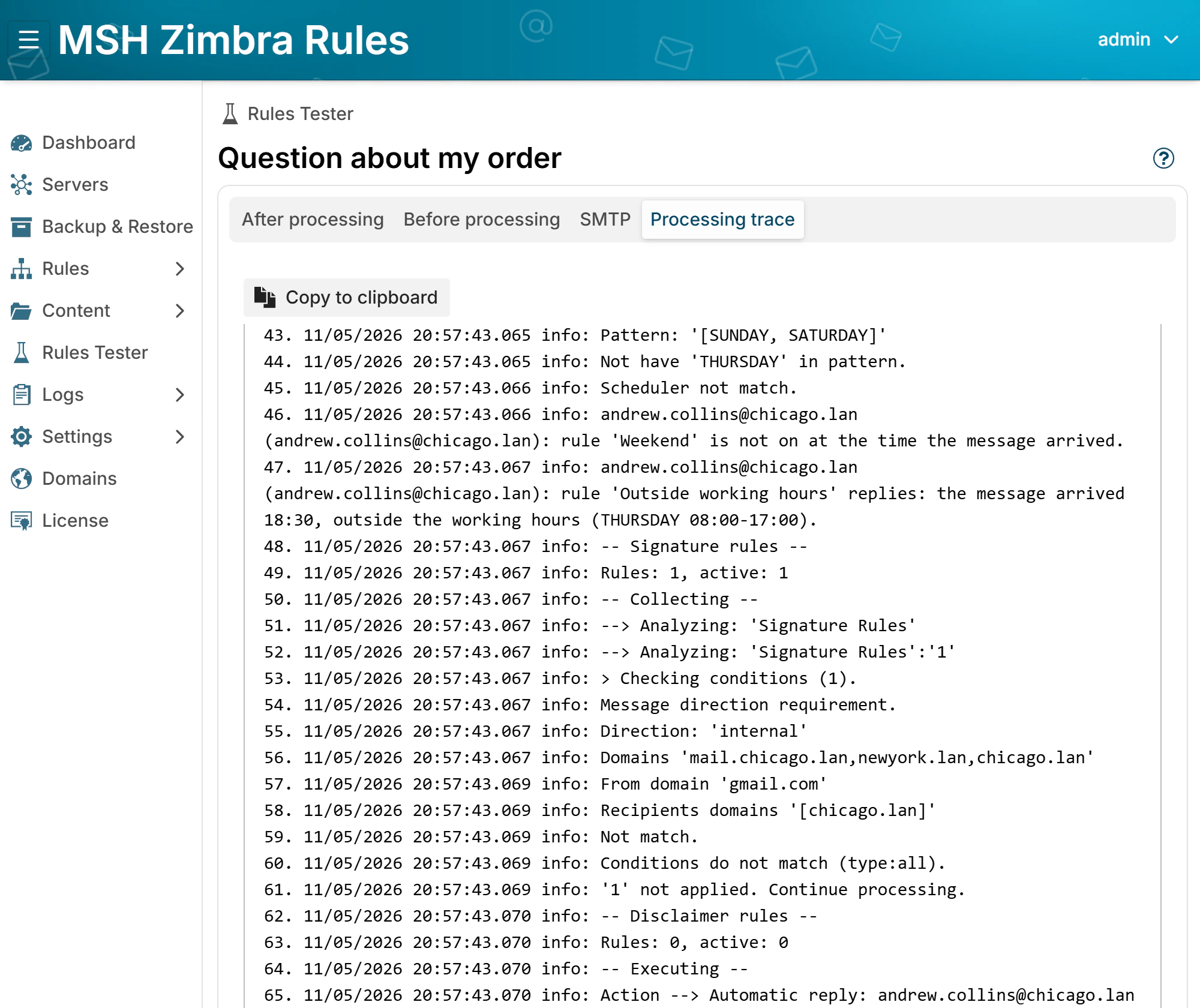
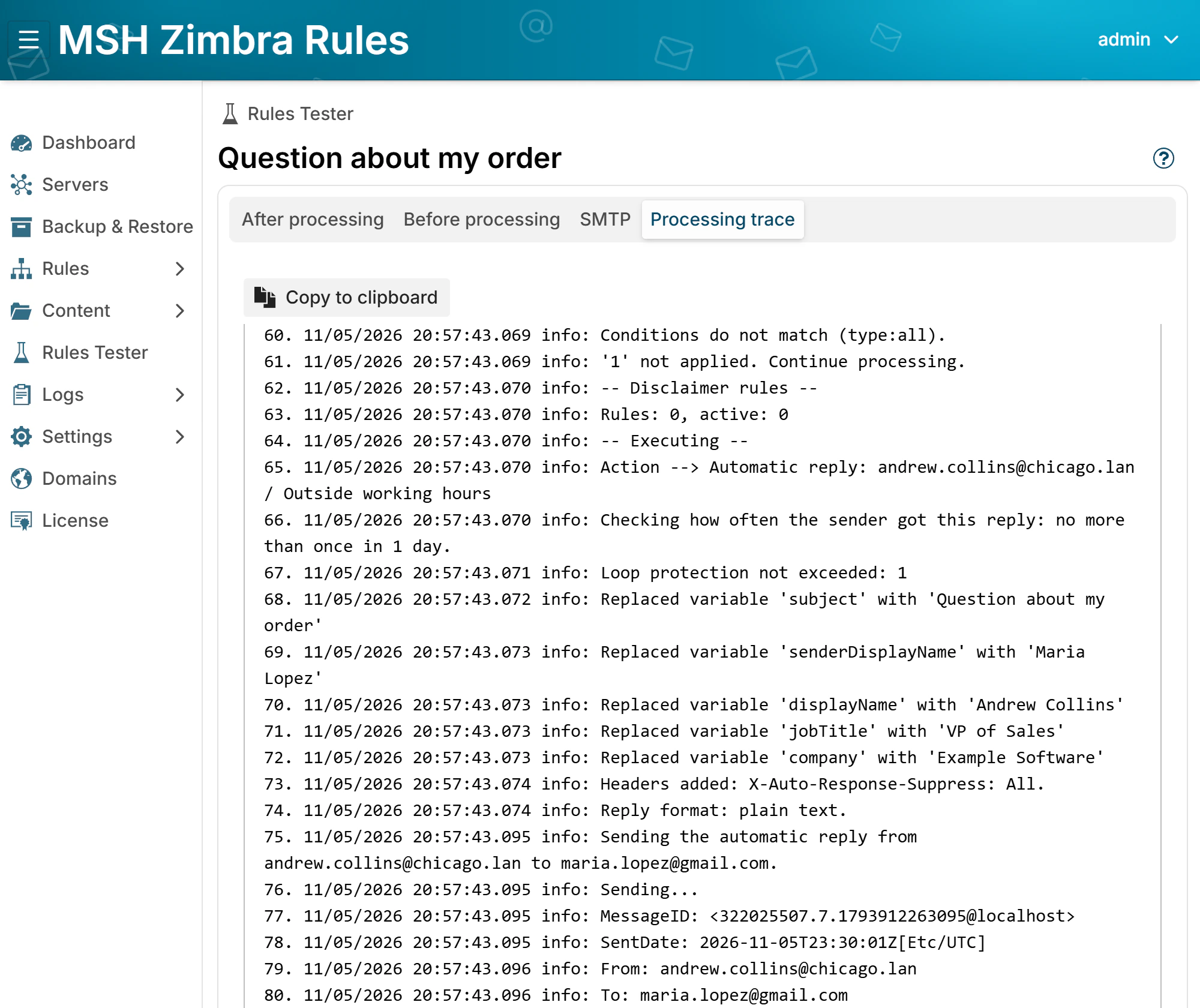
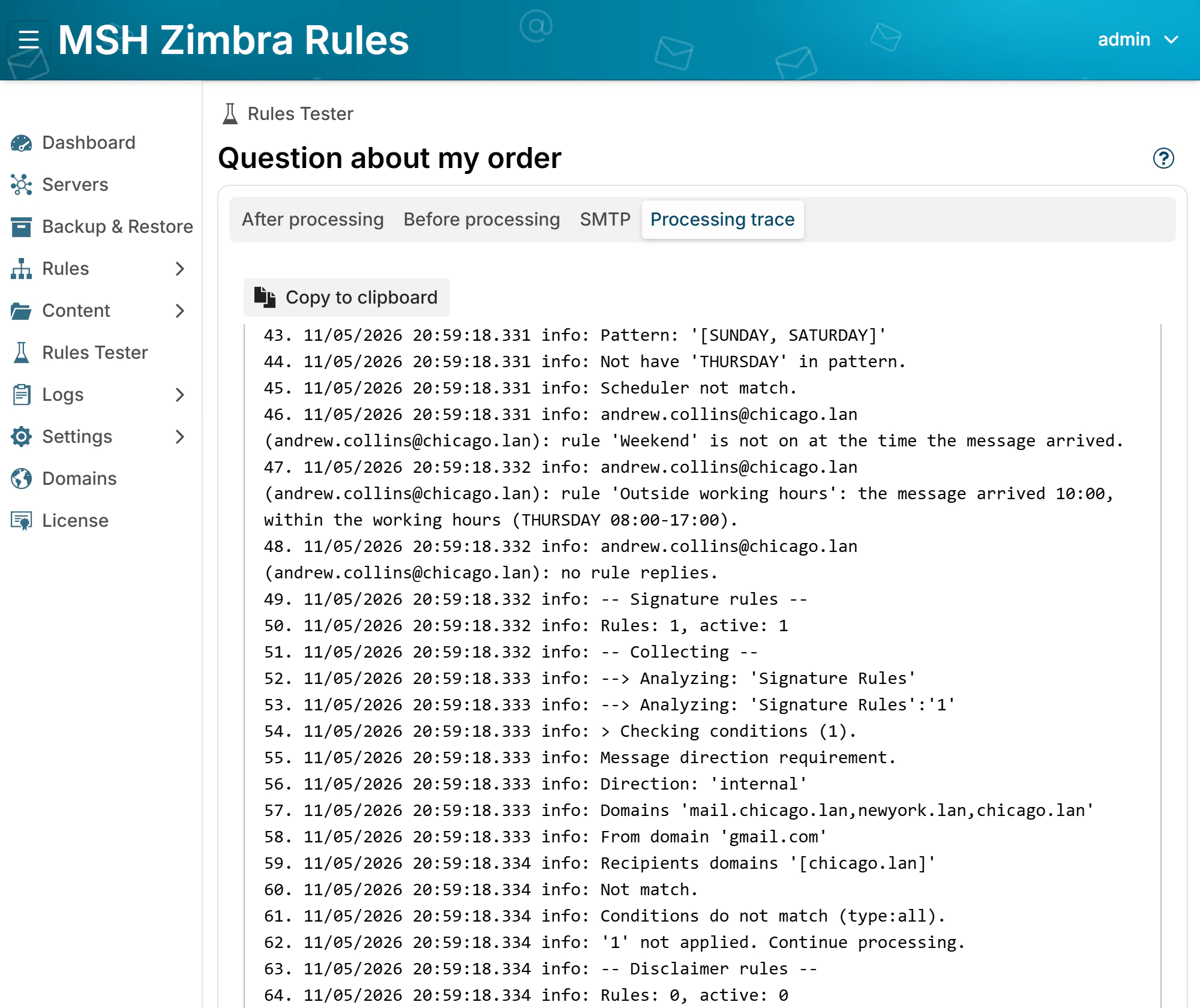
Back in the administrator panel, open Rules Tester, click New message and choose Custom.... Write a message from an outside address to the user, then set the Sent date on the Details tab to an evening and click Send.
The Sent date is in the time zone of the server, the trace shows the time the message arrived in the user's own. On a server set to UTC, as in the slides, 23:30 is 18:30 in New York.
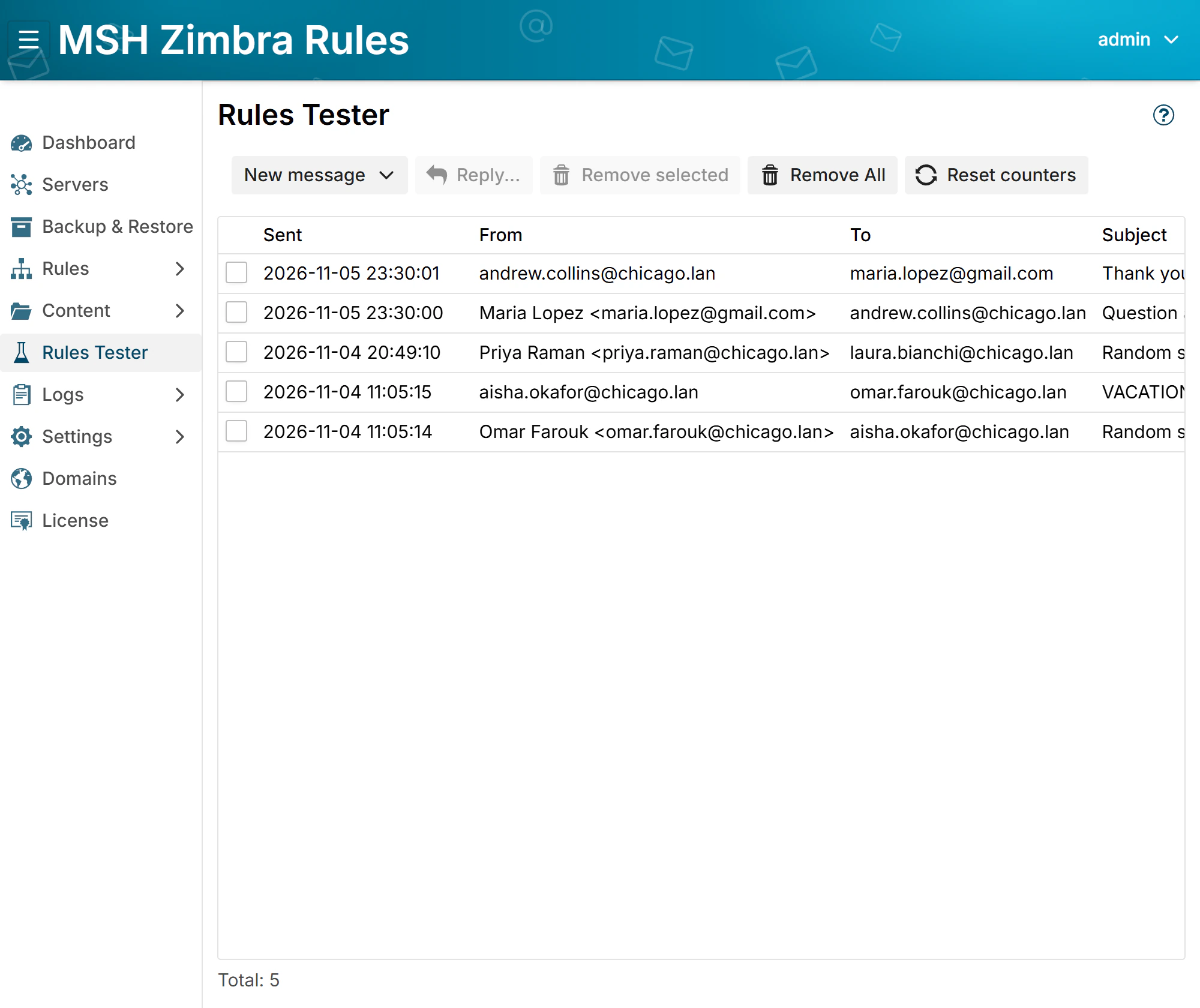
The reply is listed as a message of its own, above the test message. The Processing trace of the test message names every rule of the user and why it does or does not reply, and the action Automatic reply sends the reply with the fields filled in. Send the same message with a sent date during the day: the rule says the message arrived within the working hours, and no reply is sent.
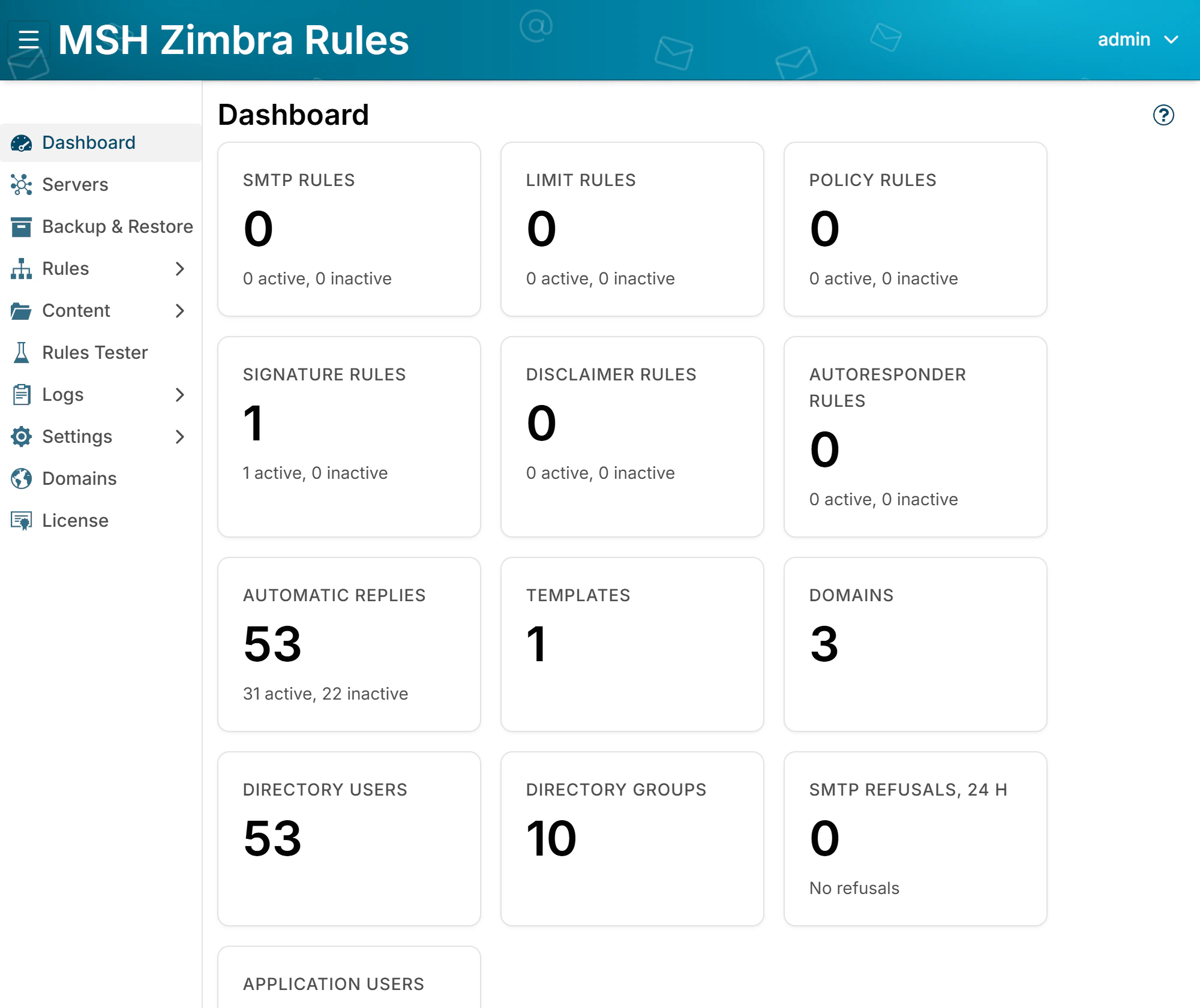
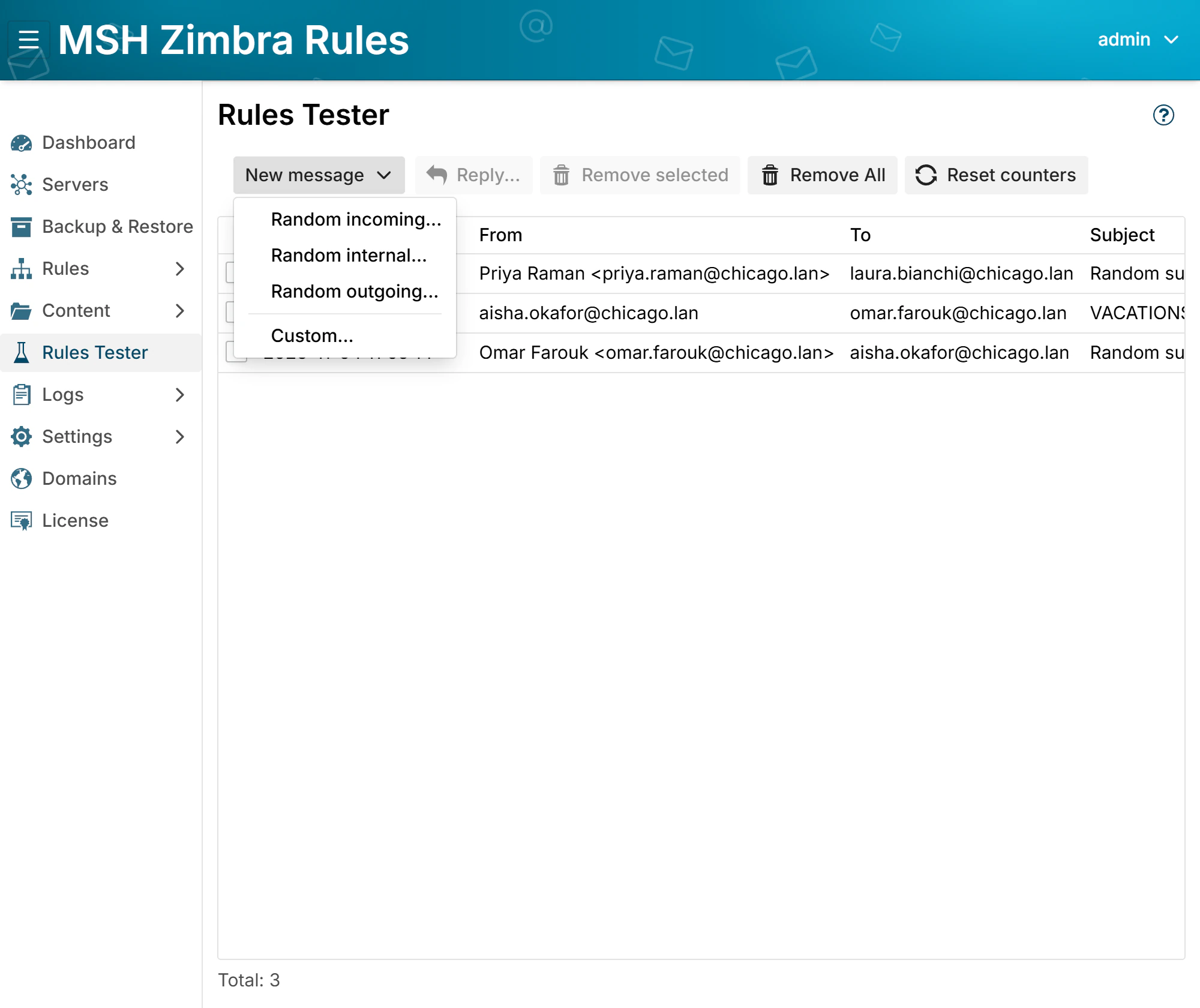
Rules > Automatic Replies lists every mailbox with automatic replies and how many of its rules are on, so you can see who has one without asking.
Make it fit your team
One text for the whole team
Fields keep the text personal while the words stay the same, so a team lead can send the
text around and everyone pastes it into their own rule: {displayName}, {jobTitle},
{company} and {phone} come from each user's details in the directory. To give every
reply the company's layout, choose As Html in a template on the Format tab of
Settings > Automatic Replies, and the
user's text goes into the template's {replyText}.
A shared mailbox
A mailbox such as support@ has working hours of its own. Log in to it, set its hours
in Calendar and Reminders, and give it the same rule. Its replies come from the
support address.
Only for some addresses
A user with an alias for a product or a region can answer only mail sent to that address: choose Only these addresses under For mail sent to. The reply is always sent from the address the message was sent to.
Limits worth knowing
- One schedule for all days in the Modern web client. Its settings have one start and one end of the workday. Different hours on different days, or a short Friday, are set in the Classic web client under Preferences > Calendar, and the rule follows them too.
- Holidays are working days. The rule knows the days of the week, not public holidays. Add a rule Between two dates above it for a holiday.
- Automatic mail gets no reply. Mailing lists, bulk mail, bounces and other automatic replies never get one, whatever the rule says.
- Only To by default. A user who is only copied gets no reply unless Reply also when the user's address is only in Cc is ticked on the Recipients tab. An address in Bcc never gets one.
- Changes in Zimbra need a sync. New working hours or a new time zone reach the rule with the next directory sync.
Out of Office, Sieve or Automatic Replies?
| Zimbra Out of Office | Sieve reply | Automatic Replies | |
|---|---|---|---|
| Answers every evening without being switched | ✗ | ✓, hours written into the script | ✓ |
| Follows the user's working hours in Zimbra | ✗ | ✗ | ✓ |
| A different reply to people outside | ✓ | Only with extra conditions | ✓ |
| Limits how often one sender is answered | ✓, once in 7 days | ✗ | ✓, set by the administrator |
| Skips mailing lists and automatic mail | ✓ | Only with extra conditions | ✓ |
| Several replies, such as vacation and evenings | ✗ | ✓ | ✓, in the user's order |
| The administrator sees who has replies on | ✗ | ✗ | ✓ |
For a single holiday, Zimbra's Out of Office does the job. For a reply that has to answer every evening, every weekend and every holiday without anyone remembering to turn it on, a rule that follows the working hours is the one that keeps working.
Related reading
- Automatic Replies zimlet - everything users see and every schedule a rule can have
- Settings > Automatic Replies - how often a sender gets a reply, who gets one, the format and the headers
- Automatic replies - the mailboxes with automatic replies and how the replies are sent
- Answer Automatically While You Are Away in Zimbra - the same idea with a Sieve filter, and what it takes to make it safe
Want to try it on your own server? Start a free trial.