Automatic replies
Automatic Replies are the out of office replies users make for themselves, in the Automatic Replies zimlet of the Classic or the Modern Zimbra web client. They do more than Zimbra's own Out of Office: a user has several rules in order, each on always, between two dates, on chosen days of the week or outside the user's working hours, for any of the user's addresses or only some, with one reply to colleagues and one to everyone else.
The milter sends the replies, after the Autoresponder rules. Autoresponder rules are the ones you make for everybody; Automatic Replies are the users' own. Both may reply to the same message.
Open Automatic Replies in the Rules section of the navigation. How often a sender gets a reply, how many rules a user can have and how the replies look are set on Settings > Automatic Replies.
Mailboxes
The page lists every mailbox whose user saved automatic replies, one row per mailbox, 50 to a page.
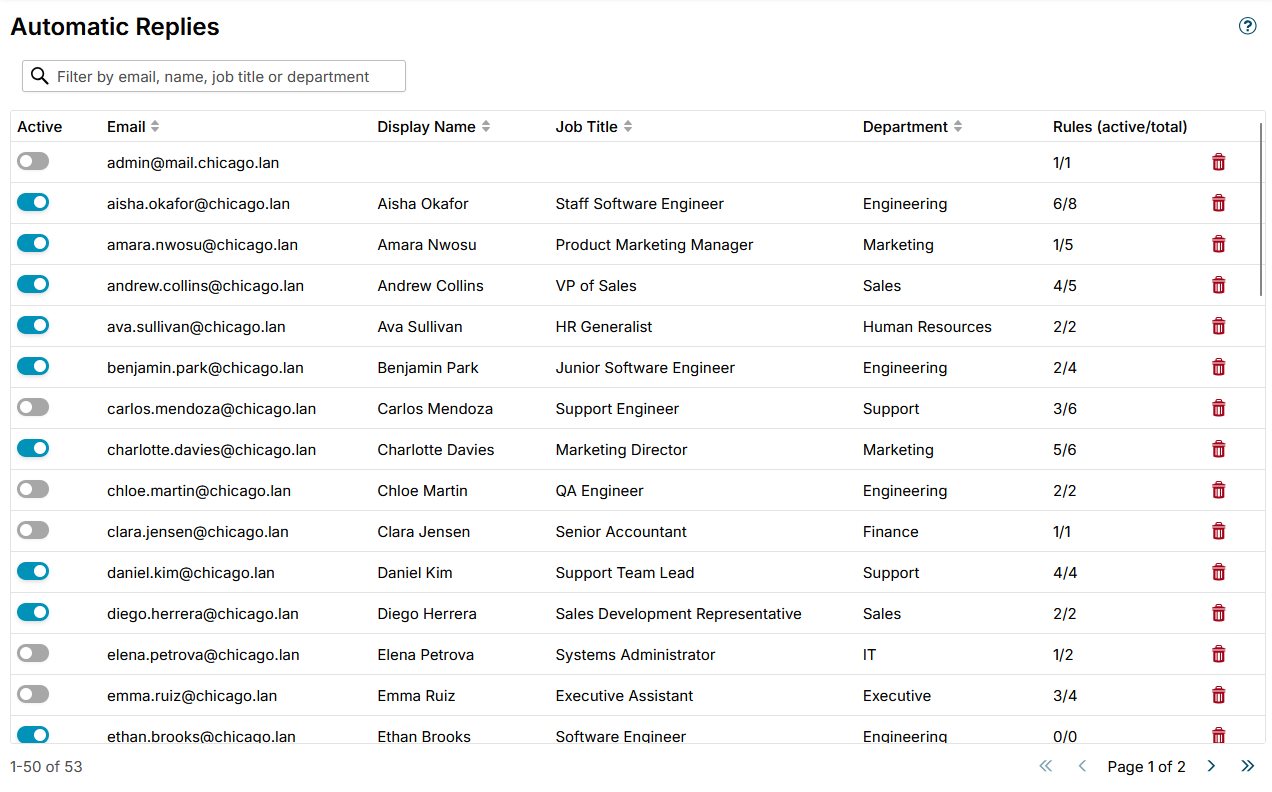
| Column | Shows |
|---|---|
| Active | The switch for all automatic replies of the mailbox, the same switch as Enable automatic replies in the zimlet |
| The address of the mailbox | |
| Display Name, Job Title, Department | The details of the user from the directory |
| Rules (active/total) | How many of its rules are on, of all its rules, for example 1/2 |
The search field filters by email, name, job title or department. Click a column header to sort by it. The badge of Automatic Replies in the navigation counts the mailboxes whose automatic replies are on, of all mailboxes on the page.
Switch automatic replies off and on
Active in a row switches all automatic replies of the mailbox off or on at once. The rules stay as they are. It is the switch the user has, so the user sees the change in the zimlet and can switch them on again.
Open the rules of a mailbox
Click a row to open its rules in a window, in the user's order, each with its Active switch and its Rule Name. Switch rules off or on and click Save. Save stays disabled until a switch differs from what is saved. Cancel, Esc or a click outside the window leave the rules as they were.
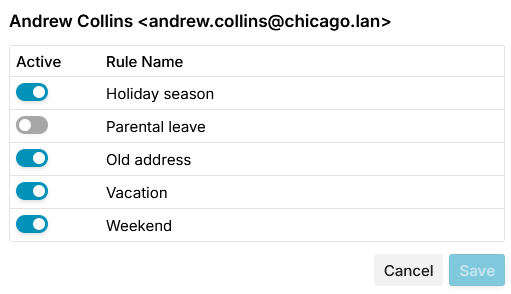
The switches are the users' own: a rule you switch off is shown off in the zimlet, and the user can switch it on again. The texts of the rules are not shown here.
Delete
The trash icon in a row deletes all automatic replies of the mailbox, its rules and its switch, after a confirmation such as Delete the automatic replies of anna@example.com, with its 2 rule(s)? The user's page in the zimlet then shows no rules.
The reply and the other rules
A reply goes through the rules again, as any other message: it gets the signatures and disclaimers, and the other rules apply to it, the SMTP rules and the limits included, so a reply counts in the sending limit of its sender. Only the actions that send a message (Autoreply, Automatic Replies, New message, Forward) do not run on it, so a rule cannot answer its own message again and again. The header X-MSH-Type: automatic-reply tells it apart from an autoreply of an Autoresponder rule (auto-response).
Suspend, test and trace
- Rules processing has a switch Automatic replies, which stops all automatic replies of all users without changing them. While it is off, this page says so.
- The Rules tester runs the Automatic Replies too. The reply is listed as a message of its own, above the test message.
- The processing trace in Message history has an Automatic replies part. It names each account and rule it asks, and why a rule does not answer. A reply that was sent is listed as the action Automatic reply: anna@example.com / Vacation.
Accounts and addresses removed from the directory
The directory sync keeps the automatic replies in step with Zimbra:
- The rules of an account no longer in the directory are removed with the next sync.
- An address an account no longer has is taken out of its rules. A rule left with no address is switched off, not removed, so the user sees it.
- A renamed account keeps its rules.
Backup & Restore
Backup & Restore exports and imports the automatic replies of all users, with the settings of Settings > Automatic Replies, as the Automatic replies section.
Additional resources
- Settings > Automatic Replies - how often a sender gets a reply, the rule limit, the format and the headers of the replies
- Automatic Replies zimlet - what users see and how they make their rules
- Autoresponder rules - the automatic replies you make for everybody