Automatic Replies
Automatic Replies lets users make their own automatic replies in the Zimbra web client, with more options than Zimbra's own Out of Office: several rules in order, each between two dates, on chosen days of the week or outside the user's working hours, for any of their addresses or only some, with one reply to colleagues and one to everyone else. It works in the Classic and in the Modern web client.
The milter sends the replies. How they are sent, and what you as the administrator see of them, is described on Automatic Replies.
Open Automatic Replies
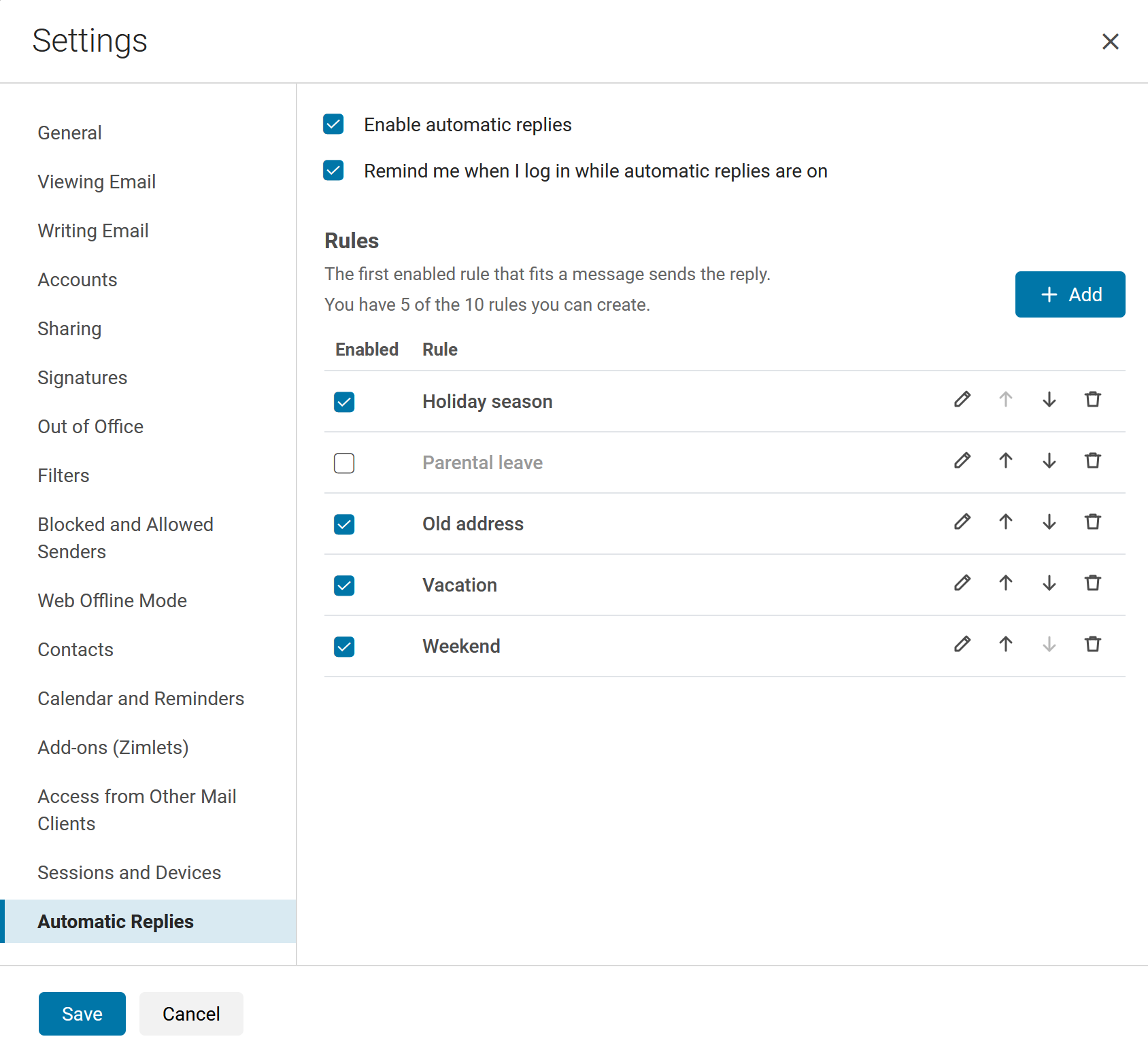
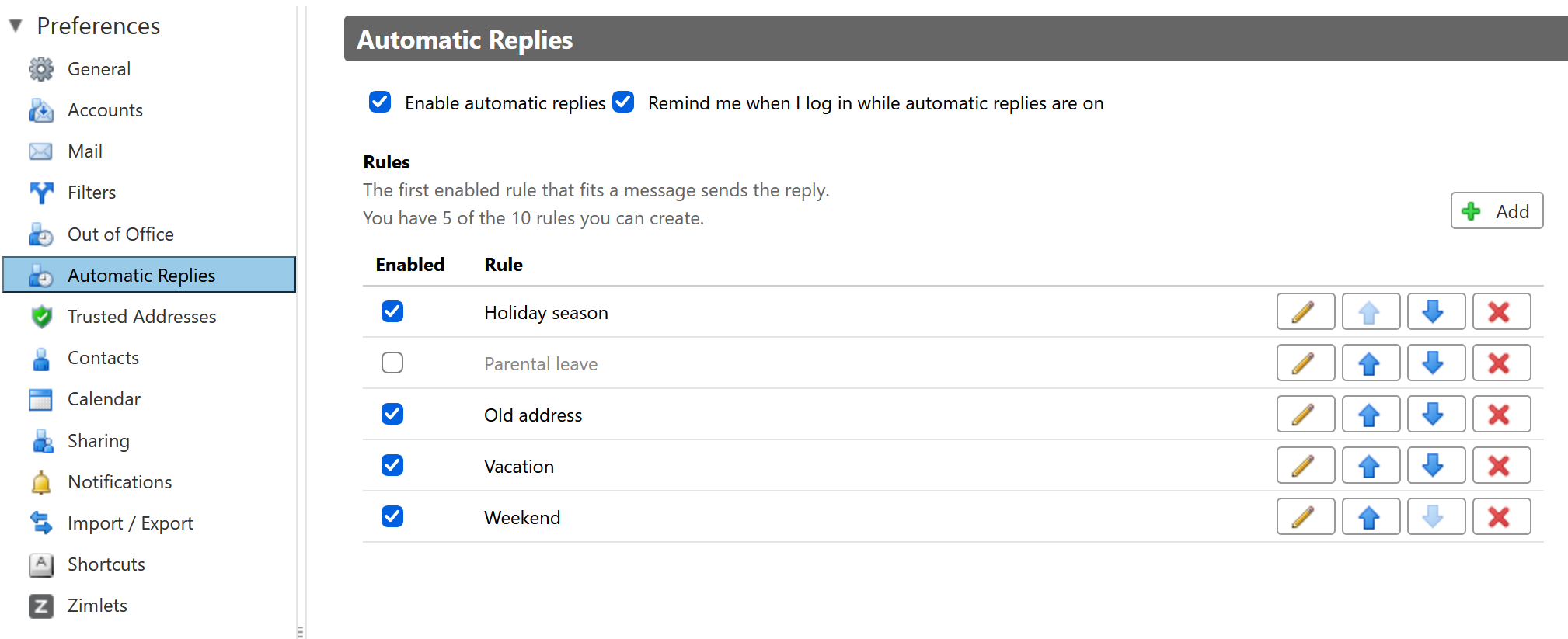
- In the Classic web client: Preferences > Automatic Replies, after Out of Office.
- In the Modern web client: Settings > Automatic Replies.
The page
The page has:
- Enable automatic replies - the switch for all automatic replies of the user. While it is off, no rule replies, and the rules are kept.
- Remind me when I log in while automatic replies are on - see Reminder at login.
- Rules - the user's rules in order, with The first enabled rule that fits a message sends the reply. and how many rules the user has of how many they can make, for example You have 3 of the 10 rules you can create.
Each rule has its Enabled checkbox, its name, and the buttons Edit, Move up, Move down and Remove. Add opens a new rule. At the limit Add is disabled, with the tooltip You can have at most 10 rules. The limit is Rules per user on Settings > Automatic Replies, 10 by default.
Every change is saved at once: the switch, a checkbox, a move or a remove. In the Classic web client the Save button of Preferences is off while the page is shown.
The rule window
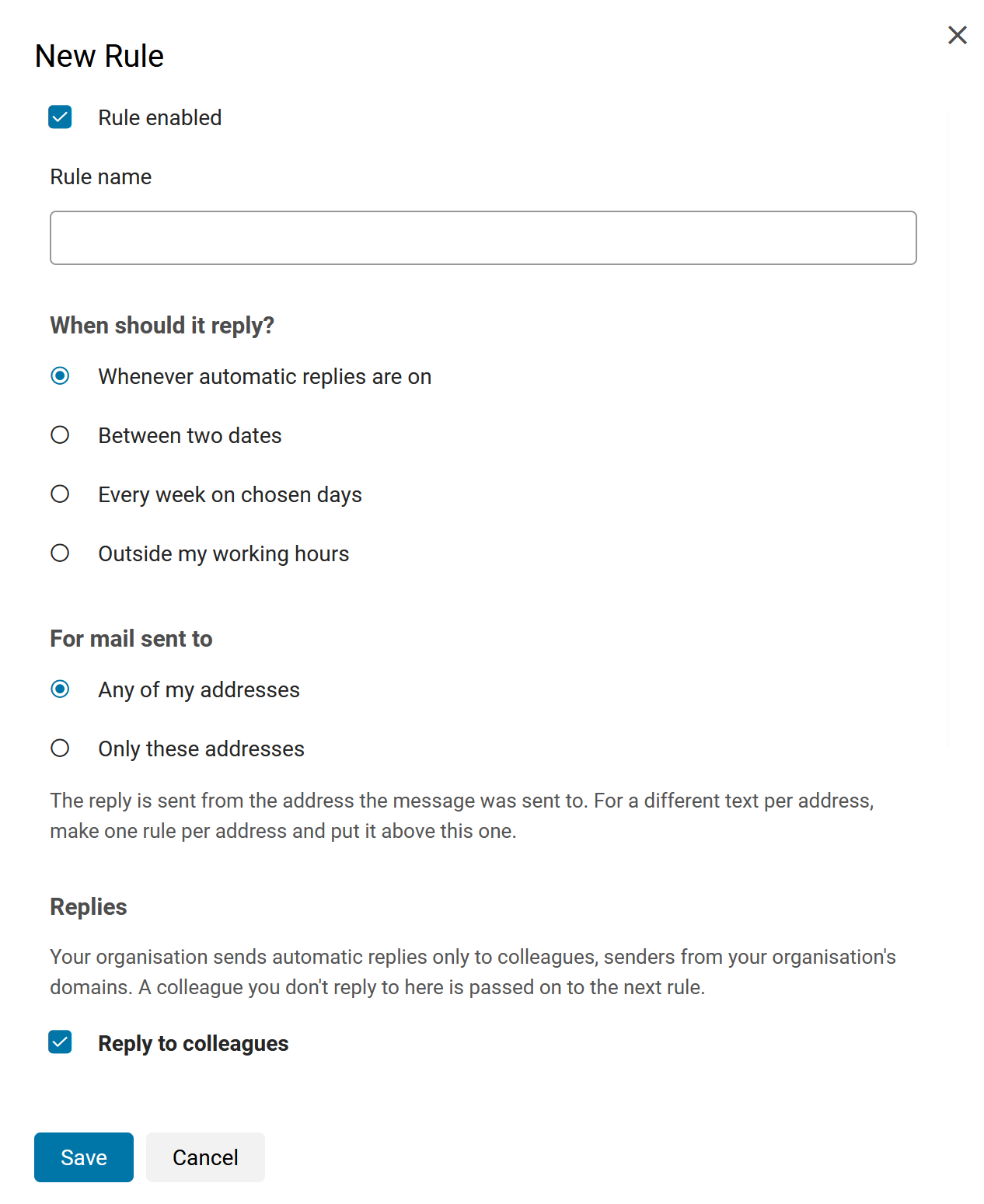
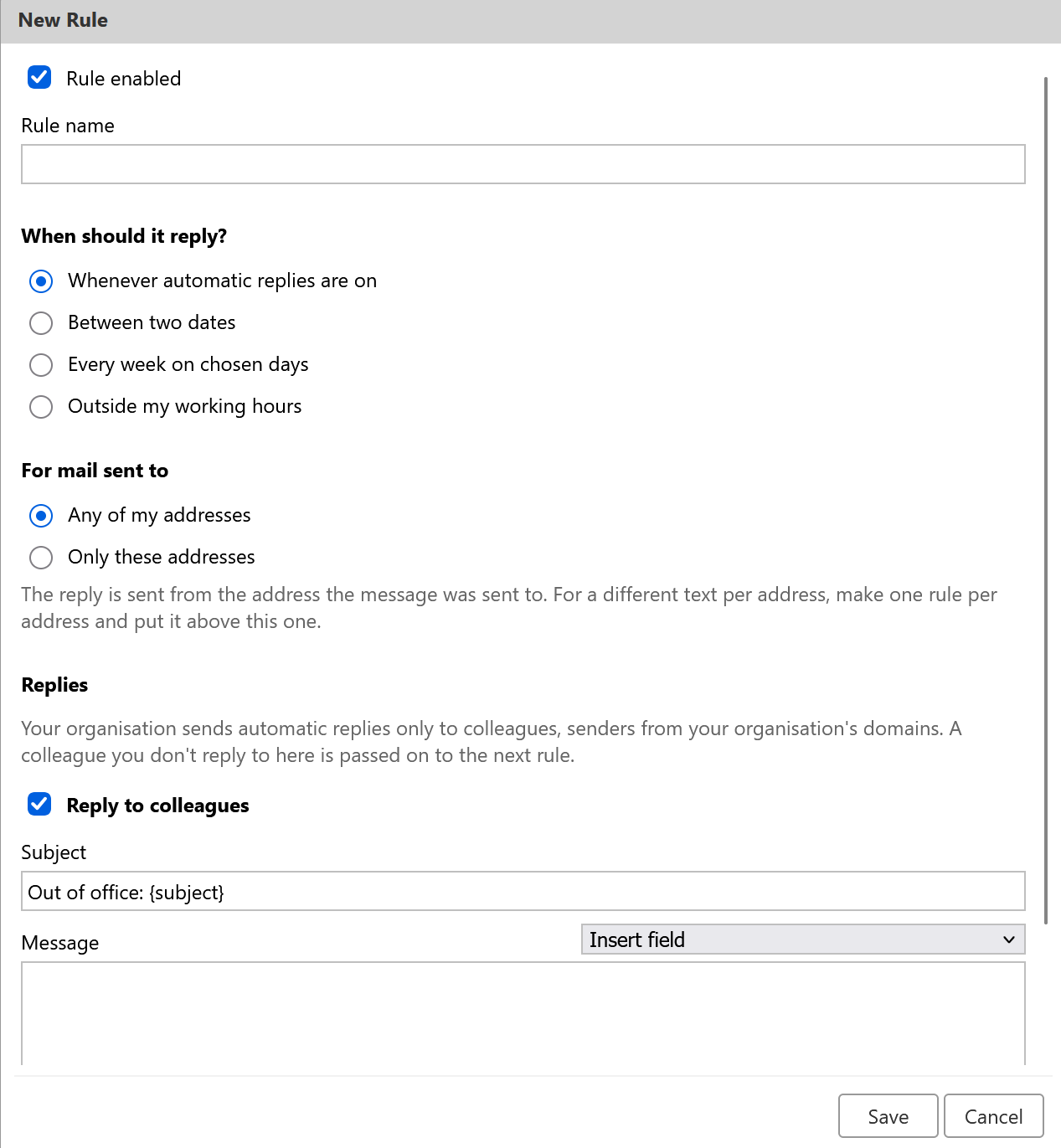
Add and Edit open the rule window, New Rule or Edit Rule.
- Rule enabled and Rule name.
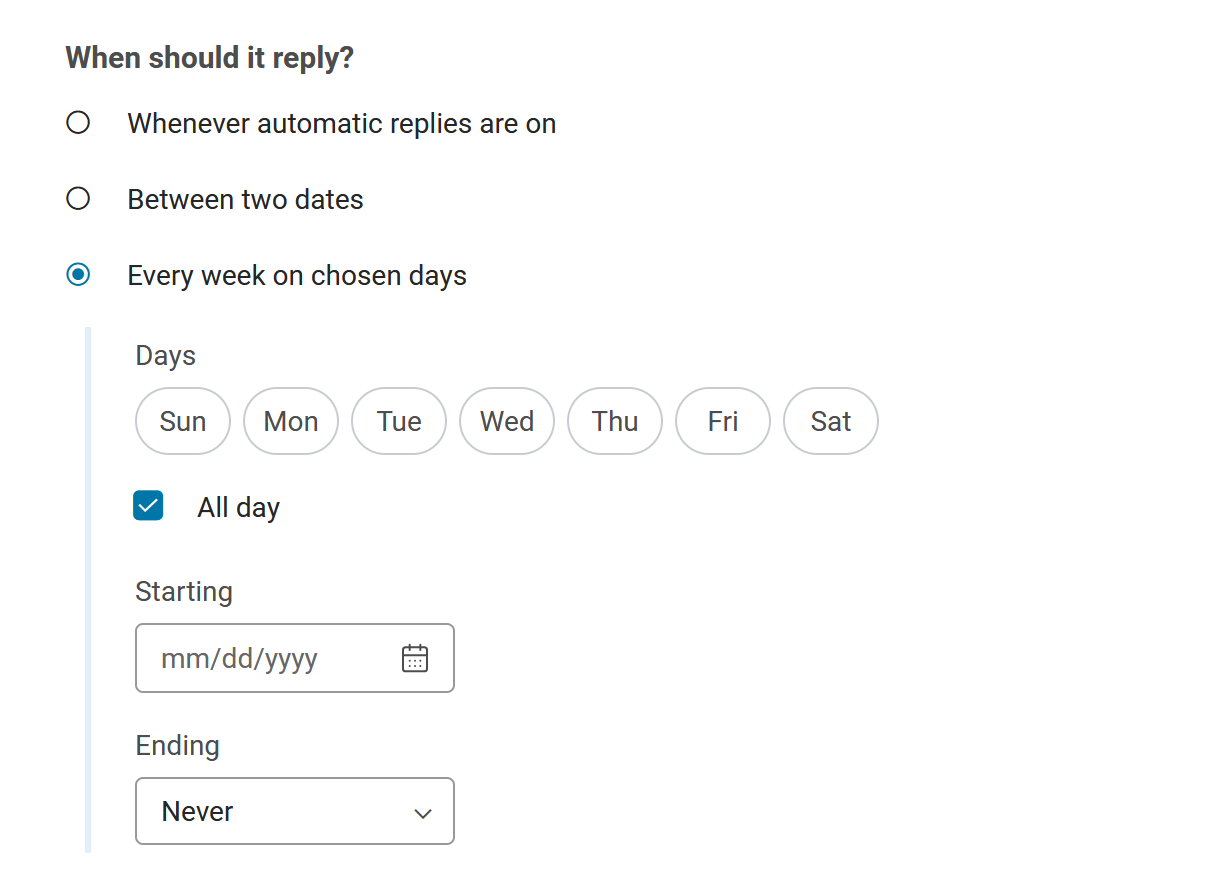
- When should it reply? - Whenever automatic replies are on, Between two dates (with All day, or from a date and time to a date and time), Every week on chosen days (the days, All day or From and To times, Starting, and Ending Never or On a date) or Outside my working hours. Under Outside my working hours the window shows the user's working hours in Zimbra, for example Mon-Fri 08:00-17:00. A note says that dates and times are in the user's Zimbra time zone. See Schedules.
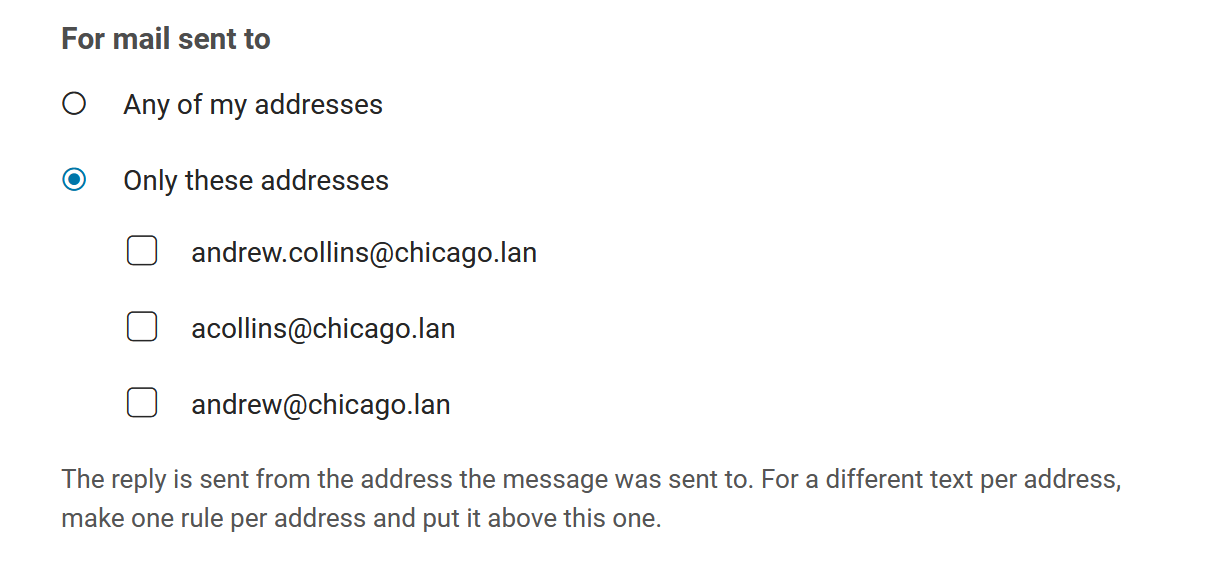
- For mail sent to - Any of my addresses or Only these addresses, from the user's own address and aliases. The reply is sent from the address the message was sent to. For a different text per address, users make one rule per address and put it above the others.
- Replies - Reply to colleagues and Reply to people outside, each with a Subject and a Message. The reply to people outside can be Same subject and message as for colleagues or A different text. Colleagues are senders from the organization's domains. A sender the rule does not reply to is passed on to the next rule.
Modern web client
Classic web client
Every week on chosen days
Only these addresses
Insert field, on the line of the Message label, puts a field such as {senderFirstName} or {untilDate} into the text, see Variables.
When replies to senders outside the organization are off on Settings > Automatic Replies, the window has no Reply to people outside and says that the organization sends automatic replies only to colleagues.
Limits
The fields take no more than the administrator panel saves:
| Field | At most |
|---|---|
| Rule name | 100 characters |
| Subject | 998 characters |
| Message | 8192 characters |
Near the limit a counter under the message says how many characters it has, for example 7692 of 8192 characters, and in red 8192 of 8192 characters, no room for more when it is full. Insert field leaves out a field that would not fit and says why: The field does not fit: a message has at most 8192 characters.
Schedules
Each rule replies at one of these times, chosen in When should it reply? of the rule window:
| Choice | Replies |
|---|---|
| Whenever automatic replies are on | Always, while the switch of the account is on |
| Between two dates | From one date to another, both days included. With All day it replies on whole days; without it, from the date and time in From to the date and time in Until. |
| Every week on chosen days | On the days ticked, all day or between two times, from the Starting date on, Ending Never or On a date |
| Outside my working hours | When the message arrives on a day the user does not work, or before or after the user's working hours that day |
The schedule is compared with the time the message reached the server. A time window whose start is after its end, such as 16:00 to 08:00, runs over midnight into the next morning.
Time zone and working hours
Dates and times are in the user's Zimbra time zone. A rule has no time zone of its own, so it follows the user's time zone when the user changes it in Zimbra.
Outside my working hours takes the working hours the user has in Zimbra, as they are when the message arrives, so a change of the working hours in Zimbra needs no change of the rule. A user without working hours of their own has Zimbra's default, Monday to Friday 08:00 to 17:00.
The directory sync reads the time zone, the working hours, the first day of the week and the locale of every user from Zimbra, so a change in Zimbra reaches the rules with the next sync.
Variables
The subject and the message of a reply can use these fields, which users pick from Insert field in the rule window:
| Field | In the menu | Value |
|---|---|---|
{subject} | Subject of the message | The subject of the message being answered |
{senderFirstName} | Sender's first name | The first word of the sender's name in From; empty when the sender has no name |
{senderDisplayName} | Sender's display name | The sender's name in From; the address when the sender has no name |
{senderEmail} | Sender's address | The sender's address |
{fromDate} | From date | The first day of a Between two dates rule; empty for the other schedules |
{untilDate} | Until date | The last day of a Between two dates rule; empty for the other schedules |
{firstName} | My first name | The user's first name |
{lastName} | My last name | The user's last name |
{displayName} | My display name | The user's display name |
{jobTitle} | My job title | The user's job title |
{company} | My company | The user's company |
{phone} | My phone | The user's phone number |
The dates are written as the Zimbra web client writes them in the user's locale, for example Jan 4, 2027 for English (US) and 4 sty, 2027 for Polish. A new rule starts with the subject Out of office: {subject} for colleagues and Automatic reply: {subject} for people outside.
A field not in the list is refused when the rule is saved, with The text uses a field that does not exist.
Zimbra's Out of Office on too
When Zimbra's own Out of Office is on as well as the user's automatic replies, both zimlets say so above the rules, since a sender may then get two replies:
Zimbra's Out of Office is on too, so senders may get two replies. Turn one of them off.
In the Classic web client the notice has the link Open Out of Office, which opens Preferences > Out of Office. In the Modern web client the notice names Settings > Out of Office; after a change there, reload the page.
Reminder at login
Users are reminded once per login while temporary automatic replies are on: a rule that is always on, or a rule between two dates that covers today. A rule without an end date counts. Weekly rules and rules for outside the working hours do not count, since they are meant to stay on.
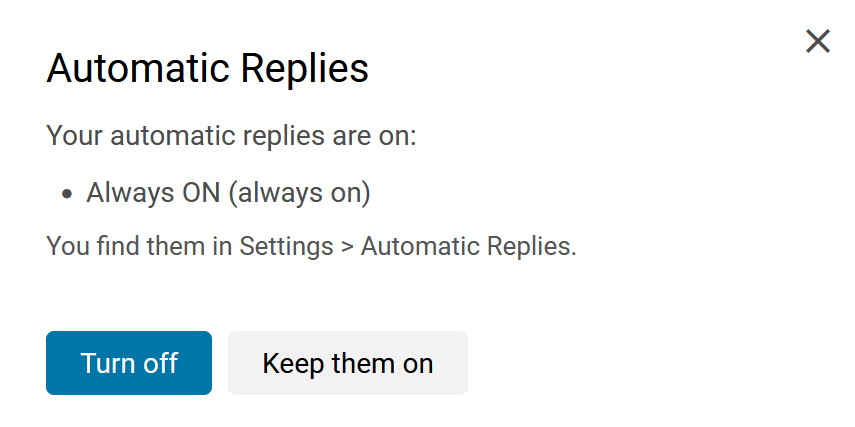
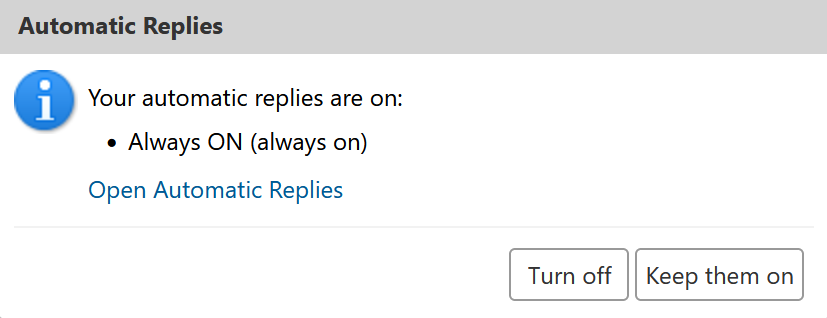
A few seconds after login, the Classic web client shows a dialog and the Modern one a window. It says Your automatic replies are on: and names the rules, at most three, then for example and 2 more:
- Vacation (until 4 Jan 2027)
- Conference (no end date)
- Out of office (always on)
Turn off switches the user's automatic replies off and keeps the rules: Automatic replies are off. Your rules are kept. Keep them on closes the reminder and changes nothing. In the Classic web client Open Automatic Replies opens the page; the Modern one says where to find it.
Modern web client
Classic web client
Users turn the reminder off by unticking Remind me when I log in while automatic replies are on on the page. The administrator can turn it off for everyone on Settings > Automatic Replies; the page then has no such checkbox.
Messages on the page
| Message | Meaning |
|---|---|
| Automatic replies are not available at the moment. Try again later. | The Zimbra extension is not installed on the user's mailbox server, or it cannot reach the administrator panel. |
| Your account is not known to the mail server rules yet. Try again later. | The account is not synced from the directory yet, for example because it was created after the last directory sync. |
| The rules were changed in another window or by the administrator. They are shown as they are now; make your change again. | The rules were saved elsewhere since the page loaded them, for example on Rules > Automatic Replies. |
| You can have at most 10 rules. | The user has as many rules as Rules per user allows. |
The text uses a field that does not exist: {nickname}. | A field in braces is not one of the fields. |
| Write the message of every reply that is on. | A reply is ticked but its message is empty. |
| Choose at least one day. / Choose at least one address. / The end is before the start. | The rule window is not complete. The window stays open. |
| Saved a moment ago; wait a second and try again. | One account can save once a second. |
For administrators
- The zimlets need the Zimbra extension of MSH Zimbra Rules on every mailbox server, as Change User Info does. Without it the page says that automatic replies are not available.
- Install the zimlets with Zimlet configuration on a single server, or Zimlets configuration in a multi-server installation, and enable them in every class of service other than default.
- After an update of the Classic zimlet, restart mailboxd on every mailbox server, since the Classic web client caches its zimlets. See the update on a single server or on several servers.
- Set how often a sender gets a reply, the rule limit, the format and the headers of the replies on Settings > Automatic Replies.
- See every mailbox with automatic replies, switch them off and delete them on Rules > Automatic Replies.
- The time zone, the working hours and the first day of the week come from the directory sync, so users see their own in the rule window.