Profile Image
Profile Image shows users the photo of a colleague in the header of a message from that colleague, where the web client otherwise shows the default person icon or the initials. The photo comes from the colleague's entry in the GAL (thumbnailPhoto). It works in the Classic and in the Modern web client.
In the Classic web client it also lets users set, replace or remove their own photo with Change Profile Image in the user menu, which that web client cannot do otherwise, and shows their own photo before their name at the top.
What users see
Photos of colleagues
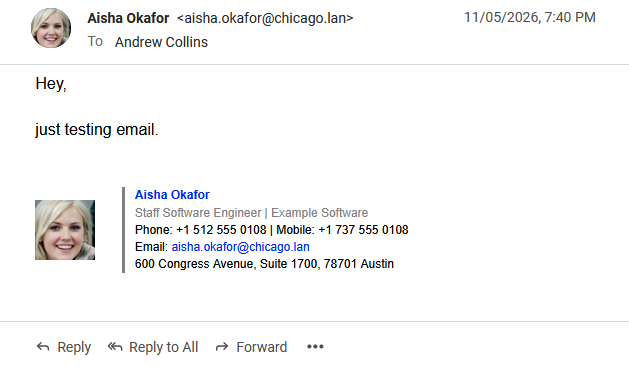
A message from a colleague whose GAL entry has a photo shows that photo in its header. The sender is the one the web client takes for the picture: the Sender header of a message sent on behalf of someone, otherwise From.
- In the Classic web client the photo replaces the default person icon in the header of the message in the reading pane, in a message opened in its own tab, and in every message of a conversation, collapsed and expanded. A sender that is one of the user's contacts with a picture keeps that picture.
- In the Modern web client the photo replaces the initials in the avatar of the sender, in the header of the message being read. The message list keeps the initials.
External senders and colleagues without a photo keep the icon or the initials.
Modern web client
Classic web client
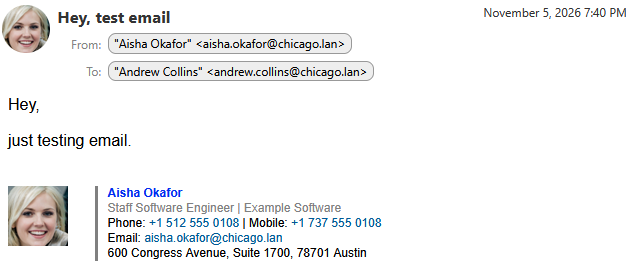
The photo comes a moment after the header the first time; later messages of the same sender show it at once. A web client asks the GAL for the photo of a sender again after 6 hours, so a photo a colleague changes shows in a web client already open within that time, and at once after a reload.
Own photo in the top bar
The Classic web client shows the user's own photo, round, before the name at the top, as the Modern web client does. It is the picture the user set, otherwise the user's photo in the GAL; a user with neither sees the name only. The photo changes at once after Save or Remove Photo in the Update Photo dialog.

Change Profile Image
In the Classic web client, Change Profile Image is in the user menu, opened by clicking the user's name in the top right corner, above Change User Info. It opens the Update Photo dialog.
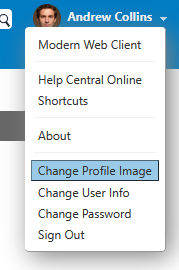
The Modern web client has its own Change Profile Image in the user menu, so the zimlet adds nothing there.
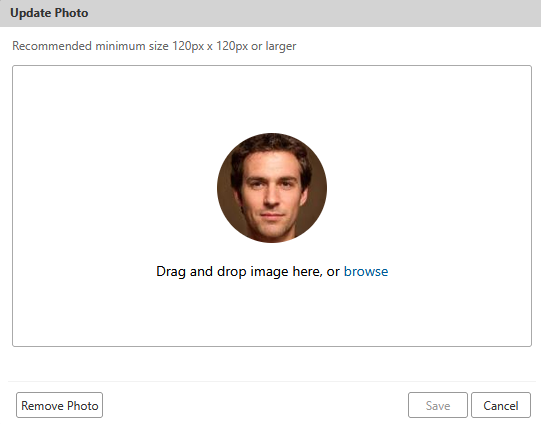
In the Update Photo dialog:
- Drop a picture on the frame, or click browse and choose one. It must be a JPEG, PNG or GIF of up to 10 MB; a size of 120 x 120 px or larger is recommended. The dialog refuses another type, a larger file or a picture the browser cannot read, and sends nothing.
- The browser cuts the middle of the picture to a square, and the dialog shows it round.
- Click Save.
The photo is saved for the account (thumbnailPhoto, made smaller by Zimbra), so colleagues see it in the GAL at once. The status bar of the web client says the photo was changed.
Remove Photo shows the user's initials in the frame; Save then removes the photo. Save is off until there is something to save. Cancel or Esc closes the dialog and changes nothing.
Photos in signatures
The directory sync takes the user's photo from thumbnailPhoto first, and from jpegPhoto only for an account without one. A photo a user sets in the web client is saved in thumbnailPhoto, so after the next sync the {photo} of the signatures is the photo users see in Zimbra.
The signatures take the photo at the size Zimbra saved it. With Zimbra's default size it looks blurry in a signature too; see For administrators for the recommended size.
Where photos are not shown
- GAL turned off. Users whose class of service turns the GAL off (
zimbraFeatureGalEnabled) see no photos. - A class of service without the zimlet. Its users have neither the photos of colleagues, nor the photo in the top bar, nor Change Profile Image.
- The message list. The Modern web client keeps the initials in the message list.
- After an update of the Modern web client. The Modern zimlet finds the avatar by the class names of the web client. After an update of
zimbra-modern-ui, check that the photo still shows: if the web client draws the header otherwise, the initials stay.
For administrators
- Install the zimlets with Zimlet configuration on a single server, or Zimlets configuration in a multi-server installation. Profile Image reads the photos from the GAL of Zimbra itself, so it needs neither the Zimbra extension nor the web admin.
- The zimlets use requests Zimbra has since version 8.8.7.
- Recommended, not required: set the size of the photo Zimbra makes from a picture a user saves to 120 px on every mailbox server,
zmlocalconfig -e profile_thumbnail_image_dimension=120, then restartmailboxd. With Zimbra's default the photo is small and looks blurry in the web client and in signatures. See Zimlet configuration.
Additional resources
- Zimlets - all MSH Zimbra Rules zimlets
- Directory service - the sync that reads the photo for the signatures
- How to use Variables - the photo variables of the templates