Stop a Compromised Zimbra Account from Sending Spam
A stolen password turns a quiet mailbox into a spam cannon. Within an hour the account sends thousands of messages, your server lands on a blocklist, and mail of every other user starts to bounce. A sending limit per user stops the flood after the first hundred messages, tells the administrator by e-mail, and keeps the damage to one account. This article sets one up with the Limit Rules of MSH Zimbra Rules, the same job the quotas of cbpolicyd do, without a database to write SQL for.
Signs of a compromised account
- One account sends far more than it ever did, often at night or at the weekend.
- Its mail goes to hundreds of outside addresses the user never wrote to.
- Its inbox fills with bounces from addresses that do not exist.
- Your server shows up on a blocklist, or other servers start to refuse your mail.
- The user finds messages in Sent they did not write. Mail sent by a script over SMTP is not saved in Sent at all, so an empty Sent proves nothing.
A sending limit catches the first of these, and the others follow from it.
Step 1 - Tell the rules which address is webmail
An attacker with the password sends either through a mail client or a script, over SMTP with a login, or through the web client. Zimbra's web client hands mail to the MTA on port 25 without a login, from the address of the mailbox server. To count both ways and nothing else, the rule needs to know that address.
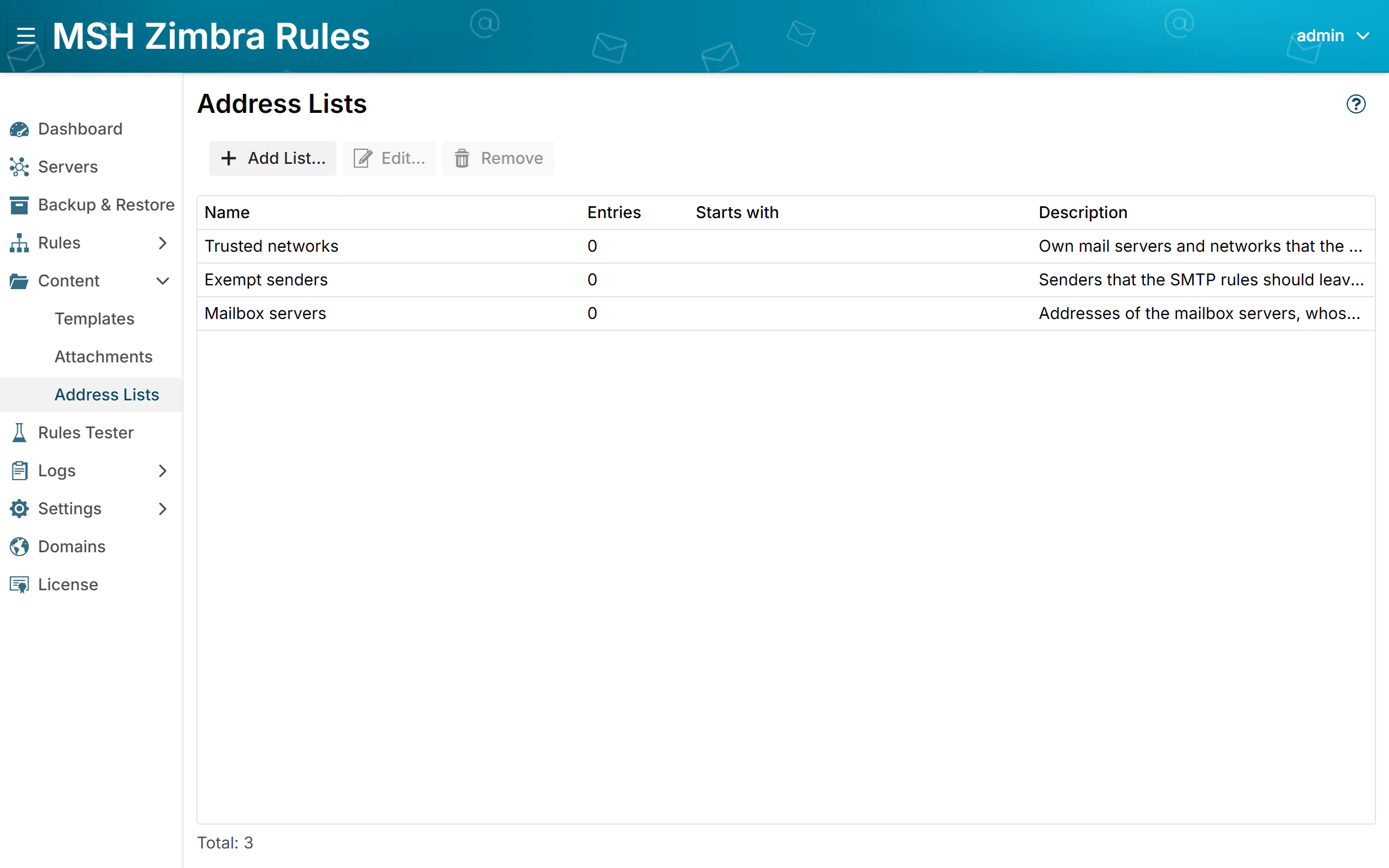
Open Content > Address Lists, double-click Mailbox servers and enter the
address of every mailbox server, one per line. On a single server it is the server's
own address, not 127.0.0.1. The mail log shows it in the line of a message sent from
the web client, for example RCPT from mail.example.com[192.0.2.15].
Step 2 - The limit rule
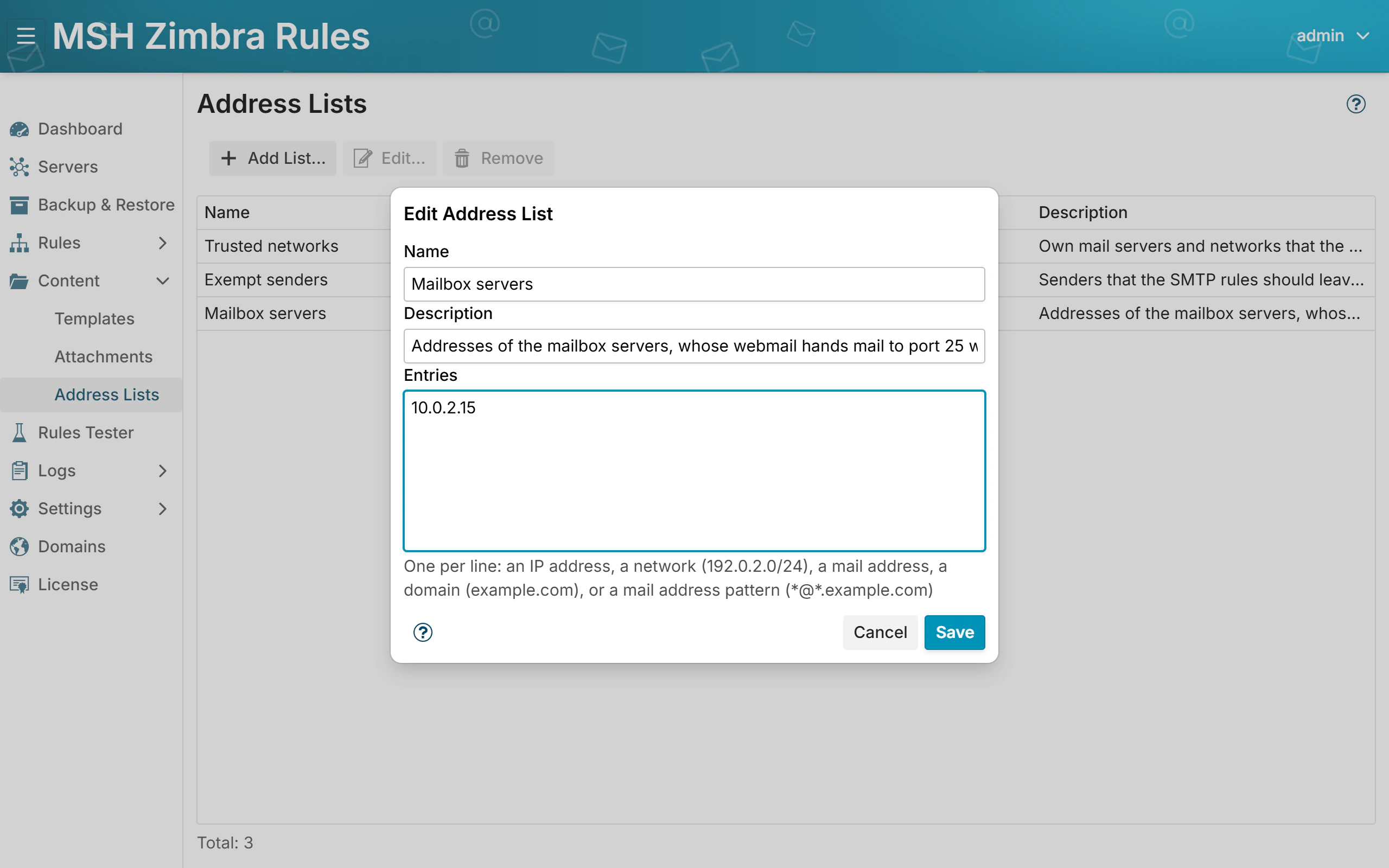
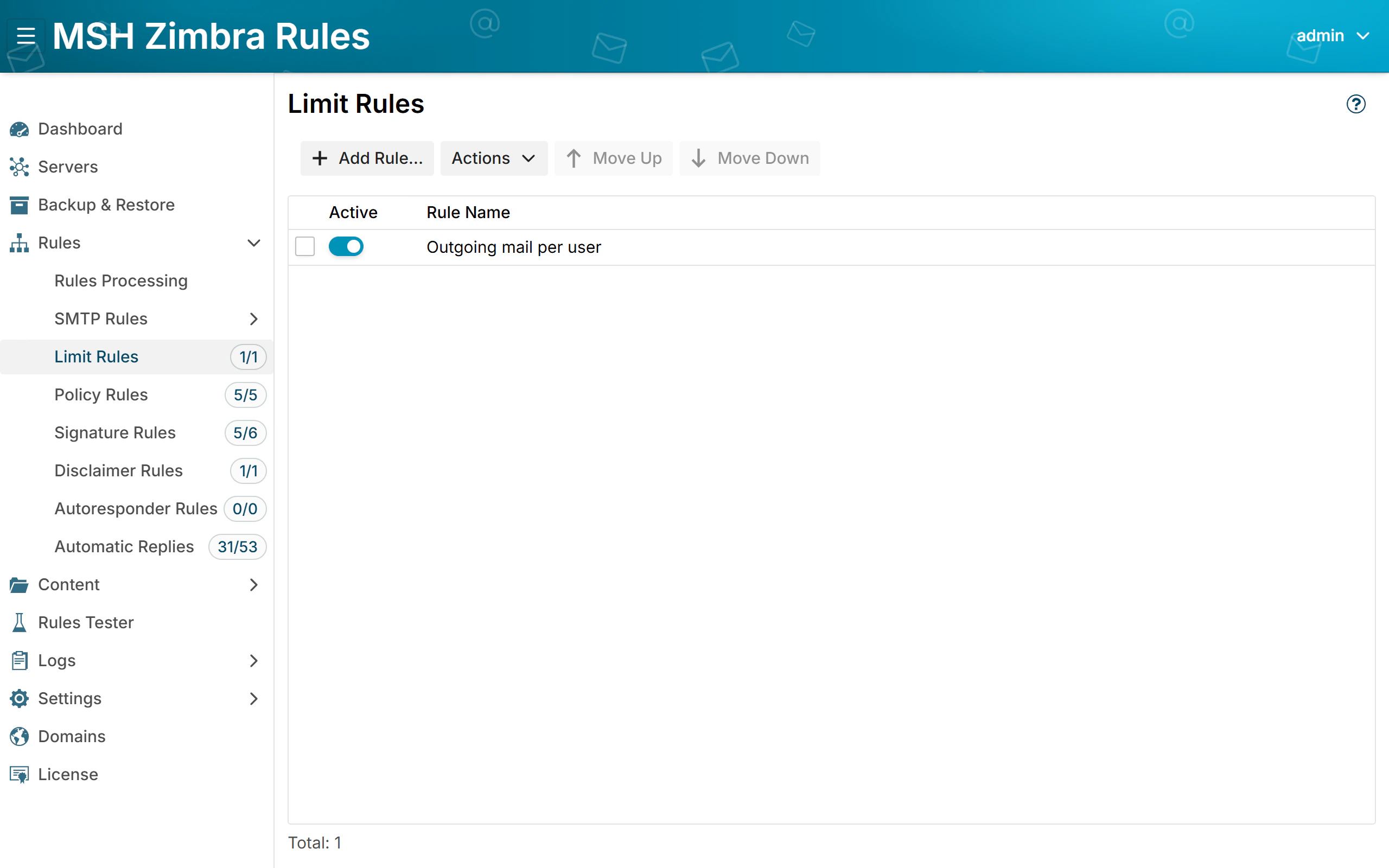
Open Rules > Limit Rules, click Add Rule... and name it
Outgoing mail per user:
- Conditions: Connection > Received through, with Submission and Mailbox server ticked and Incoming unticked.
- Action > Limit: Number of messages, at most
100per1hours. - Action > Counting: Counted for each Sender, each message once, and Count refused attempts as well ticked.
- Action > When exceeded: Defer the message, a Reply that tells the user what to do, and the administrator's address under Notify.
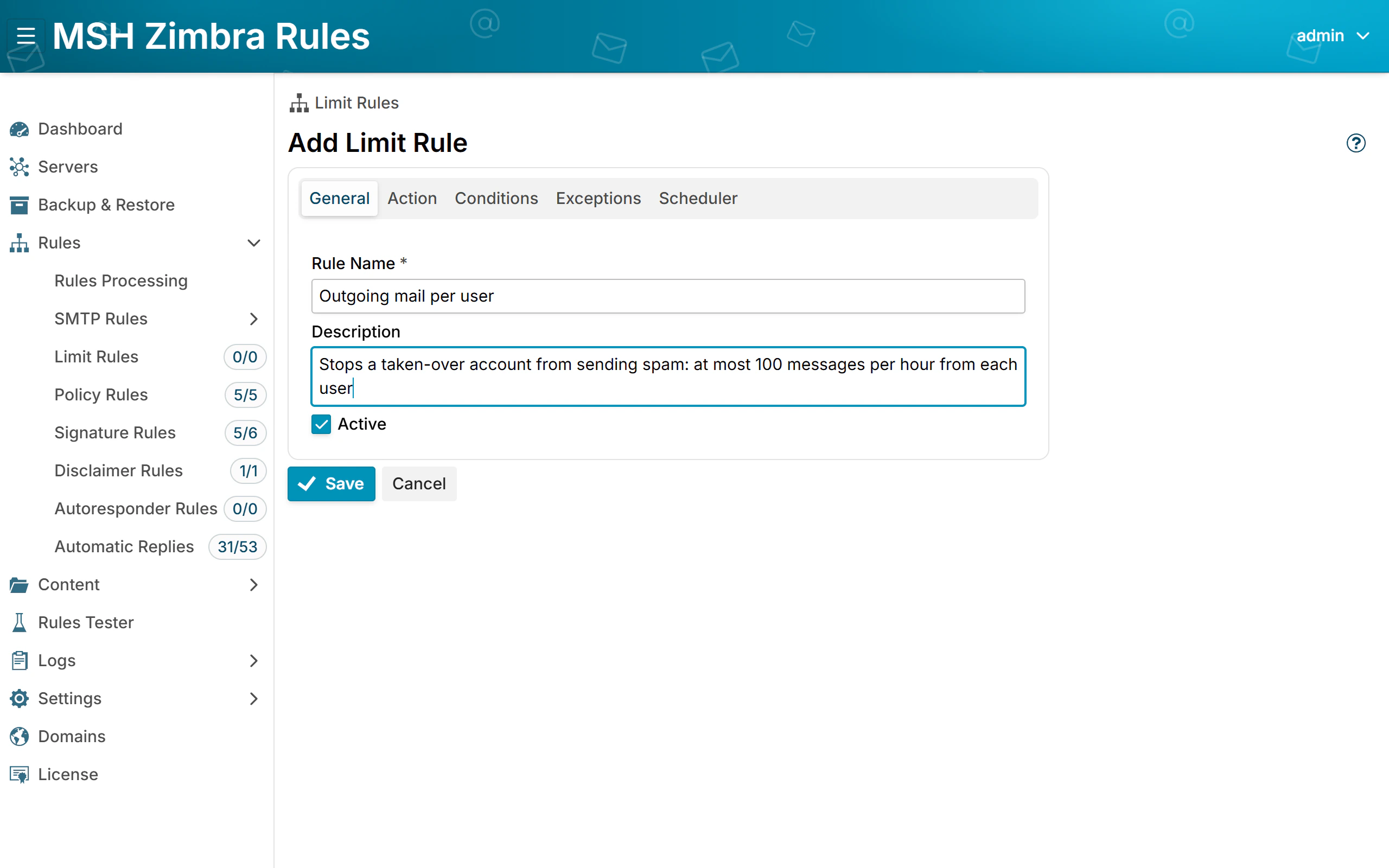
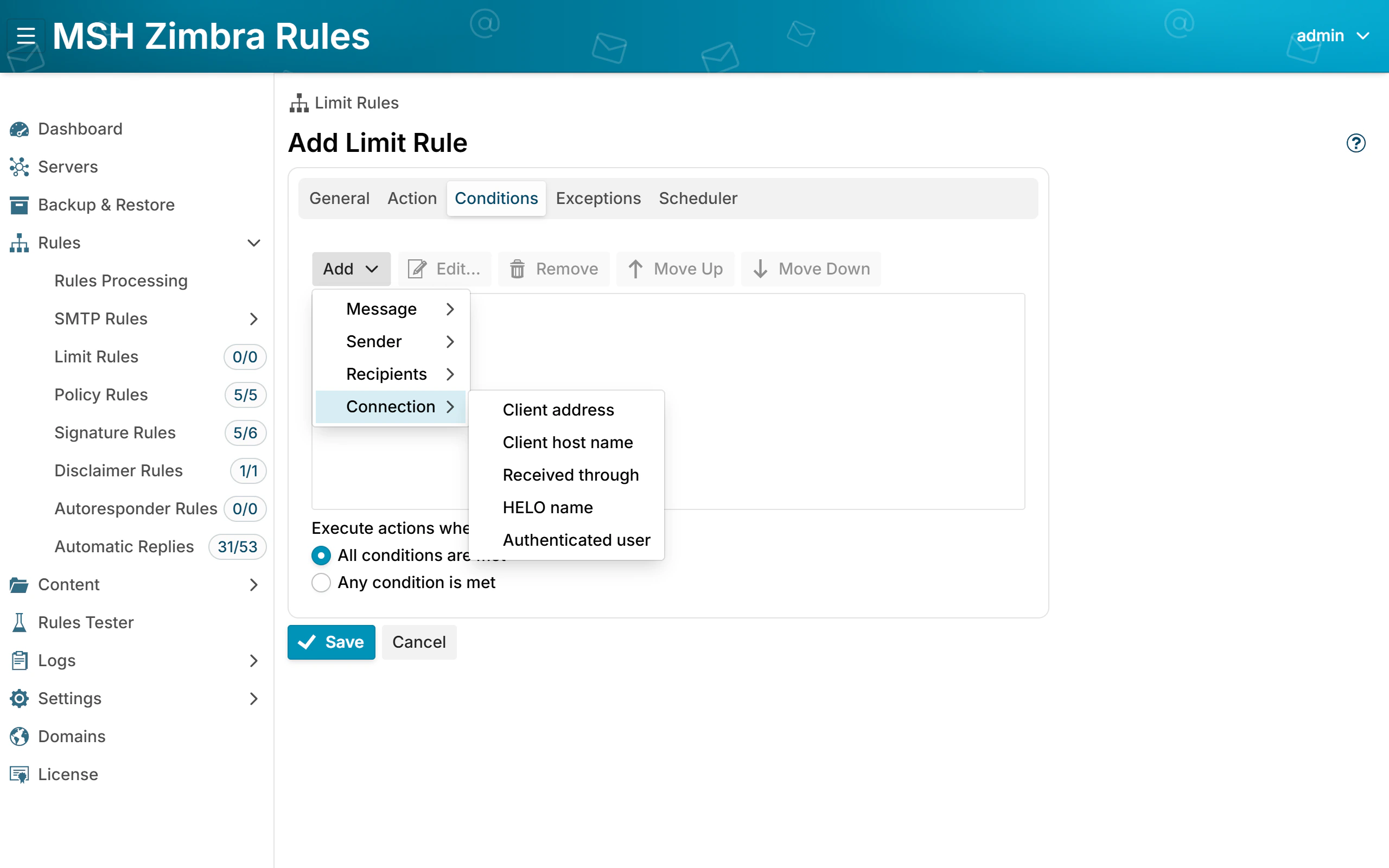
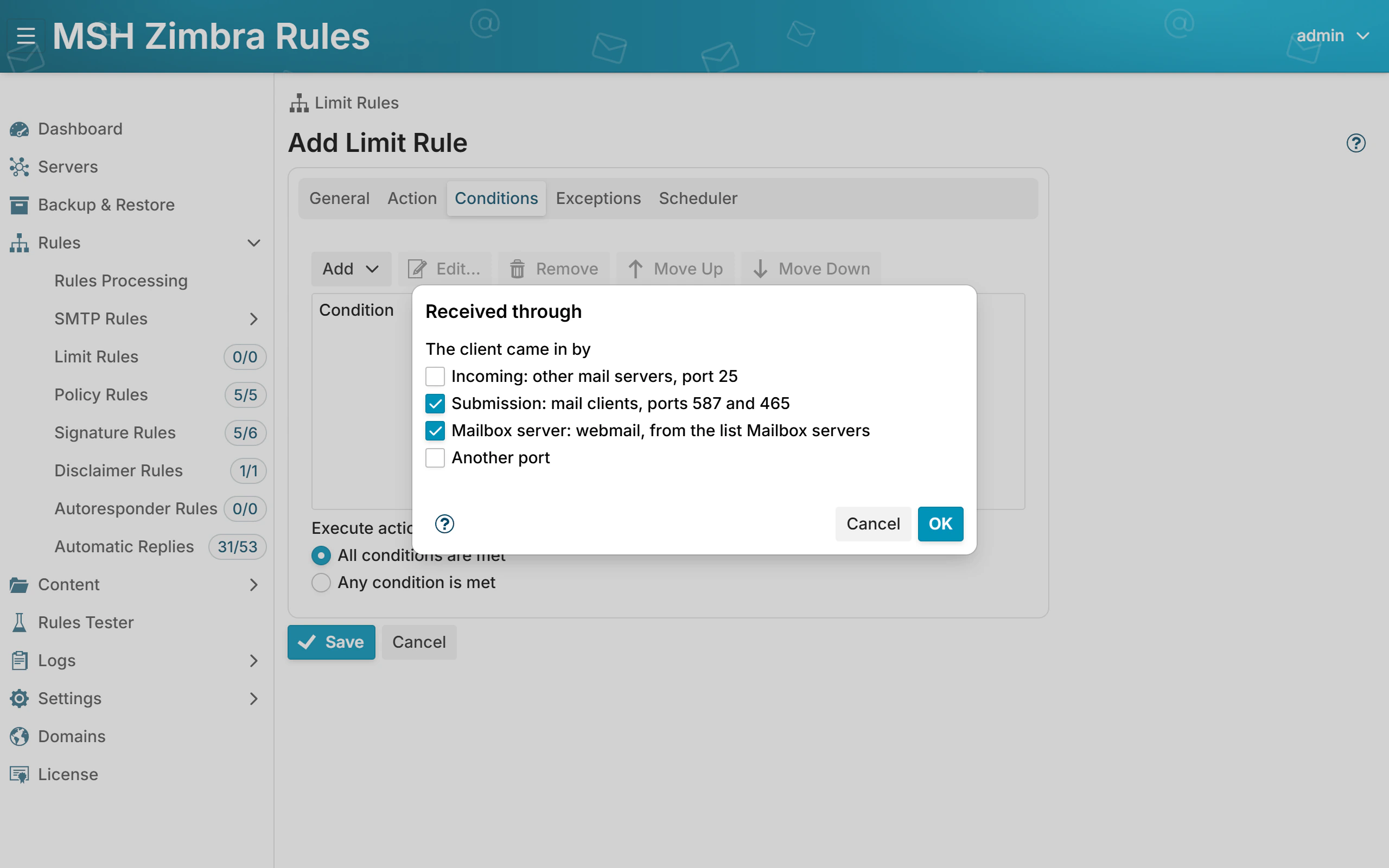
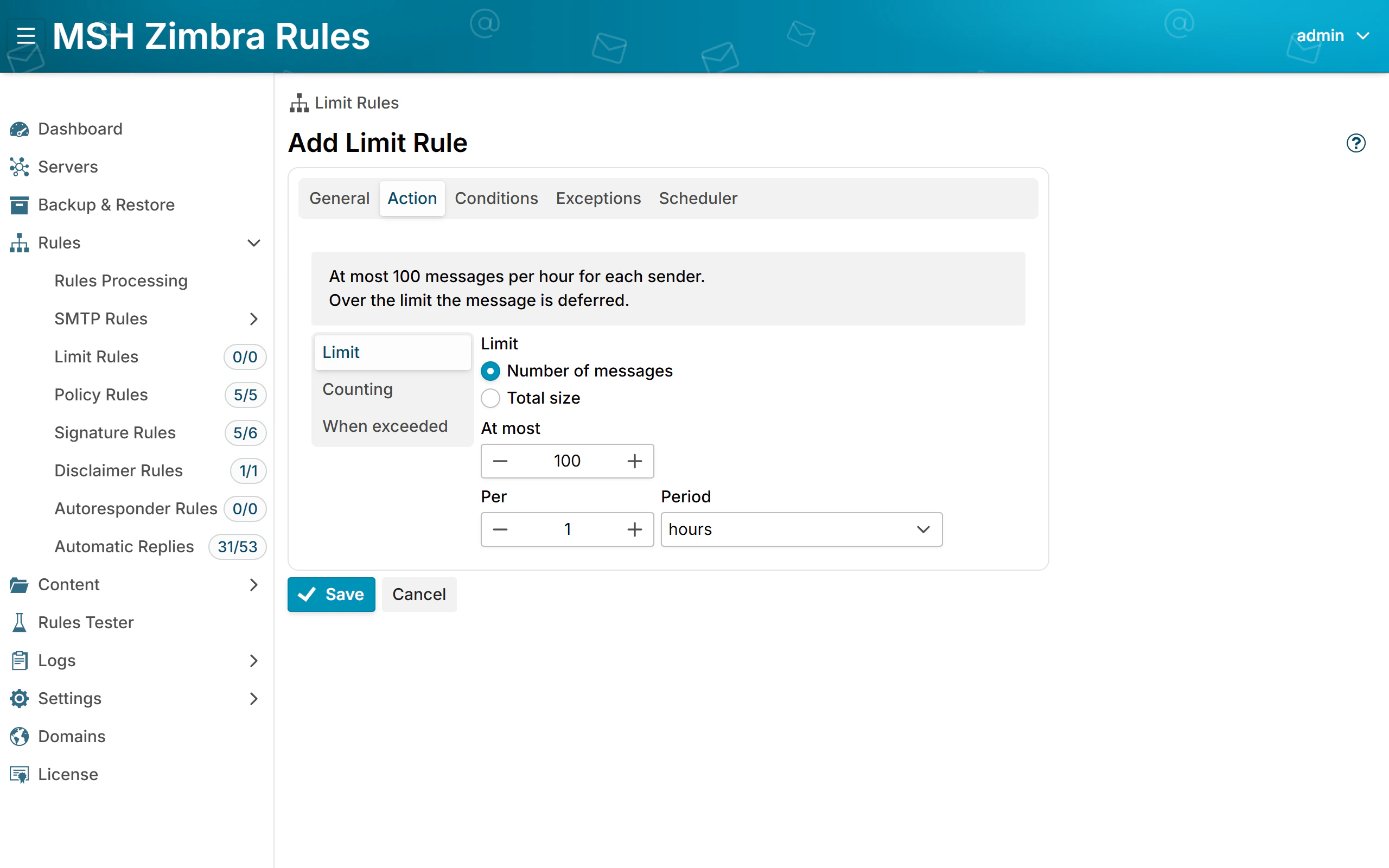
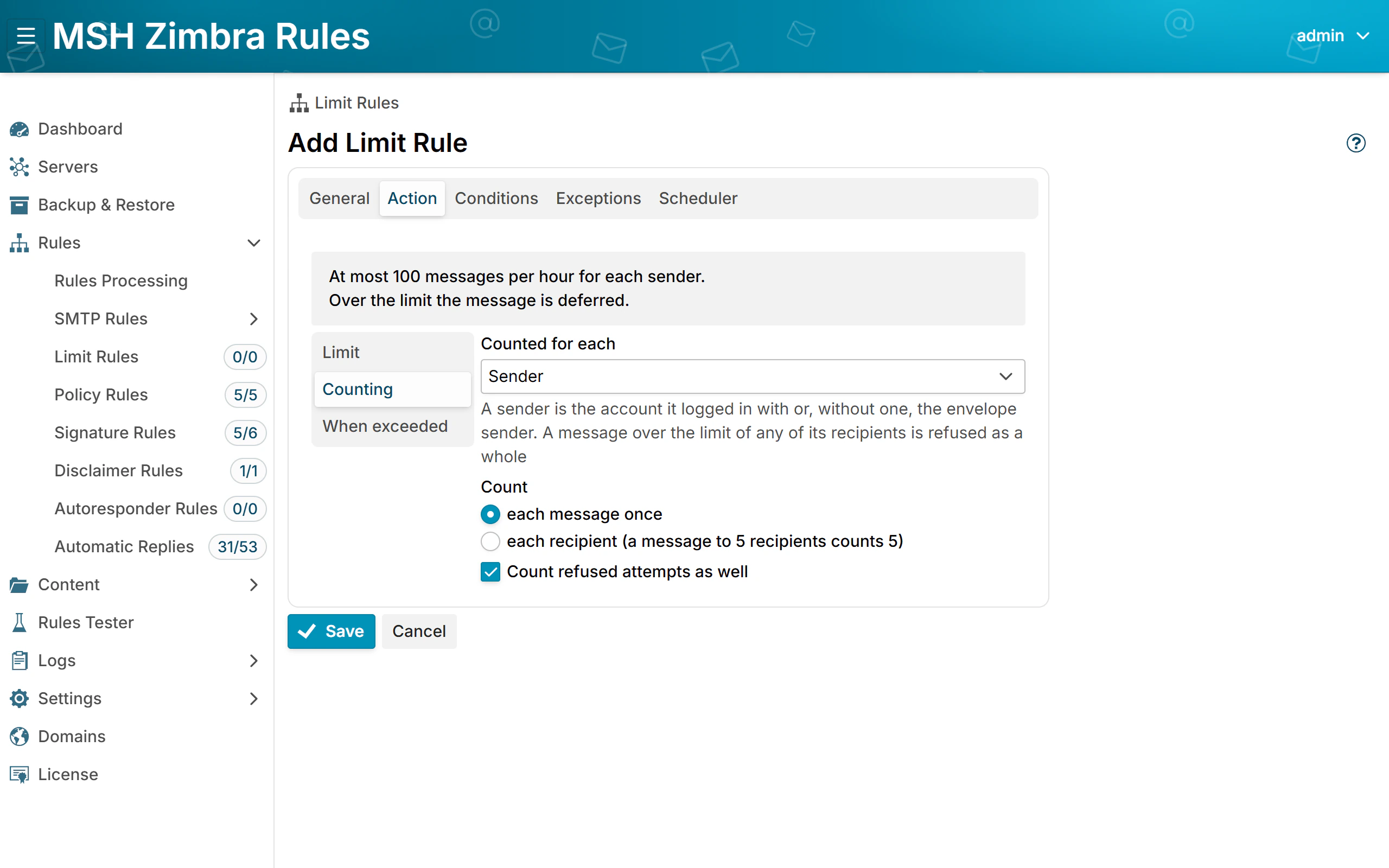
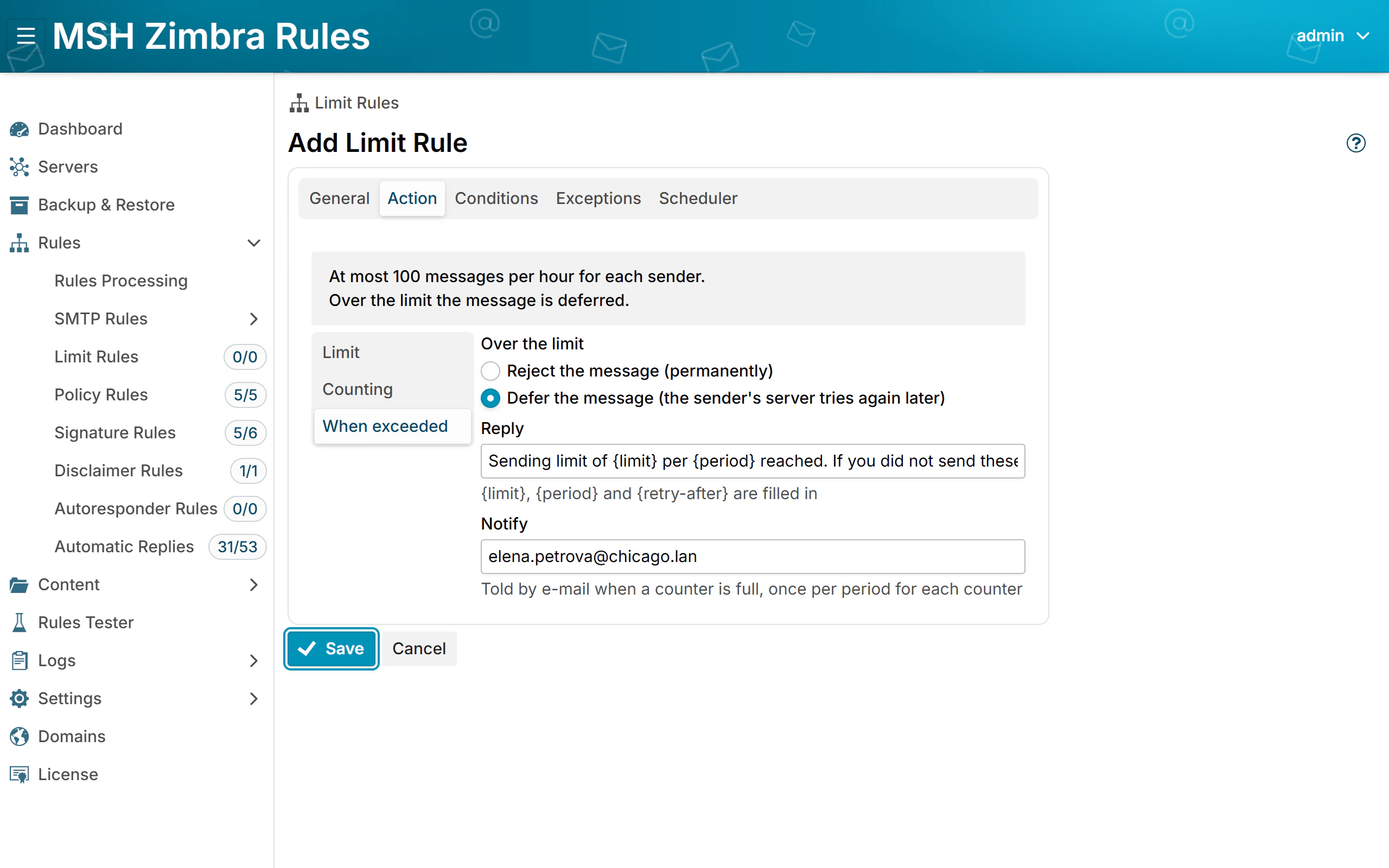
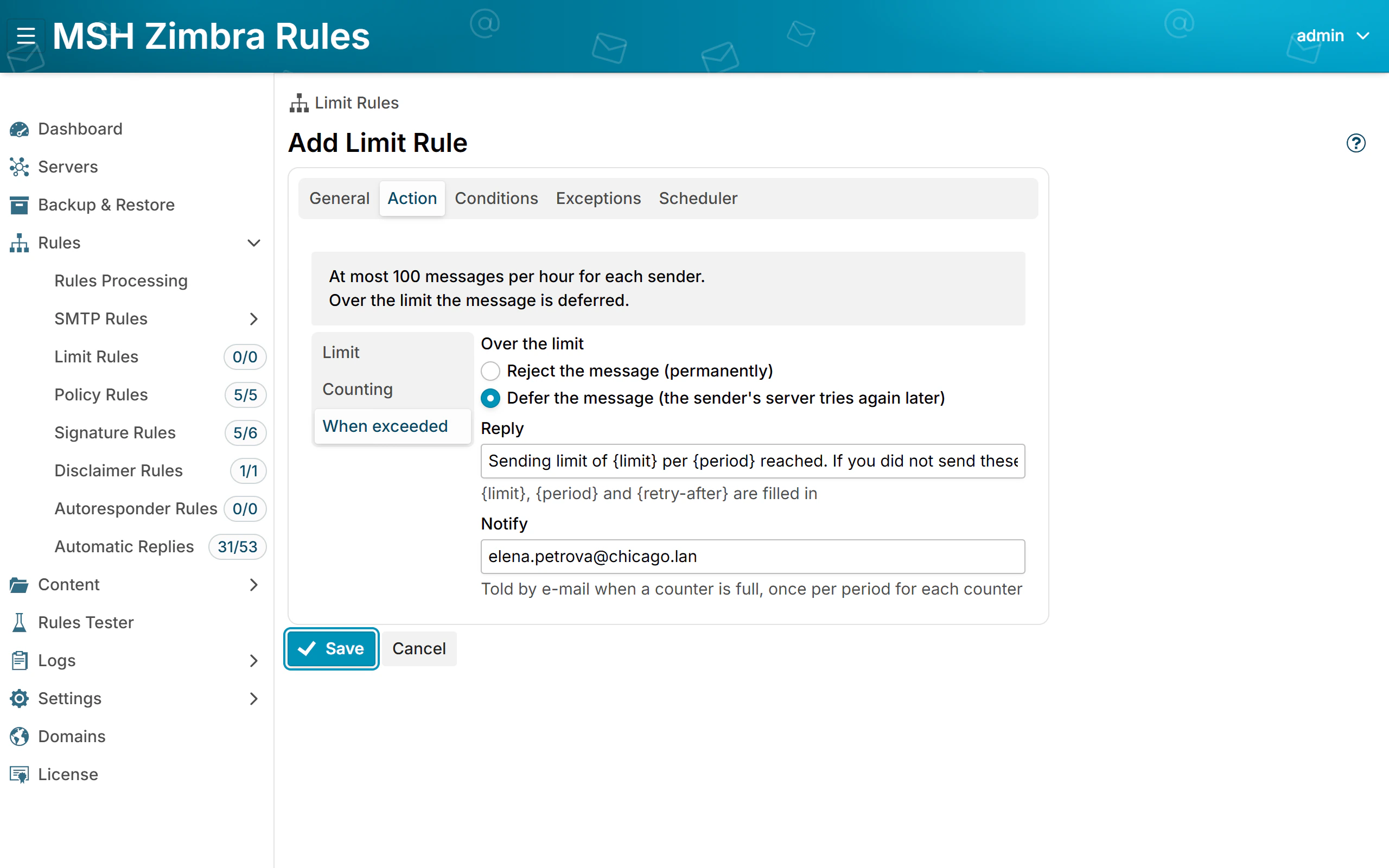
Why Received through and not the sender's domain: mail from the internet can carry any sender address, your users' included. A rule that counted every message with a sender in your domain would let a stranger fill up a user's counter with forged mail and lock that user out. Mail that came in on port 25 from another server is not counted here at all.
A user who logged in is counted under the login, whatever sender address the script puts in the message, so an attacker cannot get around the limit by changing it. Webmail is counted under the account's address, which is the same counter: a user over the limit cannot send from the web client either.
Step 3 - What happens at the limit
The 101st message within the hour is refused at the end of the SMTP dialog with
451 4.7.1 and your reply, and nothing of it is queued on your server:
451 4.7.1 Sending limit of 100 messages per hour reached. If you did not send these messages, call the IT help desk.
-
A mail client or a script gets that line as the answer of the server.
-
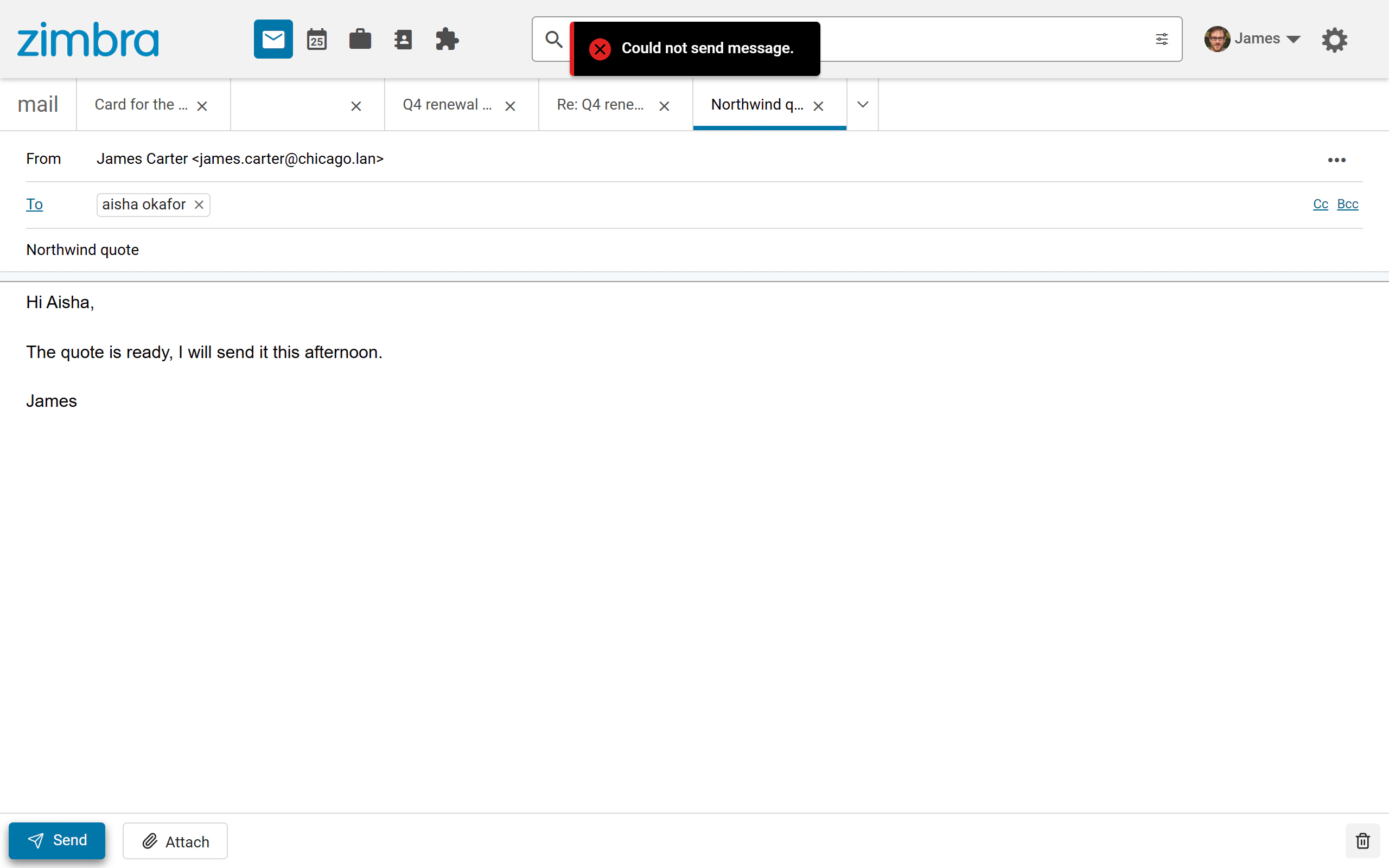
The web client shows Could not send message. and keeps the message open, so the user can send it again later.
-
The administrator gets one e-mail with the subject Sending limit reached: and the account, for each counter and hour, however many messages are refused. It names the rule, the limit, the client address, the recipients, the reply the sender got, and the commands to lock and unlock the account. See Notices.
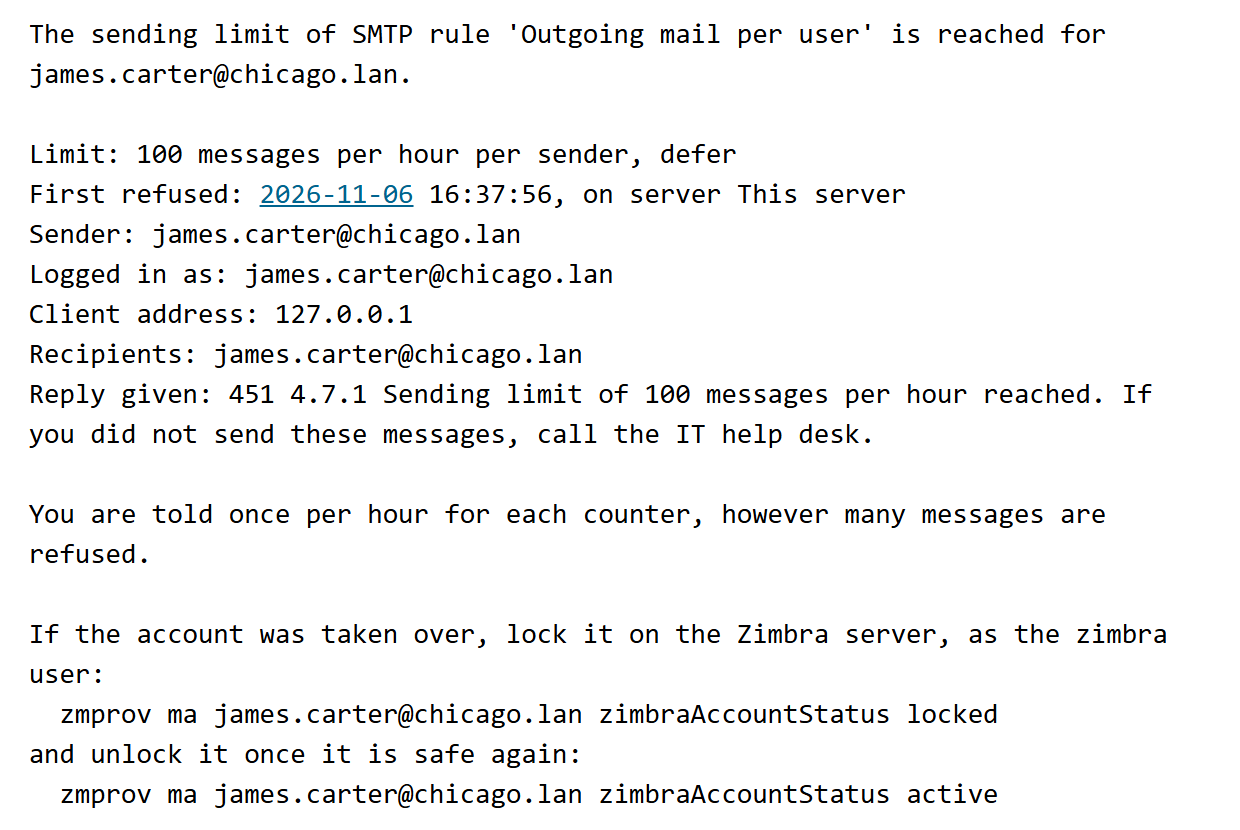
The notice is sent from the first address in Notify, so your signature and disclaimer rules treat it as mail of that user and may add their signature to it. Put first an address they leave alone, such as a shared IT mailbox.
-
Logs > Message Limits shows the counter in red, with the time it frees up, and Logs > SMTP Events lists every refused message.
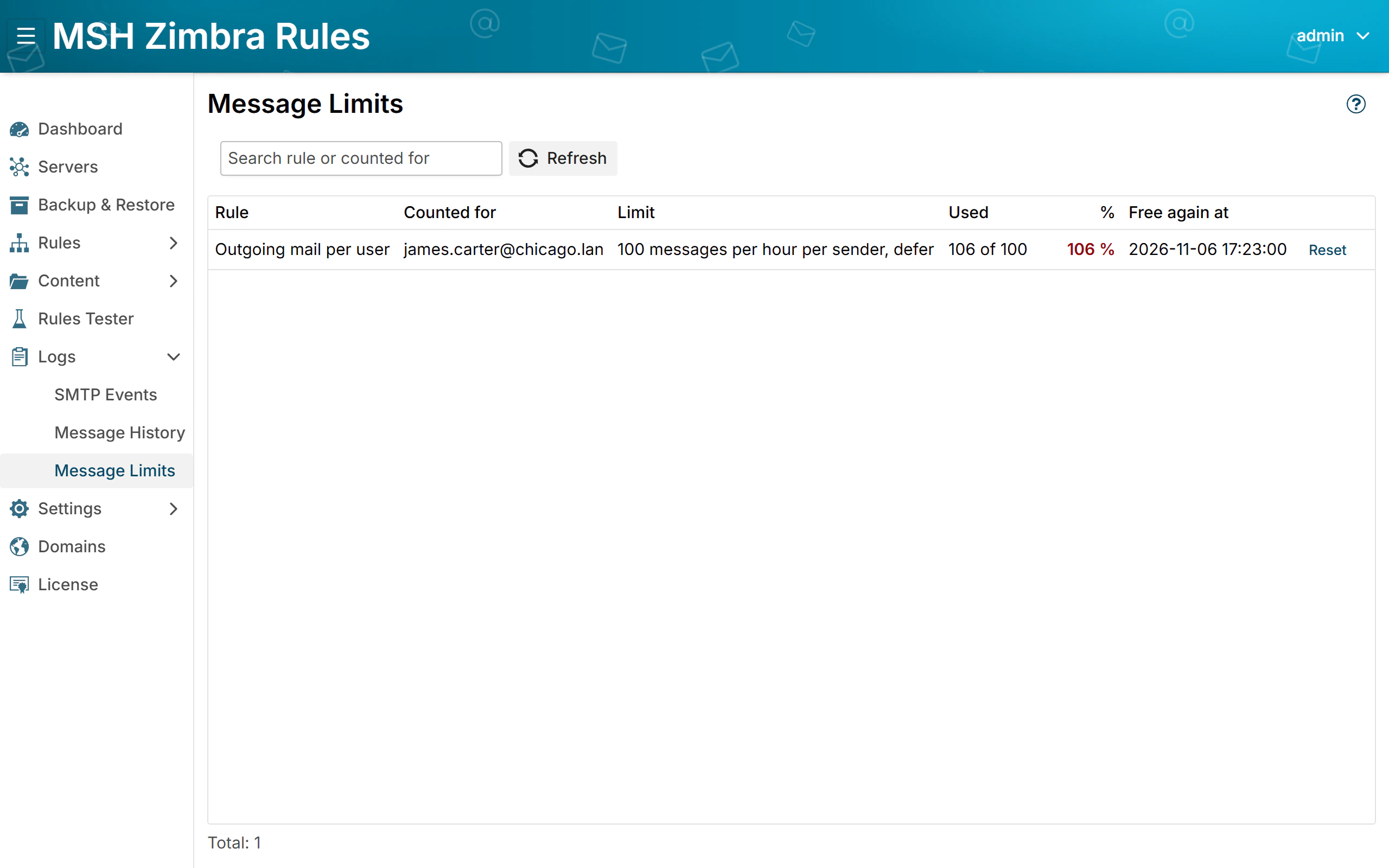
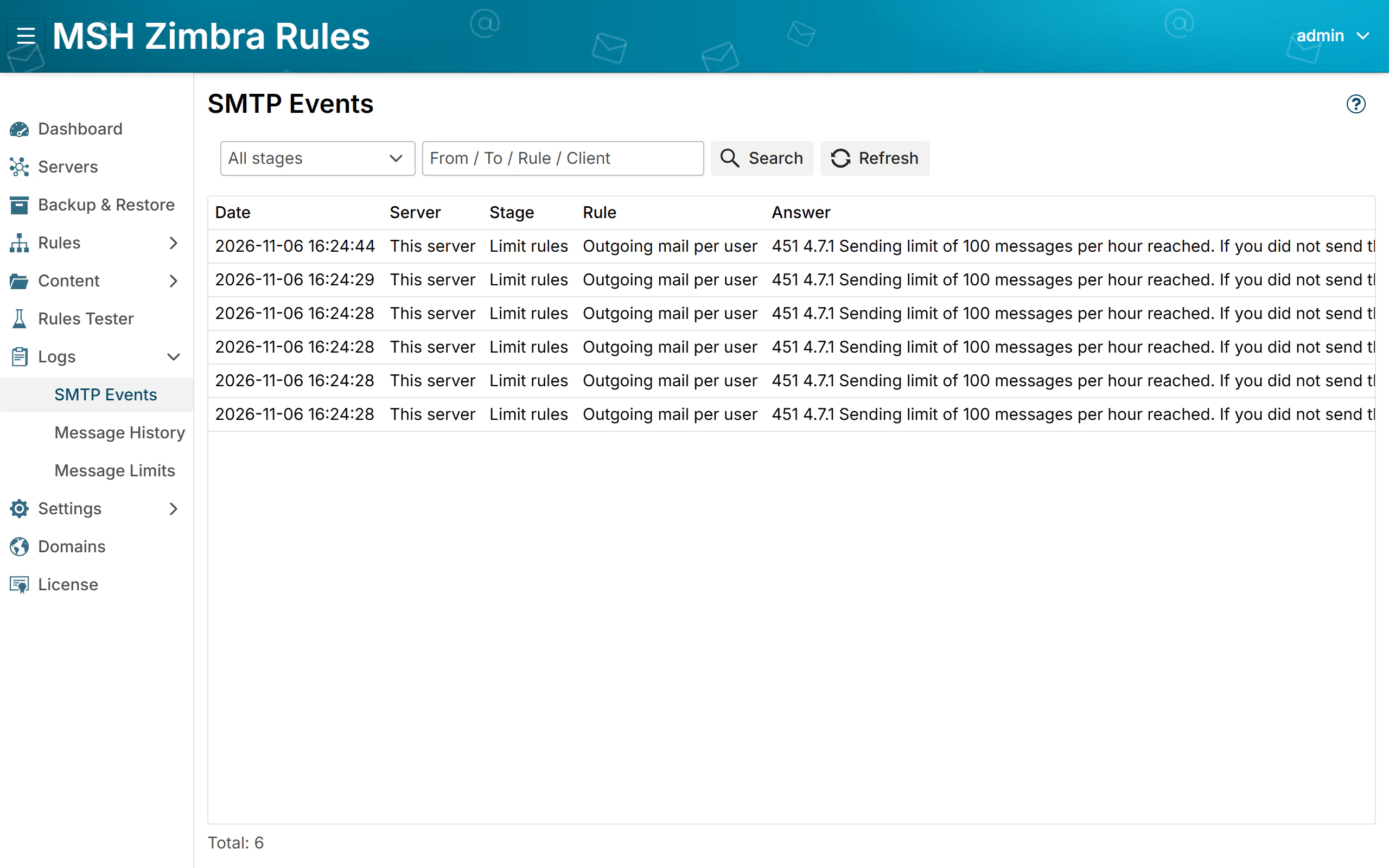
Defer is the right answer for a limit. A user who really sends a lot gets through again as the hour moves on, and a script that keeps trying stays over the limit, because Count refused attempts as well counts every try. Reject would make a mail client give up on the message for good.
Step 4 - Unblock the user after the password is changed
When the notice names an account that was taken over:
-
Lock the account on the Zimbra server, so that nobody can log in with the stolen password:
sudo su - zimbra -c 'zmprov ma james@example.com zimbraAccountStatus locked'Mail to the account is still delivered.
-
Change the password, and check the account for what attackers like to leave behind: a forwarding address, filters that delete or forward mail, and a changed reply-to address.
-
Unlock it:
sudo su - zimbra -c 'zmprov ma james@example.com zimbraAccountStatus active' -
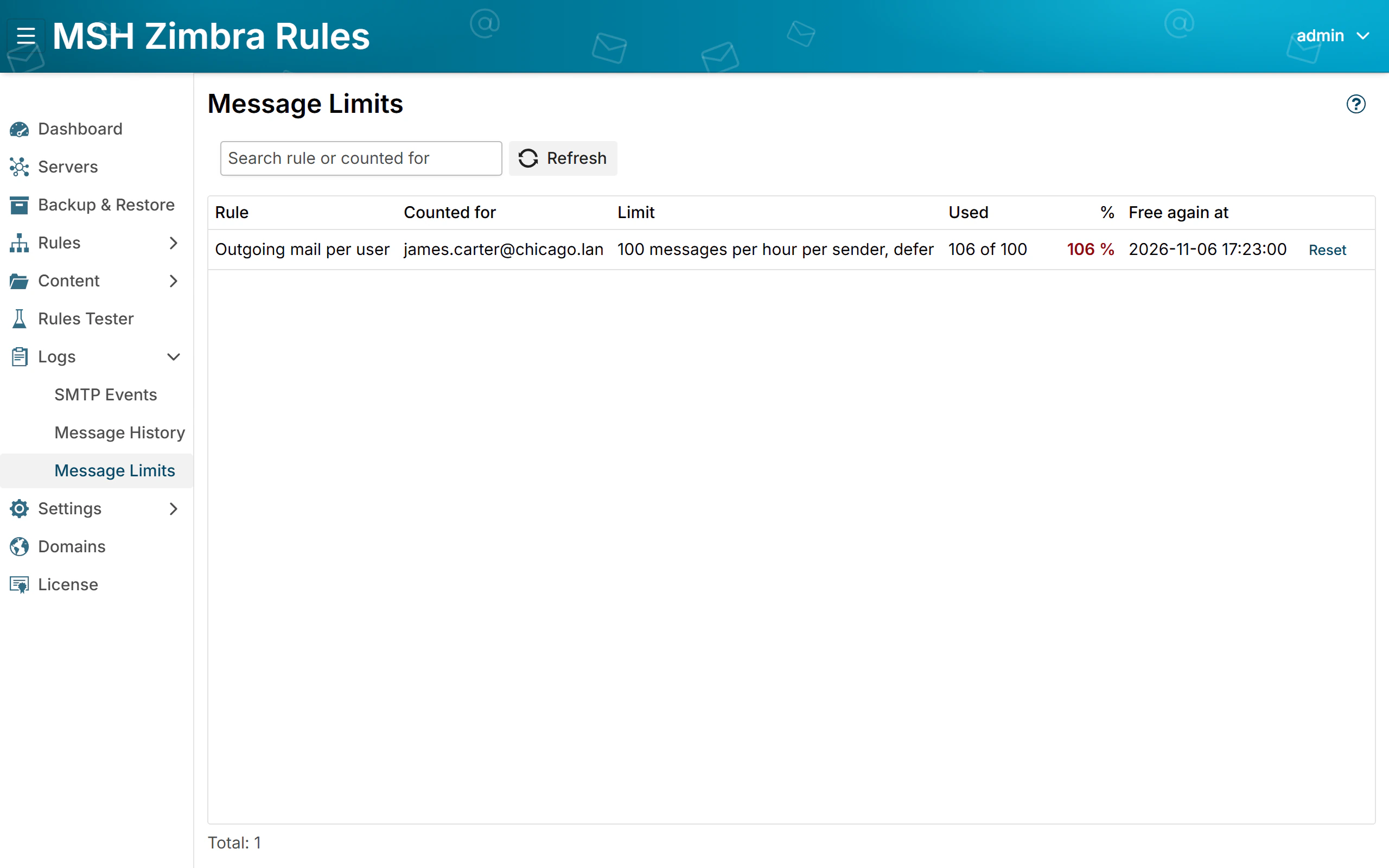
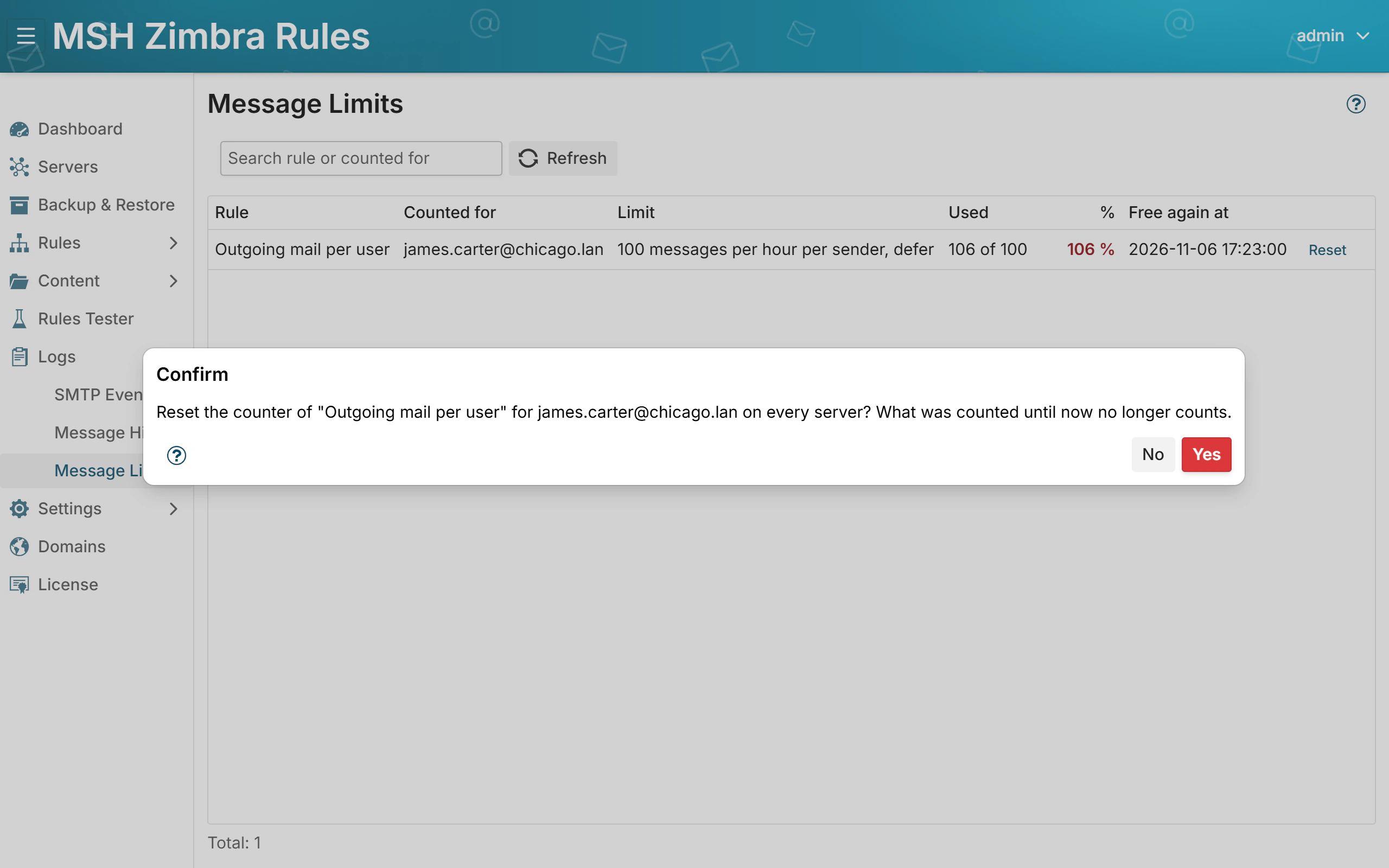
In Logs > Message Limits, click Reset in the row of the account and confirm. The counter starts from zero on every server within seconds, and the user can send again at once.
When the notice turns out to be a false alarm, for example someone sending invitations to a hundred customers, skip the lock and just reset the counter.
Choosing limits that do not stop normal users
- Look before you limit. Leave the rule active for a few days and watch Logs > Message Limits: it shows how full each counter gets. Set the limit well above what your busiest real user sends. The goal is a stolen account sending thousands, not a busy salesperson.
- One limit per message or per recipient. One message to 500 addresses in Bcc counts as one message. A second rule with Count set to each recipient, for example 300 recipients per hour, catches that. A message to a distribution list counts as one recipient, the list.
- A daily cap as well. A slow attacker stays under 100 per hour. A second rule with calendar day (from midnight) and, for example, 500 messages catches that.
- Room for the few who need it. Give a group such as Marketing an exception in this rule (Sender > Sender, In Group) and a second rule of its own with a higher limit.
Compared with cbpolicyd quotas
cbpolicyd Quotas: Rate Limiting Mail on Zimbra does the same with rows in a database. The differences that matter for a compromised account:
| Limit Rules | cbpolicyd quotas | |
|---|---|---|
| Set up | In the web admin | SQL in the cbpolicyd database |
| Webmail | Counted, with Mailbox server | Not counted by $*, which needs a login |
| What a message counts | One, or one per recipient, as you choose | One per recipient, as it counts at RCPT |
| A change of the limits | Applied by the servers within a minute | Needs a restart of cbpolicyd |
| Telling the administrator | E-mail notice | Read the logs |
| Letting a user send again | Reset in Message Limits | Delete the counter rows, or wait |
Related reading
- Limit rules - what limits can do, and the notices
- Action of limit rules - limit, counting and what happens when exceeded
- Message limits - the counters and the reset
- Received through - port 25, submission and webmail
Want to try it on your own server? Start a free trial.