Message limits
The Message Limits page shows the counters of the sending limits: who is counted, how much of the limit is used, and when a place frees up. Use it to see who is close to a limit and to let a sender through again.
Open Message Limits in the Logs section of the navigation.
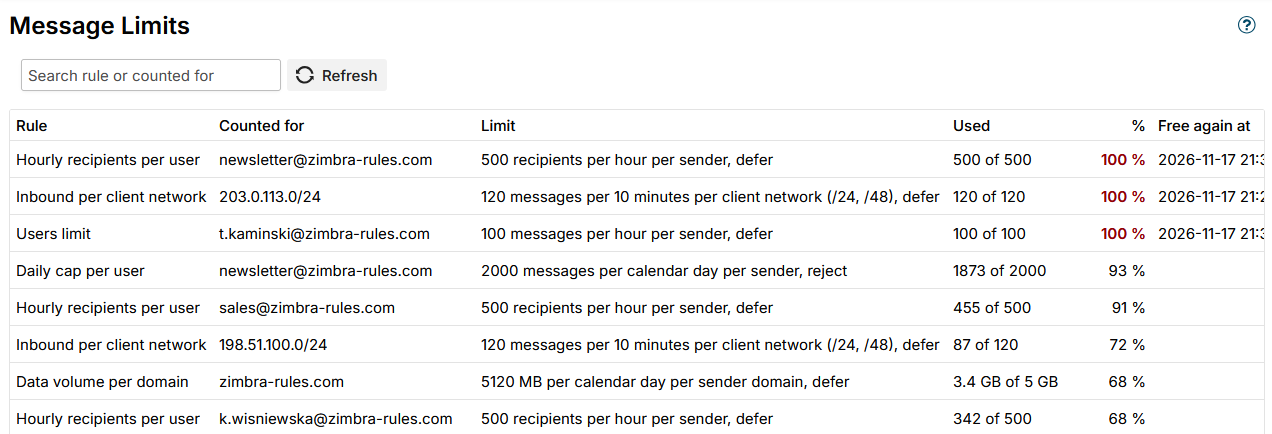
Counters
The page lists every counter that holds something, summed over all servers, the fullest first.
| Column | Shows |
|---|---|
| Rule | The limit rule the counter belongs to |
| Counted for | Who is counted: the sender, domain, recipient or network, as set in Counted for each of the rule |
| Limit | The limit, who is counted and what happens over it, for example 500 recipients per hour per sender, defer |
| Used | What is used of the limit, in a fitting unit, for example 342 of 500 or 3.4 GB of 5 GB |
| % | How full the counter is. A full counter is shown in bold red. |
| Free again at | For a full counter, when a place frees up and mail passes again |
The search field filters by rule or Counted for as you type, over all counters, not only the rows shown. The footer says how many counters matched, for example Total: 12. At most 500 counters are shown; with more, the footer says Shown: 500 of 3,214 (the fullest). Refresh reads the counters again.
Reset
Reset in a row lifts that counter on every server, after a confirmation: what was counted until now no longer counts, so the sender can send again at once. Use it, for example, once you have checked that a user who hit the limit is not a compromised account.
The servers apply a reset within seconds. A server that is down at the time applies it once it starts.
Servers that do not answer
Each server has 10 seconds to answer. A server that does not answer is named above the grid, for example mta2 did not answer within 10 s., and the counters of the other servers are shown.
Additional resources
- Limit rules - how the limits are set and counted
- SMTP events - the messages a limit refused