Servers
The Servers page lists every MTA server the web admin manages. Each server runs the node and the milter (see Deployment layouts). The web admin sends each server the rules, the settings and the license, checks its state every few seconds, and reads its message history. The page is available to administrators only and is listed under Dashboard in the navigation.
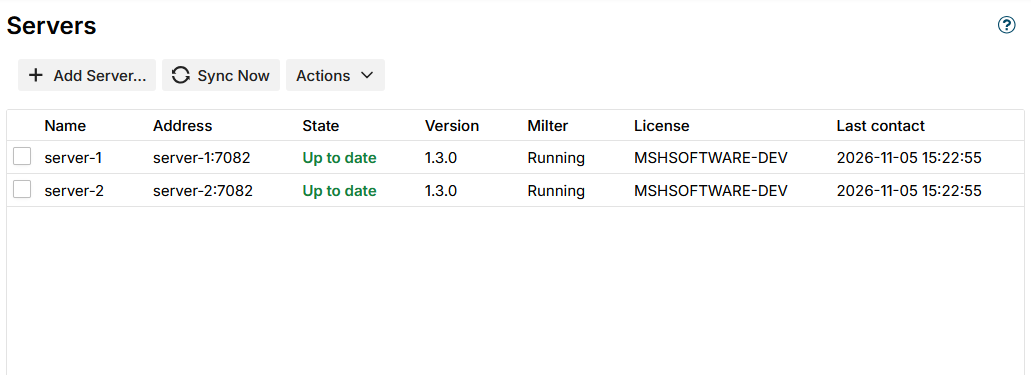
| Column | Shows |
|---|---|
| Name | The name given when the server was added |
| Address | Host and port the web admin connects to |
| State | Whether the server has the current rules and settings, see Server states. Click it to see the details. |
| Version | The MSH Zimbra Rules version running on the server |
| Milter | Whether the milter on that host is filtering mail, see Milter states |
| Messages/min | Messages the milter received in the last minute |
| Dropped (1 h) | Connections the milter could not take in the last hour, see When the milter is full |
| Queue | Sessions waiting for a worker, and the size of the queue |
| Workers | Workers processing a session, and the largest number allowed |
| License | The license id on the server, or Missing |
| Last contact | When the web admin last reached the server |
The toolbar has:
- Add Server... - add an MTA server, see Add a server.
- Sync Now - check every server at once and send each one what it is missing, instead of waiting for the next check.
- Actions > Remove - remove the selected servers. The web admin stops sending them rules and settings. A removed server keeps filtering mail with what it received last, until you stop its services or detach it from Zimbra (see Uninstall).
Rule and setting changes reach every server automatically. The web admin checks the servers every 10 seconds and the milter picks up new settings within 45 seconds, so a change is applied on all servers usually within a minute. While changes keep coming, for example when many users save in the Change User Info zimlet one after another, the web admin sends them at most once every 30 seconds, always with the latest state. Sync Now sends them at once.
This server
When the web admin runs on the same host as a node, which is the case on a single server, it adds that node by itself as This server the first time it starts. You do not need to add it.
It is added only once. If you remove This server, it is not added back; add it again with Add Server... (host 127.0.0.1, port 9012 and the token from /opt/msh-zr/etc/node.token).
Until at least one server is listed, the Dashboard and the Servers page show the notice No server is configured, so rules are not applied to any mail.
Add a server
Install the node and the milter on the MTA host first, see Milters configuration. Then click Add Server... and fill in:
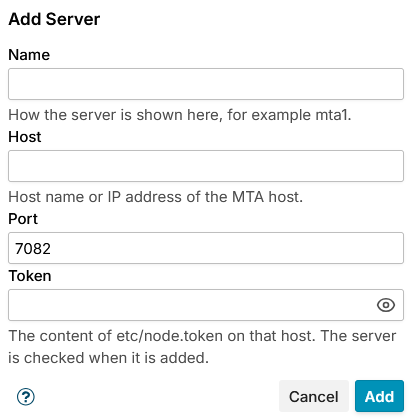
| Field | Value |
|---|---|
| Name | How the server is shown here, for example mta2. Must be unique. |
| Host | Host name or IP address of the MTA host, as the web admin server reaches it. |
| Port | The node port, 9012 by default (NODE_PORT in etc/config.cf on that host). |
| Token | The content of /opt/msh-zr/etc/node.token on that host. |
Click Add. The web admin connects to the server before adding it: the token must be accepted, and the server's certificate is remembered (pinned) so later connections only trust that certificate. If the connection fails, the server is not added and the reason is shown. A server with the same name or address cannot be added twice.
Once added, the server gets the rules, settings and license right away.
The connection to the node is always HTTPS with the certificate the node created on its first start. No certificate authority is involved: the web admin trusts the certificate it saw when the server was added.
From the command line
For an automated multi-server installation, add a server with mshctl add-server on the web admin server instead of the dialog. The token is read from a file, because a command line is visible to every user of the host.
Copy the content of /opt/msh-zr/etc/node.token of the MTA host into a file on the web admin server that only the msh user can read, for example by pasting it and pressing Ctrl+D:
sudo -u msh sh -c 'umask 077; cat > /opt/msh-zr/var/mta2-node.token'
Add the server:
sudo -u msh /opt/msh-zr/bin/mshctl add-server mta2.example.com 9012 --token-file /opt/msh-zr/var/mta2-node.token --name mta2
| Argument | Meaning |
|---|---|
<host> | Host name or IP address of the MTA host |
<port> | The node port, usually 9012 |
--token-file <file> | A file holding the content of etc/node.token of that host. Required. |
--name <name> | How the server is shown on this page. The host by default. |
The command makes the same checks as the dialog for the name, the host and the port, and refuses a server whose name or address is already listed. On success it prints:
Server 'mta2' added at mta2.example.com:9012. Check the Servers page: the web admin connects to it within a few seconds.
Unlike the dialog, the command does not connect to the node itself. The running web admin connects within a few seconds and pins the certificate then; if the token is wrong, the server shows Token refused. Remove the token file afterwards:
sudo rm /opt/msh-zr/var/mta2-node.token
All parameters, the error messages and the exit codes are on add-server, the other commands of the tool in Command-line tool (mshctl).
Server states
| State | Meaning | What to do |
|---|---|---|
| Checking | The web admin has not reached the server yet since it started. | Wait a few seconds. |
| Up to date | The server has the current rules and settings. | Nothing. |
| Syncing | The web admin is sending the rules and settings. | Wait. |
| Behind | The server does not have the current rules and settings yet, for example because they changed while they were being sent, or changed again shortly after they were sent - then the state says in how many seconds they go out. | Usually resolves itself in the next check. Click Sync Now to retry at once. |
| Offline | The web admin cannot connect to the server. | Check that msh-zr-node.service runs on that host, that the host name resolves from the web admin server, and that port 9012 is open from the web admin server. |
| Token refused | The server rejected the token. | The token in etc/node.token on that host changed. Remove the server and add it again with the current token. |
| Certificate changed | The server presented a different certificate than the one remembered when it was added. | If etc/node.p12 on that host was recreated, remove the server and add it again. If not, find out why another certificate is presented before you trust it. |
| Version mismatch | The server runs an older version than the web admin. | See Version mismatch. |
| Error | Any other failure. | Click the state to see the message. |
While a server is not up to date, it keeps filtering mail with the rules and settings it received last.
Milter states
| Milter | Meaning | What to do |
|---|---|---|
| Up | The milter is filtering mail and dropped no connection in the last 5 minutes. | Nothing. |
| Degraded | The milter dropped connections in the last 5 minutes, or its queue was over 80% full for 30 seconds. | See When the milter is full. |
| Down | The milter stopped working, or stopped reporting for more than 15 seconds. | Check msh-zr-milter.service on that host, see Services. |
| Unknown | The web admin cannot reach the server, so it does not know. The numbers stay empty until it can. | See the server's state in Server states. |
A server older than this version shows Running or Not running and no numbers.
Version mismatch
A server that runs an older MSH Zimbra Rules version than the web admin cannot take the current rules and settings, because they may use features it does not have. The web admin stops sending it settings, and the server keeps filtering mail with the rules and settings it received before.
Update the server to the same version as the web admin, see Update. As soon as it runs the new version, the web admin sends it the current rules and settings.
To avoid the state during an update, update the MTA servers first and the web admin last.
Shared message counts
With more than one server, the message count based on sender and message count based on recipient conditions and the autoresponder loop protection count the messages of all servers together. Every 10 seconds the web admin collects what each milter counted and passes it on to the other servers.
If the web admin cannot exchange the counts with a server, the server shows a Counts not shared badge and the Dashboard shows a notice. Until the exchange works again, message-count limits on that server count only the messages it handled itself, so a sender can pass a limit by spreading messages over servers. The cause is usually the same as for an Offline server.
A limit can also be passed by messages that arrive on several servers within one exchange interval, so treat the limits as approximate in a multi-server installation.