Send a Branded Vacation Reply in Zimbra
The vacation reply is often the first message a new customer gets from your company, and in most companies it is the plainest one: a few lines of grey text, no logo, a signature typed by hand. This article gives it the company's look. Users keep writing their own text, as they always did, and every reply goes out in the company's layout, with the logo, the colors, the user's photo and a footer, one layout for customers and a lighter one for colleagues.
What the sender gets
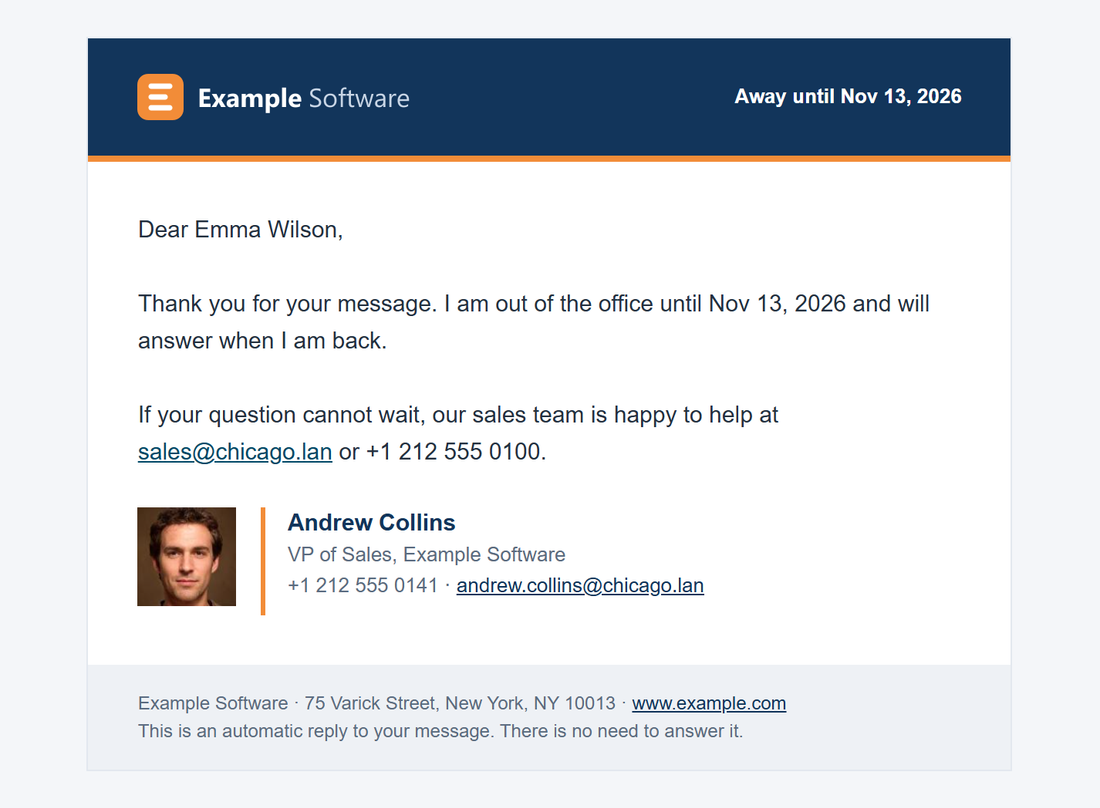
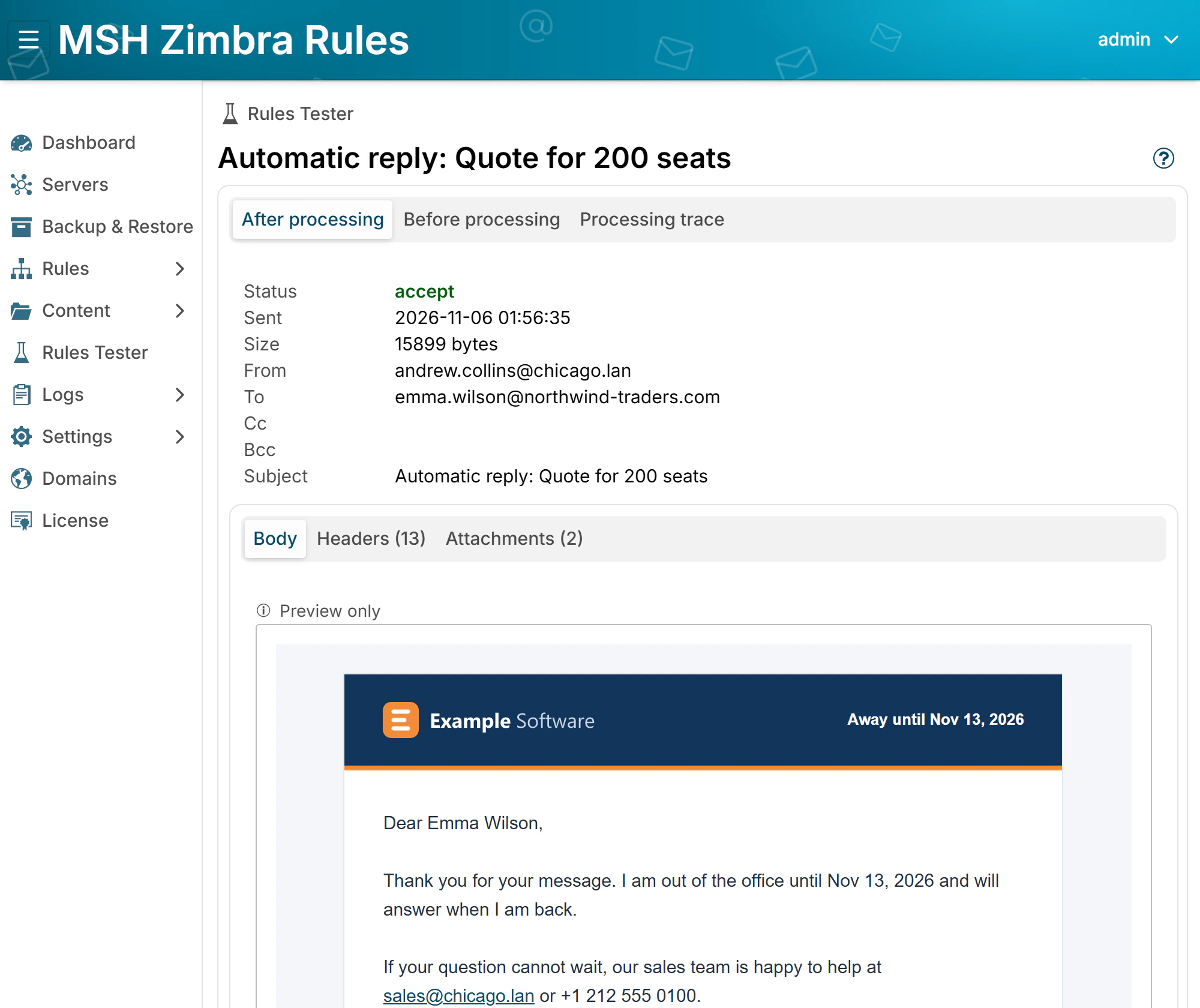
A customer who writes to Andrew while he is away gets this, with his photo and details from the directory, and the end of his vacation in the header:
A colleague gets a lighter layout of the same brand, here in Aisha's Zimbra web client:
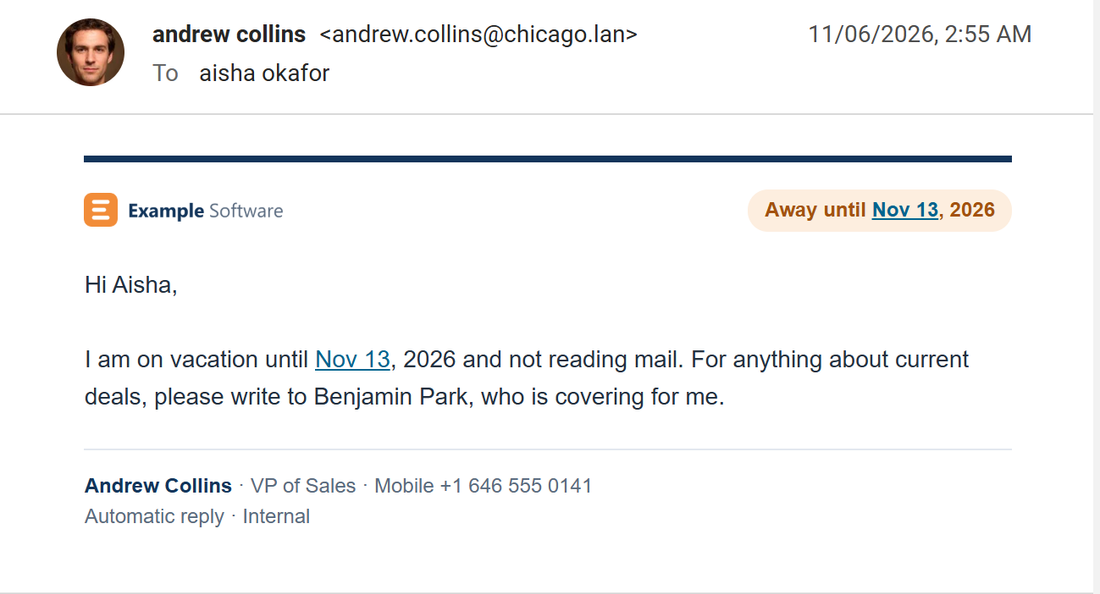
The words come from the user, the look comes from the administrator. Nobody has to paste Html into a vacation message, and a new logo is changed in one place for everybody.
How it fits together
Automatic Replies are the users' own rules in the
Zimbra web client. On Settings > Automatic Replies
the administrator chooses how the replies go out: as plain text, or As Html in a
template, in the company's layout. With Html, the milter takes the text the user wrote,
fills in its fields, turns it into Html and puts it into a
template where the template has {replyText}.
| Part | Who makes it | Where |
|---|---|---|
| The layout: logo, colors, signature, footer | The administrator, once | Content > Templates |
| Which layout colleagues and customers get | The administrator, once | Settings > Automatic Replies > Format |
| The text, the dates, who gets which text | Each user | Settings > Automatic Replies in the web client |
The Format setting holds for the replies of all users and all their rules, a vacation between two dates as much as a reply outside the working hours. The templates below are made for that: they show the end of the vacation when the rule has one, and Out of office otherwise.
Before you start
- MSH Zimbra Rules 1.4.1 or later, installed on the Zimbra server, see the installation guide. Automatic Replies came with 1.4.1.
- The Automatic Replies zimlets deployed, with the Zimbra extension on every mailbox server, see Zimlet configuration.
- The directory service configured. It reads each user's name, job title, phone and photo from Zimbra, see Directory service.
- Your logo as a PNG, about twice the size it is shown at, so it stays sharp on high-resolution screens.
Step 1 - Write the templates
A template for replies is an ordinary Html email with one rule: it must have {replyText}
where the user's text goes. Everything else is yours to design, with the same
variables as a signature: the user's {displayName},
{jobTitle}, {company}, {phoneNumber}, {mobileNumber}, {mail} and photo.
A reply template can also use the fields of the reply itself, which a signature cannot:
{untilDate} and {fromDate} (the dates of a Between two dates rule, empty for the
other schedules), {senderDisplayName}, {senderFirstName} and {subject}. The header
below uses {untilDate} to say Away until Nov 13, 2026 during a vacation, and Out of
office for a rule without dates:
{#if untilDate}Away until {untilDate}{else}Out of office{/if}
The layout for customers
Save this as automatic-reply-customers.html, next to your logo saved as
logo-light.png, a version of the logo for a dark background:
<!DOCTYPE html>
<html lang="en">
<head>
<meta charset="utf-8">
<meta name="viewport" content="width=device-width, initial-scale=1">
</head>
<body style="margin:0; padding:0; background-color:#f4f6f9;">
<table role="presentation" width="100%" cellpadding="0" cellspacing="0" border="0" style="background-color:#f4f6f9;">
<tr>
<td align="center" style="padding:24px 12px;">
<table role="presentation" width="600" cellpadding="0" cellspacing="0" border="0" style="width:100%; max-width:600px; background-color:#ffffff; border:1px solid #e3e8ef;">
<!-- Header: logo and the away notice -->
<tr>
<td style="background-color:#12355b; padding:20px 32px;">
<table role="presentation" width="100%" cellpadding="0" cellspacing="0" border="0">
<tr>
<td valign="middle"><img src="logo-light.png" width="192" height="36" alt="Example Software" style="display:block; border:0;"></td>
<td valign="middle" align="right" style="font-family:Arial, Helvetica, sans-serif; font-size:13px; font-weight:bold; color:#ffffff;">
{#if untilDate}Away until {untilDate}{else}Out of office{/if}
</td>
</tr>
</table>
</td>
</tr>
<tr>
<td style="background-color:#f28c38; height:4px; font-size:0; line-height:0;"> </td>
</tr>
<!-- The user's text -->
<tr>
<td style="padding:32px 32px 24px; font-family:Arial, Helvetica, sans-serif; font-size:15px; line-height:24px; color:#23303f;">
{replyText}
</td>
</tr>
<!-- Signature from the directory -->
<tr>
<td style="padding:0 32px 32px;">
<table role="presentation" cellpadding="0" cellspacing="0" border="0">
<tr>
{#if photo}
<td valign="top" style="padding-right:16px;">{photo:64x64}</td>
{/if}
<td valign="top" style="border-left:3px solid #f28c38; padding-left:14px; font-family:Arial, Helvetica, sans-serif; font-size:13px; line-height:20px; color:#5a6b80;">
<strong style="font-size:15px; color:#12355b;">{displayName}</strong><br>
{jobTitle}, {company}<br>
{#if phoneNumber}{phoneNumber} · {/if}<a href="mailto:{mail}" style="color:#12355b;">{mail}</a>
</td>
</tr>
</table>
</td>
</tr>
<!-- Footer -->
<tr>
<td style="background-color:#eef1f5; padding:16px 32px; font-family:Arial, Helvetica, sans-serif; font-size:12px; line-height:18px; color:#5a6b80;">
Example Software · 75 Varick Street, New York, NY 10013 · <a href="https://www.example.com" style="color:#12355b;">www.example.com</a><br>
This is an automatic reply to your message. There is no need to answer it.
</td>
</tr>
</table>
</td>
</tr>
</table>
</body>
</html>
What each part does:
- The cell around
{replyText}sets the look of the user's text. The text comes in as plain lines with<br>between them, and links made clickable, without fonts or colors of its own, so it takes the font, size, color and line height of that cell. Links take the color of the cell too. - The signature is in the template, not in the user's text.
{photo:64x64}inserts the user's photo from the directory, and{#if photo}drops the cell for a user without one. Ask users to end their text with the message, not with their name. - Tables and inline styles are what Outlook, Gmail and phones render alike. A
<style>block, a background image or a web font is lost in some of them. - No
<title>. The previews of the administrator panel show it as text above the message.
The text version goes with the Html as its plain-text alternative, for mail clients that
show text only. Save it as automatic-reply-customers.txt:
{replyText}

--
{displayName}
{jobTitle}, {company}
{#if phoneNumber}{phoneNumber}{/if}

Example Software | 75 Varick Street, New York, NY 10013 | www.example.com
This is an automatic reply to your message. There is no need to answer it.
The layout for colleagues
Colleagues do not need the company address. A lighter layout with a small logo
(logo-dark.png, for a white background), a badge and a one-line signature tells them at
a glance that it is an automatic reply:
automatic-reply-colleagues.html and automatic-reply-colleagues.txt
<!DOCTYPE html>
<html lang="en">
<head>
<meta charset="utf-8">
<meta name="viewport" content="width=device-width, initial-scale=1">
</head>
<body style="margin:0; padding:0; background-color:#ffffff;">
<table role="presentation" width="100%" cellpadding="0" cellspacing="0" border="0">
<tr>
<td style="padding:16px 12px;">
<table role="presentation" width="560" cellpadding="0" cellspacing="0" border="0" style="width:100%; max-width:560px; border-top:4px solid #12355b;">
<!-- Header: small logo and the away notice -->
<tr>
<td style="padding:16px 0 8px;">
<table role="presentation" width="100%" cellpadding="0" cellspacing="0" border="0">
<tr>
<td valign="middle"><img src="logo-dark.png" width="128" height="24" alt="Example Software" style="display:block; border:0;"></td>
<td valign="middle" align="right">
<span style="display:inline-block; background-color:#fdeedf; color:#a4520f; font-family:Arial, Helvetica, sans-serif; font-size:12px; font-weight:bold; padding:4px 10px; border-radius:12px;">{#if untilDate}Away until {untilDate}{else}Out of office{/if}</span>
</td>
</tr>
</table>
</td>
</tr>
<!-- The user's text -->
<tr>
<td style="padding:12px 0 20px; font-family:Arial, Helvetica, sans-serif; font-size:14px; line-height:22px; color:#23303f;">
{replyText}
</td>
</tr>
<!-- Short signature -->
<tr>
<td style="border-top:1px solid #e3e8ef; padding:12px 0; font-family:Arial, Helvetica, sans-serif; font-size:12px; line-height:18px; color:#5a6b80;">
<strong style="color:#12355b;">{displayName}</strong> · {jobTitle}{#if mobileNumber} · Mobile {mobileNumber}{/if}<br>
Automatic reply · Internal
</td>
</tr>
</table>
</td>
</tr>
</table>
</body>
</html>
{replyText}

--
{displayName} | {jobTitle}{#if mobileNumber} | Mobile {mobileNumber}{/if}
Automatic reply, internal
Step 2 - Import the templates
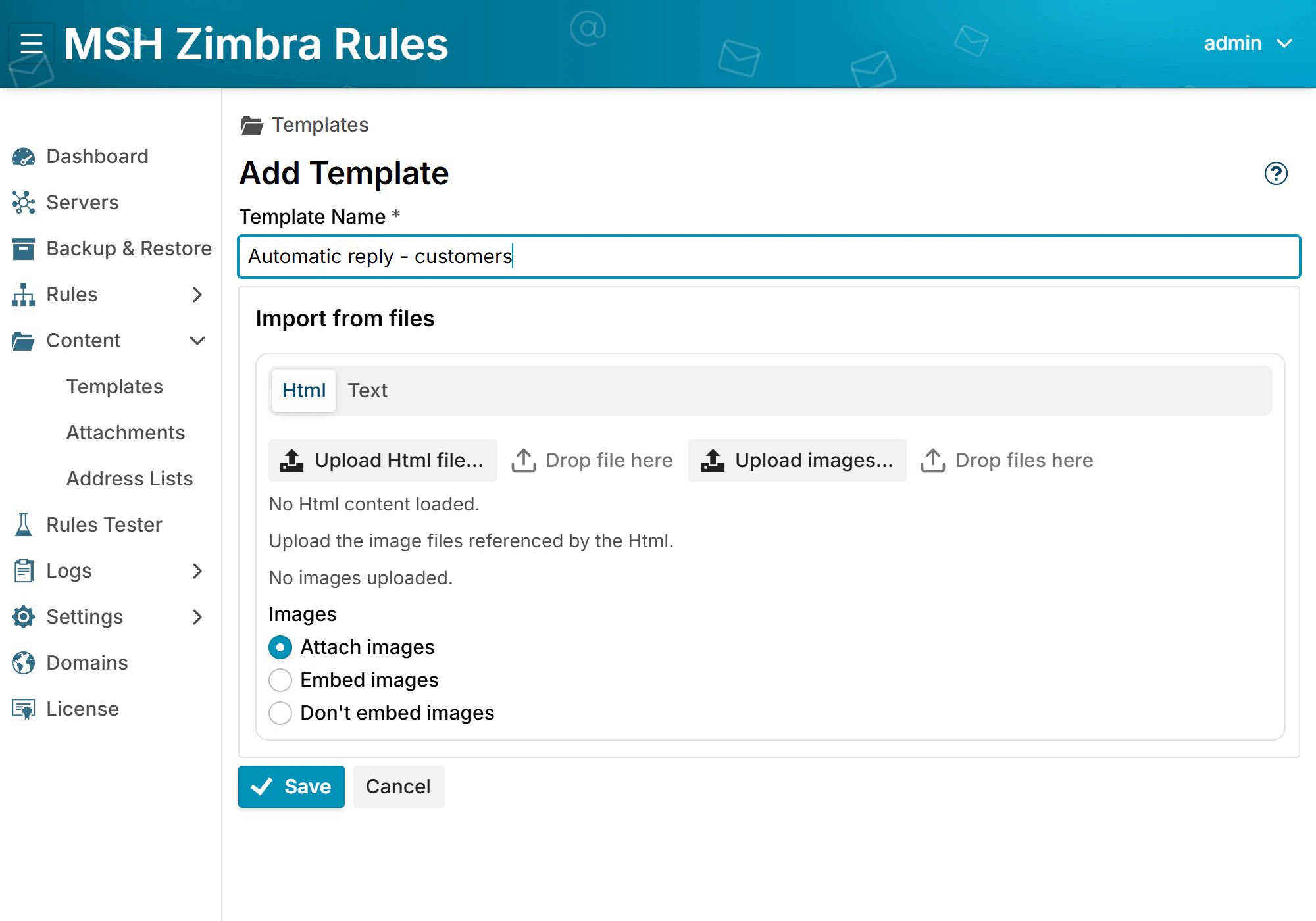
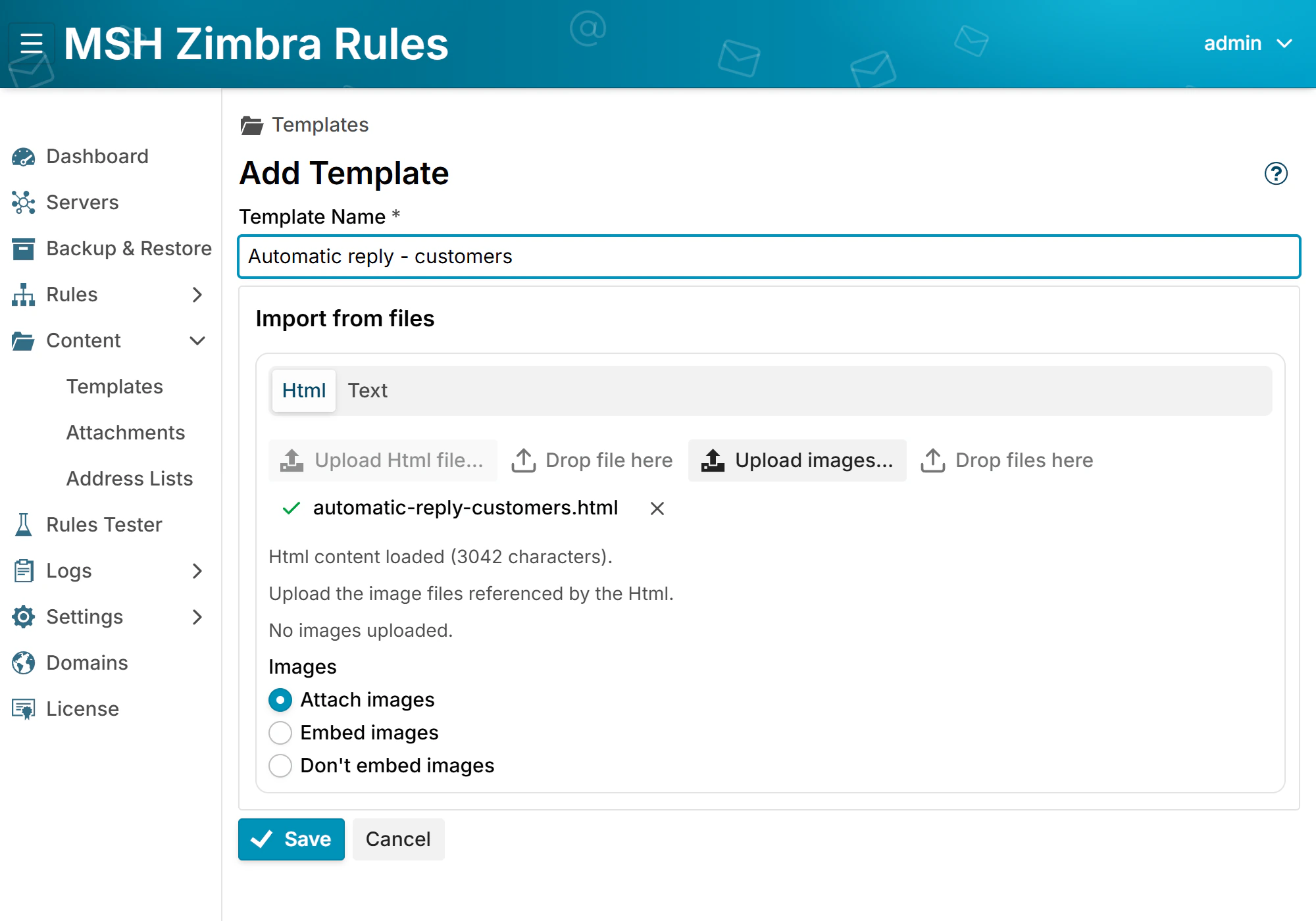
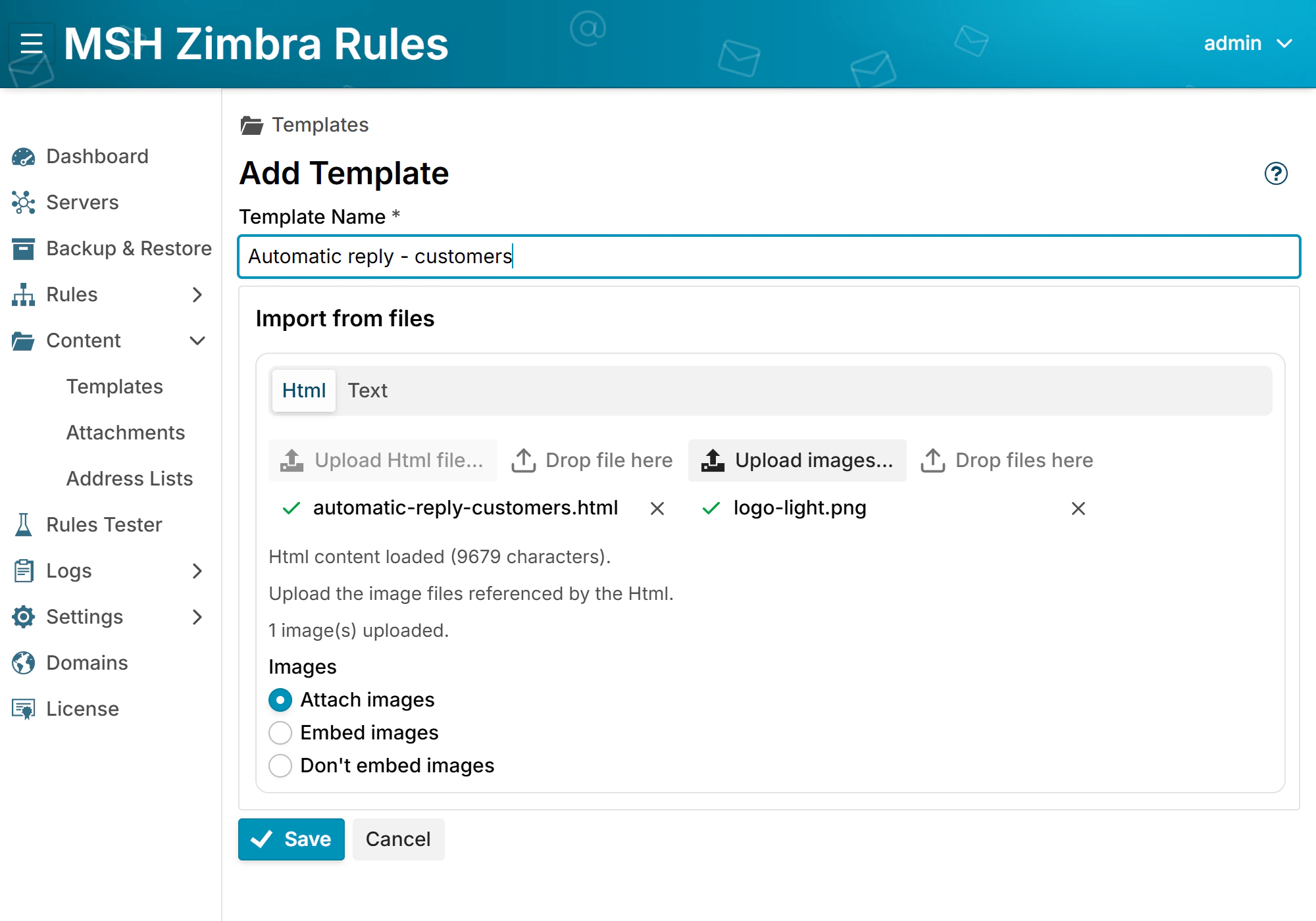
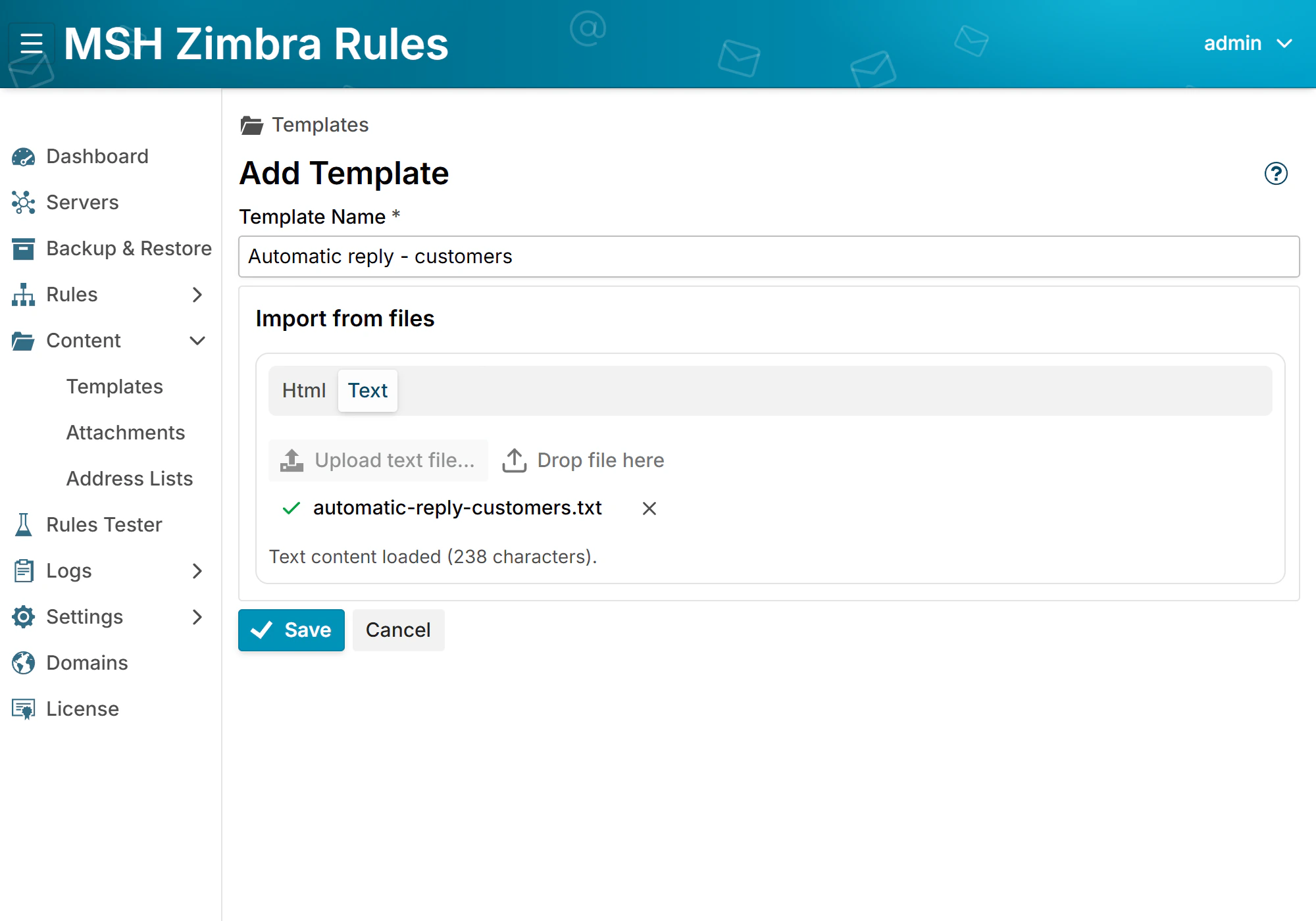
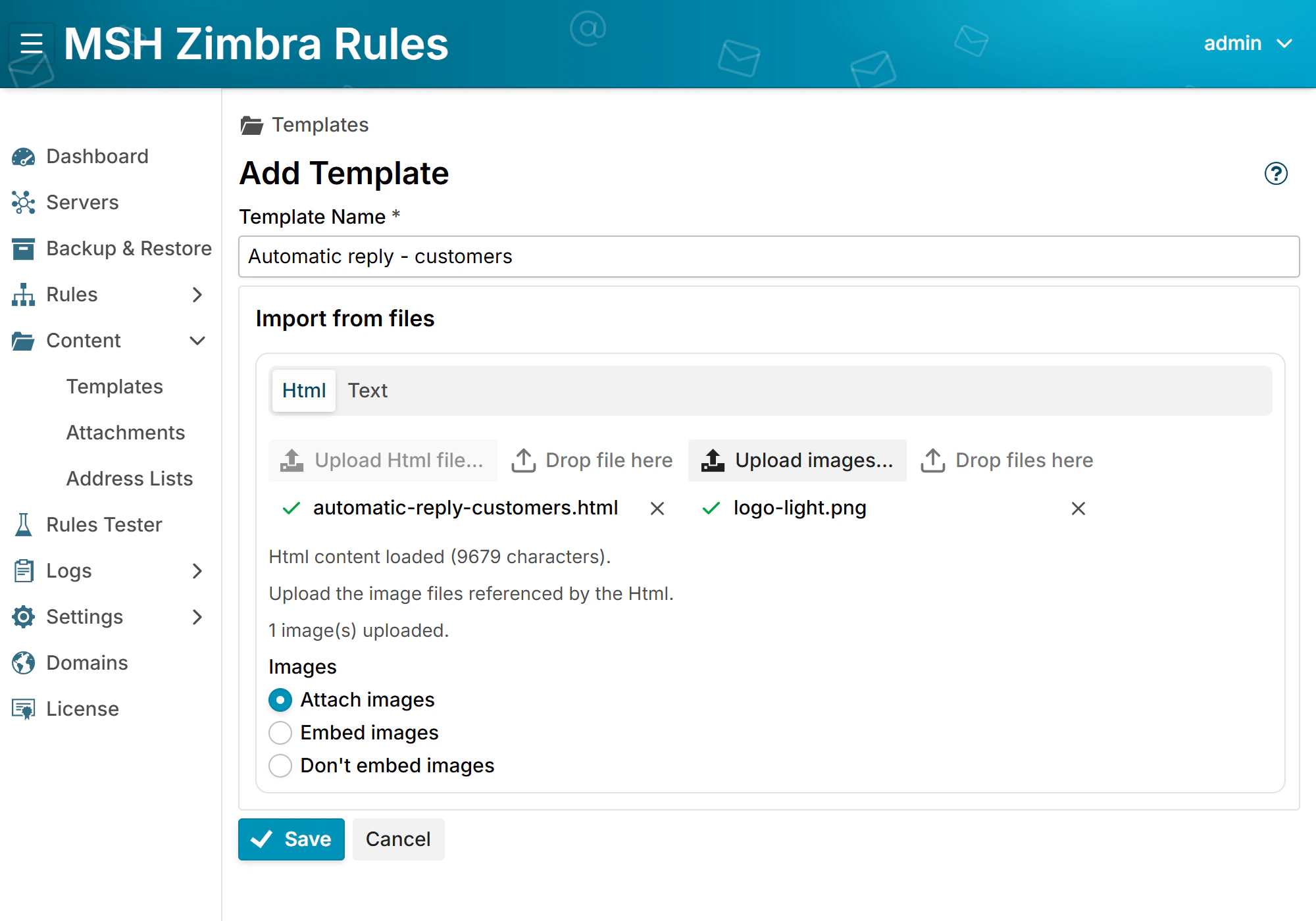
Log in to the administrator panel at https://<host>:9010 and open Content >
Templates. Under Add Template... choose Import from files..., name the
template Automatic reply - customers, upload the Html file, the logo under Upload
images... and the text file on the Text tab. Keep Attach images: the logo and
the photo go with the reply as inline images, which every mail client shows without
loading anything from the internet. Click Save.
Do the same for Automatic reply - colleagues with its own files and logo-dark.png.
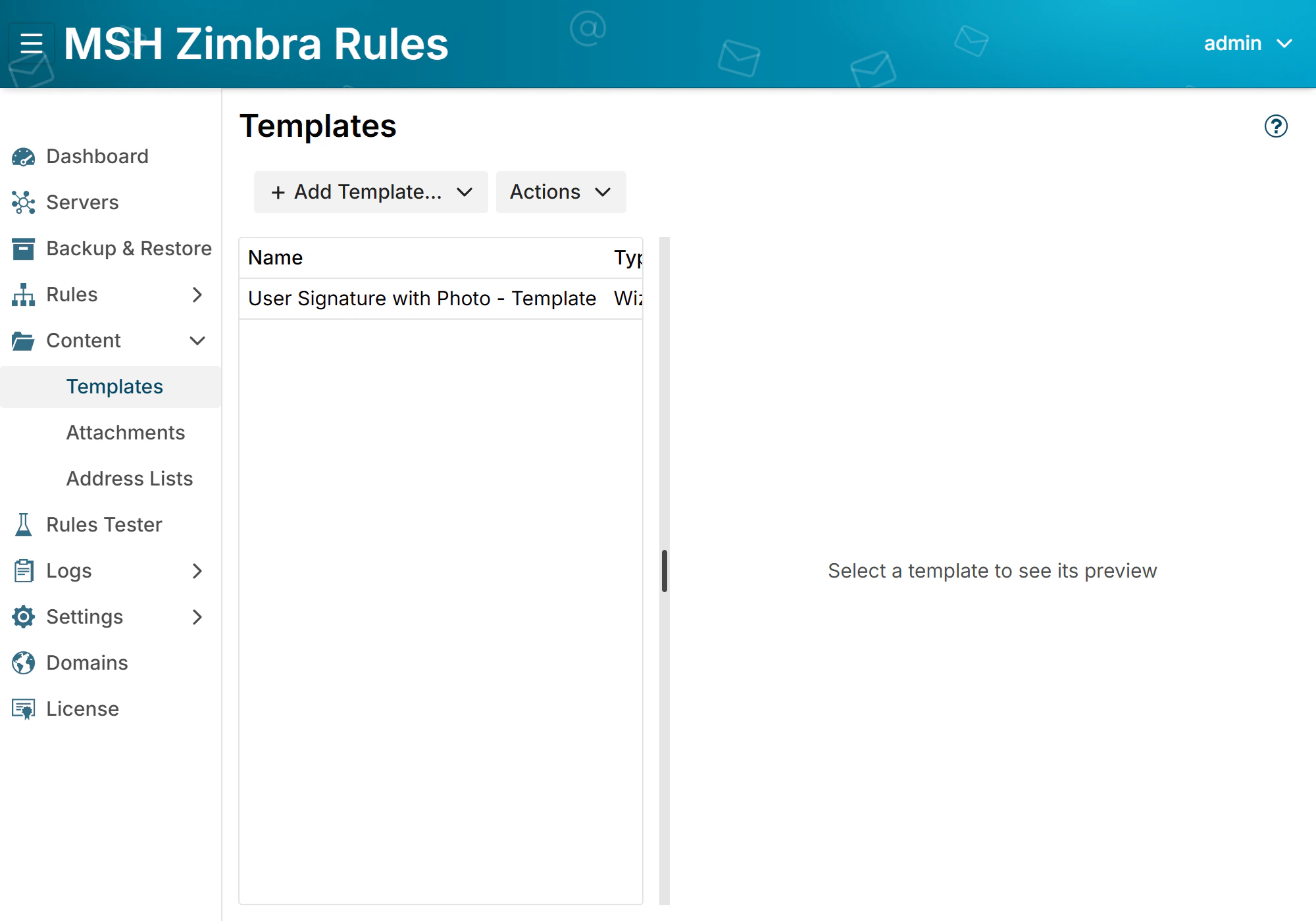
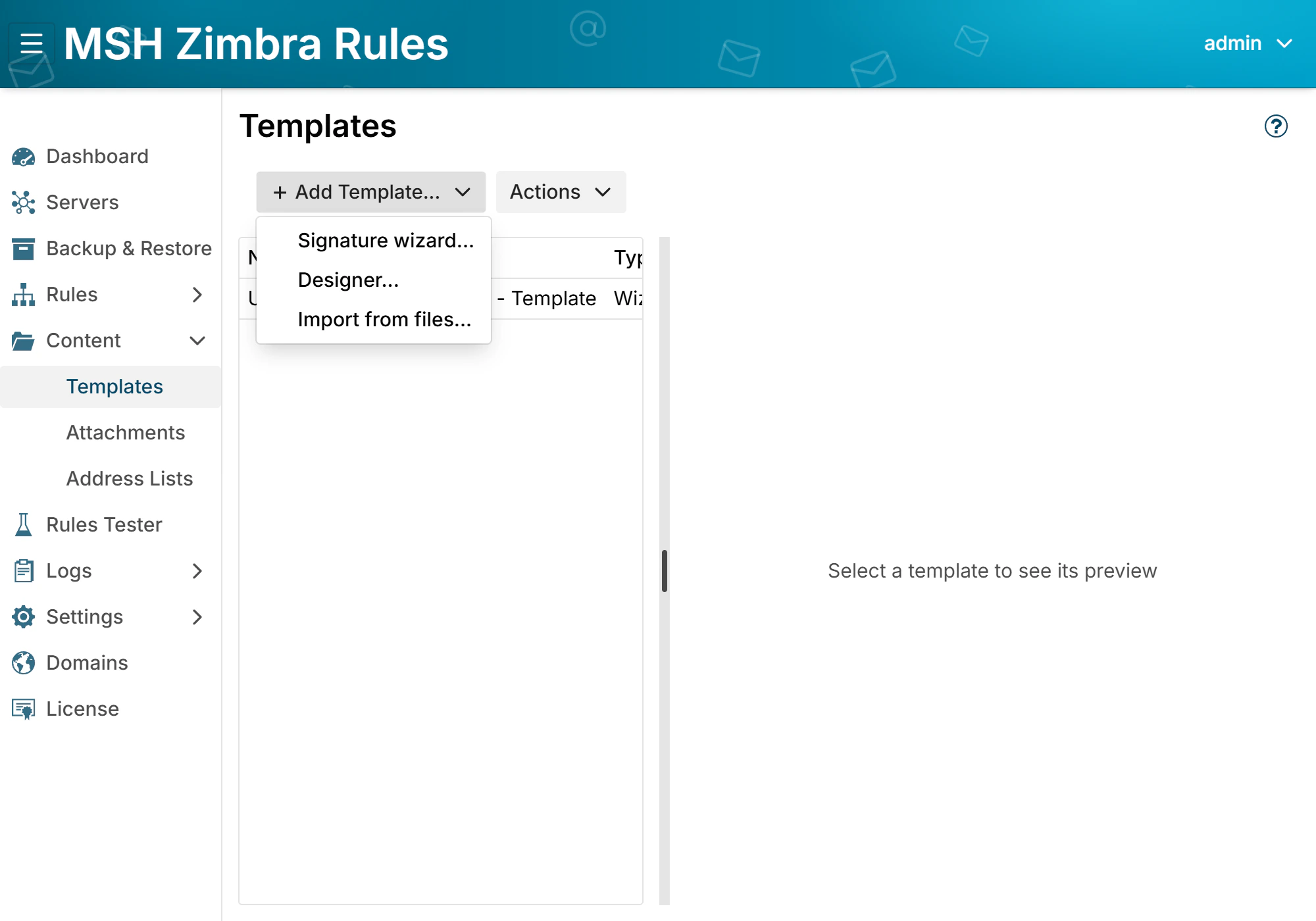
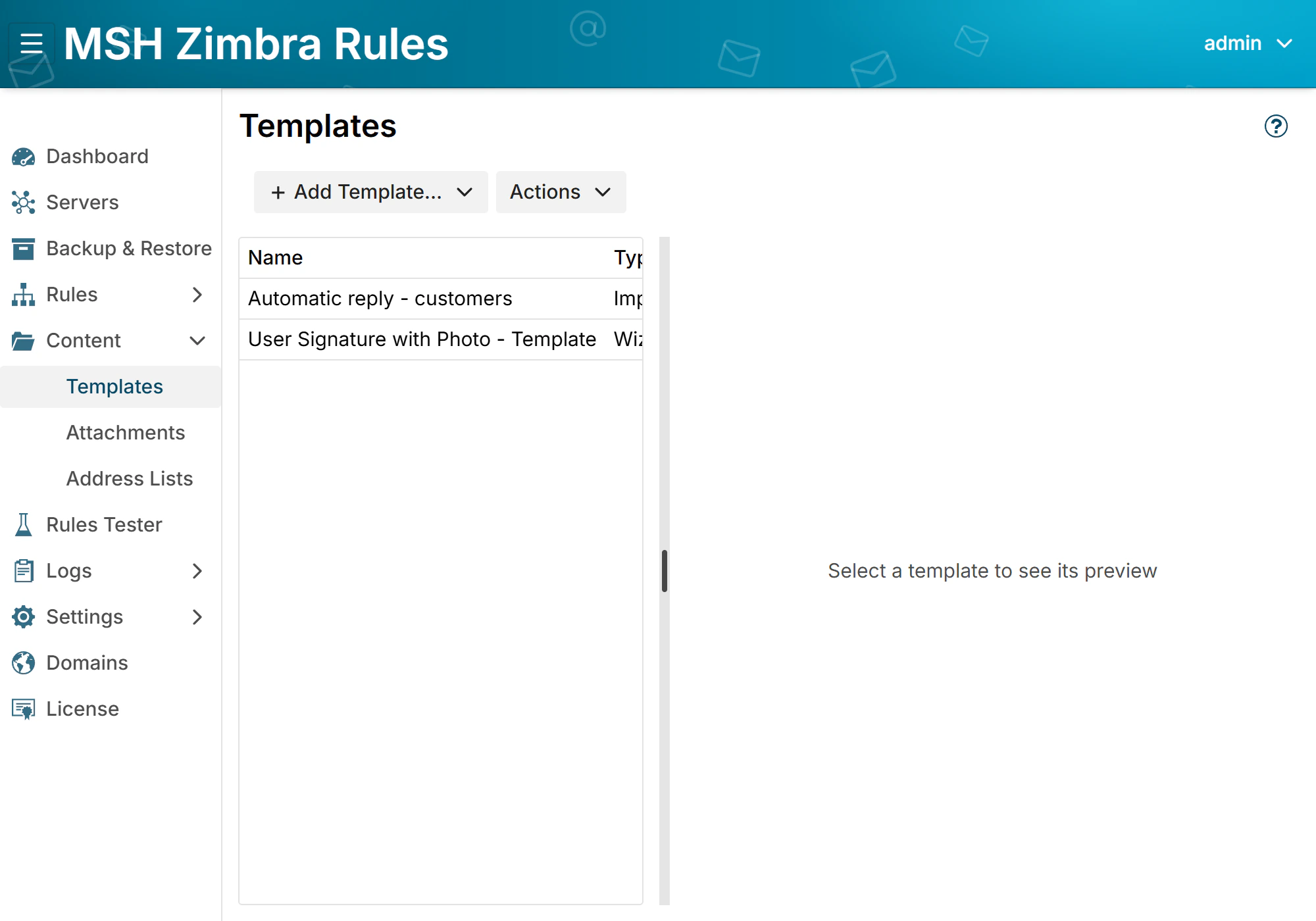
Select the template in the list to see it. With Preview with user on None, the
preview shows where every field goes; choose a user to see their name, title and photo
filled in. {replyText} and the dates of a rule stay empty in the preview, since they
exist only when a message is answered.
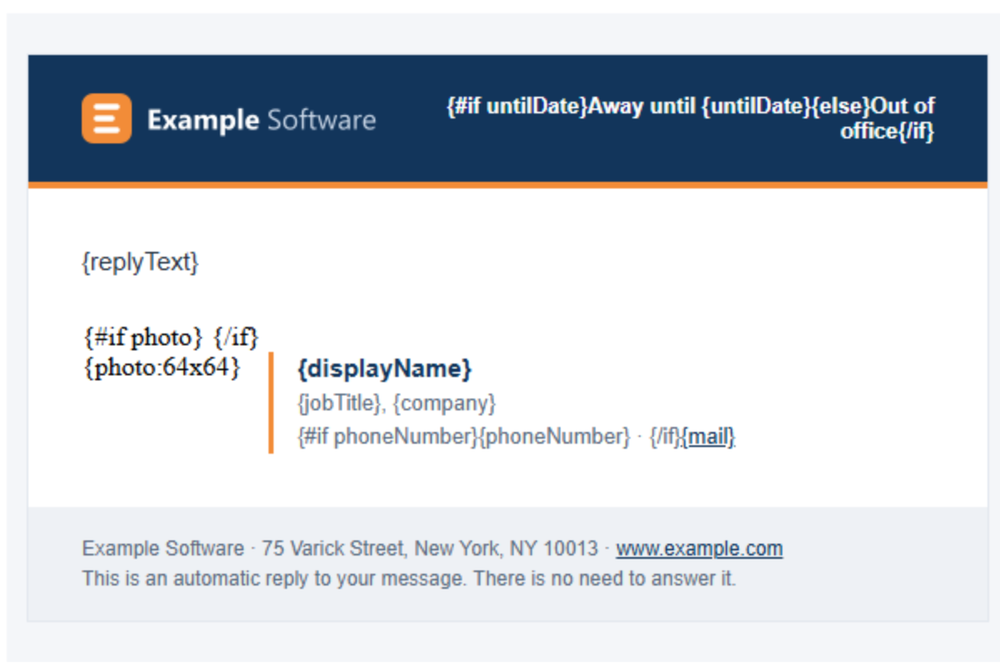
The preview is a browser's view. Mail clients differ in fonts, spacing and dark mode, so the real check is a reply in a real mailbox, in Step 5.
Step 3 - Send the replies in the templates
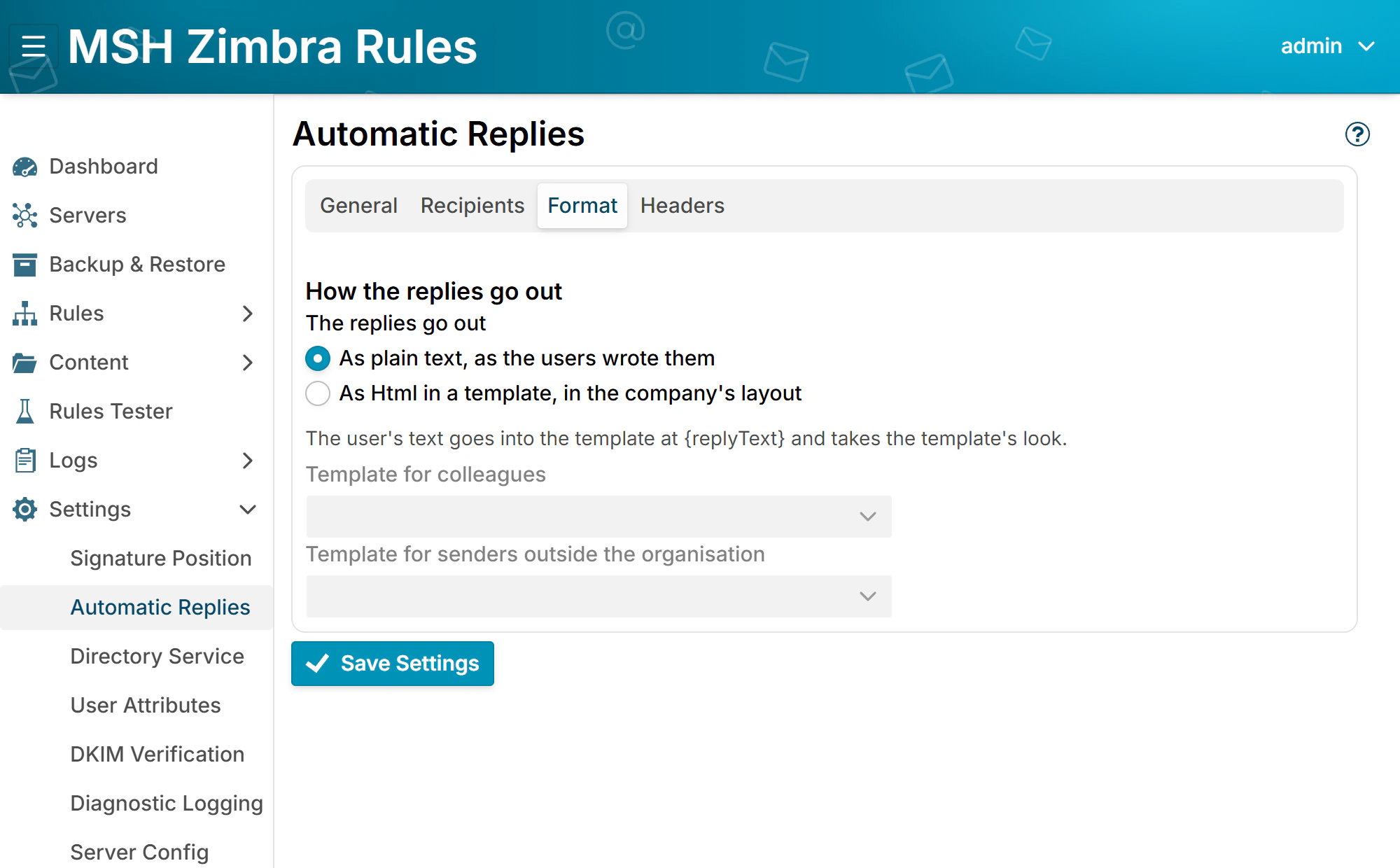
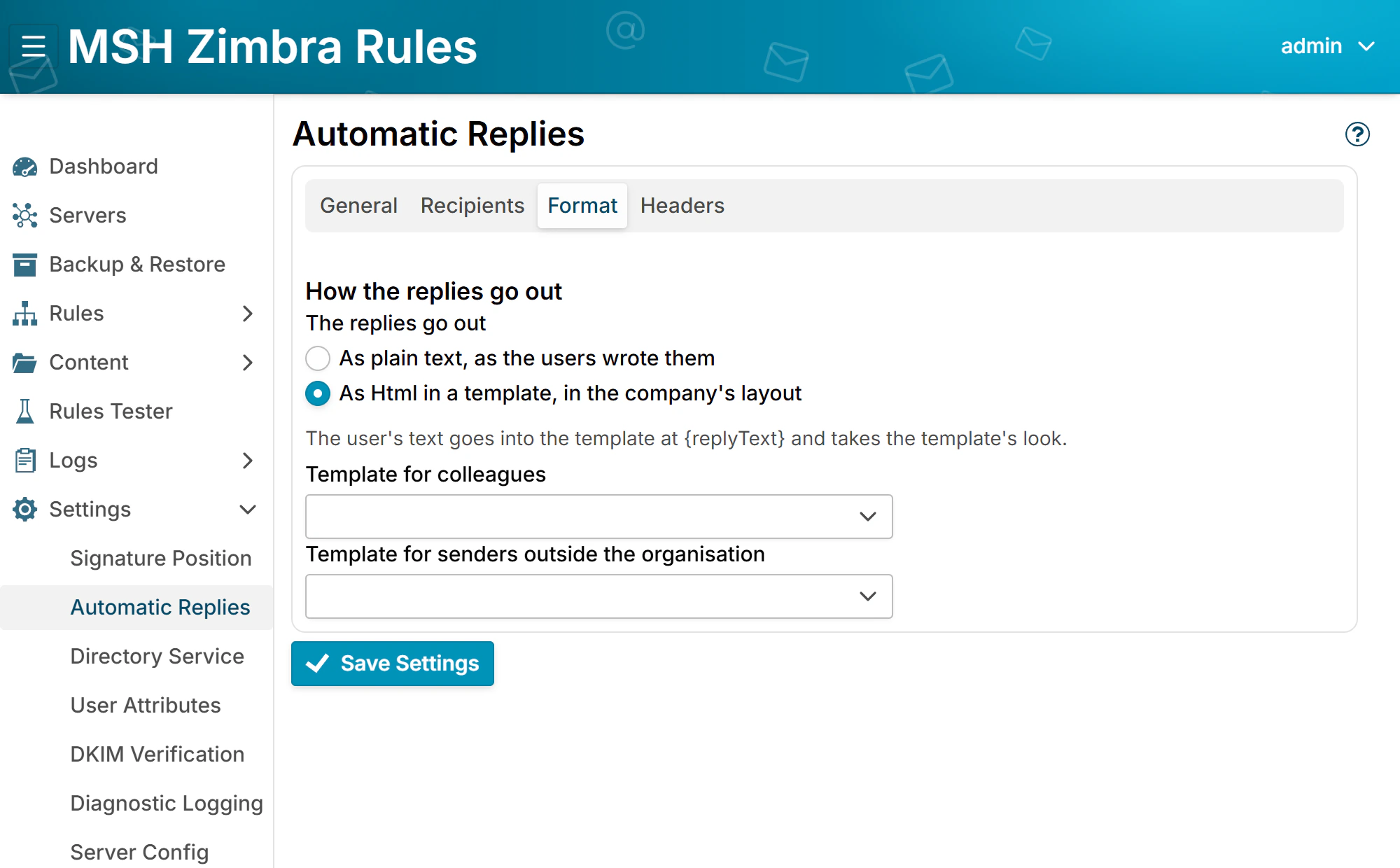
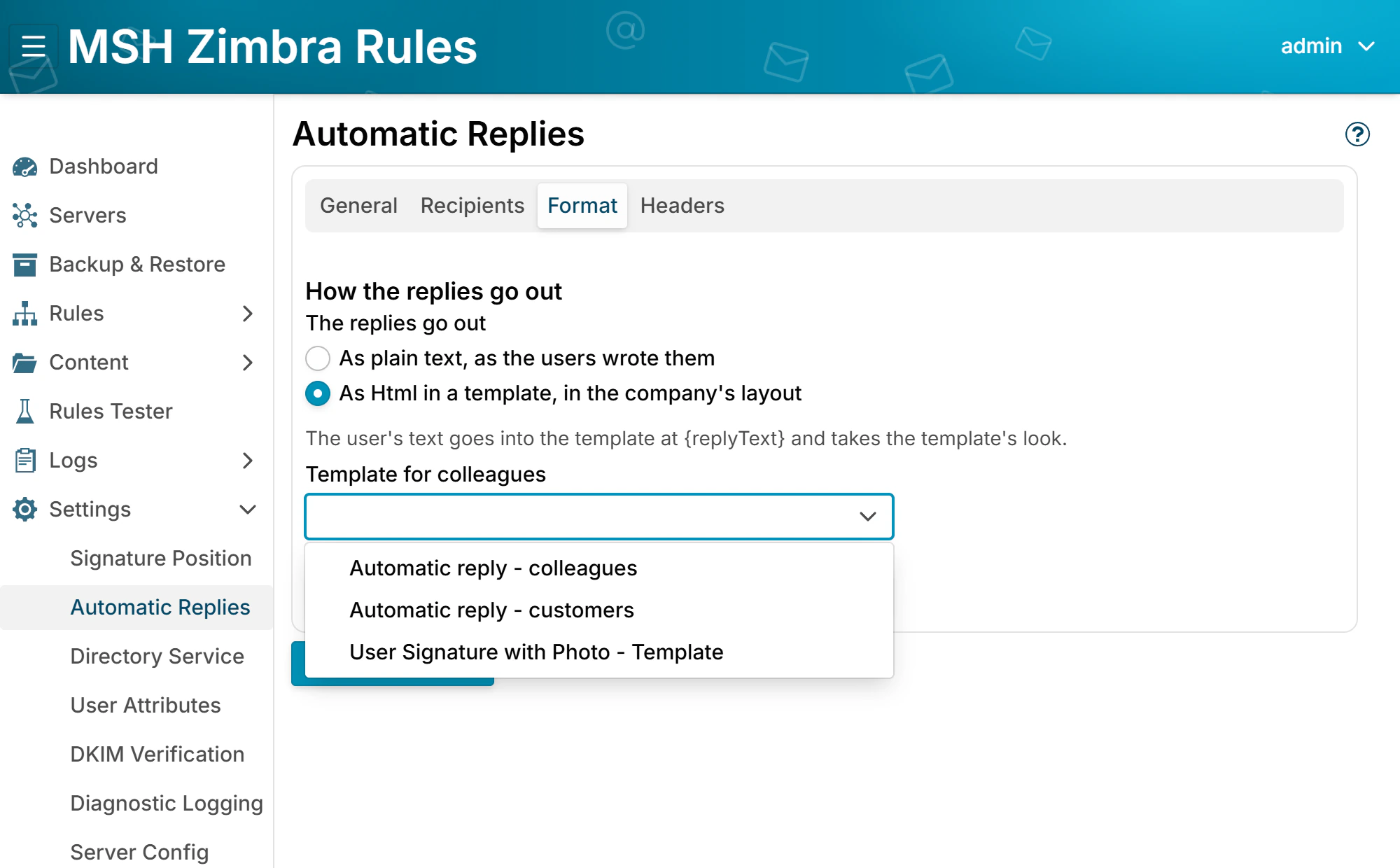
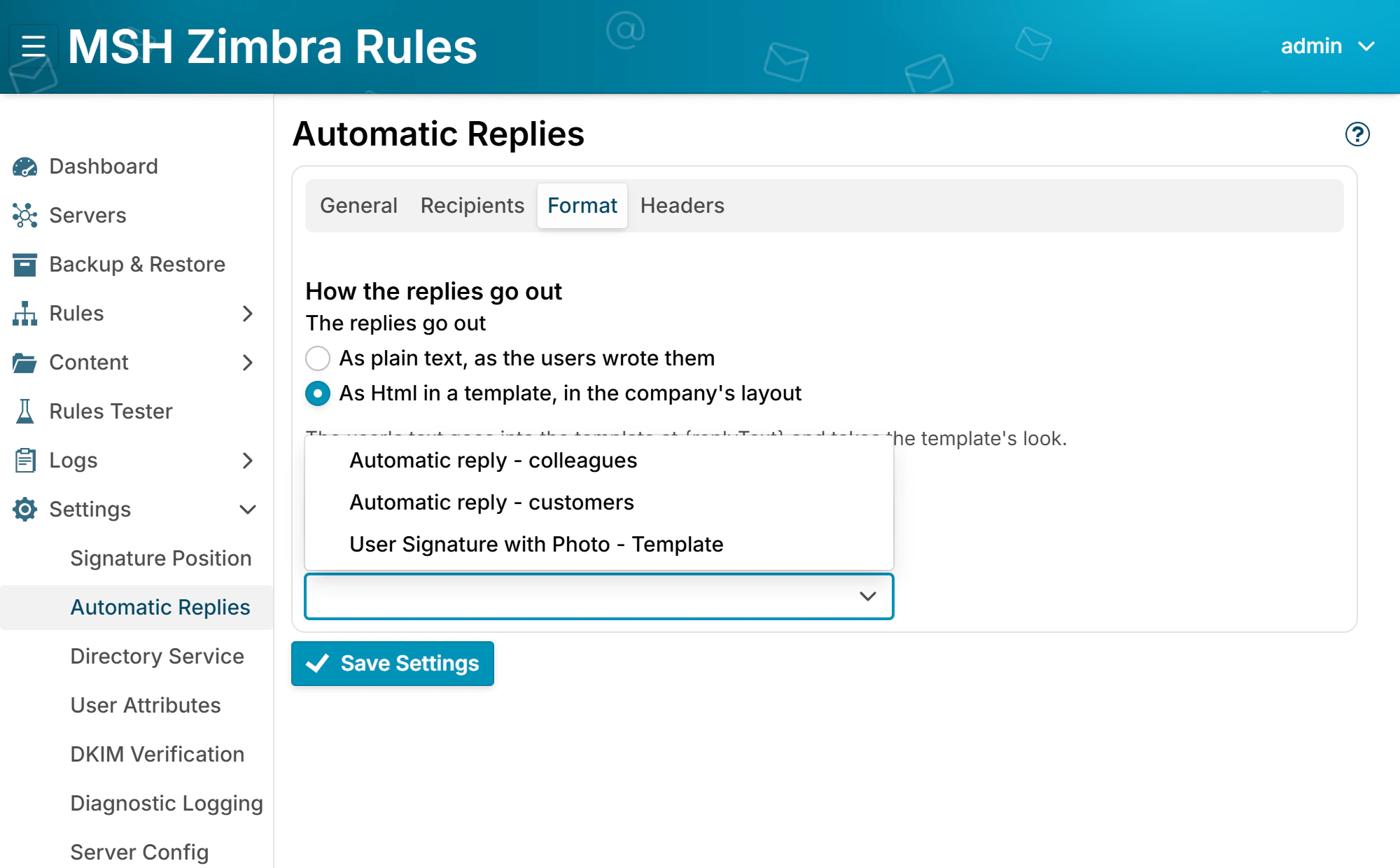
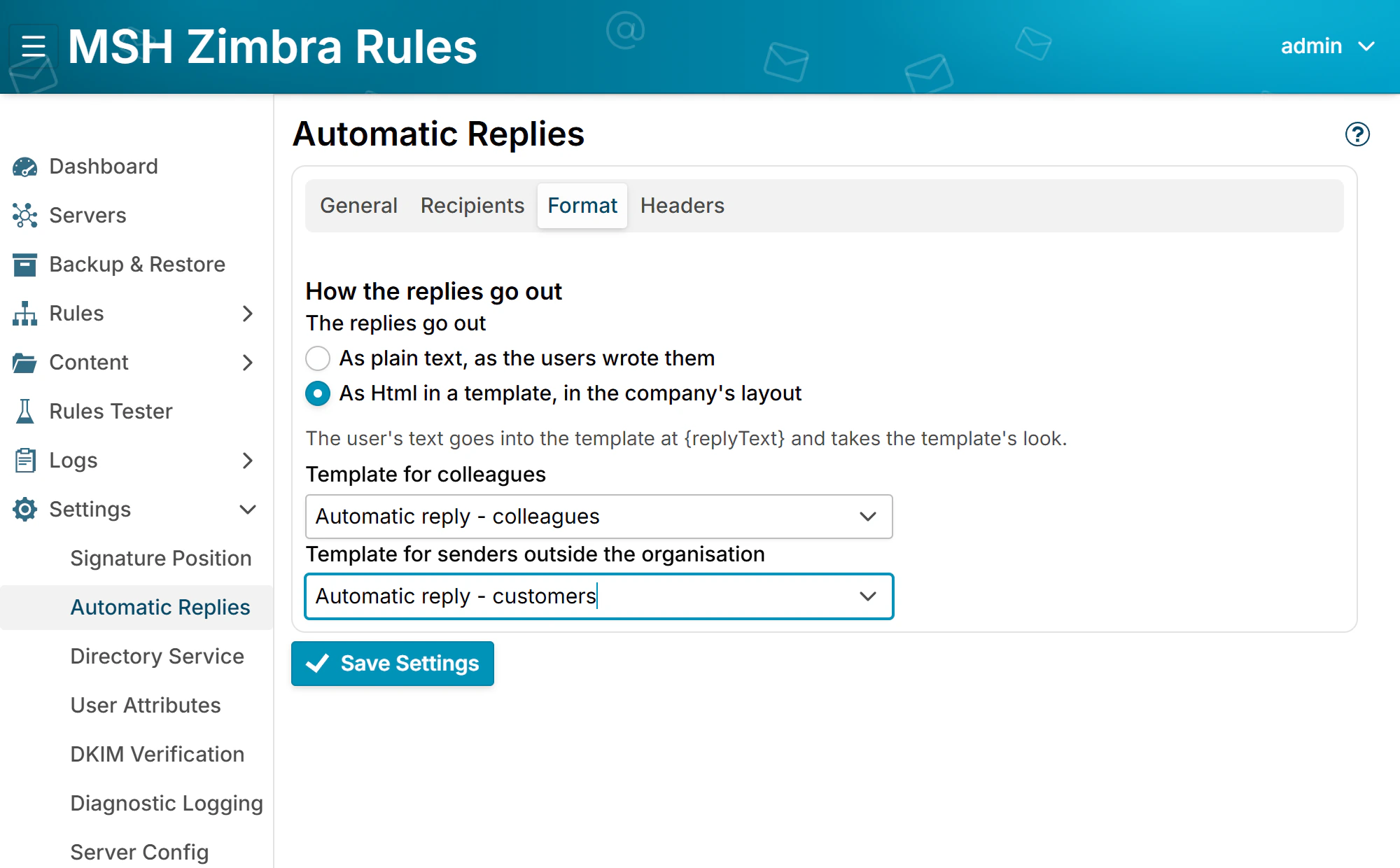
Open Settings > Automatic Replies, the Format tab, choose As Html in a
template, in the company's layout, pick Automatic reply - colleagues as Template for
colleagues and Automatic reply - customers as Template for senders outside the
organisation, and click Save Settings.
The settings are not saved while a template has no {replyText} in its Html. A text
version without {replyText} is saved with a warning, and the user's text is put at the
end of it. While a template is chosen here, the Templates page does not let anyone remove
it.
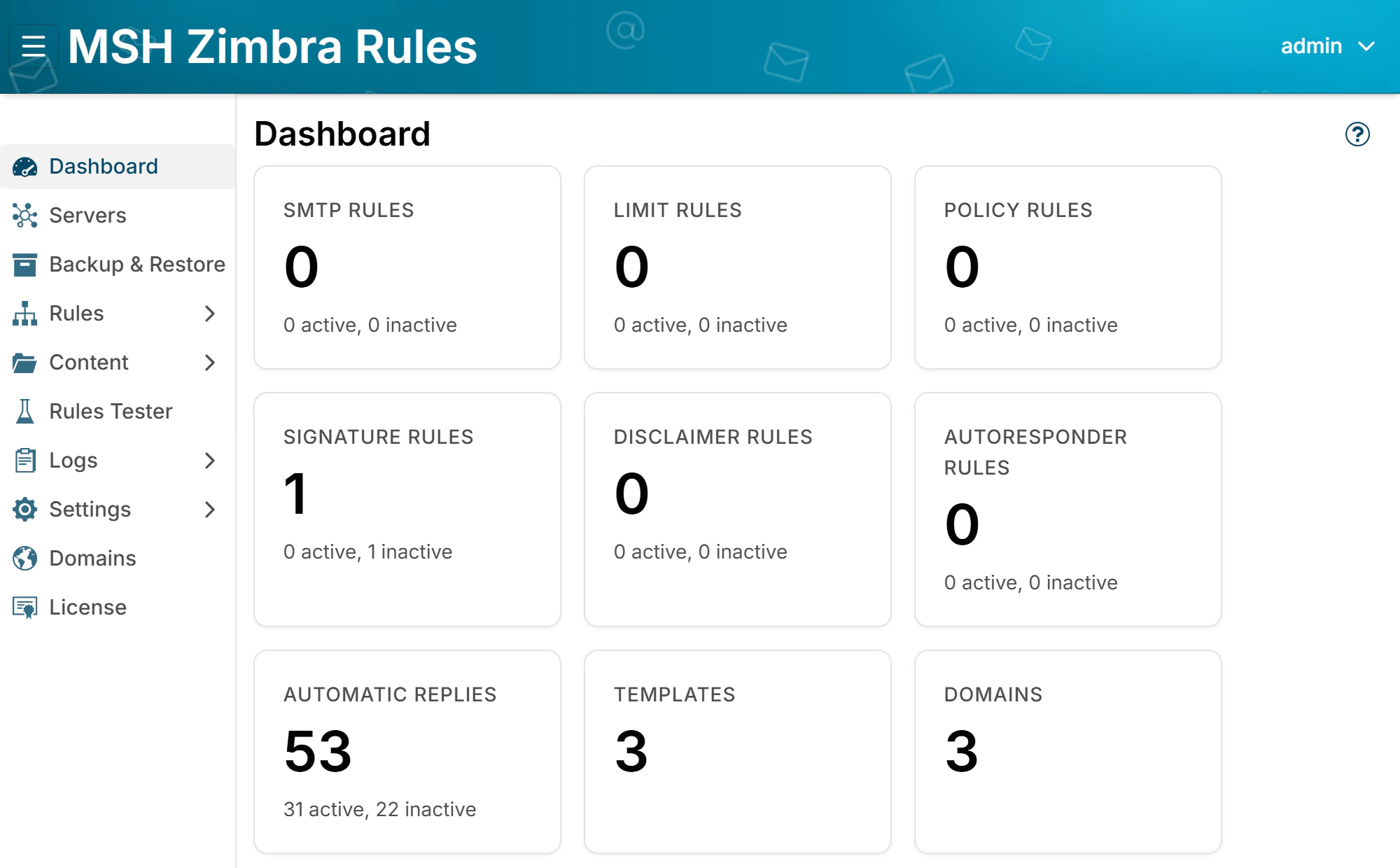
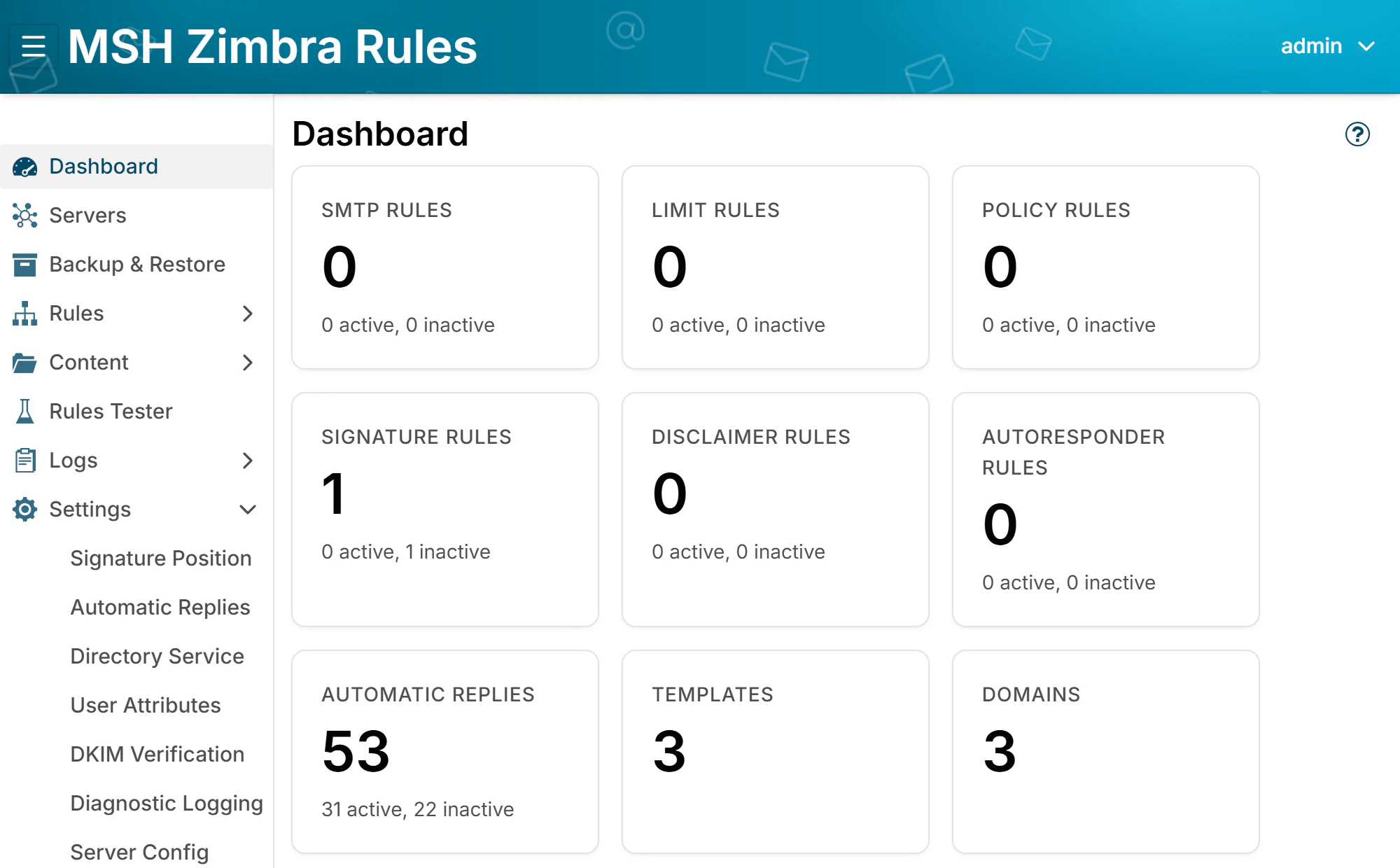
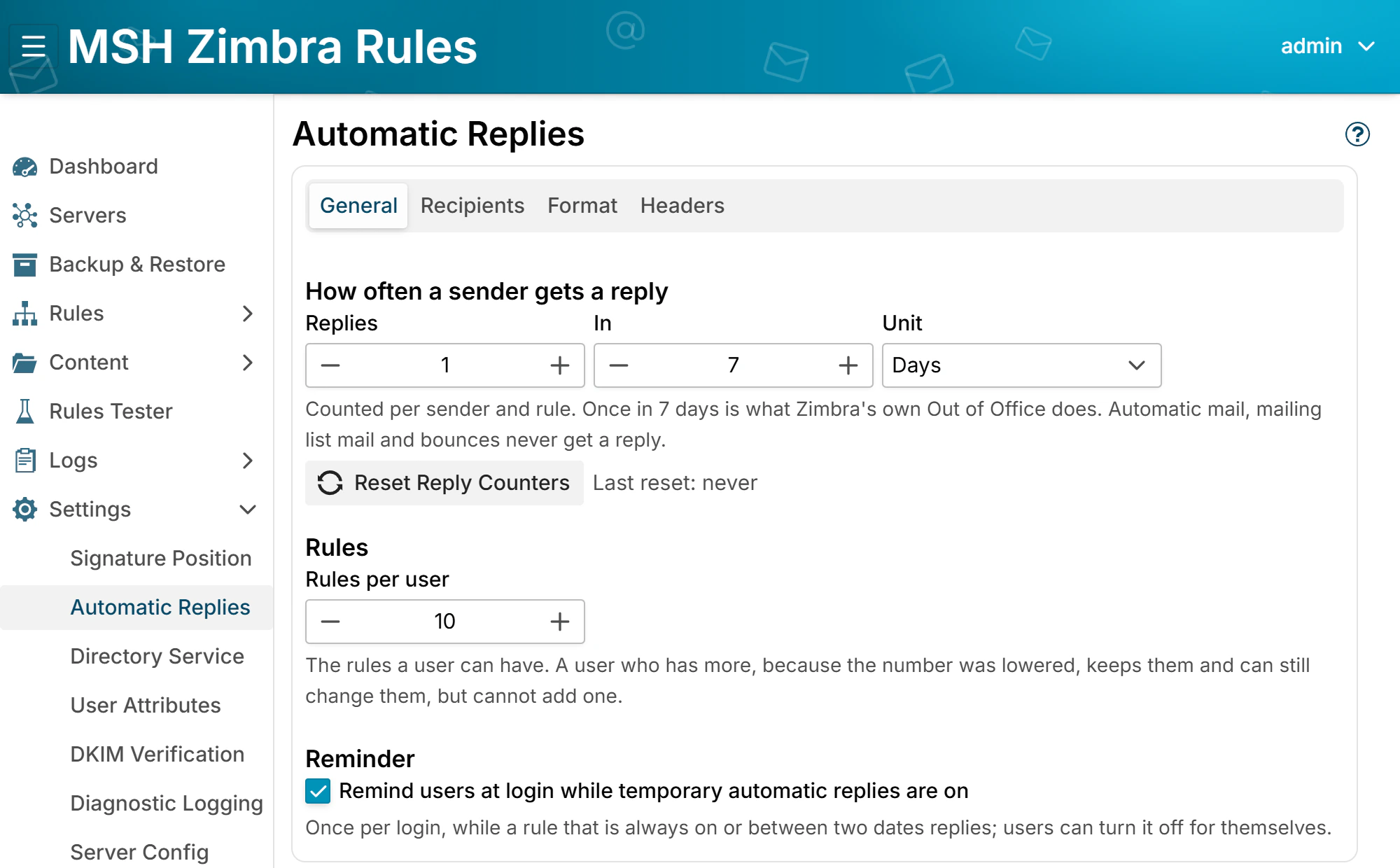
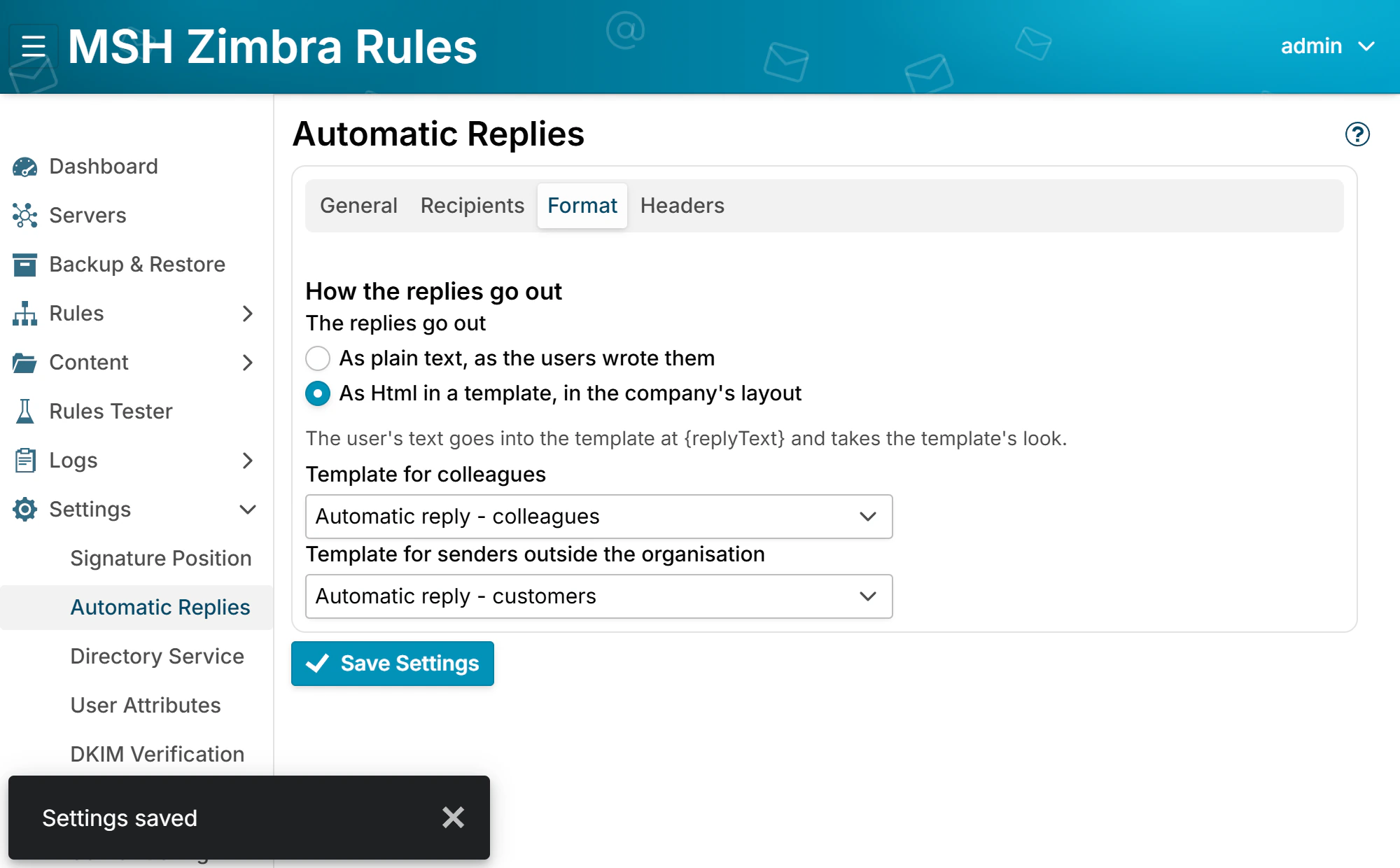
Replies to customers need Users may reply to senders outside the organisation on the Recipients tab, which is on by default. How often a sender gets a reply on the General tab is once in 7 days by default, which suits a vacation: a customer who writes three times gets the reply once.
Step 4 - Create the vacation rule
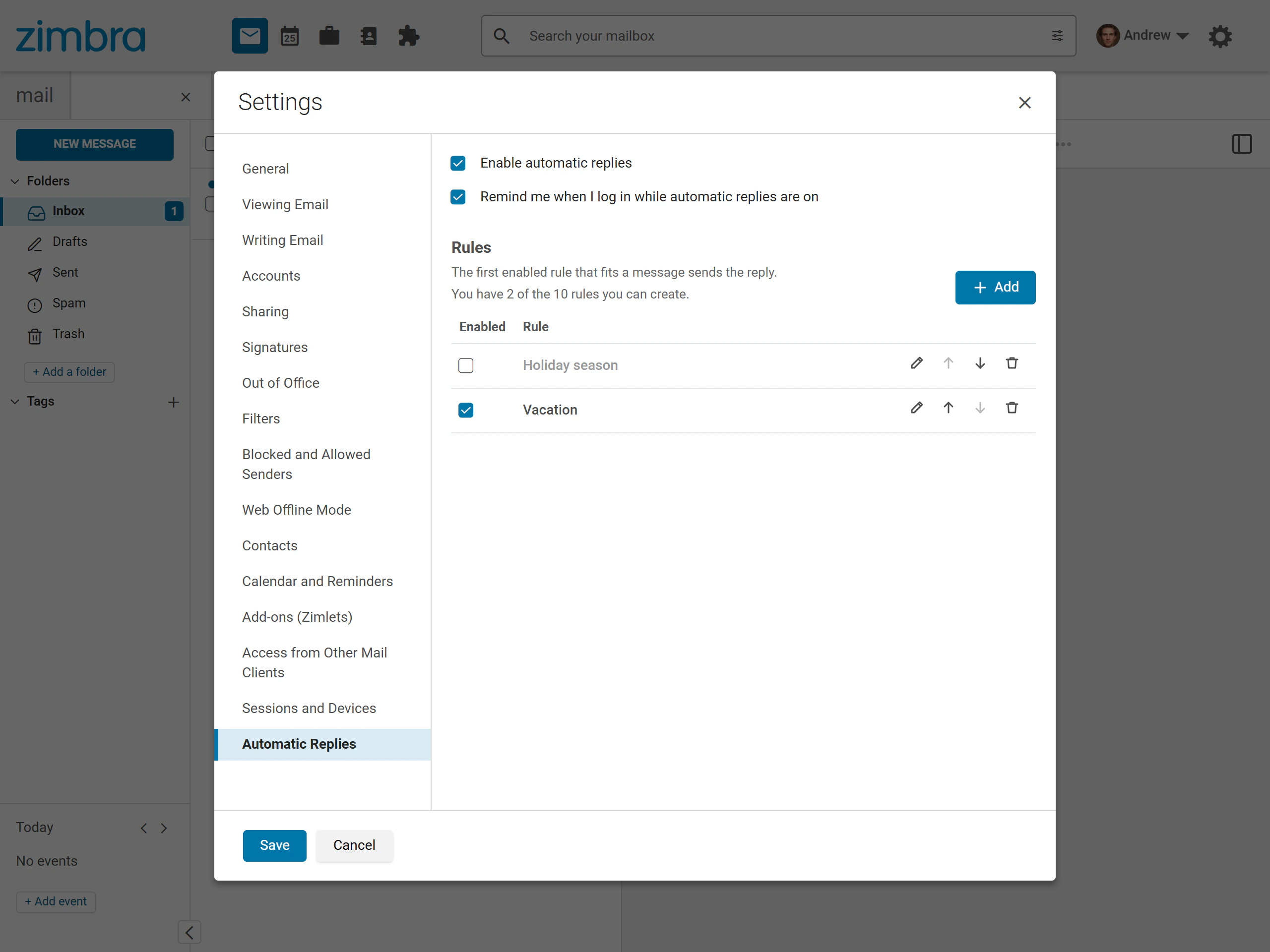
This step is for each user, in the Zimbra web client. In the Modern web client, click the gear, choose Settings and open Automatic Replies, then Add. In the Classic web client it is Preferences > Automatic Replies.
Name the rule Vacation, choose Between two dates with All day, and set the first
and the last day. The fields of the reply are filled in for each message, and
{untilDate} is the last day, written as the Zimbra web client writes dates in the
user's language. The text is all the user writes: no logo, no signature, no address, since
the template adds them.
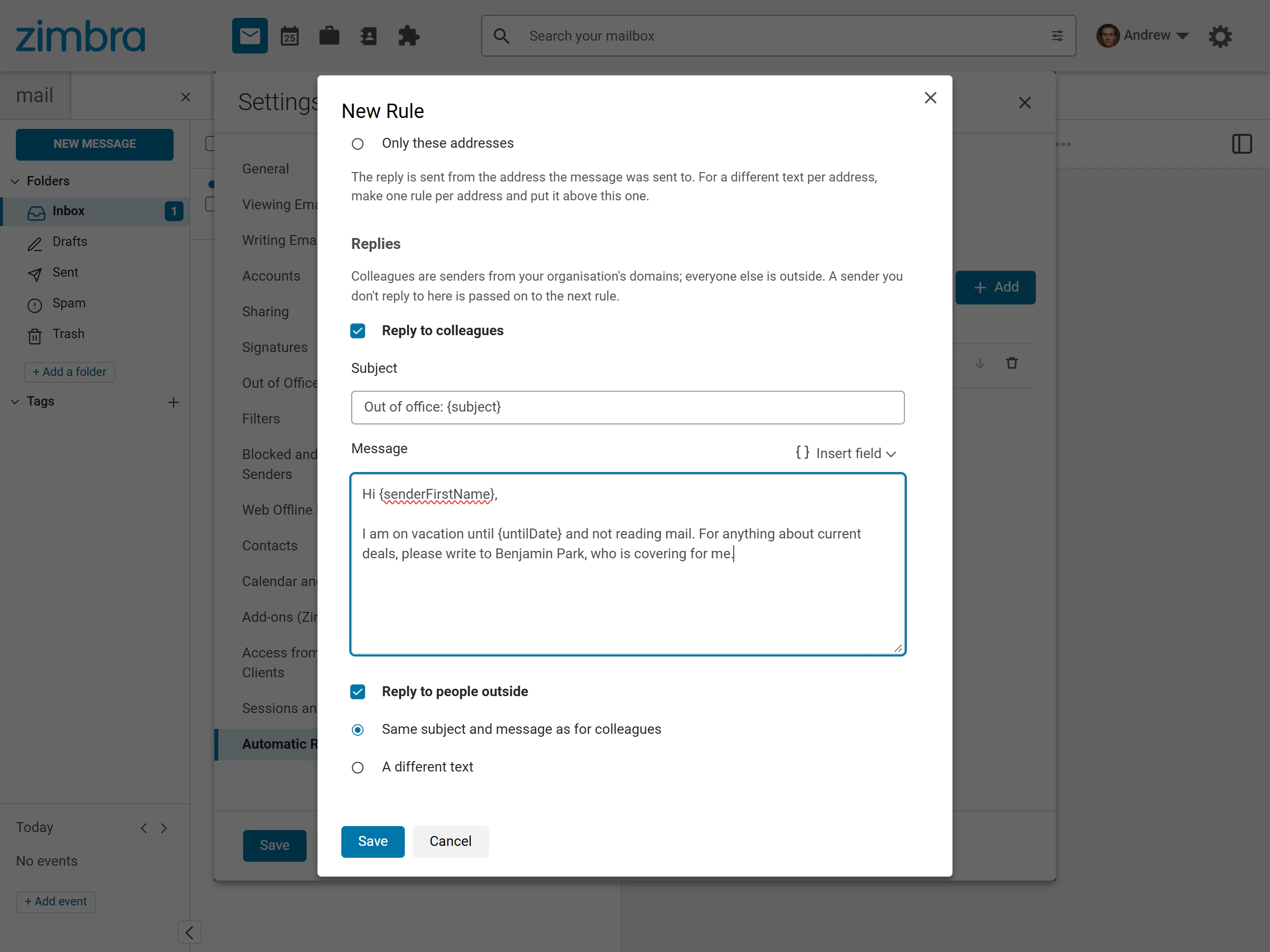
To colleagues, under the default subject Out of office: {subject}:
Hi {senderFirstName},

I am on vacation until {untilDate} and not reading mail. For anything about current
deals, please write to Benjamin Park, who is covering for me.
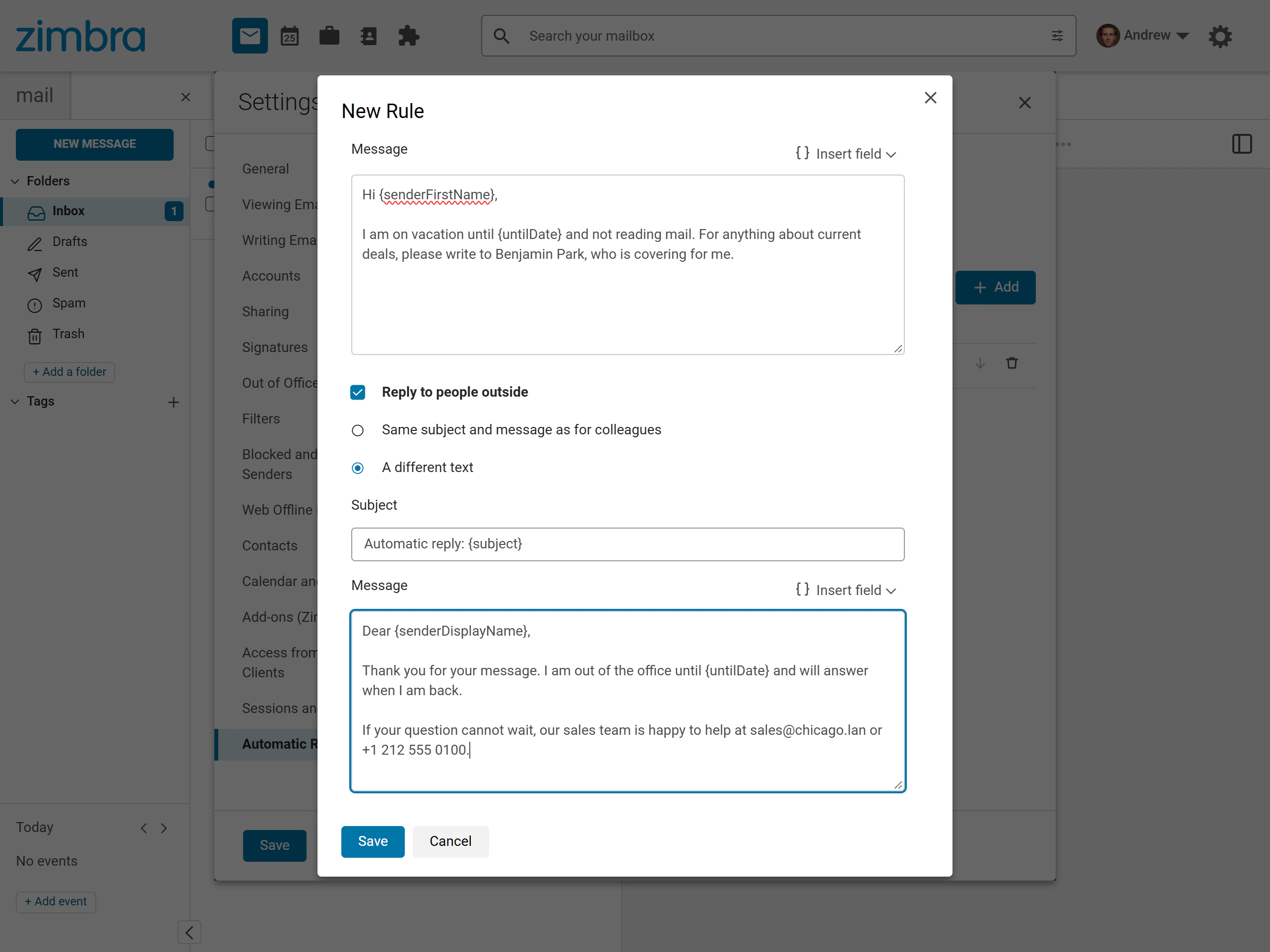
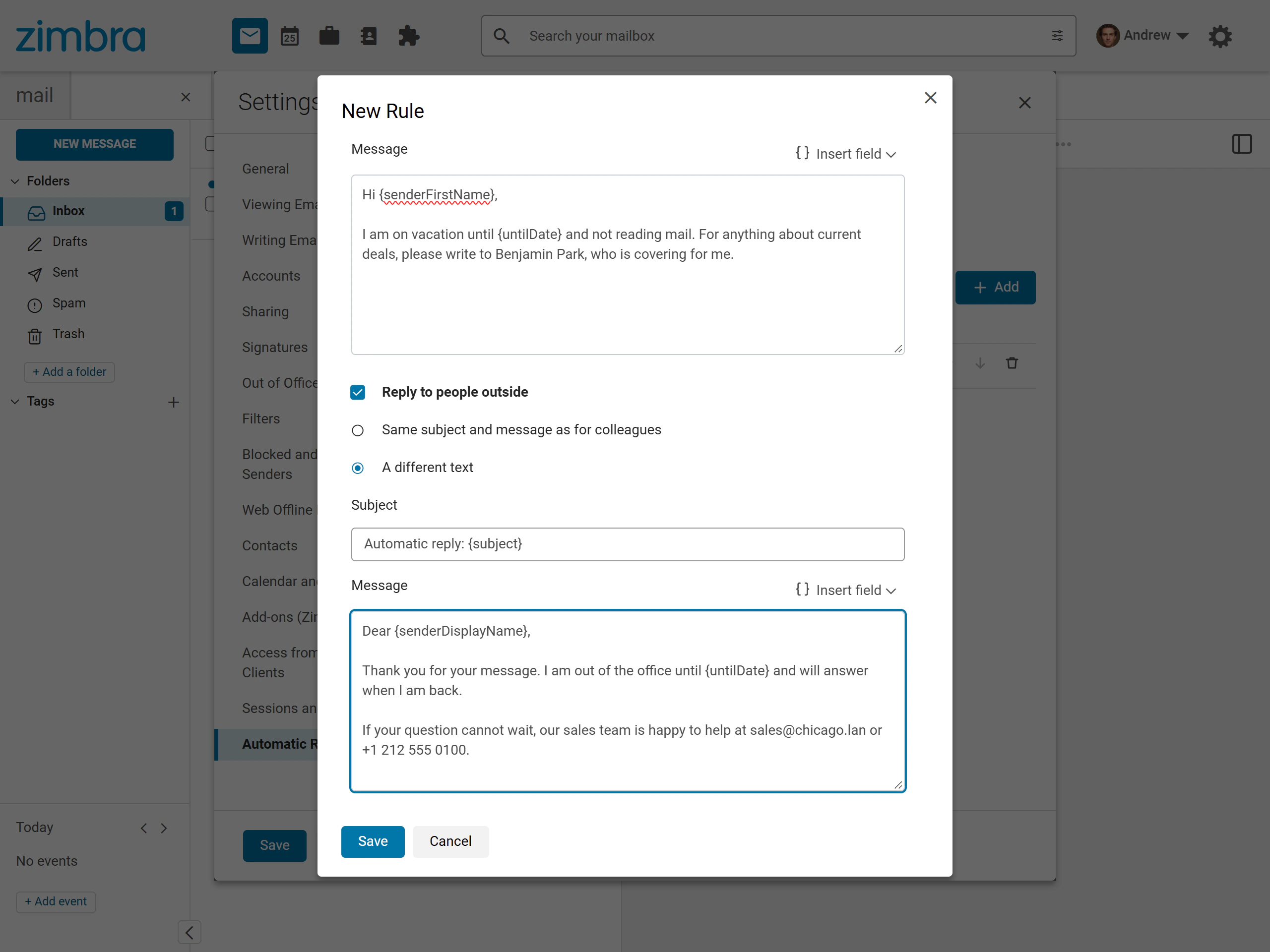
Under Reply to people outside, choose A different text and keep the subject
Automatic reply: {subject}:
Dear {senderDisplayName},

Thank you for your message. I am out of the office until {untilDate} and will answer
when I am back.

If your question cannot wait, our sales team is happy to help at sales@chicago.lan
or +1 212 555 0100.
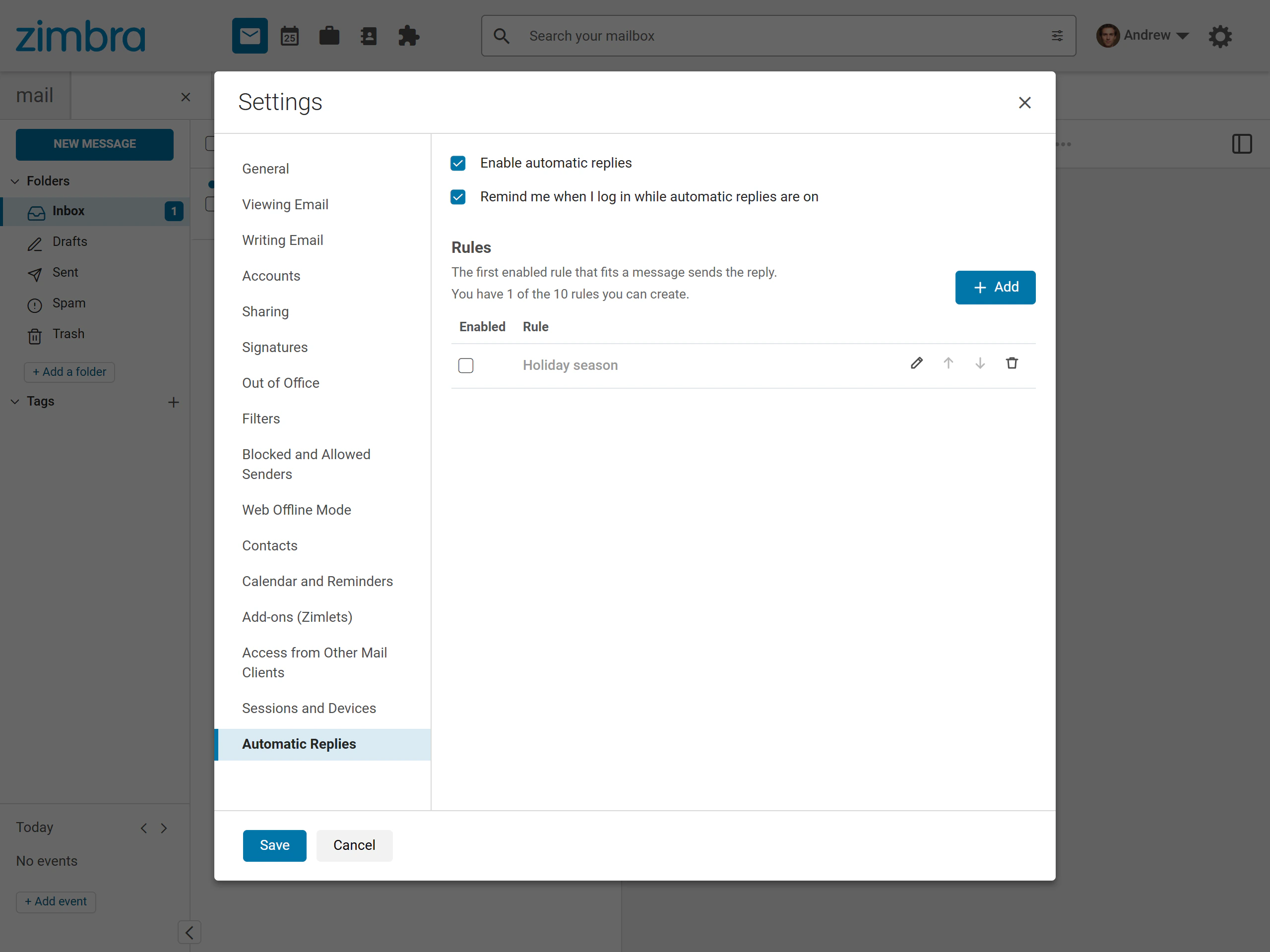
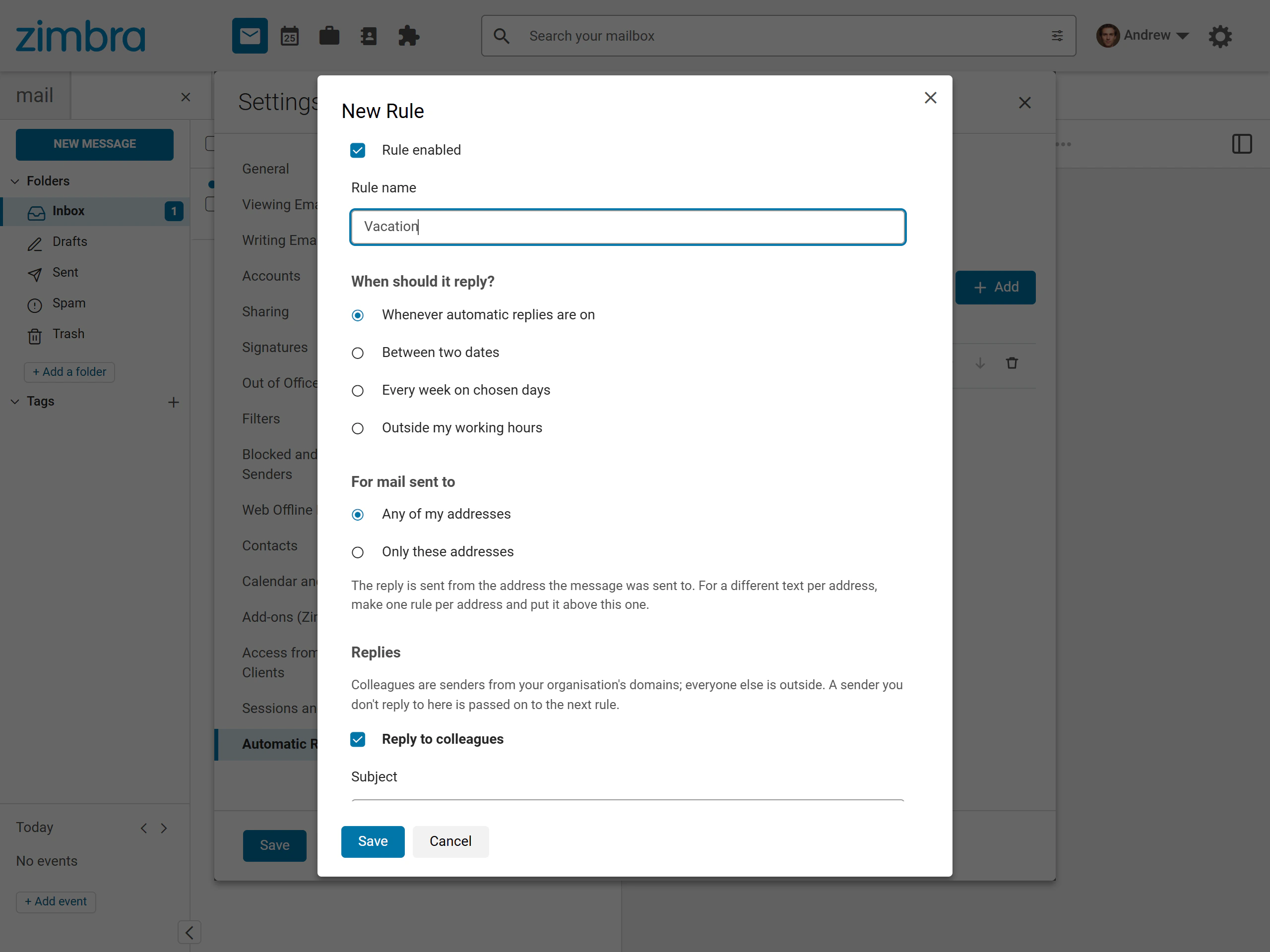
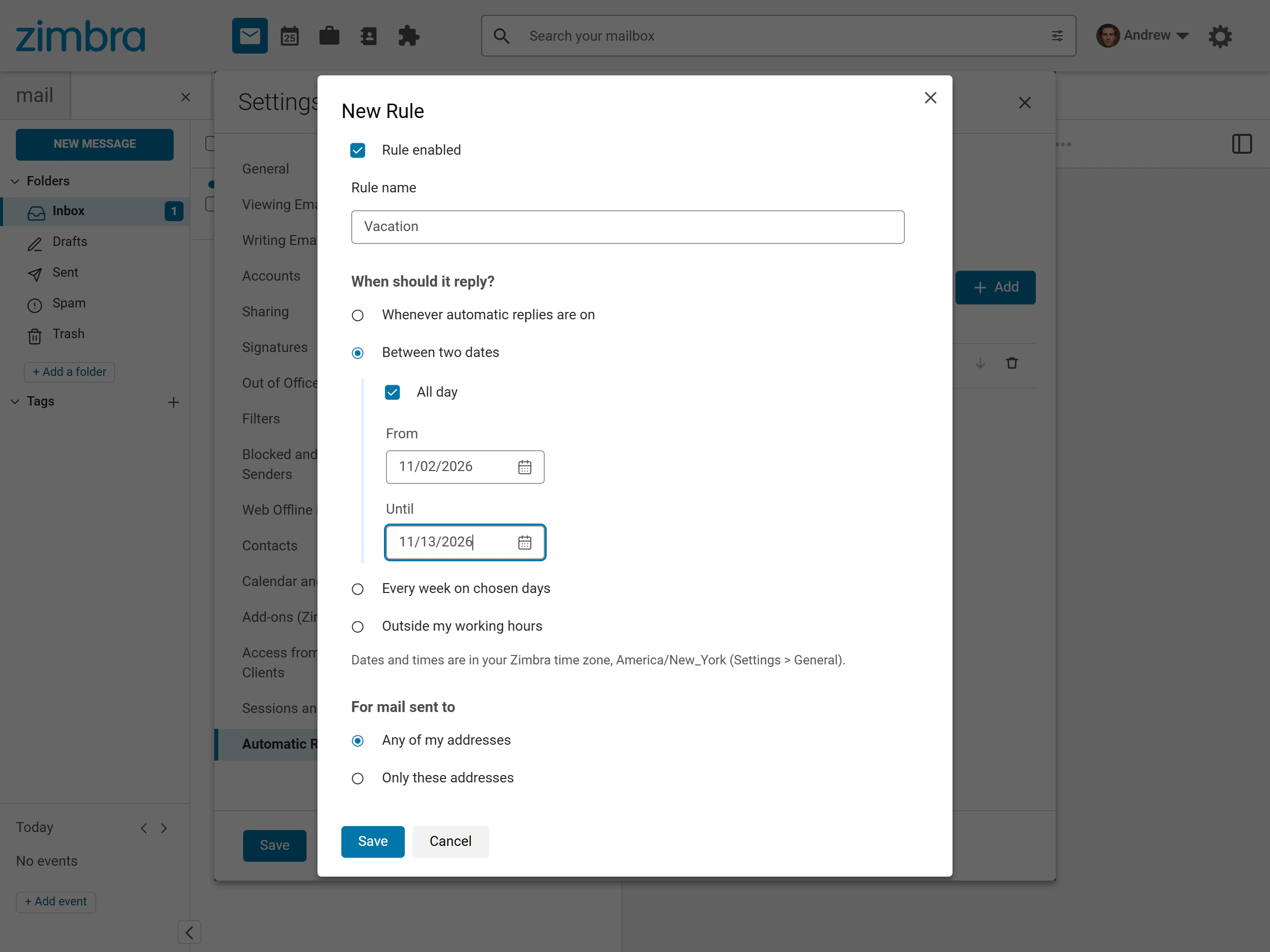
A rule between two dates turns on the reminder at login, so the user sees that the replies are on when they come back early, see Reminder at login.
Step 5 - Test it
From a colleague
Log in to the web client as a colleague and write to the user. Here Aisha writes to Andrew. The reply arrives within seconds, in the colleagues' layout:
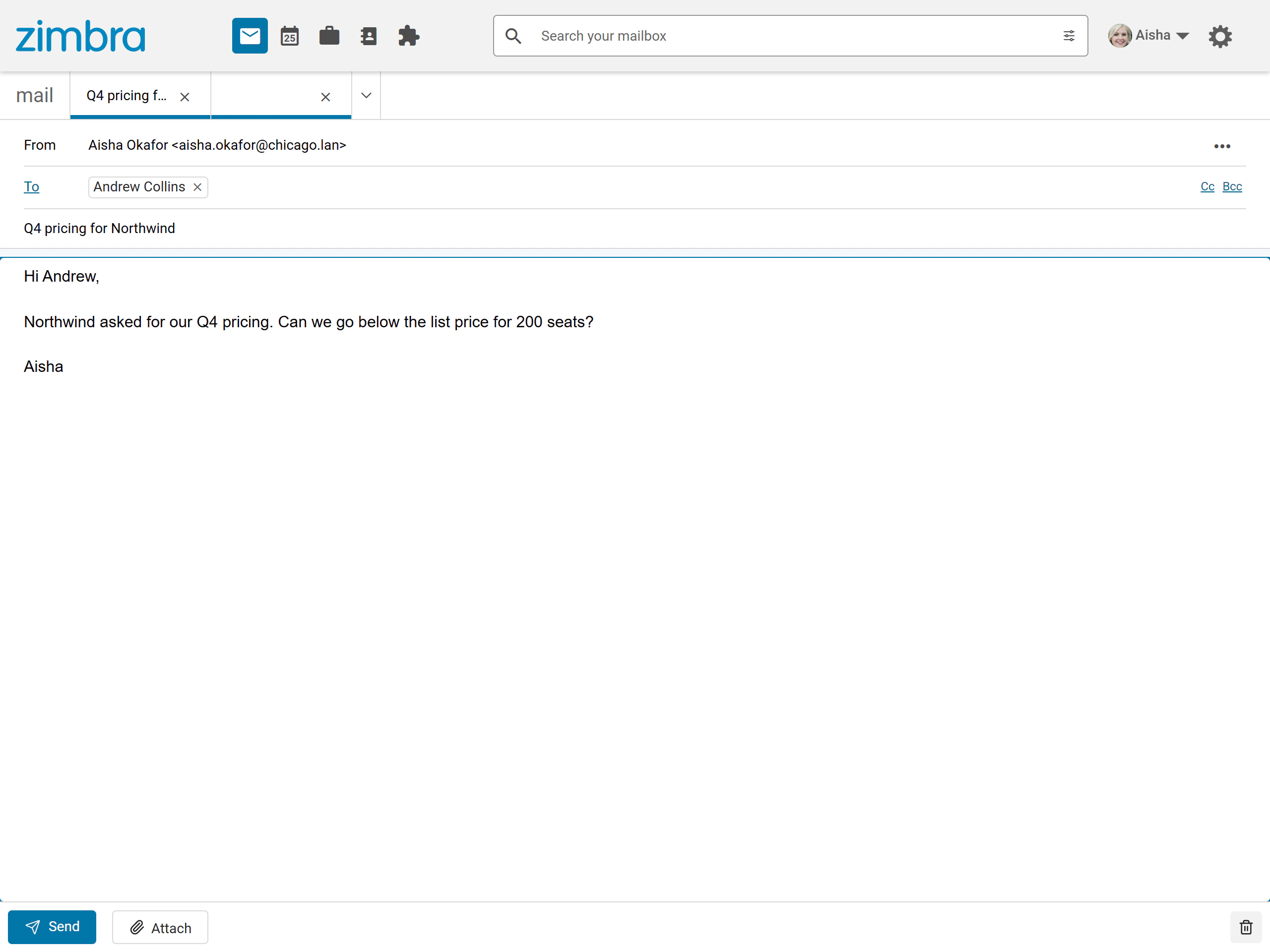
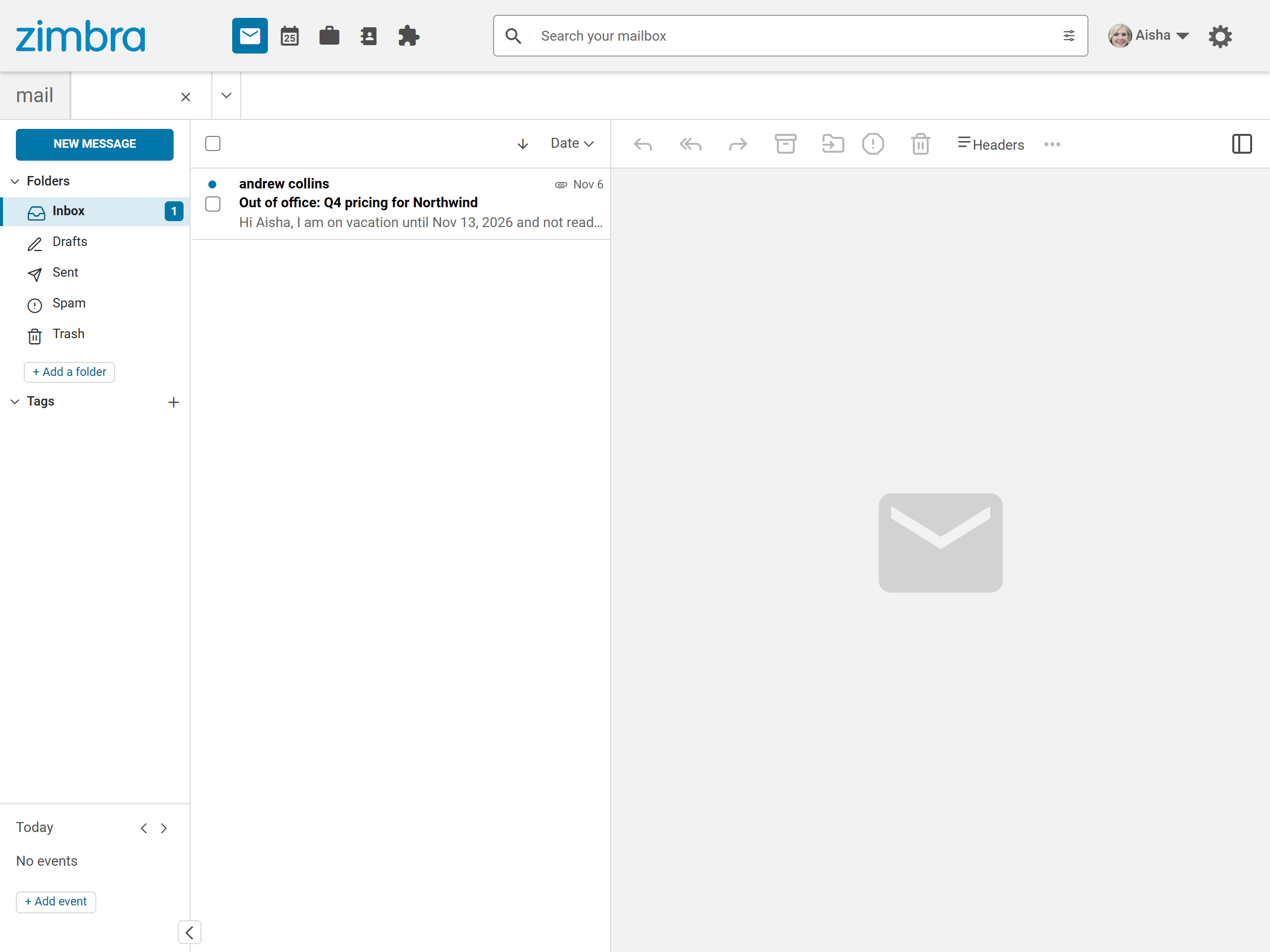
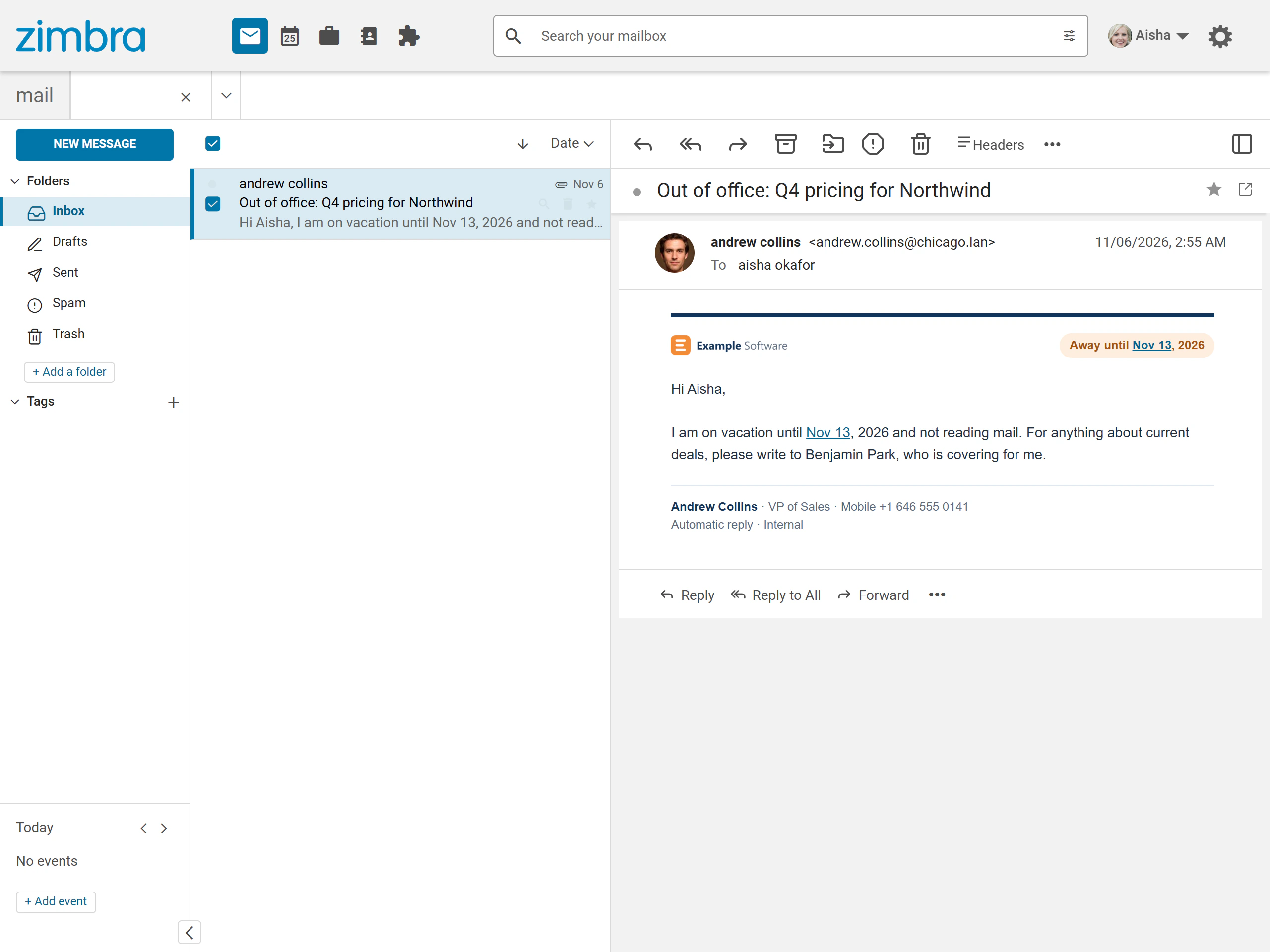
The Zimbra web client turns dates in a message into links to the calendar, which is why Nov 13 is underlined here. That is the web client, not the template; other mail clients show the date as text.
From a customer
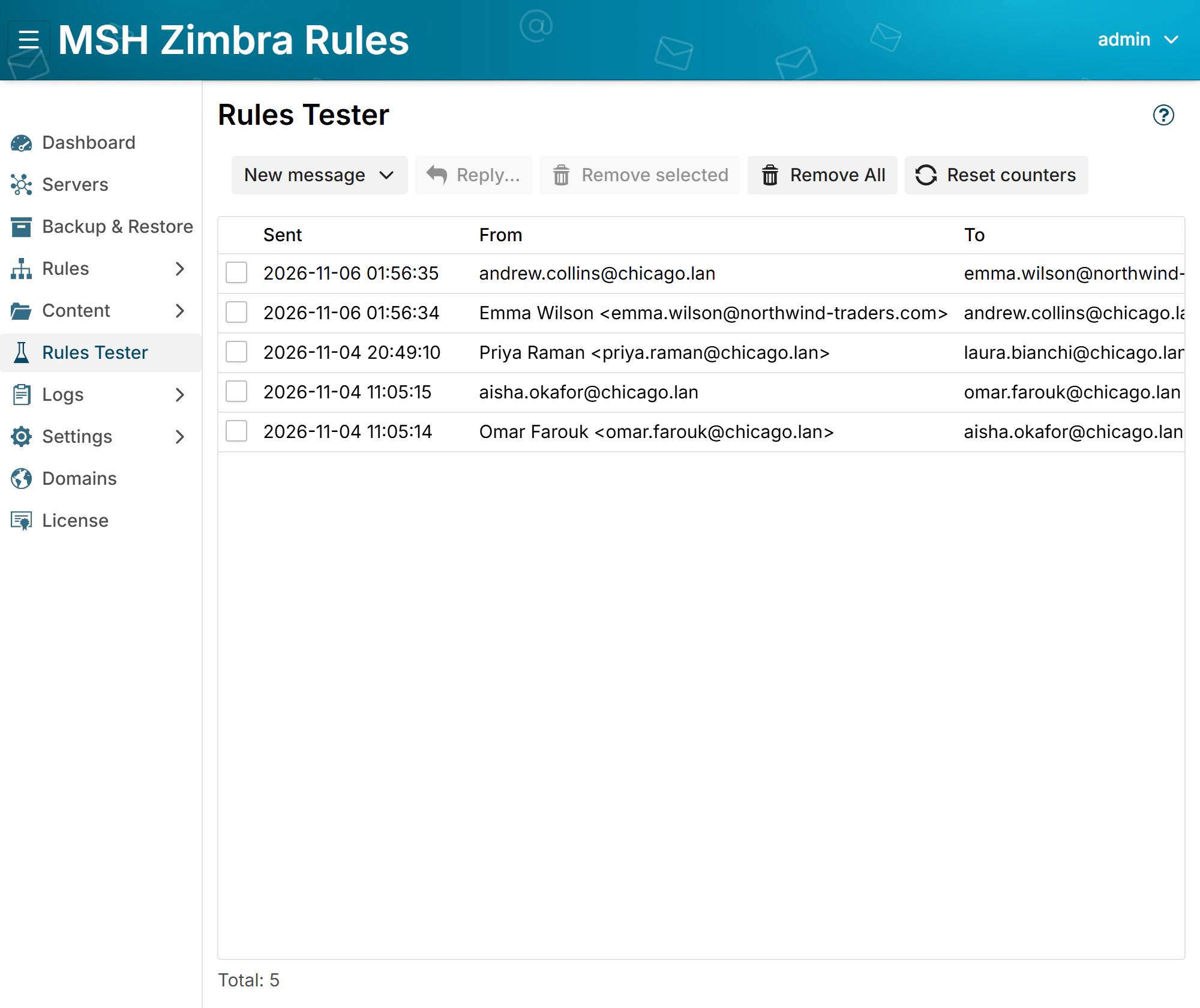
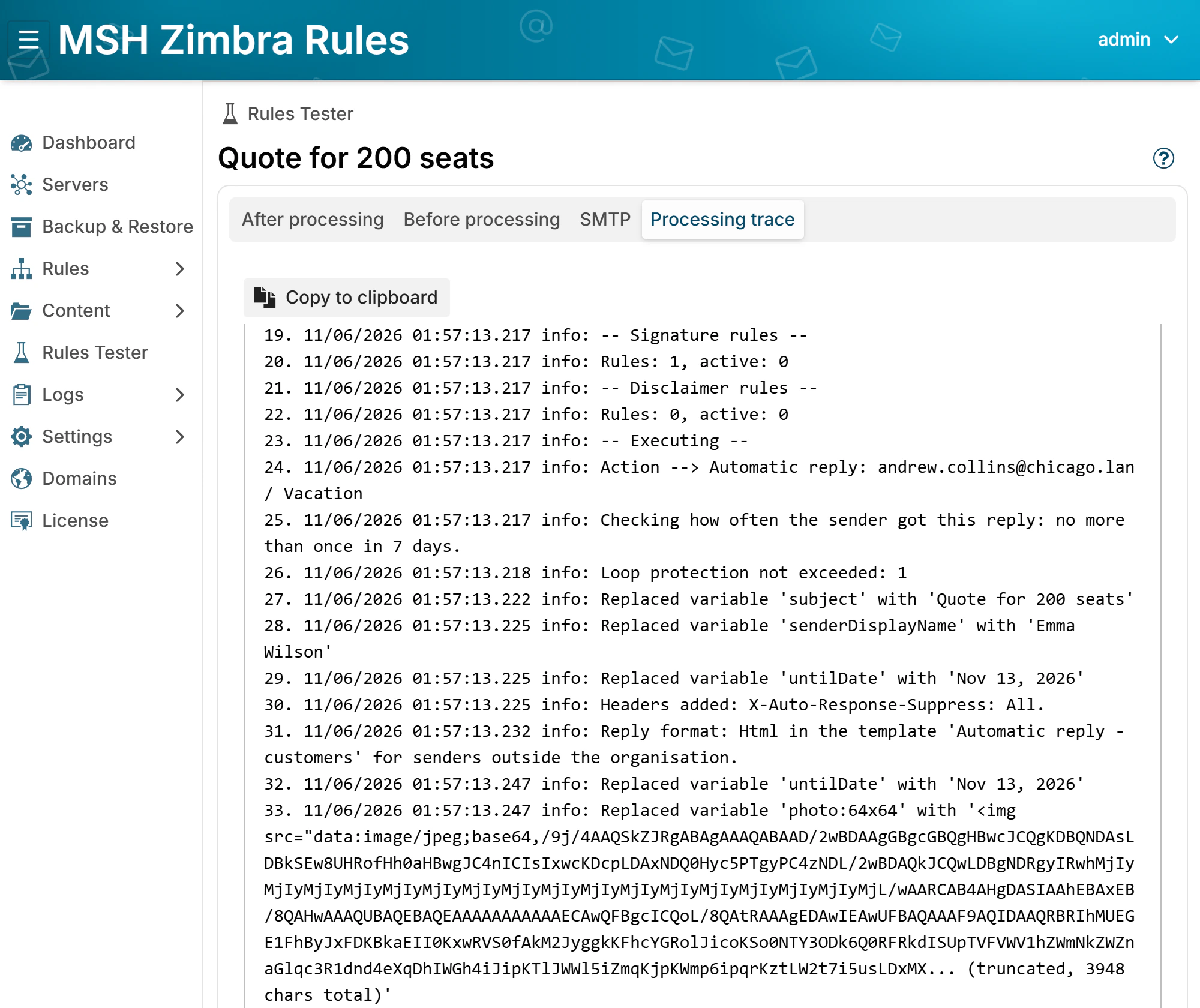
A customer's reply leaves the server, so test it in the administrator panel without writing from outside: open Rules Tester, click New message, choose Custom..., write from an outside address to the user and click Send. The reply is listed as a message of its own. Its Body shows the Html, its Text tab the text version, and Attachments the logo and the photo that go with it.
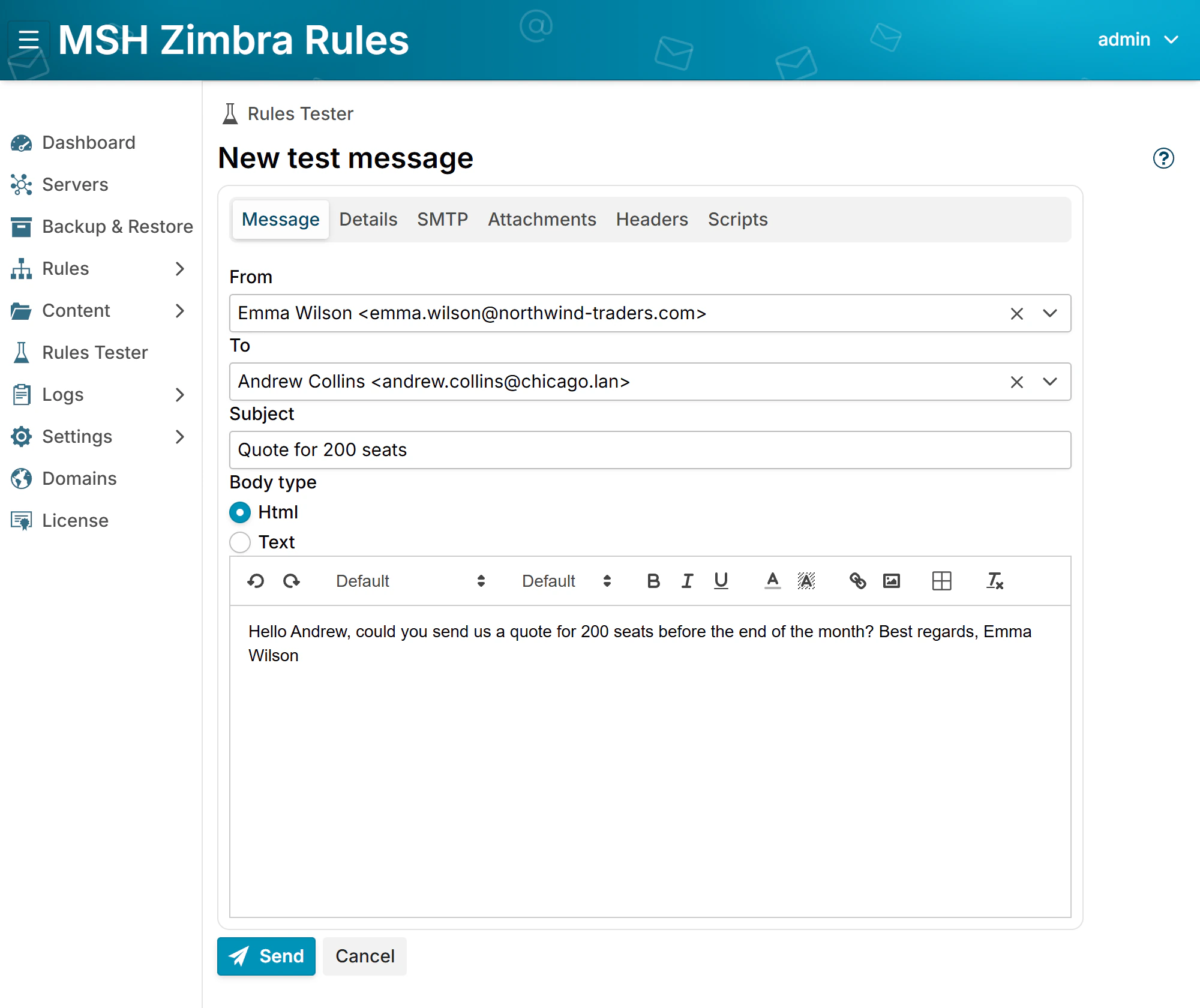
Then send the reply to a real outside mailbox once, for example a Gmail and an Outlook account of your own, and look at it on a phone too. That is the only preview that counts.
Make it fit your brand
Colors and fonts
Change the colors in the style attributes: here #12355b for the brand, #f28c38 for
the accent and #23303f for the text. Keep the fonts to the ones every computer has, such
as Arial, Helvetica, Georgia or Verdana. A web font falls back to the next font of the
list in most mail clients, and the layout should still look right in it.
One layout or two
Both lists on the Format tab can point to the same template, if colleagues should see what customers see. Two templates are worth it when the company address, a legal footer or a marketing banner should go to customers only.
Every kind of reply
The templates are used for every rule of every user, so write them for all of them:
{#if untilDate} already covers a rule without dates. For a reply
outside the working hours, the badge
says Out of office and the layout stays the same.
A campaign in the footer
A banner for an event or a product in the footer of the customers' layout reaches every customer who writes to someone on vacation. Change it on the Templates page, and every reply from the next one on carries the new one. Keep it small: the reply is still an answer to the customer's message.
Limits worth knowing
- The signature rules see the reply too. A reply goes through the rules again, like
any other message, so a signature rule for all
outgoing mail adds a second signature under the one of the template. Leave the replies
out of that rule with a Message header condition on
X-MSH-Type: automatic-reply, see The reply and the other rules. - The user's text has no formatting. Users write plain text in the rule window. Line breaks and links come through, bold and colors do not: the look is the template's.
- A missing template means plain text. If a template cannot be found when a reply is sent, the reply goes out as plain text, and the processing trace says so. The reply is never lost for its layout.
- Mail clients differ. Outlook for Windows ignores rounded corners, and dark mode changes colors in some apps. A layout of tables, solid colors and inline styles keeps working when a detail is lost.
- One layout per group. There is a template for colleagues and one for everyone else, not one per department or per user. An installation with several brands has one layout for all of them.
Zimbra's Out of Office or a branded reply?
| Zimbra Out of Office | Automatic Replies in a template | |
|---|---|---|
| Company logo and colors in the reply | ✗, plain text | ✓ |
| The same layout for every user | ✗ | ✓ |
| The user's photo and details from the directory | ✗ | ✓ |
| A different layout for colleagues and customers | ✗ | ✓ |
| A new logo changed in one place for everybody | ✗ | ✓ |
| The end of the vacation in the layout | ✗ | ✓, {untilDate} |
| A plain-text version for text-only clients | ✓ | ✓ |
| Starts and stops by itself on the dates | ✓ | ✓ |
Zimbra's Out of Office answers in plain text, with whatever each user typed. A template makes every reply look like the rest of the company's mail, while the users still write their own words.
Related reading
- Settings > Automatic Replies - the Format tab and the checks on the templates
- Templates - import, designer and the images setting
- Variables - every field and block a template can use
- Automatic Replies zimlet - the rule window and the fields users can put into their text
- Send an Automatic Reply Outside Working Hours in Zimbra - a reply every evening, in the same layout
Want to try it on your own server? Start a free trial.