Set Your Profile Photo in the Classic Zimbra Web Client
The Modern Zimbra web client lets users set their own photo. The Classic web client does not: its users get a default person icon, and an administrator has to load their photo into the directory for them. The Profile Image zimlet of MSH Zimbra Rules adds Change Profile Image to the user menu of the Classic web client. This article walks a user through it in two minutes, and checks the result with a message to themselves.
What you get
Once the photo is saved, it is shown round in front of the user's name at the top of the Classic web client, and next to the sender of every message the user sends, in the web client of every colleague:
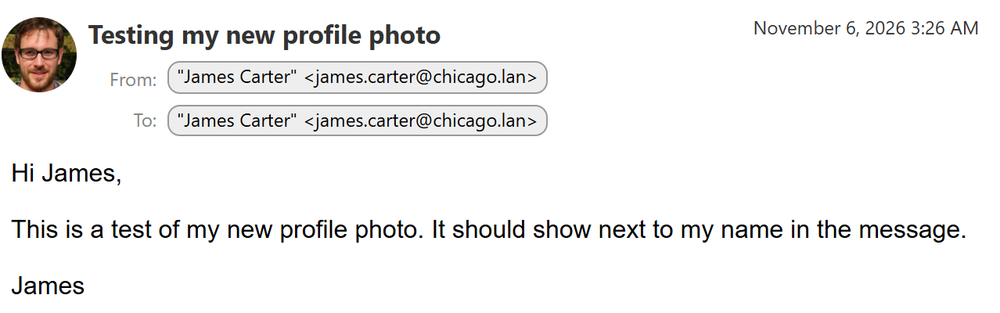
The photo is saved in Zimbra's directory, the GAL, so it is the same photo everywhere:
| Where | What colleagues see |
|---|---|
| A message from the user, Classic web client | The photo in the message header, instead of the person icon |
| A message from the user, Modern web client | The photo in the avatar of the sender, instead of the initials |
| The top bar of the user's own Classic web client | The photo before the name, instead of the initials |
Signatures with {photo} | The same photo, after the next directory sync |
Before you start
- The Profile Image zimlet deployed for the user's class of service, see Zimlet configuration. It reads and writes the photo in the GAL of Zimbra itself, so it needs neither the Zimbra extension nor the administrator panel.
- A picture of the user as a JPEG, PNG or GIF of up to 10 MB, at least 120 x 120 pixels. The web client cuts the middle of the picture to a square, so a portrait with the face in the middle works best.
- Recommended for the administrator: Zimbra makes the saved photo small by default,
and it looks blurry. Set the size to 120 pixels on every mailbox server with
zmlocalconfig -e profile_thumbnail_image_dimension=120and restartmailboxd, see Profile Image.
Step 1 - Change the profile image
Log in to the Classic web client. Until a photo is set, the top bar shows the user's initials before the name. Click the arrow next to the name at the top right, and choose Change Profile Image, above Change User Info.
The Update Photo dialog shows the current photo, or the initials. Drop a picture on the frame, or click browse and choose one. The dialog shows it round, as colleagues will see it, and says Save to use this photo. Click Save.
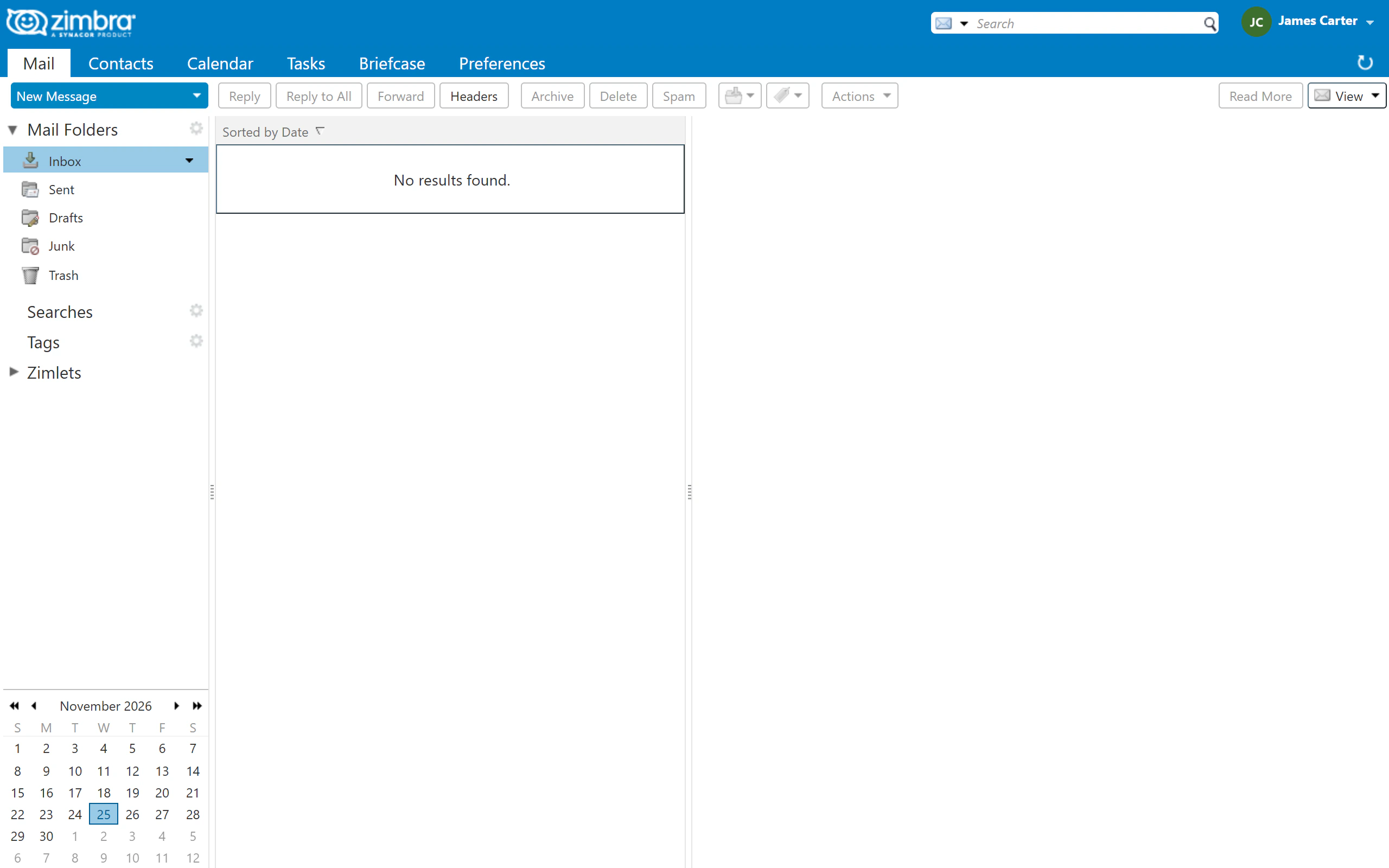
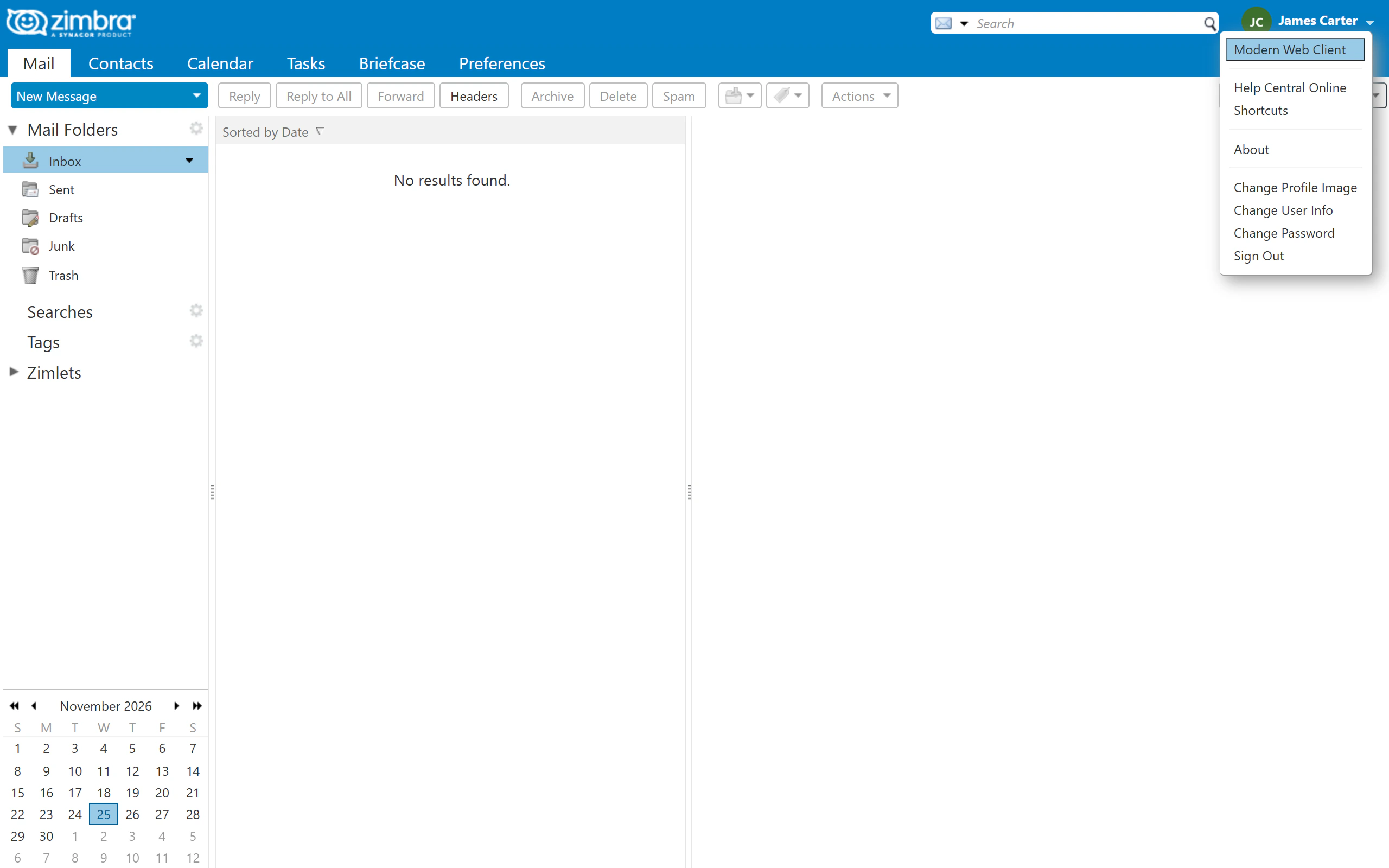
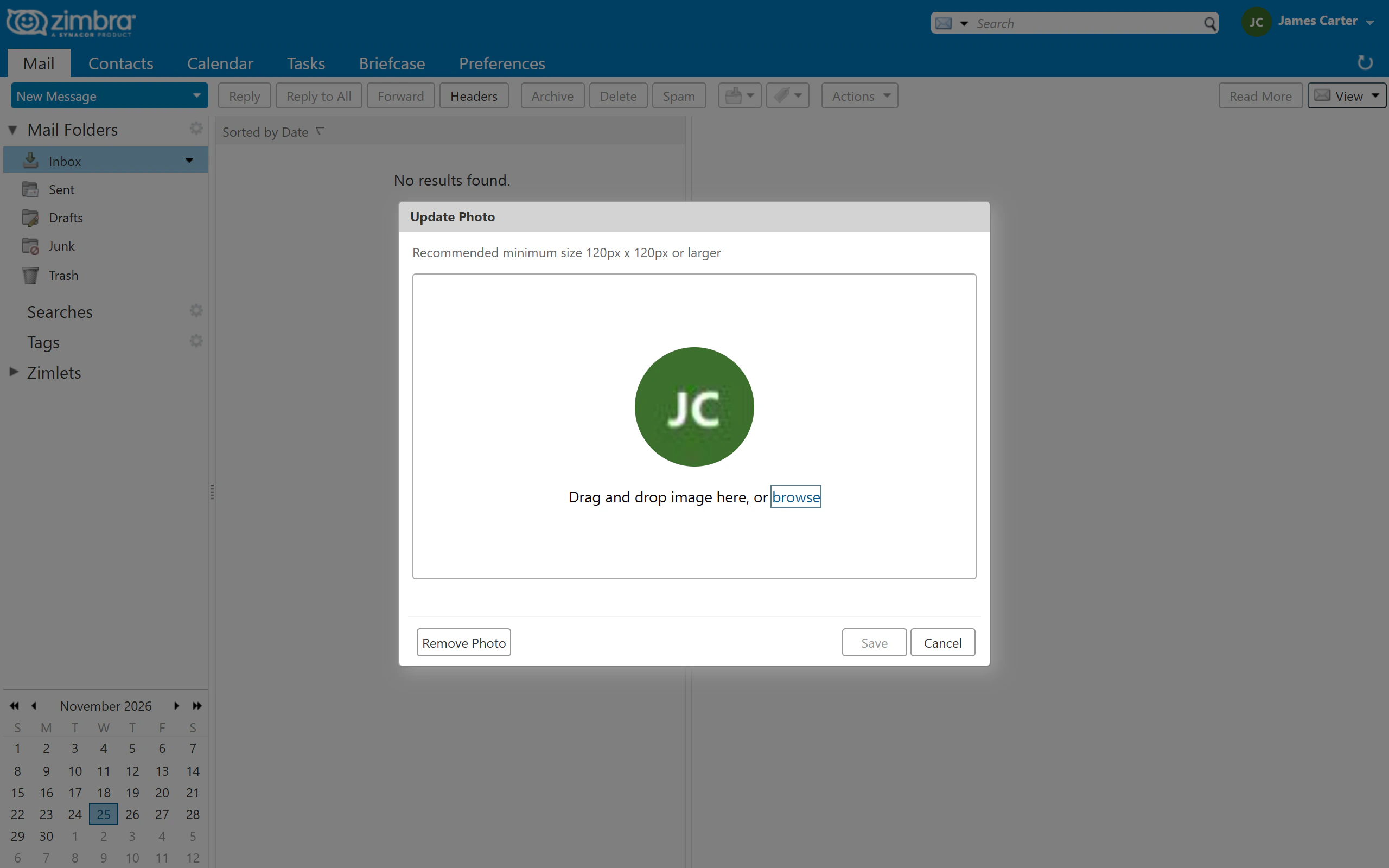
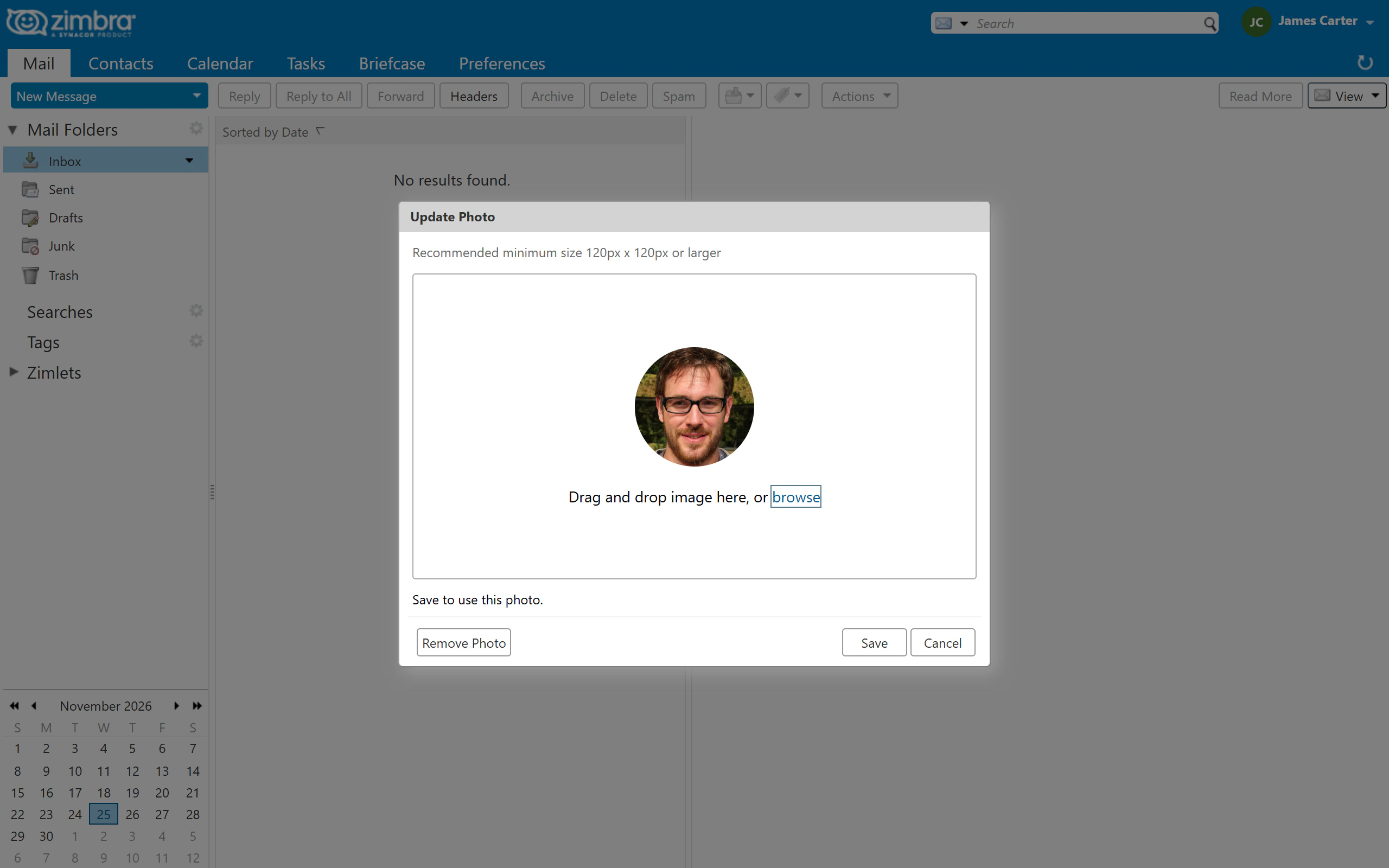
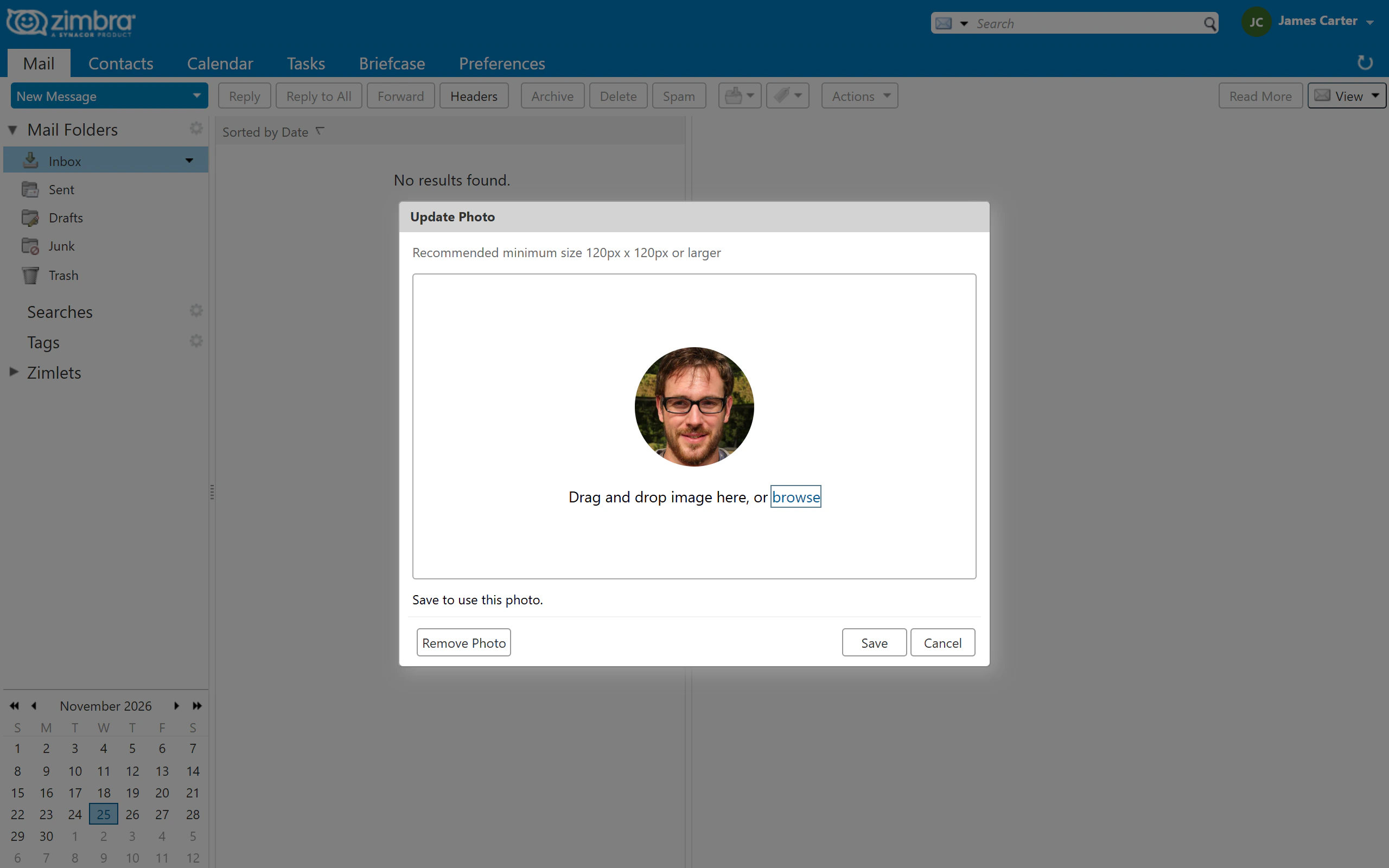
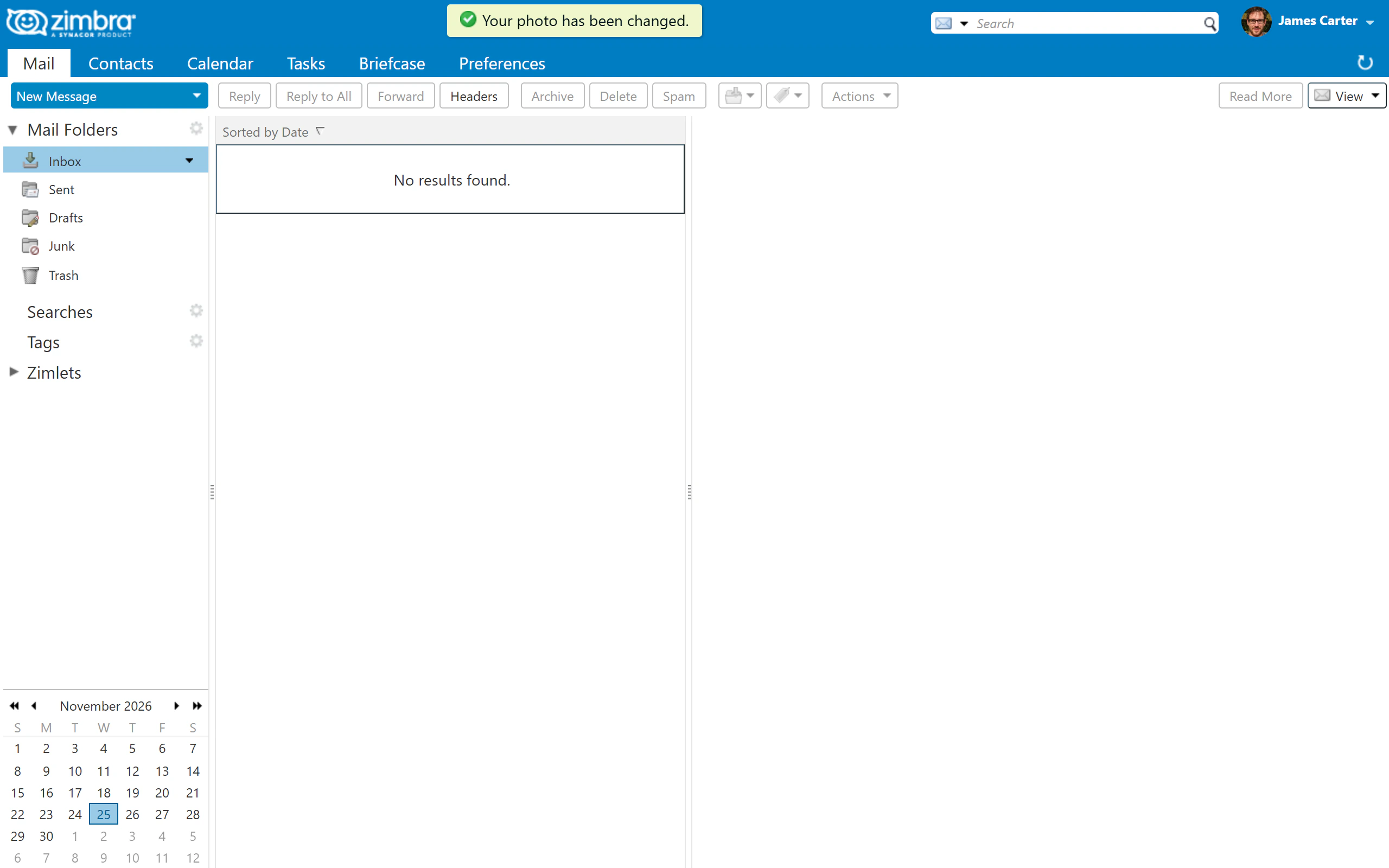
The browser cuts the picture to a square before it sends it, and Zimbra saves a smaller copy for the account. Colleagues find the new photo in the GAL at once.
Step 2 - Check it with a message to yourself
A message to yourself shows the photo the way colleagues see it, without bothering anyone. Click New Message, write your own address in To, a subject and a line of text, and click Send. When the message is in the inbox, click it: the photo is next to the sender in the reading pane.
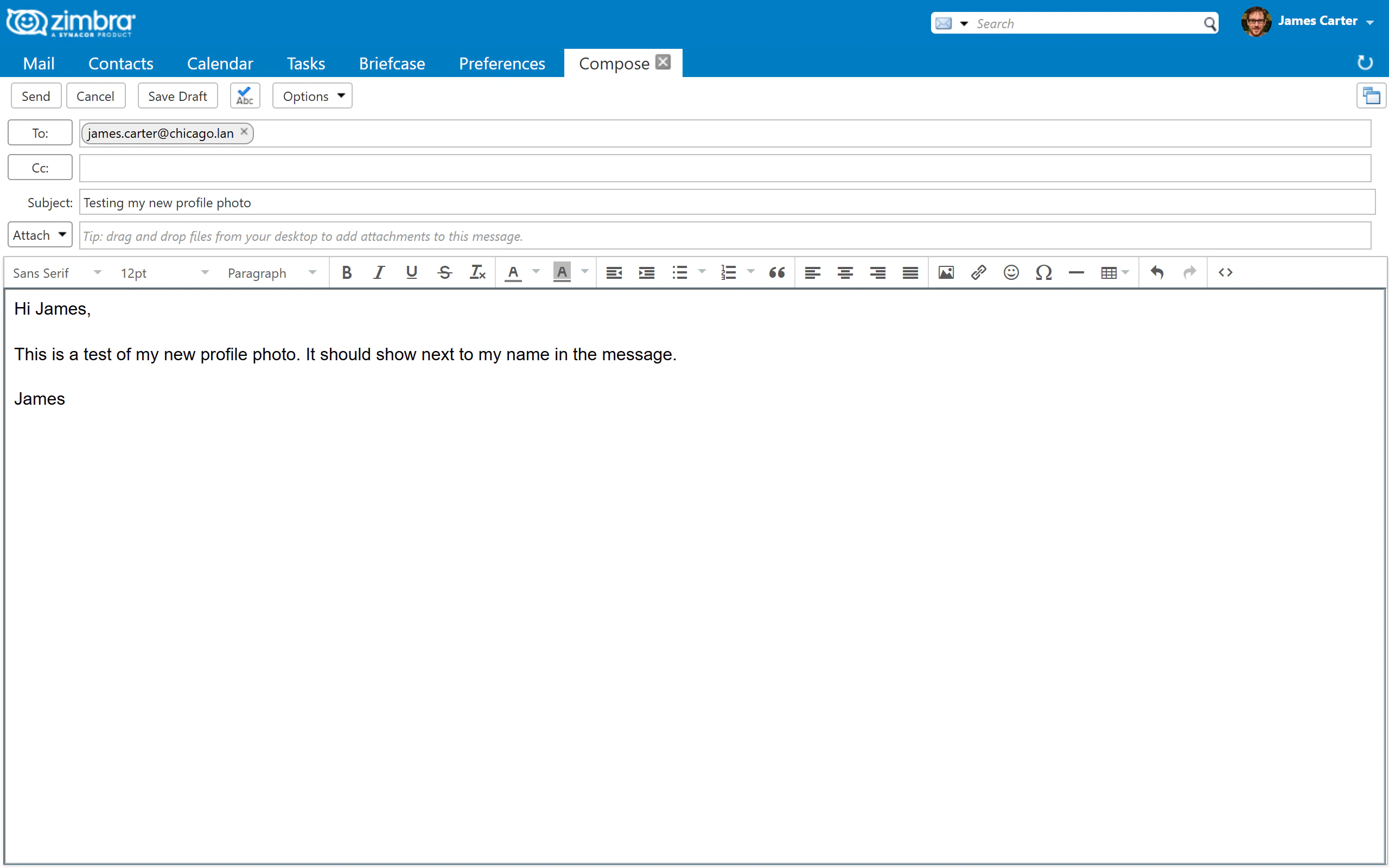
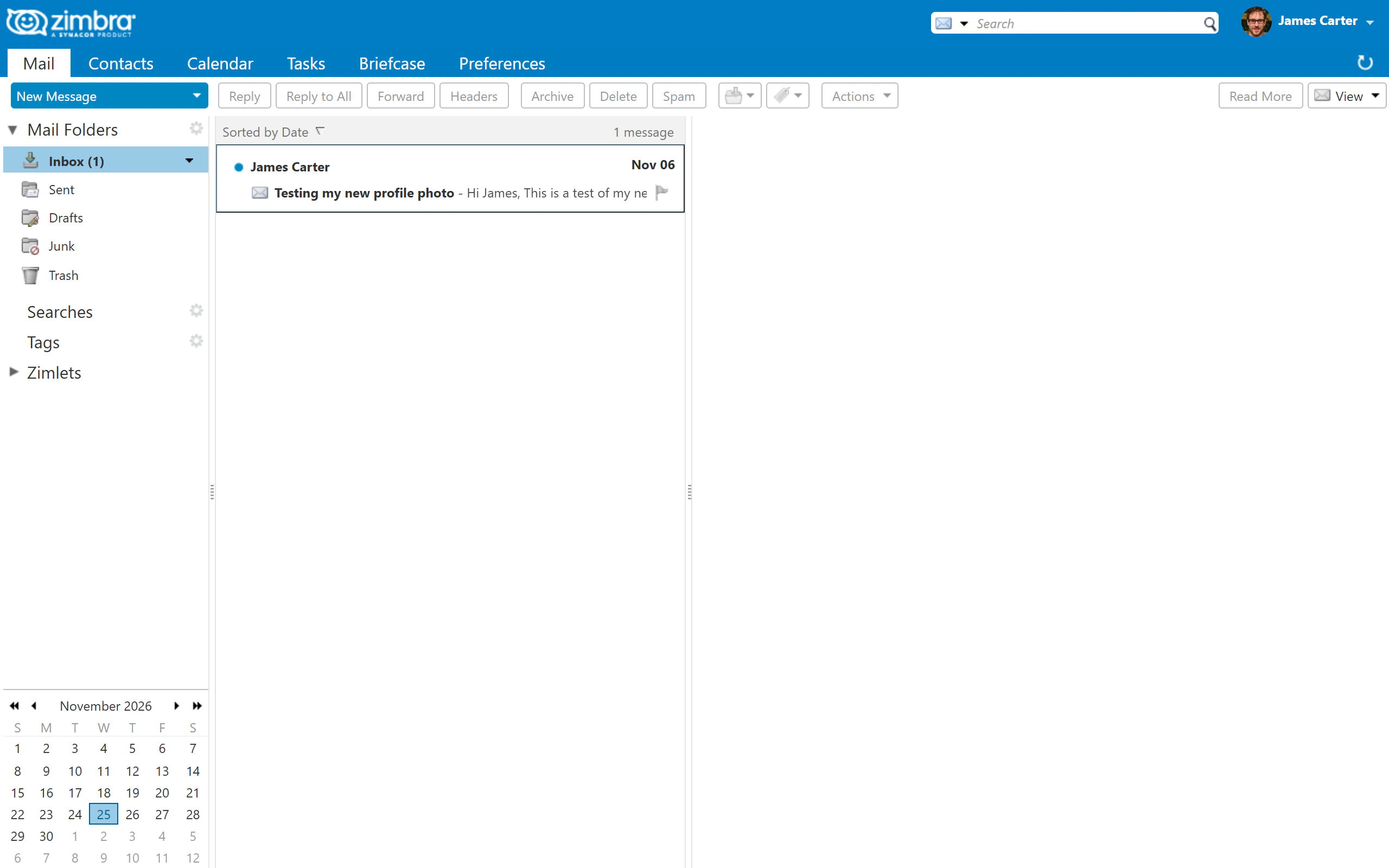
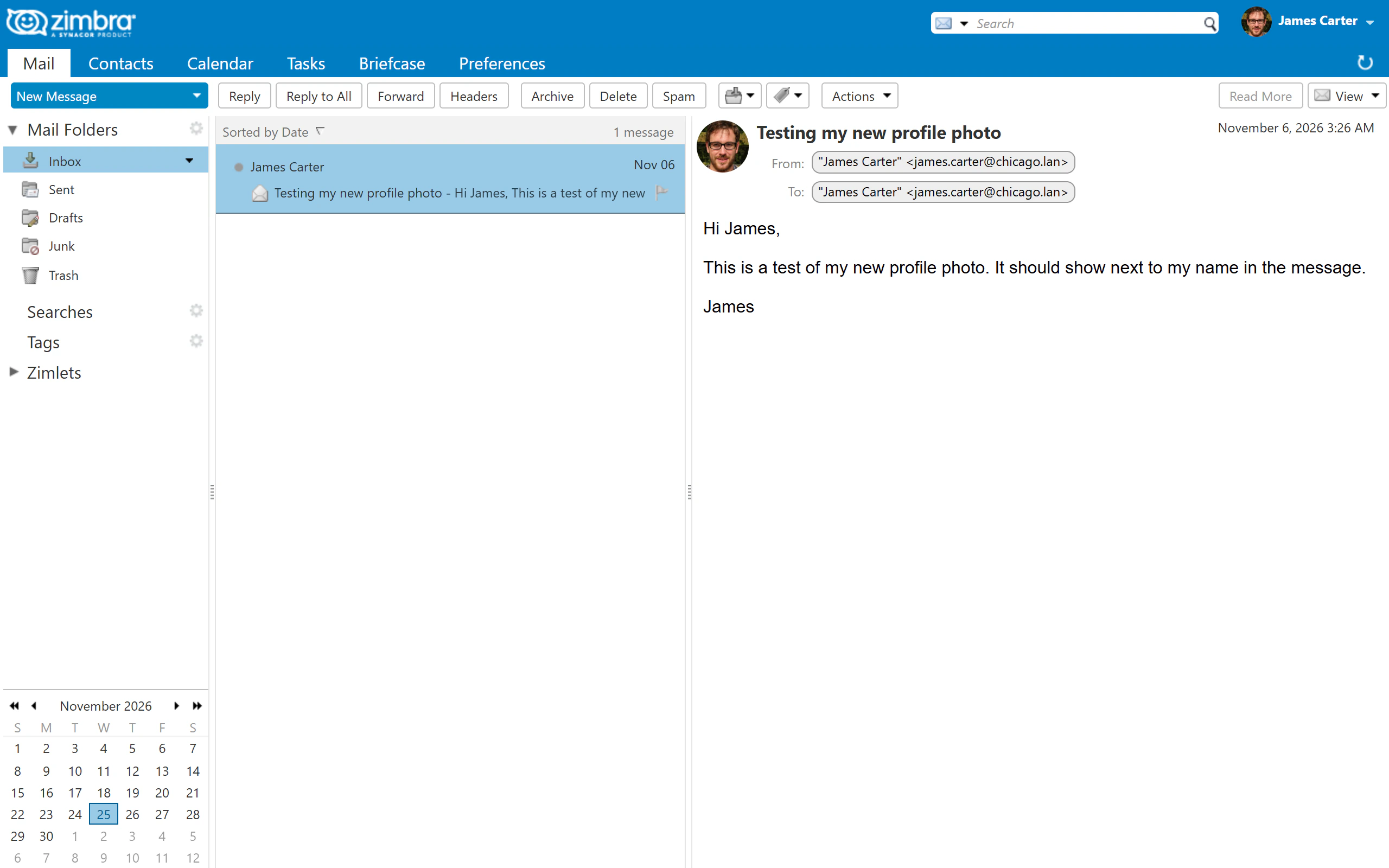
The web client asks the GAL for the photo of a sender the first time it shows a message from them, so the photo comes a moment after the header. Later messages show it at once.
Change or remove the photo
Open Change Profile Image again and choose another picture, or click Remove Photo: the frame shows the initials, and Save removes the photo. Cancel or Esc closes the dialog and changes nothing.
If colleagues do not see it
- Their web client was already open. A web client asks the GAL for a sender's photo again after 6 hours, so a colleague with an open web client sees the new photo within that time, and at once after a reload.
- The GAL is off for them. Users whose class of service turns the GAL off
(
zimbraFeatureGalEnabled) see no photos. - Their class of service has no Profile Image zimlet. They see the default icon in the Classic web client, and the initials in the Modern one.
- The photo looks blurry. Zimbra saved it small. Ask the administrator to set
profile_thumbnail_image_dimensionto 120, see Before you start, then save the photo again. - The message list. The photo is shown in the header of a message, not in the list of messages.
- Mail outside the organization. The photo is in the GAL of your Zimbra, so people
outside see it only where it is in the message itself, such as a
signature with
{photo}.
Related reading
- Profile Image - everything the zimlet does, in the Classic and the Modern web client
- Variables - the photo in signatures and templates
- Directory service - the sync that takes the photo into the signatures
Want to try it on your own server? Start a free trial.