Find out why a message was changed or blocked
Two questions reach every helpdesk that runs mail rules: "Where is my mail?" and "Why does
my message look like this?". A customer's message bounced, a subject suddenly starts with
[EXTERNAL], a reply went out with a banner nobody asked for. In
MSH Zimbra Rules, the answer is in
Message History: every message the rules
processed, with a trace of each rule that was checked and each action that ran. This
article finds a message there, reads its trace, and goes through the answers the helpdesk
gives most often.
Before you start
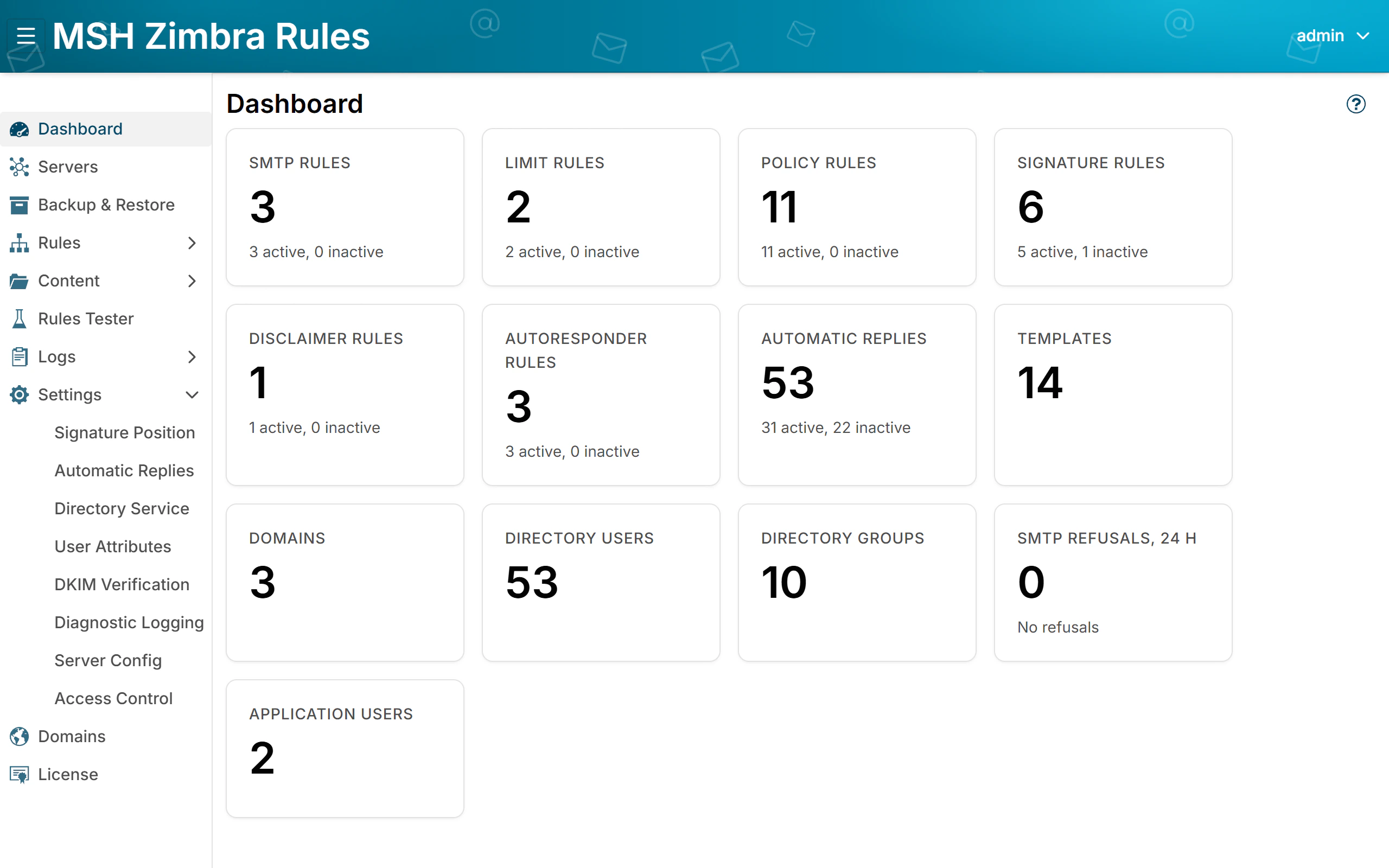
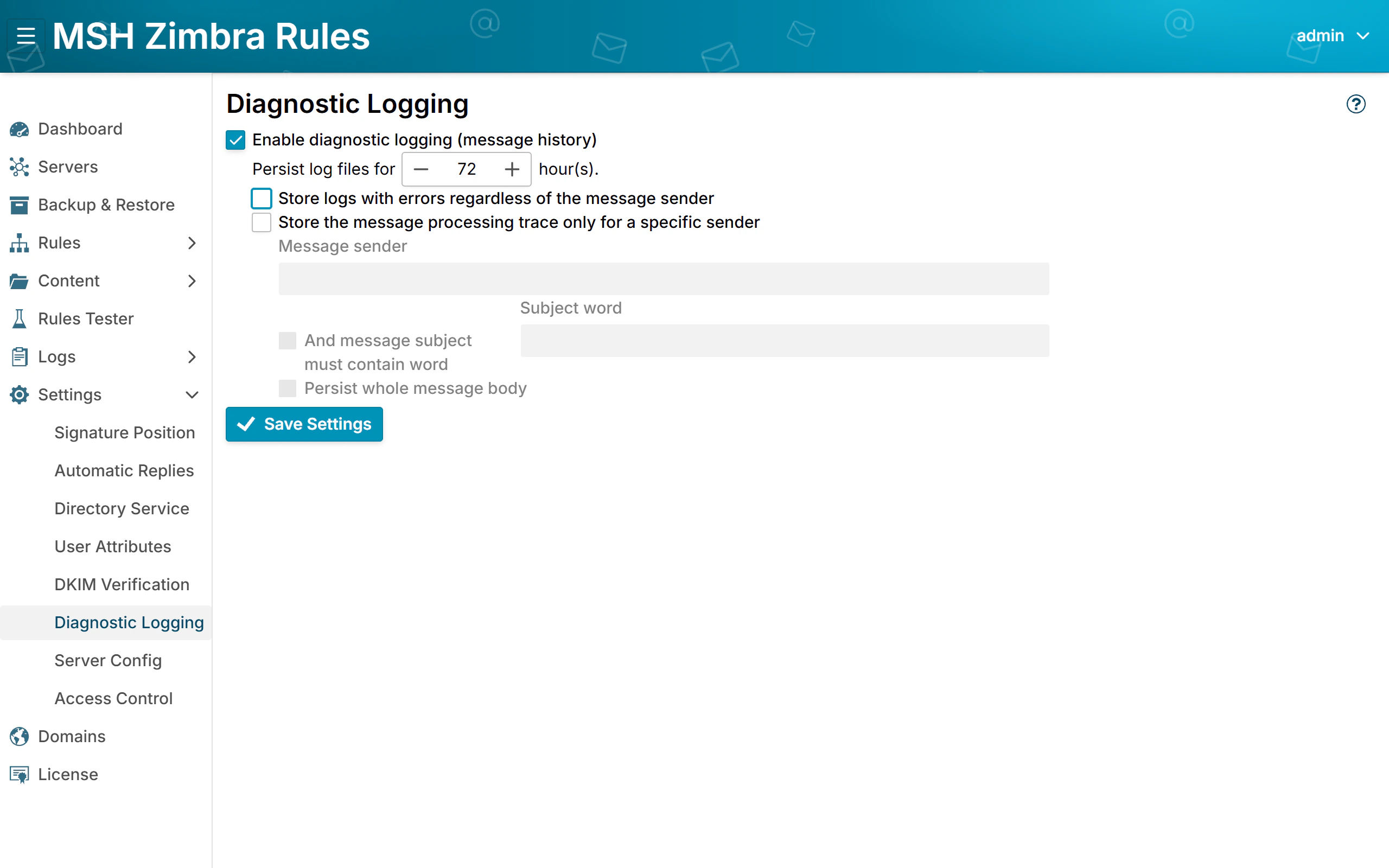
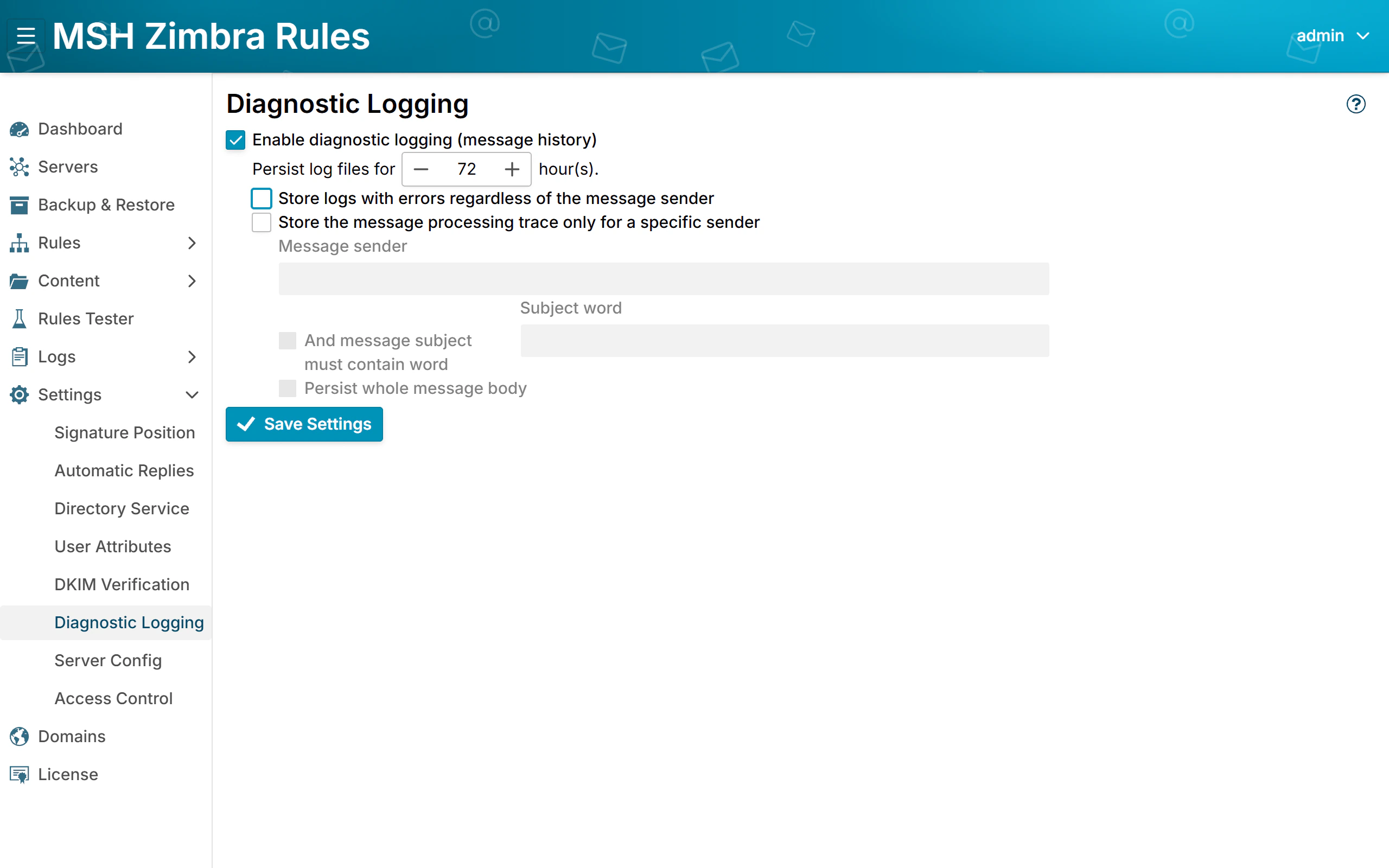
- Diagnostic logging is on. Message History lists messages only while Settings > Diagnostic Logging > Enable diagnostic logging (message history) is ticked. That page is for administrators.
- The history goes back far enough. By default each message is kept for 1 hour.
A user who asks in the morning about a message from yesterday finds nothing. Set
Persist log files for to the time your helpdesk needs, for example
72hours, so a question on Monday still finds Friday's mail. A longer period takes more disk space on every MTA server, see Message history database. - All senders are logged. Store the message processing trace only for a specific sender is meant for a short investigation. While it is ticked, only that sender's messages are listed.
- The helpdesk can open the page. Message History is open to both roles of Access control, ADMIN and USER.
Step 1 - Find the message
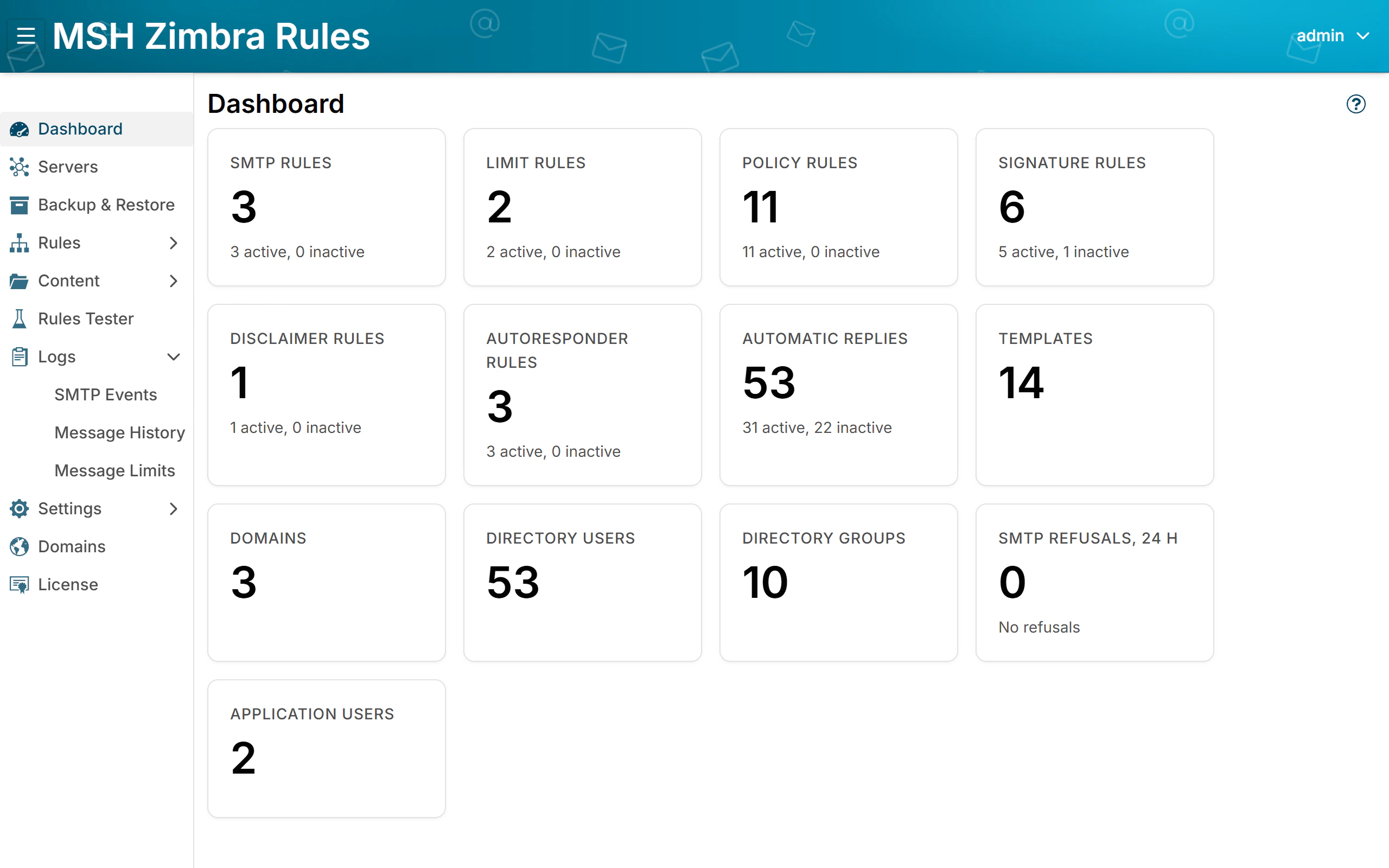
Ask the user for three things: who sent the message, its subject, and roughly when. Then open Logs > Message History and type into the search field. The search finds:
- the sender address (From), also a part of it such as the domain,
- the subject, also a part of it, upper or lower case,
- the MSH-ID and the Postfix QueueID.
It does not search the recipients. When James asks where Olivia's mail is, search for
olivia or northwind, not for james. And search for the subject as the sender wrote
it: the list shows the subject before the rules changed it, so [EXTERNAL] finds nothing.
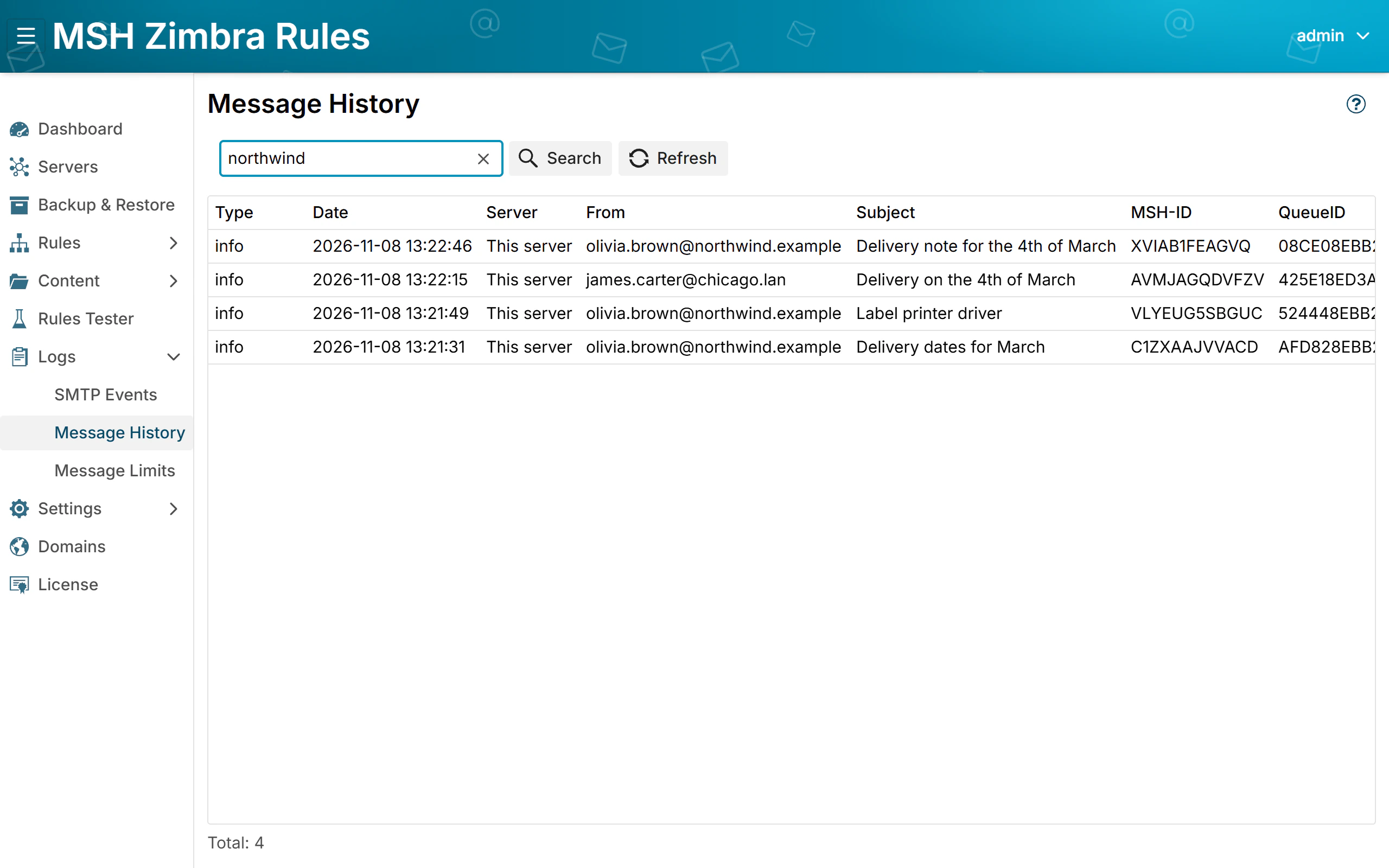
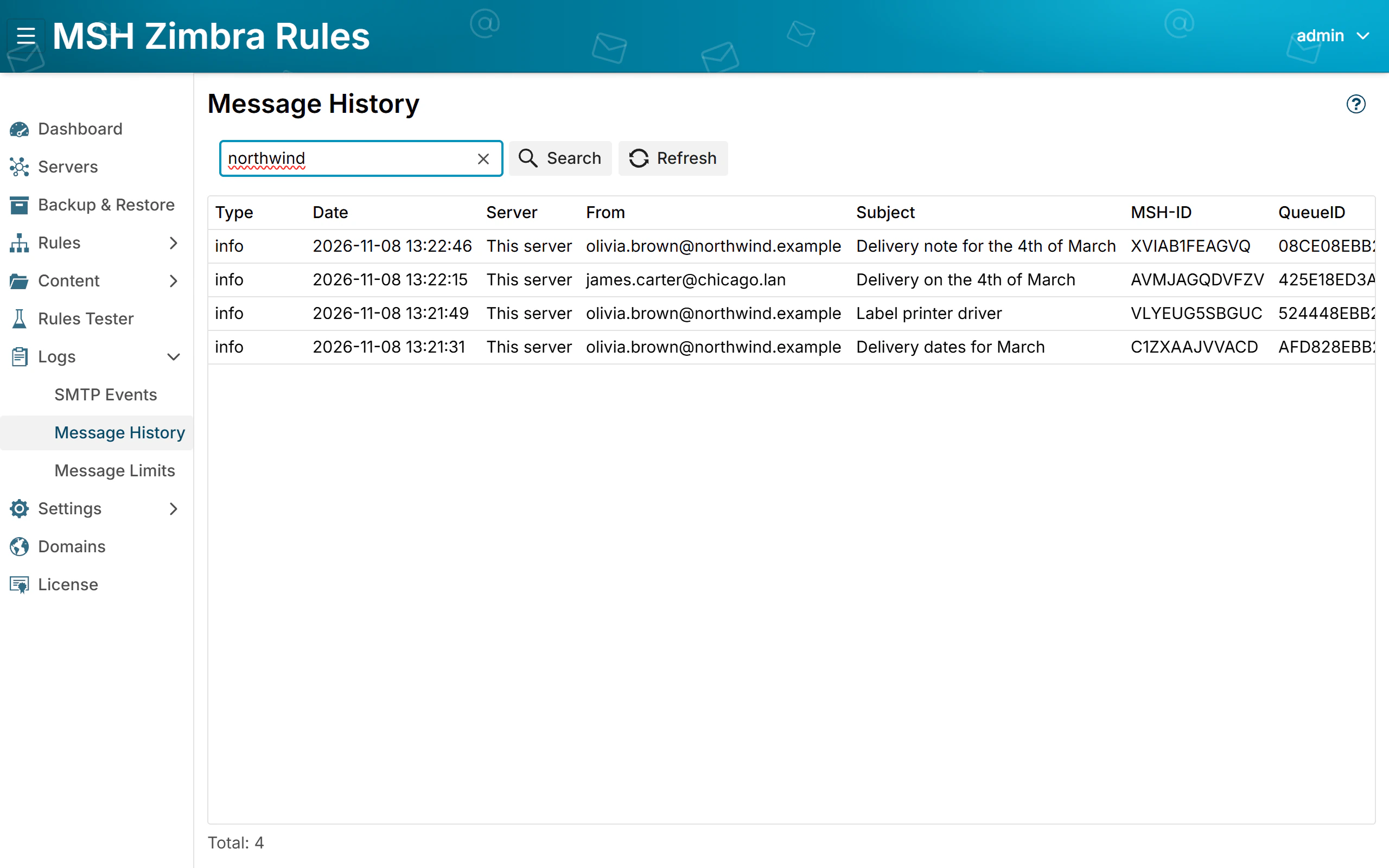
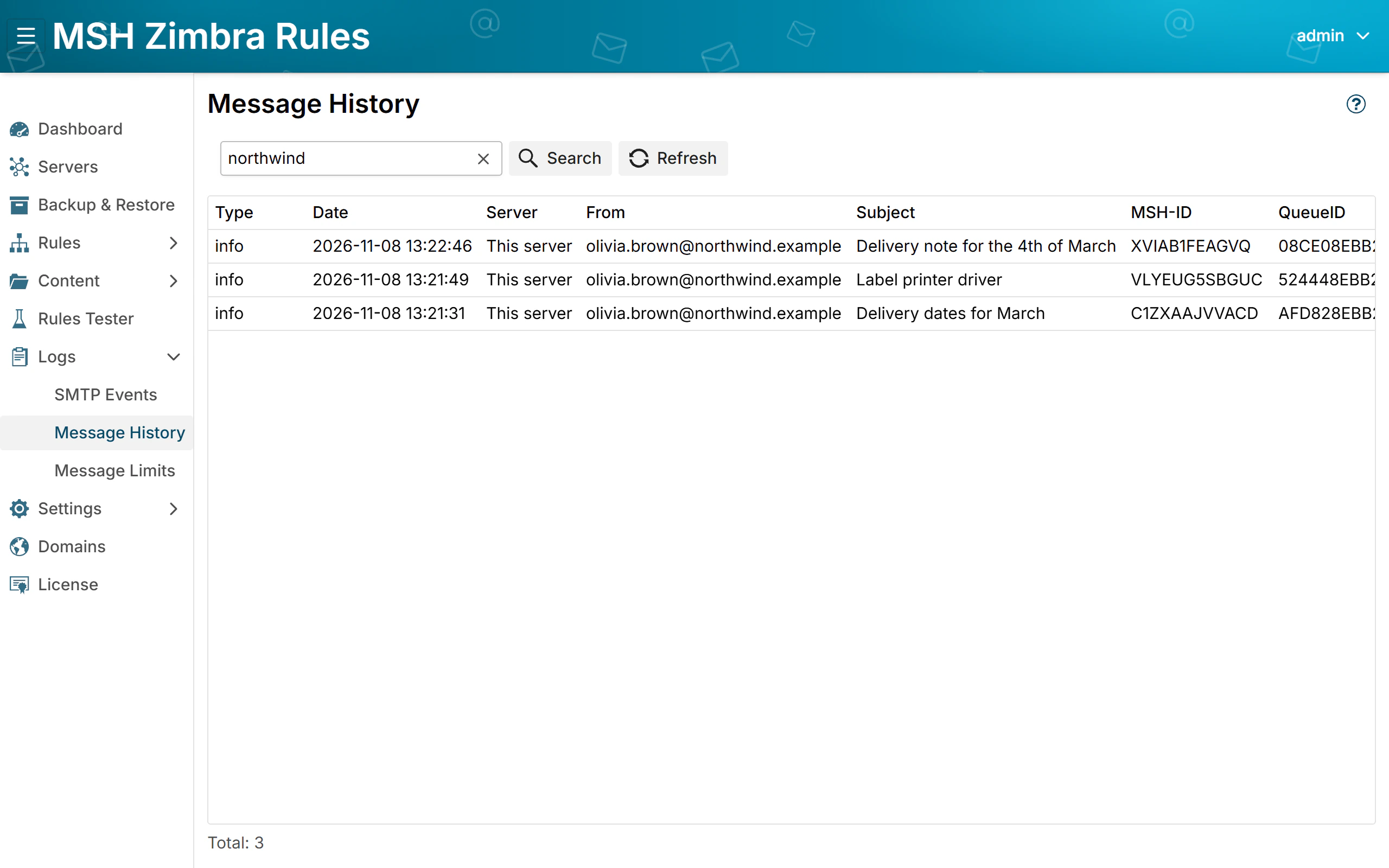
With several MTA servers, the list shows the messages of all of them, and All servers narrows it to one.
Step 2 - Read the entry
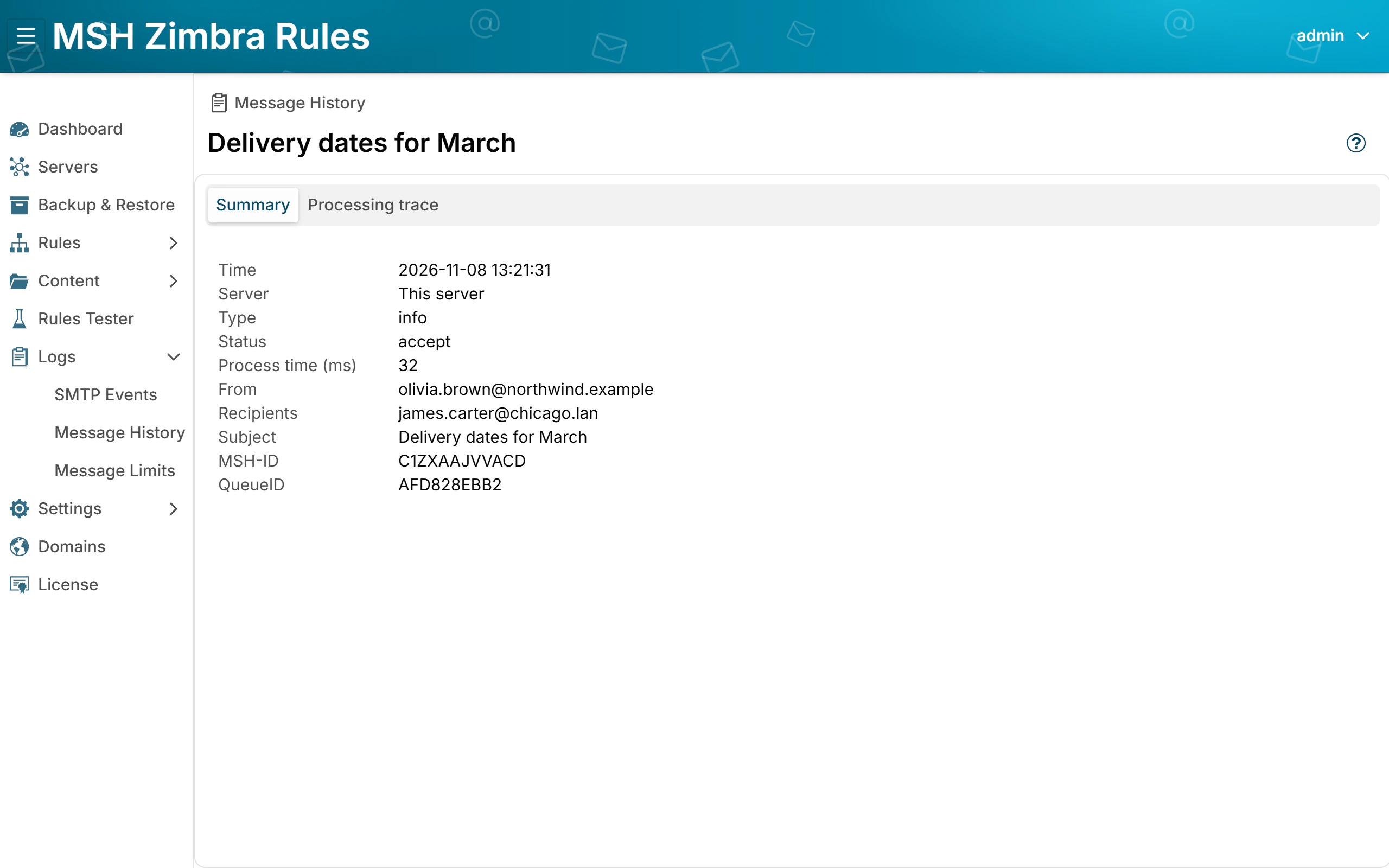
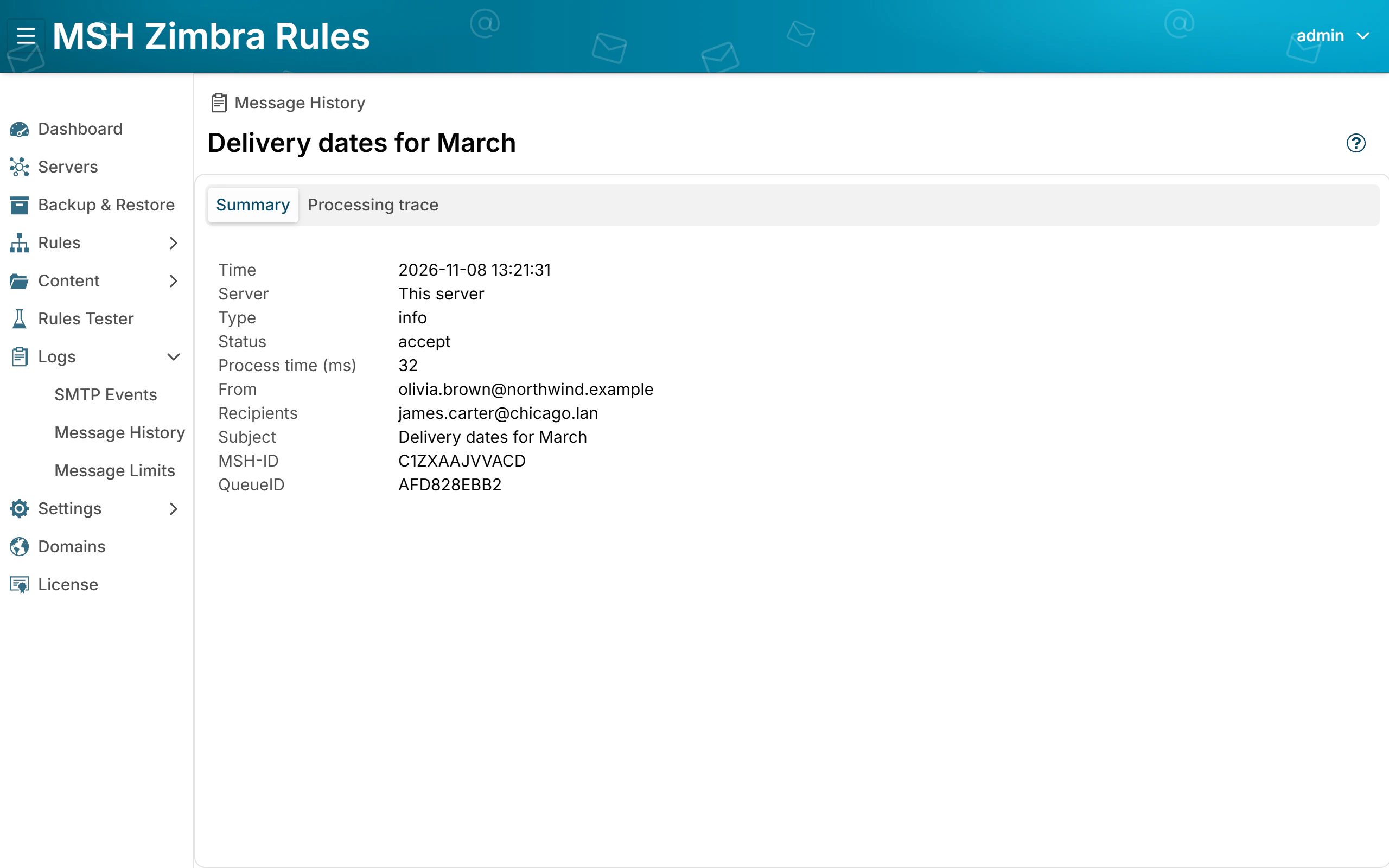
James Carter asks why the subject of Olivia's message starts with [EXTERNAL], when
Olivia says she did not write it. The entry has two tabs:
- Summary - when the message was processed, its Status, the sender, the
Recipients and the subject. Status
acceptmeans the message went on to Zimbra, with any changes the rules made. - Processing trace - every rule that was checked, in order, and the actions that ran.
The trace is long, a few hundred lines for one message, because it lists every condition of every rule. Read it from the bottom:
- Find
-- Executing --. Below it are the actions that really ran, oneAction -->line each, with what they changed. - For each action, look up which rule it belongs to. A rule that acted ends with
'<rule name>' applied. Continue processing., and the lines above it show the conditions that matched. A rule that did nothing ends withnot applied.
Copy to clipboard copies the whole trace, so you can search it in an editor or attach it to a ticket.
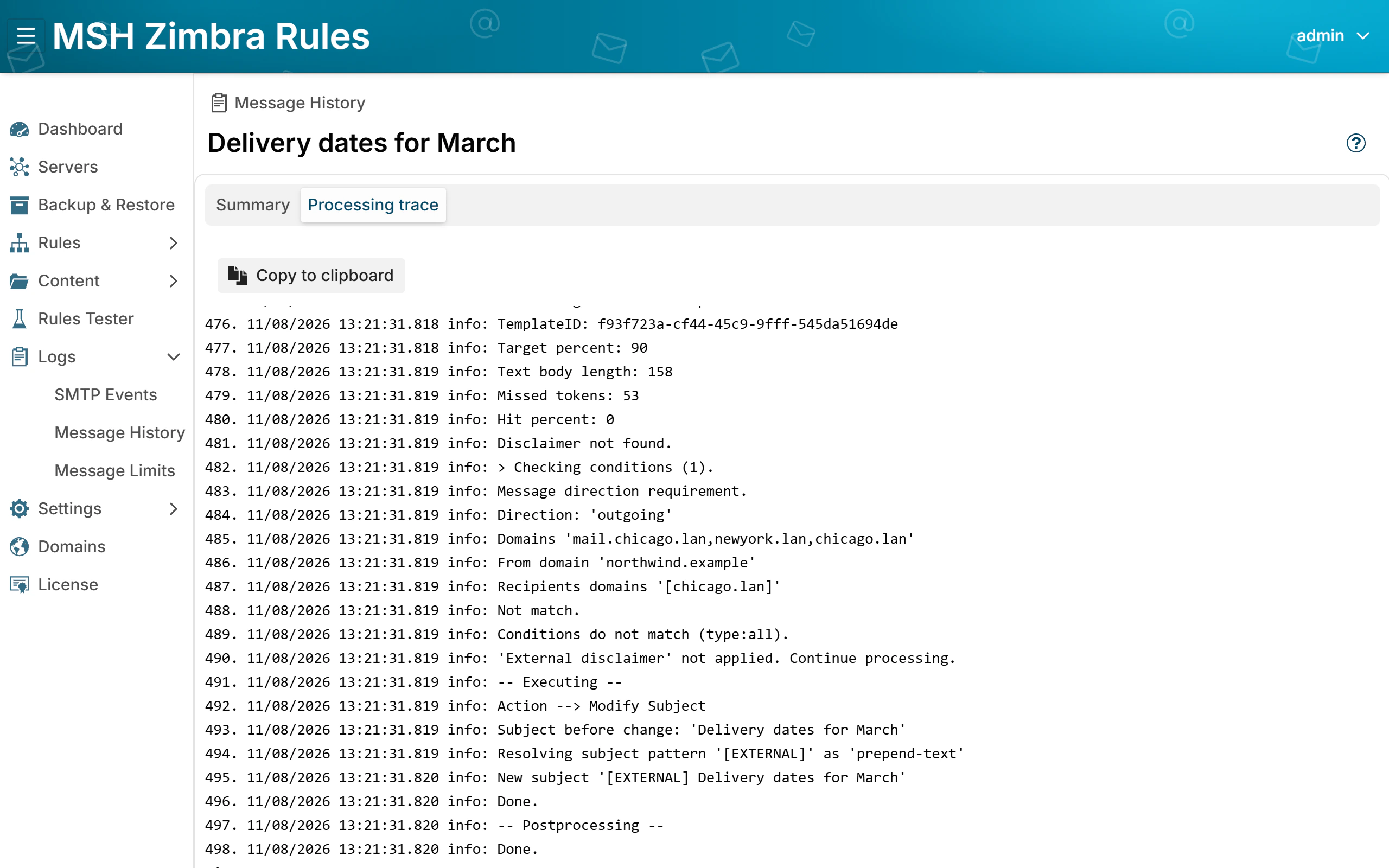
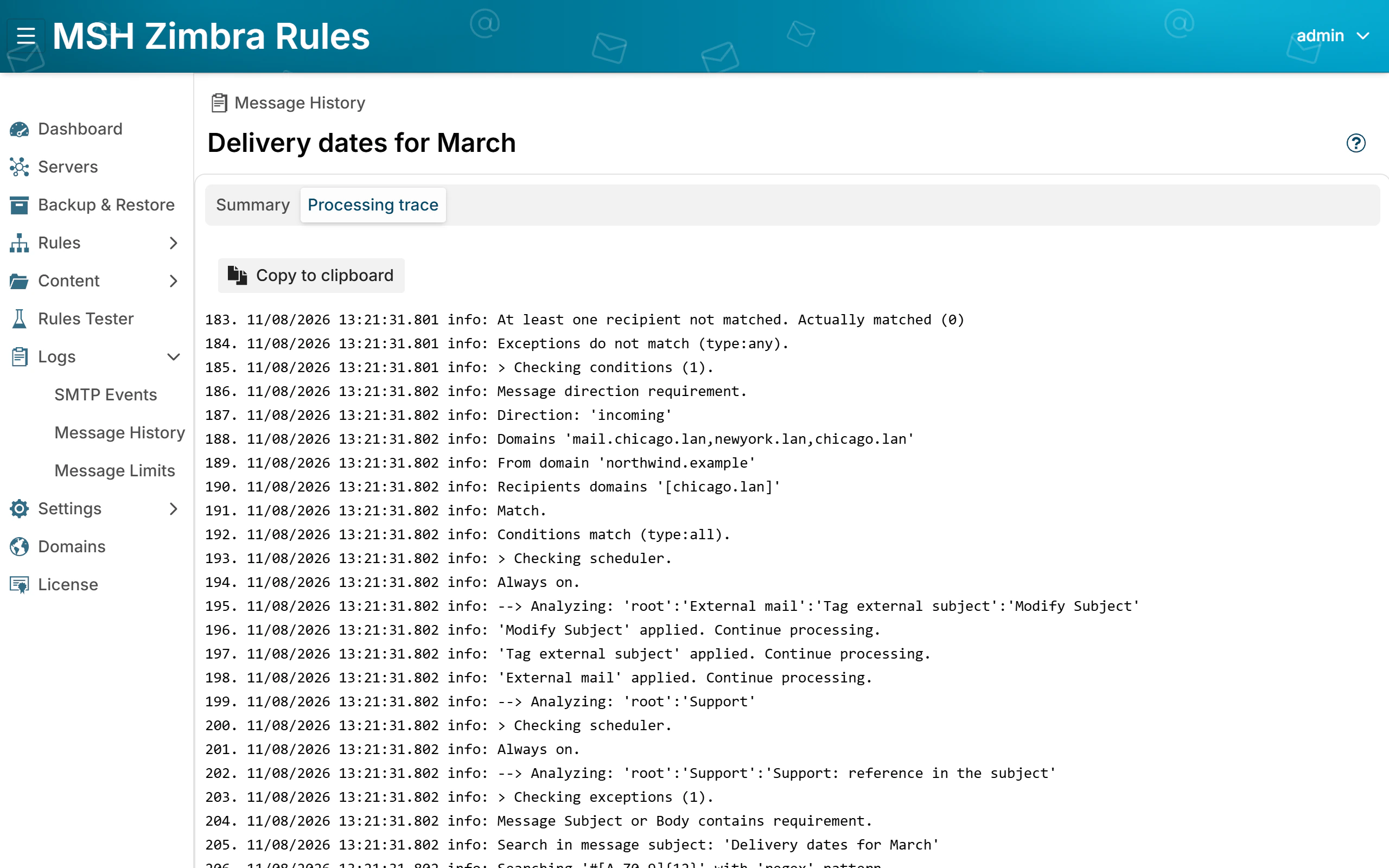
The answer for James: the tag is added by the company's own rule to every message from outside, as a warning. Olivia's mail is genuine. If James finds the tag useless for a partner he writes to every day, that is a request for the rule's owner, not a fault.
Step 3 - Common answers
"Why does my message have this banner?"
James's reply to Olivia went out with a webinar banner, his Sales signature and a legal disclaimer at the bottom, and Olivia asks whether James really added them. Search for the subject of the reply, open it and go to Executing again: three actions ran, two Add Signature and one Add Disclaimer. Above them, the trace names the rules:
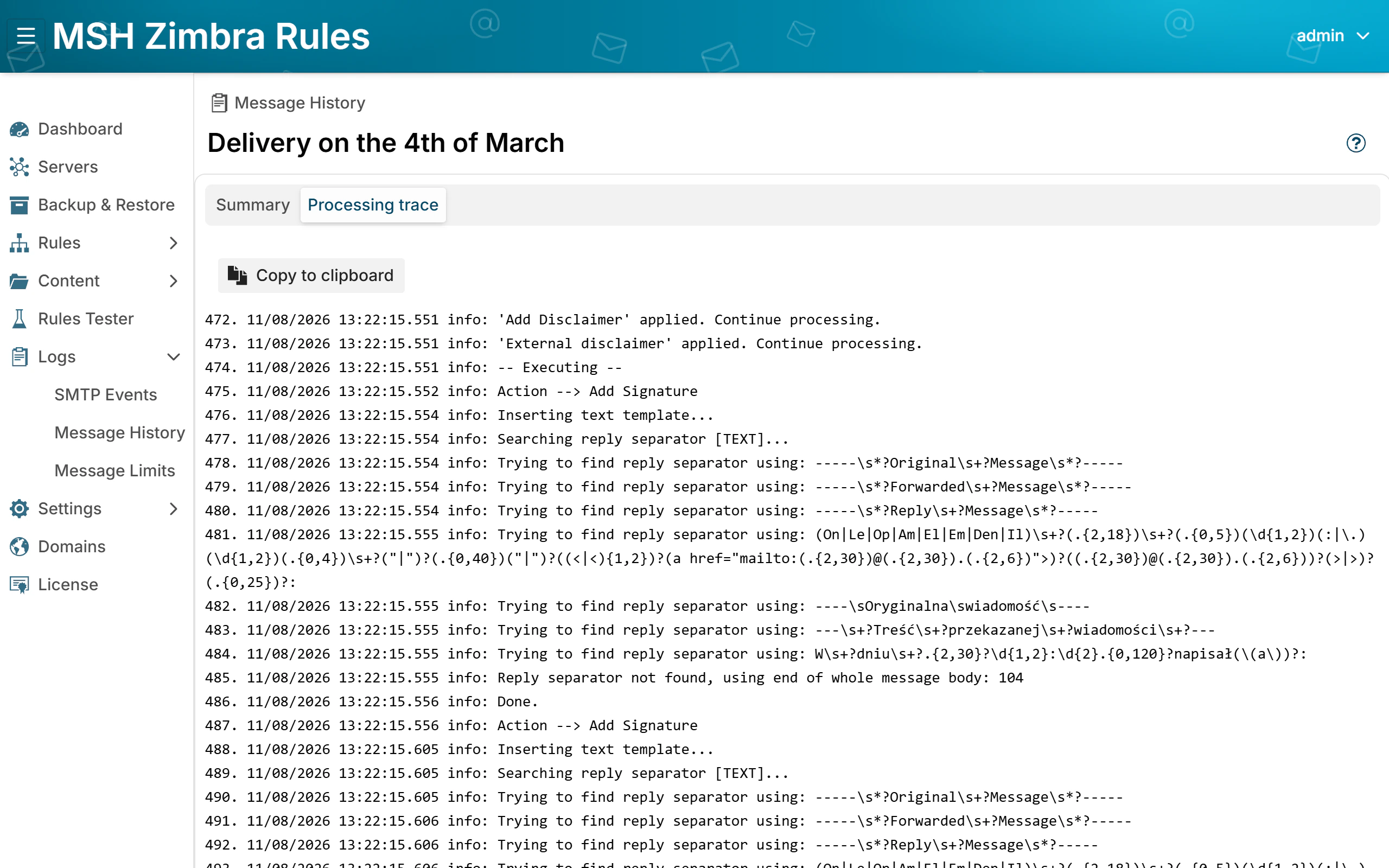
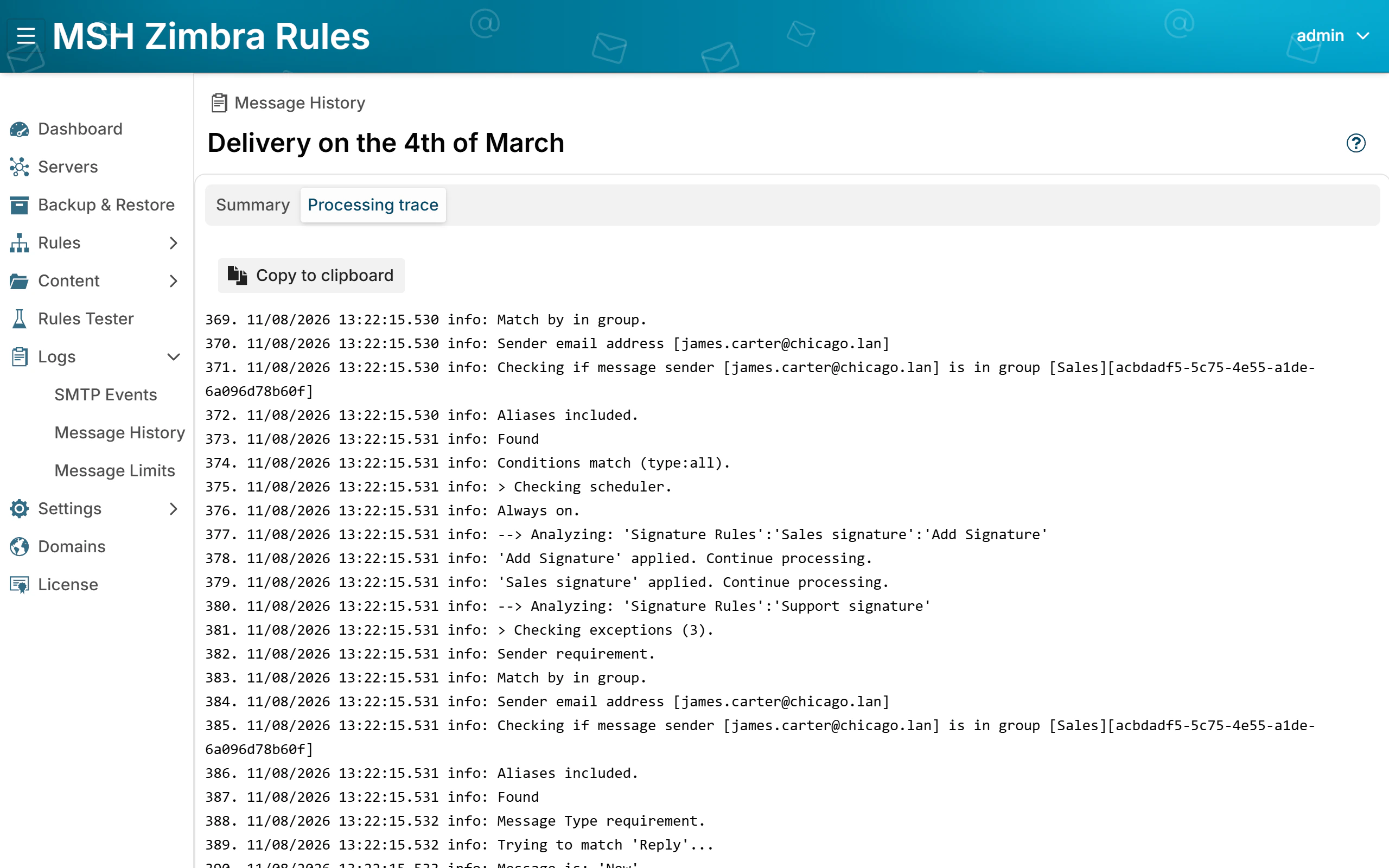
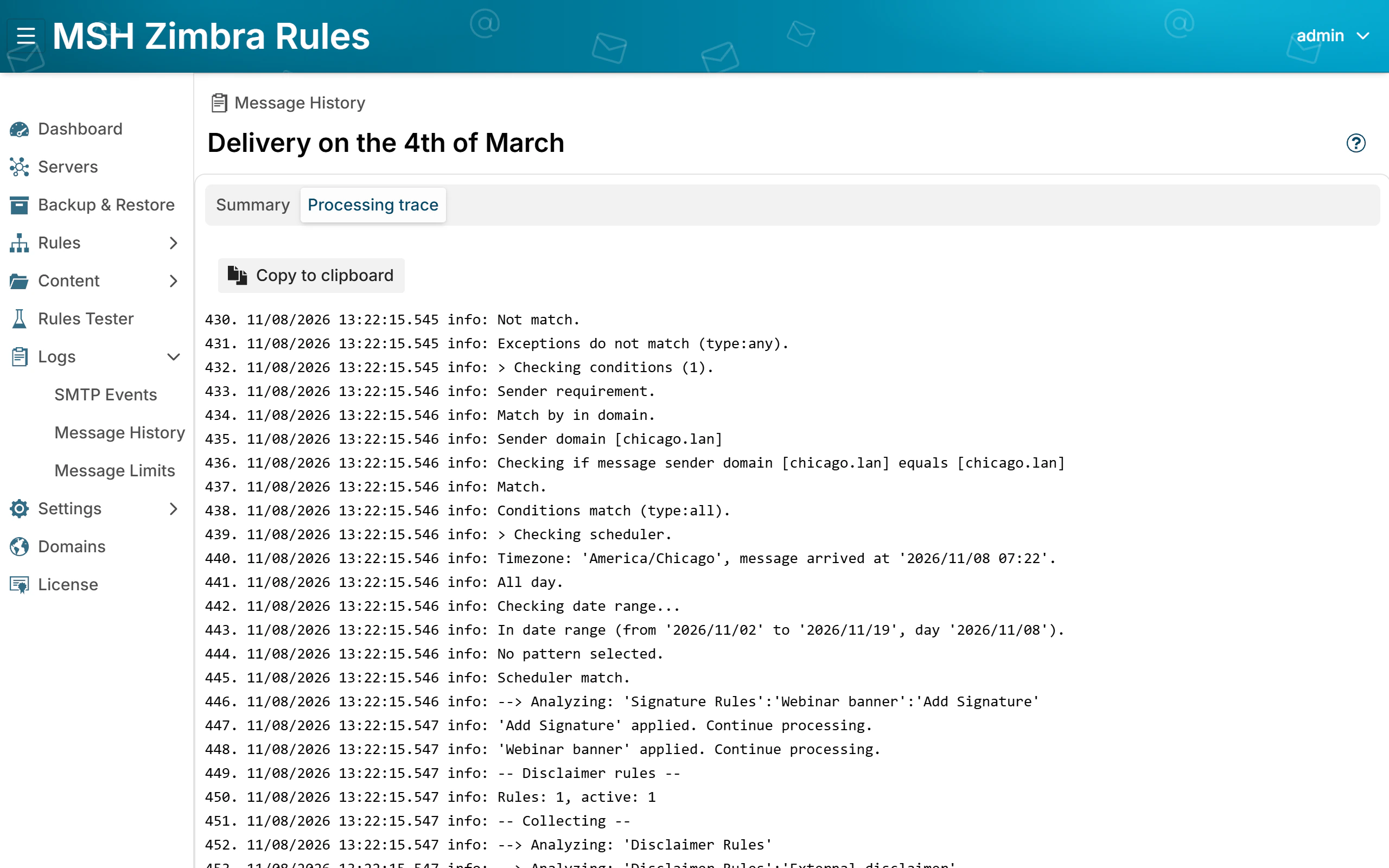
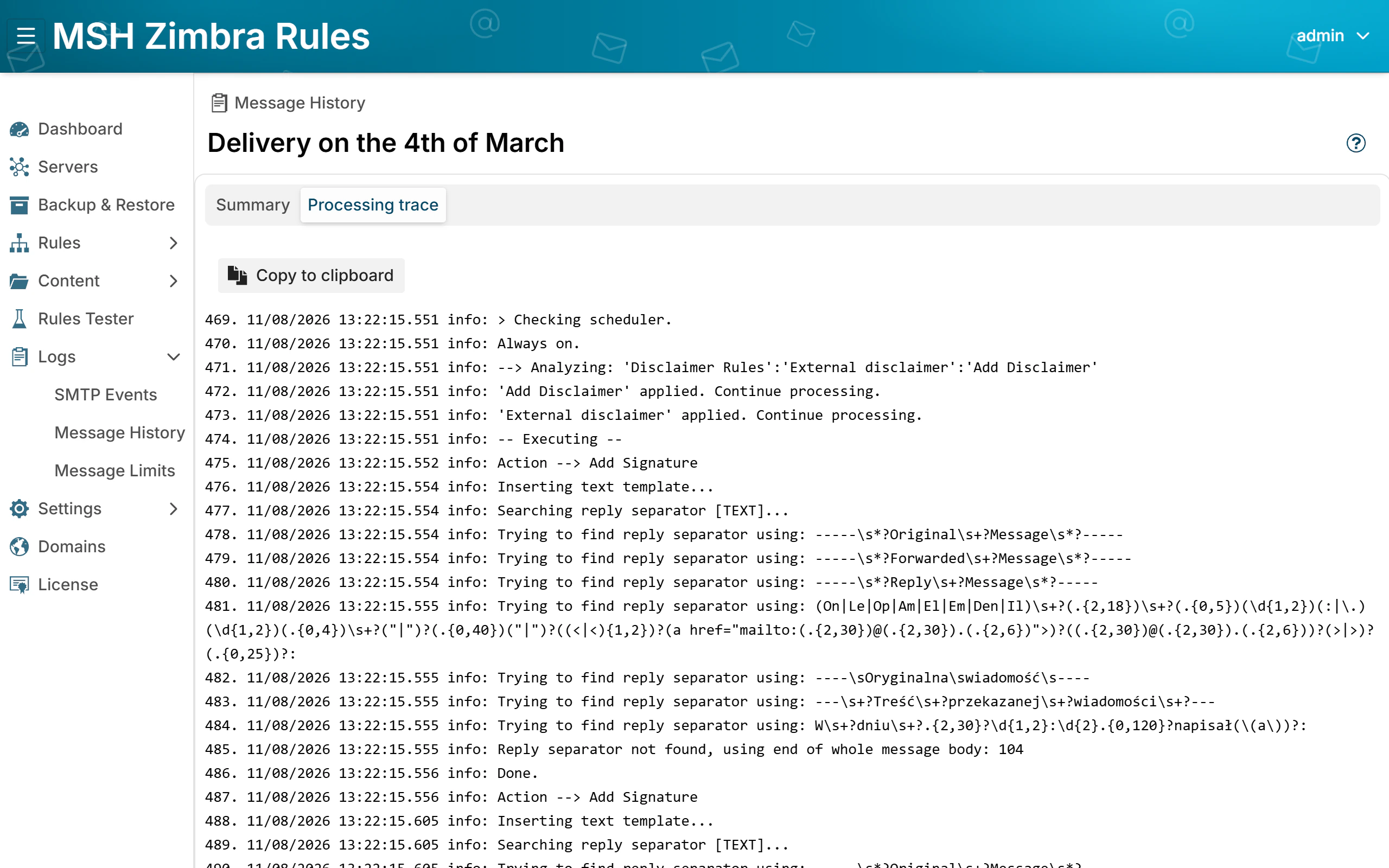
The answer for Olivia: James did not add them himself, the company's rules add them to mail from Sales, and the banner only until 19 November. If James thinks the banner does not belong on mail to a customer he already works with, that is a question for the owner of the Webinar banner rule.
"My customer's mail bounced"
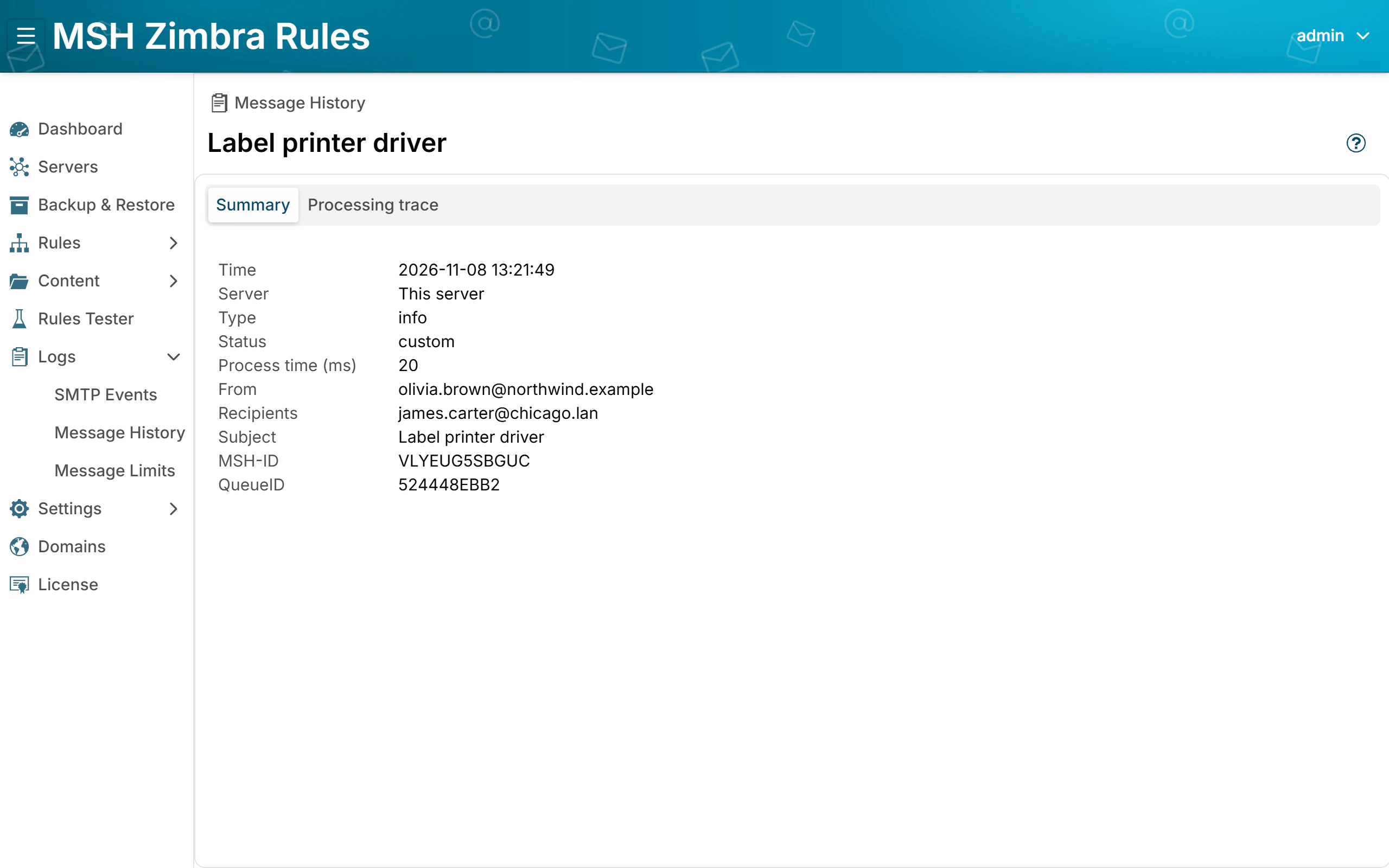
Olivia sent James a driver for the label printer, and it bounced. Search for printer or
for her address. The Summary of the message shows Status custom: the message was
not delivered, and the sender got a reply the rule wrote. The other values are reject,
discard and tempfail, see
Block message.
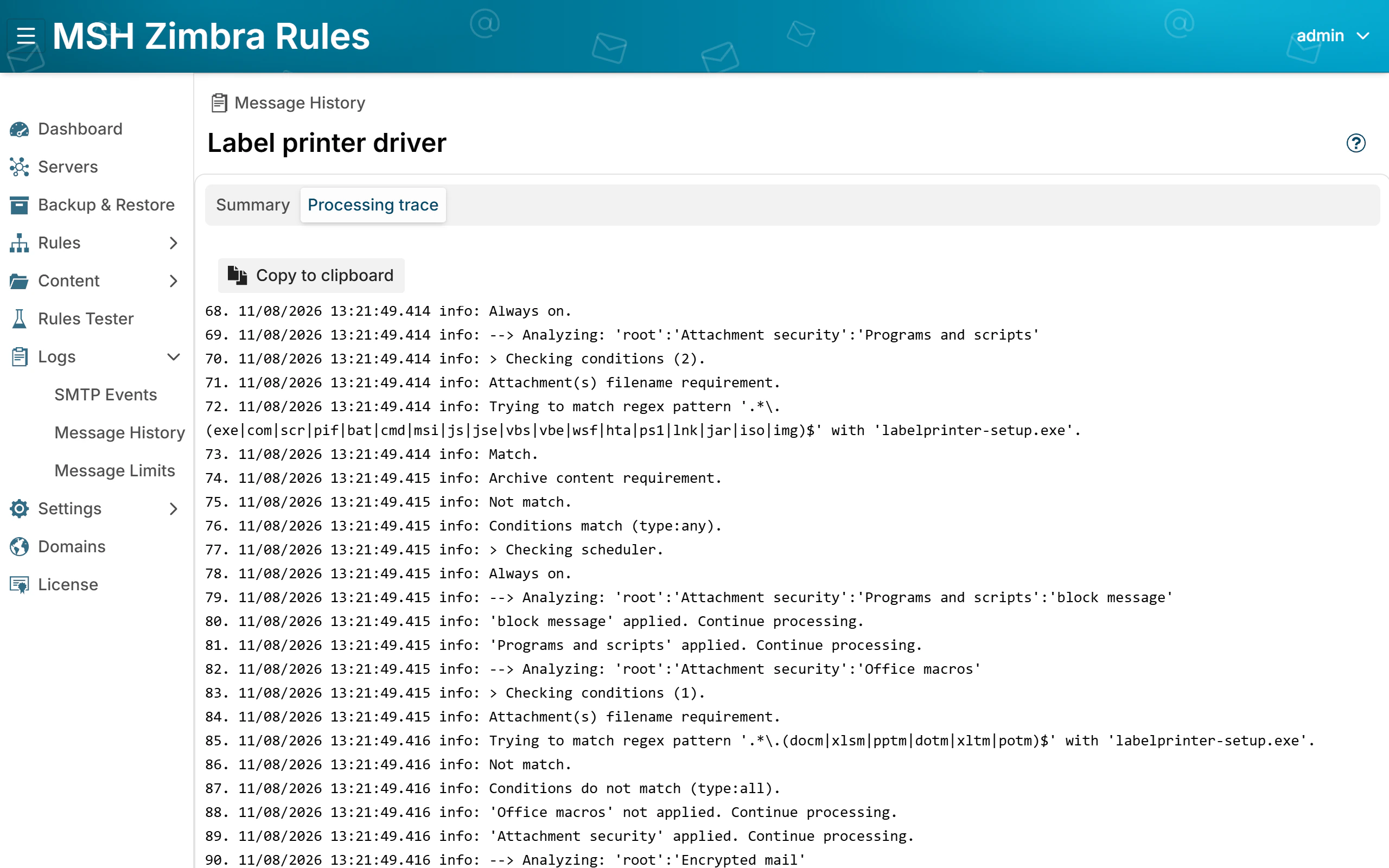
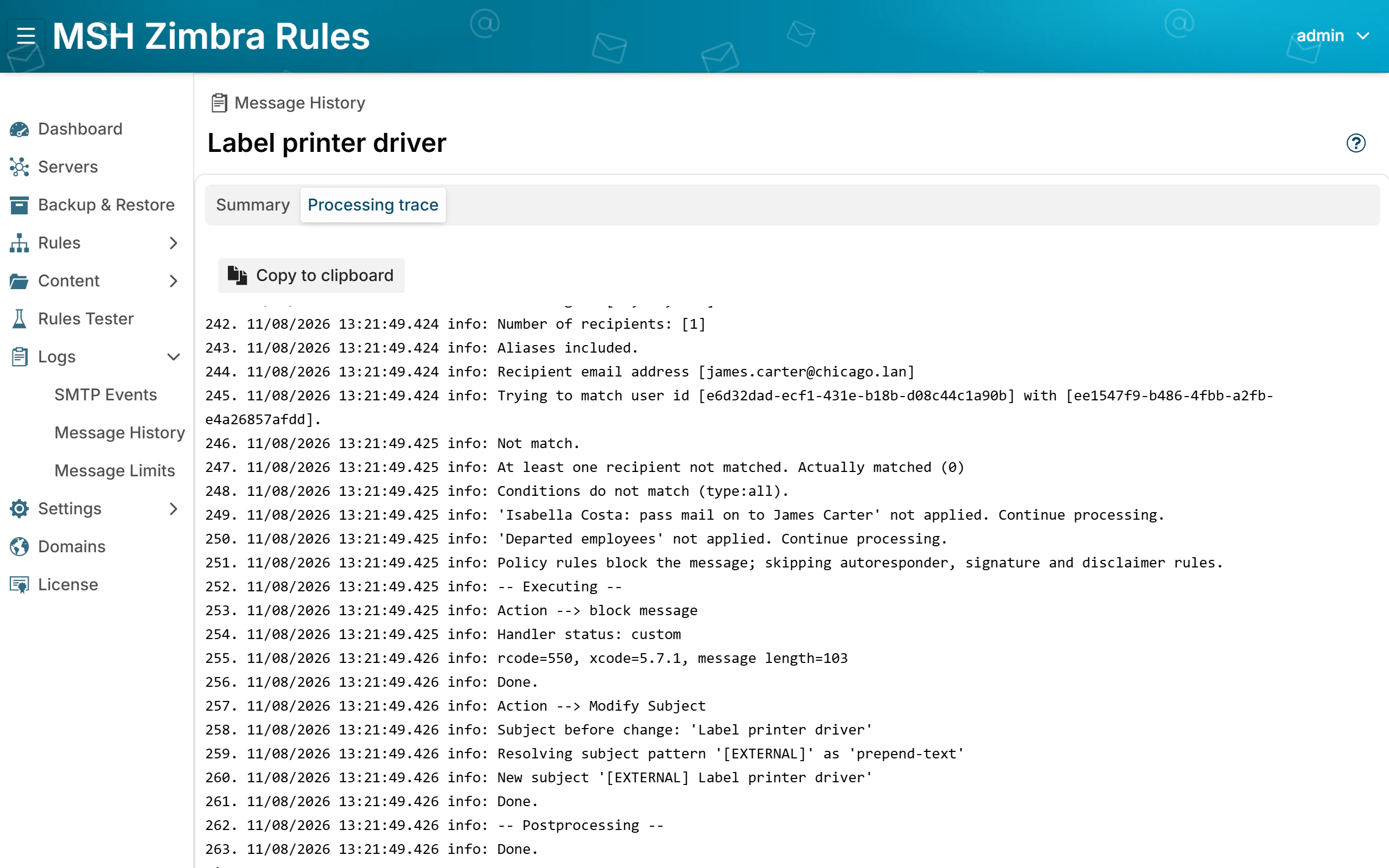
The trace gives the code of the reply, not its text. The text is in the rule's Block message action, and in the mail log of the server, on the line with the QueueID of the message:
grep 524448EBB2 /var/log/zimbra.log
Nov  8 13:21:49 mail postfix/smtpd[3541996]: 524448EBB2: client=localhost[127.0.0.1]
Nov  8 13:21:49 mail postfix/cleanup[3542004]: 524448EBB2: message-id=<179414410928.3542072.9093070256100062785@northwind.example>
Nov  8 13:21:49 mail postfix/cleanup[3542004]: 524448EBB2: milter-reject: END-OF-MESSAGE from localhost[127.0.0.1]: 5.7.1 Rejected: programs and scripts are not accepted as attachments. Share the file through a download link.; from=<olivia.brown@northwind.example> to=<james.carter@chicago.lan> proto=ESMTP helo=<mail.northwind.example>
The answer for Olivia: programs are not accepted by mail, so she should send a download link instead, as the reply already told her.
"I sent it, but James never got it"
Olivia says she sent James the delivery note, and James has nothing. The Summary
shows Status accept and the recipient Olivia typed: james.carterr@chicago.lan,
with a second r.
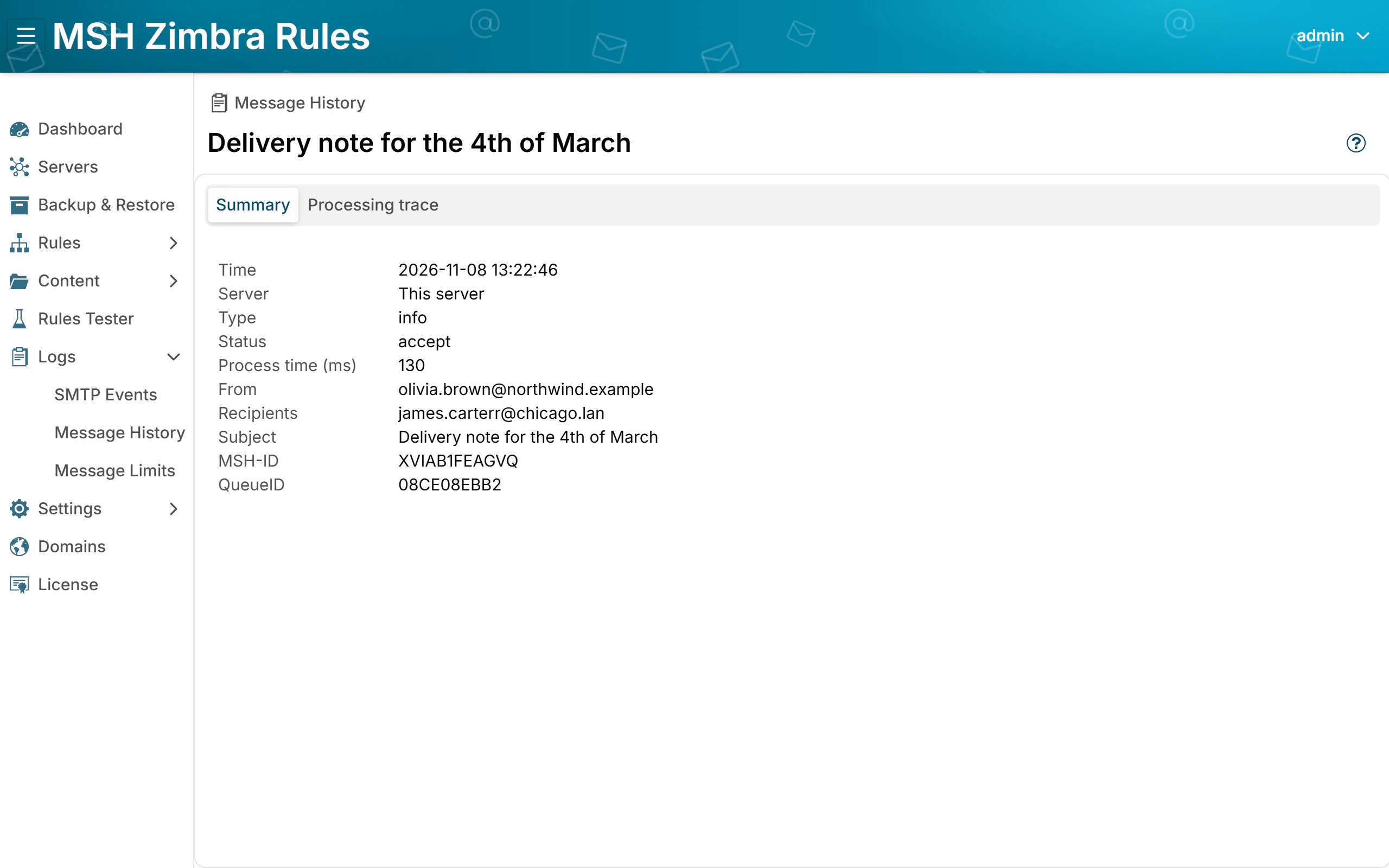
Status accept only means the rules let the message through. What Zimbra did with it
afterwards is in the mail log. Search for the address:
grep 'james.carterr@chicago.lan' /var/log/zimbra.log | grep status=
Nov  8 13:22:49 mail postfix/smtp[3542012]: 08CE08EBB2: to=<james.carterr@chicago.lan>, relay=127.0.0.1[127.0.0.1]:10026, delay=3.8, delays=0.95/0.03/0.03/2.8, dsn=2.0.0, status=sent (250 2.0.0 from MTA(smtp:[127.0.0.1]:10030): 250 2.0.0 Ok: queued as 888908ED4B)
Nov  8 13:22:53 mail postfix/smtp[3542005]: 888908ED4B: to=<james.carterr@chicago.lan>, relay=127.0.0.1[127.0.0.1]:10032, delay=5.2, delays=1.2/0.03/0.15/3.9, dsn=2.0.0, status=sent (250 2.0.0 from MTA(smtp:[127.0.0.1]:10025): 250 2.0.0 Ok: queued as AFA988EBB2)
Nov  8 13:22:54 mail postfix/error[3542677]: AFA988EBB2: to=<james.carterr@chicago.lan>, relay=none, delay=1.6, delays=0.71/0.62/0/0.23, dsn=5.0.0, status=bounced (chicago.lan)
The first line has the QueueID from Message History, 08CE08EBB2. The message passes
the content filters of Zimbra and gets a new queue ID each time (queued as), until the
last line: status=bounced. There is no such mailbox, and the server sent Olivia a
non-delivery report. She should send the note again to the right address.
"I cannot send"
Aisha says Zimbra will not send her newsletter. A message that the SMTP rules or the limit rules refused never became a message, so it is not in Message History. Look in Logs > SMTP Events instead, which searches the sender, the recipients, the rule and the client address.
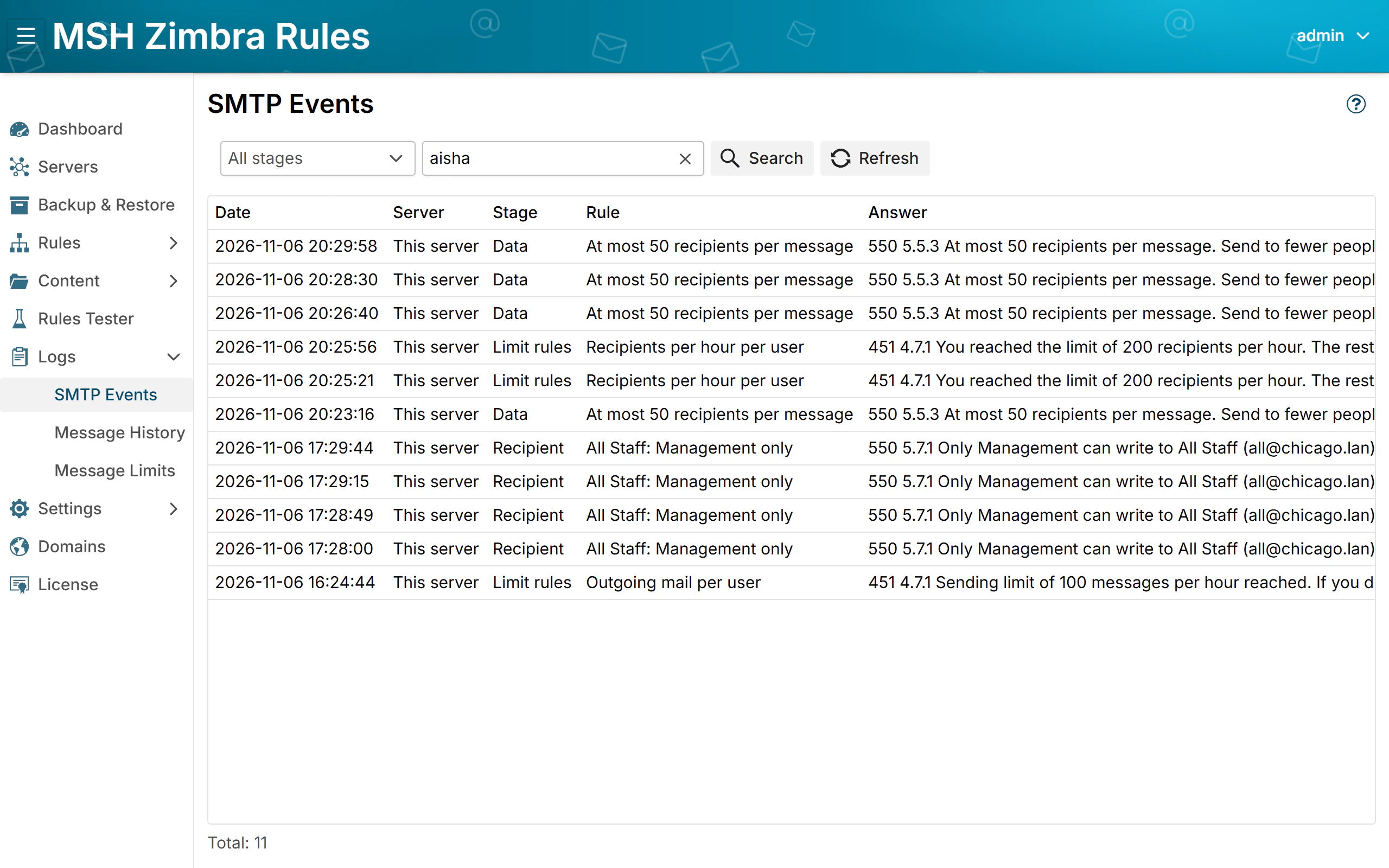
The web client shows Aisha only Could not send message. and keeps the message open, so the reply in Answer is what tells you why. Nothing was queued on the server:
- A
451is temporary. Aisha can send the message again once the counter frees up; Logs > Message Limits shows when. - A
550, like the rule At most 50 recipients per message above it, is final. She has to send to fewer people at a time, or the newsletter has to go out another way, see Throttle newsletters sent from a normal mailbox in Zimbra.
When the message is not in the history at all
If neither Message History nor SMTP Events has the message, check in this order:
-
Is it older than the history? With the default of 1 hour, yesterday's mail is gone. Raise Persist log files for, as in Before you start.
-
Did you search for the recipient? The search does not look at recipients. Search for the sender or the subject.
-
Is the trace filtered? With Store the message processing trace only for a specific sender ticked, other senders are not listed.
-
Did it reach the server at all? Search the mail log on the MTA server for the sender address:
grep 'olivia.brown@northwind.example' /var/log/zimbra.logNo line at all means the message never reached this server: the sender has to check the address and their own outbox. A line with
NOQUEUE: rejectmeans Postfix refused it before the rules saw it, for example for an unknown recipient, and the reason is on that line.
To follow one message, search for its queue ID, and when a line ends with queued as
and another ID, search for that one next, as in the
typing error above.
The mail log on the MTA server is /var/log/zimbra.log. It is readable by root and the
members of the adm group.
Related reading
- Message history - every column of the list and the status values
- SMTP events - what the SMTP rules and the limit rules refused
- Diagnostic logging - turning the history on and how long it is kept
- Test a rule in the Rules Tester before it goes live - the same trace, for a message you write yourself
- Block risky attachments in Zimbra: programs, archives and Office macros - the rule that blocked the driver
- Add a campaign banner to Zimbra signatures for a set time - a banner rule like the webinar banner
Want to try it on your own server? Start a free trial.