Block Risky Attachments in Zimbra: Programs, Archives and Office Macros
Most malware still arrives the old way: an "invoice" that is really a program, a ZIP file with a script inside, or a spreadsheet that asks to enable macros. Nobody needs to receive programs by email, so the simplest defence is to refuse them, wherever they are hidden. With MSH Zimbra Rules, two policy rules do it on the server, before the message reaches any mailbox: one refuses programs and scripts, the other removes macro-enabled Office files and tells the reader why.
What you get
| Attachment | What happens |
|---|---|
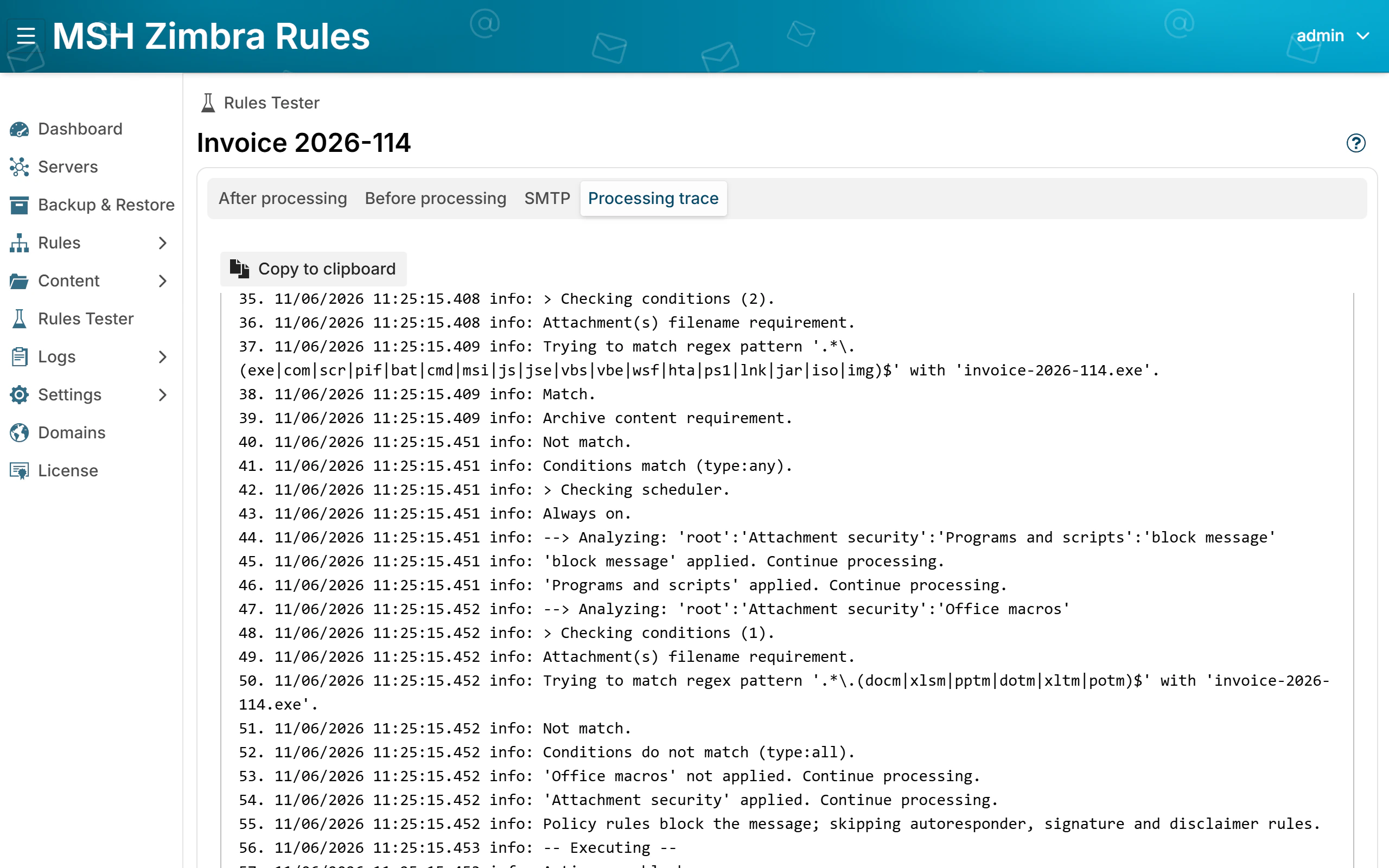
invoice-2026-114.exe | The message is refused with 550 5.7.1 |
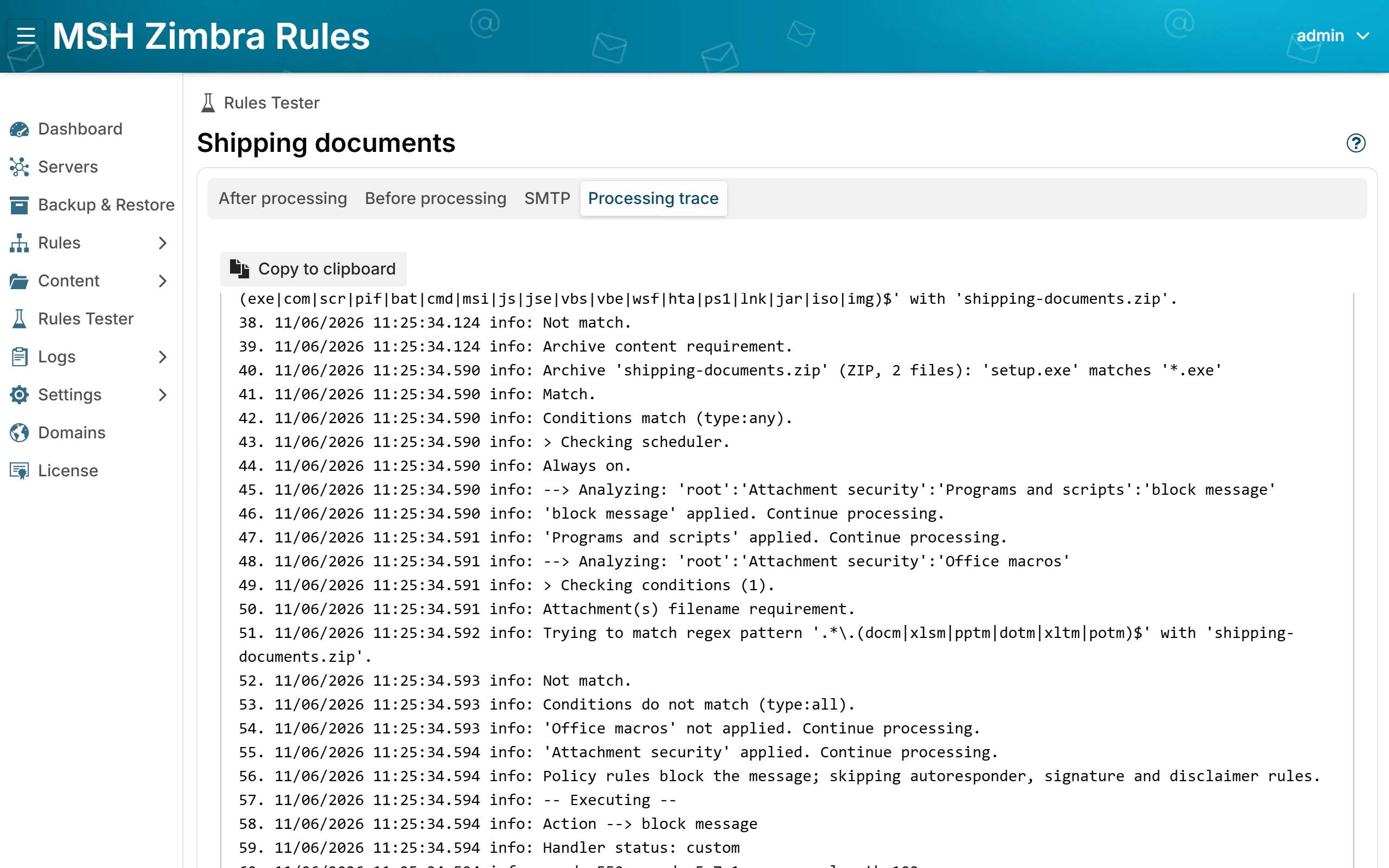
shipping-documents.zip with setup.exe inside | The message is refused, the archive is checked |
A ZIP with statement.pdf that is really a Windows program | The message is refused, the file is recognised by its content |
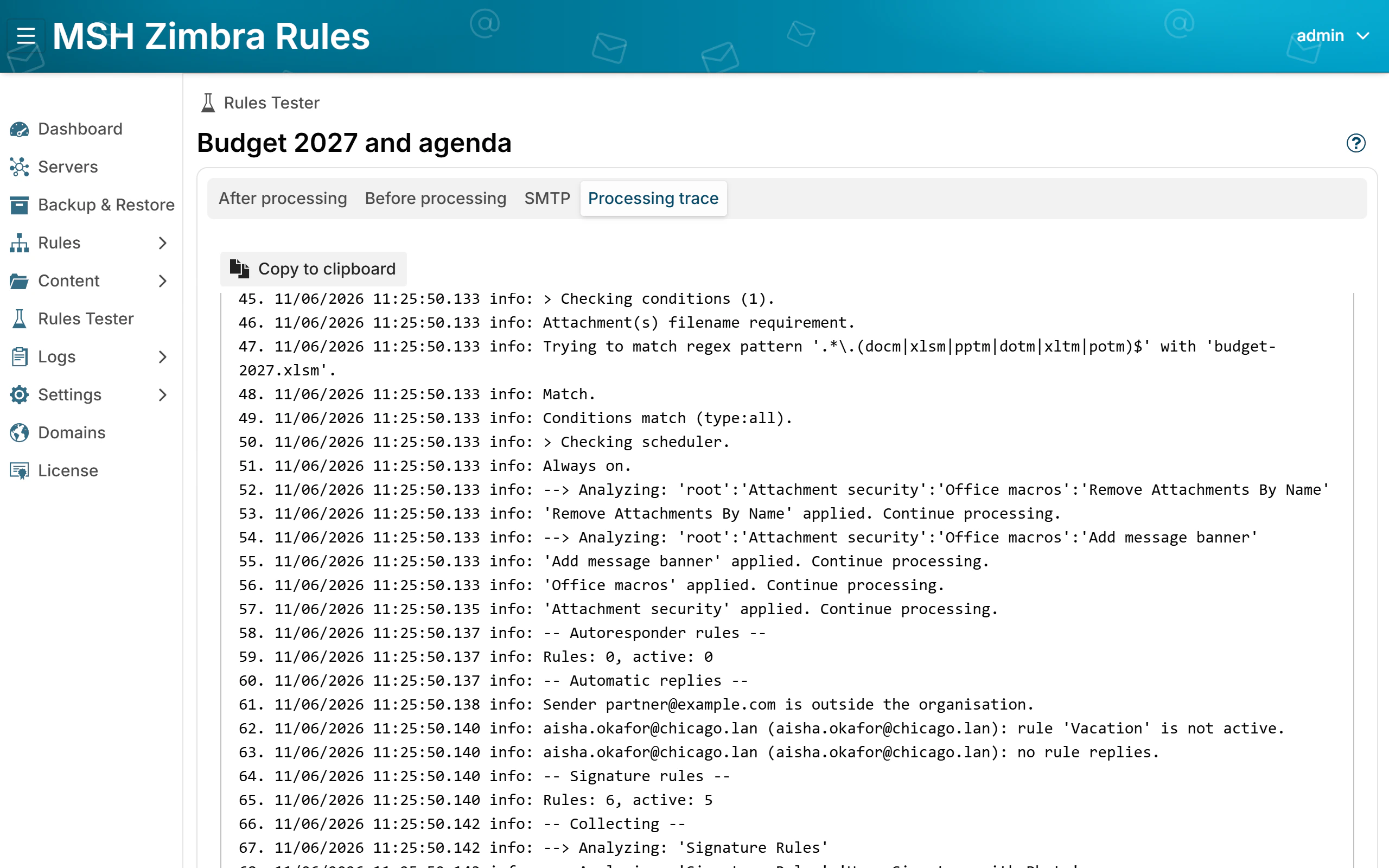
budget-2027.xlsm next to agenda.pdf | The .xlsm is removed, the rest is delivered with a banner |
agenda.pdf, photo.jpg, contract.docx | Delivered as usual |
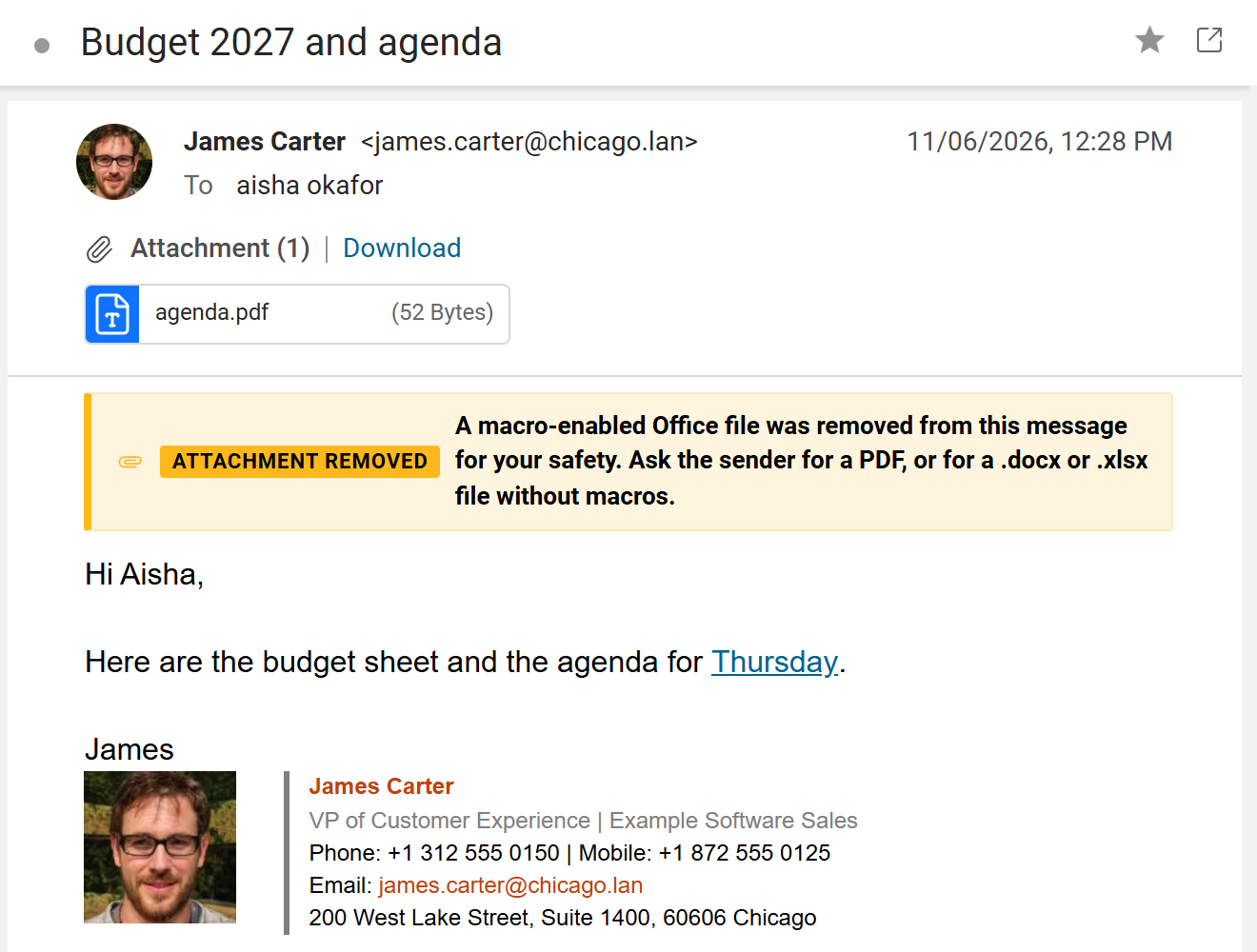
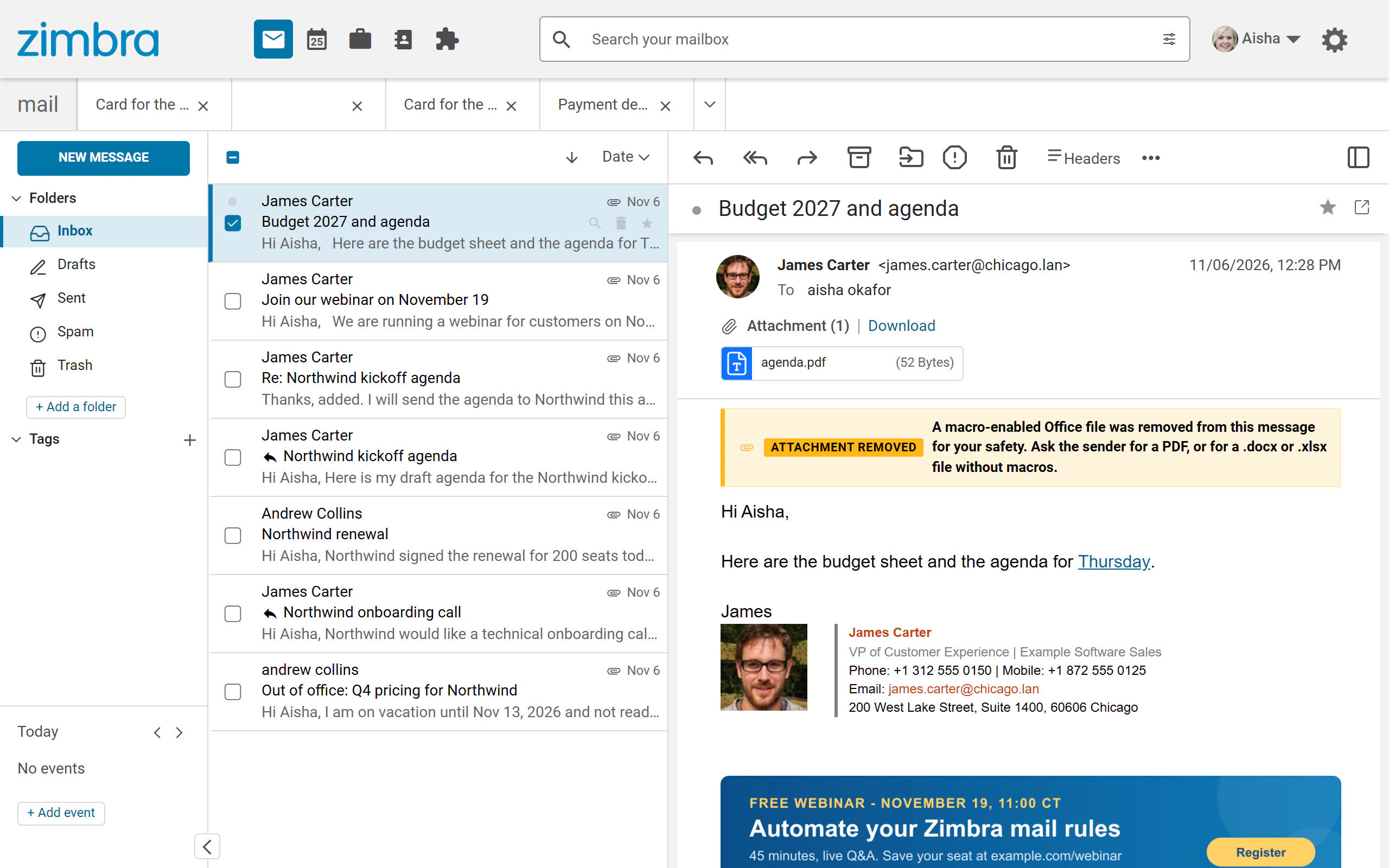
The reader of a message that lost a macro file sees this in the Zimbra web client:
What you will build
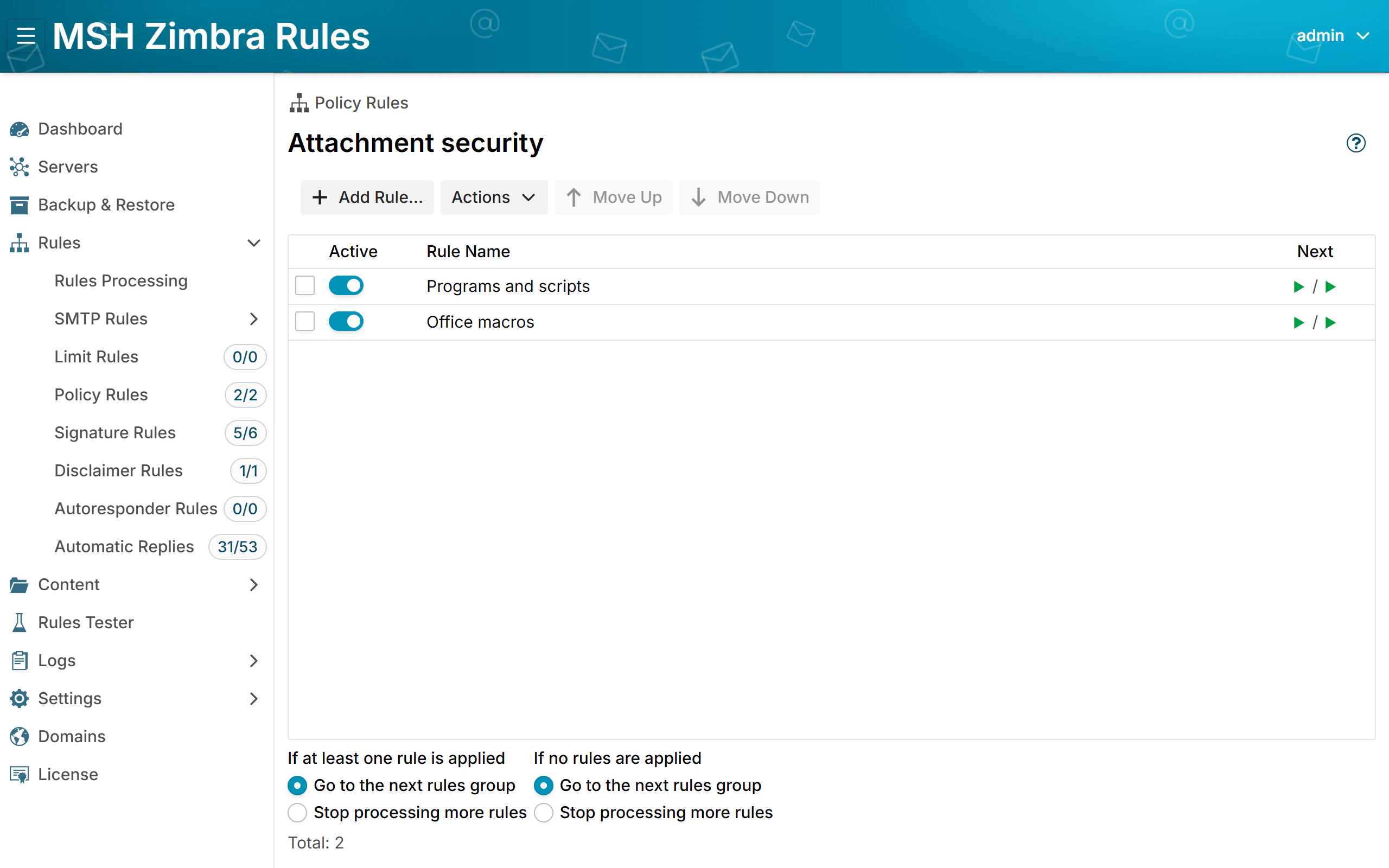
A policy rule group Attachment security with two rules:
| Rule | Conditions (any) | Actions |
|---|---|---|
| Programs and scripts | Attachment name is a program or a script; or an archive holds one | Block, custom 550 5.7.1 with the reason |
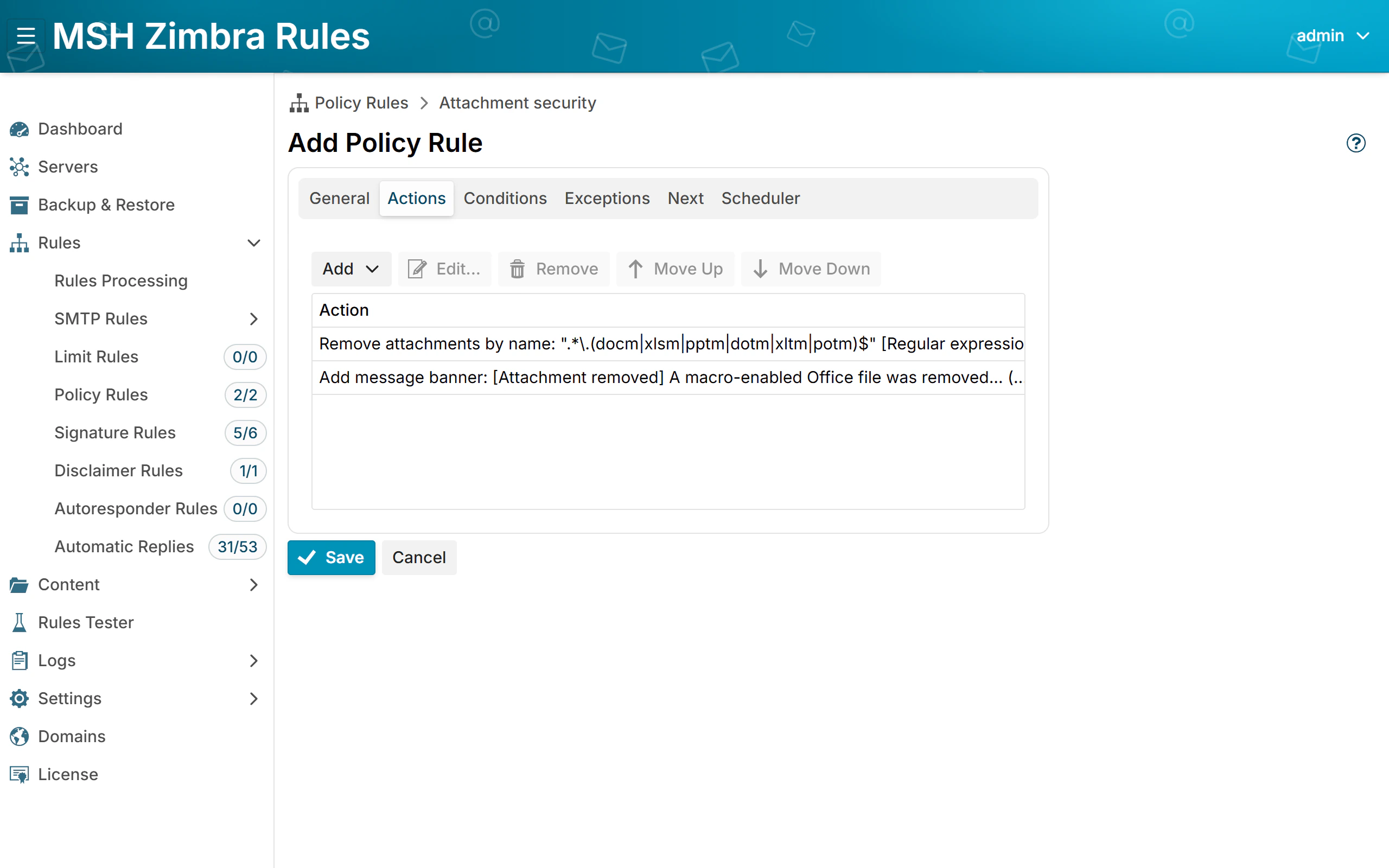
| Office macros | Attachment name ends in .docm, .xlsm, .pptm or a macro template | Remove by name, and Add message banner |
The rules have no direction condition, so they guard incoming, outgoing and internal mail alike: a colleague's infected laptop is as much a risk as a stranger.
Before you start
- MSH Zimbra Rules 1.4 or later, installed on the Zimbra server, see the installation guide.
- The Message Notices zimlets, for the banner in the web client, see Zimlet configuration.
- Harmless test files named like the real thing: a text file renamed to
invoice.exe, a ZIP file with a text file renamed tosetup.exeinside, and a text file renamed tobudget.xlsm. Never test with real malware. - A way to share files that are blocked by email, such as a file share or a download link, so the reject message can point people to it.
Step 1 - Refuse programs and scripts
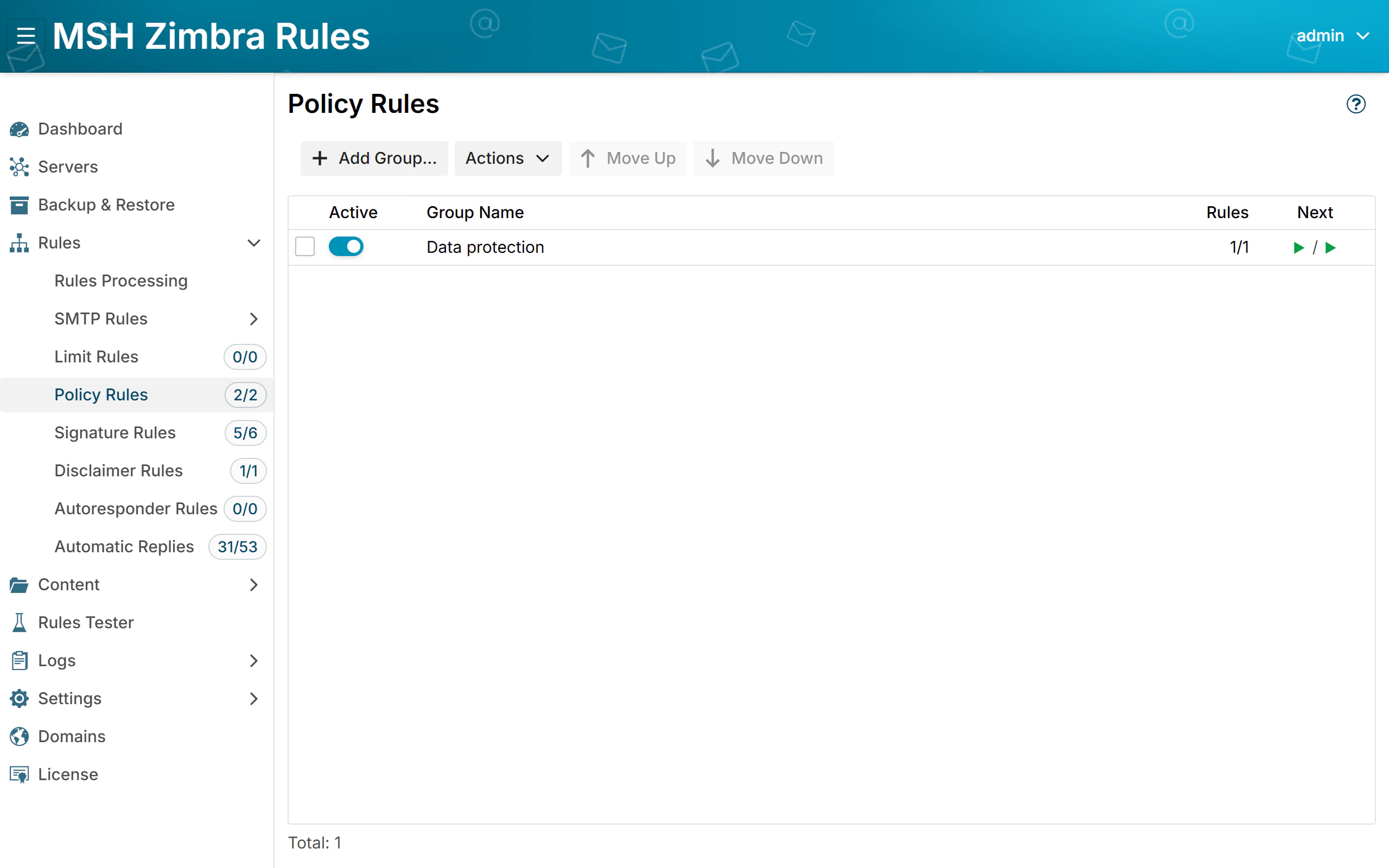
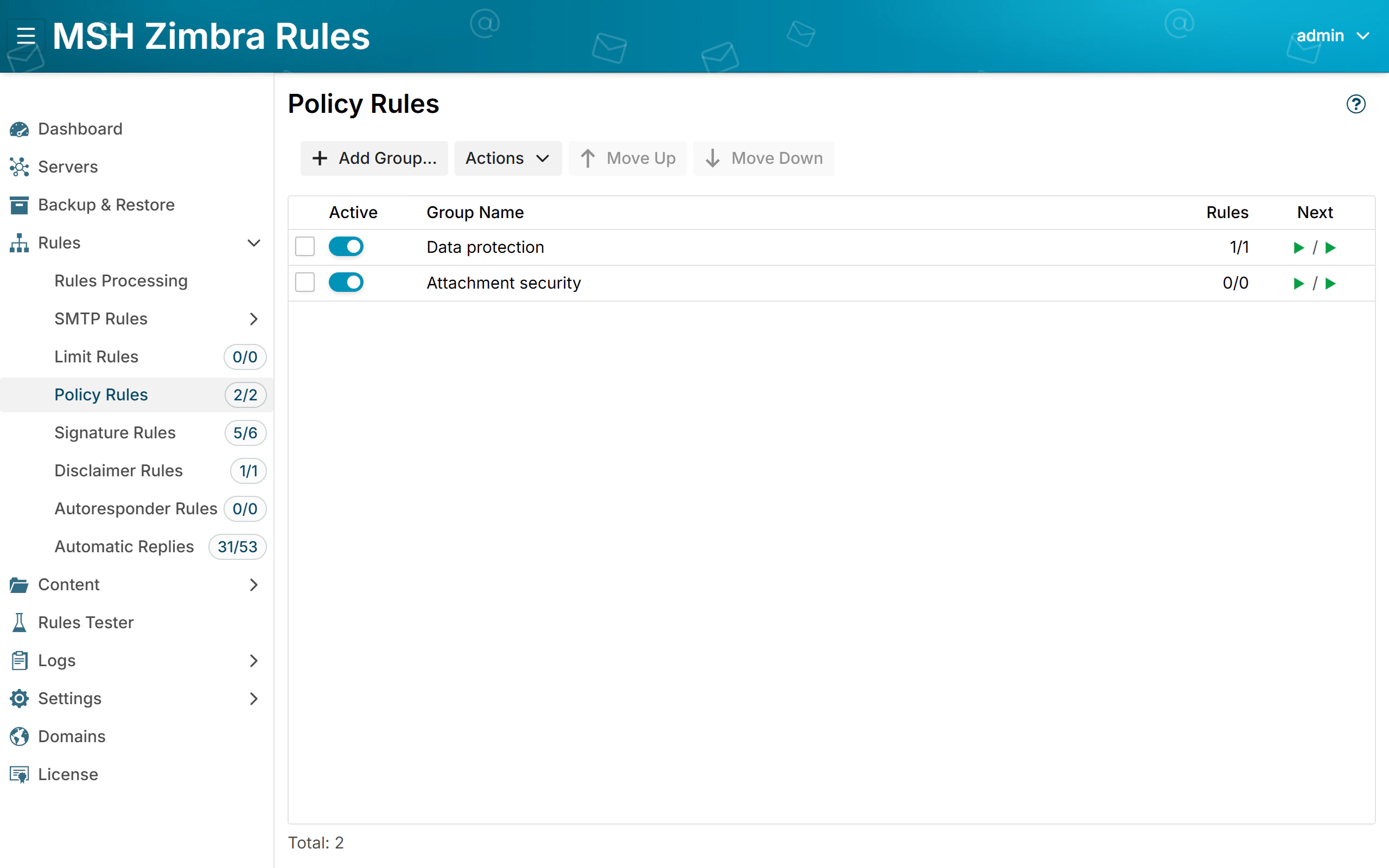
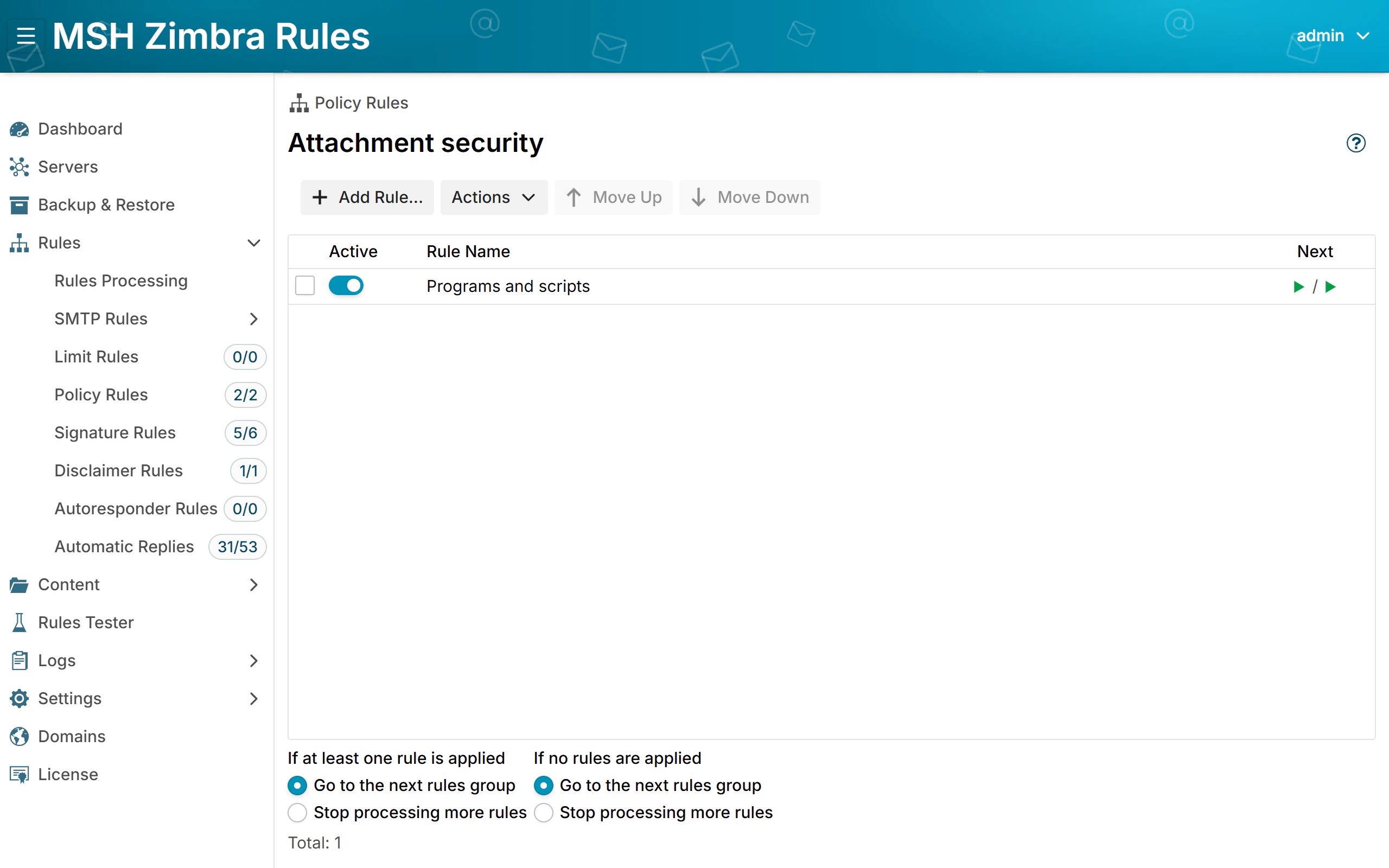
Open Rules > Policy Rules, click Add Group..., name the group
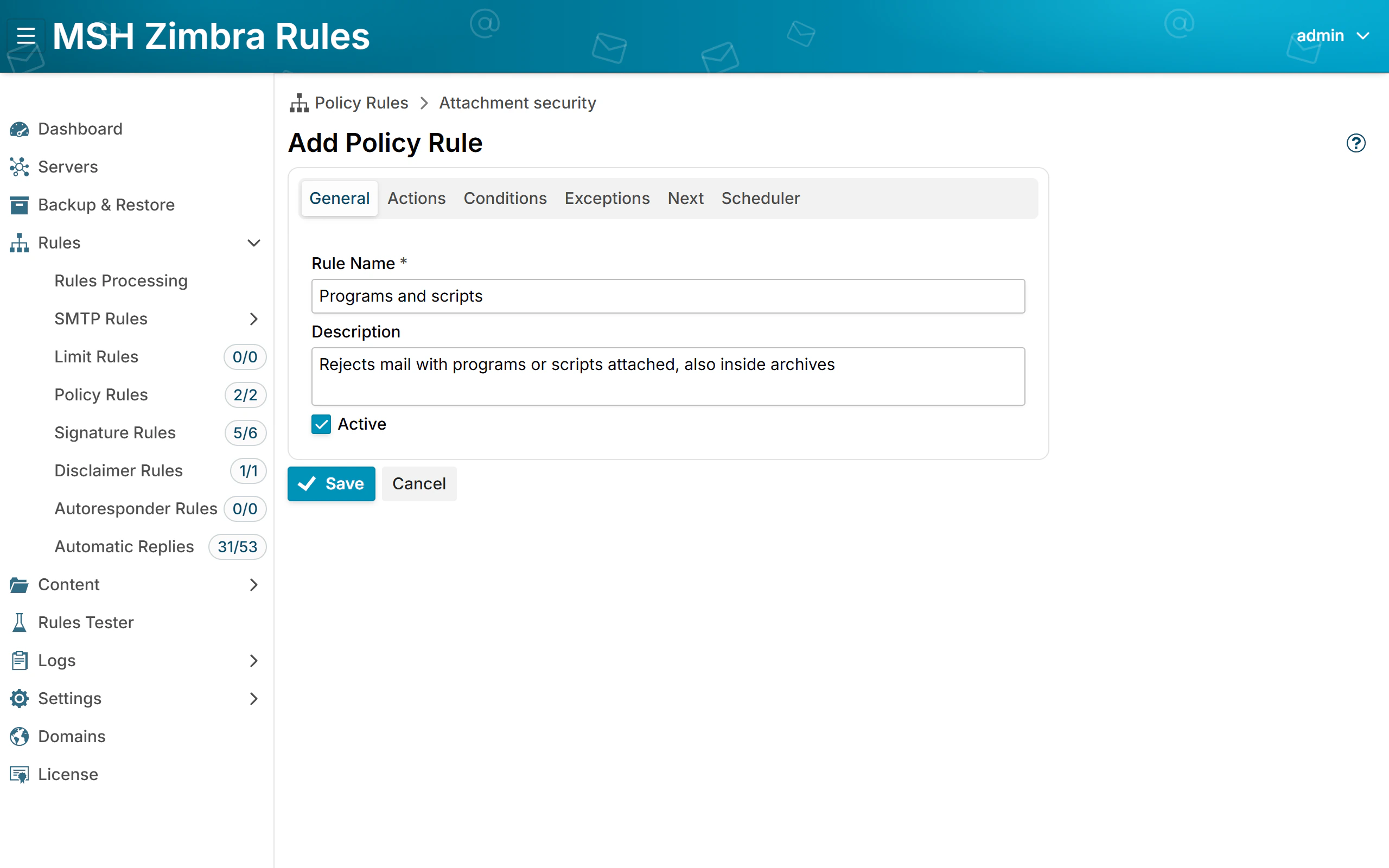
Attachment security and save it. Double-click it, click Add Rule... and name the
rule Programs and scripts.
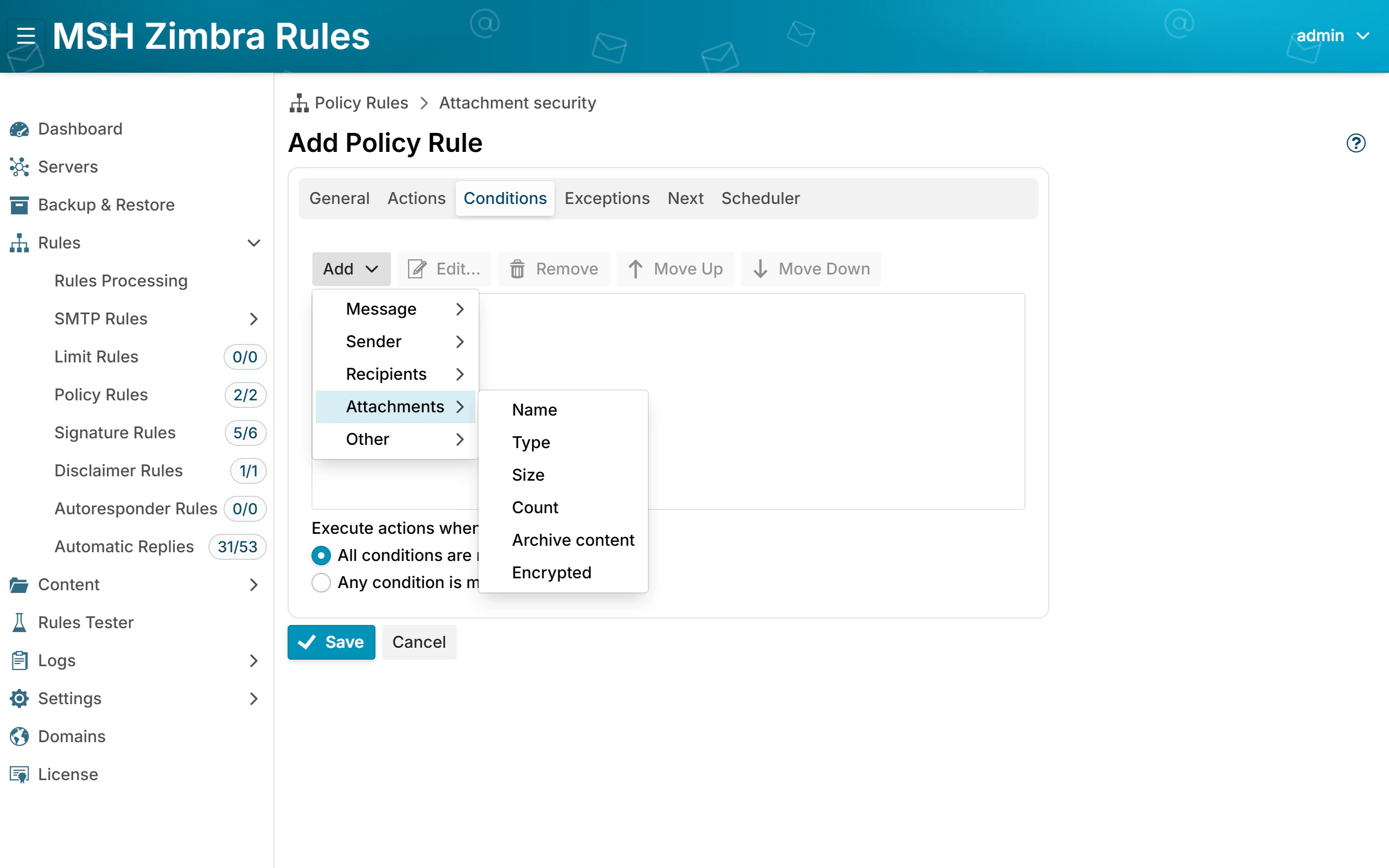
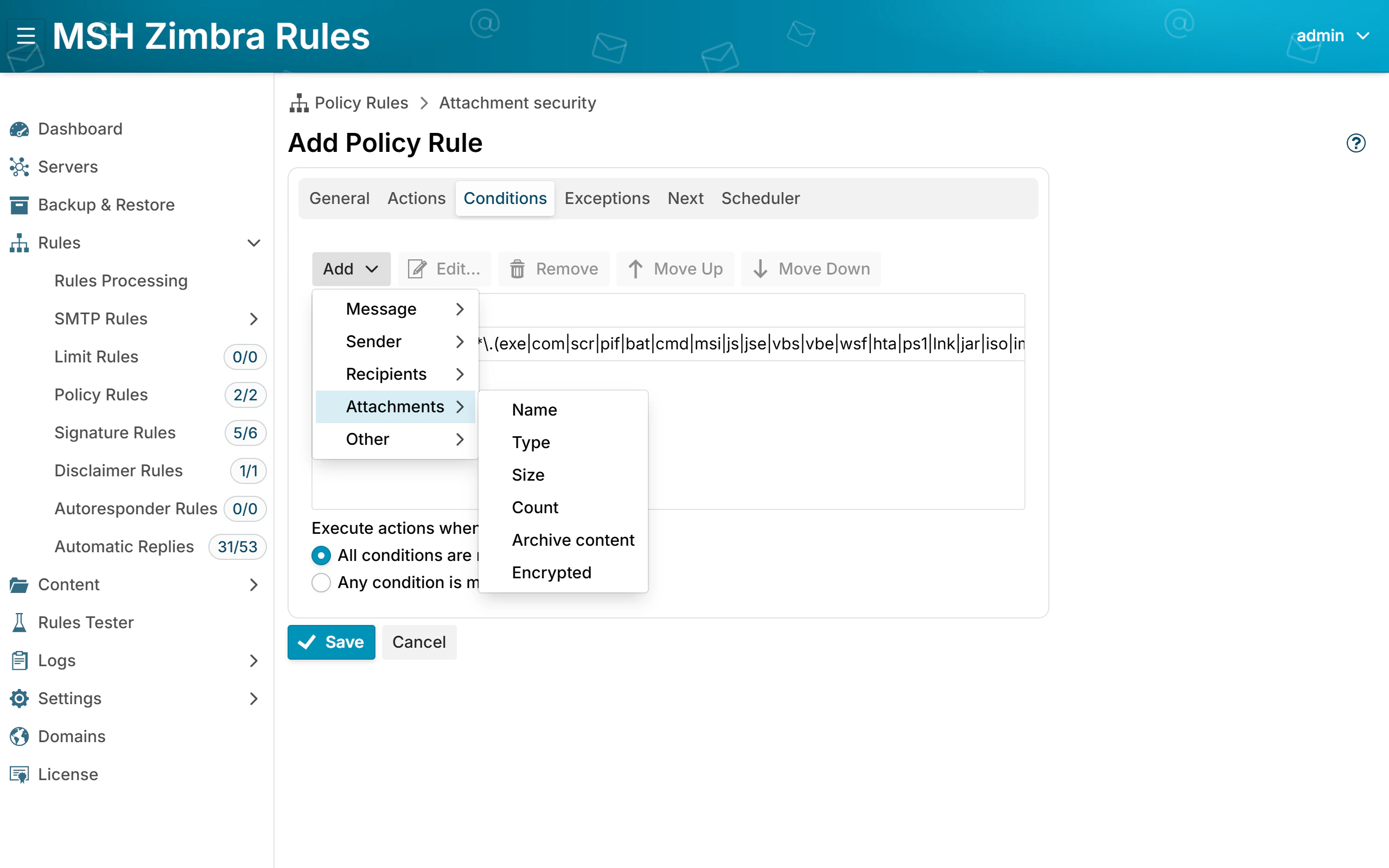
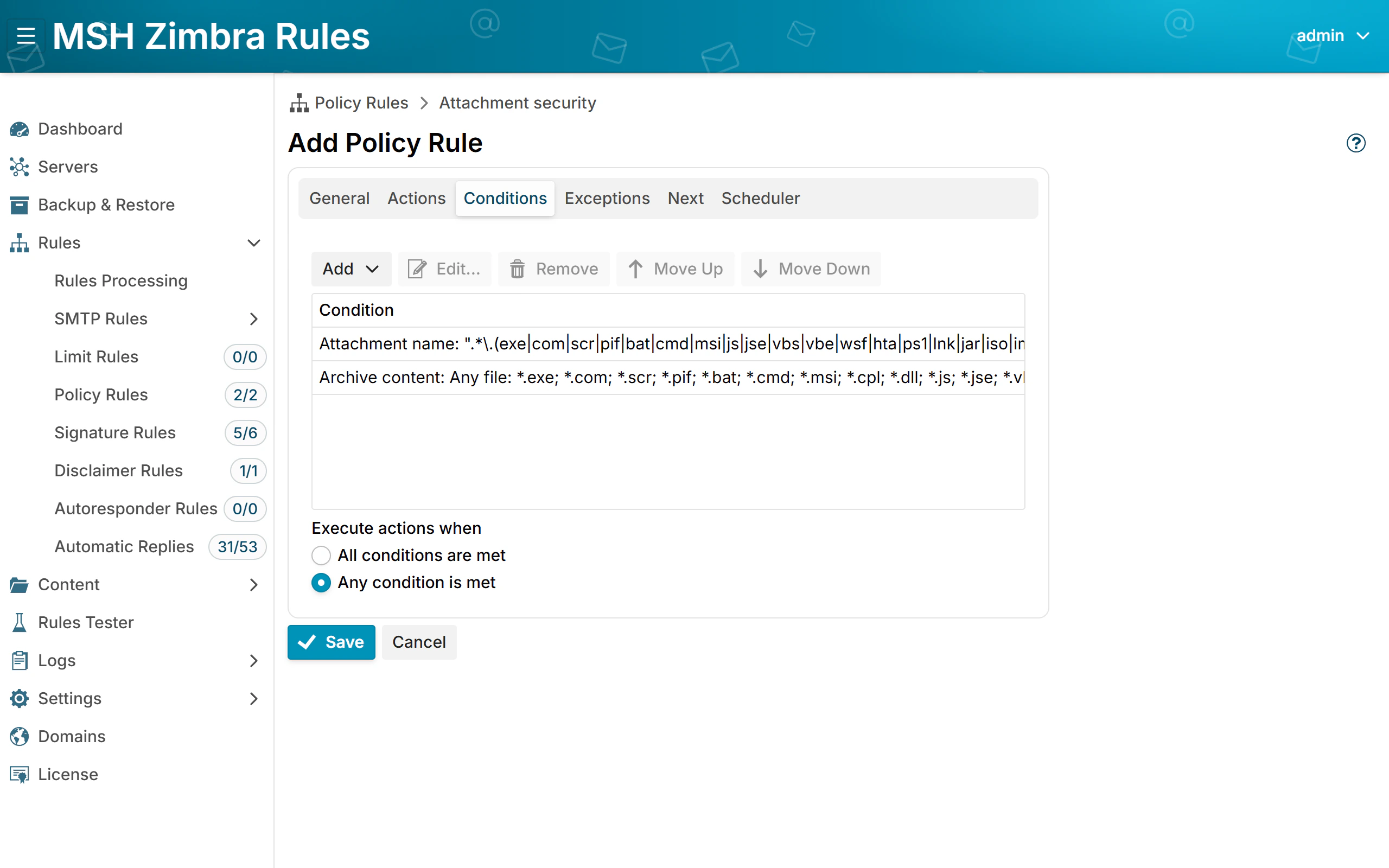
On the Conditions tab add two conditions and choose Any condition is met:
-
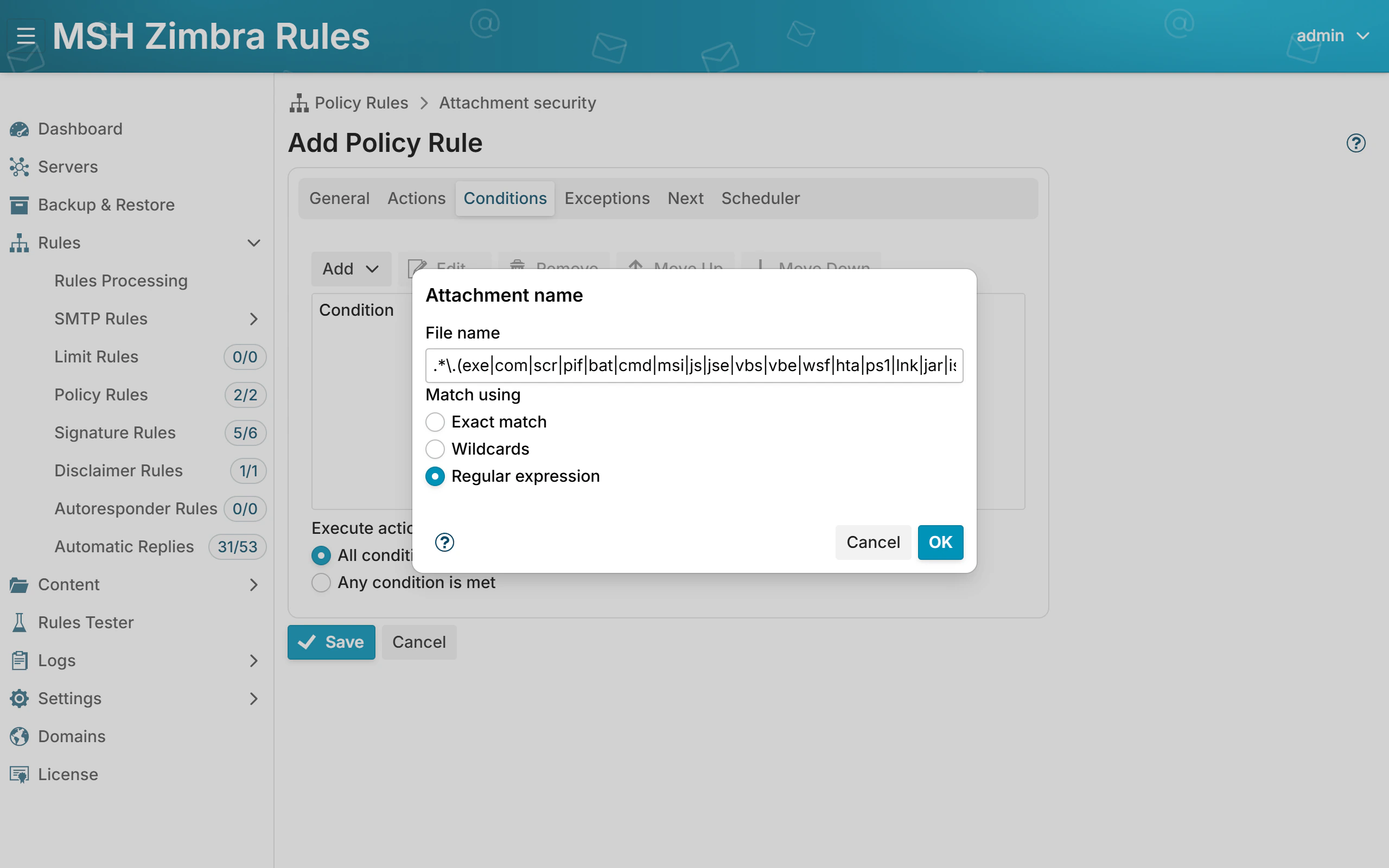
Attachments > Name, Regular expression, with the file types Windows runs:
.*\.(exe|com|scr|pif|bat|cmd|msi|js|jse|vbs|vbe|wsf|hta|ps1|lnk|jar|iso|img)$ -
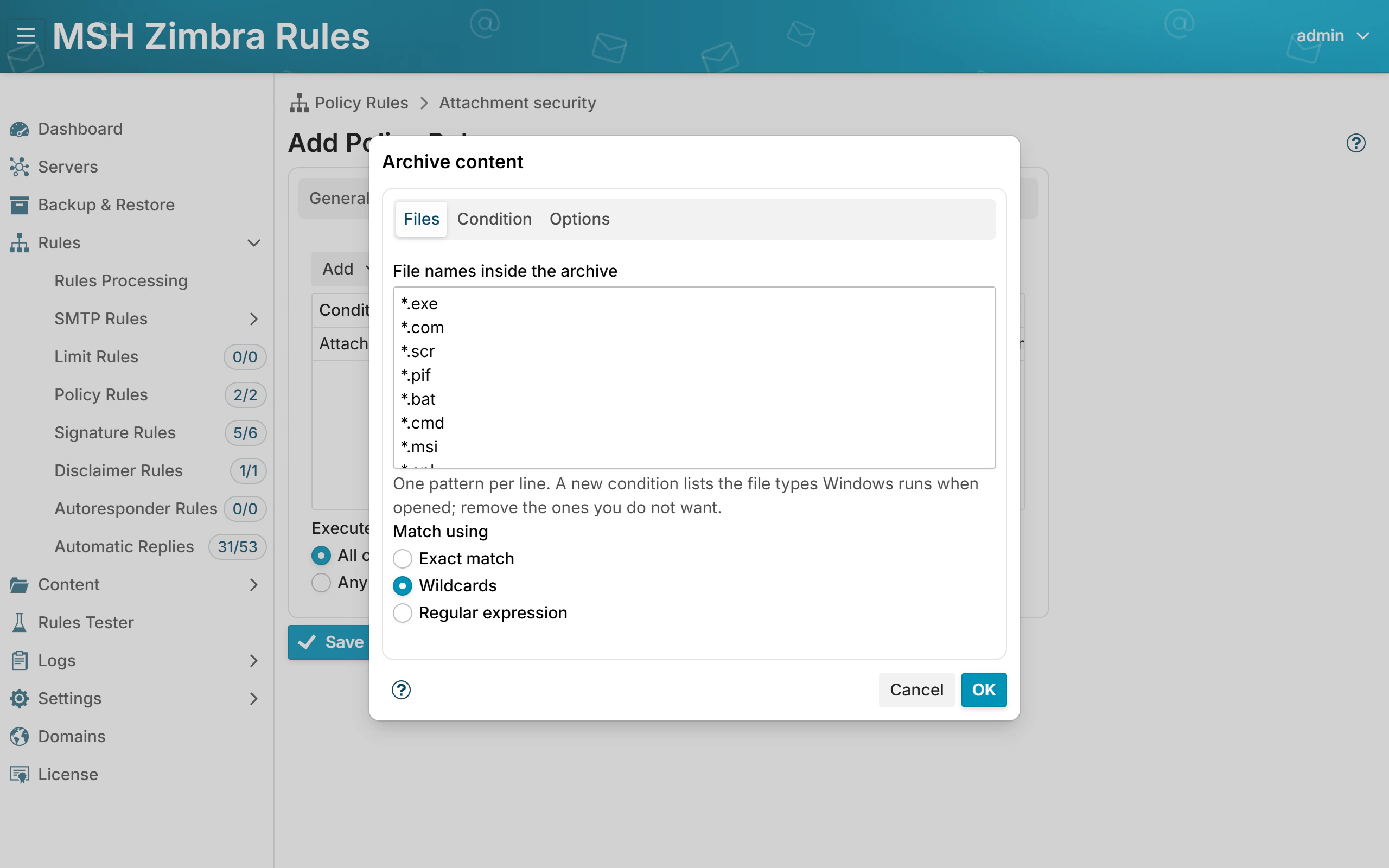
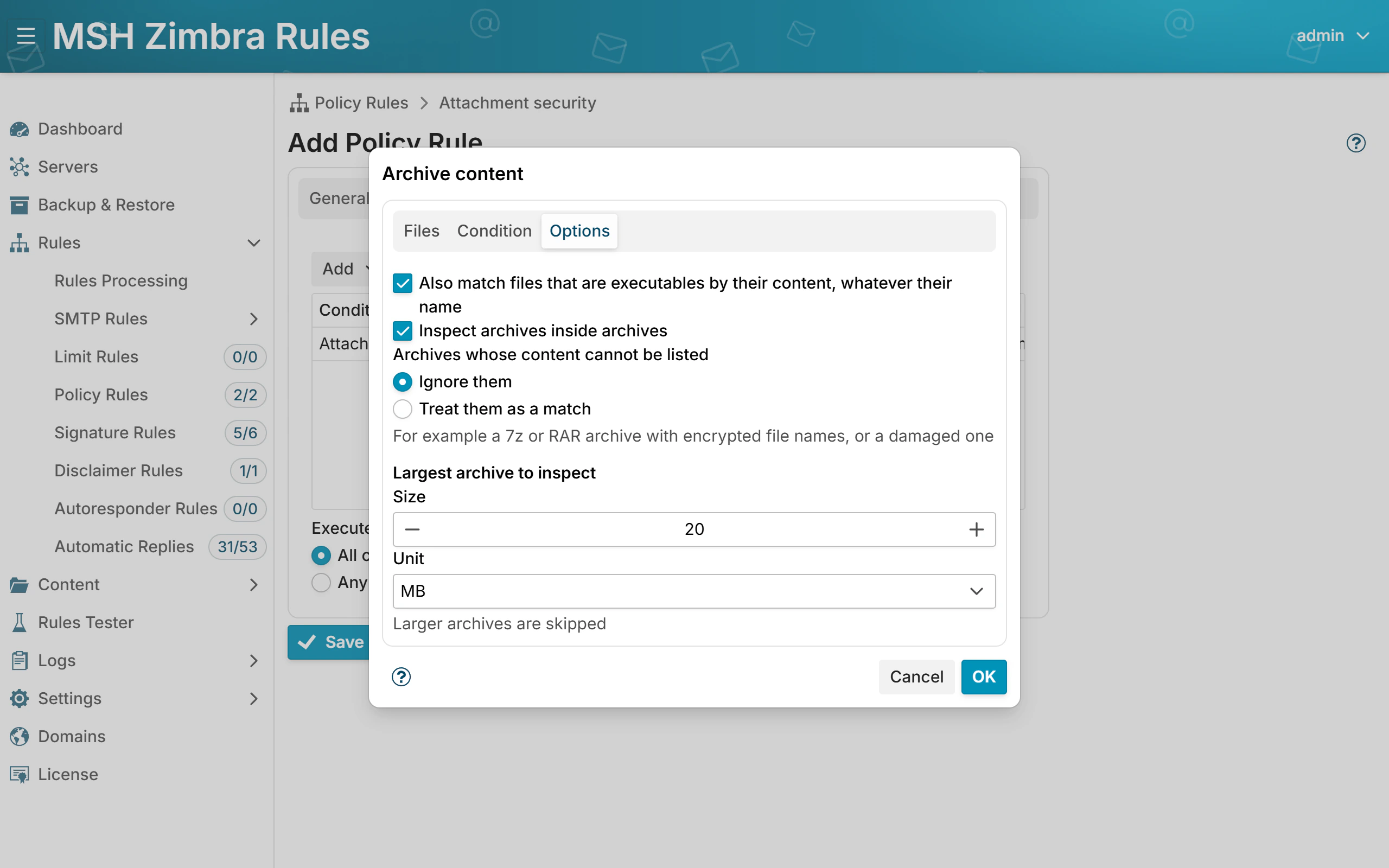
Attachments > Archive content. It comes filled with the same kinds of file types. On its Options tab tick Also match files that are executables by their content, whatever their name, so that a program renamed to
statement.pdfinside an archive is caught too. See Archive content.
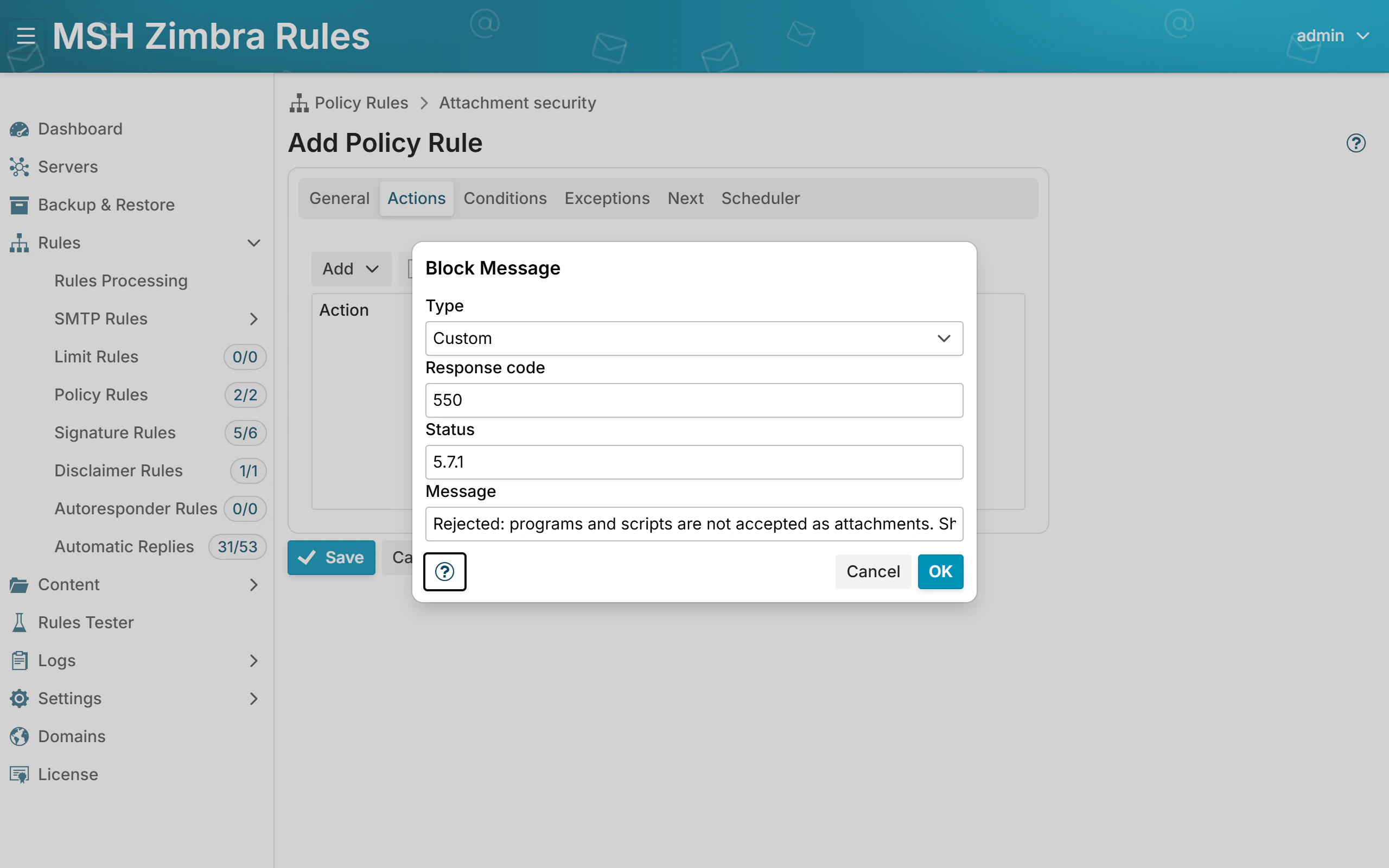
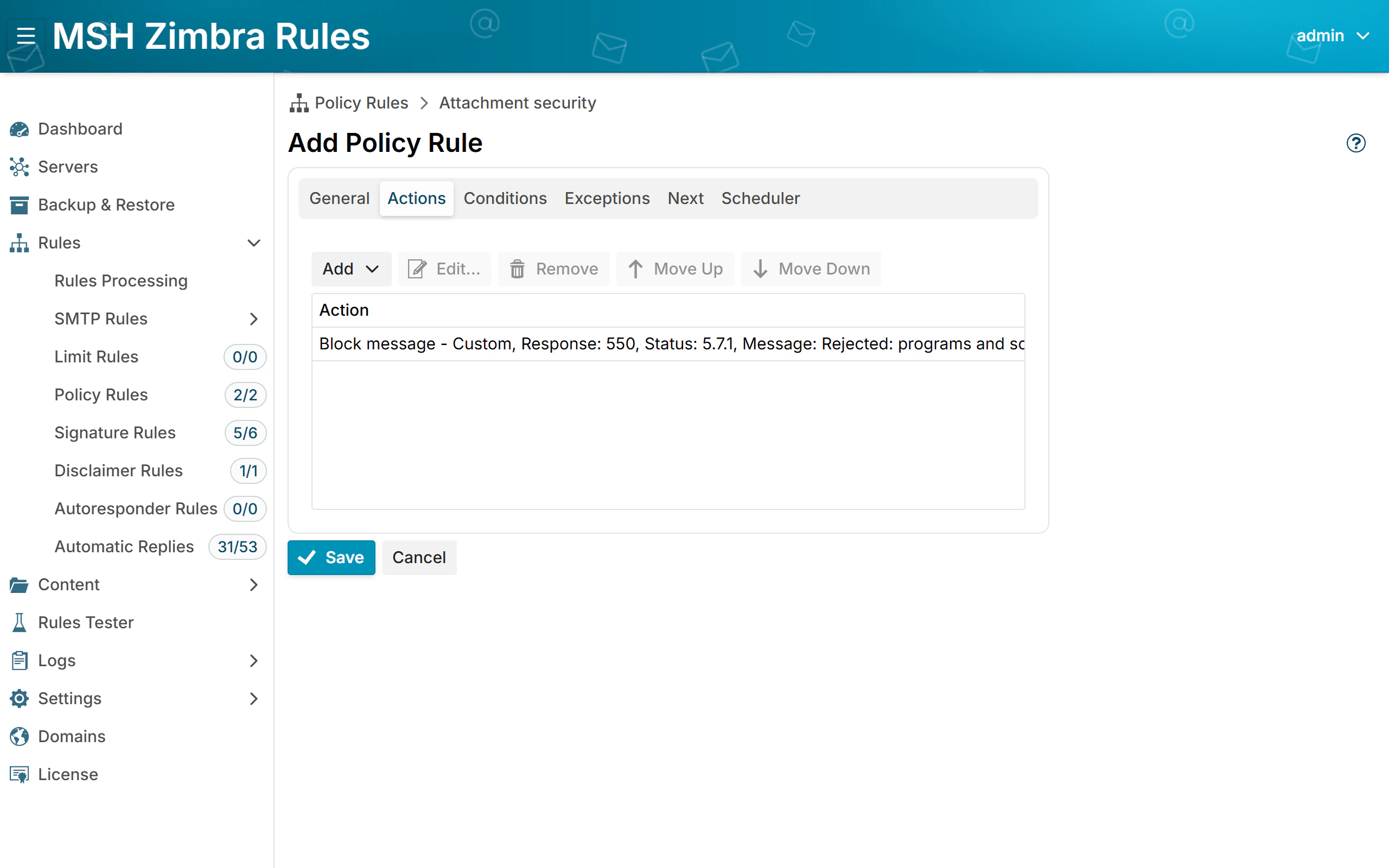
On the Actions tab add Message > Block, Type Custom, 550, 5.7.1
and a reason the sender can act on, for example Rejected: programs and scripts are not
accepted as attachments. Share the file through a download link. Click Save.
A rejected incoming message bounces back to the sender with your reason, so a business partner learns why and how to send the file instead. For a user of your own, see If senders do not understand the refusal.
Step 2 - Remove Office macros, keep the message
Macro-enabled Office files are legitimate in some companies and dangerous in most. Instead of refusing the whole message, take out just that file and deliver the rest.
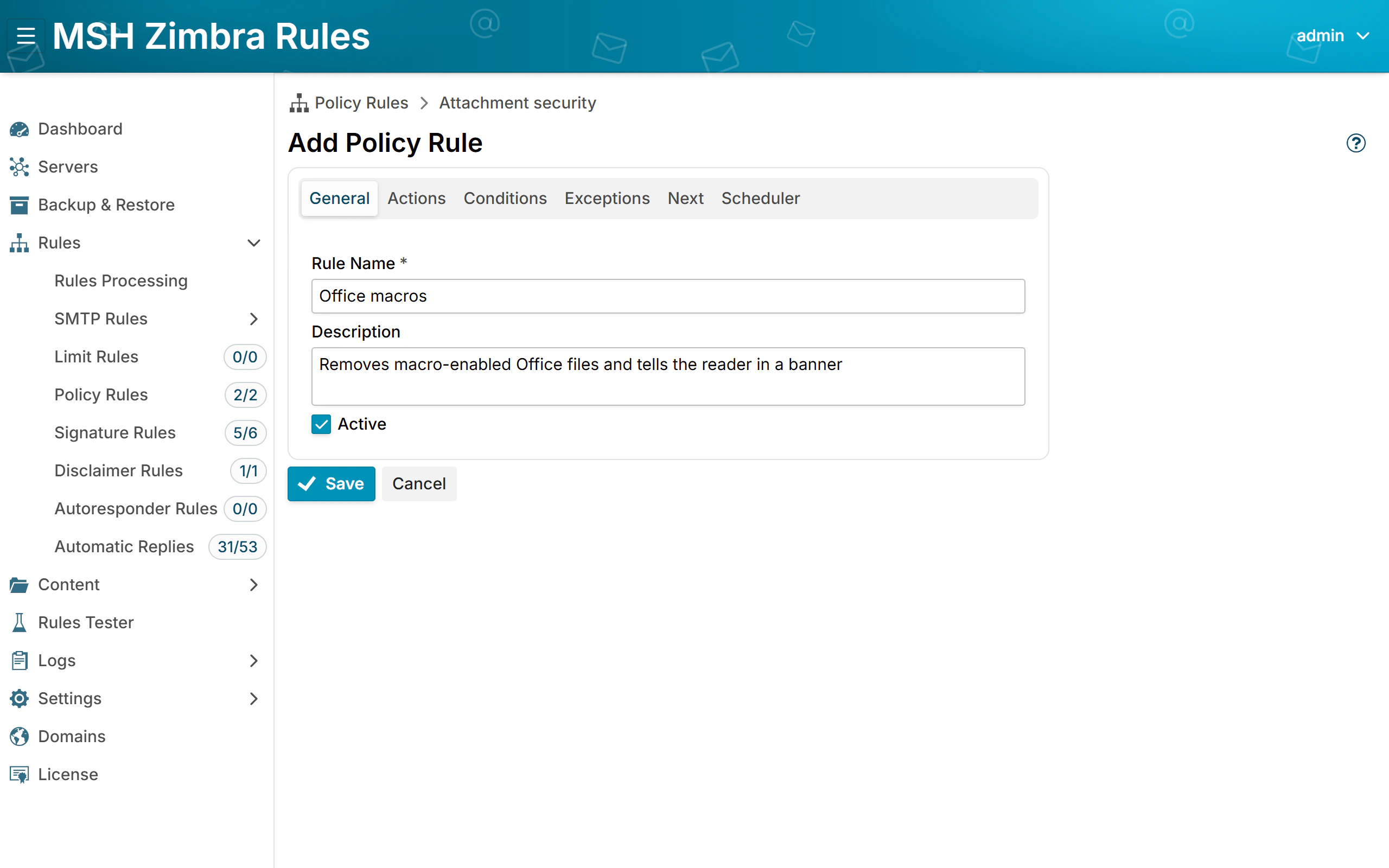
In the same group click Add Rule... and name the rule Office macros.
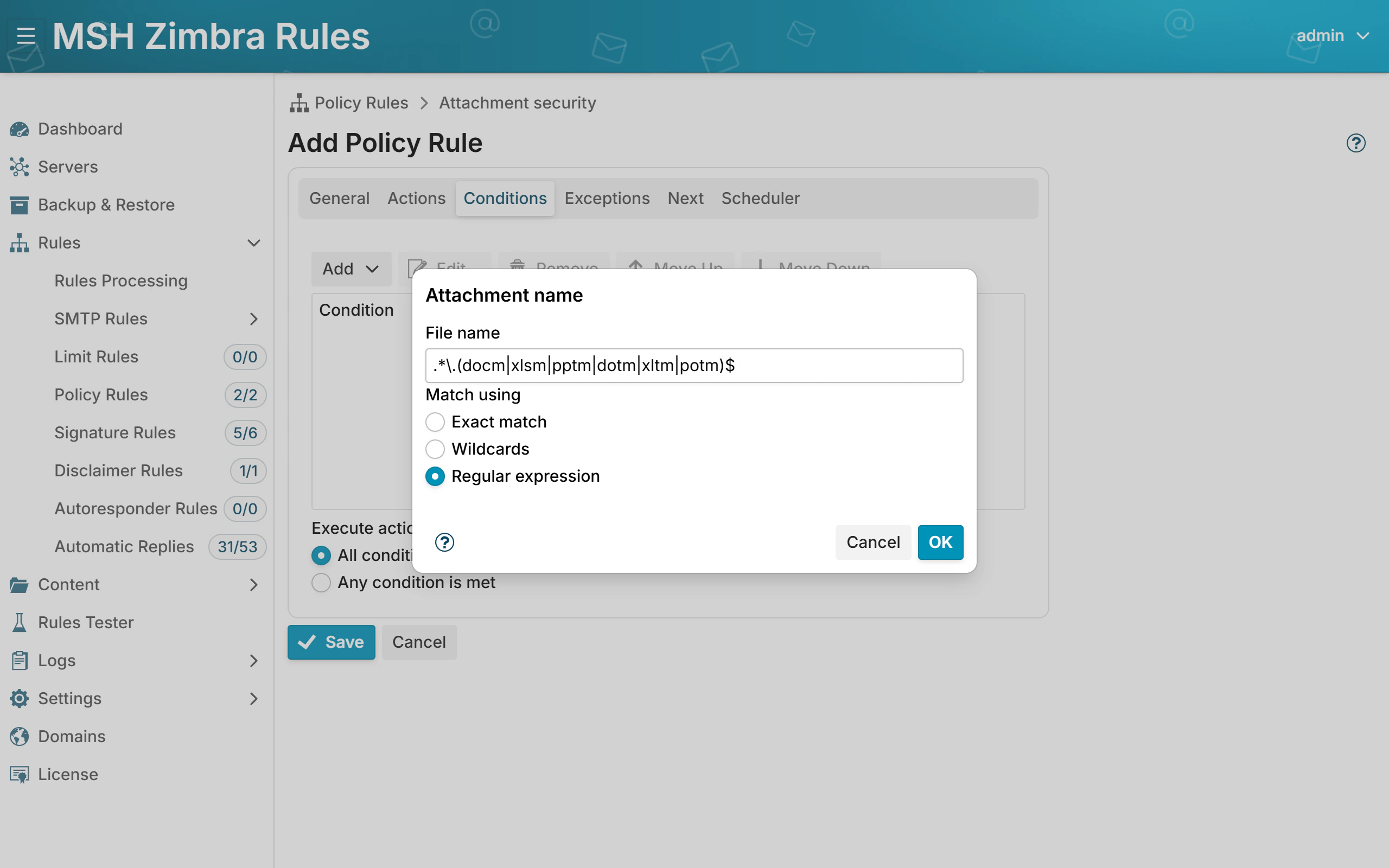
-
Conditions: Attachments > Name, Regular expression:
.*\.(docm|xlsm|pptm|dotm|xltm|potm)$ -
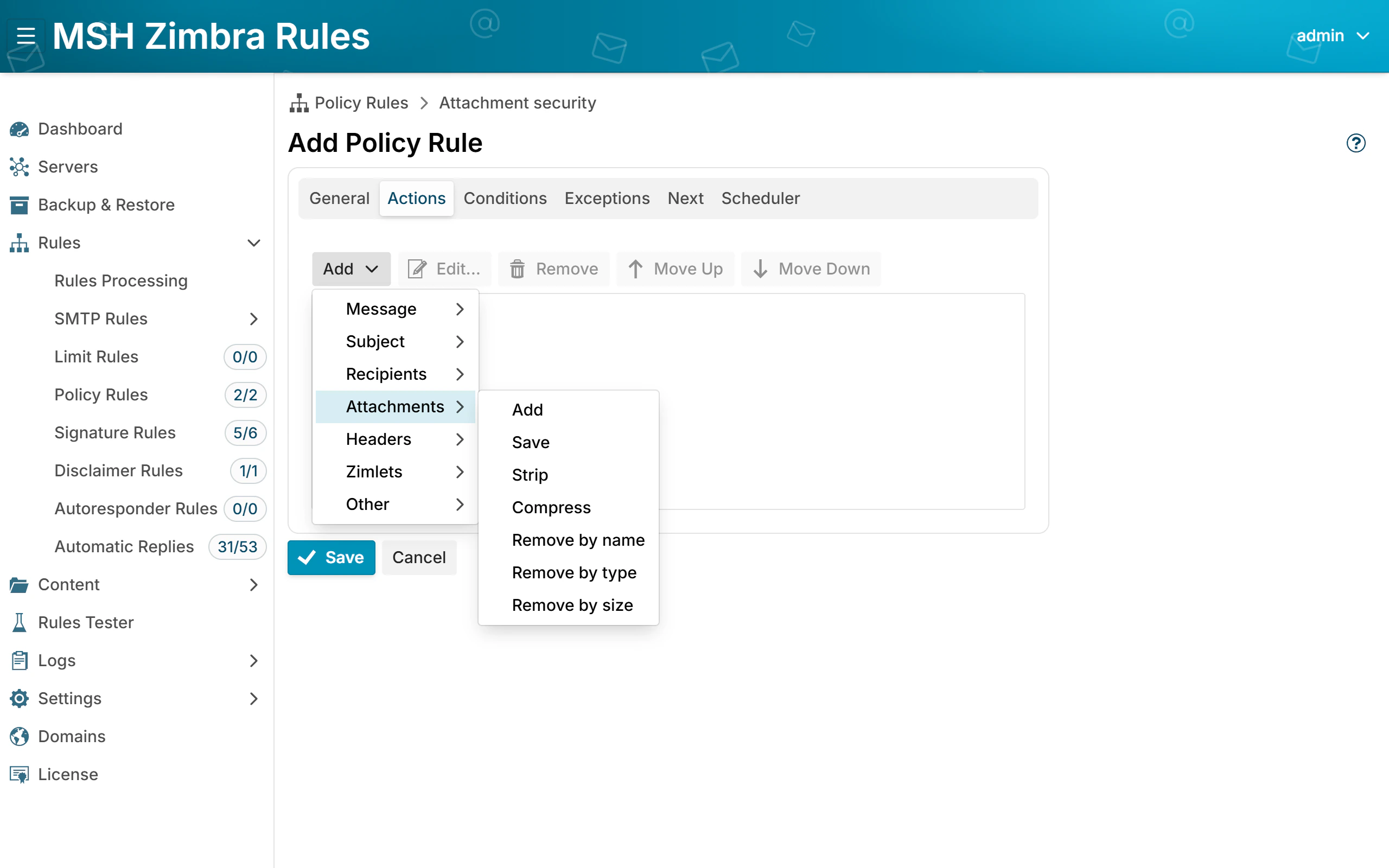
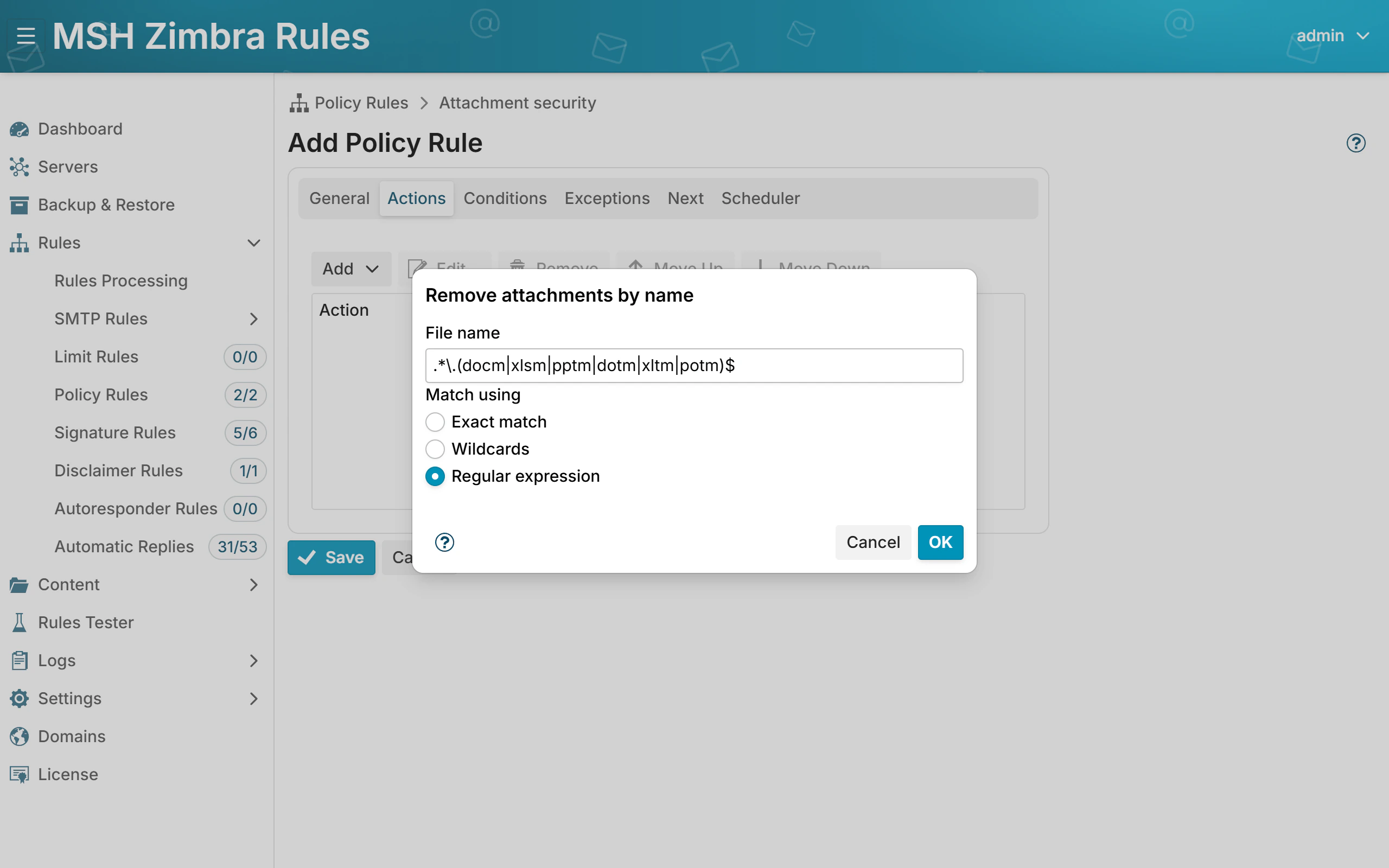
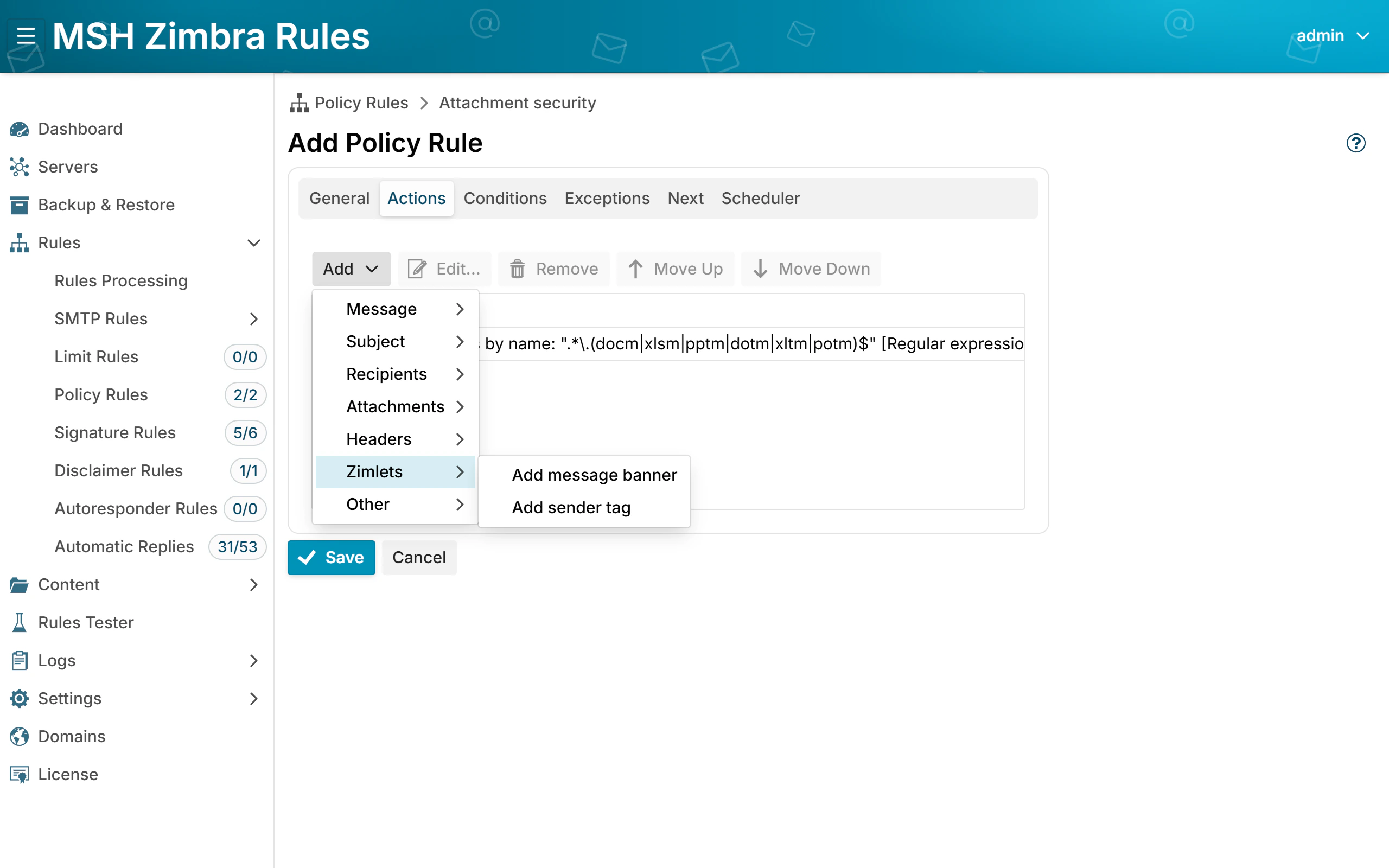
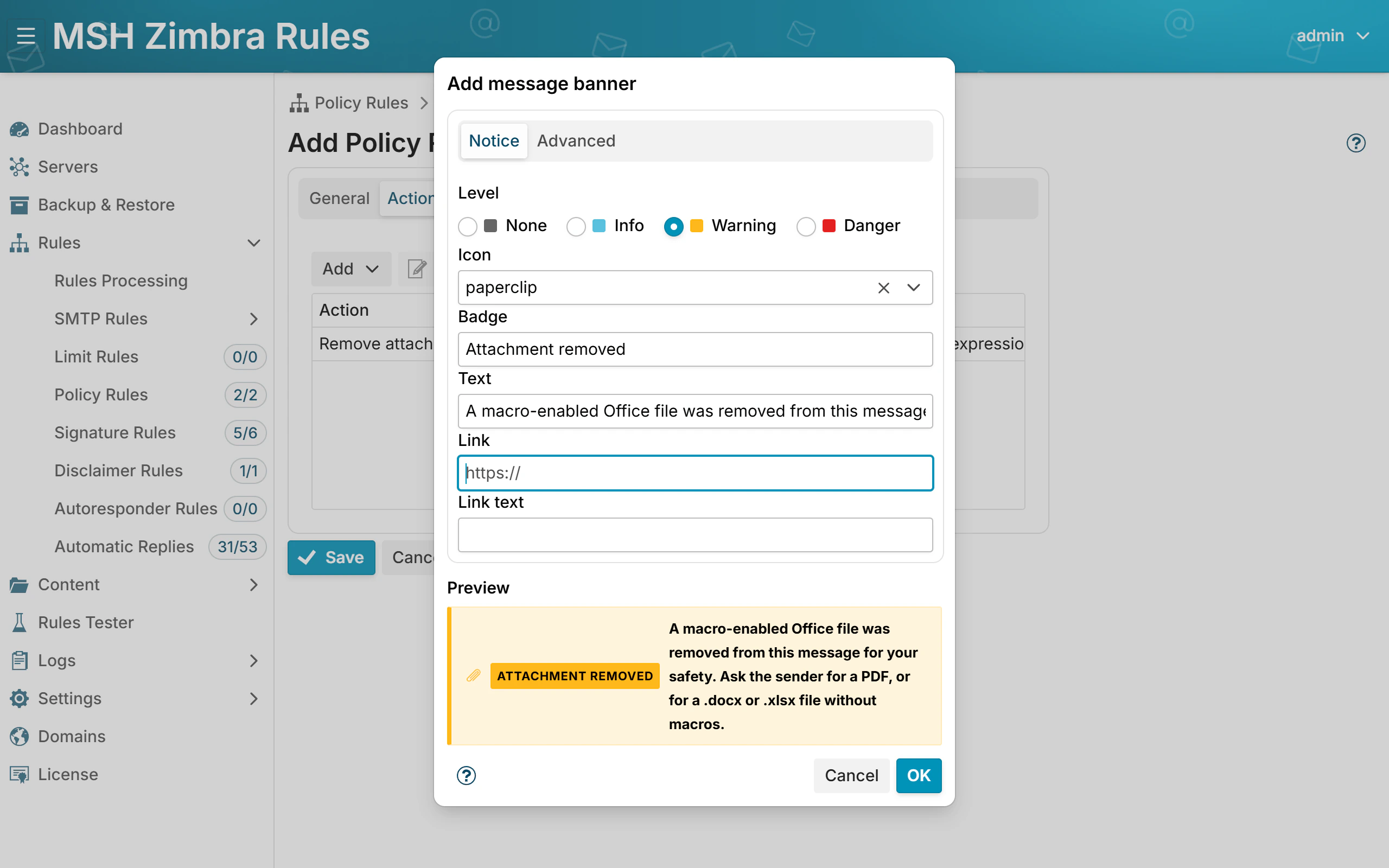
Actions: first Attachments > Remove by name with the same pattern and Regular expression, then Zimlets > Add message banner: Level Warning, Icon
paperclip, BadgeAttachment removed, and a Text that tells the reader what to do, for example A macro-enabled Office file was removed from this message for your safety. Ask the sender for a PDF, or for a .docx or .xlsx file without macros.
Click Save. See Remove attachments by name and Add message banner.
Step 3 - Test it
Send test messages in the Rules tester: New message
Custom..., a sender from outside, one of your users as the recipient, and the test files on the Attachments tab. Then open each message and its Processing trace.
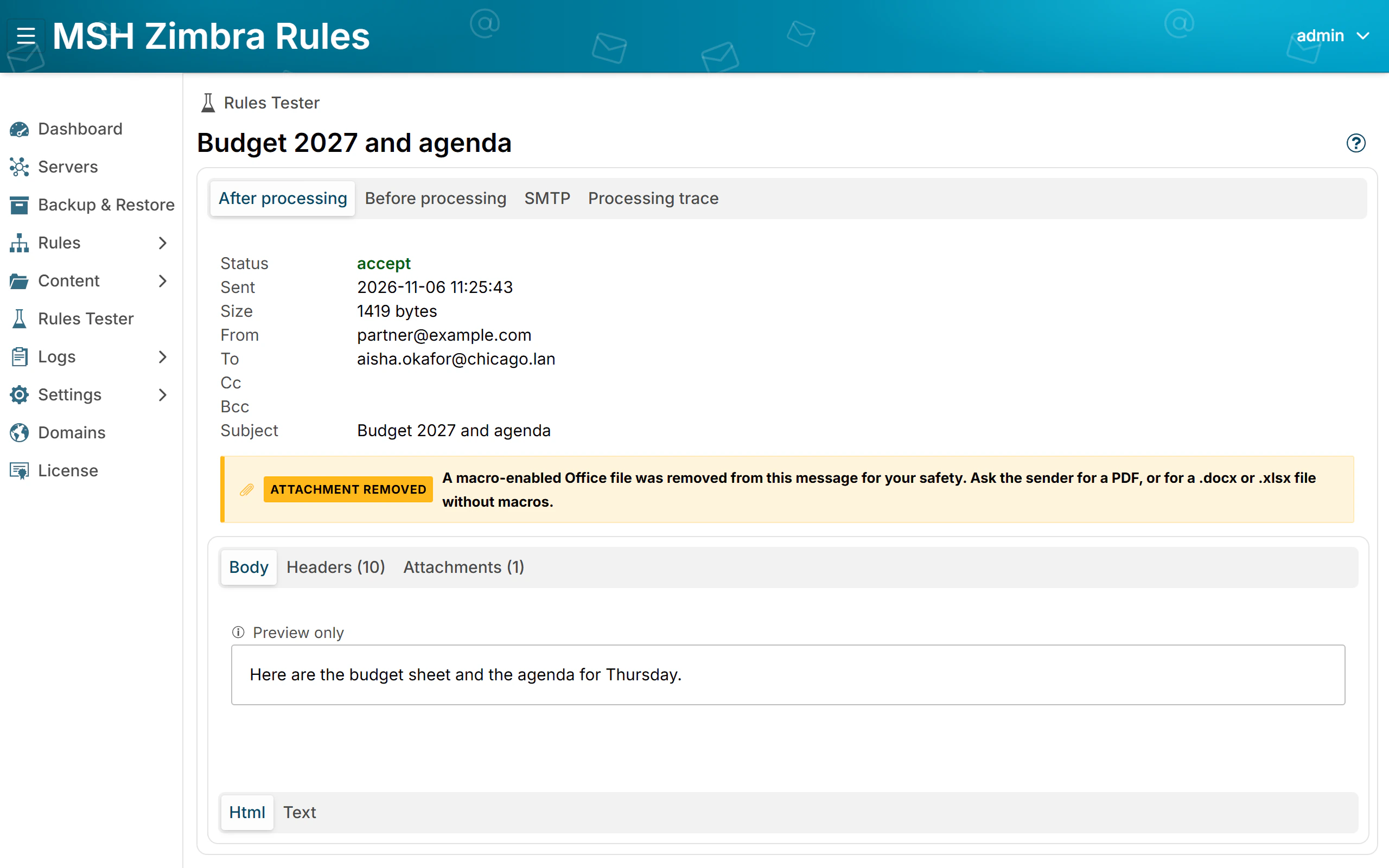
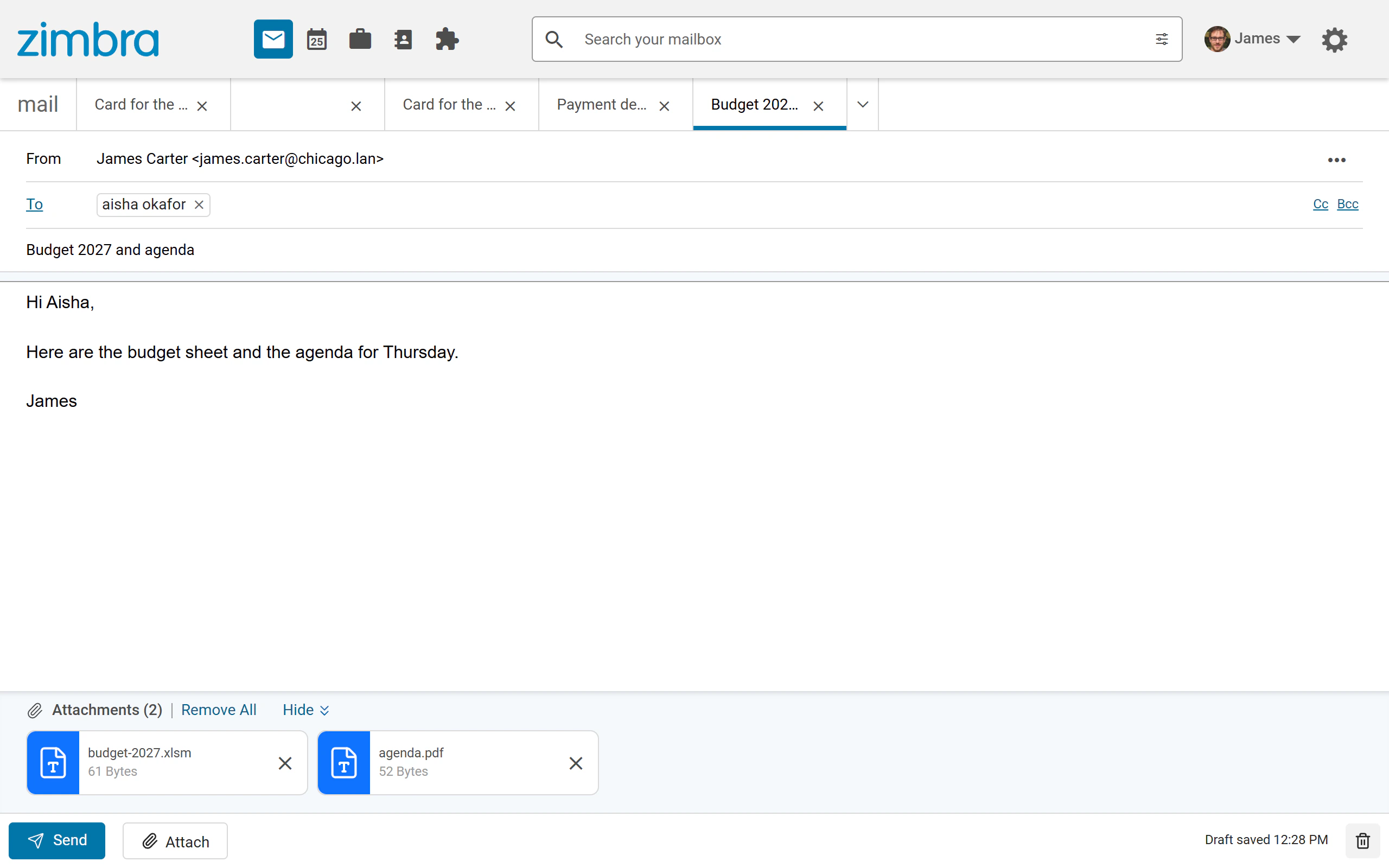
Then send a real message with the .xlsm and a PDF from one user to another in the web
client. It arrives with the PDF only, and the banner above the text:
If senders do not understand the refusal
When one of your own users sends a program, the Zimbra web client only says Could not send message, without the reason in your Block action. Add a New message action to the rule that explains the refusal to the sender, as in Stop Card Numbers from Leaving Zimbra by Email. Senders outside get a bounce with the reason from their own mail server.
Variations
- Archives you cannot look into. On the Options tab of Archive content, choose Treat them as a match under Archives whose content cannot be listed to refuse encrypted 7z and RAR archives as well. Password-protected ZIP files usually still list their file names and are checked by name.
- Password-protected attachments. The Attachments > Encrypted condition matches them, see Attachment encrypted.
- Allow a department. If IT needs to receive installers, add an exception Recipients with their group to the Programs and scripts rule.
What these rules do not do
- They are not a virus scanner. A PDF or a Word file without macros can still carry an exploit. Keep the antivirus of Zimbra running.
- They judge names, and content only inside archives. A program attached directly under an innocent name is caught by Archive content only when it is inside an archive. Pair the rules with the antivirus for that case.
Related reading
- Archive content - every option of the archive check
- Attachment name - patterns and examples
- File or Reject Mail by Attachment in Zimbra with Sieve
- the same idea per mailbox, with Sieve
- Stop Card Numbers from Leaving Zimbra by Email - a notice to the sender when a message is refused
Want to try it on your own server? Start a free trial.