Stop Card Numbers from Leaving Zimbra by Email
Somebody in sales pastes a customer's card number into an email to a partner. Nothing technical went wrong, and yet the company now has a payment card number sitting in mailboxes it does not control. With MSH Zimbra Rules, a policy rule looks for card numbers in mail that leaves the organization, refuses the message, and sends the sender a short note explaining why and what to do instead.
What you get
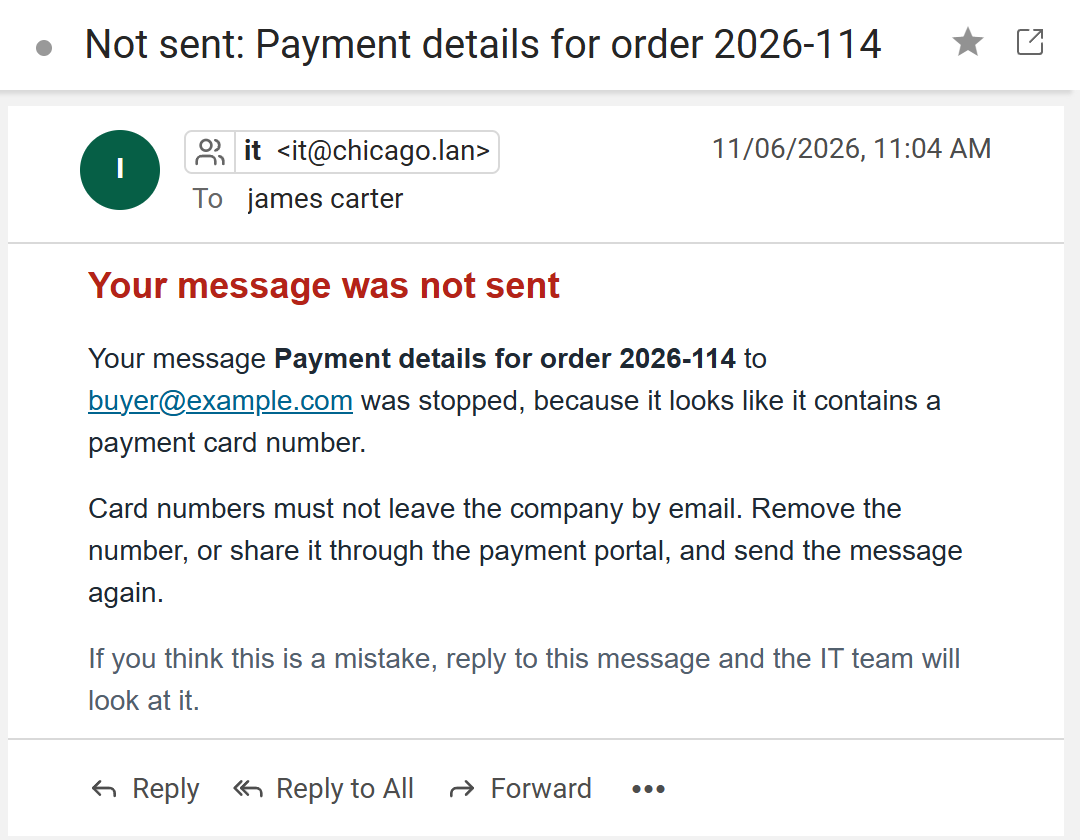
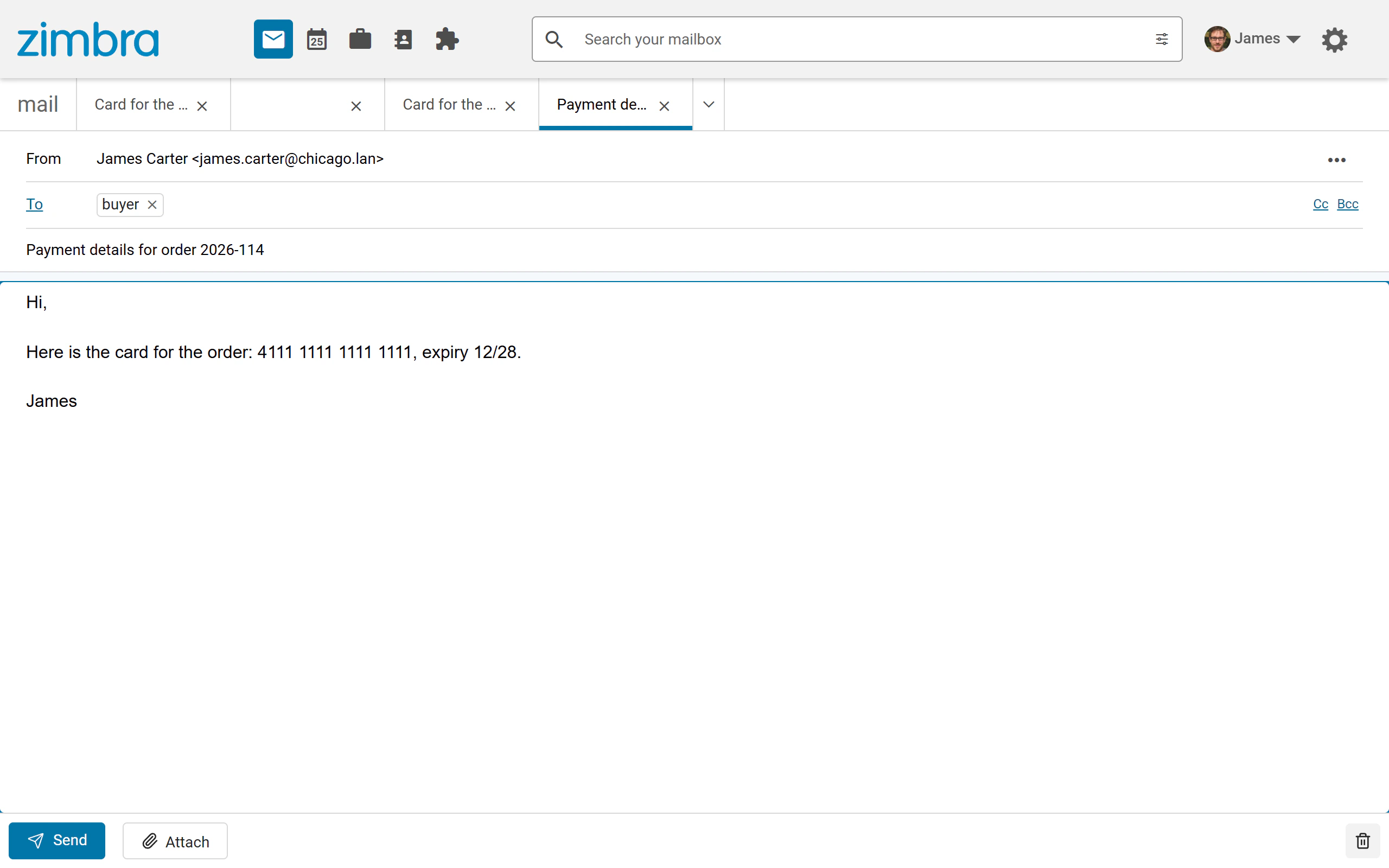
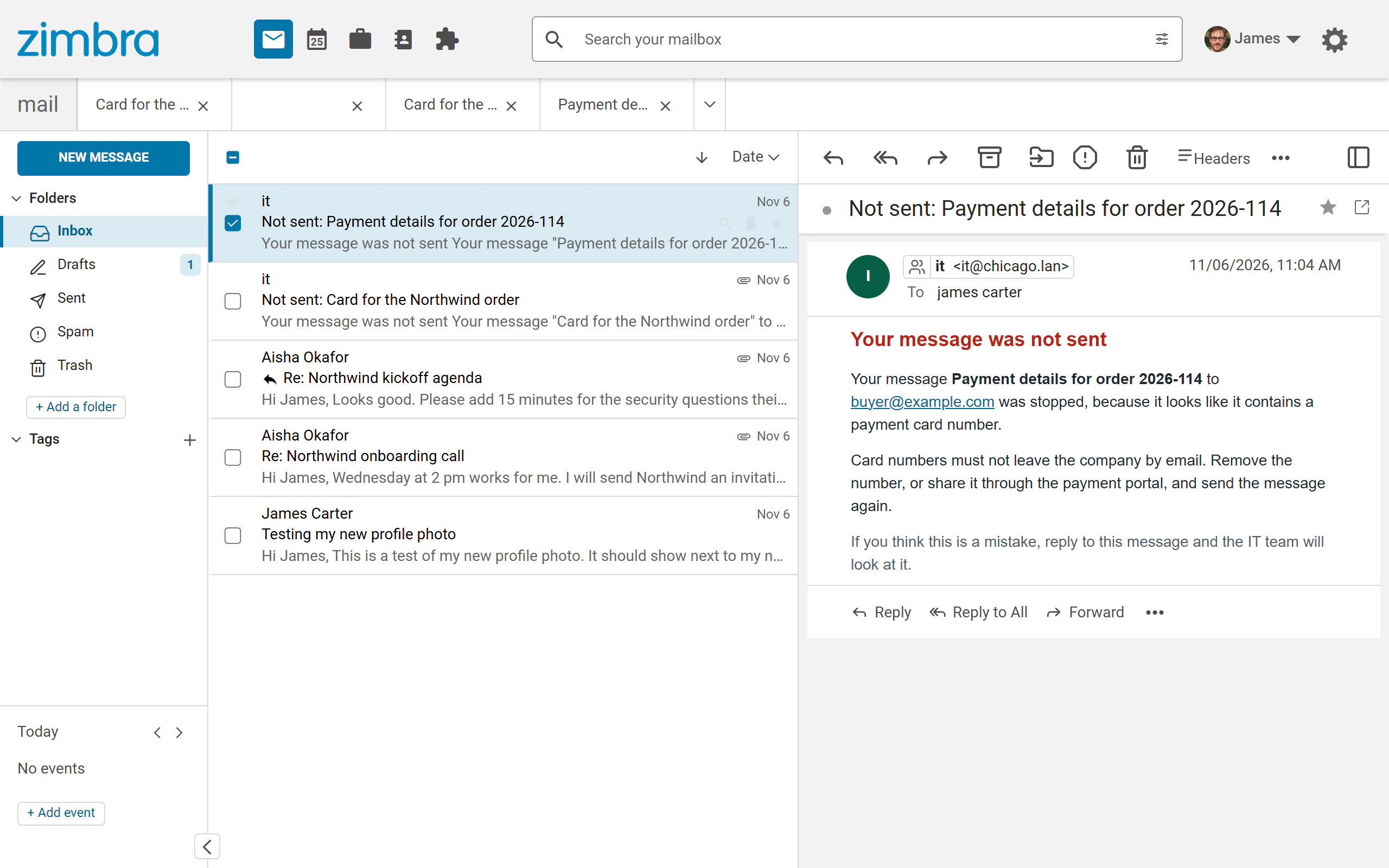
When a user sends a message with a card number to an outside address, the Zimbra web client refuses to send it, and a moment later the user gets this:
| Message | What happens |
|---|---|
| To an outside address, with a card number | Refused, and the sender gets the notice |
| To a colleague, with a card number | Delivered, the rule only guards mail that leaves |
| To an outside address, without a card number | Delivered |
Why a notice of its own
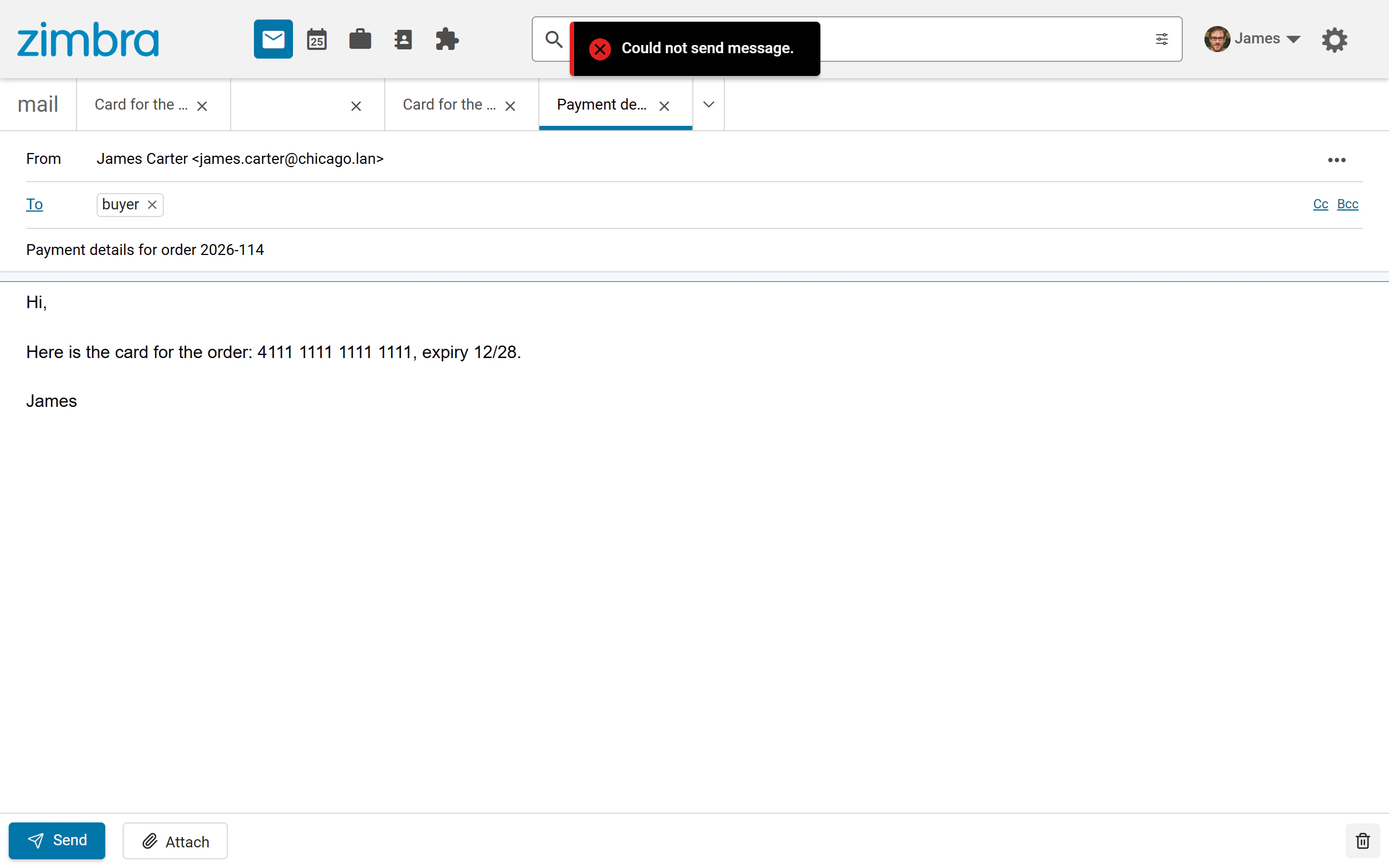
The rule refuses the message with an SMTP error and a reason, such as
550 5.7.1 Not sent: the message looks like it contains a payment card number. Users of
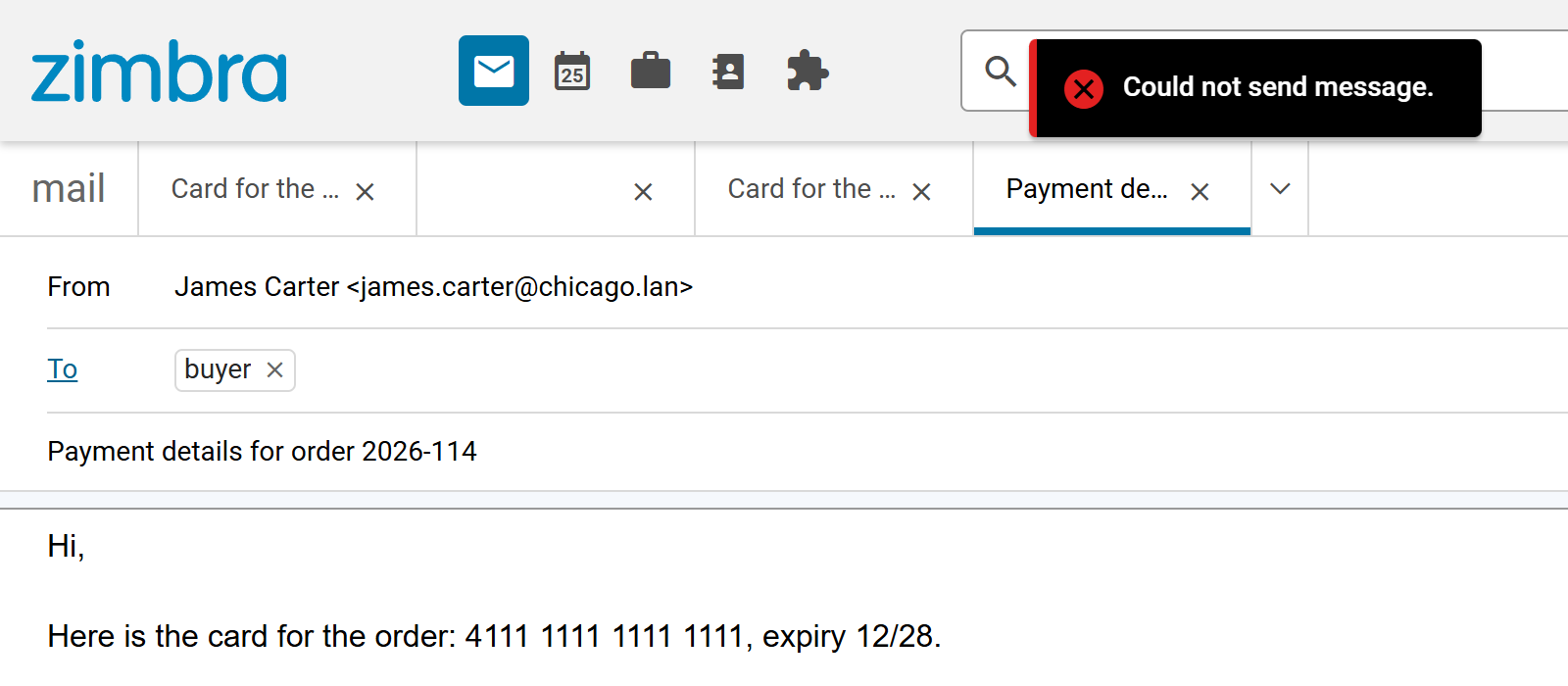
the Zimbra web clients never see that reason. The Modern web client says only Could
not send message.:
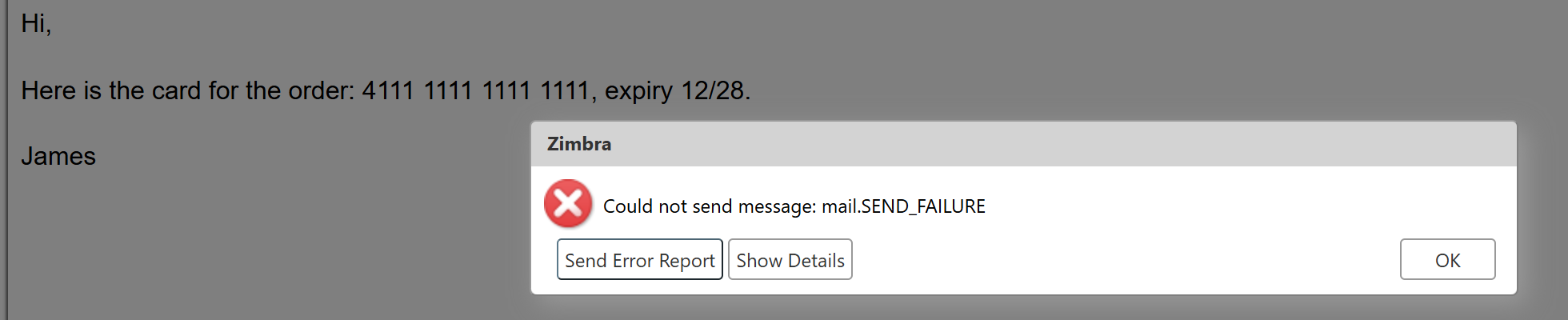
The Classic web client says Could not send message: mail.SEND_FAILURE:
and Show Details adds nothing a user can act on:
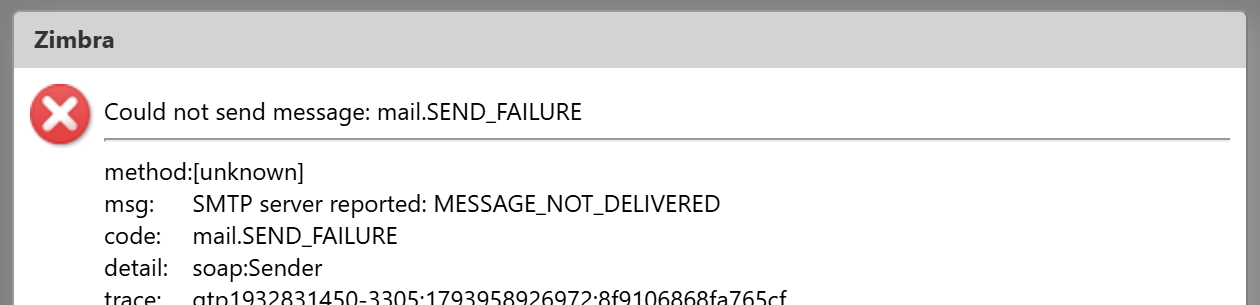
Users left with that will retry, then call the helpdesk. The notice tells them what happened in plain words.
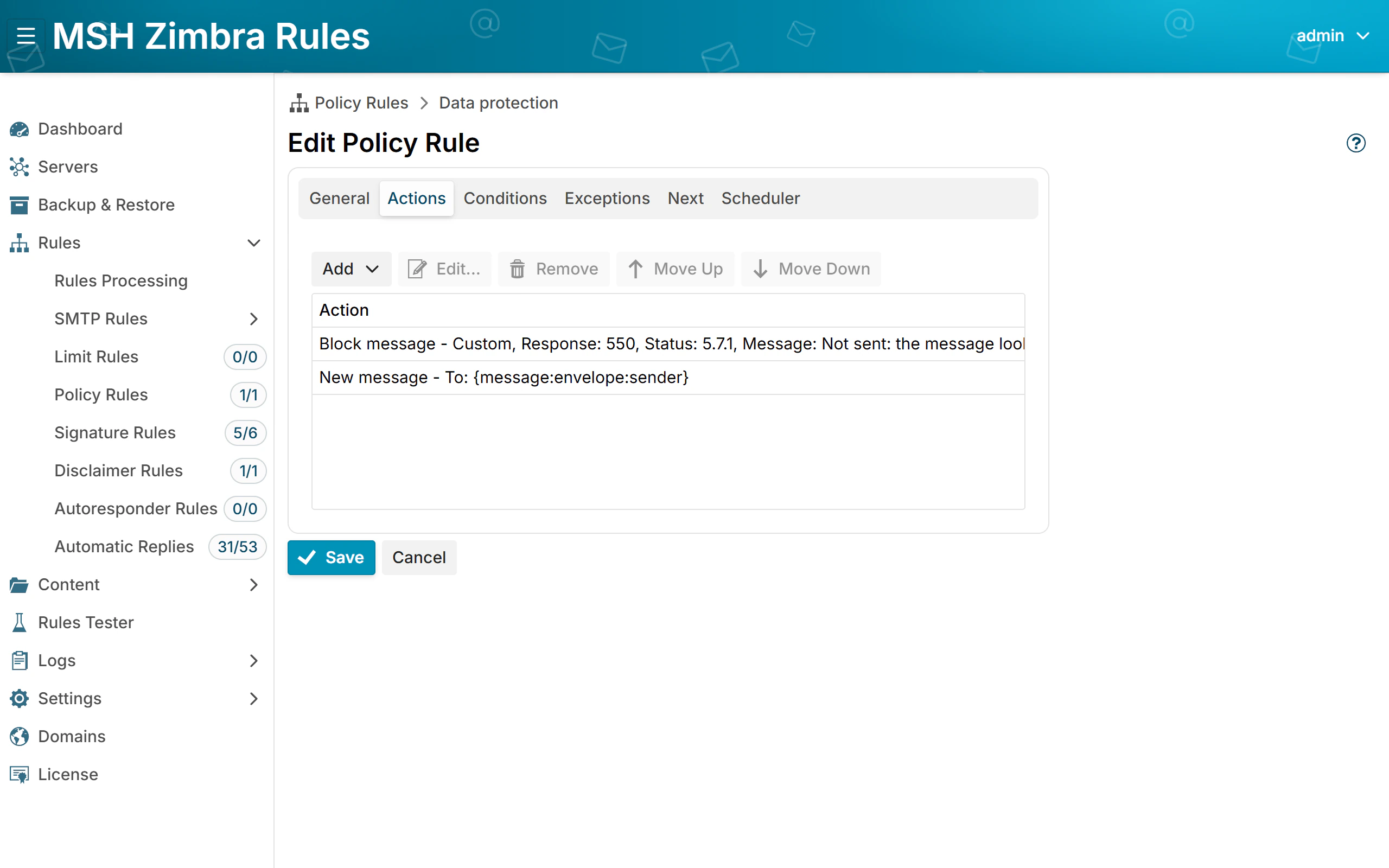
What you will build
| Part | Setting |
|---|---|
| Policy rule group | Data protection |
| Policy rule | Card numbers to outside |
| Conditions (all must match) | Message direction Outgoing, and subject or body matches a card number pattern |
| Action 1 | Block - custom, 550 5.7.1 with the reason |
| Action 2 | New message - the notice to the sender, from the template Card number blocked |
| Signature rules | An exception for messages the rules made themselves |
Before you start
- MSH Zimbra Rules 1.4 or later, installed on the Zimbra server, see the installation guide.
- The directory service configured, so that the rule knows which domains are yours, see Directory service.
- An address the notice comes from, here the IT team's list
it@chicago.lan, so that a reply reaches someone who can help. - A test card number, such as
4111 1111 1111 1111, which card networks publish for testing. Never test with a real card.
Step 1 - Create the rule group and the rule
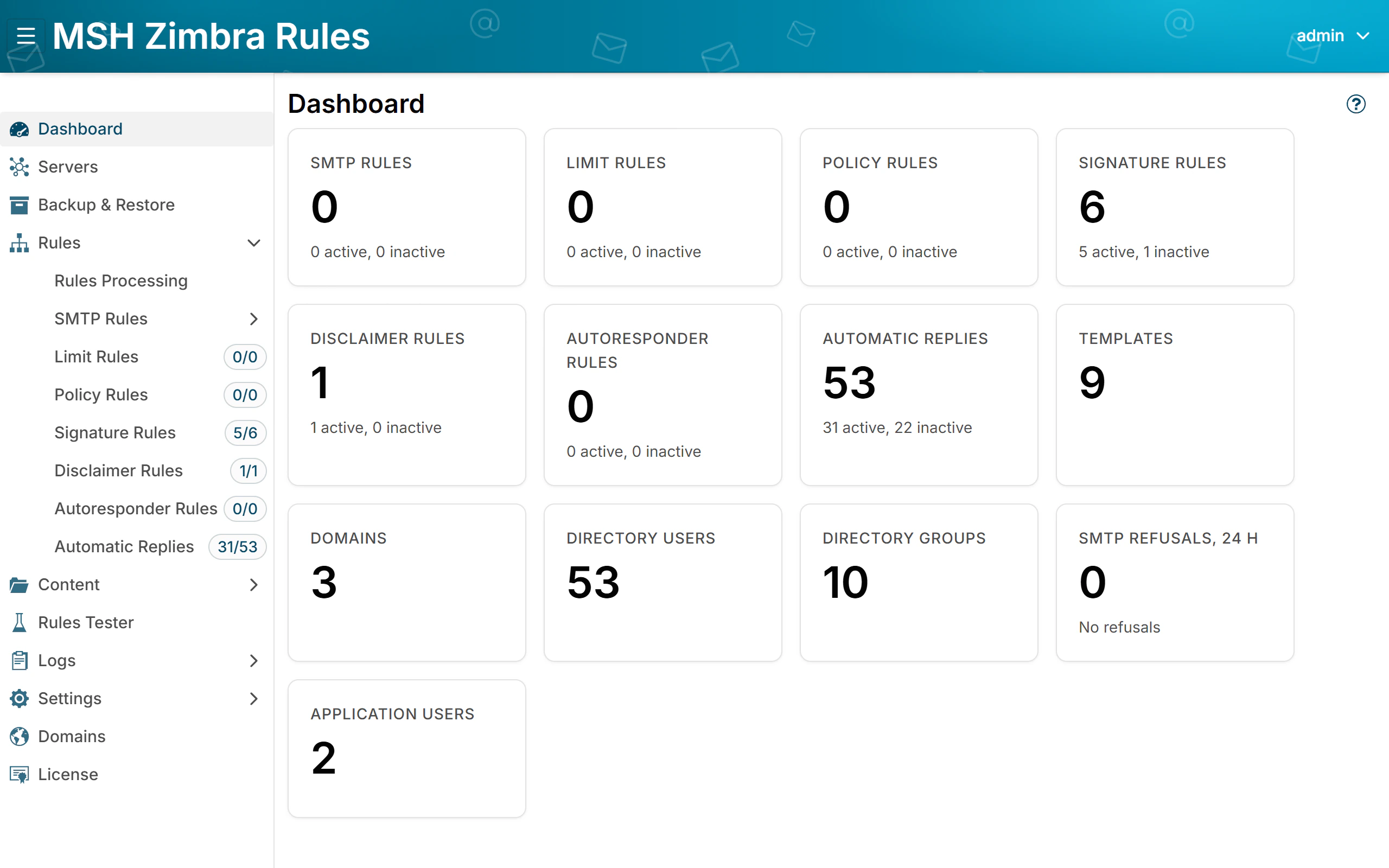
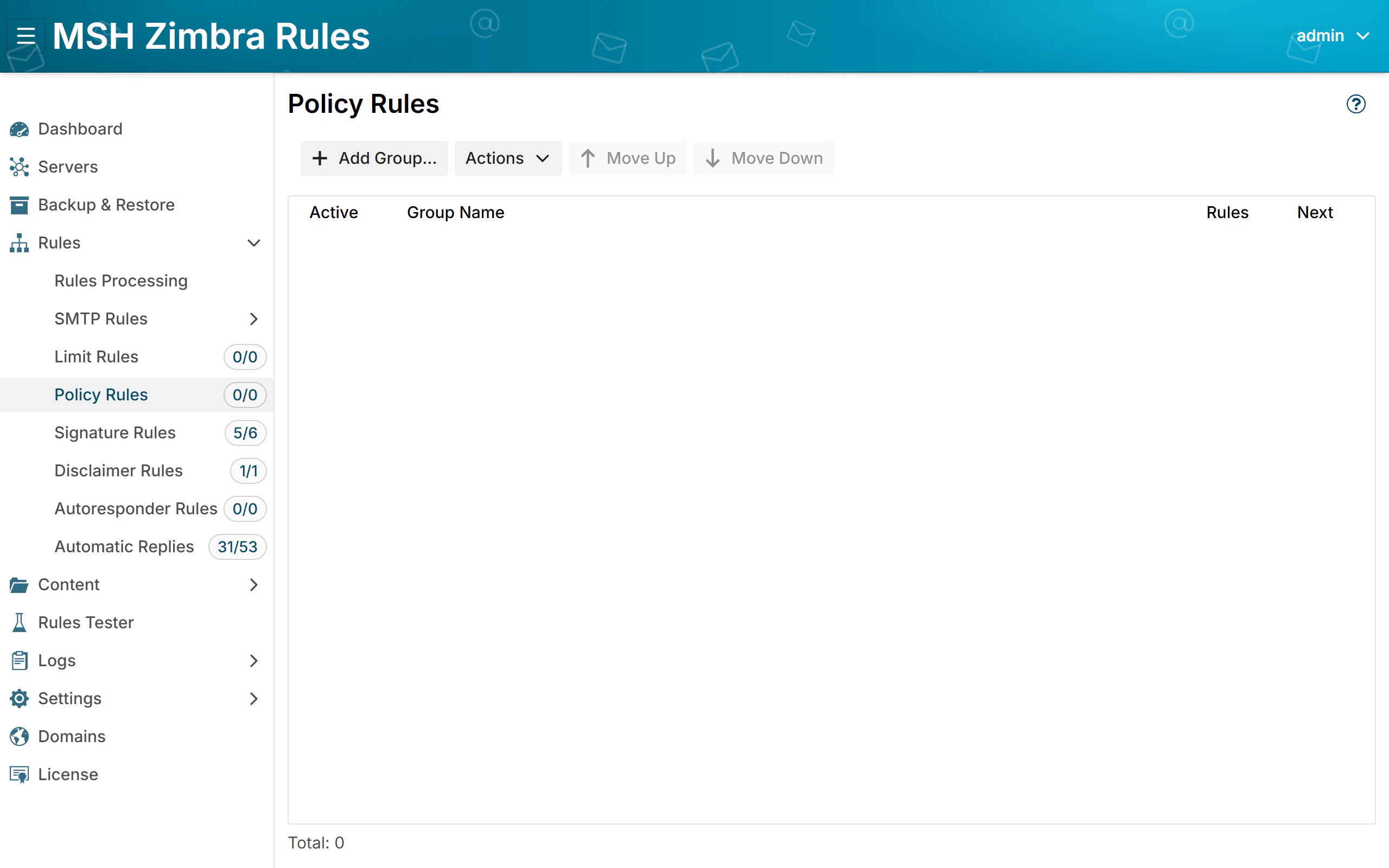
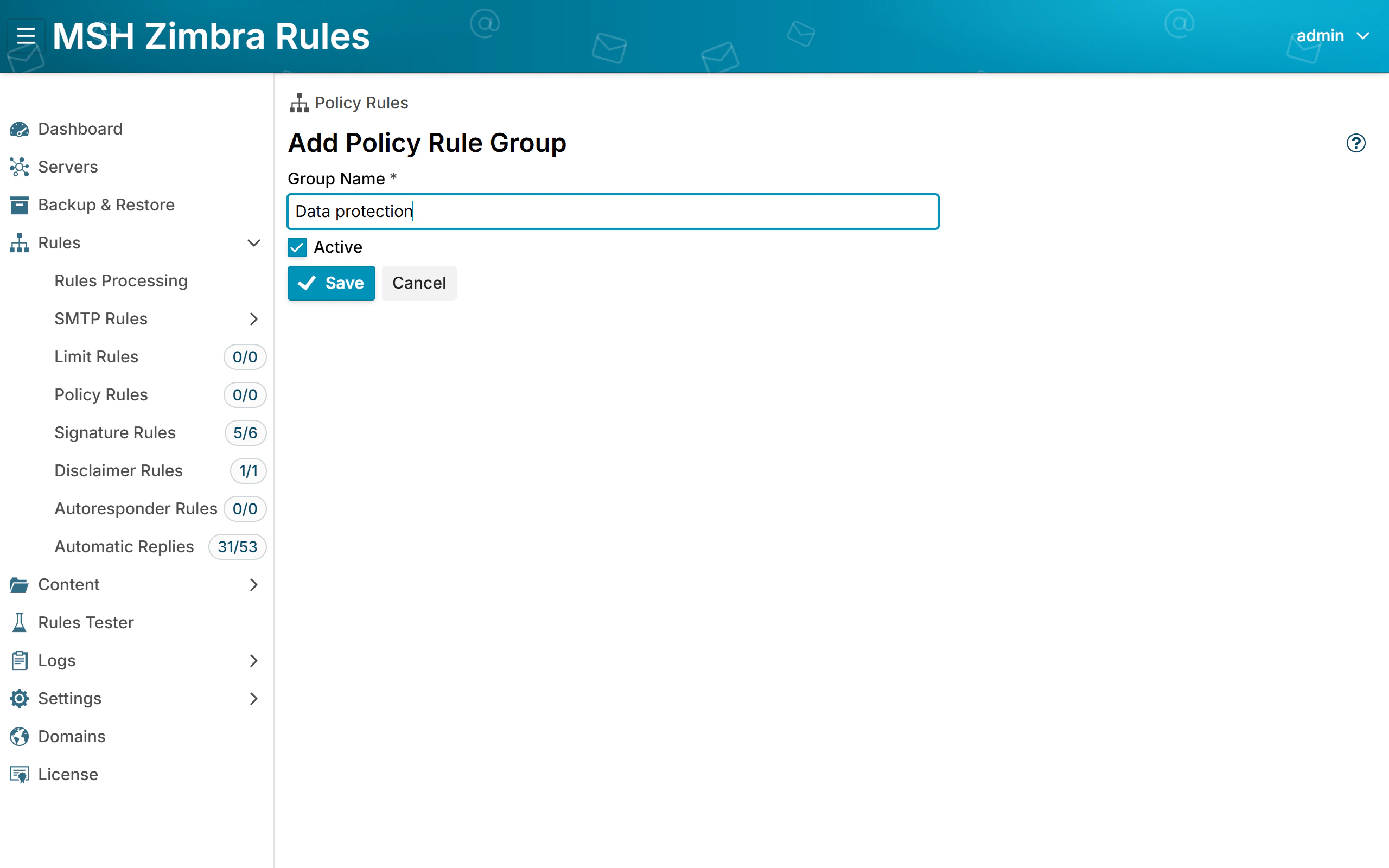
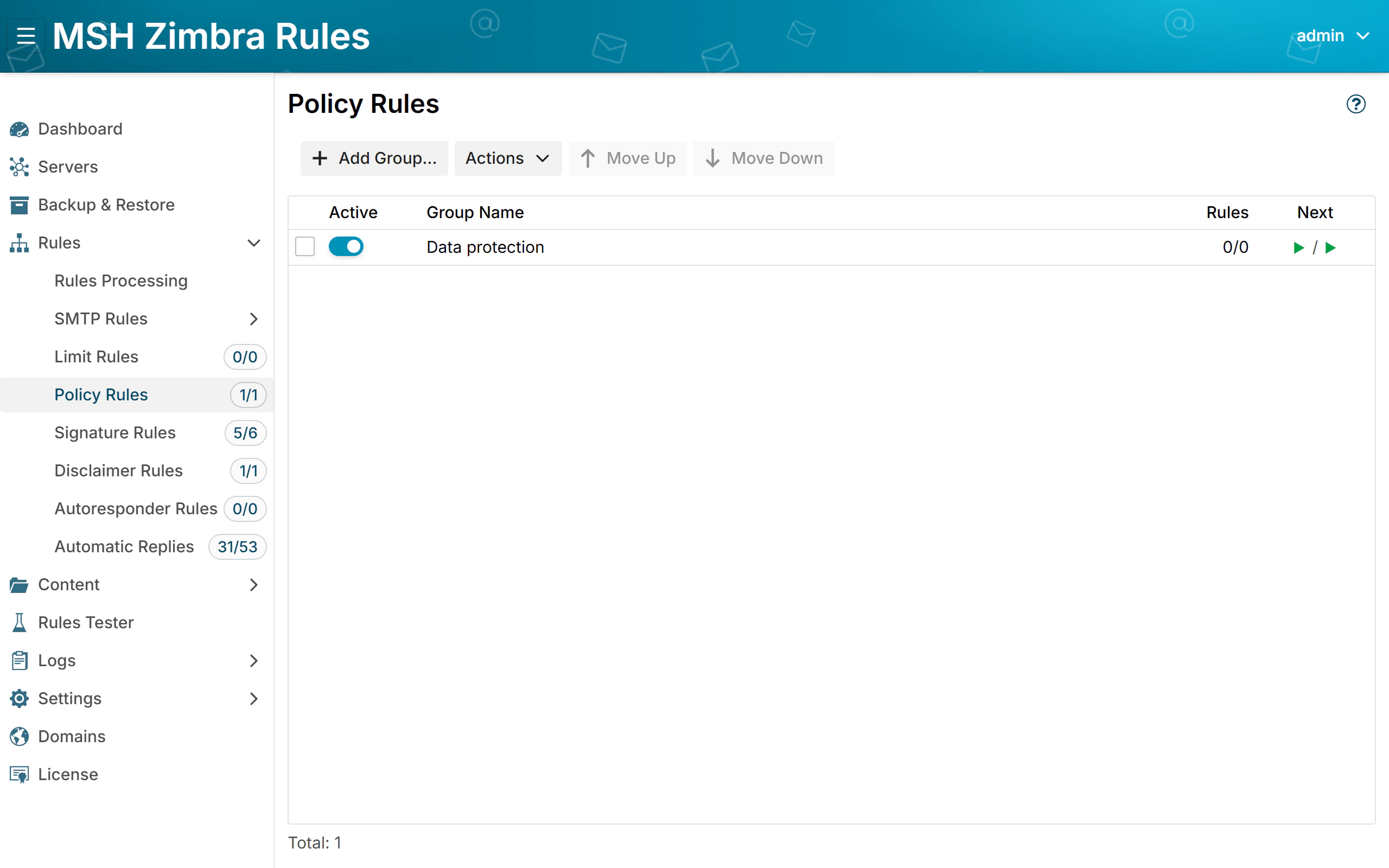
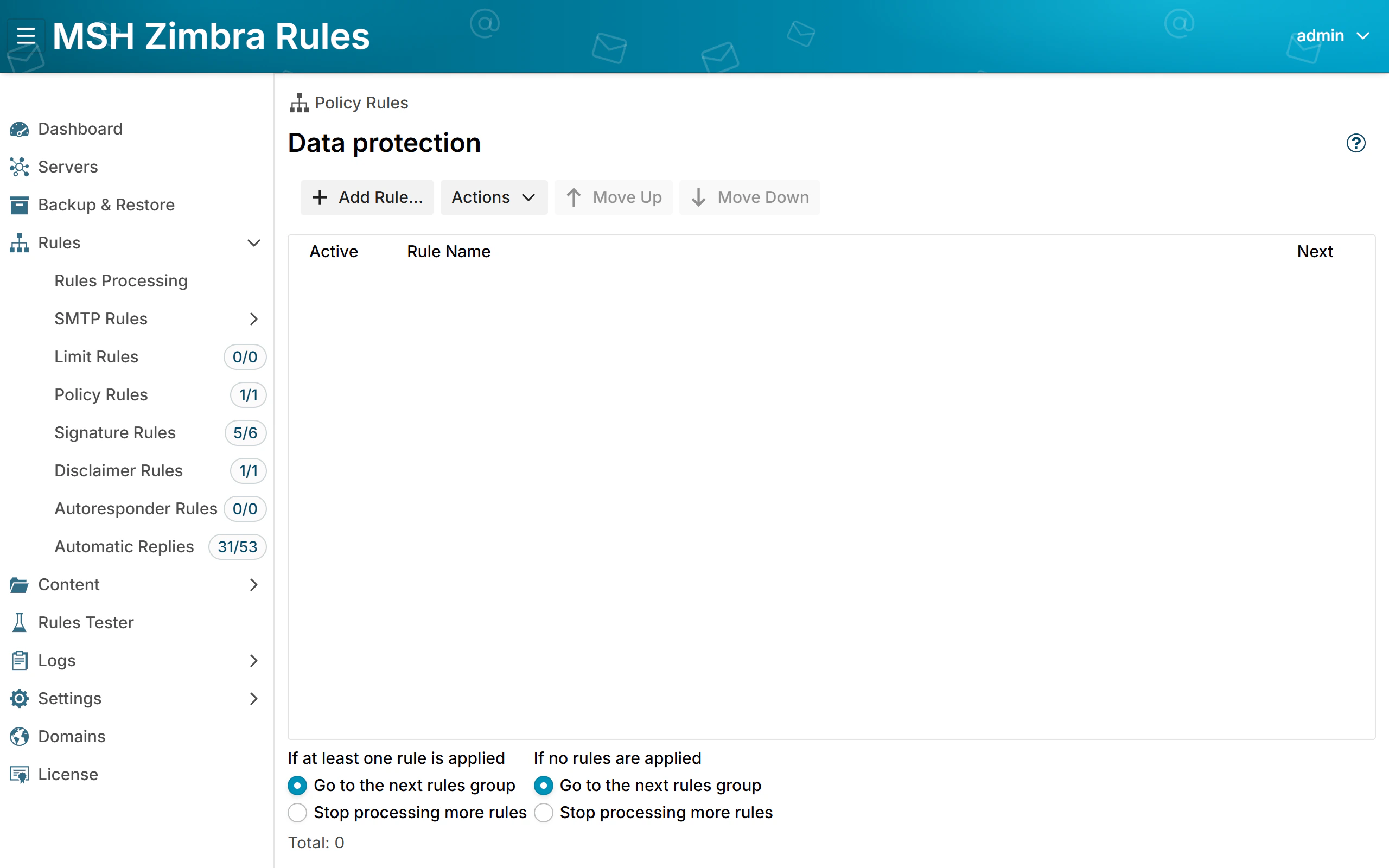
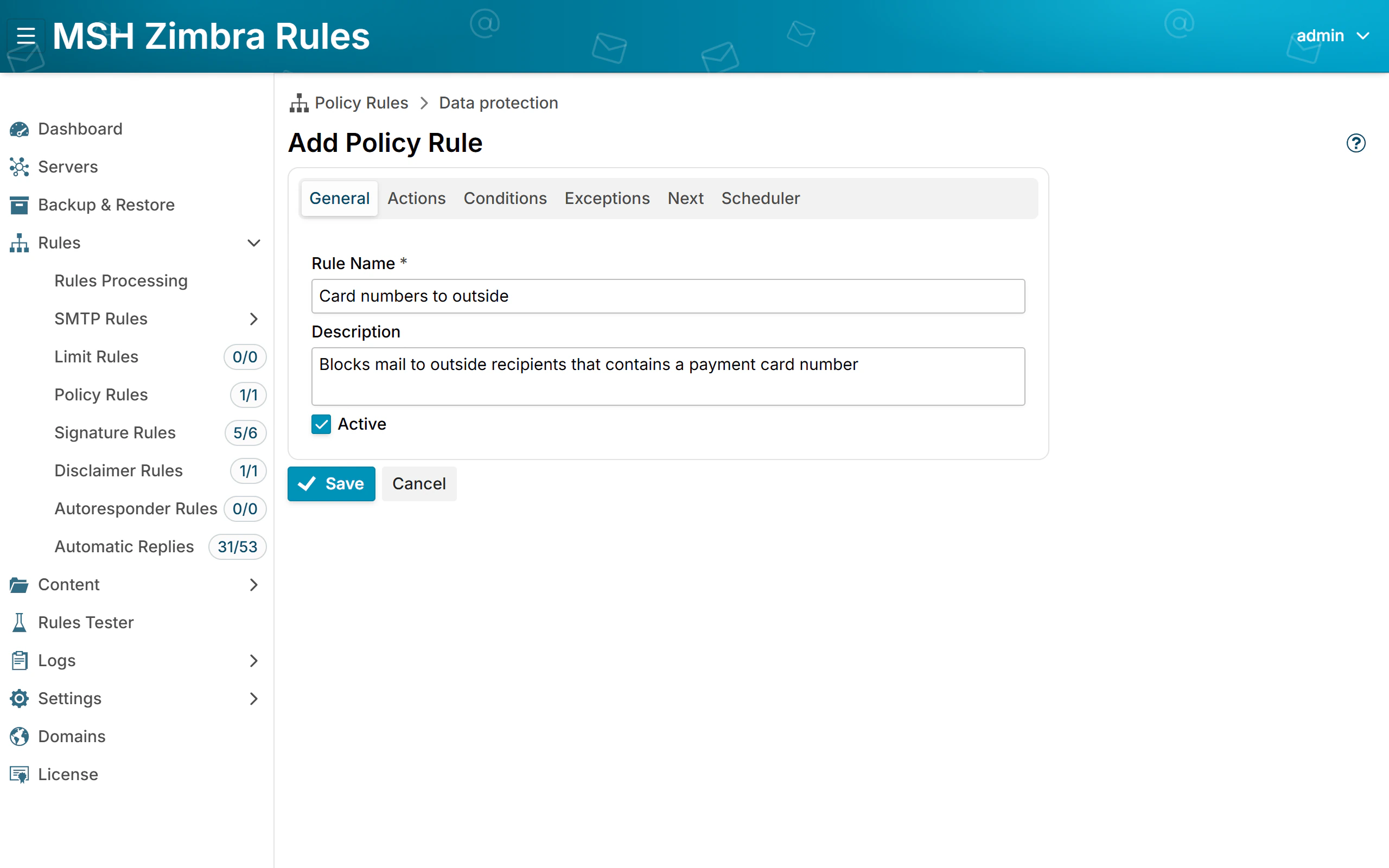
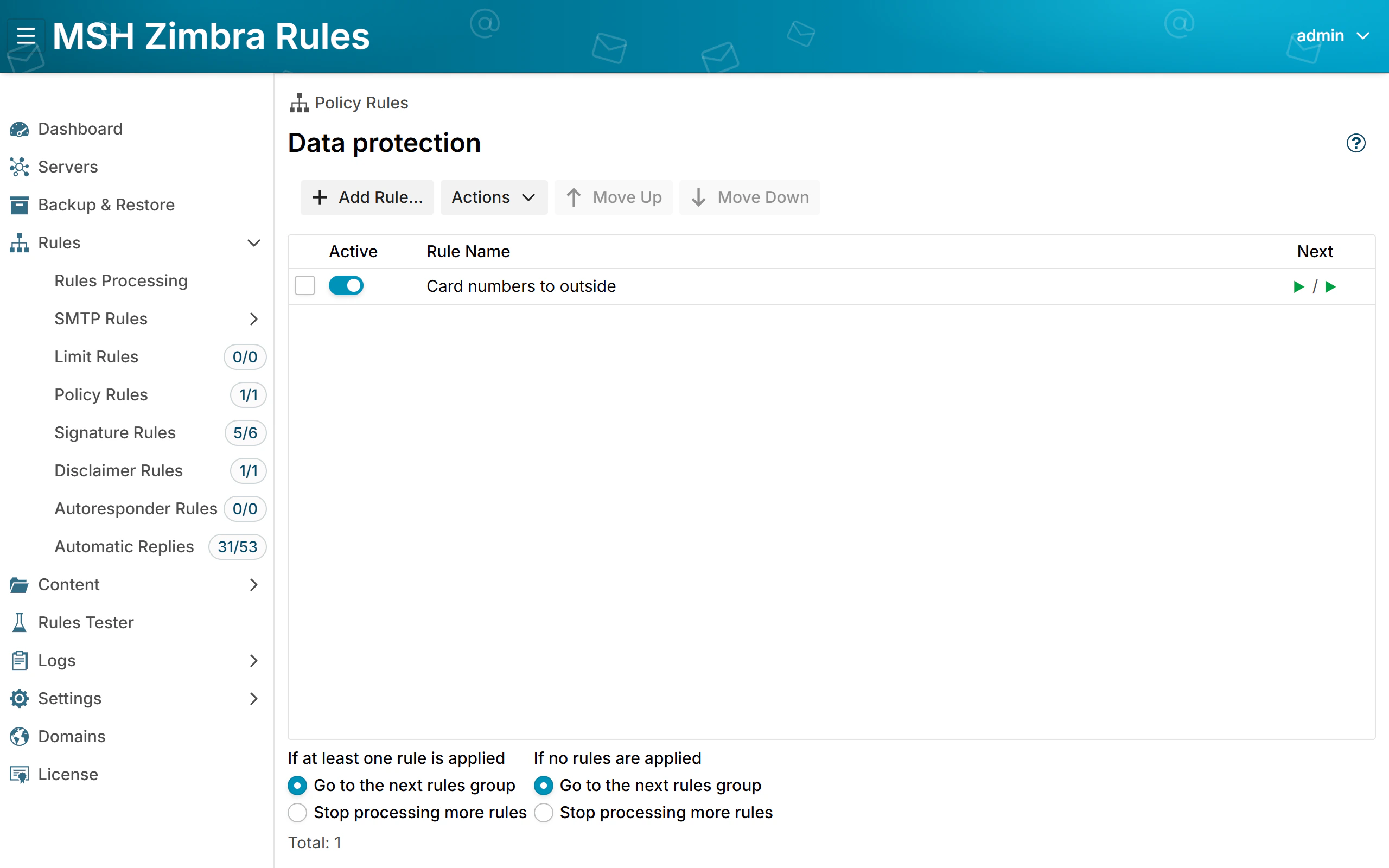
Open Rules > Policy Rules, click Add Group..., name the group
Data protection and click Save. Double-click the group, click Add Rule... and
name the rule Card numbers to outside.
Step 2 - Look for card numbers in mail that leaves
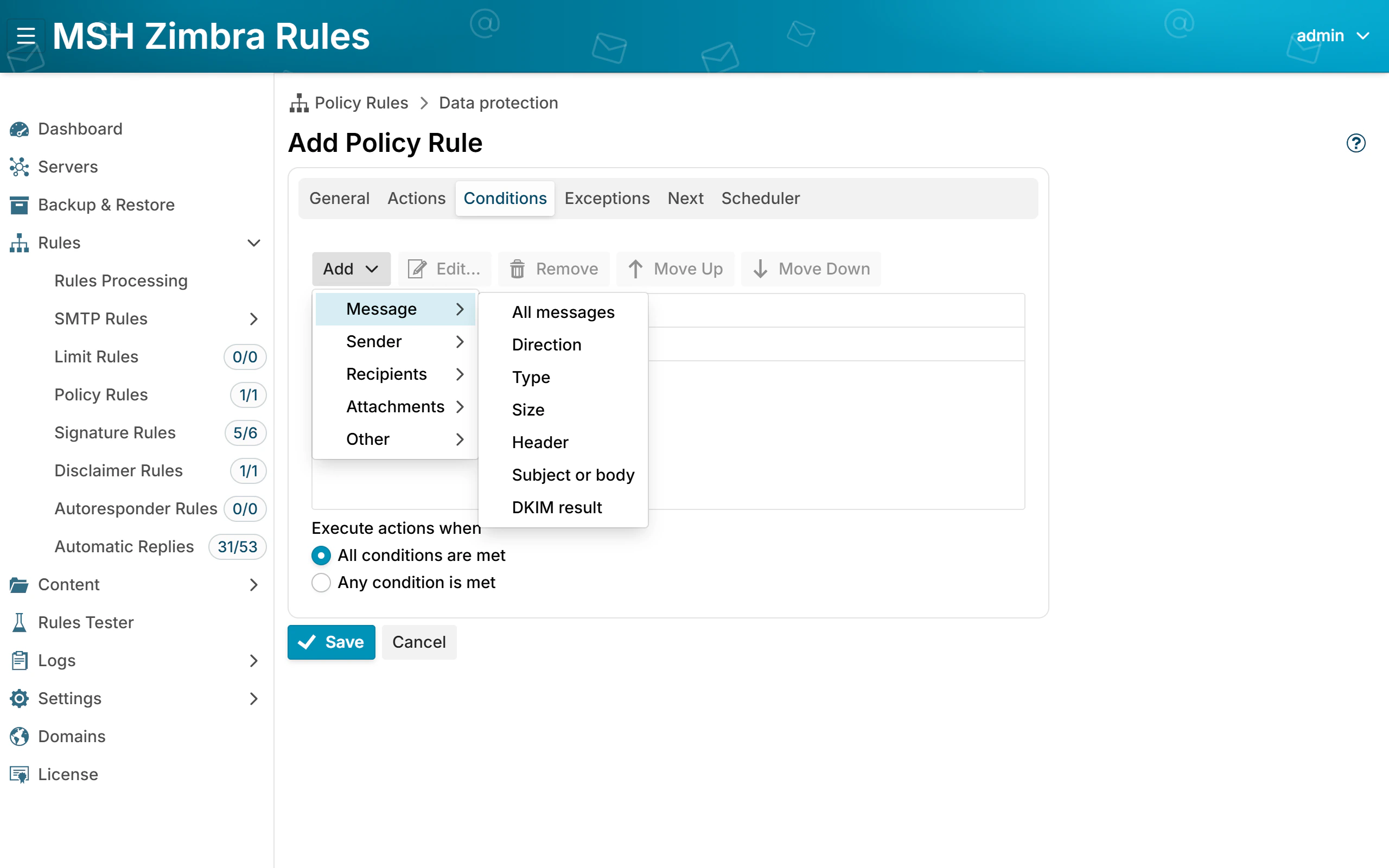
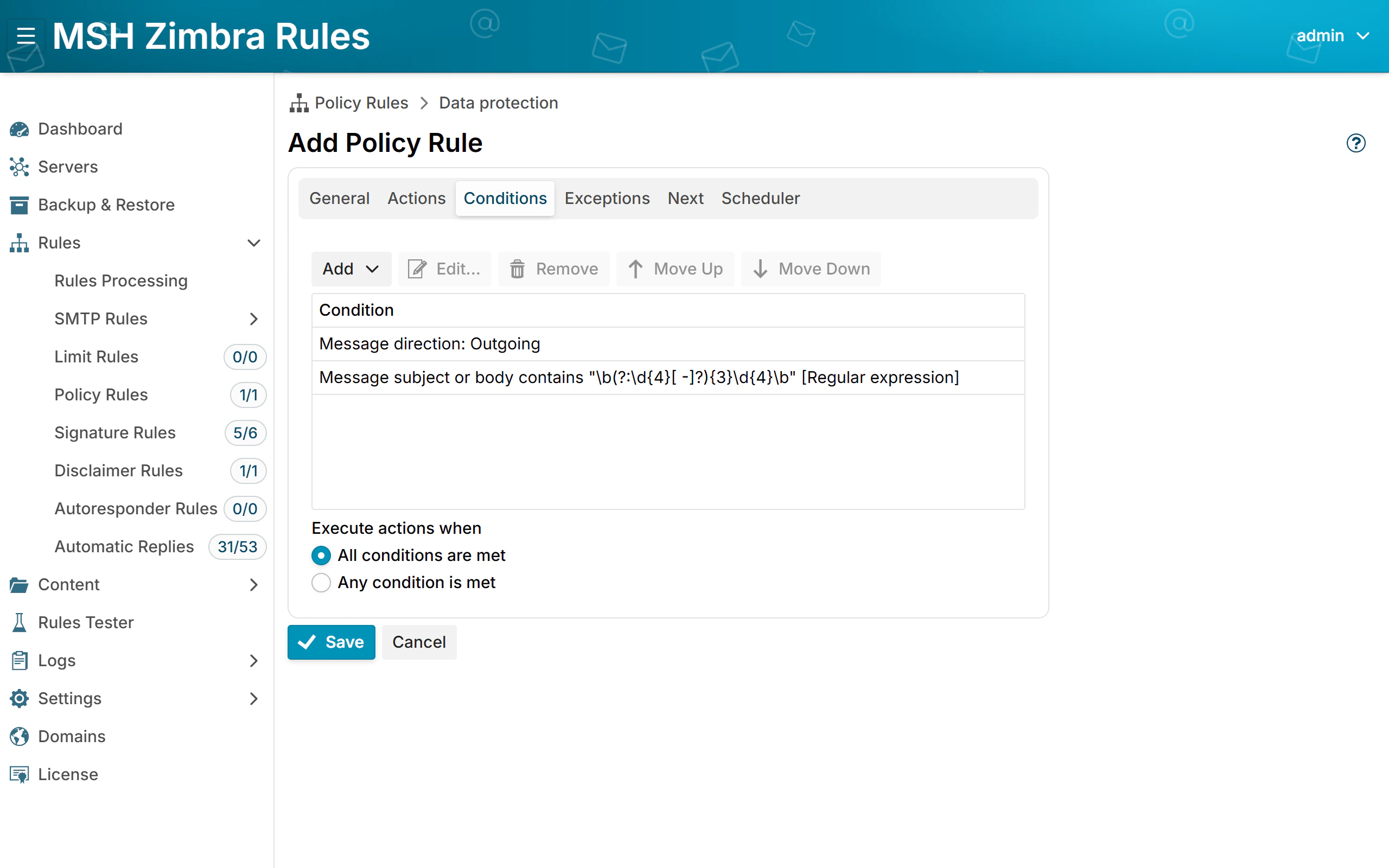
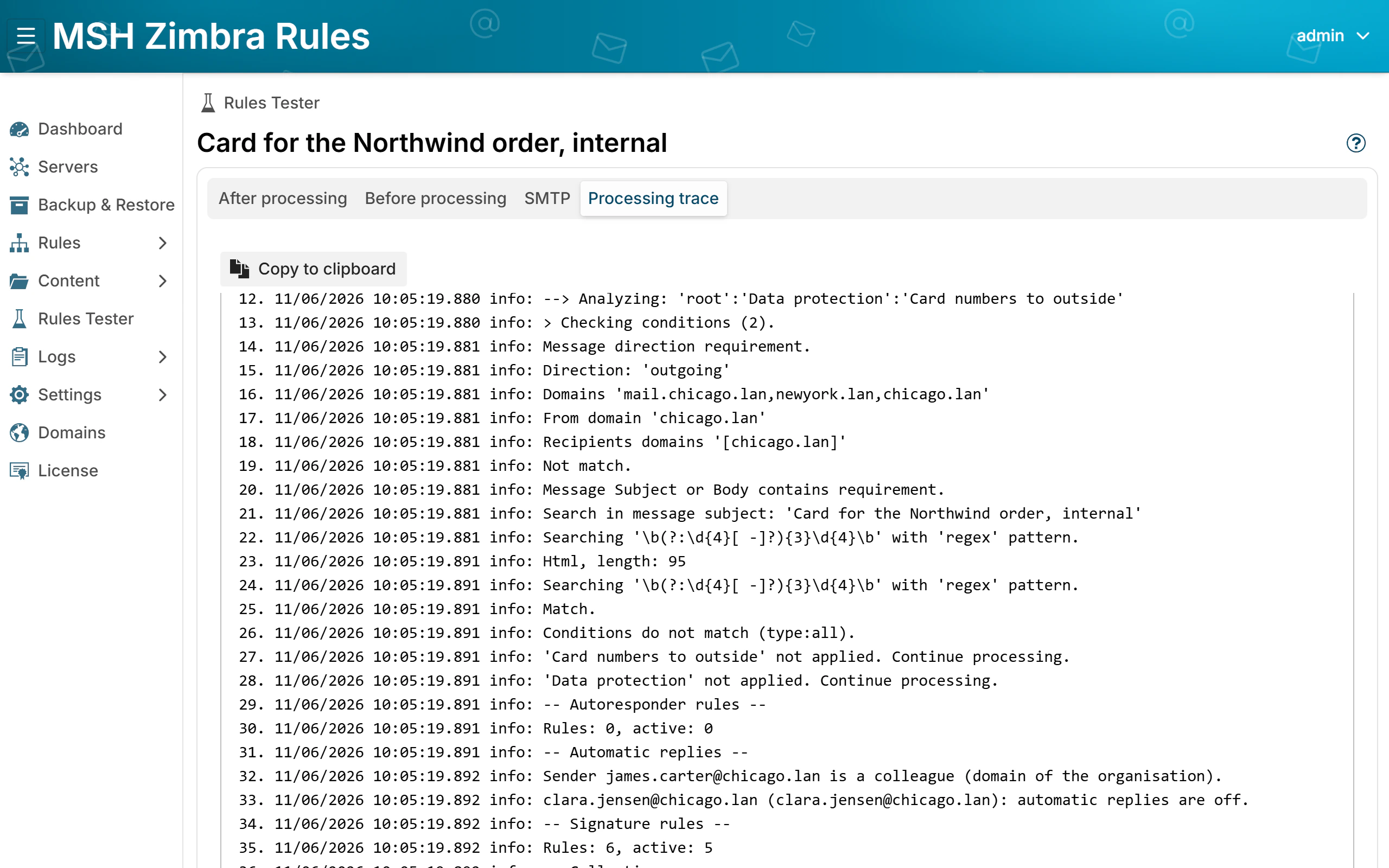
On the Conditions tab add two conditions and keep All conditions are met:
- Message > Direction, Outgoing. The rule then never touches mail between colleagues, or mail that comes in.
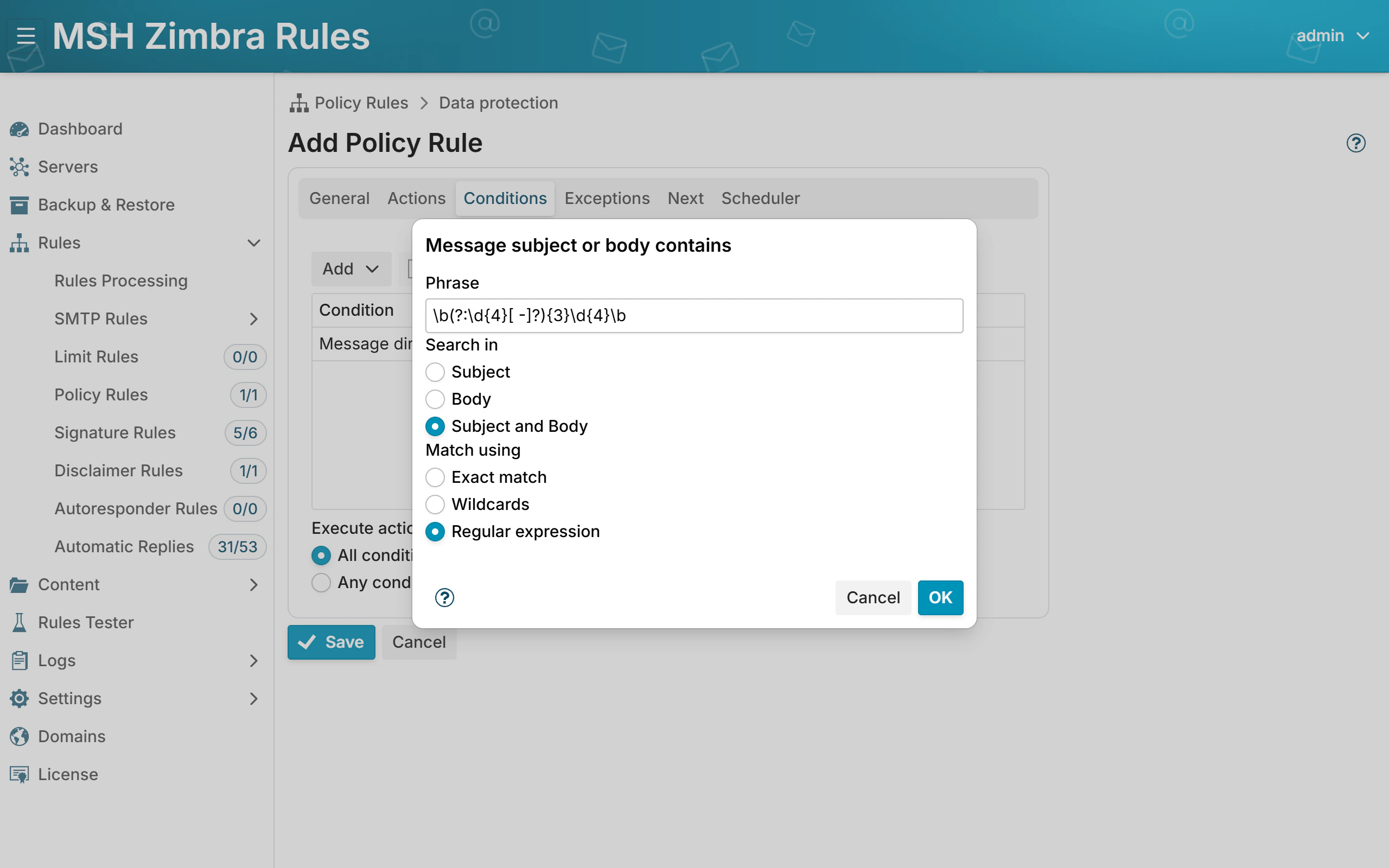
- Message > Subject or body. Type the pattern below into Phrase, choose Subject and Body and Regular expression.
\b(?:\d{4}[ -]?){3}\d{4}\b
It finds sixteen digits written in four groups, with or without spaces or dashes
between them: 4111111111111111, 4111 1111 1111 1111 and 4111-1111-1111-1111 all
match. That covers the common way card numbers are typed. See
Message subject or body contains.
Step 3 - Block the message
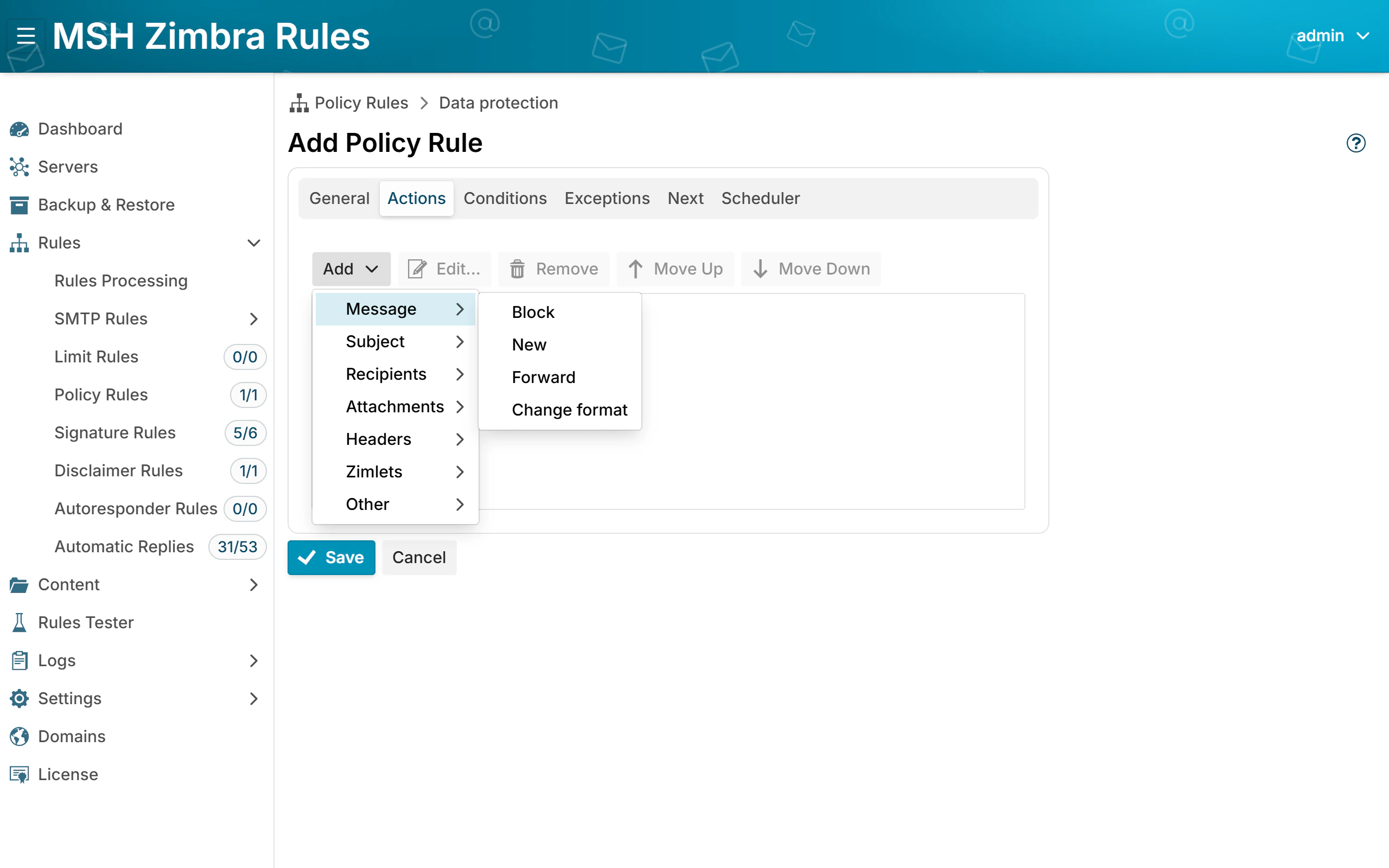
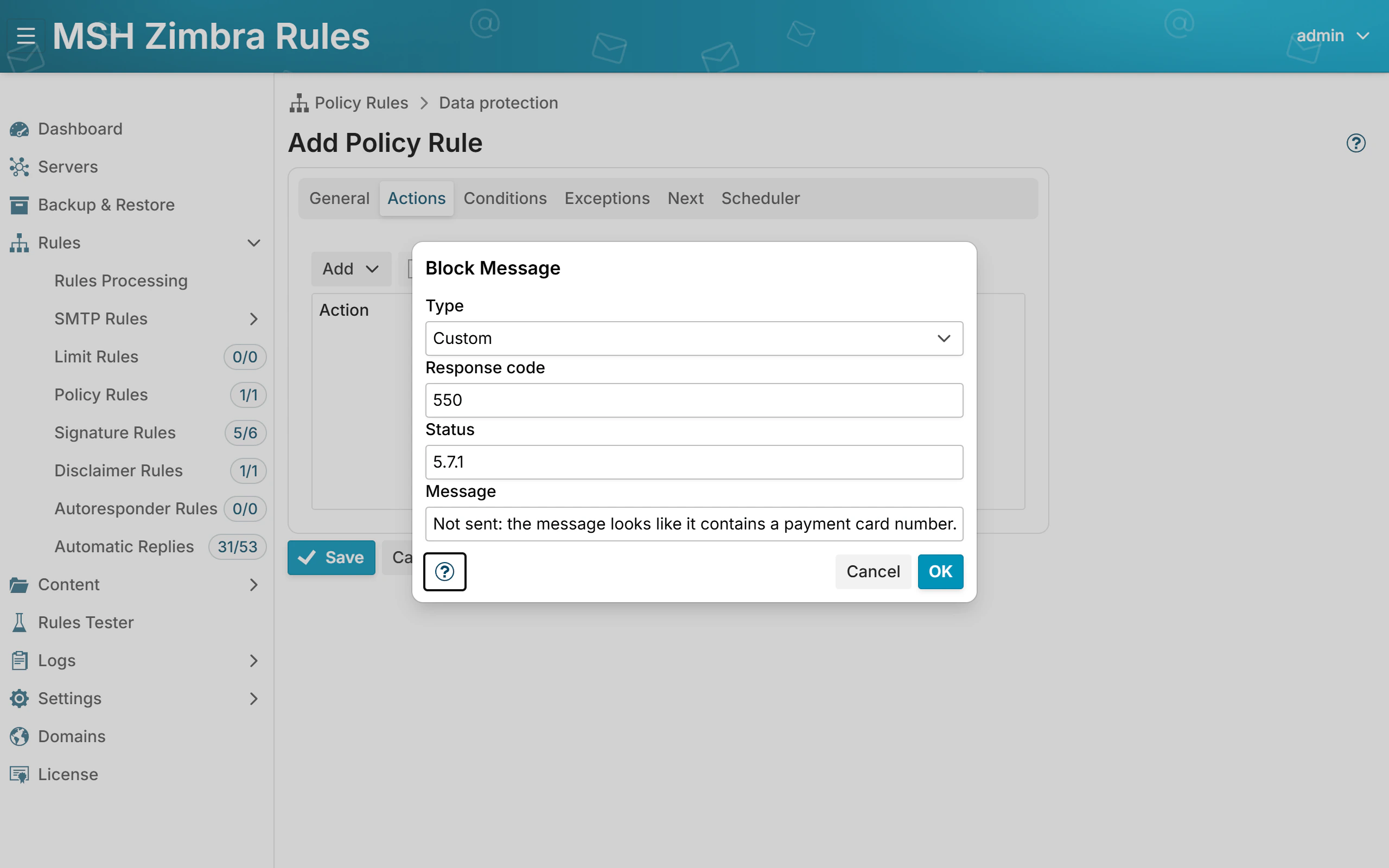
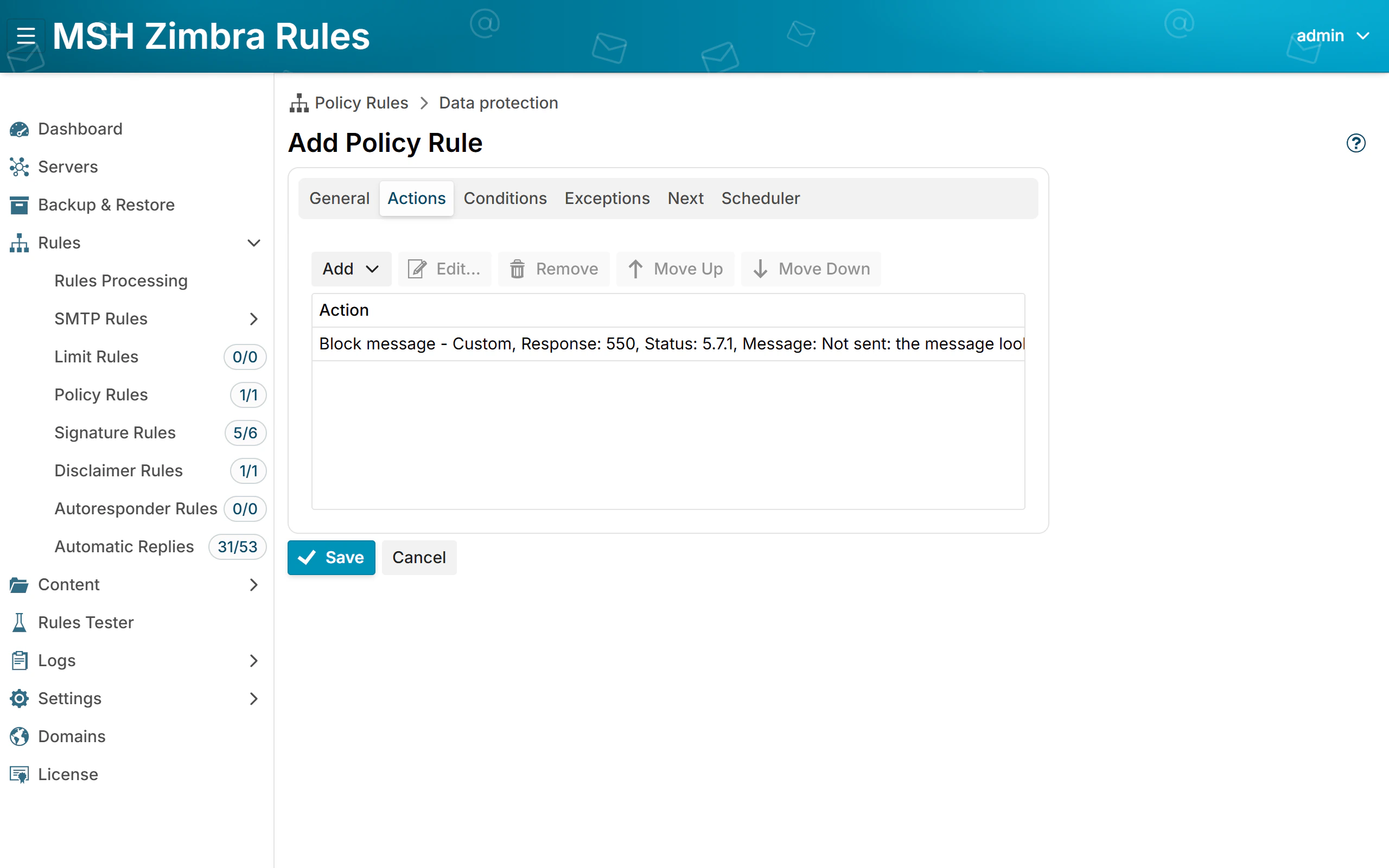
On the Actions tab click Add and choose Message > Block. Set Type to
Custom, Response code to 550, Status to 5.7.1, and Message to the
reason, for example Not sent: the message looks like it contains a payment card number.
Remove the number and send it again. Mail clients that send through SMTP, such as
Outlook or Thunderbird, usually show that text to the user. See
Block message.
Step 4 - Tell the sender why
Write the notice as a template, with message variables for the subject and the recipients of the stopped message:
<div style="font-family:Arial,Helvetica,sans-serif;font-size:14px;line-height:1.5;color:#1f2933;max-width:600px">
  <p style="margin:0 0 12px 0;font-size:18px;font-weight:bold;color:#b42318">Your message was not sent</p>
  <p style="margin:0 0 12px 0">Your message <b>{message:subject}</b> to {message:envelope:recipients} was stopped, because it looks like it contains a payment card number.</p>
  <p style="margin:0 0 12px 0">Card numbers must not leave the company by email. Remove the number, or share it through the payment portal, and send the message again.</p>
  <p style="margin:0;color:#52606d">If you think this is a mistake, reply to this message and the IT team will look at it.</p>
</div>
Do not quote the stopped message in the notice: it would put the card number into one
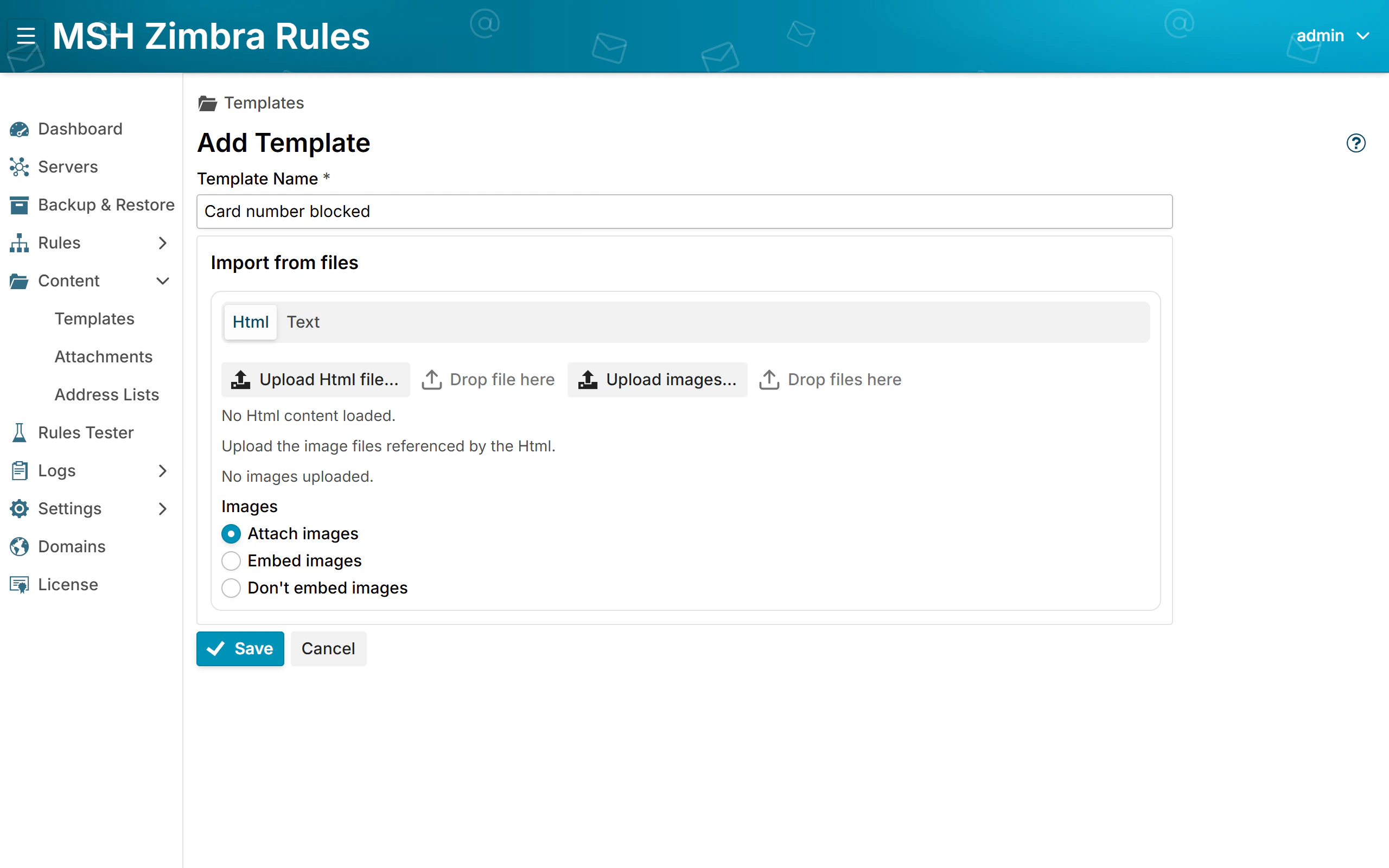
more mailbox. Make a card-blocked.txt with the same text for plain-text readers, and
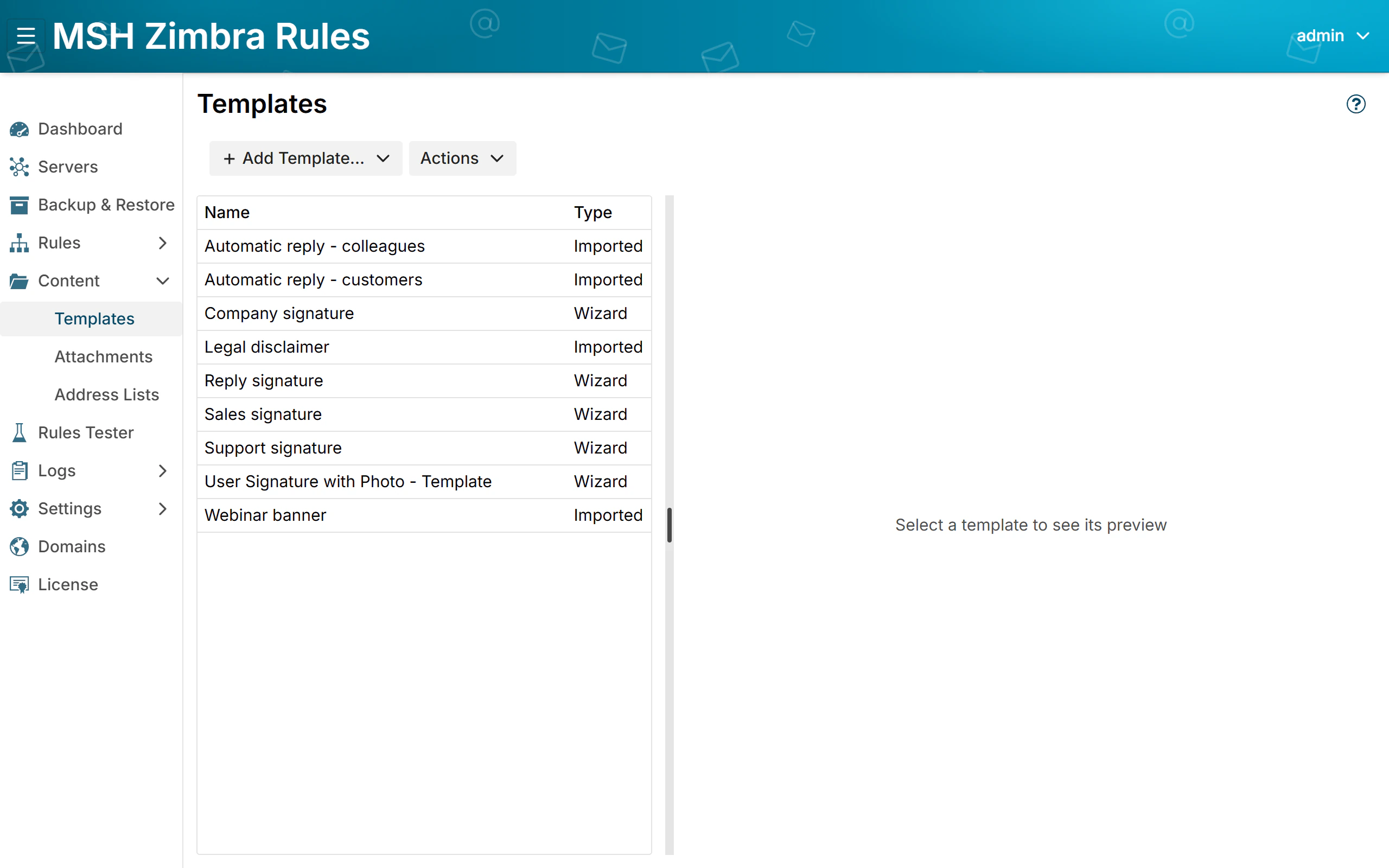
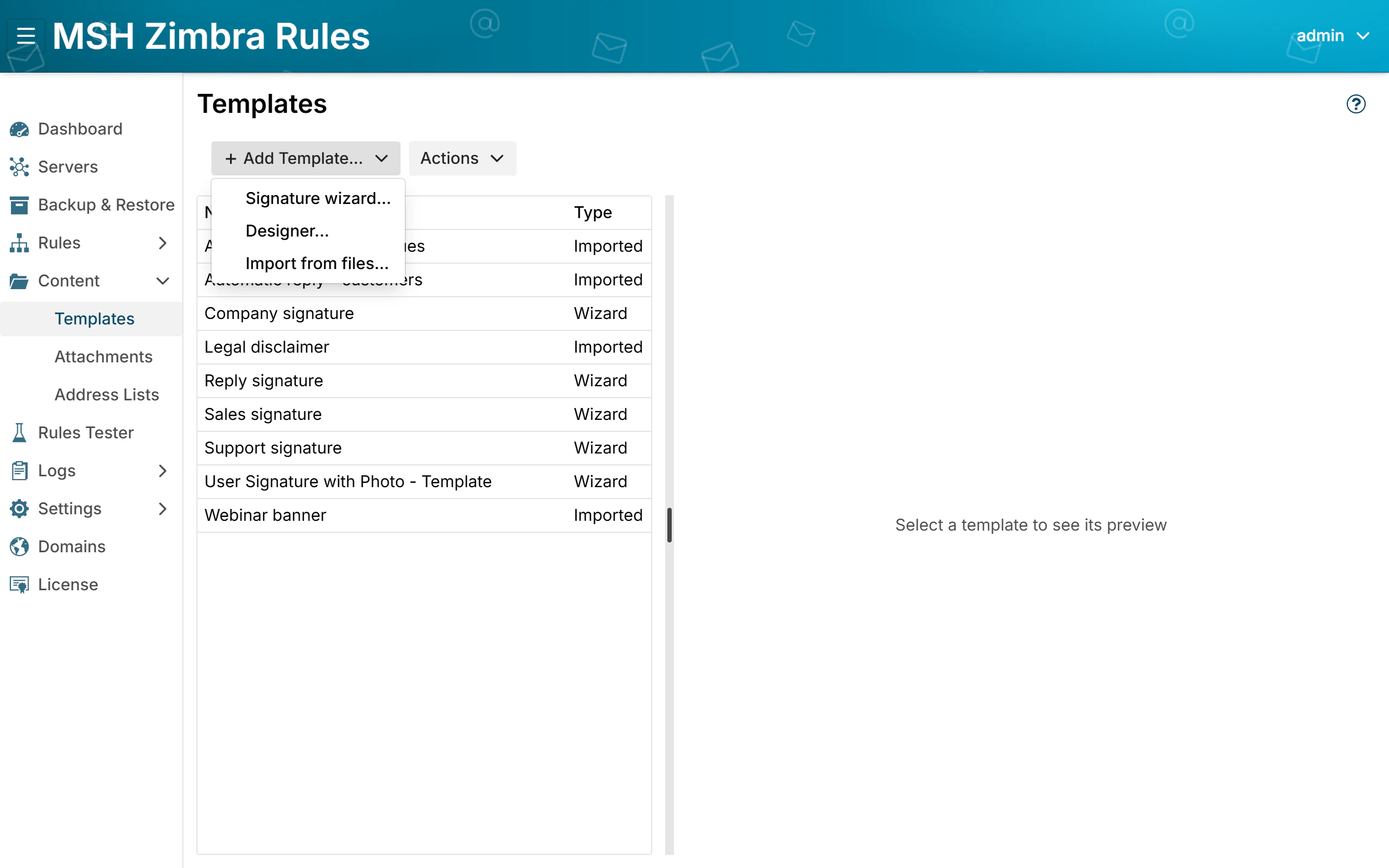
import both in Content > Templates > Add Template... > Import from
files... as Card number blocked.
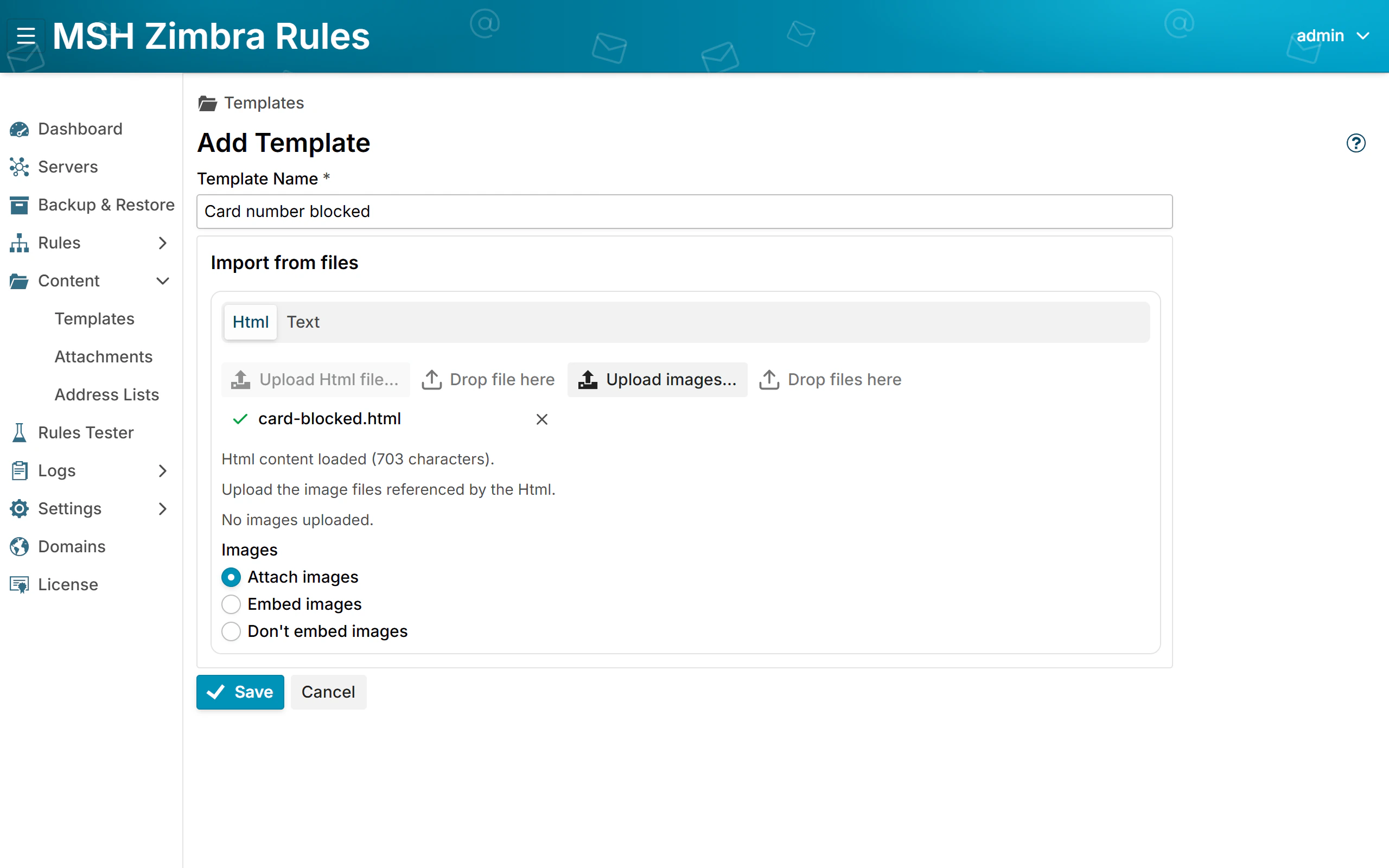
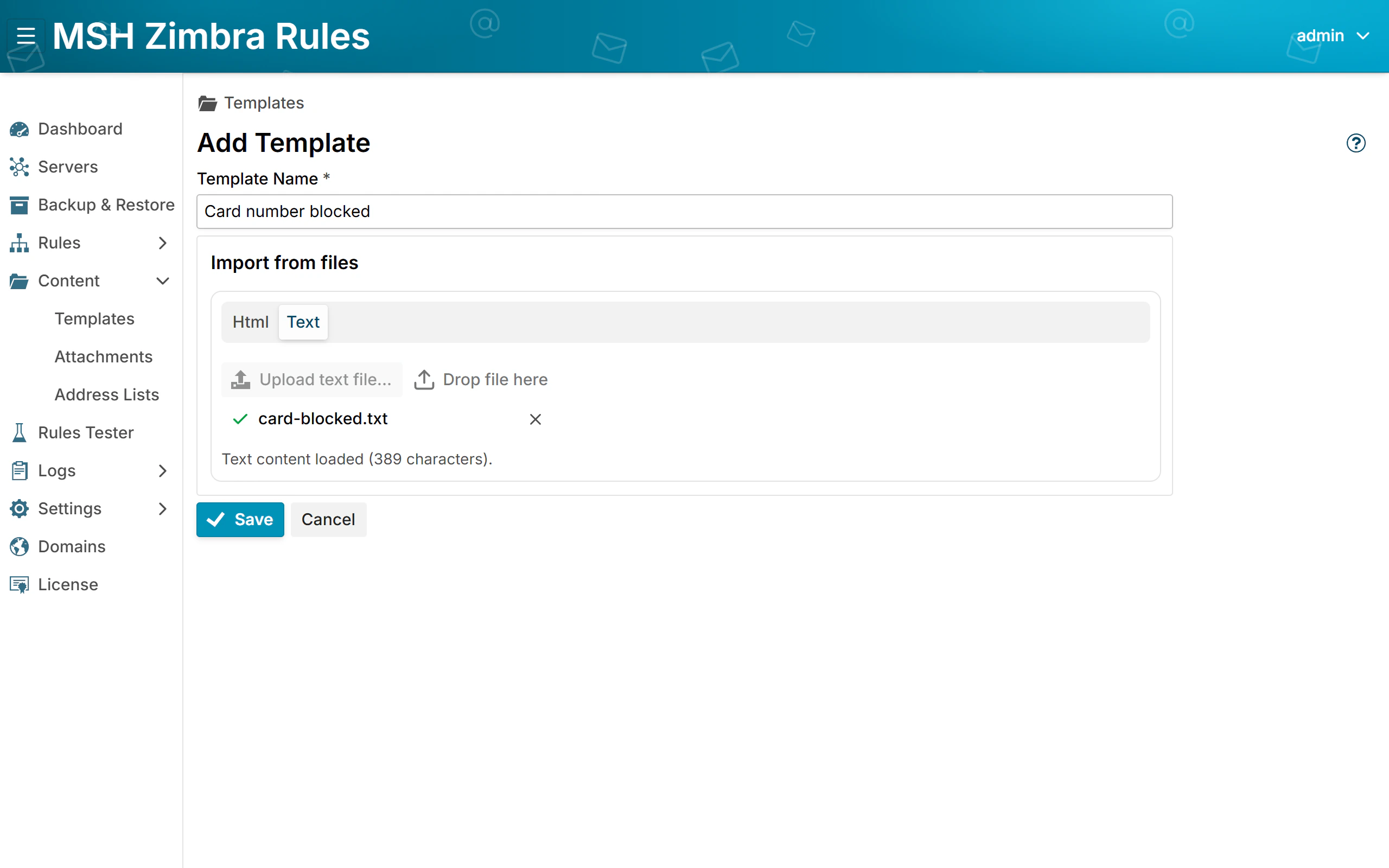
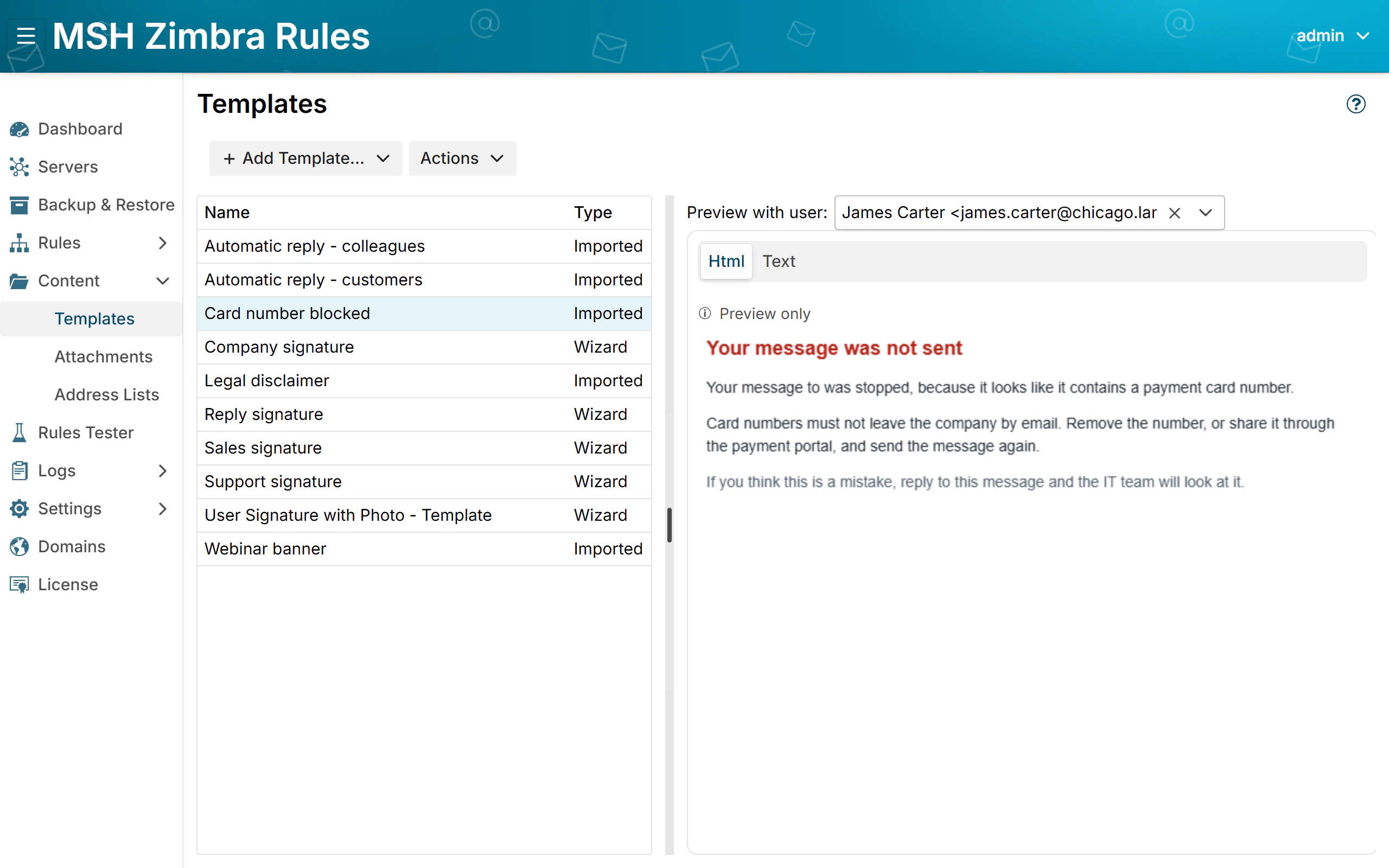
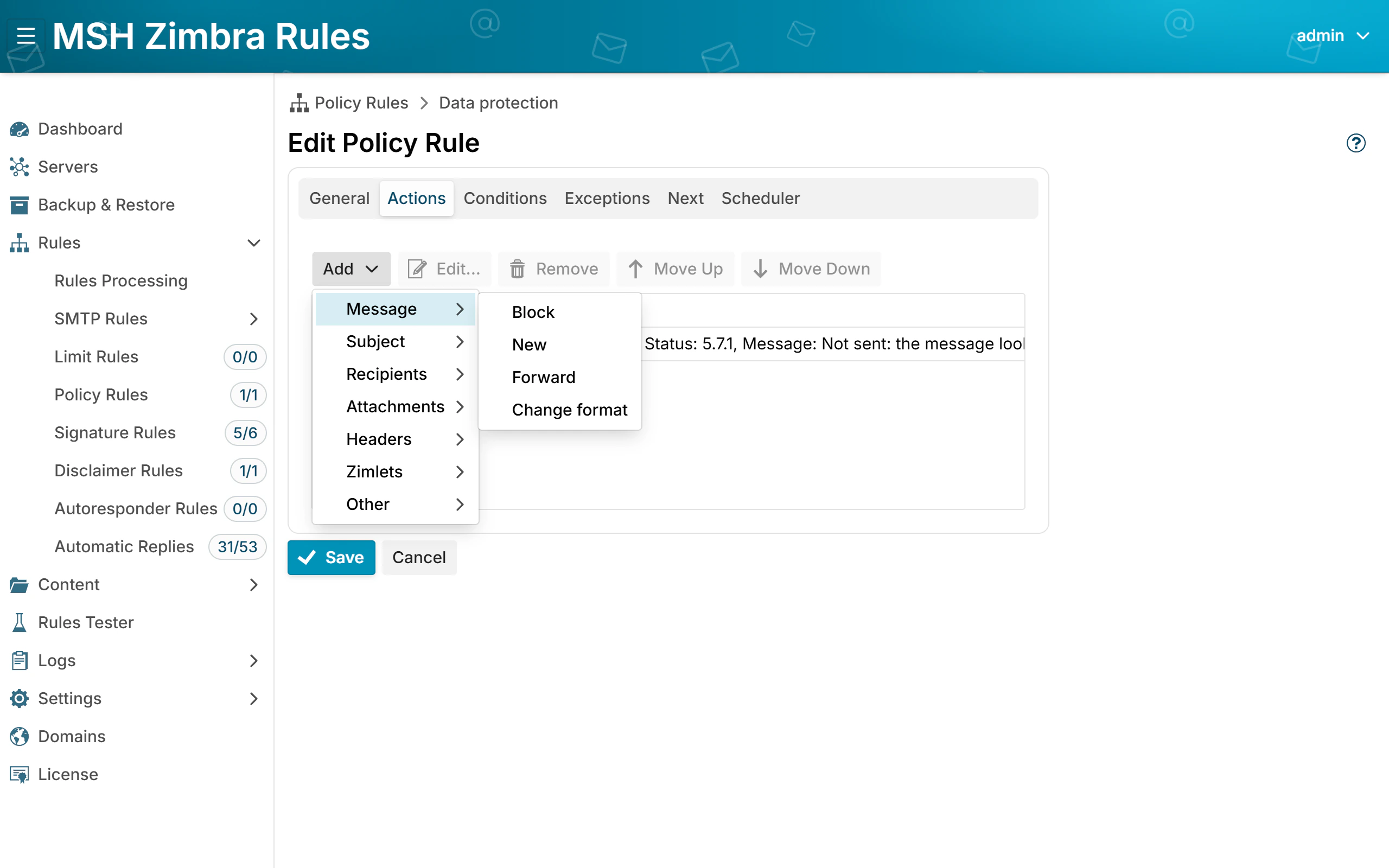
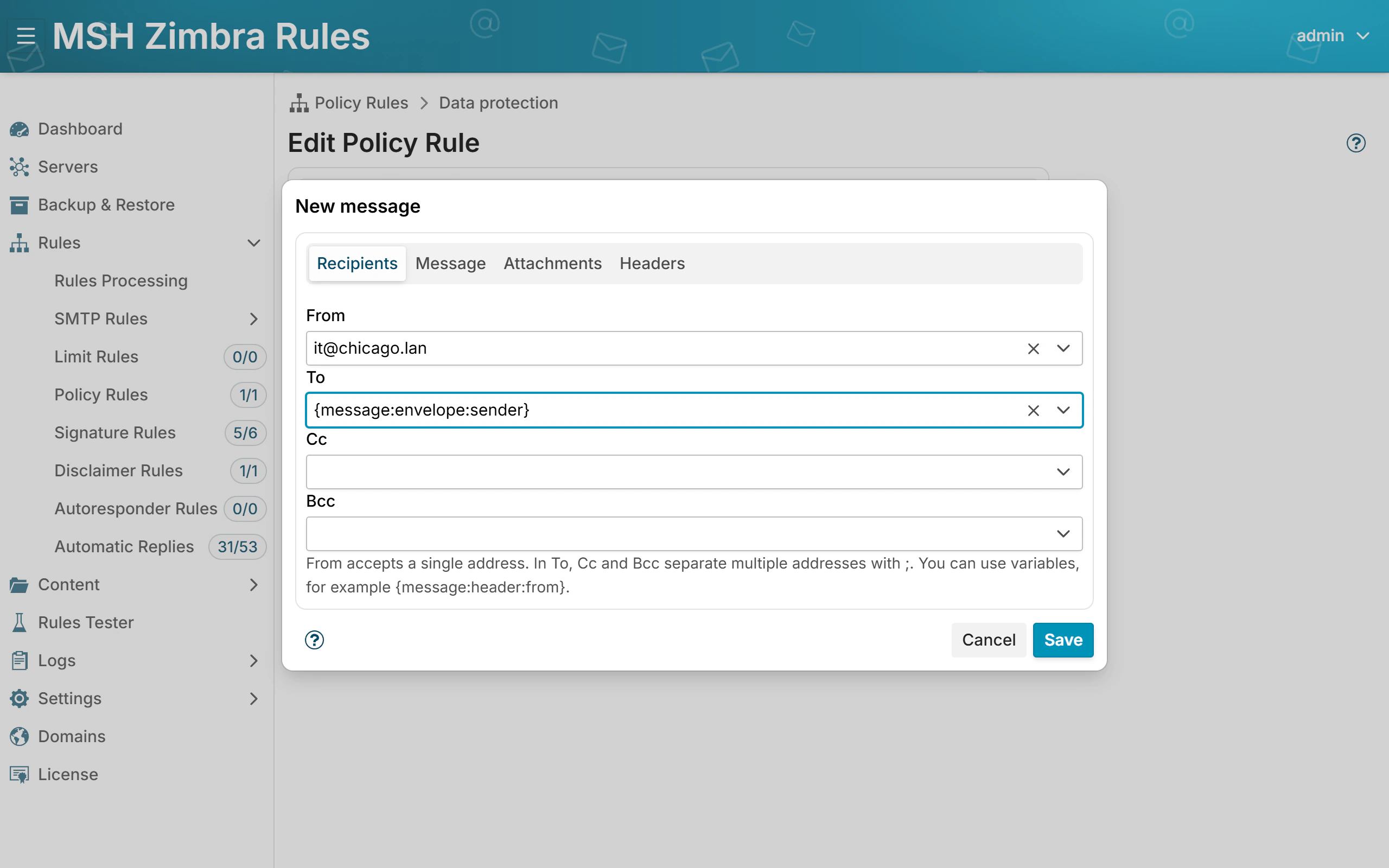
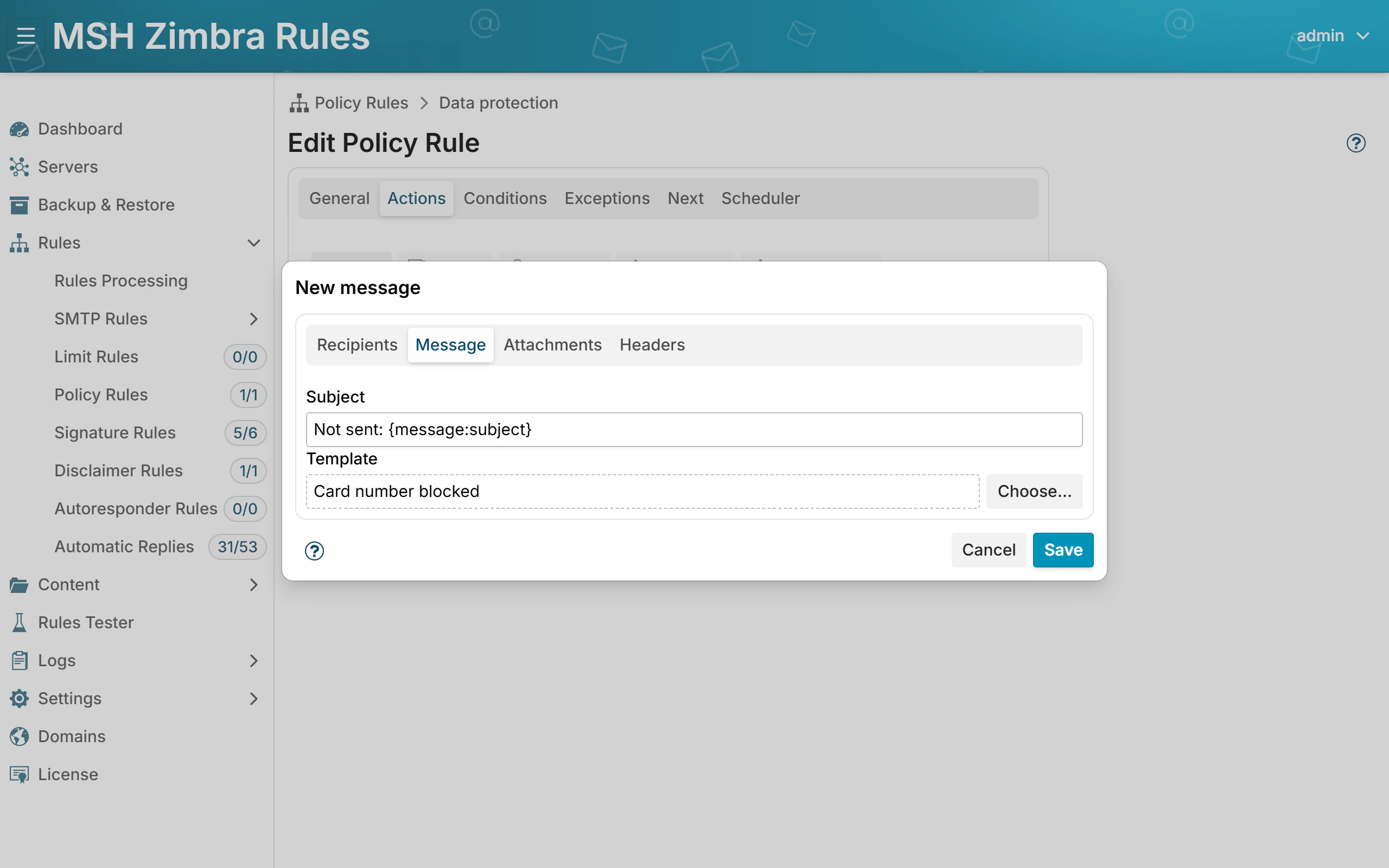
Then open the rule again and add a second action, Message > New:
| Tab | Field | Value |
|---|---|---|
| Recipients | From | it@chicago.lan |
| Recipients | To | {message:envelope:sender}, the sender of the stopped message |
| Message | Subject | Not sent: {message:subject} |
| Message | Template | Card number blocked, with Choose... |
Click Save in the dialog and Save on the rule. See New message.
Step 5 - Keep signatures off the notice
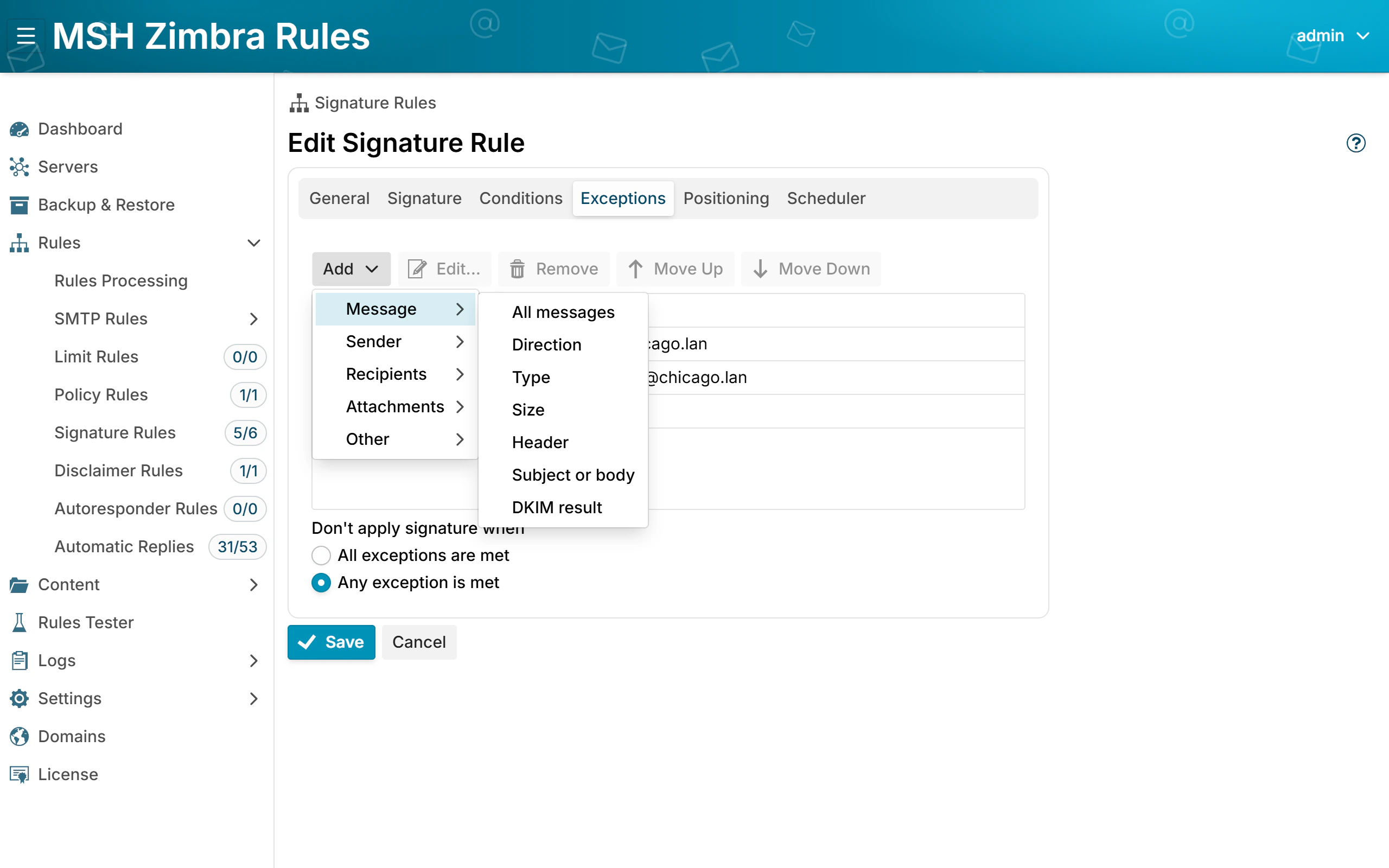
The notice goes through the rules like any other message. Sent from an address in your
domain, it gets the company signature, empty because it@chicago.lan is not a person,
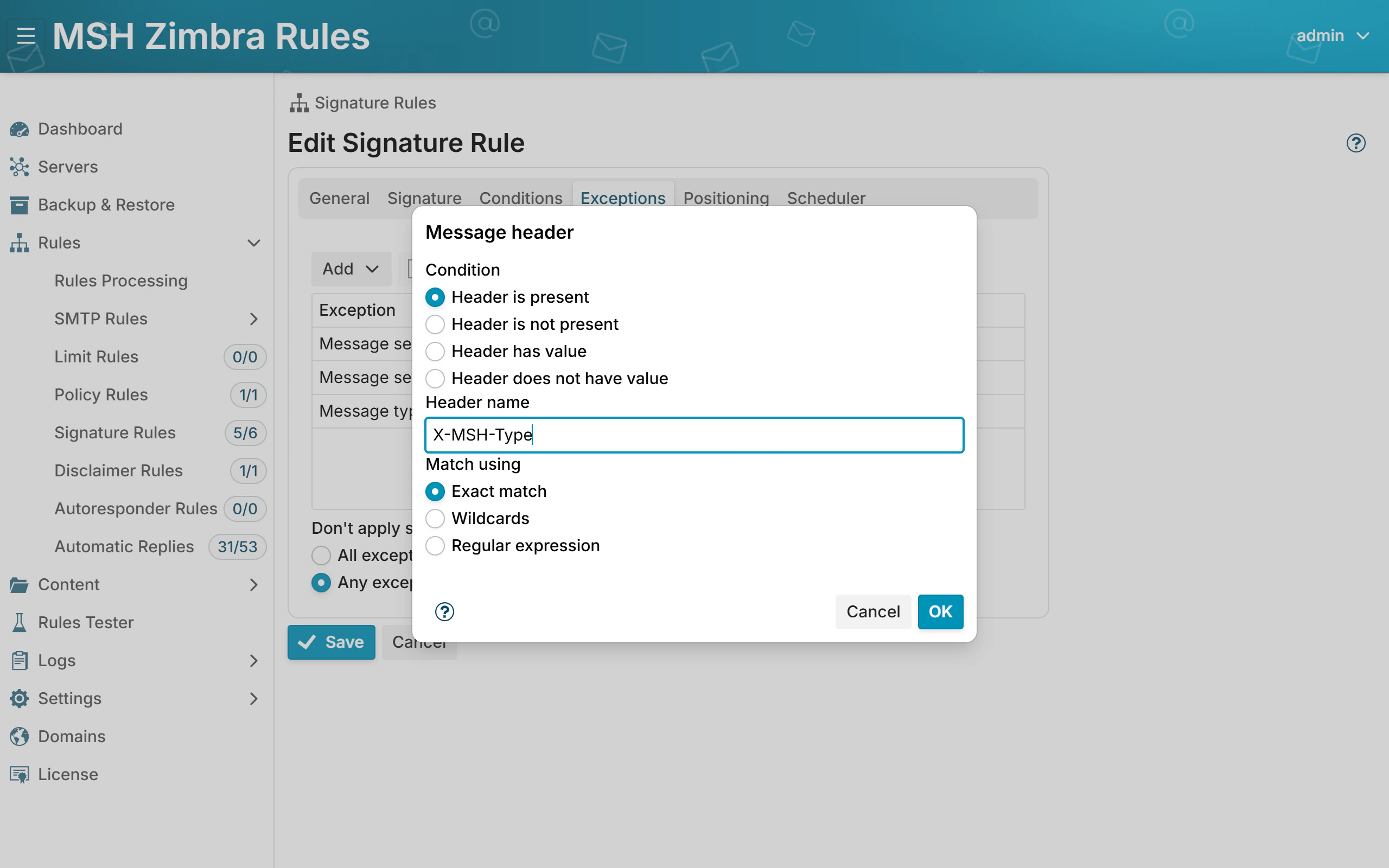
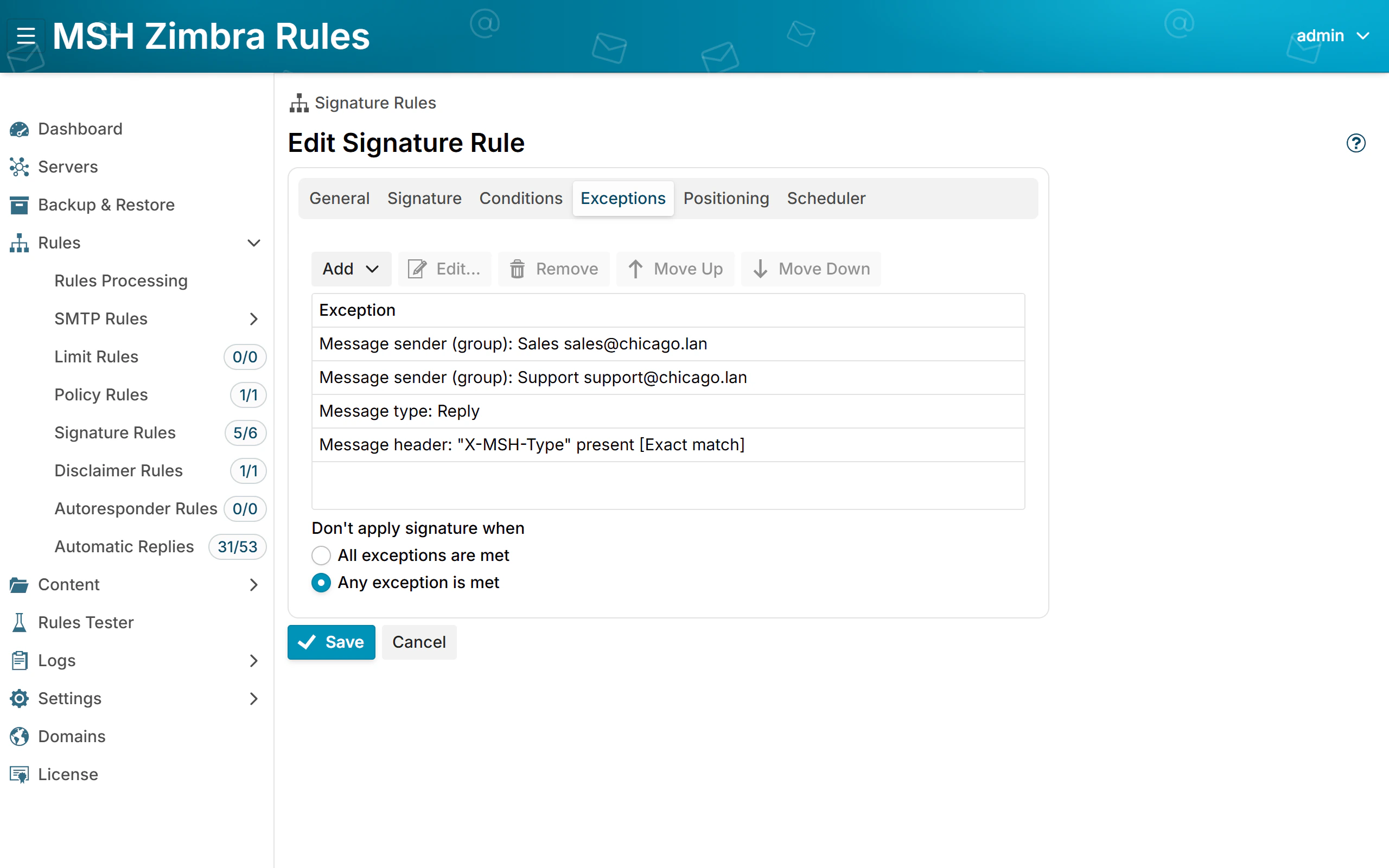
and any campaign banner. A message made by the New action carries the header
X-MSH-Type: new-message, so give your signature rules one more exception:
Message > Header, Header is present, X-MSH-Type.
Step 6 - Test it
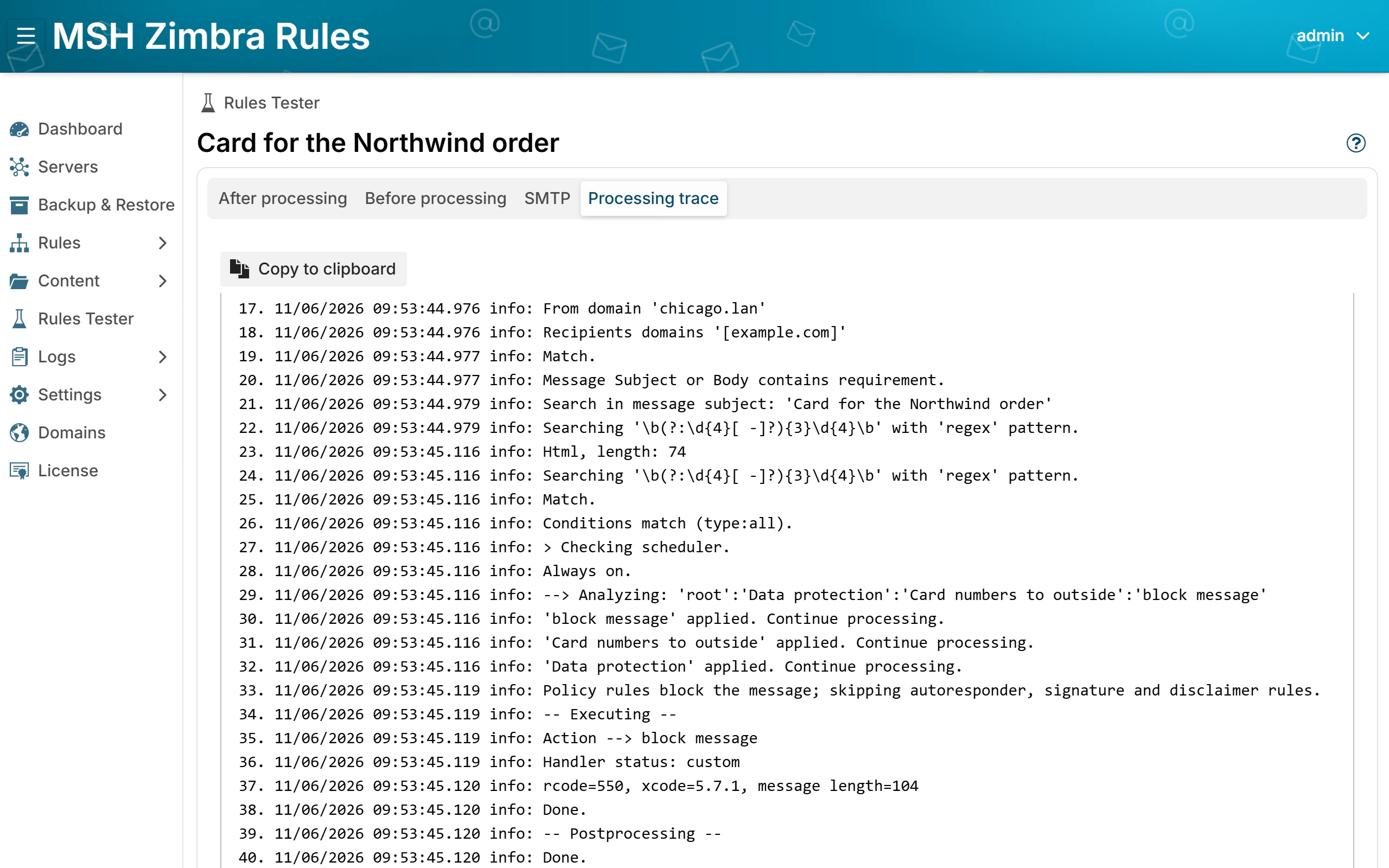
First in the Rules tester: a Custom... test message from one of your users to an outside address, with the test card number in the body. Then for real, from the web client.
Variations
Each of these is a second rule in the same group, built the same way. Test the pattern in the Rules tester with sample text before you activate the rule.
- IBANs. A pattern such as
\b[A-Z]{2}\d{2}(?: ?[A-Z0-9]{4}){3,7}\bfinds most account numbers written in groups of four. Give Finance an exception with SenderIn Group, if they send them on purpose.
- A confidentiality marker. Subject contains
CONFIDENTIALwith Exact match, for documents labelled for internal use only.
What the rule cannot see
- Attachments. The condition reads the subject and the text of the message, not a PDF or a spreadsheet attached to it.
- Images. A photo of a card is just an image.
- Encrypted mail. The text of an S/MIME or PGP encrypted message is not readable on the server.
- Other ways of writing it.
4111.1111.1111.1111, or digits spelled out, do not match this pattern. A rule like this catches mistakes, not someone determined to get data out.
Related reading
- Block message - the block types and response codes
- New message - the notice, and how it goes through the rules
- Message subject or body contains
- exact match, wildcards and regular expressions
- Add a Legal Disclaimer to External Mail Only in Zimbra
- another rule for outgoing mail
Want to try it on your own server? Start a free trial.