Test a rule in the Rules Tester before it goes live
A rule works on real mail as soon as it is saved, usually within a minute. A condition that matches too much, or a case nobody thought of, then reaches customers before anyone notices. The Rules Tester of MSH Zimbra Rules runs a message you write through all the rules, as the mail server would, without sending anything, and shows every step in a processing trace. This article tests a new rule in it before the rule is allowed to touch real mail, and fixes a mistake the tests find.
Why test first
The Rules Tester runs the same rules as the mail server, with the same order of groups, the same Next settings and the same switches of Rules processing. It is the quickest way to see:
- whether the rule matches the messages it is meant for, and no others,
- what the other rules do to the same message, before and after yours,
- what happens to mail that the rules themselves send, such as automatic replies.
There is one catch: like the mail server, the tester skips a rule that is not active. Its
trace says Not active. Skipping processing. and nothing more. To test a rule, it has to
be active, so keep it away from real mail in another way: with a schedule that starts in
the future.
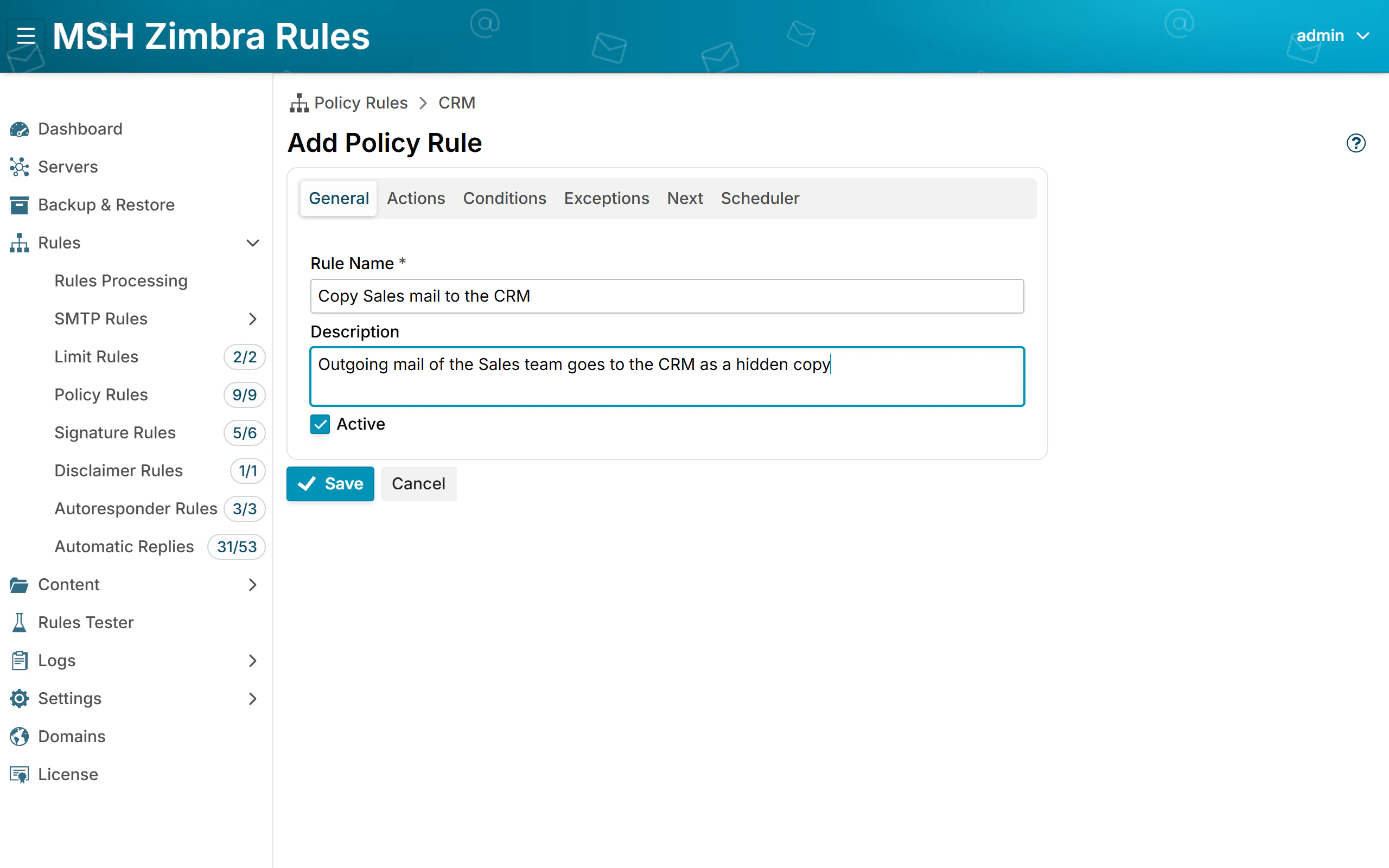
The rule in this example
Sales wants a hidden copy of every message they send to customers in their CRM, which
takes mail at dropbox@crm.example. The rule:
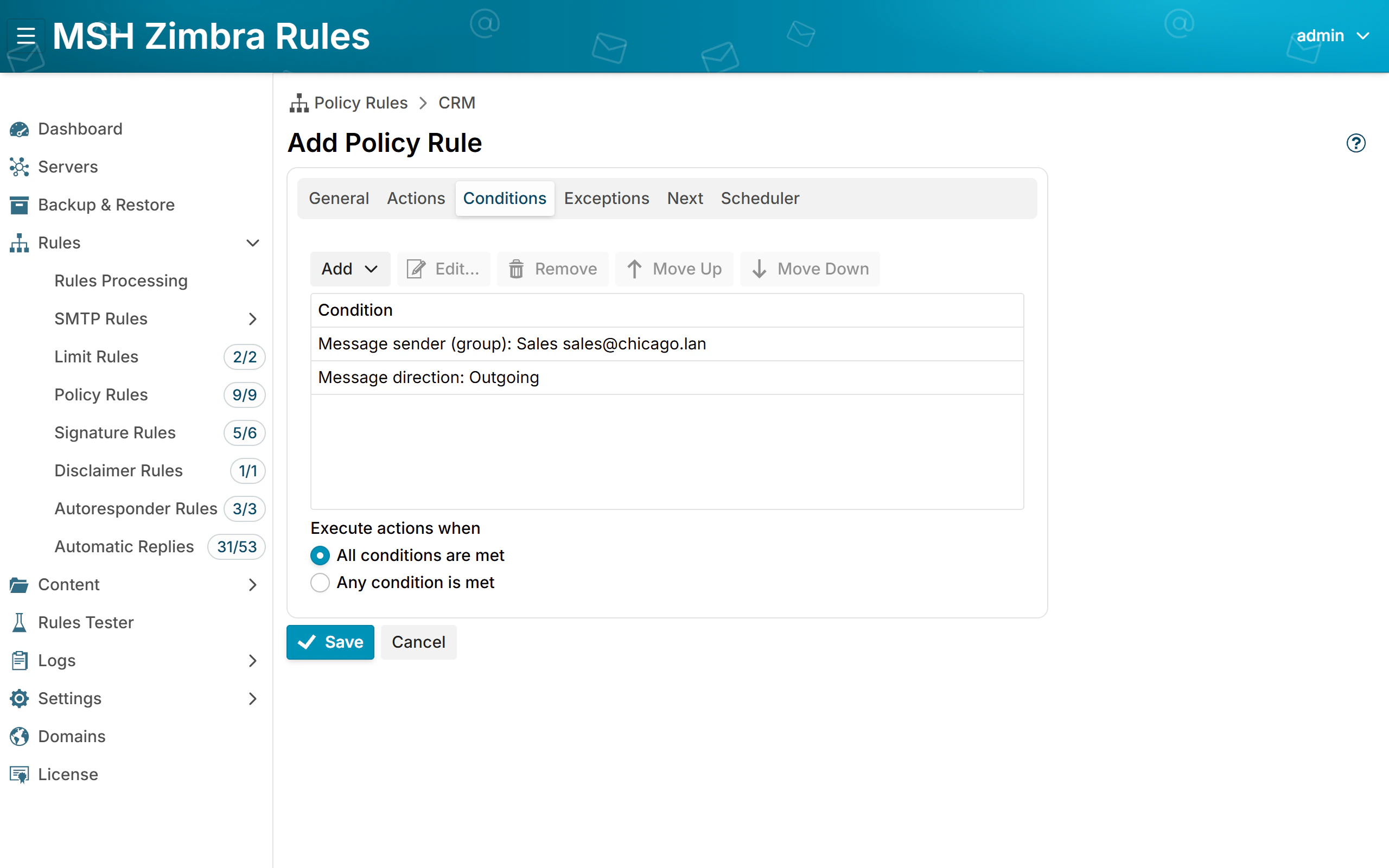
- Conditions (all): Sender > Sender, In Group, Sales; and Message > Direction, Outgoing.
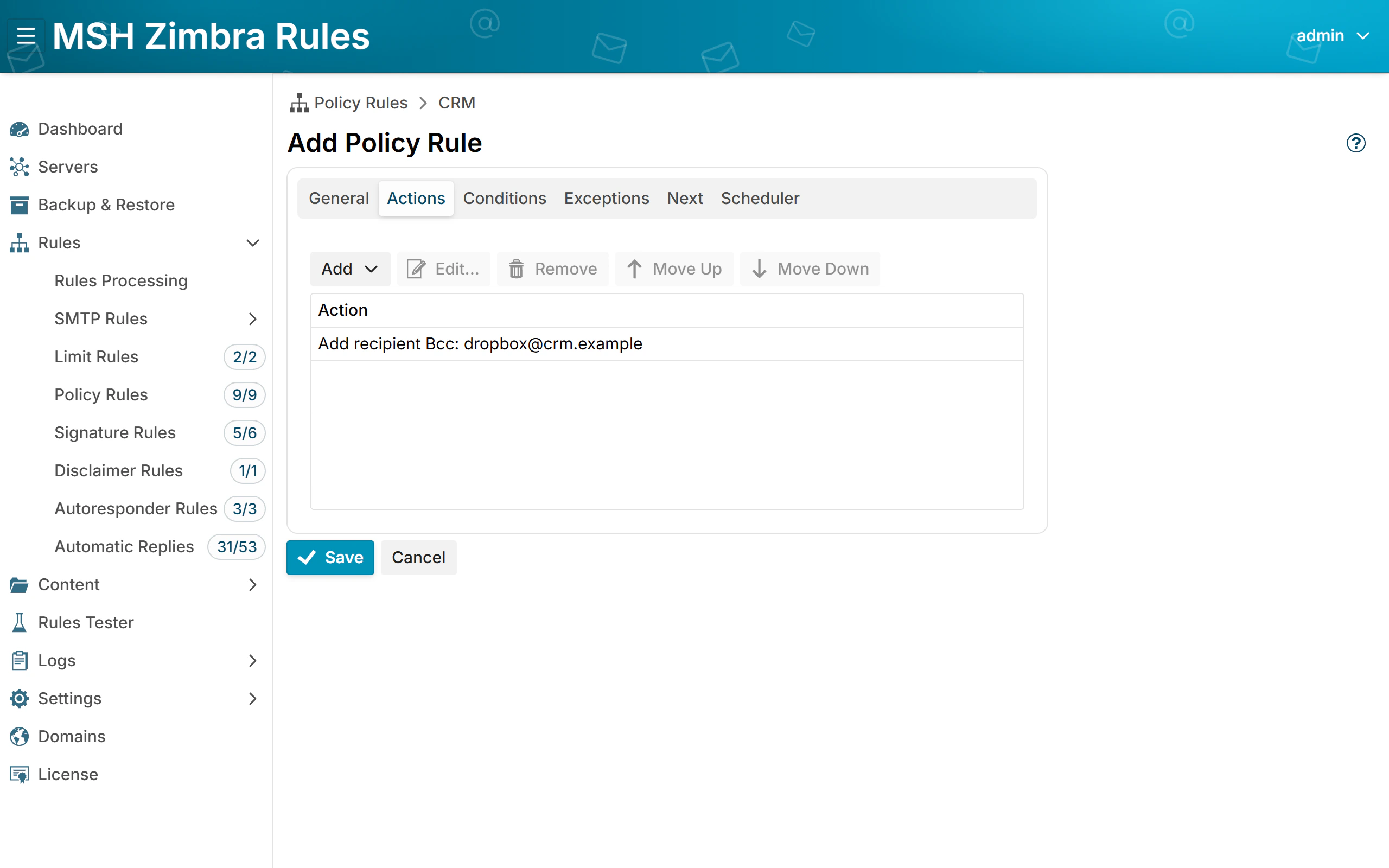
- Action: Recipients > Add,
dropbox@crm.example, Add as Bcc.
Step 1 - Save the rule with a schedule in the future
Create the rule in Rules > Policy Rules, here in a group CRM. Before you save
it, open its Scheduler tab, choose Custom schedule and add a time range of one
day in the future, for example a day next week. Until that day the rule is saved and
active, but does not touch real mail. In the Rules Tester you send your test messages
on that day.
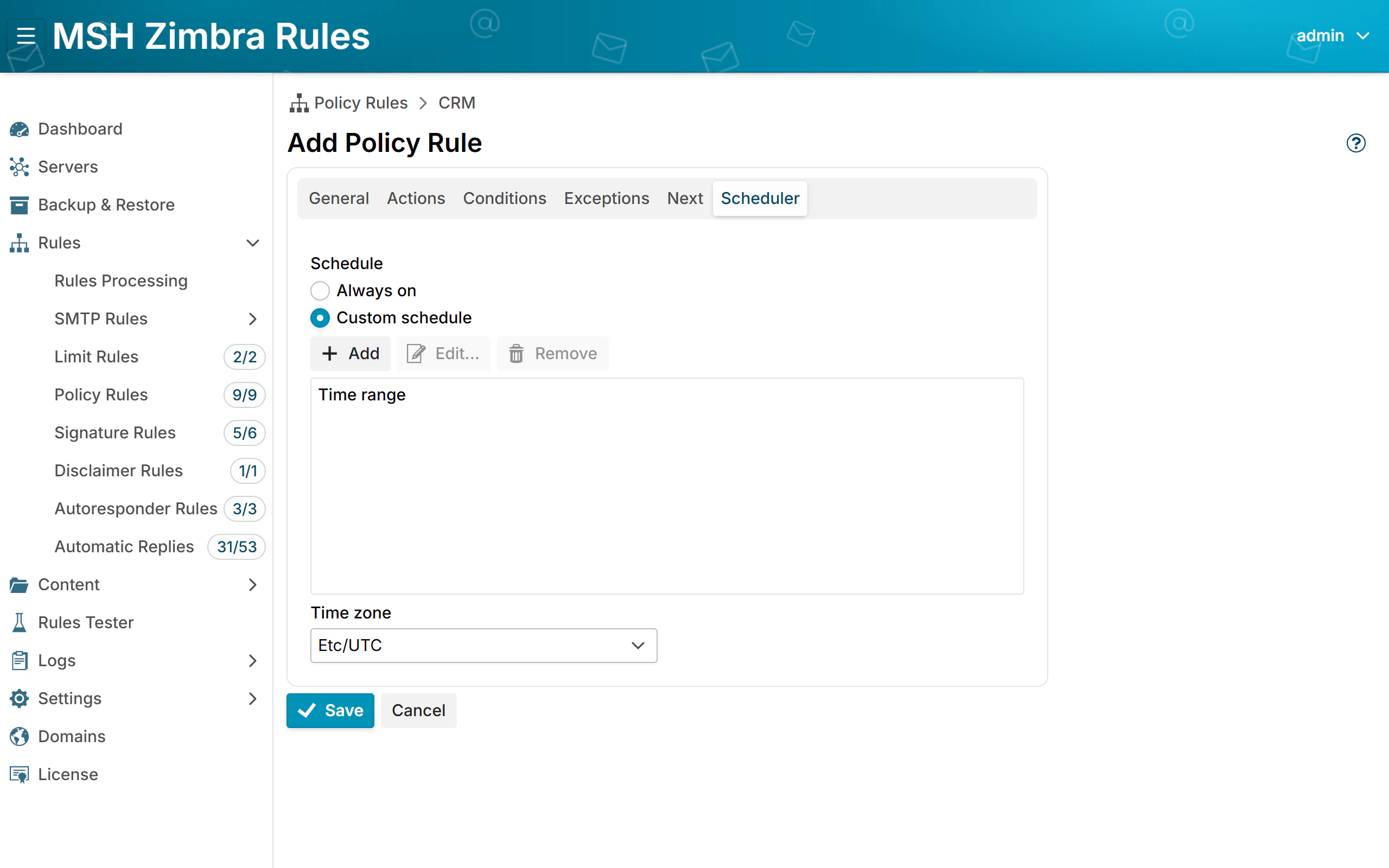
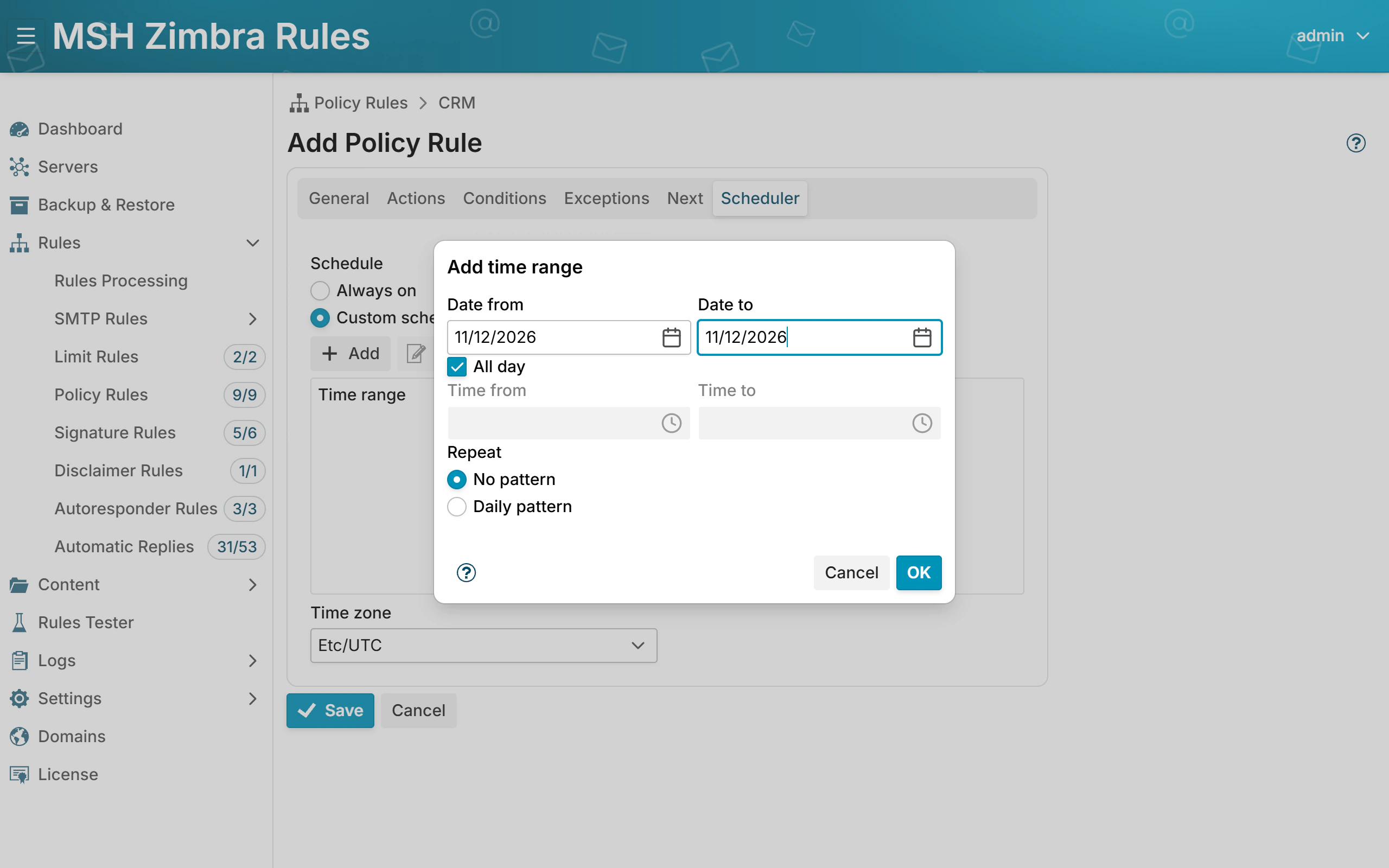
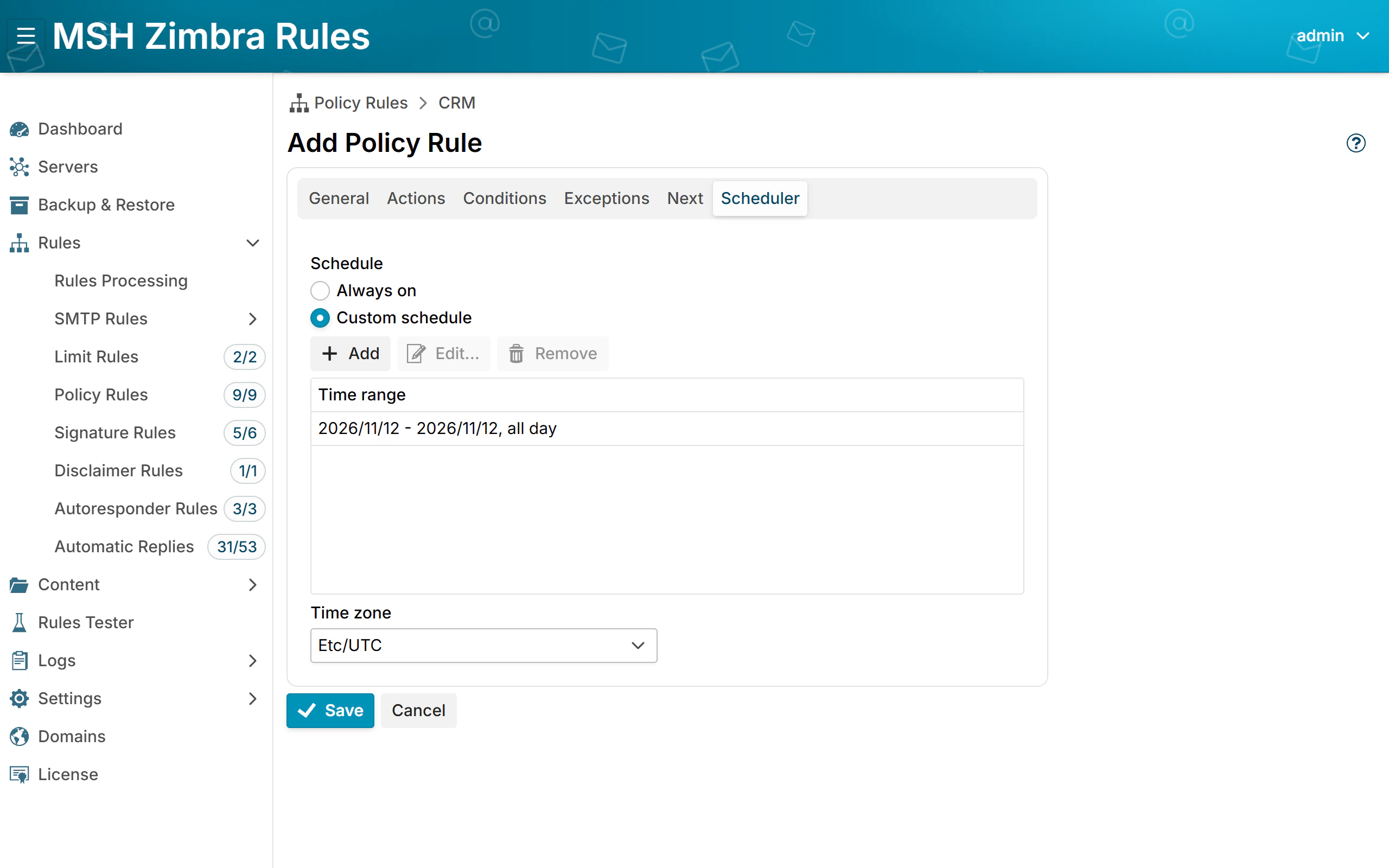
Date to cannot be left empty, so a one-day range is the simplest. The range is read
in the Time zone under it, Etc/UTC by default.
Step 2 - Send a test message
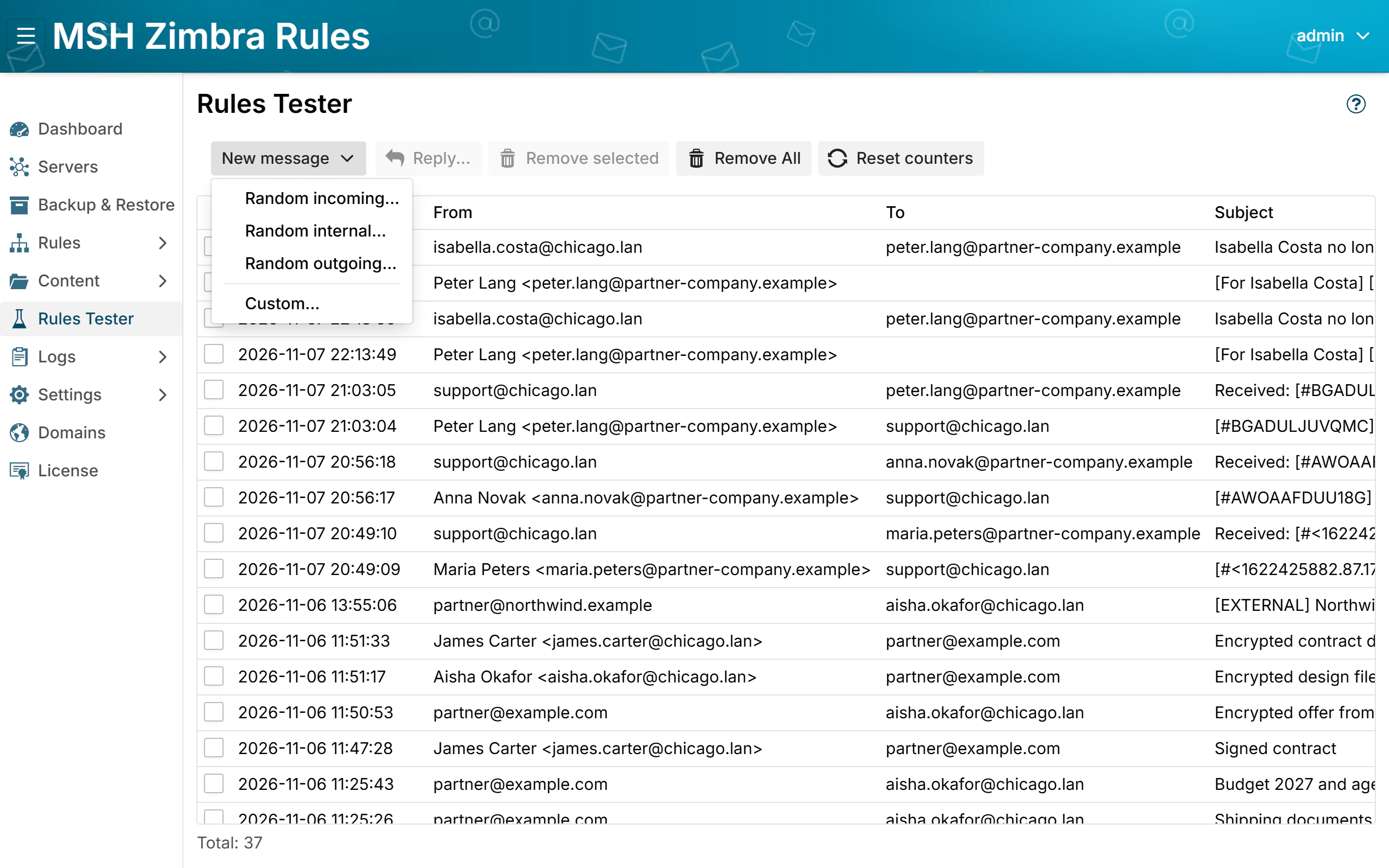
Open Rules Tester, click New message > Custom... and write the message the rule is for:
- From: a member of Sales, here
andrew.collins@example.com. A bare address of a directory user gets the user's display name, as the web client writes it. - To: a customer, here
buyer@northwind.example. - Subject and a line of text.
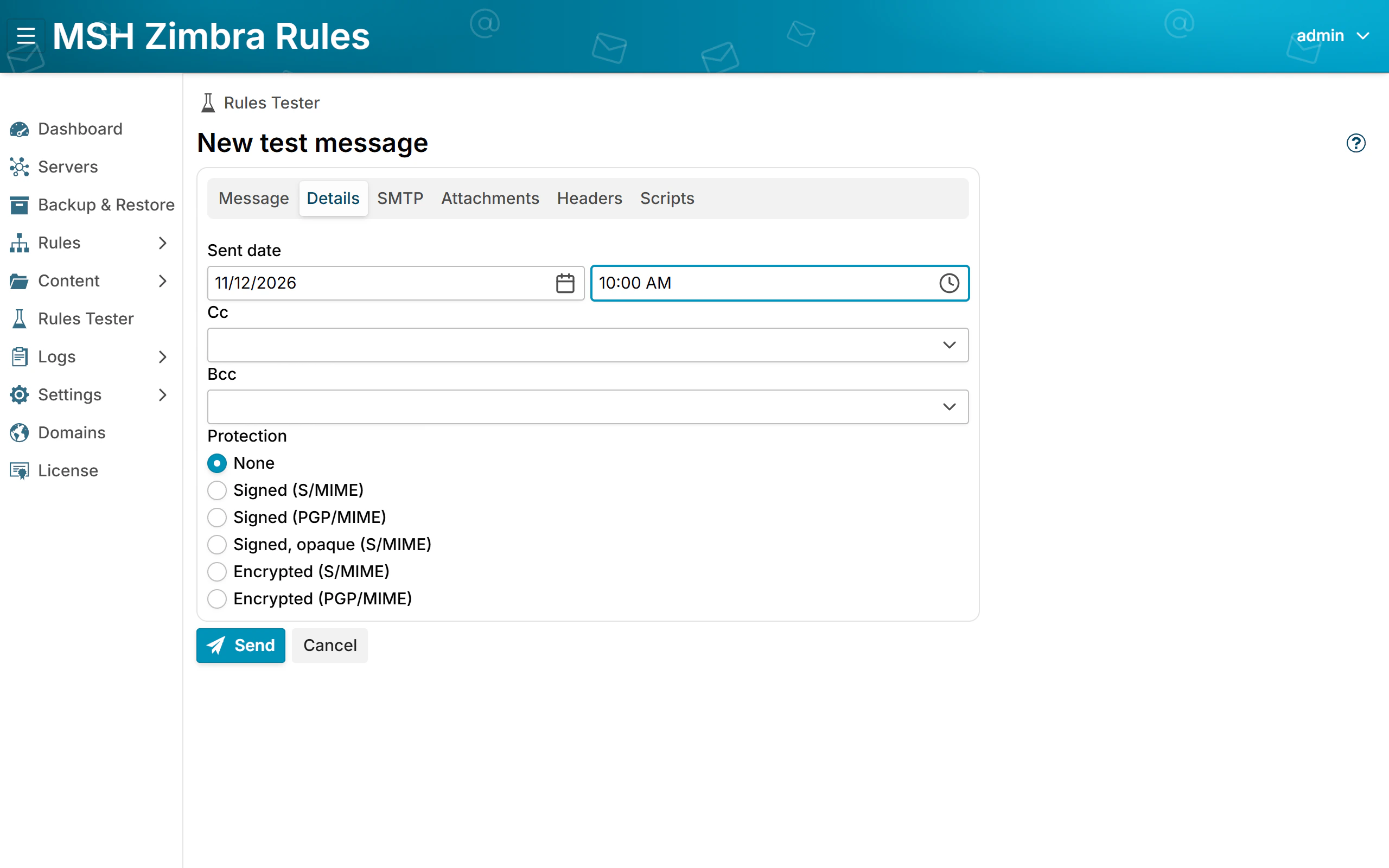
- On Details, Sent date: the day of the schedule. The tester takes it as the time the message reached the server. Pick a time in the middle of the day, such as 10:00, so that no time zone moves it to the day before or after.
Then click Send.
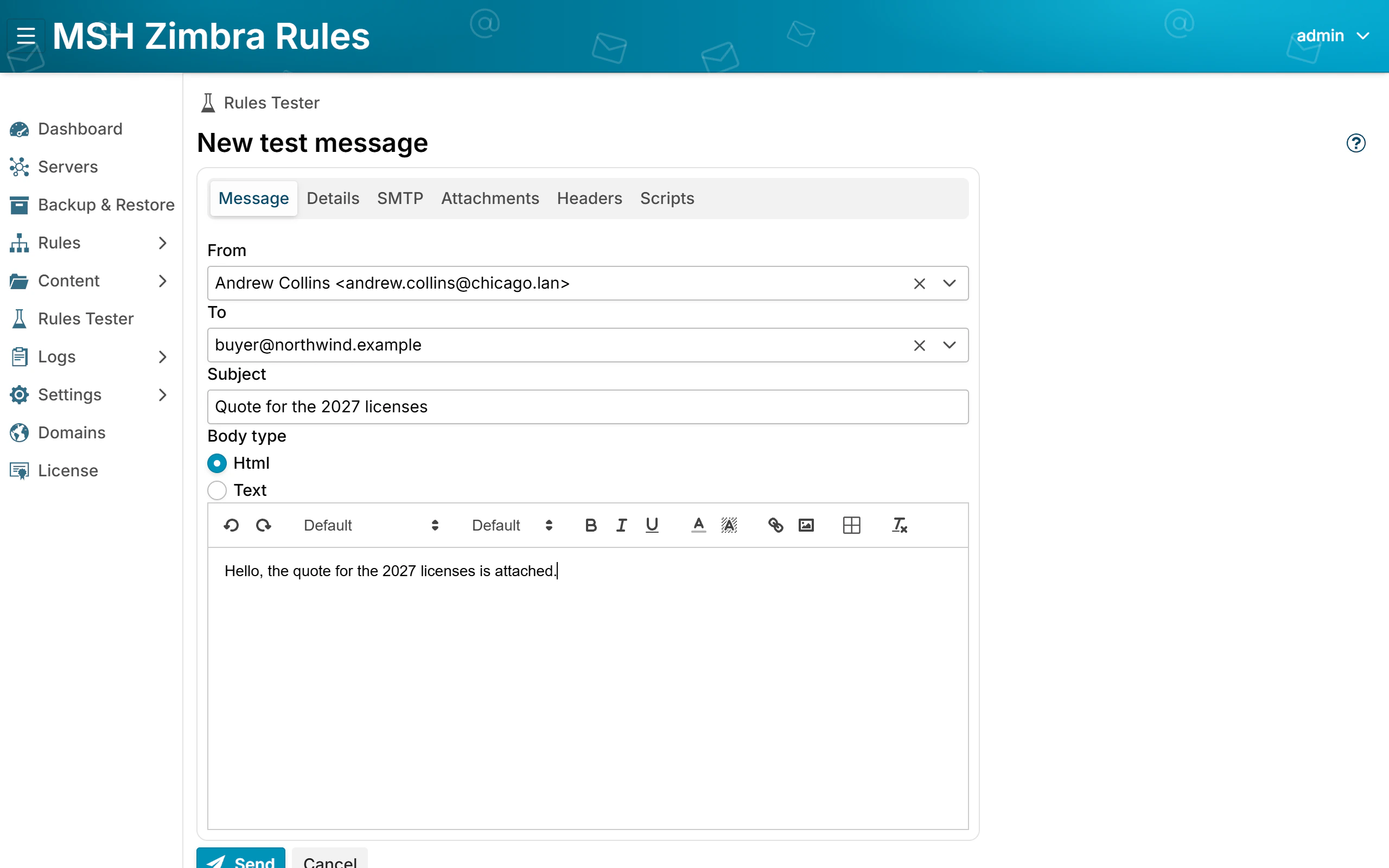
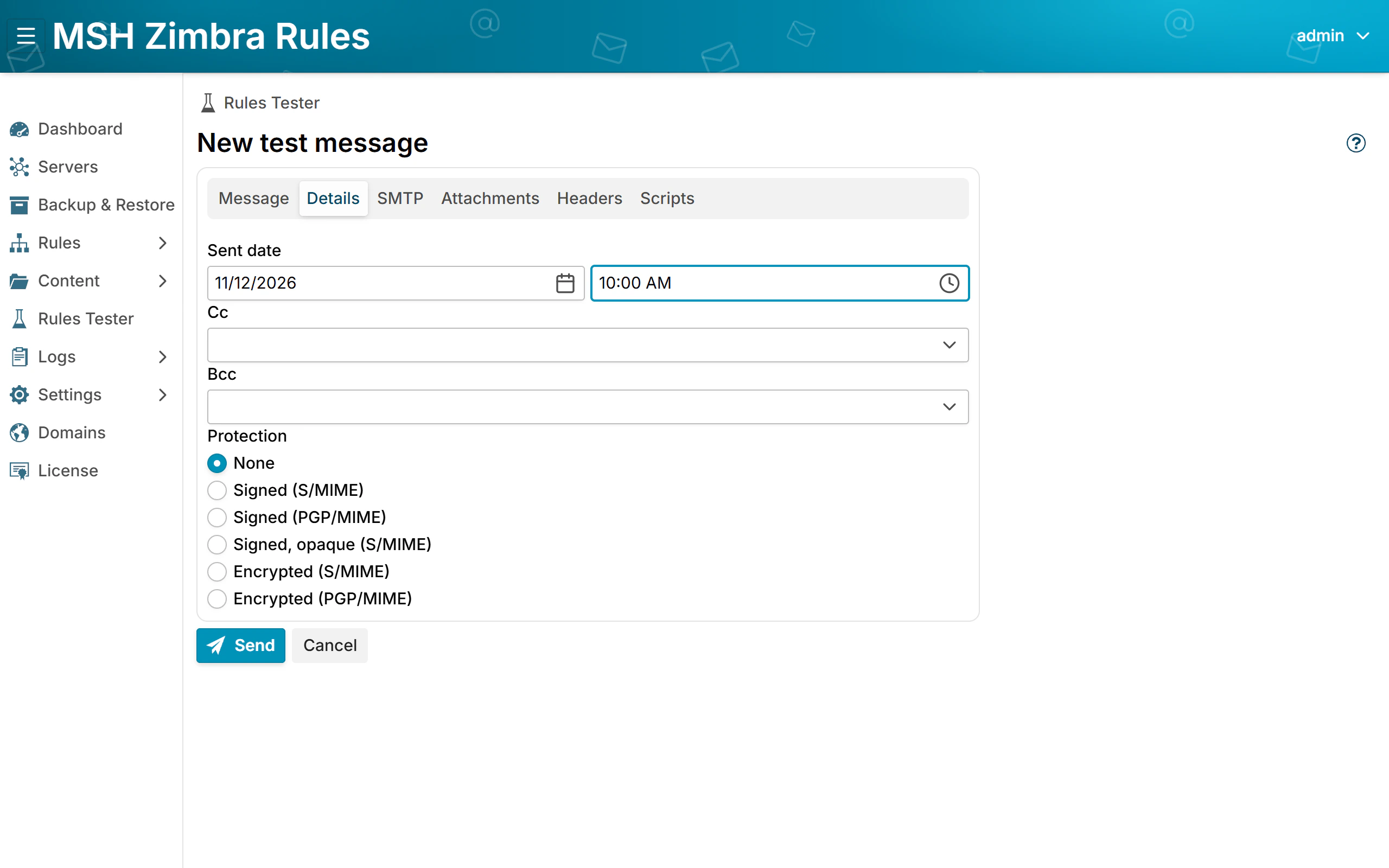
The SMTP tab of a new message keeps the values of the last test message. For a test like this one leave it empty; it matters for SMTP rules and sending limits, see SMTP.
Step 3 - Read the processing trace
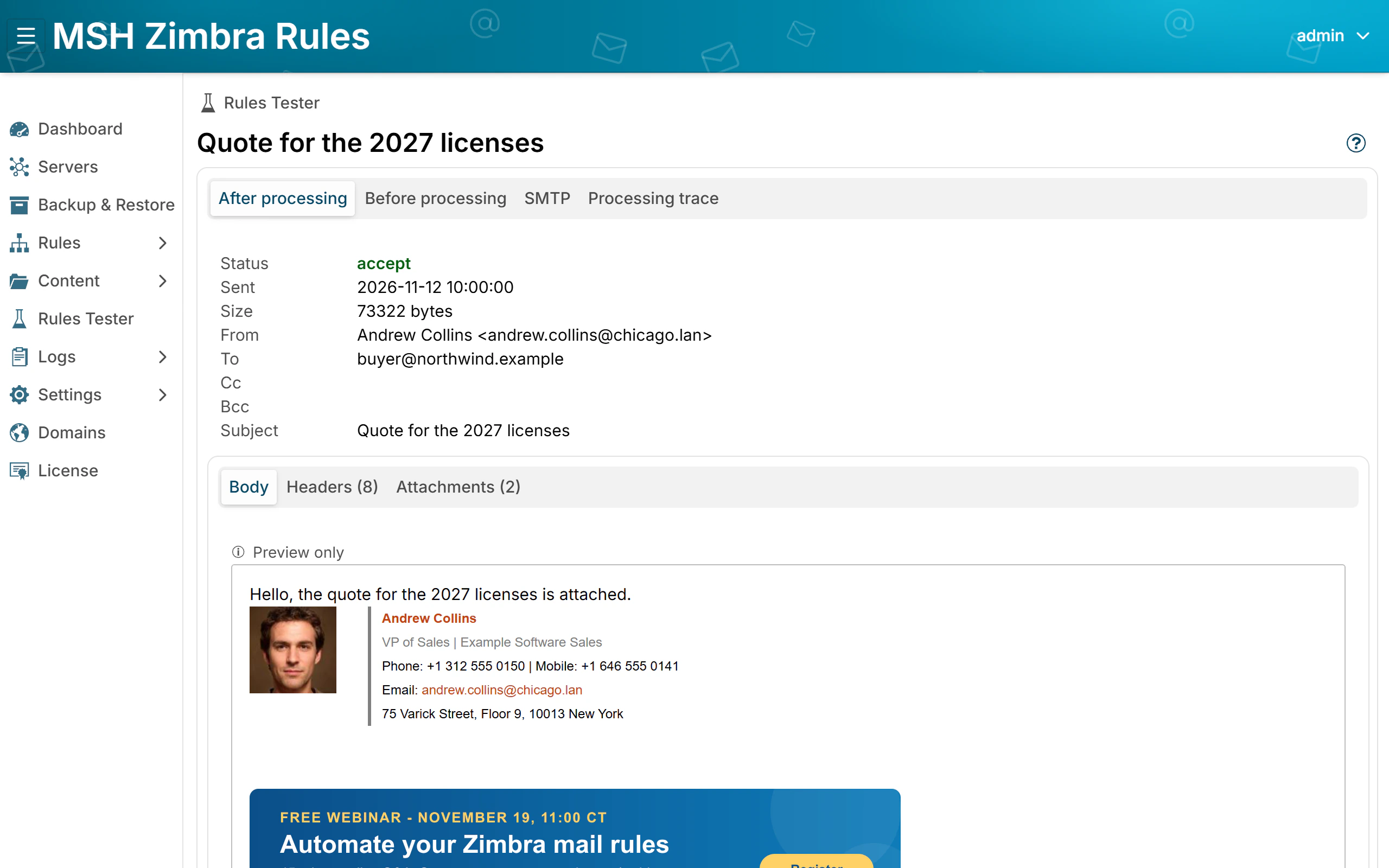
The details of the message open on After processing. A recipient that a rule adds as Bcc is not shown there: it exists only in the envelope of the message, not in a header. The proof is in the Processing trace.
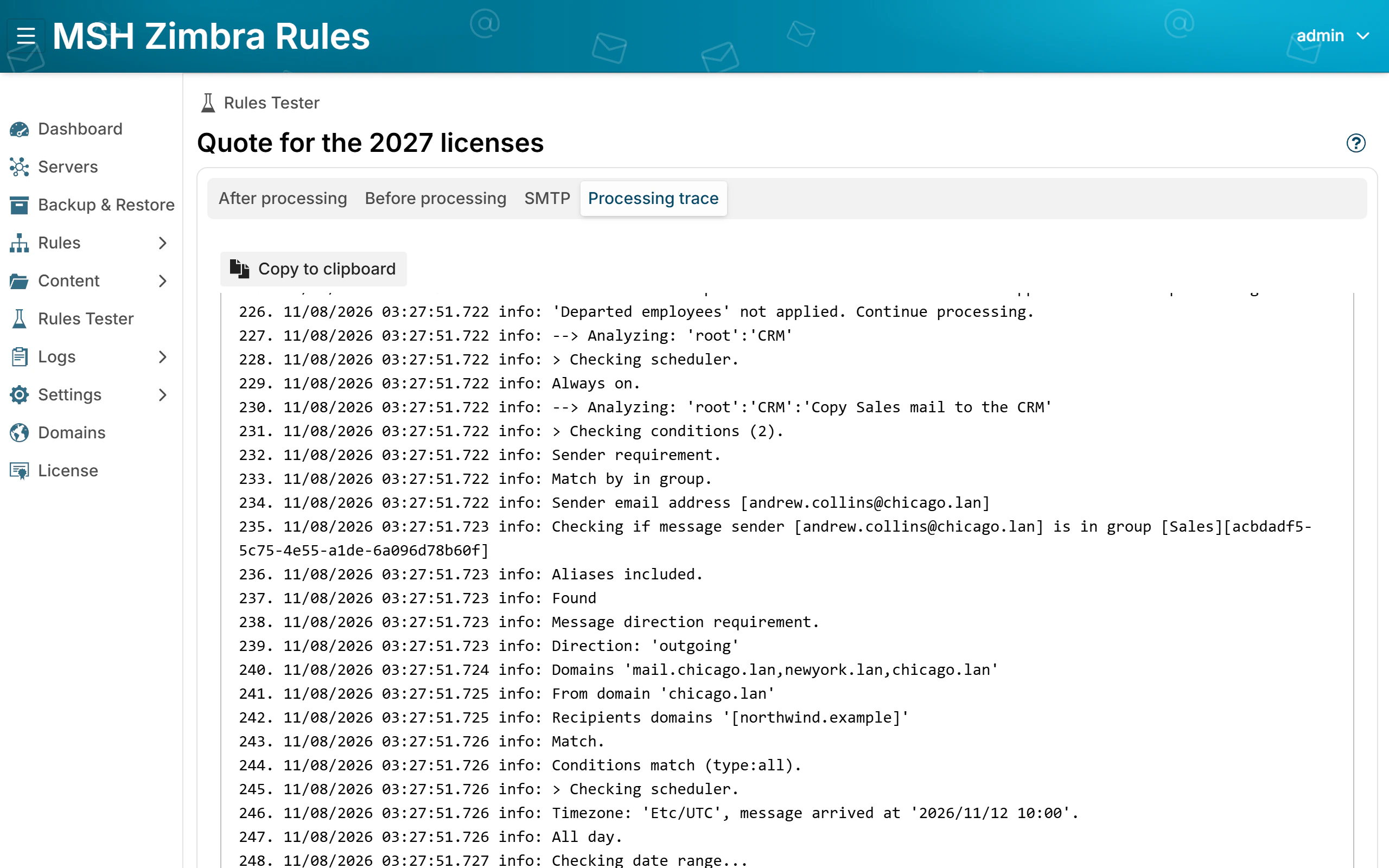
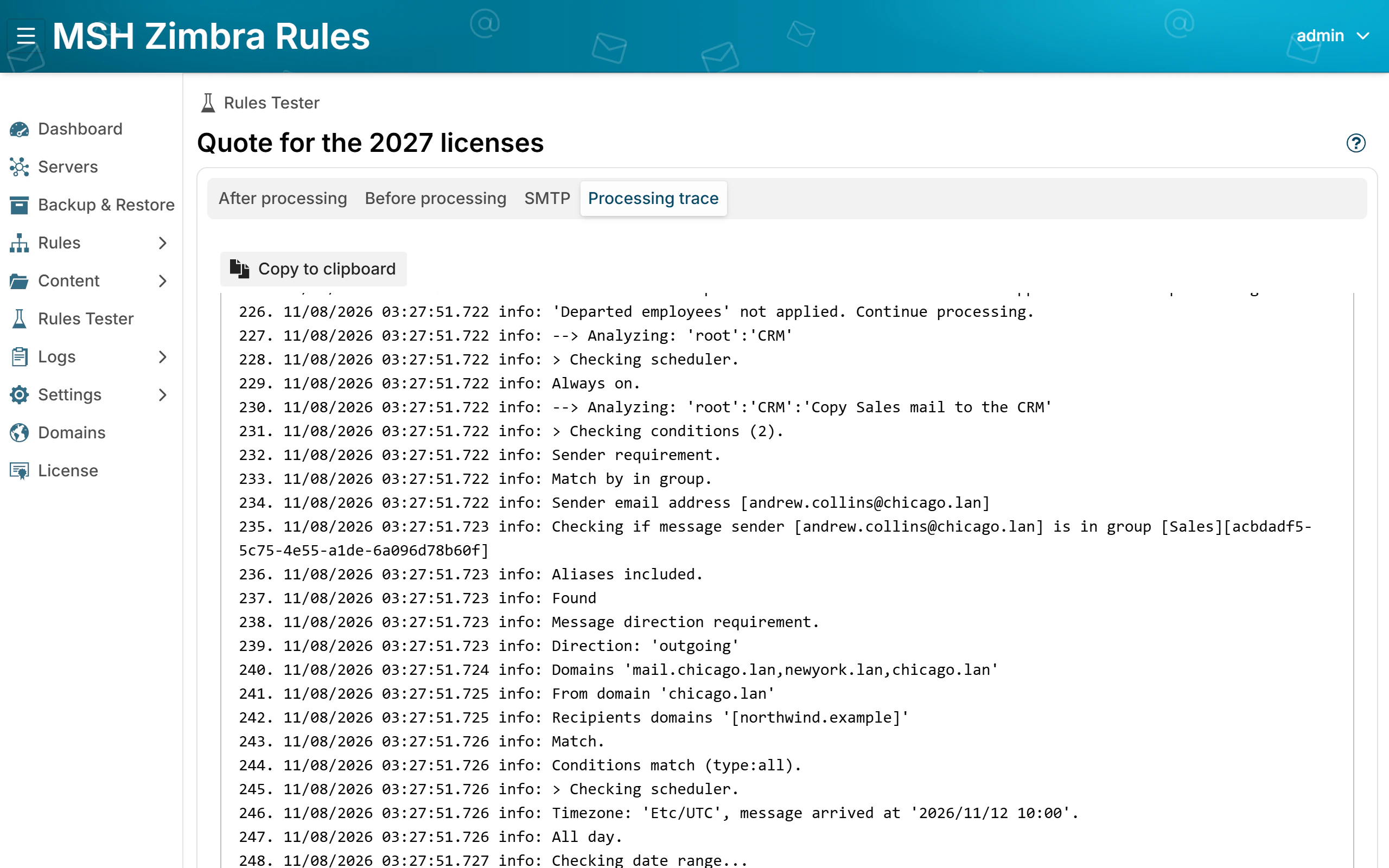
The trace is long, because it lists every rule of every type. Find your group by its name,
--> Analyzing: 'root':'CRM', and read on from there:
| Lines | What they say |
|---|---|
Checking if message sender [...] is in group [Sales], Found | The sender condition matches |
Direction: 'outgoing', Recipients domains '[northwind.example]', Match. | The direction condition matches, and why: the recipient's domain is not one of yours |
Conditions match (type:all). | All conditions match |
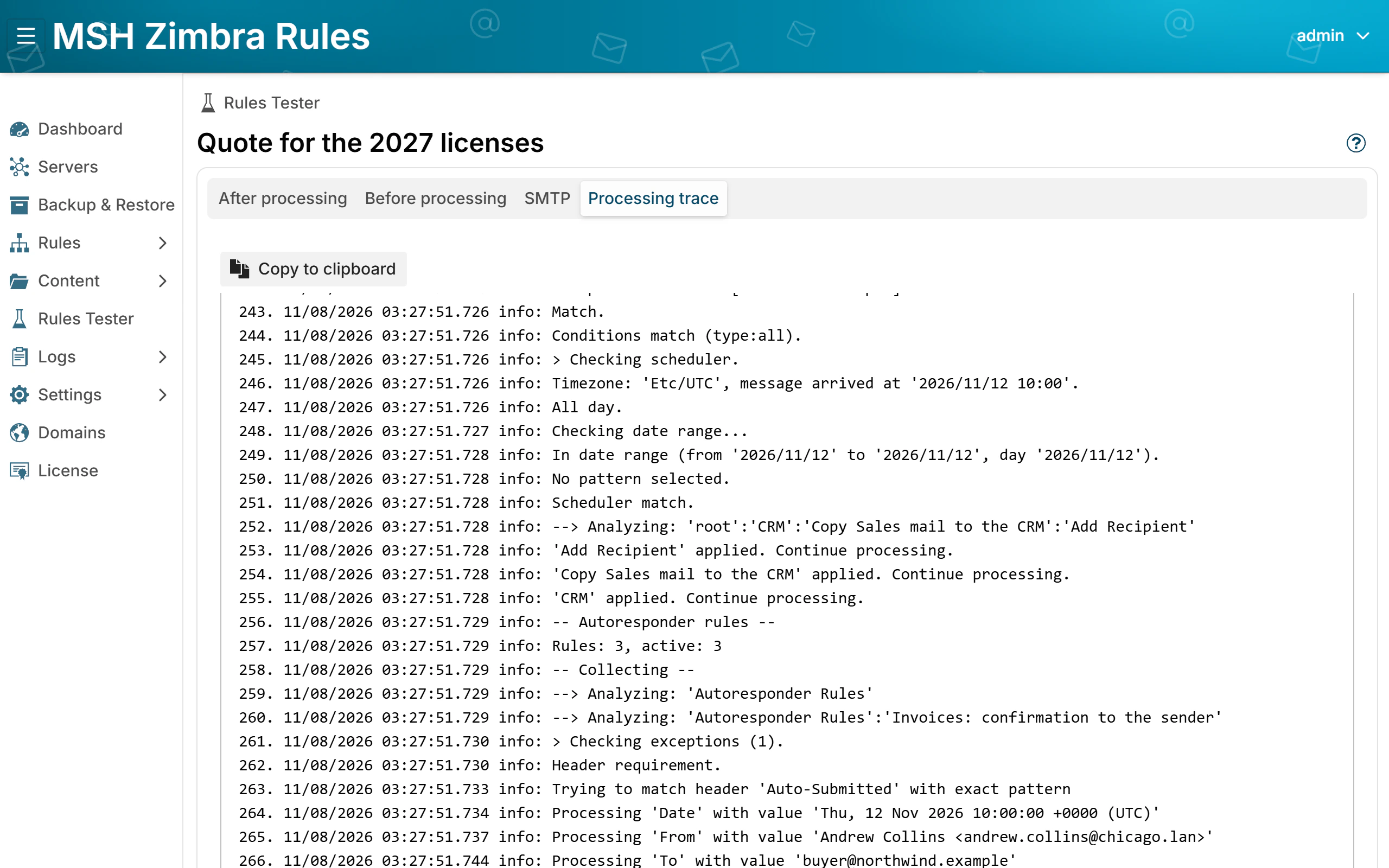
In date range (...), Scheduler match. | The test date is inside the schedule |
'Add Recipient' applied., 'CRM' applied. Continue processing. | The action runs, and the next group follows |
Adding recipient 'dropbox@crm.example' to 'bcc' field. | Under -- Executing --: what the action did |
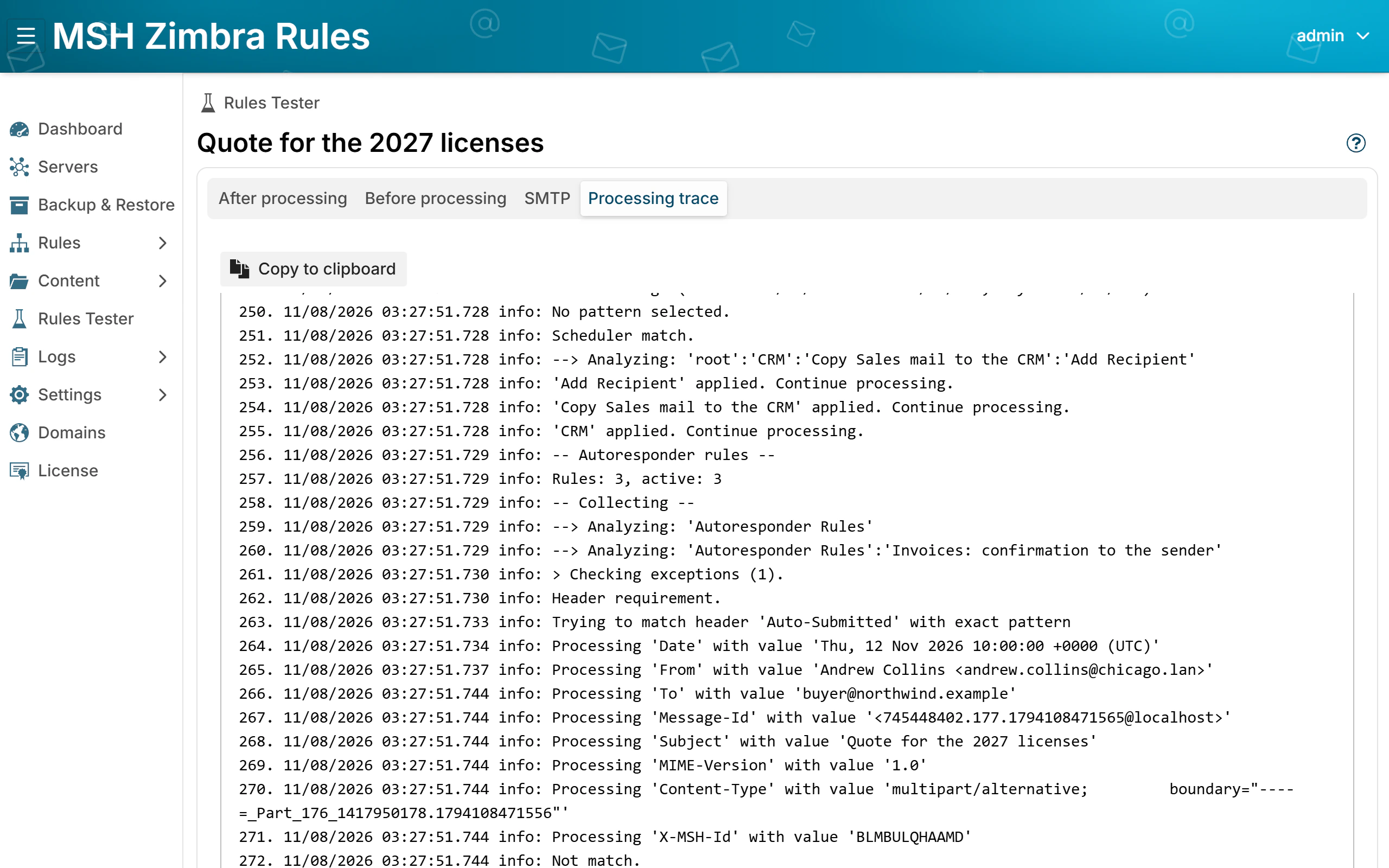
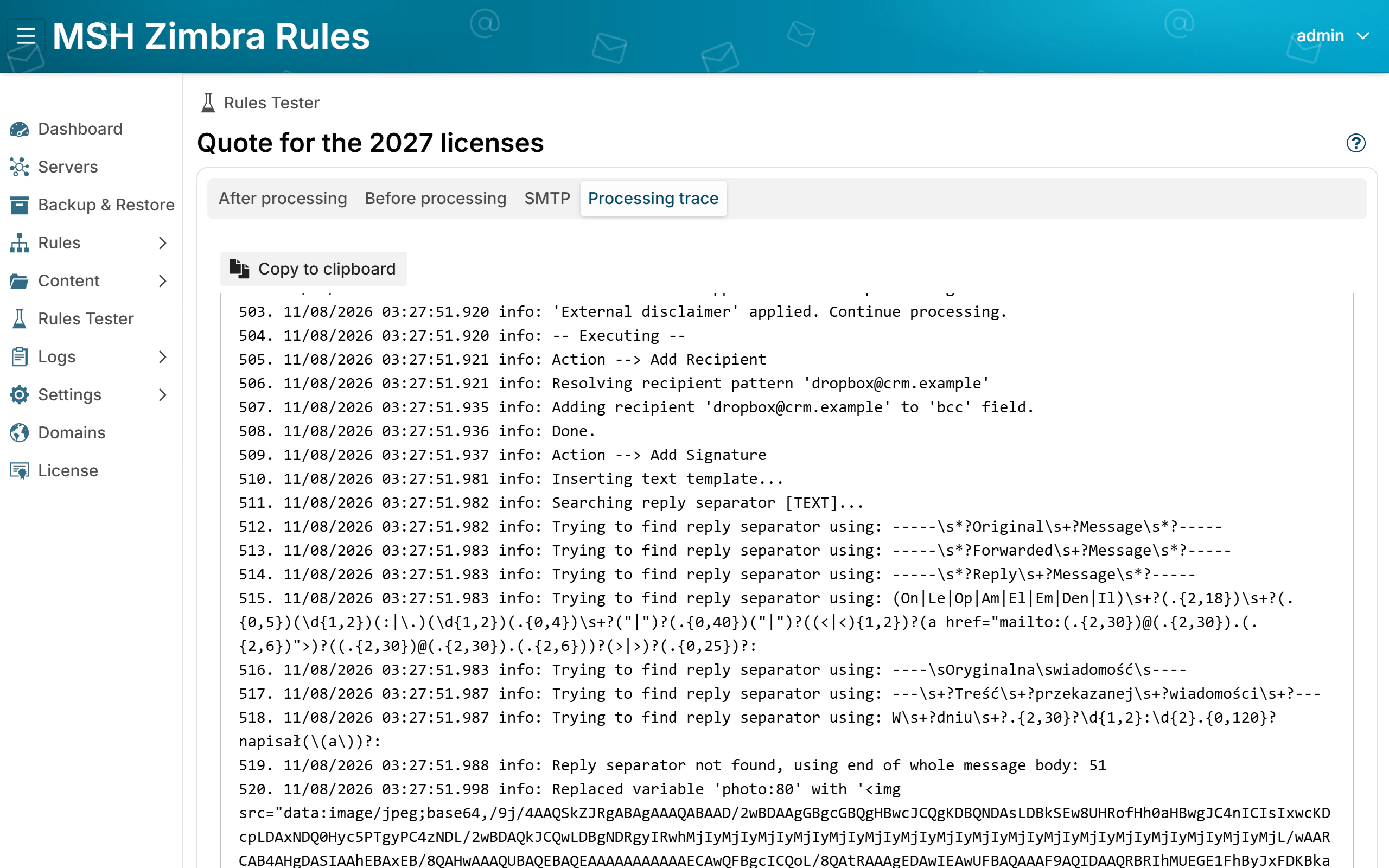
A condition that does not match ends with Not match., and the rule then says
Conditions do not match and not applied. Copy to clipboard above the trace copies
all of it, to search it in an editor or to send it along with a question.
The trace of other actions tells as much. A signature, for example, says where it went:
Reply separator not found, using end of whole message body on a new message. To try a
signature rule on a reply, select a test message and click Reply....
Step 4 - Test what must not match
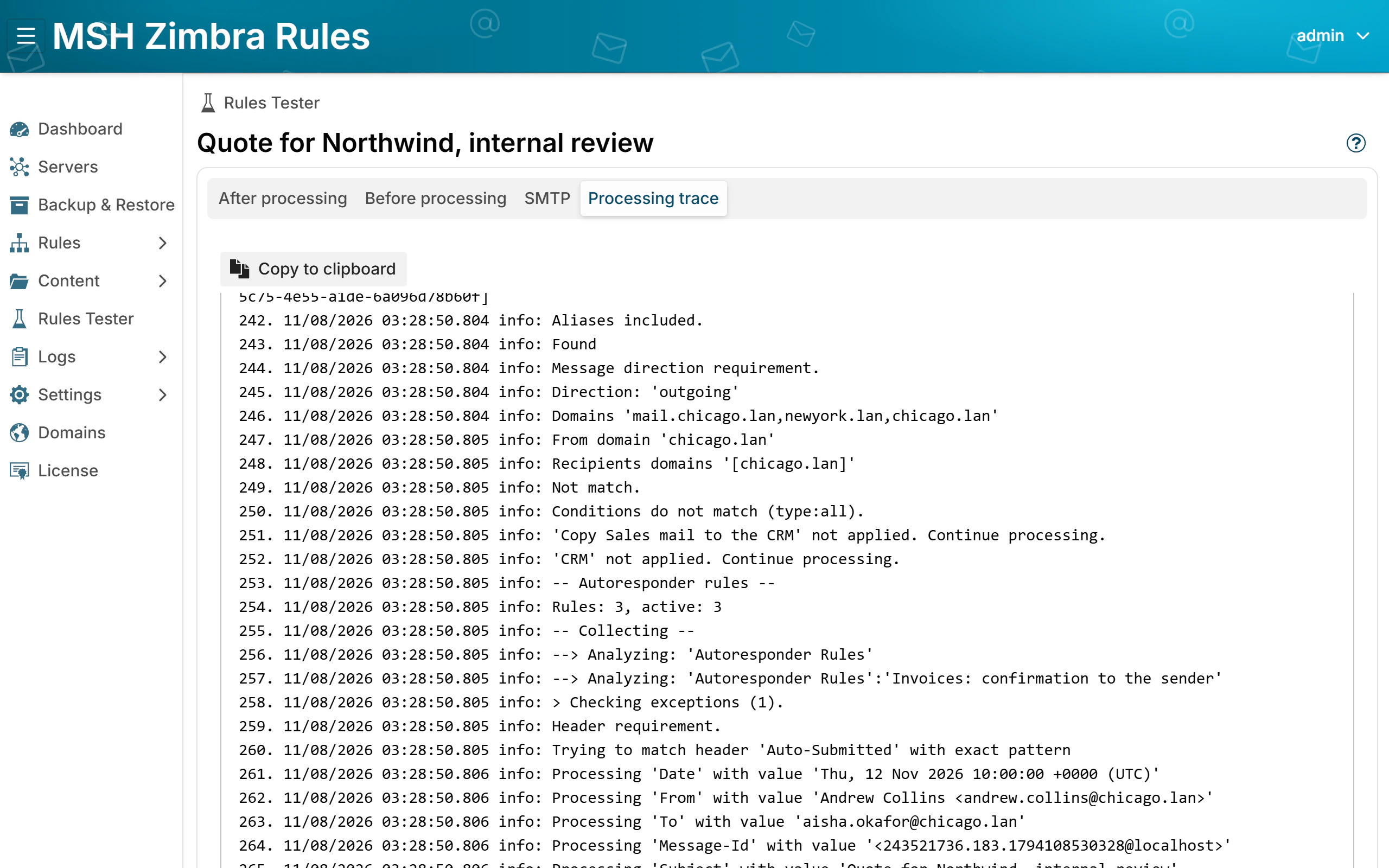
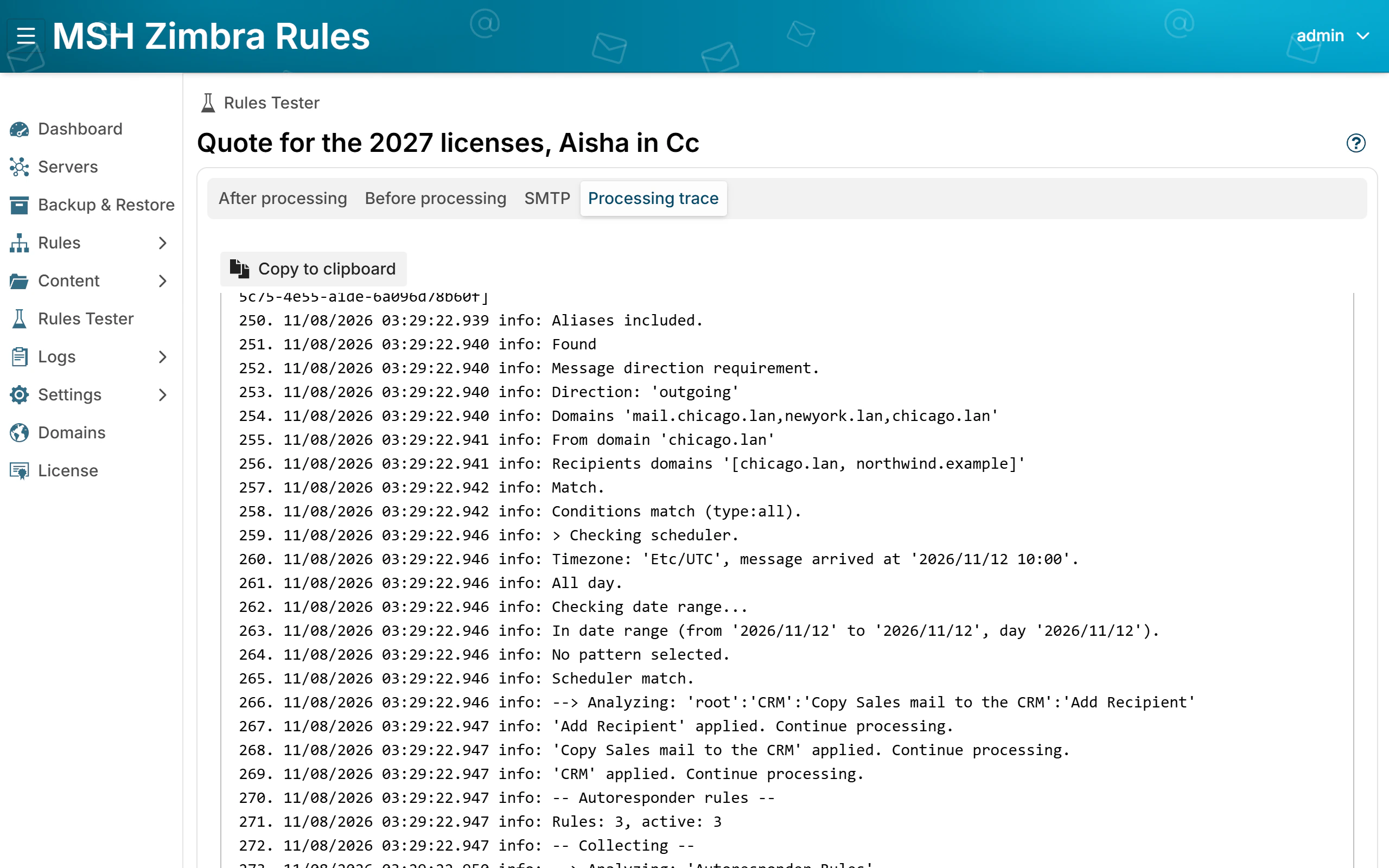
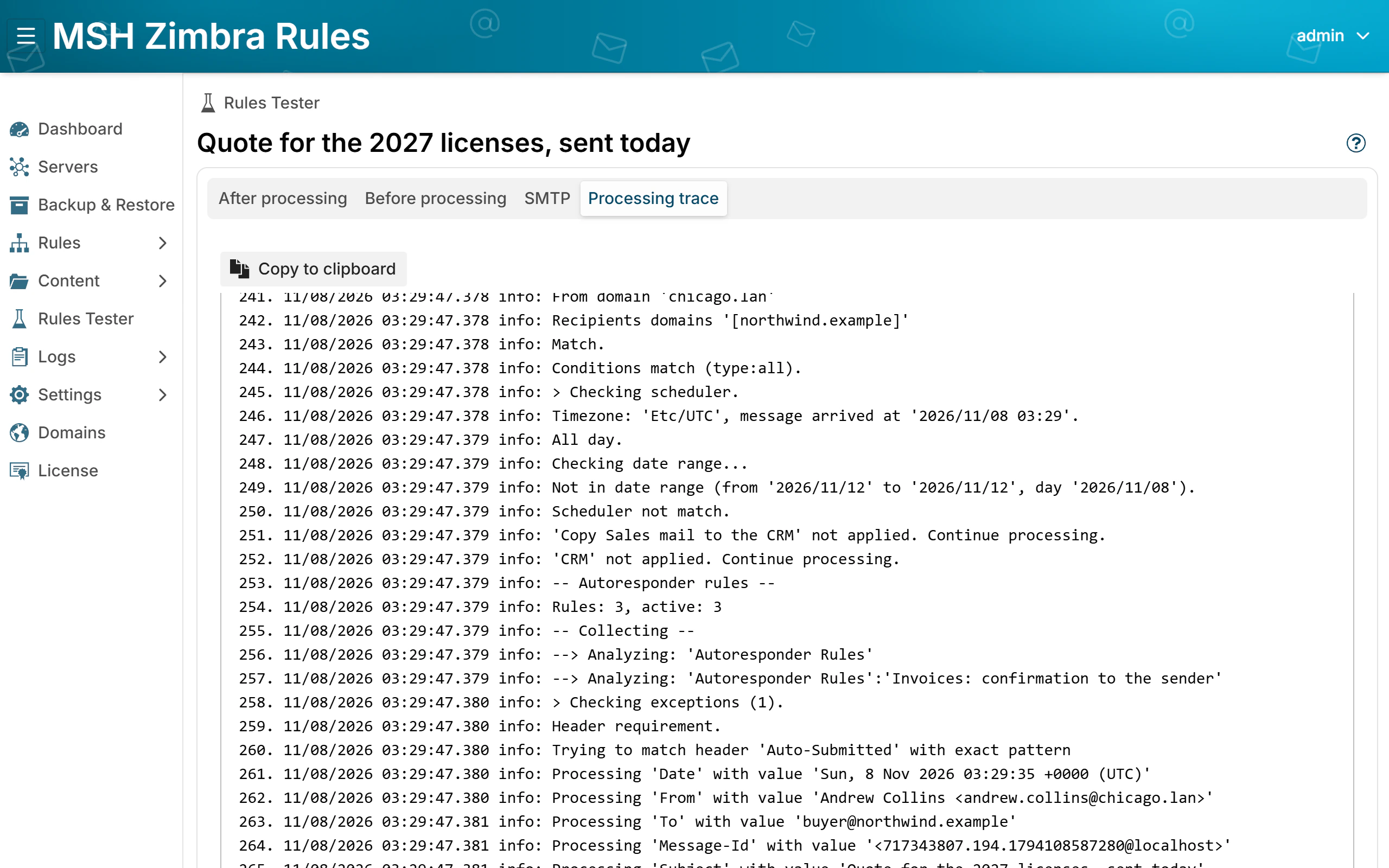
A rule that matches its own message is only half tested. Send the messages it must leave alone, and the borderline ones:
| Test message | Expected | Trace |
|---|---|---|
Andrew to a colleague, aisha.okafor@example.com | No copy | Recipients domains '[example.com]', Not match. |
| Andrew to the customer, with a colleague in Cc | Copy | Recipients domains '[example.com, northwind.example]', Match. |
| The first message again, with today as Sent date | No copy | Not in date range, Scheduler not match. |
The second one is worth knowing: a message with recipients inside and outside counts as outgoing, see Message direction. The third one shows that the schedule really keeps the rule away from today's mail.
Step 5 - Fix the rule and test again
Now the message nobody thought of: a customer writes to Andrew while his out-of-office
reply is on. Send it in the tester, from buyer@northwind.example to Andrew, on the day of
the schedule.
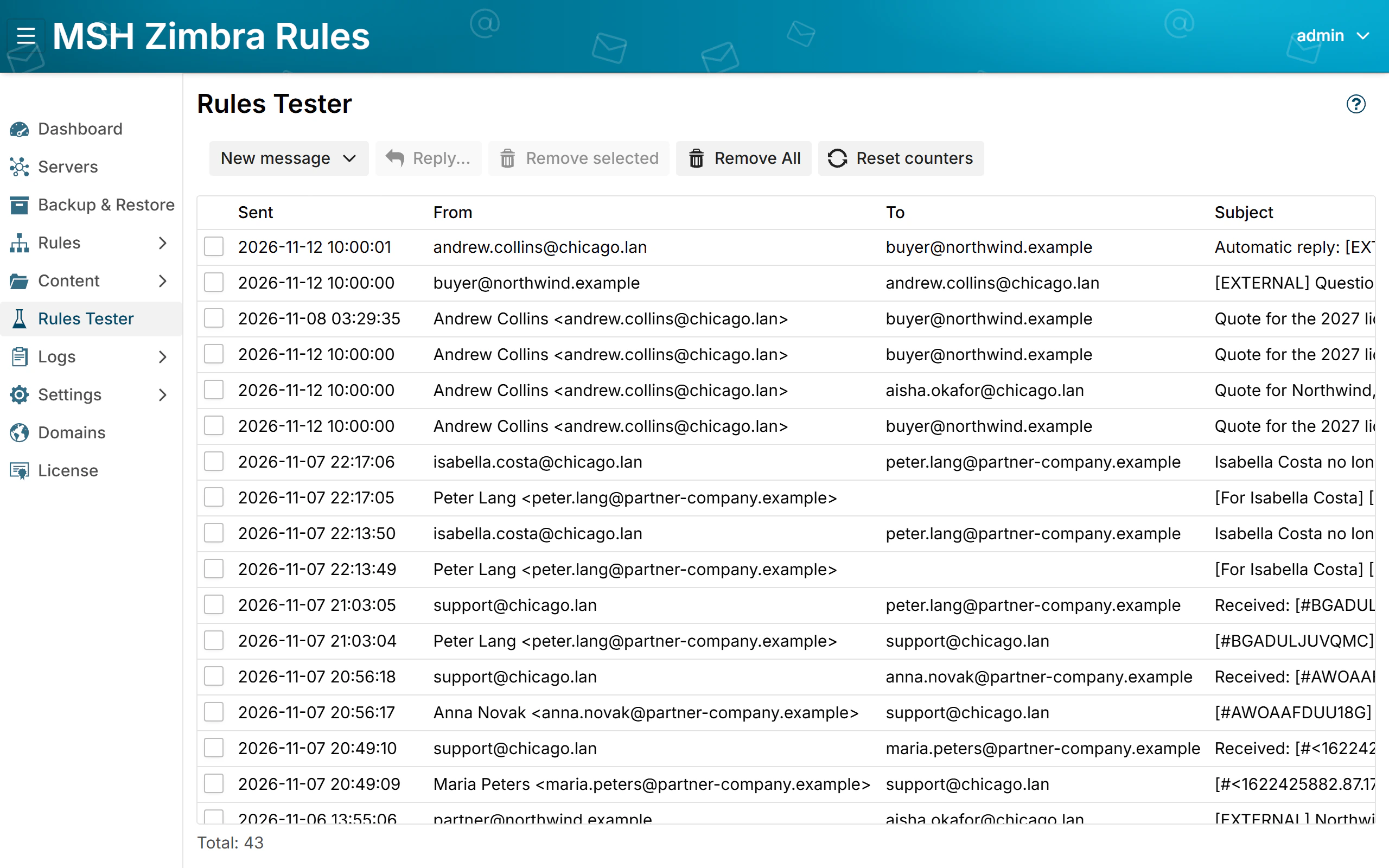
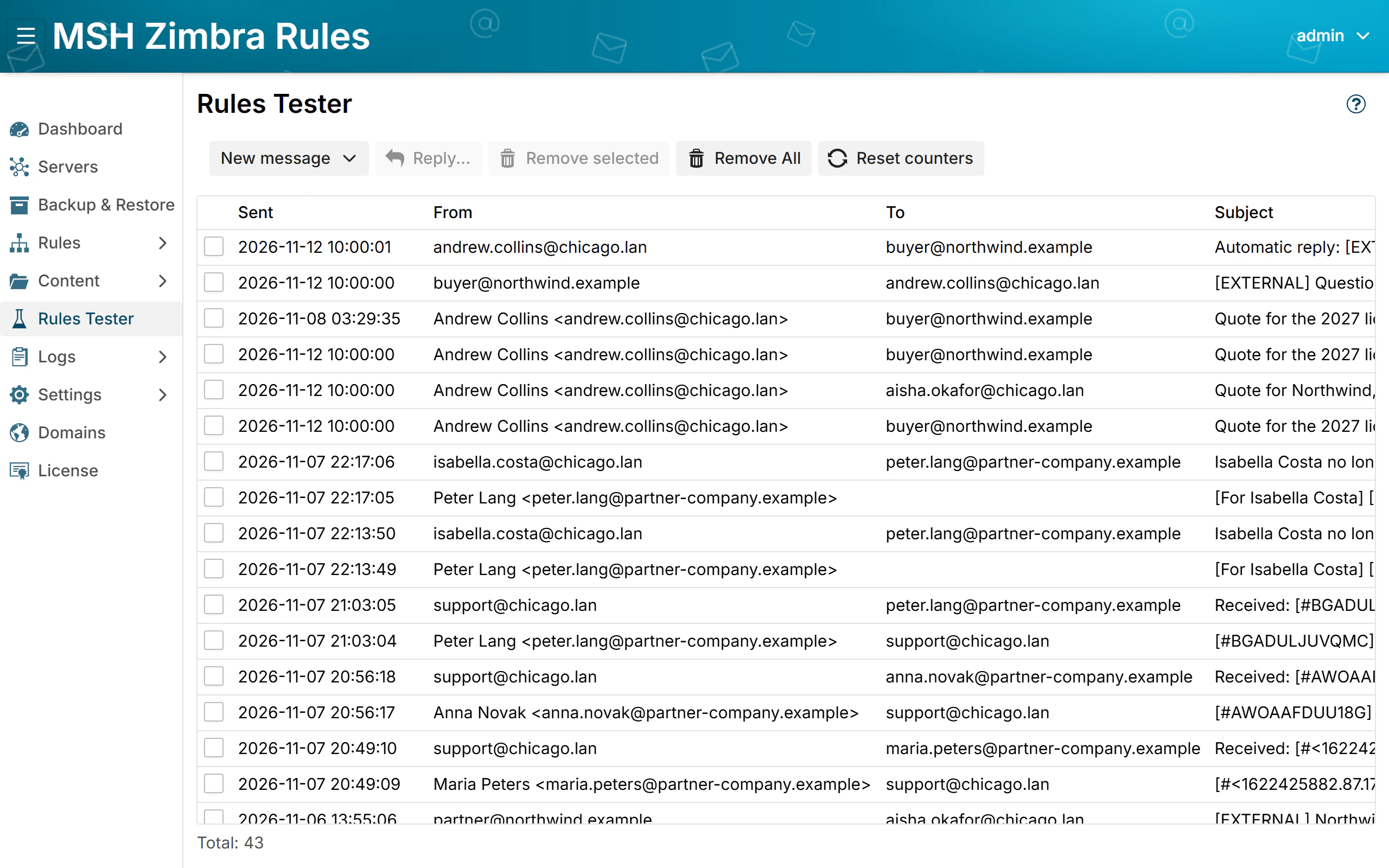
The Automatic Replies answer it, and the reply is
listed as a message of its own, above the test message. The reply is a message from
Andrew to the customer, so it runs through the policy rules too, and its trace shows
'Add Recipient' applied: the CRM would get every out-of-office reply of the Sales team.
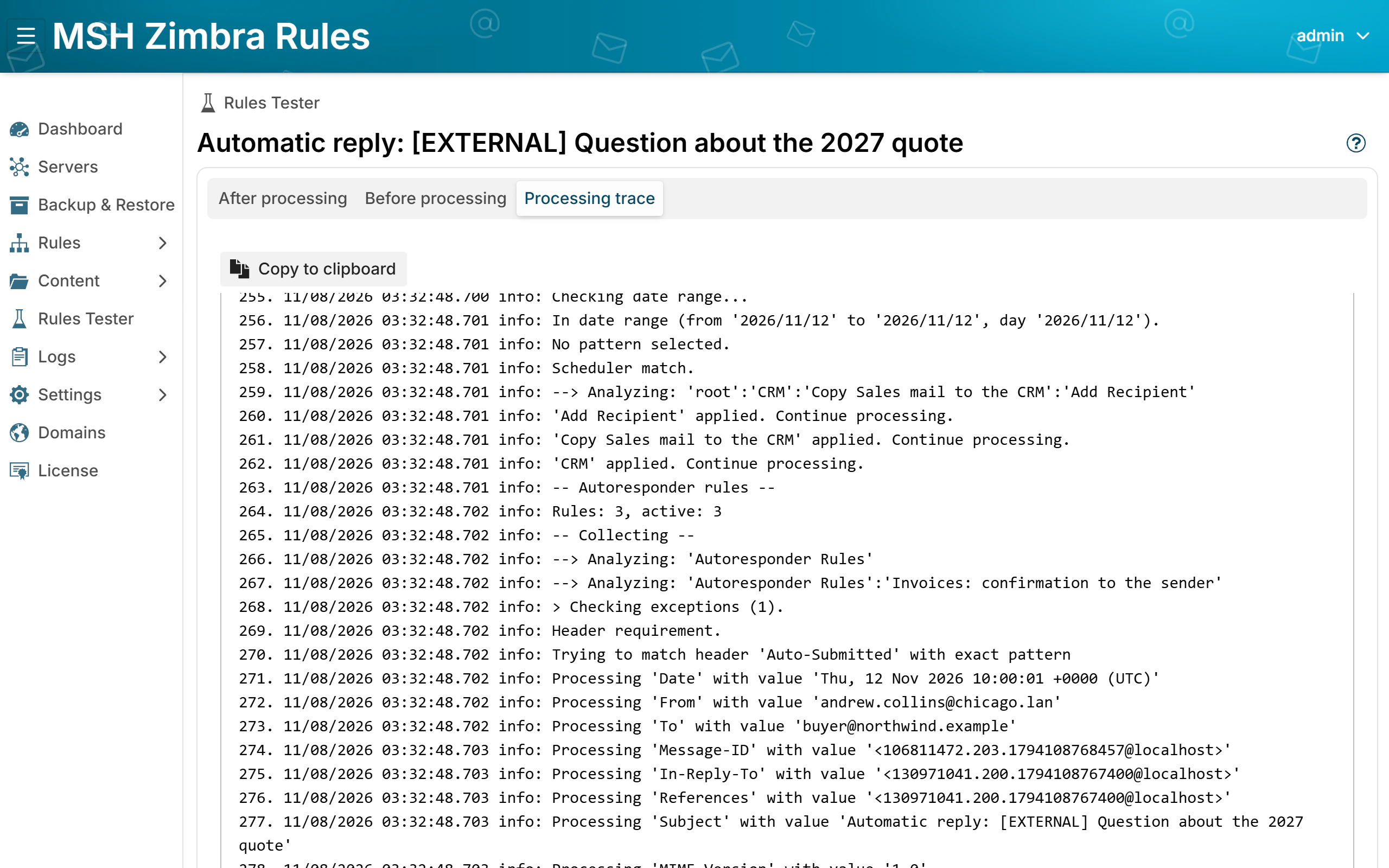
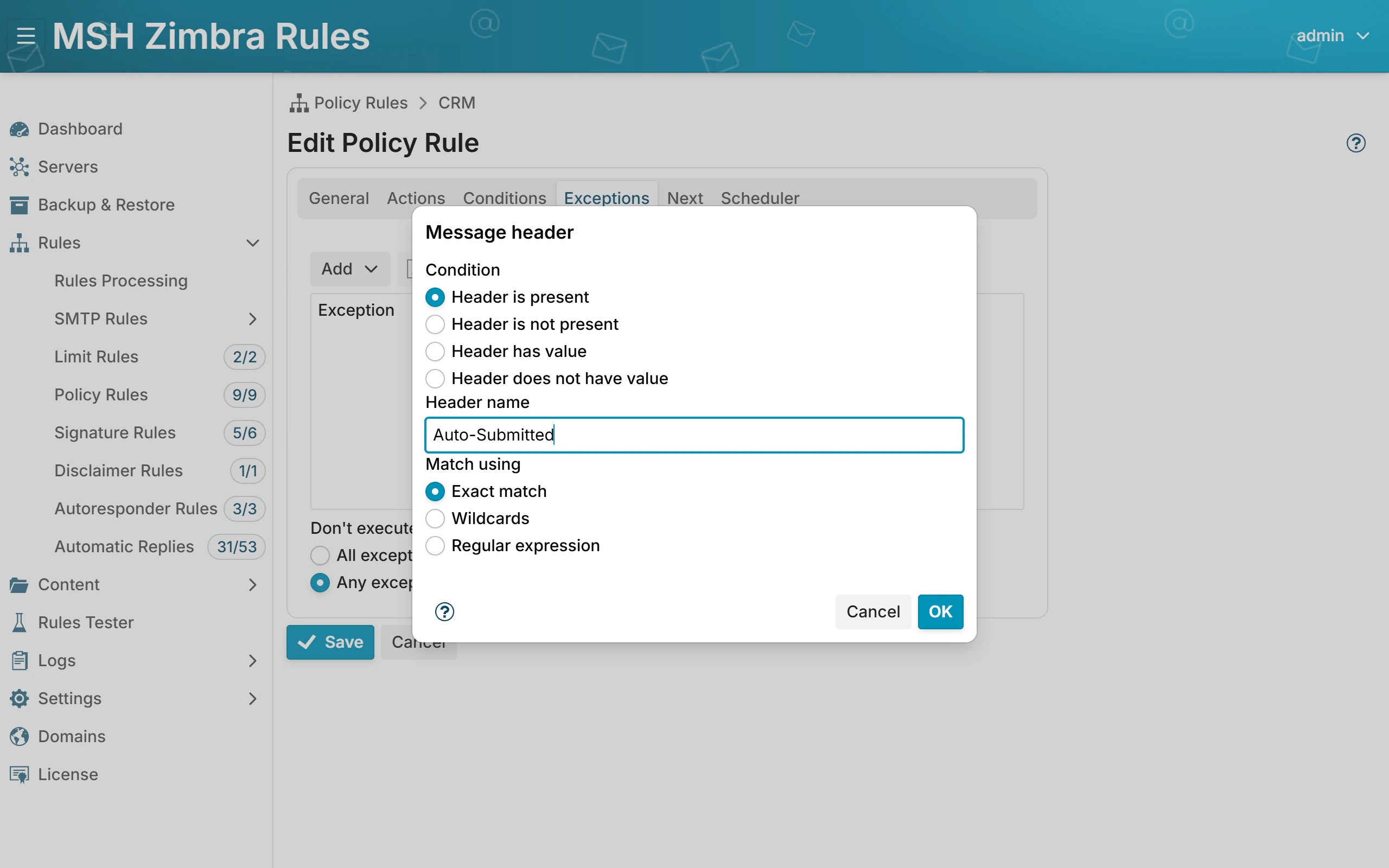
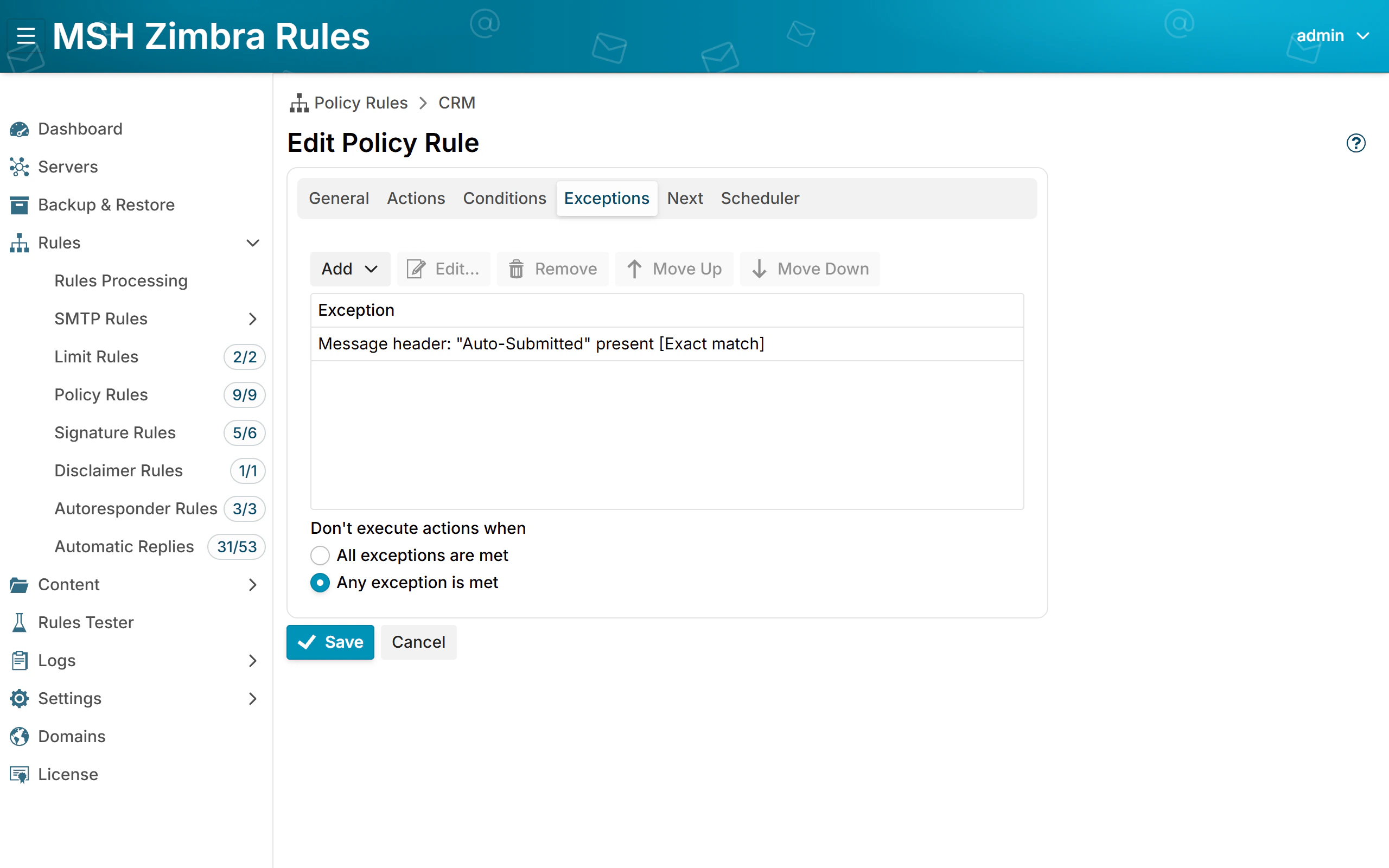
Automatic replies carry an Auto-Submitted header, so an exception on that header keeps
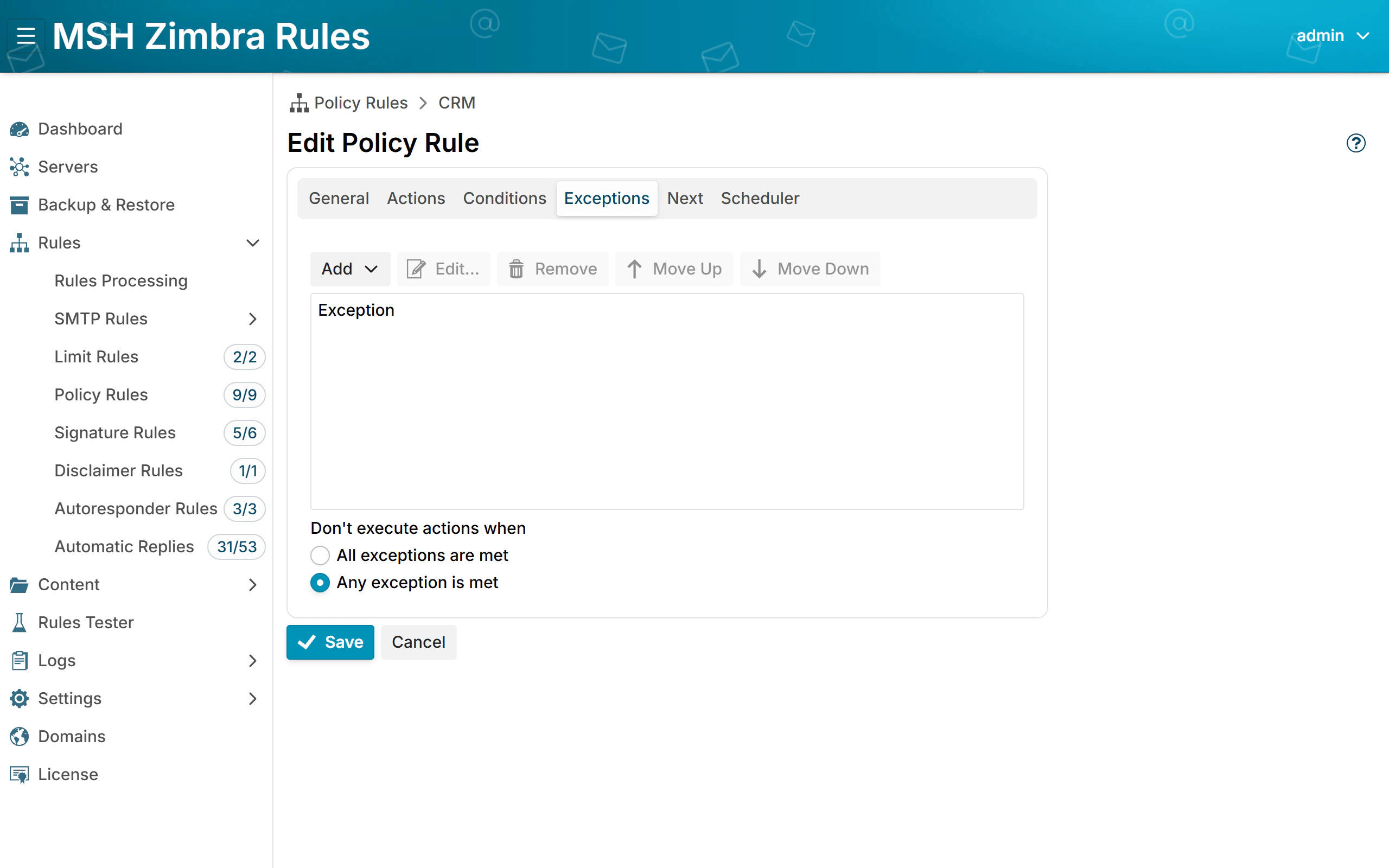
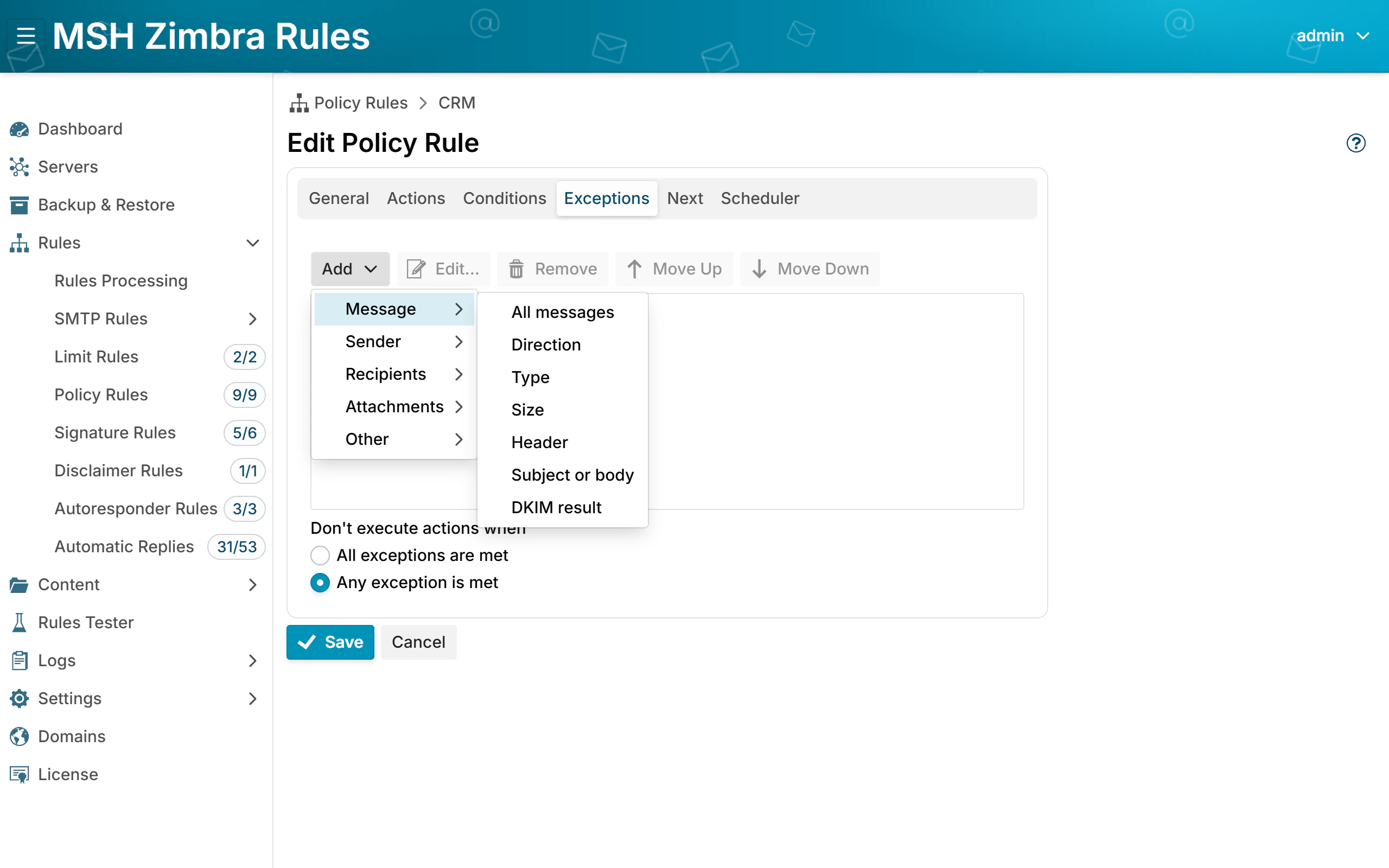
them out. Open the rule and add on Exceptions: Message > Header,
Header is present, Header name Auto-Submitted. Save the rule, then test again:
- Click Reset counters in the toolbar of the Rules Tester. An automatic reply goes to
the same sender only once in a while, and the tester remembers it; without the reset,
the second test gets no reply to look at. The trace says so:
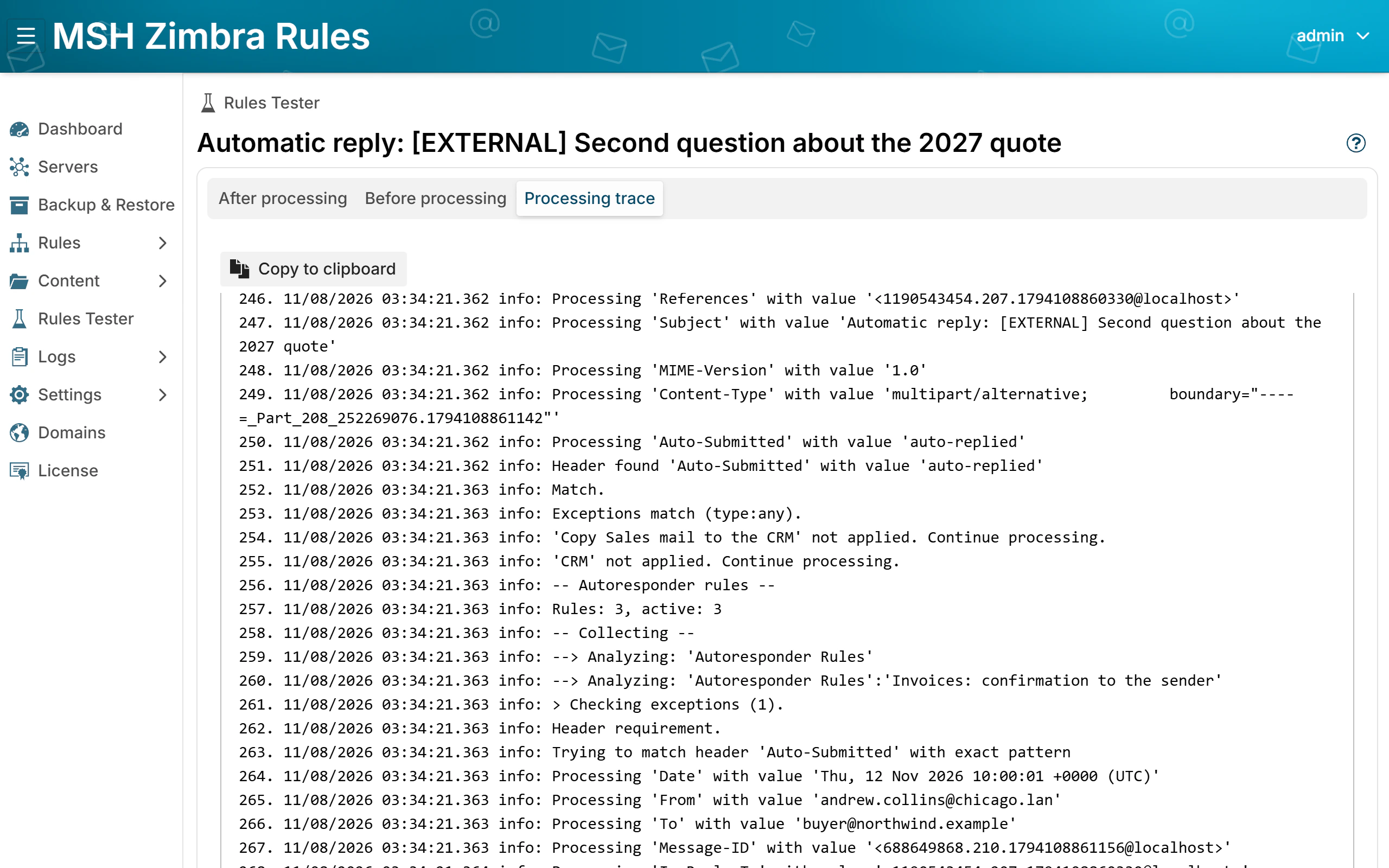
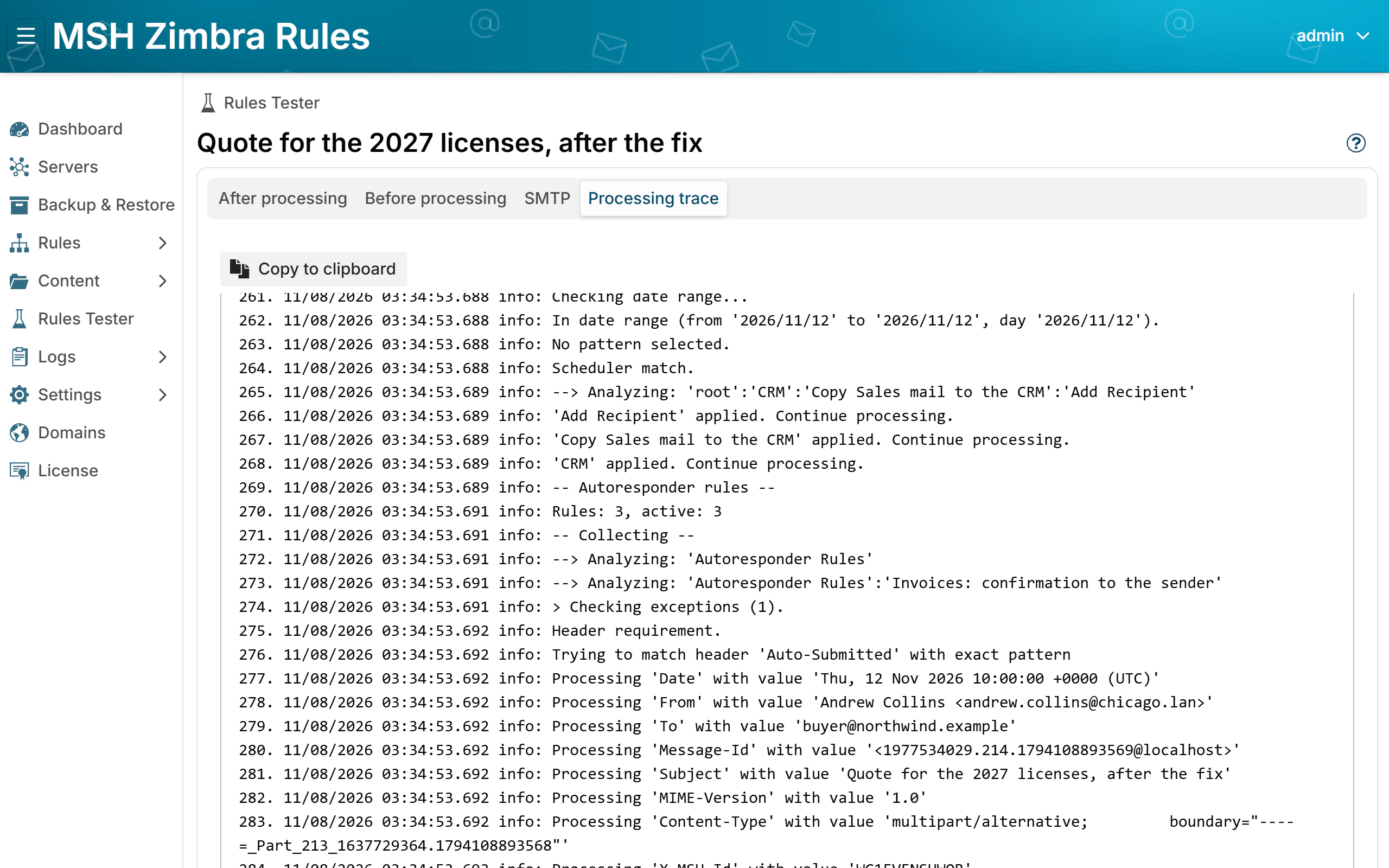
The sender got this reply already; not sending it again. - Send the customer's message again. The trace of the new reply now says
Header found 'Auto-Submitted',Exceptions match (type:any).and'Copy Sales mail to the CRM' not applied. - Send Andrew's quote again as well, to see that the fix did not break what worked: it
still says
'Add Recipient' applied.
Step 6 - Let the rule go live
When every test gives the expected result, open the rule's Scheduler tab, choose Always on and save. Within about a minute the rule works on real mail.
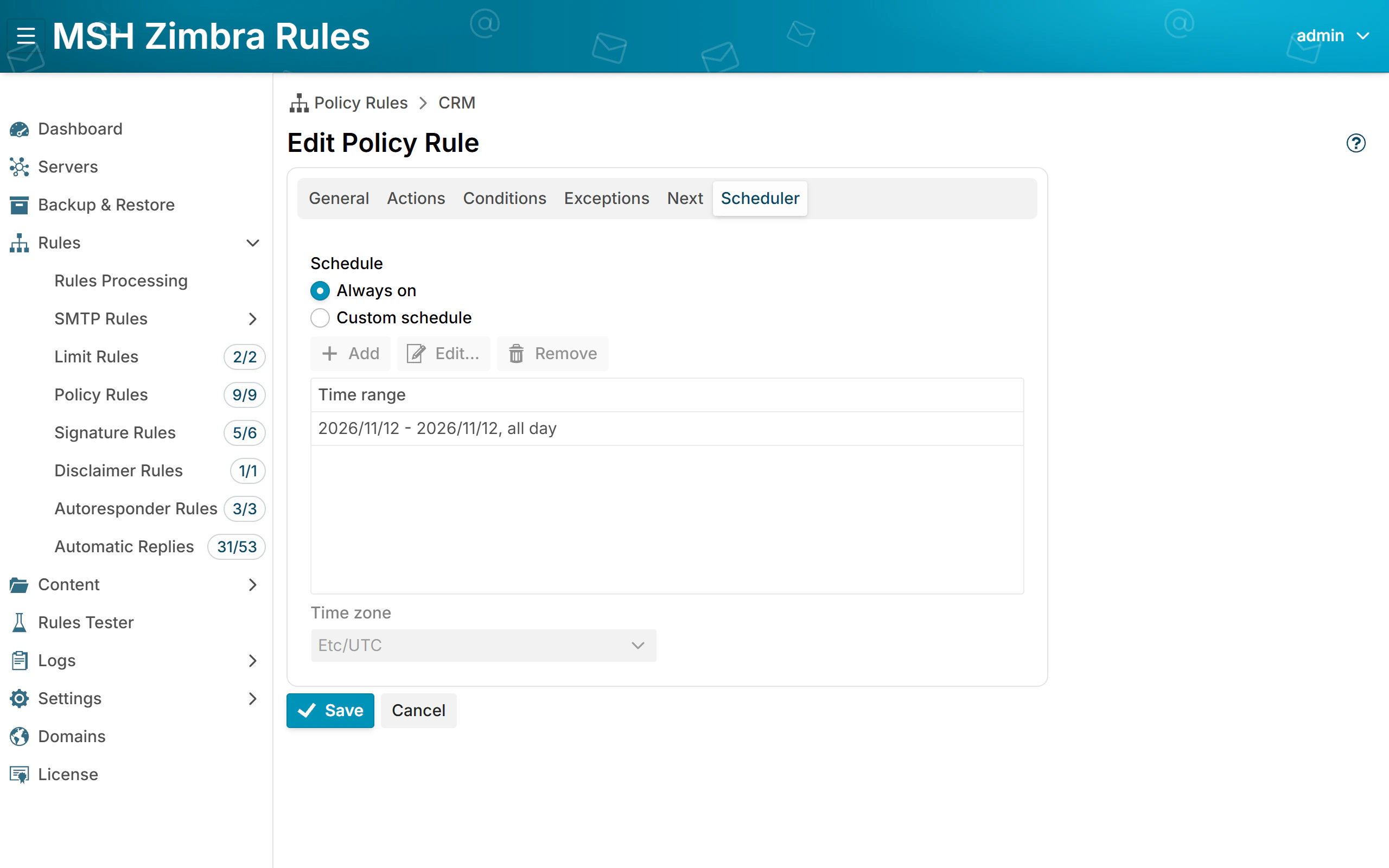
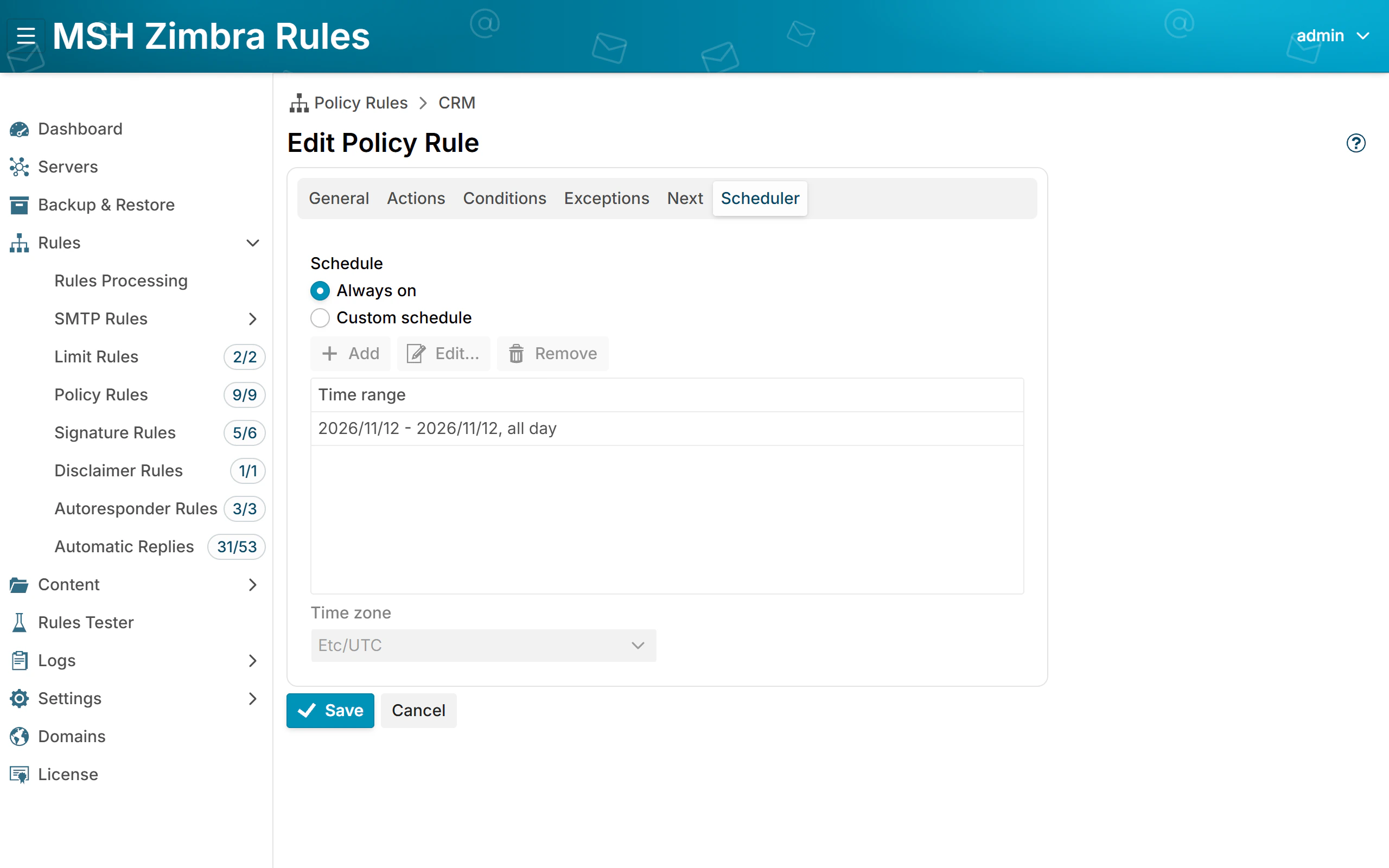
If the rule should start on a set day anyway, such as the first of the month, give it that time range instead and test with that day as Sent date. For the first real messages, Message History shows the same processing trace, while Diagnostic logging is on.
Typical surprises
- Rule order. Policy rule groups run from the top of the list, and the trace follows
that order: first the conditions of every group under
-- Collecting --, then the actions of the rules that matched under-- Executing --. Two actions on the same thing, such as two subject changes, take effect in that order. - Stop processing. A group whose Next is set to Stop processing more rules
ends the policy rules when it applies: the trace says
'CRM' applied. Stopping processing.and no group below it appears in the trace at all. Autoresponder, signature and disclaimer rules still run after it. Put such a group low in the list, see Rules group. - Inside or outside. The direction comes from the domains of your organization, listed
in the trace as
Domains '...'. A message to a second domain of the company that is missing from Domains counts as outgoing. One outside recipient among colleagues is enough for outgoing. - Inactive rules and switches. A rule or group that is off is skipped, in the tester as on the server. So is every rule type switched off on Rules processing.
- Mail the rules send. Automatic replies, autoreplies and forwards run through the rules again, as in Step 5. Test with a sender whose out-of-office reply is on.
Clean up
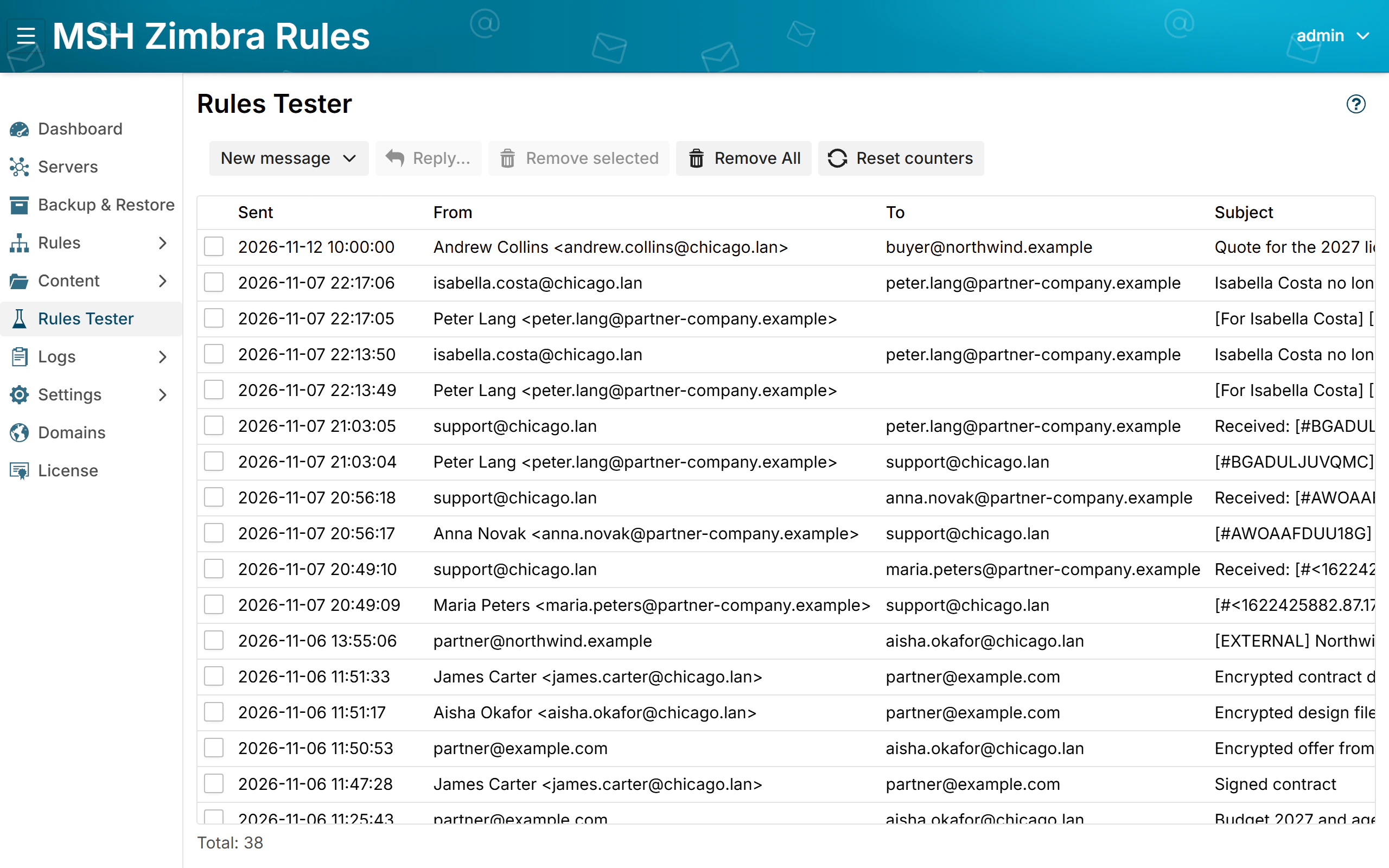
The test messages stay in the list of the Rules Tester until you remove them. Tick them and click Remove selected, or Remove All to empty the list. They were never sent, so there is nothing to clean up anywhere else.
Related reading
- Rules tester - every tab of a test message, the SMTP tab and the messages the rules send
- Scheduler - time ranges, daily patterns and the time zone of a rule
- Message header - the condition and exception used for the fix
- Copy a user's mail to an archive mailbox in Zimbra - another rule that adds a Bcc recipient
Want to try it on your own server? Start a free trial.