Handle Signed and Encrypted Mail in Zimbra: S/MIME and PGP
Signed and encrypted mail is the one kind of message a mail server must not touch. A signature added to a signed message breaks the sender's digital signature, and the recipient sees a warning instead of a trusted message. The text of an encrypted message cannot be read, let alone changed. MSH Zimbra Rules knows this and leaves such messages alone. This article shows what that means for your signatures and disclaimers, and adds two rules that are worth having once people start encrypting: a notice for readers who cannot open an encrypted message in the web client, and a check on encrypted mail that leaves the company.
What MSH Zimbra Rules does on its own
| Message | Signatures and disclaimers | Policy rules |
|---|---|---|
| Signed (S/MIME or PGP) | Not added, the signature stays valid | Run; actions that change the content, such as removing attachments, are skipped |
| Encrypted (S/MIME or PGP) | Not added | Run on what can be seen: sender, recipients, subject, size |
| Ordinary | Added as usual | Run as usual |
The Message type condition
recognizes signed and encrypted messages by their structure: S/MIME and PGP/MIME
containers, and inline PGP messages whose text starts with
-----BEGIN PGP MESSAGE-----. A DKIM signature added by the sending server does not
count as signed.
You can see this in the Rules tester. On the Details tab of a Custom... test message, Protection turns the message into a signed or encrypted one. For a signed message from one of your users to an outside address, the signature and disclaimer rules match as usual, and then step aside:
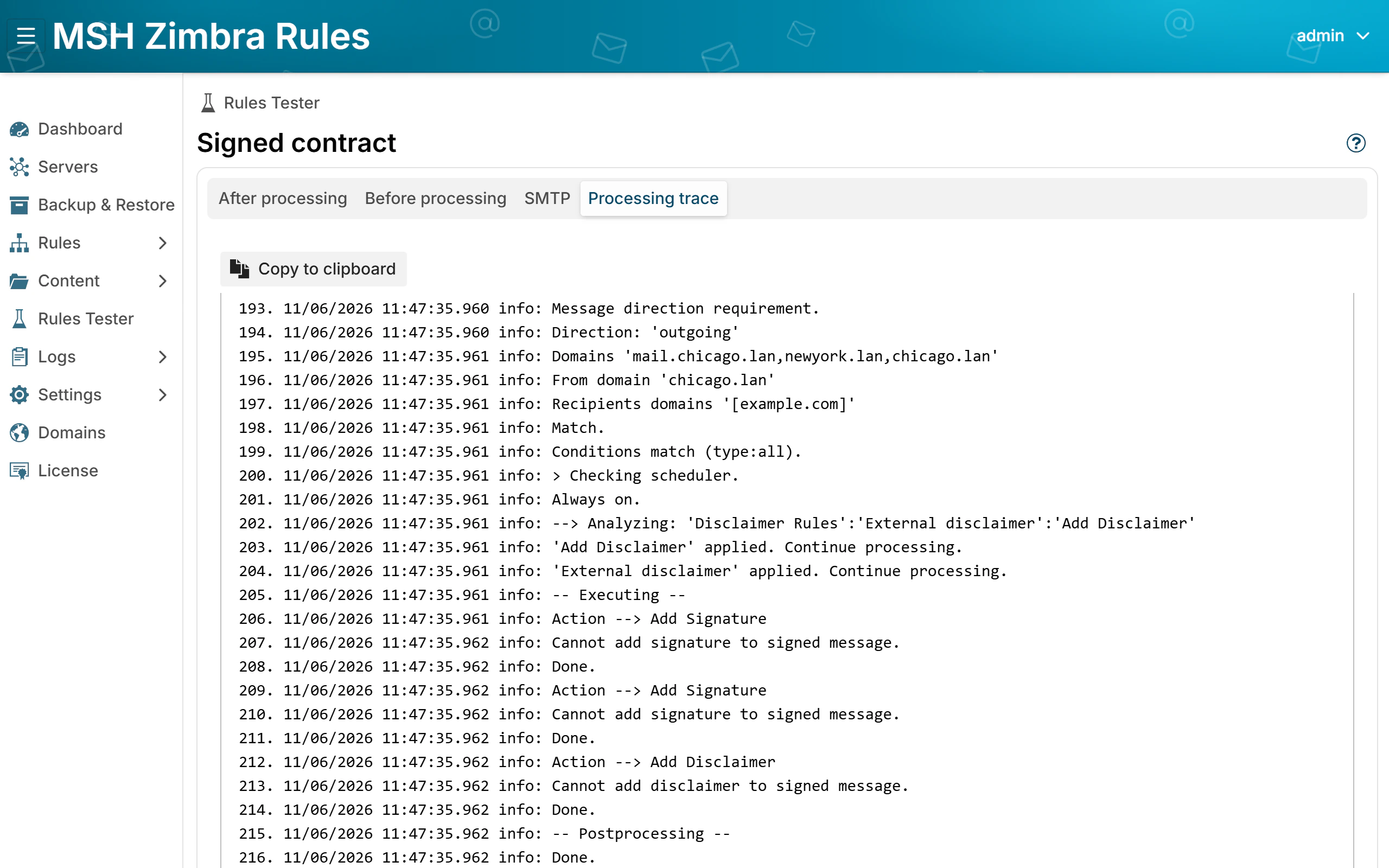
If your company needs a legal disclaimer on every external message, the server cannot add it to signed mail without breaking the signature. Ask users who sign their mail to put the disclaimer into the signature of their own mail client, so that it is signed along with the message.
Rule 1 - Tell readers that a message is encrypted
Unless S/MIME or PGP is set up for the user in the web client, the Zimbra web client
cannot show an encrypted message. Users typically see an empty message or an attachment
such as smime.p7m, and wonder what is wrong. A banner and a sender tag explain it.
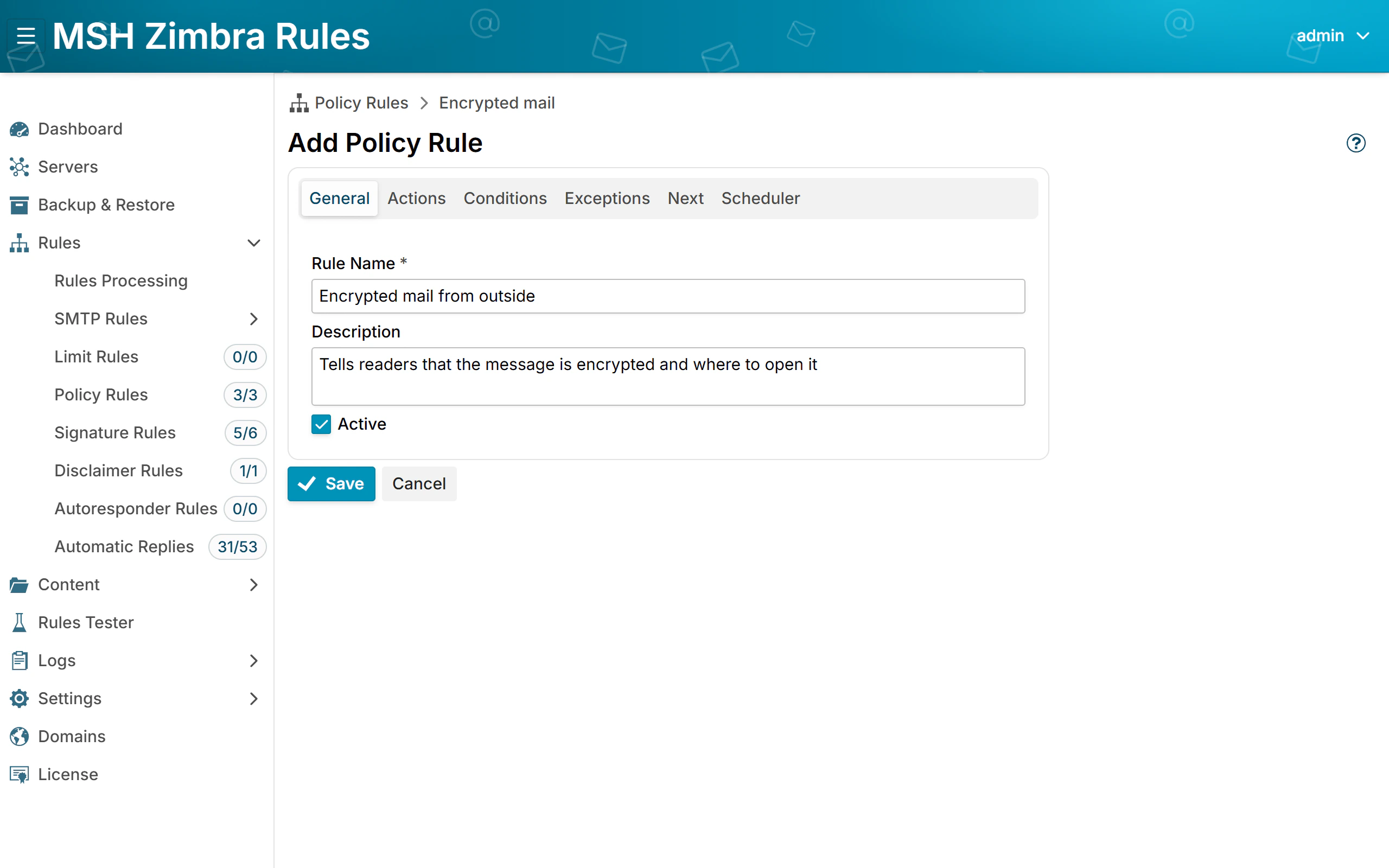
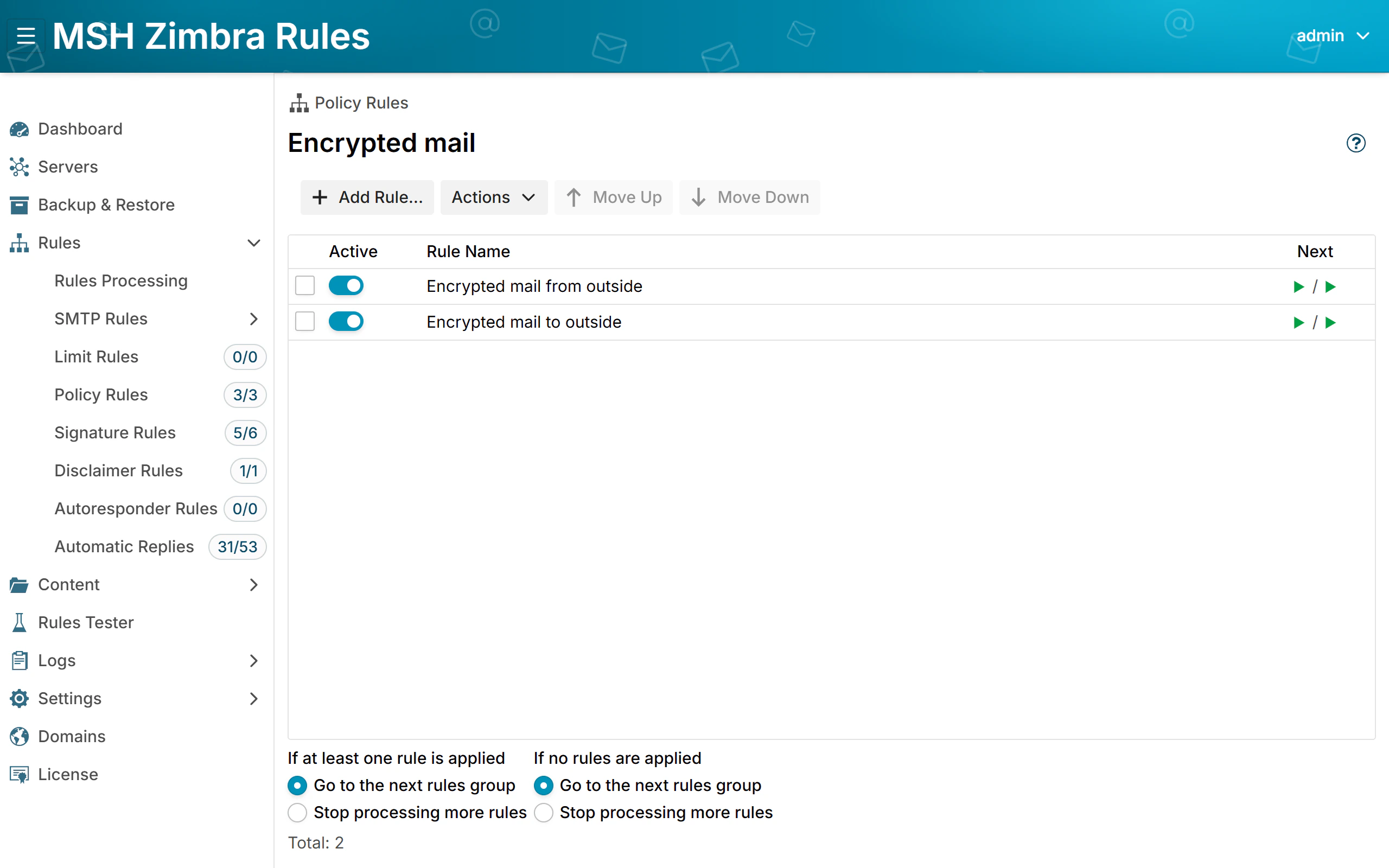
Open Rules > Policy Rules, add a group Encrypted mail and in it a rule
Encrypted mail from outside:
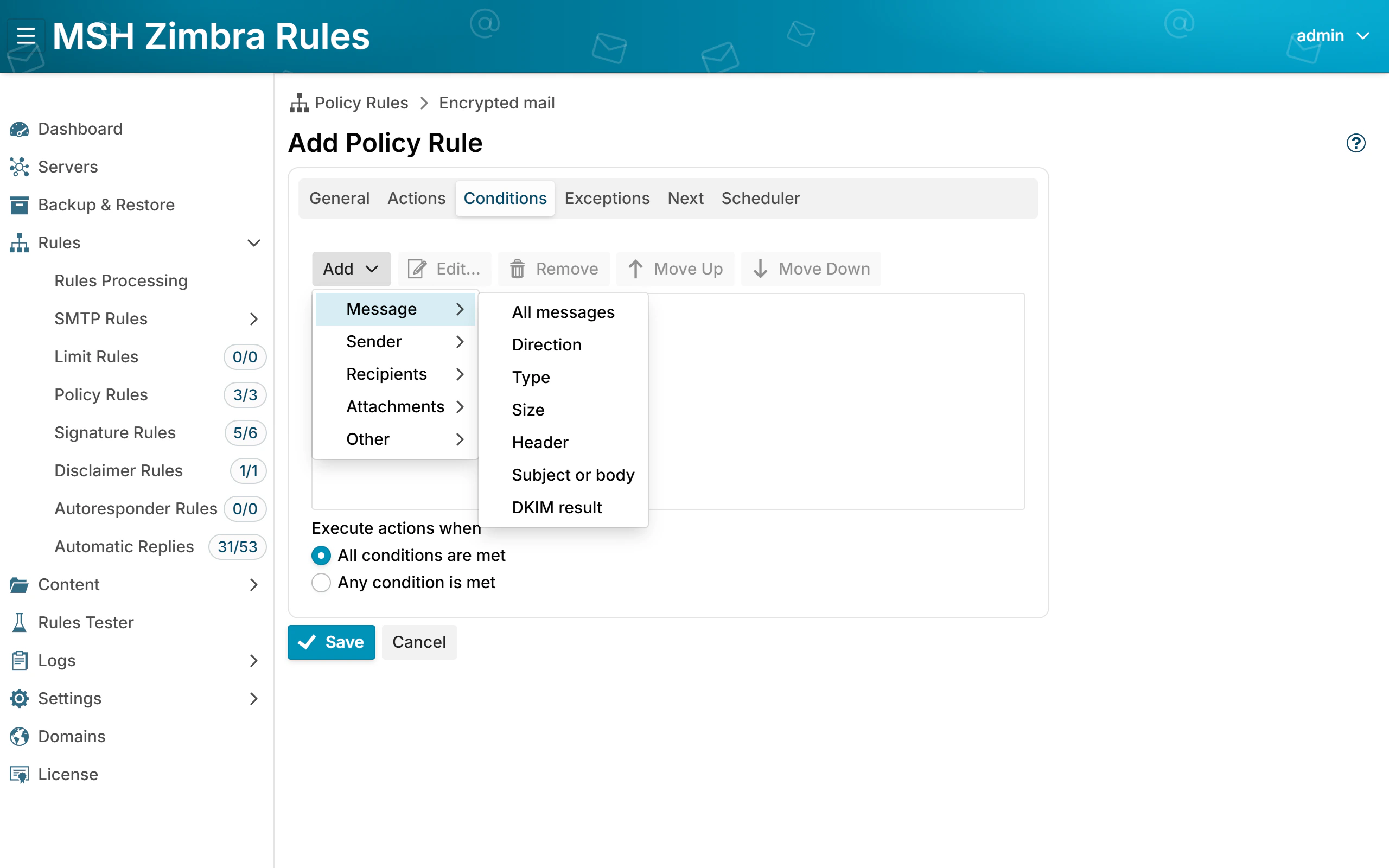
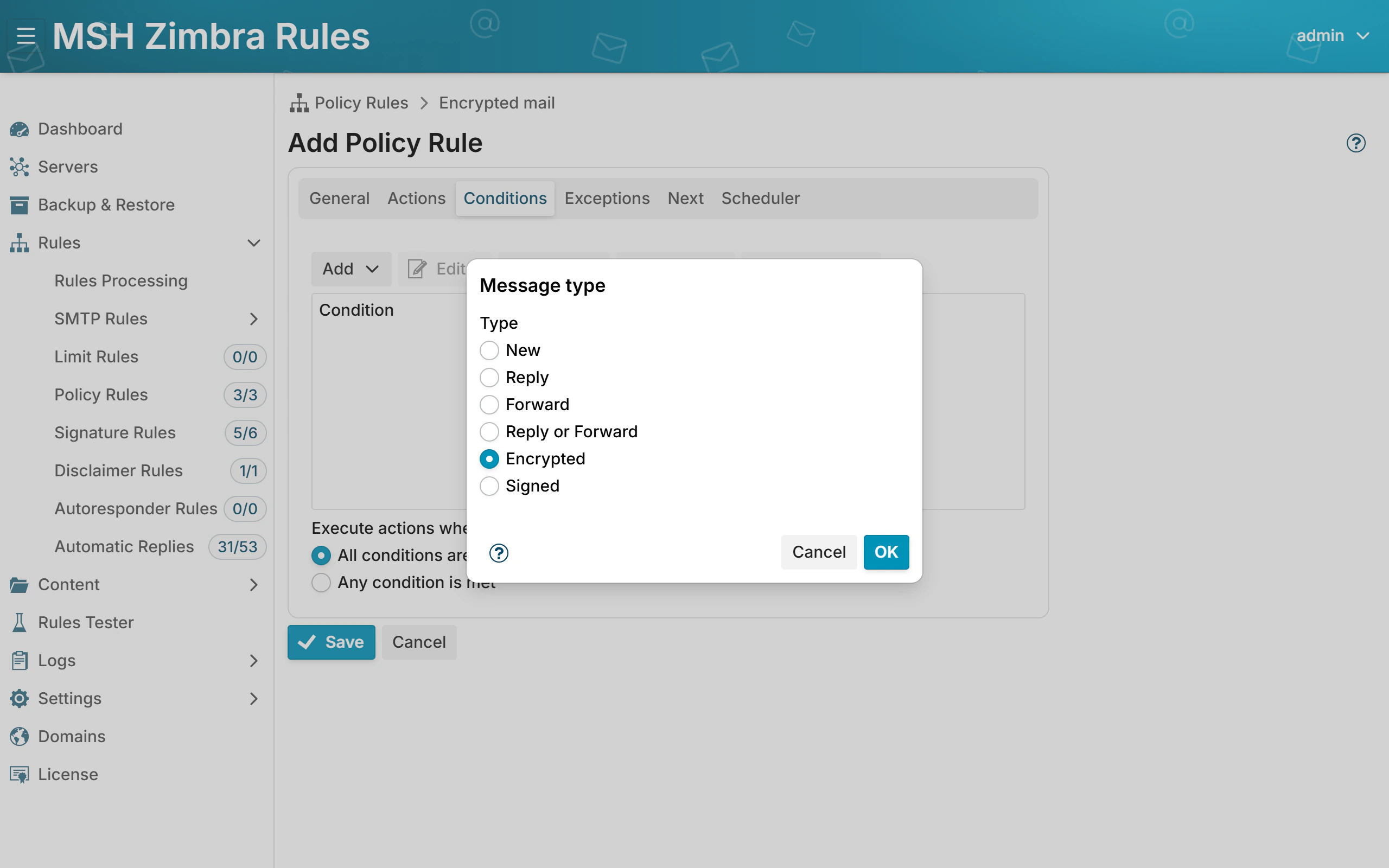
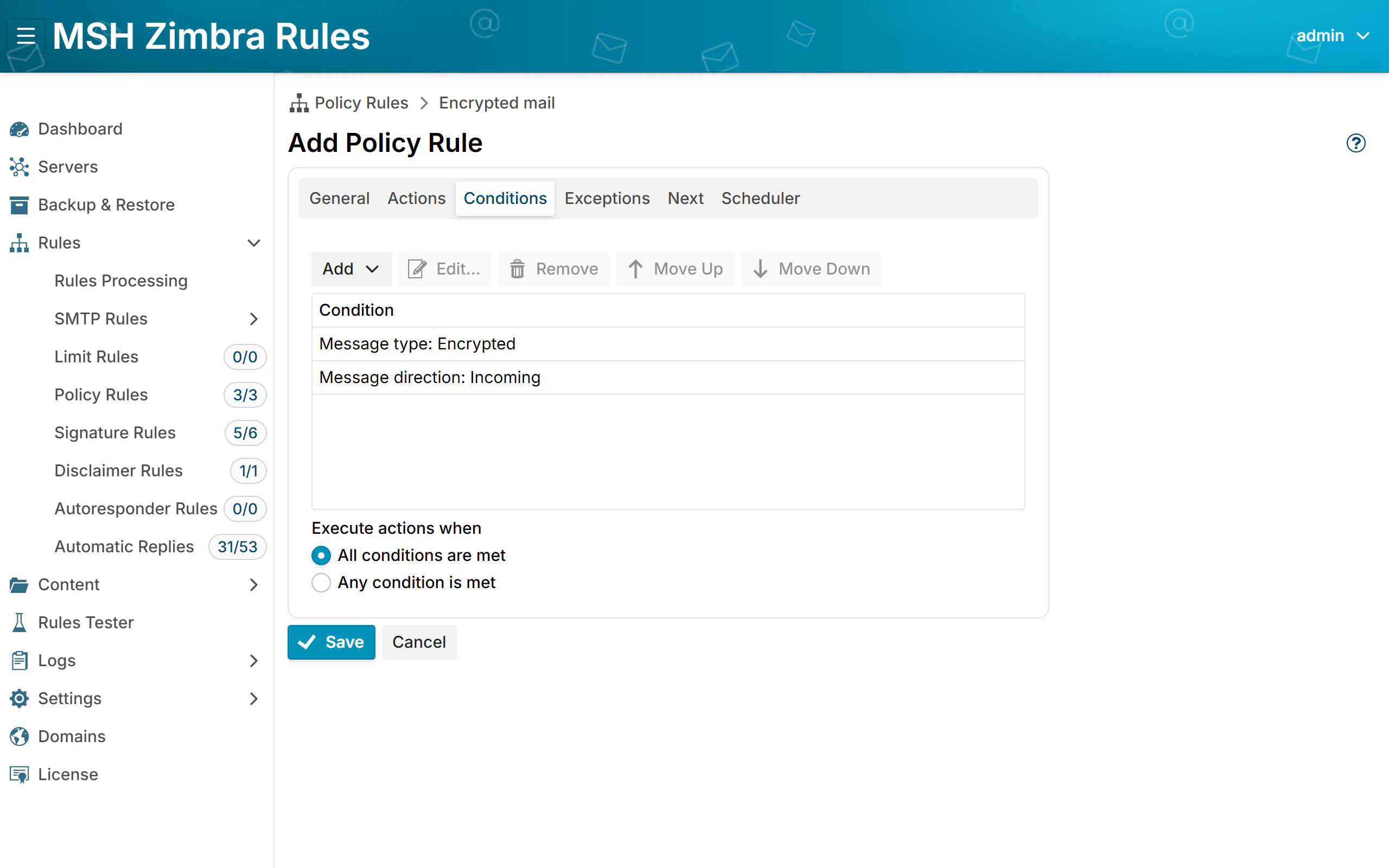
- Conditions (all): Message > Type, Encrypted; and Message > Direction, Incoming.
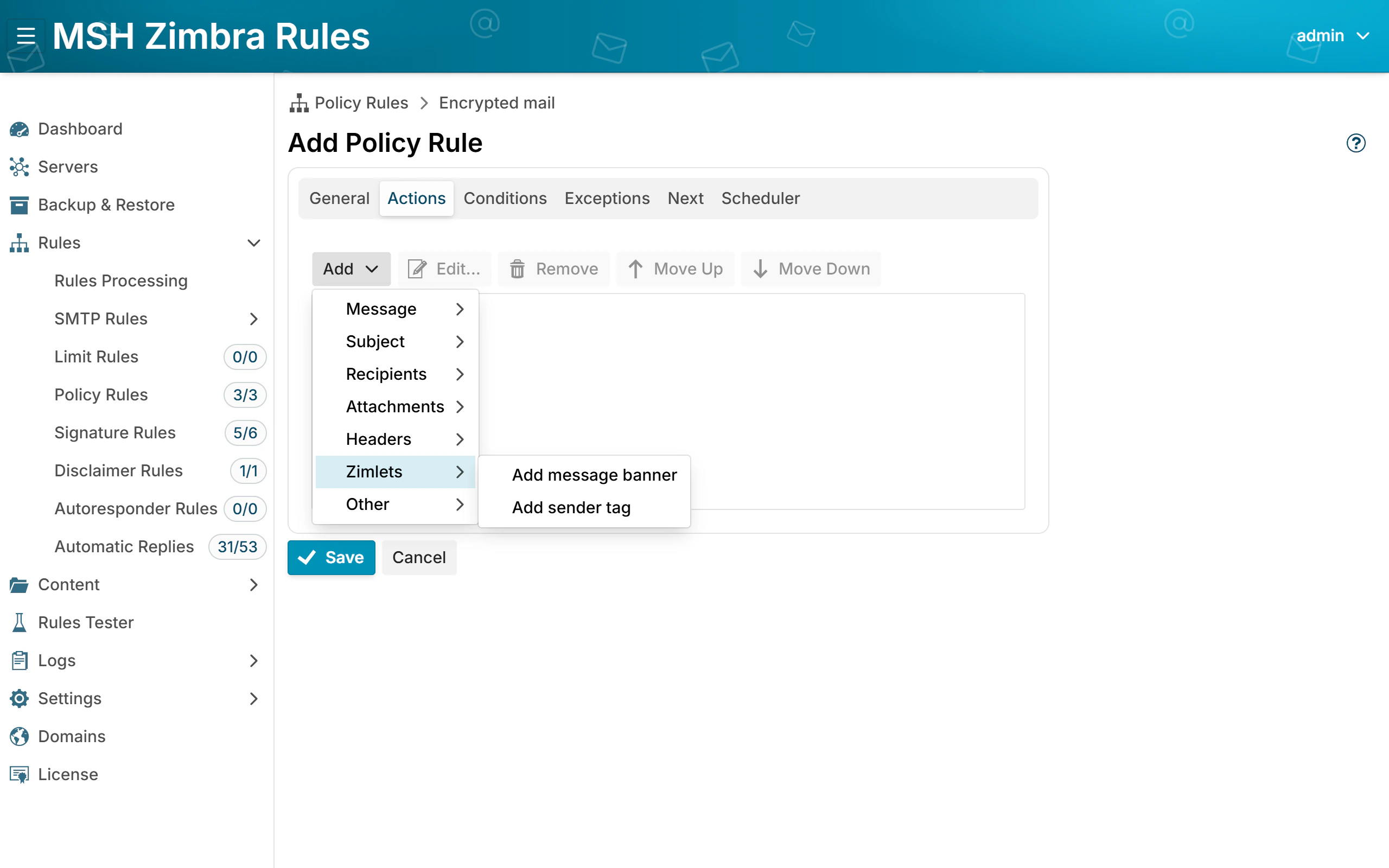
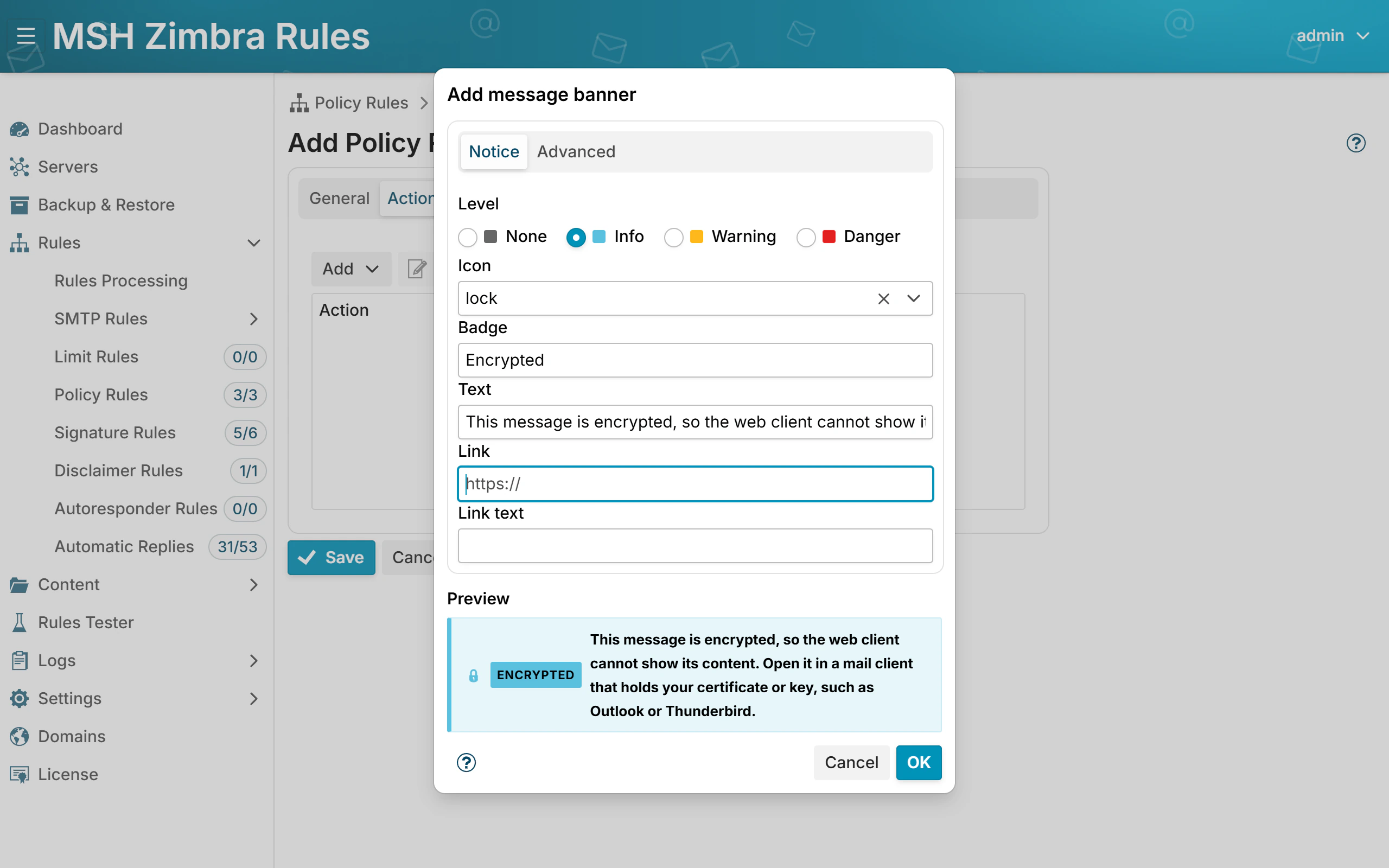
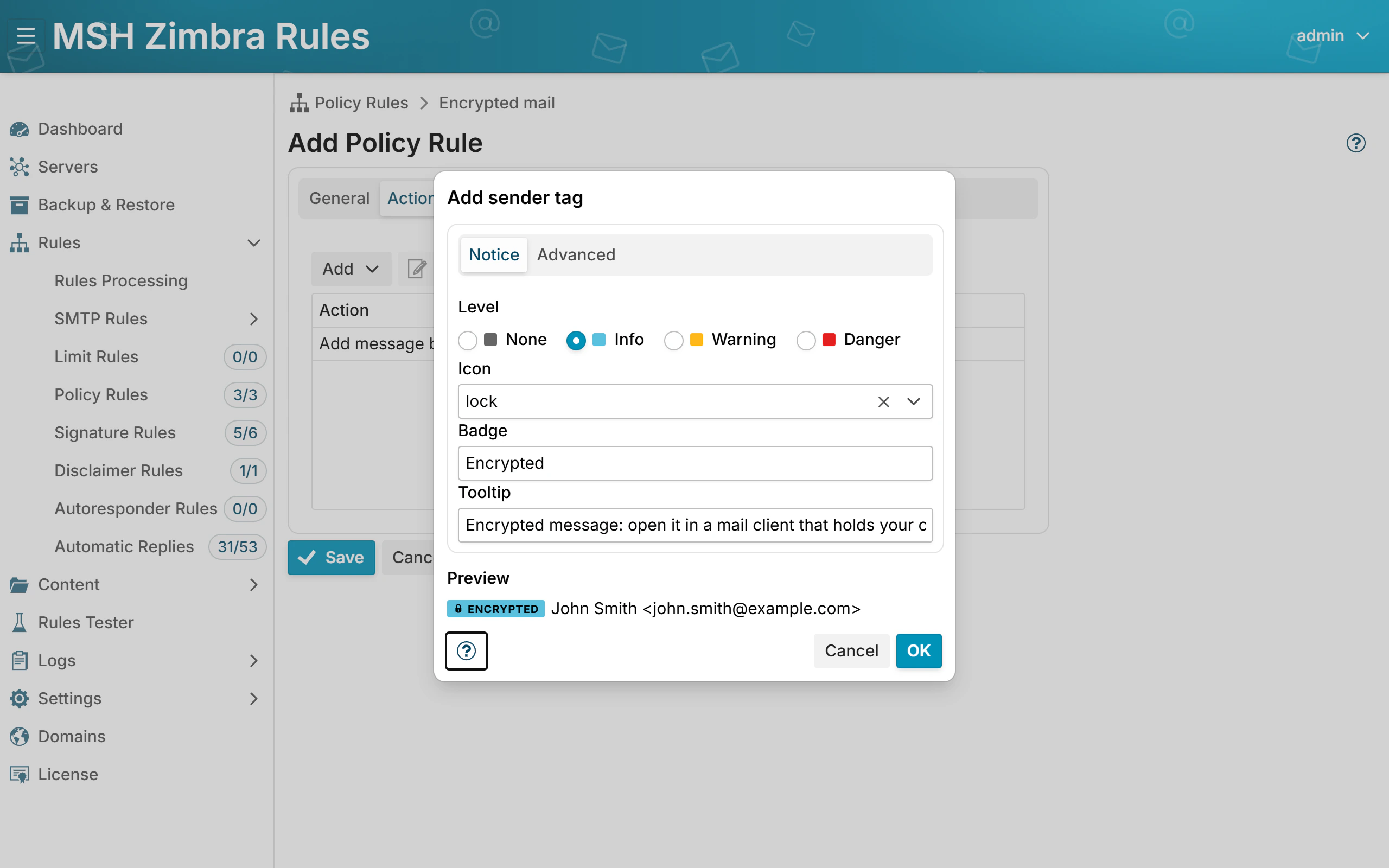
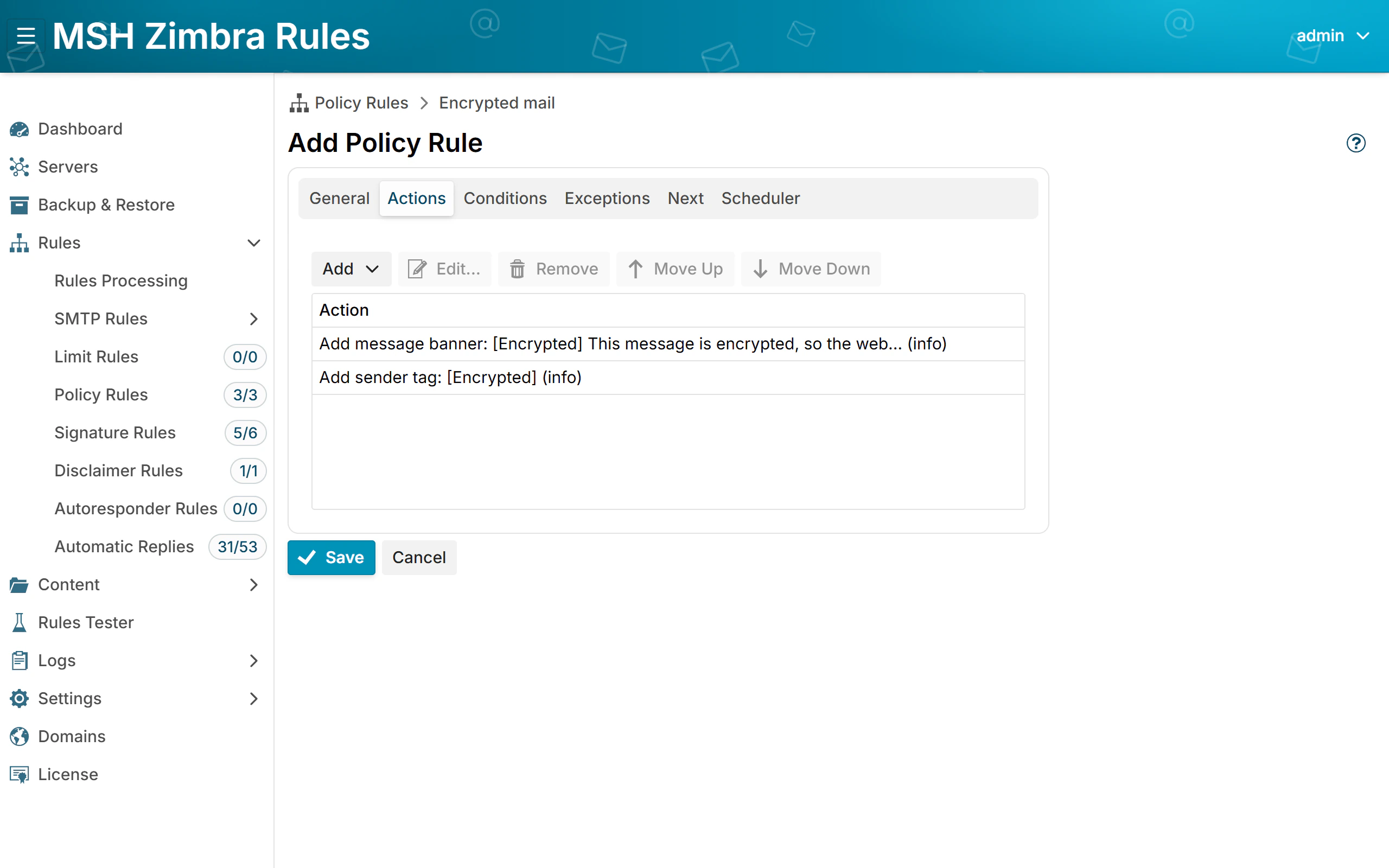
- Actions: Zimlets > Add message banner with Level Info, Icon
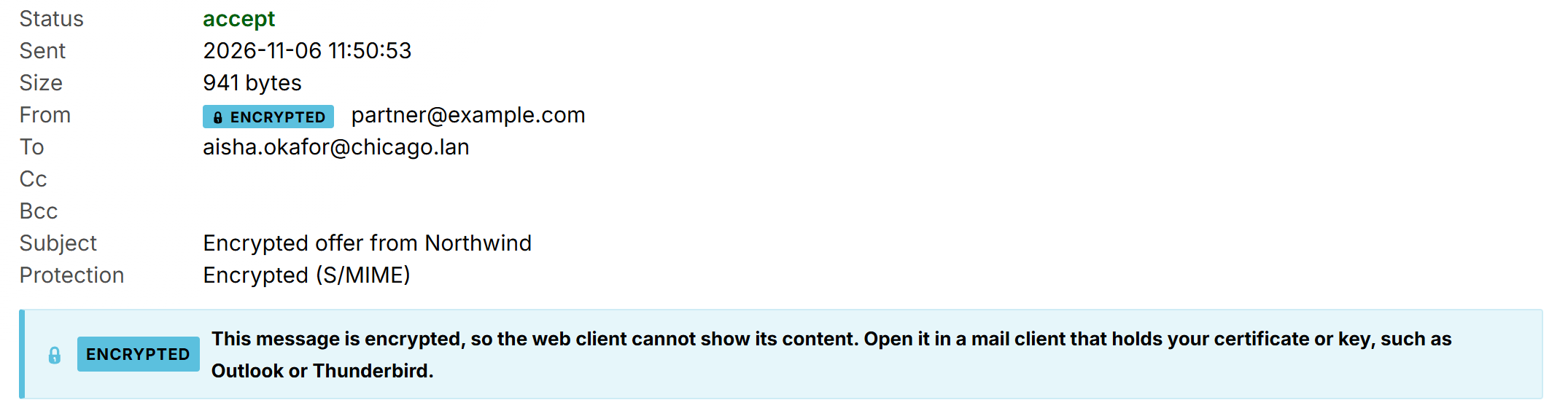
lock, BadgeEncryptedand a text such as This message is encrypted, so the web client cannot show its content. Open it in a mail client that holds your certificate or key, such as Outlook or Thunderbird. Then Zimlets > Add sender tag with the same level, icon and badge.
The banner and the tag travel in a header of the message, which the Message Notices zimlets read. The encrypted content is not touched. See Add message banner and Add sender tag.
Rule 2 - Keep encrypted mail to the outside to those who may send it
Encryption protects a message from everyone, your own data protection rules included. A rule that stops card numbers, such as the one in Stop Card Numbers from Leaving Zimbra by Email, cannot read an encrypted message. If encrypted mail to the outside should be the exception, allow it only for the people who need it.
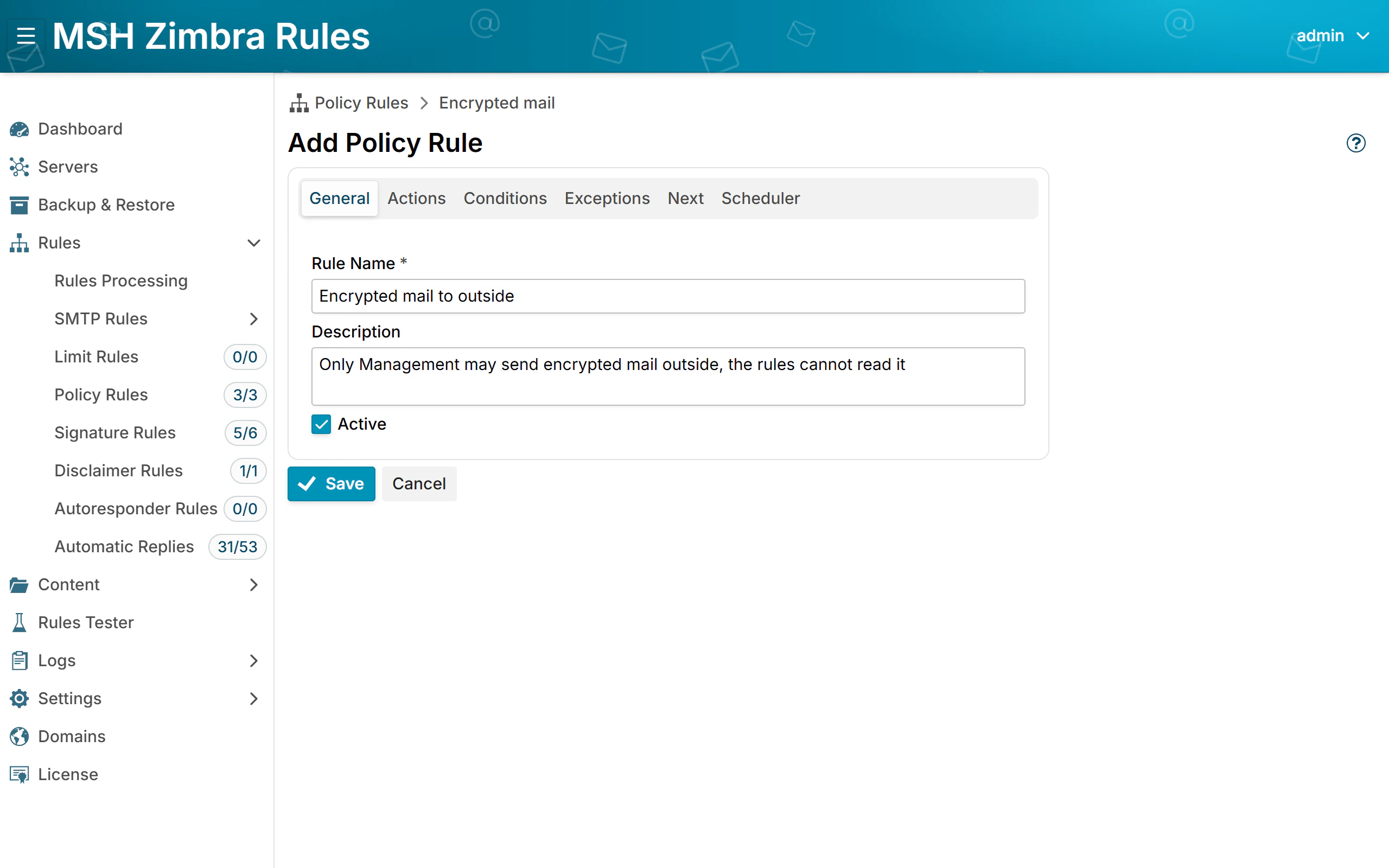
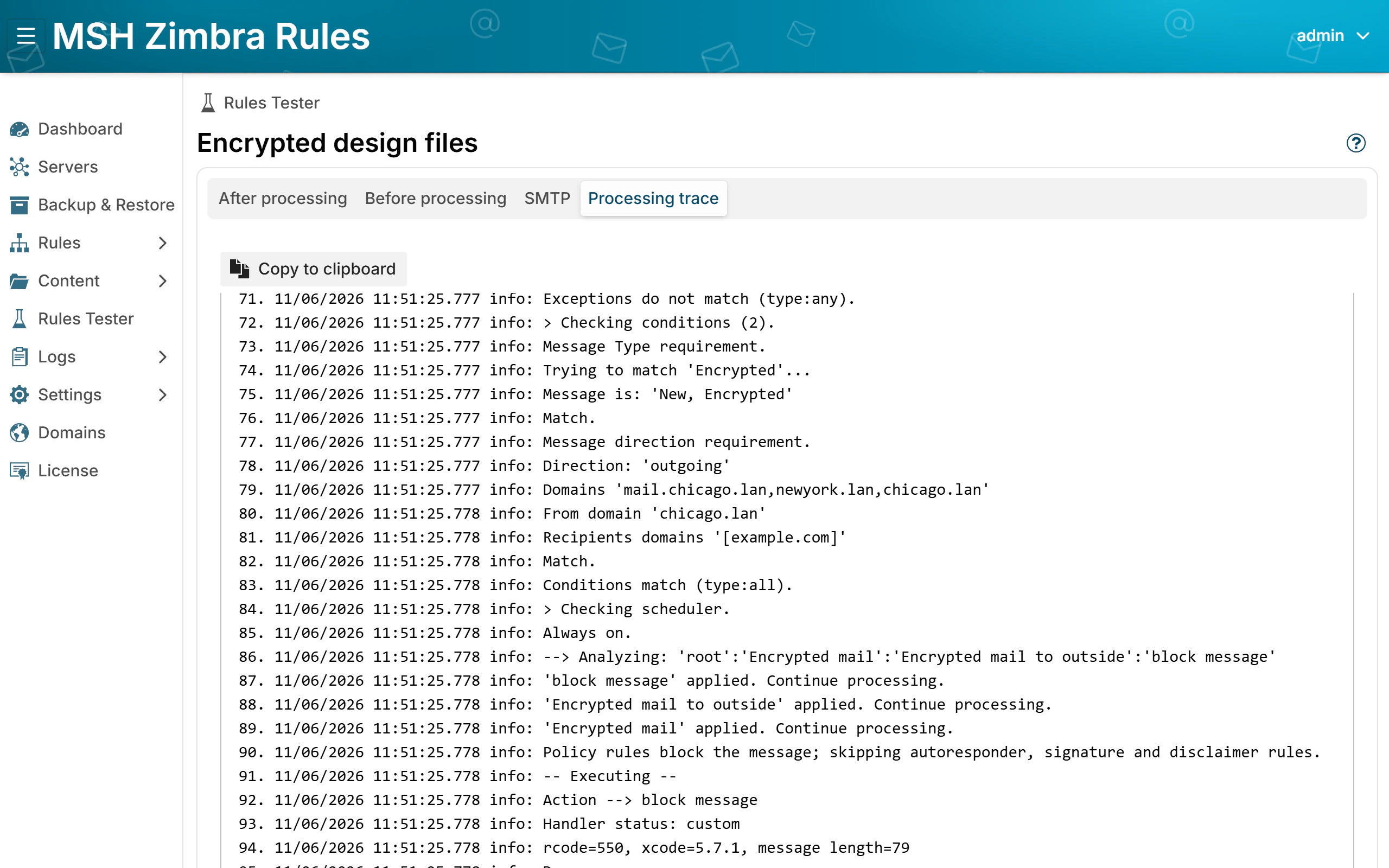
In the same group add a rule Encrypted mail to outside:
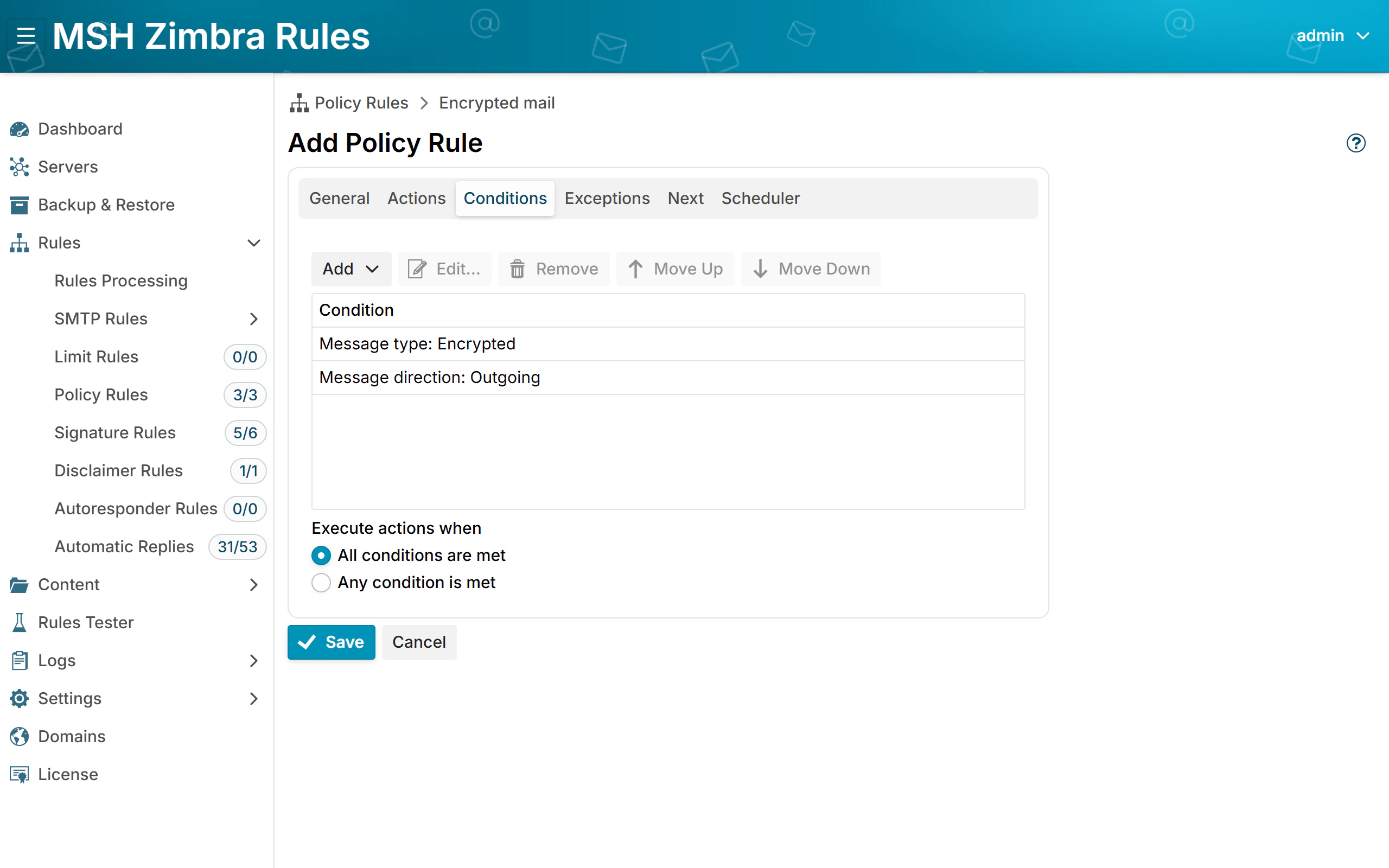
- Conditions (all): Message > Type, Encrypted; and Message > Direction, Outgoing.
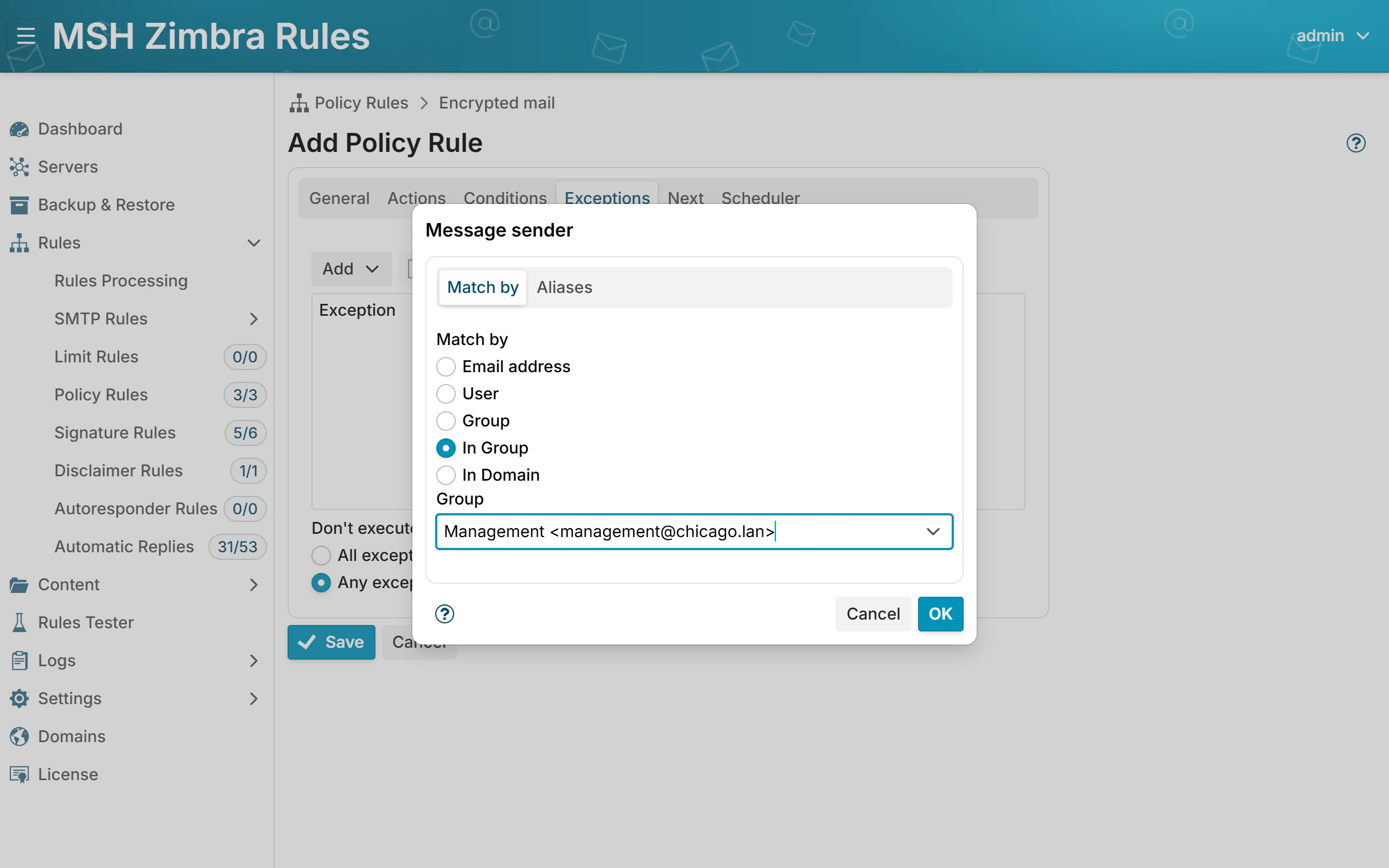
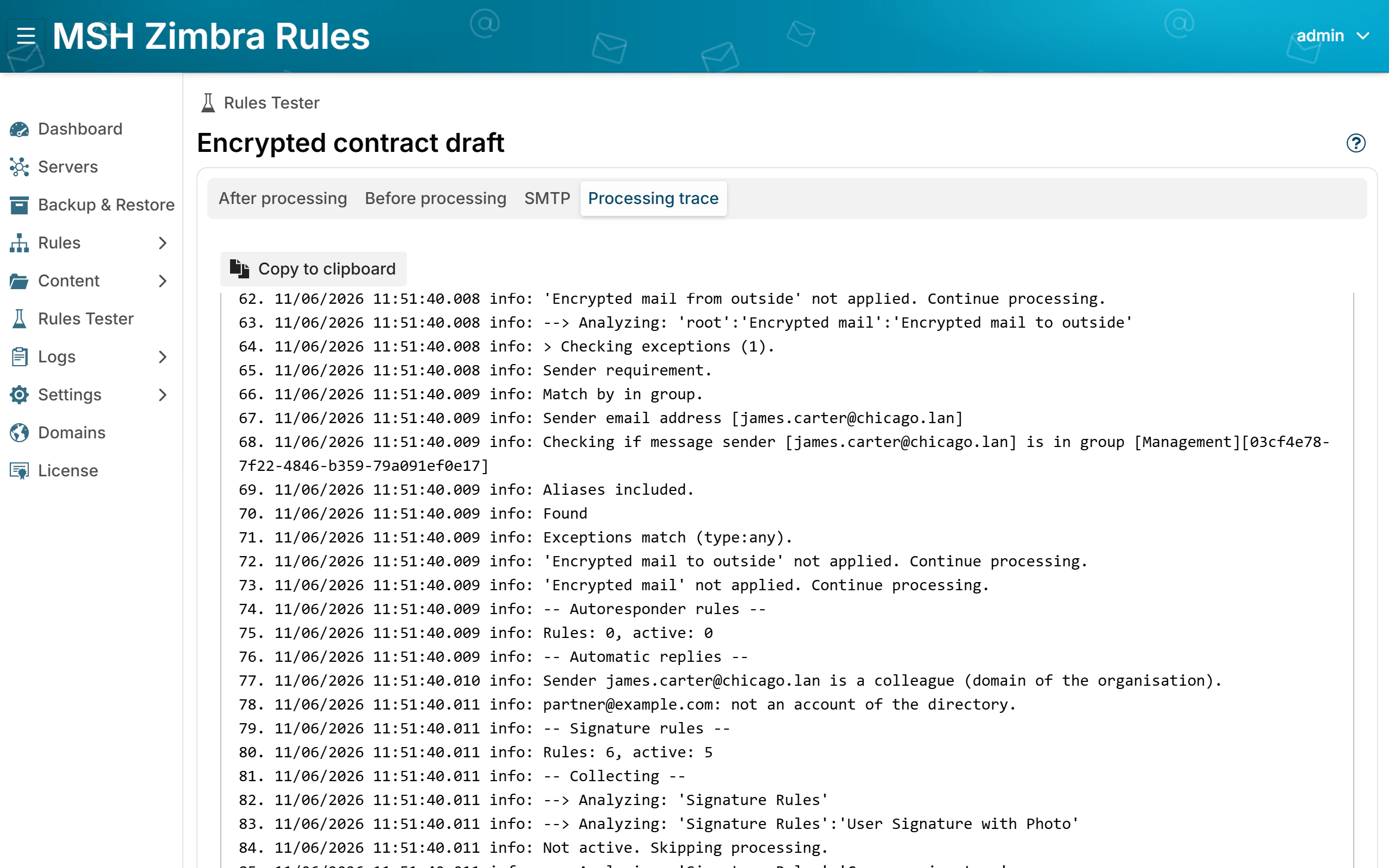
- Exceptions: Sender > Sender, In Group, the group that may send encrypted mail, here Management.
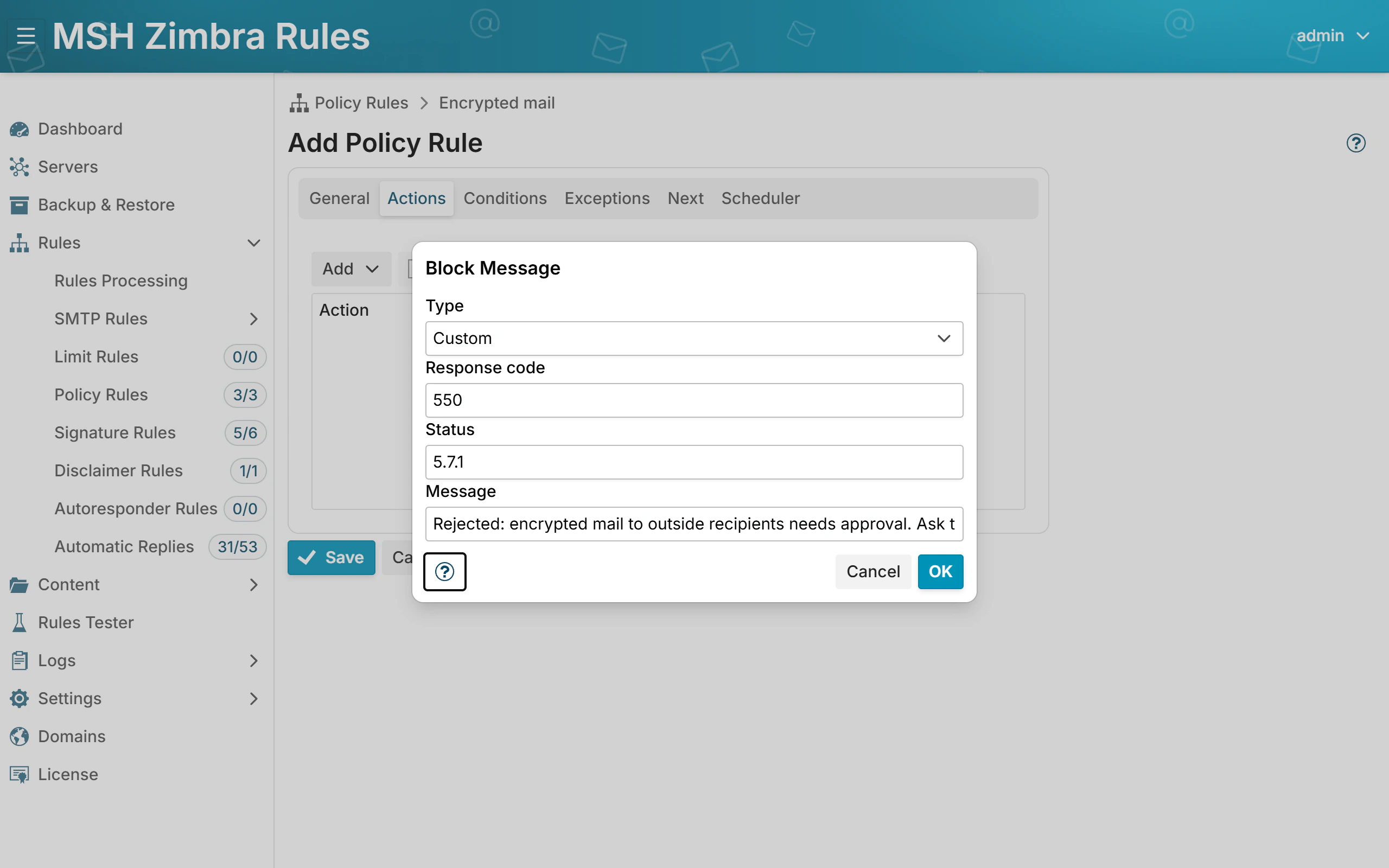
- Actions: Message > Block, Custom,
550,5.7.1, and a reason such as Rejected: encrypted mail to outside recipients needs approval. Ask the IT team.
The block only needs what is visible from the outside of the message: who sends it, to whom, and that it is encrypted. That is why it works where content rules cannot.
Test it in the Rules tester
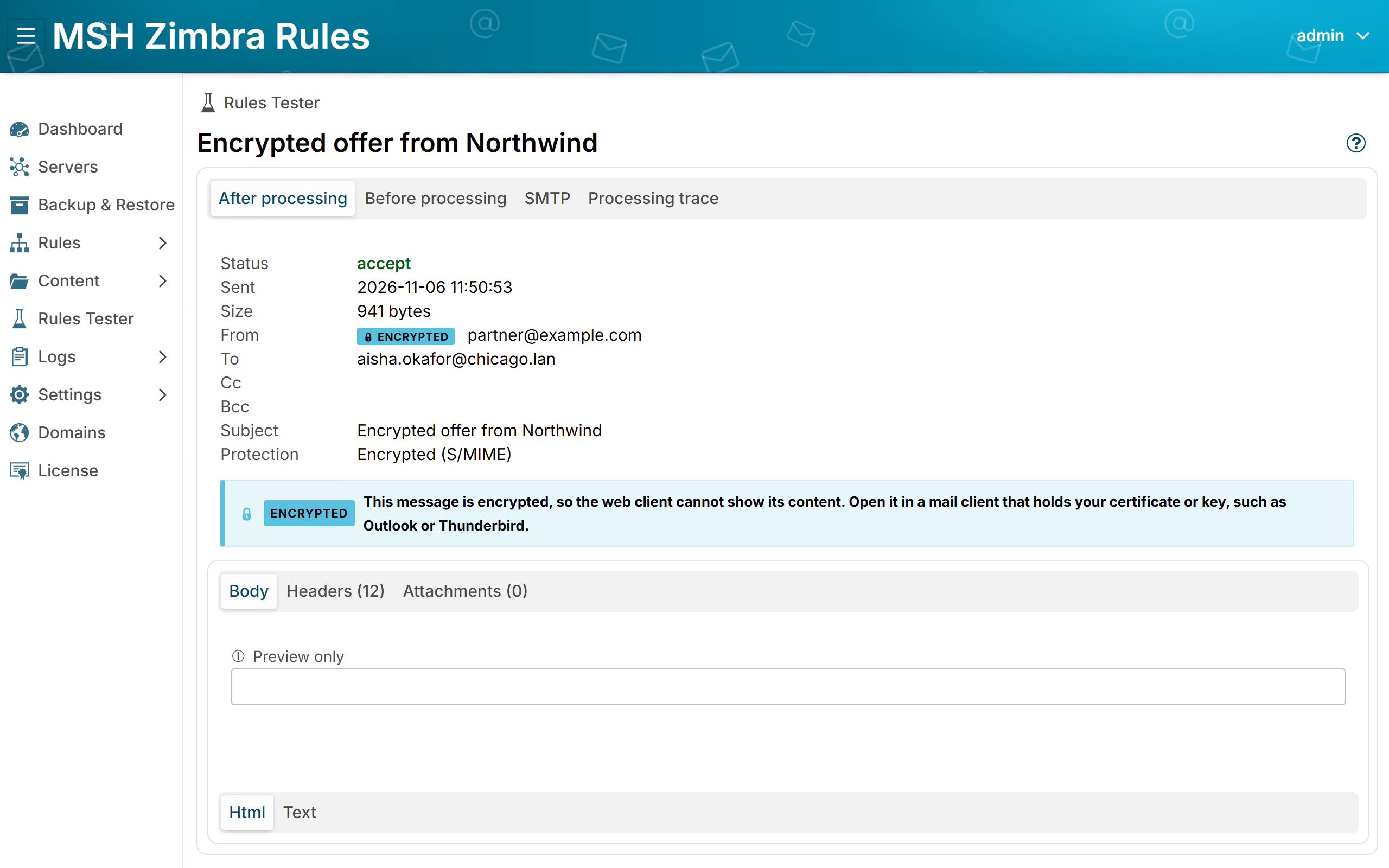
Use Protection Encrypted (S/MIME) on the Details tab of a Custom... test message, and send three of them:
- From an outside address to one of your users: the banner and the tag are added.
- From a user outside the allowed group to an outside address: refused.
- From a member of the allowed group to an outside address: delivered.
Good to know
- Signed then encrypted looks encrypted. Mail clients usually sign a message and then encrypt it, so from the outside it is Encrypted only. Its signature becomes visible after decryption.
- Attachments are not the message. A
.p7mfile or a signed message attached to an ordinary message does not make the message signed or encrypted. Password-protected archives are a different matter, see the Attachments > Encrypted condition in Block Risky Attachments in Zimbra. - Signed mail and the DKIM check. A message signed by its sender can still fail a DKIM check of the sending server and the other way round. They are independent, see DKIM verification.
Related reading
- Message type - how new, reply, forward, encrypted and signed messages are told apart
- Signature rules and Disclaimer rules - why they leave signed and encrypted mail untouched
- Stop Card Numbers from Leaving Zimbra by Email - a content rule that encrypted mail would get past
Want to try it on your own server? Start a free trial.