Add sender tag
This action shows a tag next to the sender when the recipient reads the message in the Zimbra web client, for example an orange EXTERNAL badge before the name. It is in the Zimlets group of the Add menu of policy rules.
A tag is smaller than a banner and is seen before the message is opened. Like a banner, it does not change the subject or the body.
The dialog has two tabs, Notice and Advanced, and below them a Preview of the notice as the Modern web client shows it, updated as you type.
Notice
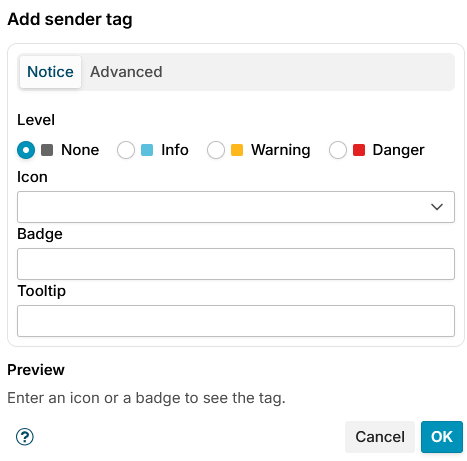
| Field | Meaning |
|---|---|
| Level | None (gray, default), Info, Warning or Danger. Sets the color. |
| Icon | An icon from the list, such as warning, account-external, shield, lock or paperclip. You can also type the name of another icon of the web client: lowercase letters, digits and hyphens. |
| Badge | A short word shown in capitals, for example External. At most 30 characters. |
| Tooltip | The text shown when the user points at the tag. At most 300 characters. |
Enter at least an icon or a badge. Variables can be used in Badge and Tooltip, see Variables.
The preview shows the tag before a sample sender, John Smith.
Advanced
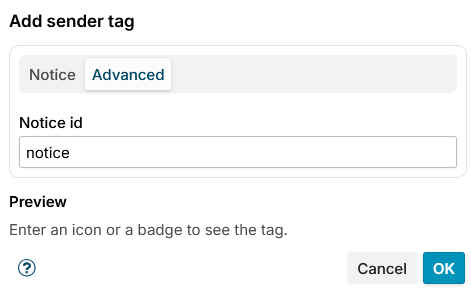
Notice id names the notice, in lowercase letters, digits and hyphens, at most 40 characters. It is filled in from the badge, the icon or the text until you change it, and is notice while they are empty.
How it works
The action adds an X-MSH-Message-Notice header with type=sender-tag, which the Message Notices zimlets for the Modern and the Classic Zimbra web client read and show. Other mail clients ignore it. X-MSH-Message-Notice headers a message arrives with are removed before the rules run.
Users see the tag only once the Message Notices zimlets are deployed, see Zimlet configuration. Until then the header is added but no tag is shown.
Additional resources
- Message Notices - what users see in both web clients
- Add message banner - a banner above the message