User attributes
The User Attributes page sets what users see of their own attributes in Change User Info, the zimlet of the Classic and the Modern Zimbra web client, and which of them they can change. A value a user sets is used in their signatures, disclaimers and autoresponder texts instead of the value from the directory. The Zimbra directory does not change: the GAL, the address book and every other Zimbra feature keep the directory value.
The page is available to administrators only and is listed under Settings, after Directory Service. It only has an effect once the Zimbra extension and the Change User Info zimlets are installed, see Zimlet configuration on a single server, or Zimlets configuration in a multi-server installation.
For example, the directory has the first name John. The user sets First name to Johnattan in Change User Info. From then on {firstName} in that user's signature prints Johnattan, while the GAL still says John.
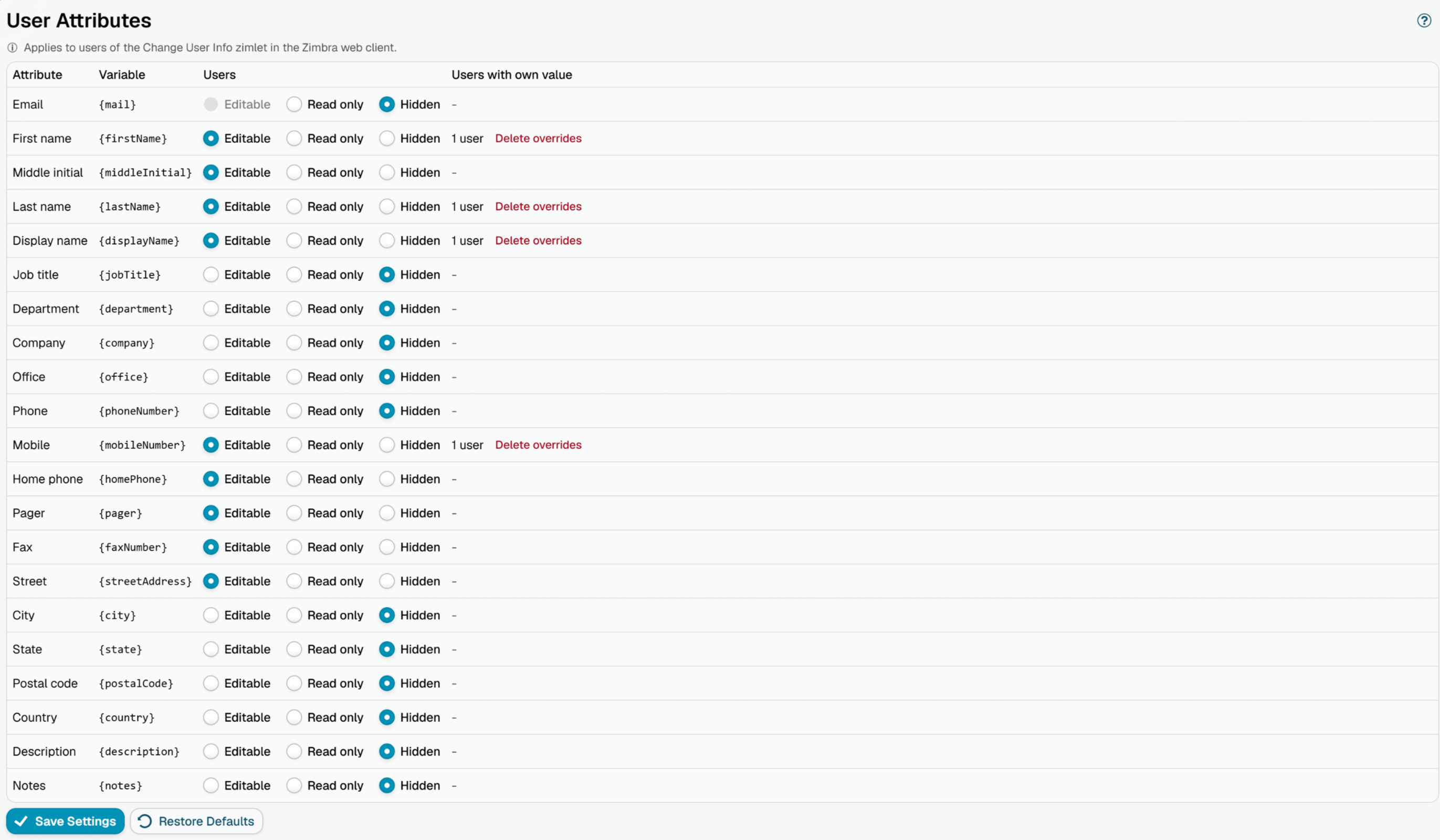
Access for users
The grid lists every attribute that can be offered to users, with the variable it fills in templates, so you see which placeholders users can influence. For each attribute choose the access users have:
| Access | The user |
|---|---|
| Editable | Sees the current value and can change it |
| Read only | Sees the current value, cannot change it |
| Hidden | Does not see the attribute at all |
Nothing is stored until you click Save Settings, so you can change several rows and revert by reloading the page.
- Save Settings - store the access of every row. Users get it the next time they open Change User Info.
- Restore Defaults - select the access of a new installation (see Defaults). Like any other change, it is stored only by Save Settings.
Email can be read only or hidden, never editable: the address identifies the user and decides which rules match their messages. The user id, the aliases and the photo are never offered to users.
Hidden is enforced by MSH Zimbra Rules, not only by the dialog: a hidden attribute is never sent to the browser.
Values users set
A value a user sets is used only while its attribute is Editable. When you change an attribute to Read only or Hidden, the values users set for it stay stored but are no longer used: messages and the Change User Info dialog show the directory value again. Making the attribute editable again brings the values back.
The column Users with own value shows how many users set a value of their own for the attribute. not used marks an attribute that has such values but is no longer editable.
Delete overrides removes the values of that attribute for every user, after a confirmation. Messages use the directory value again, and users have to set their own value again if they want one.
To see or reset the values of one user, open the user on the Domains page.
Defaults
On a new installation, and after the update that brings this page, users can change their phone numbers and see their address, names, job title, department, company and office. Everything else is hidden. Names and job title are usually owned by HR and the directory, so they are not opened to users before you decide so.
| Attribute | Variable | Default access | Longest value |
|---|---|---|---|
{mail} | Read only | - | |
| First name | {firstName} | Read only | 64 |
| Middle initial | {middleInitial} | Hidden | 8 |
| Last name | {lastName} | Read only | 64 |
| Display name | {displayName} | Read only | 64 |
| Job title | {jobTitle} | Read only | 128 |
| Department | {department} | Read only | 128 |
| Company | {company} | Read only | 128 |
| Office | {office} | Read only | 128 |
| Phone | {phoneNumber} | Editable | 32 |
| Mobile | {mobileNumber} | Editable | 32 |
| Home phone | {homePhone} | Editable | 32 |
| Pager | {pager} | Hidden | 32 |
| Fax | {faxNumber} | Hidden | 32 |
| Street | {streetAddress} | Hidden | 128 |
| City | {city} | Hidden | 128 |
| State | {state} | Hidden | 128 |
| Postal code | {postalCode} | Hidden | 16 |
| Country | {country} | Hidden | 128 |
| Description | {description} | Hidden | 1024 |
| Notes | {notes} | Hidden | 1024 |
Messages change only once users set values of their own.
What users can enter
- Longest value - the limit in characters from the table above. It applies to the values users set only, never to the values synced from the directory, and cannot be changed.
- Line breaks - kept only in Description and Notes. Line breaks and control characters are removed from all other attributes.
- Invisible characters - characters that change the direction of the text or are not visible at all (right-to-left overrides, zero-width spaces, soft hyphens) are removed, so a value cannot render reversed in a signature or look like another value. The zero-width joiner and non-joiner stay, since some scripts and emoji need them.
- Markup - HTML in a value is not removed but escaped in HTML templates, so a user cannot add markup to a signature.
- Same as the directory - saving a value equal to the directory value removes the user's own value. An unchanged save stores nothing.
- Empty value - allowed, for example for a user who wants no mobile number in the signature. Reset in the dialog brings the directory value back instead.
- Saving often - one account can save once every 5 seconds. A save sooner than that is refused with "You saved a moment ago. Try again in a few seconds."
Change User Info
What users see and how they change their values is described on the Change User Info page.
A saved value reaches every server with the next settings sync, usually within a minute. The Rules tester and the template preview already use it.
Notes
- An account renamed in Zimbra keeps its values, since they are stored by the Zimbra account id. When an account is deleted in Zimbra, the next directory sync deletes its values as well.
- Only administrators of the administrator panel can change the access or other users' values. A Zimbra login, administrator or not, reaches only the user's own values.
- The access and the values users set are part of a backup, see the section User attribute overrides on the Backup & Restore page. Unlike the synced directory, a sync cannot bring them back.
Additional resources
- Zimlet configuration - install the Zimbra extension and the Change User Info zimlets on a single server
- Zimlets configuration - the same in a multi-server installation
- Domains - see and reset the values one user set
- How to use Variables - lists all user attribute placeholders