Change User Info
Change User Info lets users see their own details - such as their name, job title and phone numbers - and change the ones the administrator allows, directly in the Zimbra web client. The values they set are used in their signatures, disclaimers and autoresponder texts instead of the values from the directory.
The Zimbra directory does not change: the GAL, the address book and every other Zimbra feature keep the directory value. Only the messages MSH Zimbra Rules processes use the value the user set.
For example, the directory has the first name John. The user sets First name to Johnattan in Change User Info. From then on {firstName} in that user's signature prints Johnattan, while the GAL still says John.
Open Change User Info
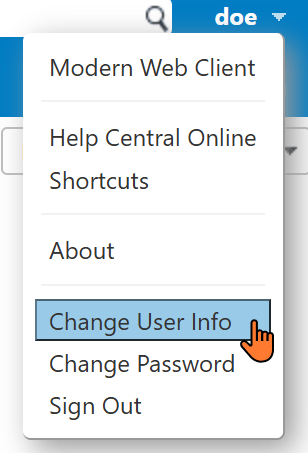
Change User Info is in the user menu, opened by clicking the user's name in the top right corner of the web client. In the Modern web client it is listed after Change Profile Image, in the Classic web client above Change Password.
Modern web client

Classic web client
The dialog
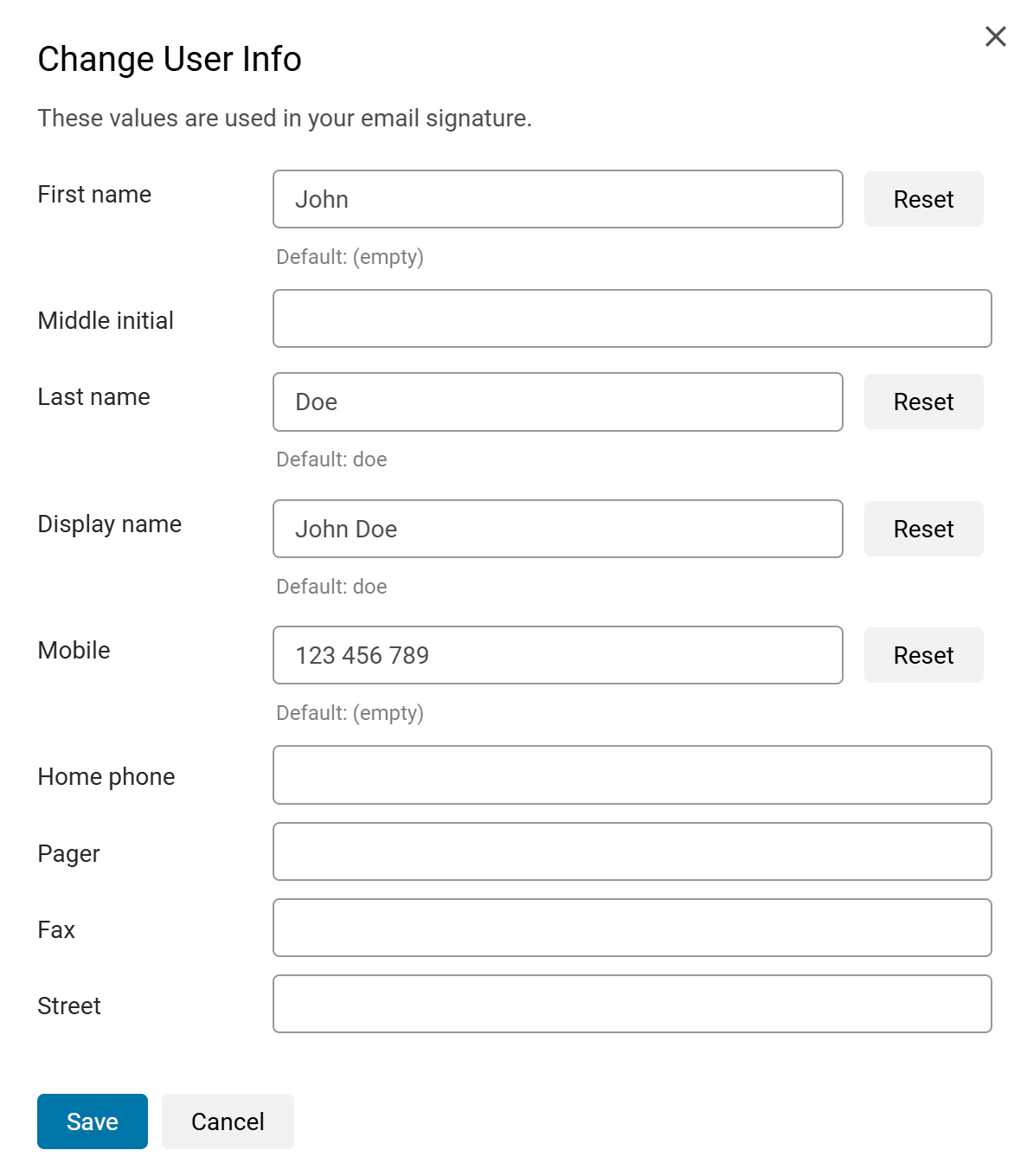
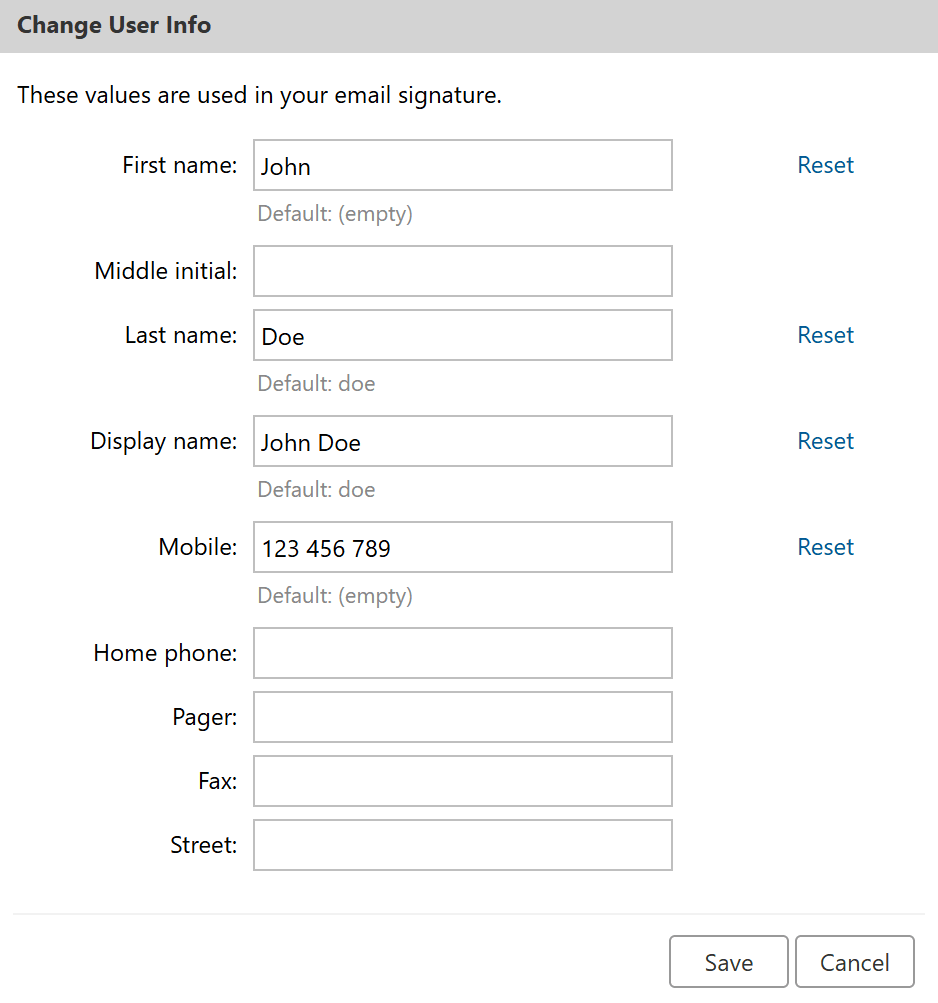
The dialog starts with "These values are used in your email signature." and lists the details the administrator made available. It looks the same in both web clients, in the style of each.
Modern web client
Classic web client
The details in the dialog:
- Editable details are input fields with the current value. Each field takes at most as many characters as the detail allows, see What users can enter.
- Read only details are plain text below a line. Users see them but cannot change them.
- Hidden details are not in the dialog at all.
Which details are editable, read only or hidden is set by the administrator on the User attributes page. By default users can change their phone numbers and see their email address, names, job title, department, company and office.
Change a value
- Type the new value into the field.
- While a field differs from the directory, Reset shows next to it and a
Default: <directory value>line below it -Default: (empty)when the directory has no value. Reset puts the directory value back into the field. - Click Save.
The dialog closes with "Saved. New messages use these values within a minute." The new value reaches every server with the next settings sync, usually within a minute; messages sent before that still use the previous value.
Cancel closes the dialog without saving.
Some things to know when changing values:
- Back to the directory value - click Reset and Save. Saving a value equal to the directory value removes the user's own value, so later changes in the directory show again.
- Empty value - clearing a field and saving is allowed, for example for a user who wants no mobile number in the signature.
- Line breaks - kept only in Description and Notes; all other details are one line.
- Saving often - one account can save once every 5 seconds.
Messages in the dialog
| Message | Meaning |
|---|---|
| Saved. New messages use these values within a minute. | The values are stored. |
| Job title is too long. | The value is longer than the detail allows. The dialog stays open; shorten the value and save again. |
| Job title cannot be changed. | The administrator made the detail read only or hidden while the dialog was open. Reopen the dialog. |
| You saved a moment ago. Try again in a few seconds. | The account saved less than 5 seconds ago. |
| Your administrator has not made any information available here. | Every detail is hidden. The dialog has an OK button only. |
| Your account is not known to MSH yet. Try again later or contact your administrator. | The account is not synced from the directory yet, for example because it was created after the last directory sync. |
| The MSH service is not available at the moment. Try again later or contact your administrator. | The extension is not installed on the user's mailbox server, or it cannot reach the administrator panel. |
With only read only details, the dialog has an OK button and no Save.
For administrators
- Set which details users see and change on the User attributes page.
- See and reset the values one user set on the Domains page, in the user's details.
- The Rules tester and the template preview use the values users set, so they show what messages will say.
- Install the zimlets with Zimlet configuration on a single server, or Zimlets configuration in a multi-server installation.