Message recipient
This condition lets you filter messages based on who receives them. The dialog has four tabs: Match by, Search in, Match when and Aliases. You have several ways to match recipients:
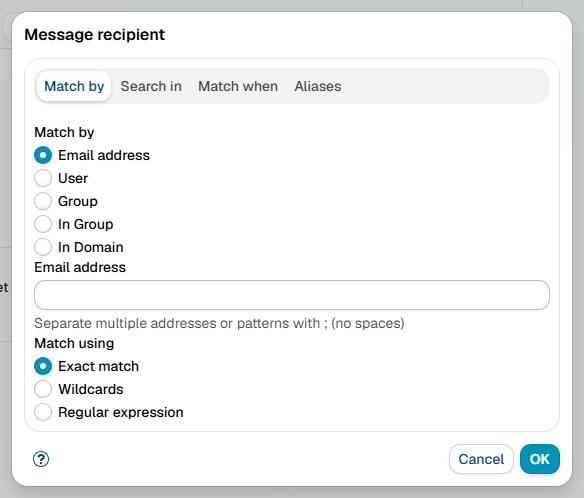
Email Address
Enter the recipient's email address and choose how to match it:
- Exact match - The email address must match exactly (e.g.,
john@mshsoftware.com) - Wildcards - Use
*to match patterns (e.g.,*@mshsoftware.commatches anyone from that domain) - Regular expression - Use advanced pattern matching for complex rules
User
Select a specific user from the list. The condition will match if that user is a recipient.
Group
Choose a distribution list. The condition will match if the message is addressed to the list itself, that is to the list's own address rather than to one of its members. A list is expanded when the message is delivered, after the rules have run, so a message sent to sales@mshsoftware.com still carries the list address at that point.
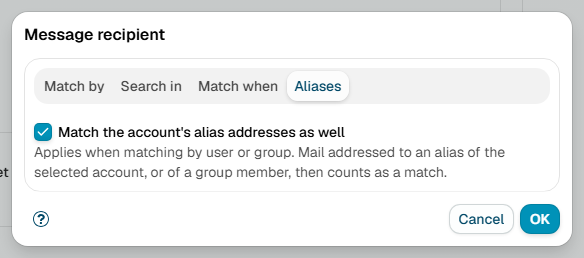
With the Aliases checkbox ticked, an alias of the list matches as well.
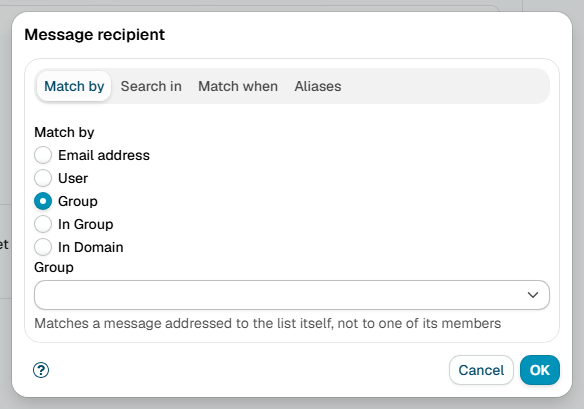
In Group
Choose a group from the list. The condition will match if any recipient belongs to that group.
This asks whether a recipient is a member of the group, so a message addressed to the group's own address does not match it - use Group above for that.
This is useful when you want to apply the same rule to multiple users at once.
Domain
Select a domain. The condition will match if any recipient's email address belongs to that domain.
Search in
Choose where to look for recipients: To, Cc, Bcc, or any combination of these fields. This lets you handle recipients differently based on how they were included in the message.
Match when
- At least one recipient matches - The condition is true if any recipient matches criteria
- All recipients match - The condition is true only if every recipient matches criteria
Use "at least one" for most cases. Use "all recipients" when you need to ensure everyone on the message meets specific criteria.
Aliases
A Zimbra account can have alias addresses next to its primary address, for example john@mshsoftware.com with the alias john.smith@mshsoftware.com.
The directory sync imports them, and they are listed in the aliases row on the user's page under Domains.
The Match the alias addresses as well checkbox, ticked by default, makes a User, Group or In Group match accept those aliases too: a message addressed to john.smith@mshsoftware.com then matches a condition written for the user john@mshsoftware.com, and a message to an alias of a group member counts as a message to that member.
Untick it to match the primary address only. The condition then shows no aliases in the rule's condition list.
The checkbox has no effect on Email address and Domain matching, which compare the address exactly as it appears in the message.
Additional resources
- Domains - read more about domains, users and groups
- For information about regular expressions you could check regular-expressions.info or regexone.com