Templates
Here you can create templates for email signatures and disclaimers.
Next to the list of templates, you can preview the selected template in both HTML and text formats.
Preview with user
Select a user in Preview with user to see how the template will look when placeholder attributes are replaced with real user data from the directory service.
Creating templates
The Add Template... menu offers three ways to create a template:
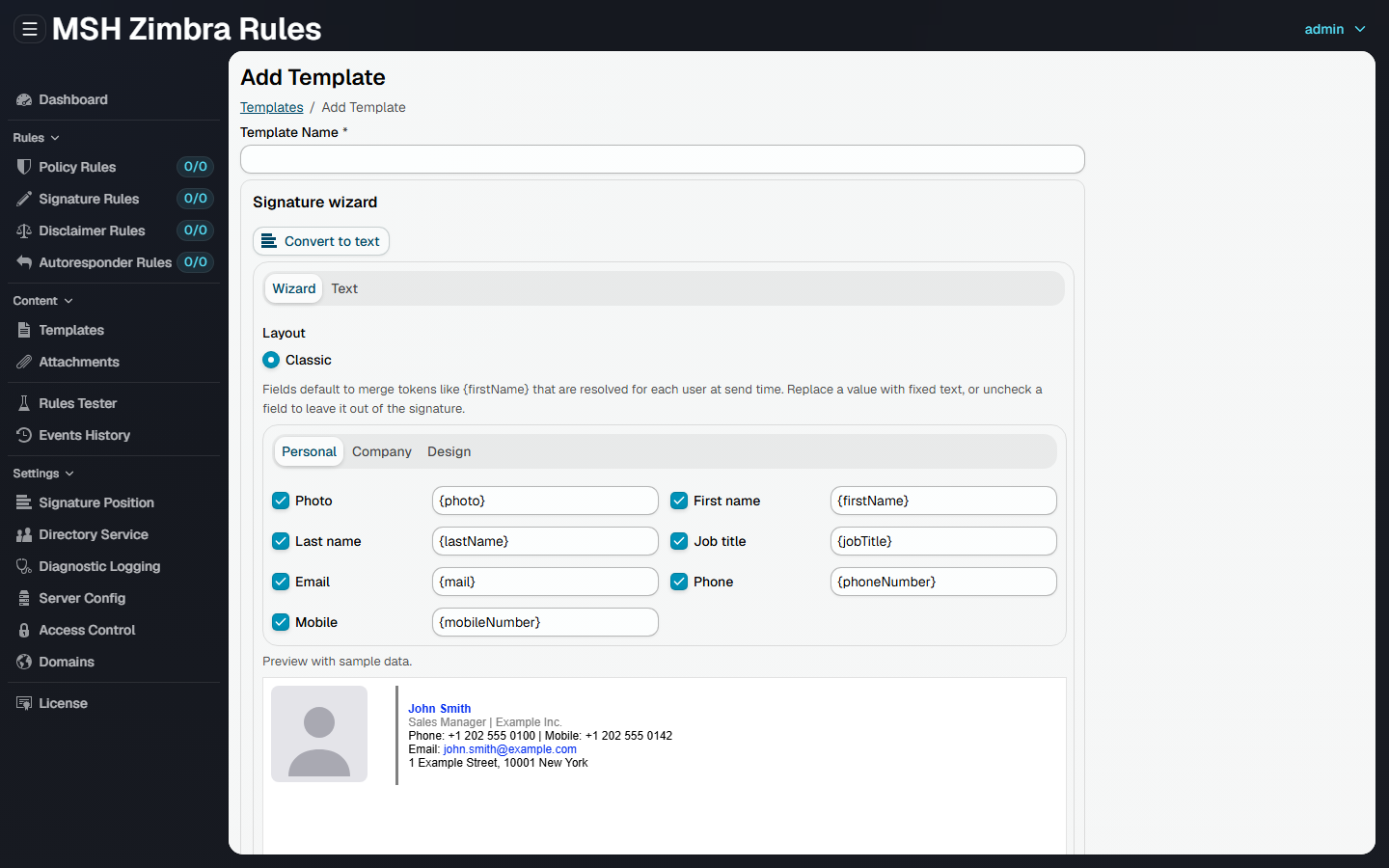
Signature wizard
The wizard builds a personal signature from a few choices - layout, font family and font size - and fills it with user attribute placeholders. Use it as a quick starting point; the result can be refined later in the designer.
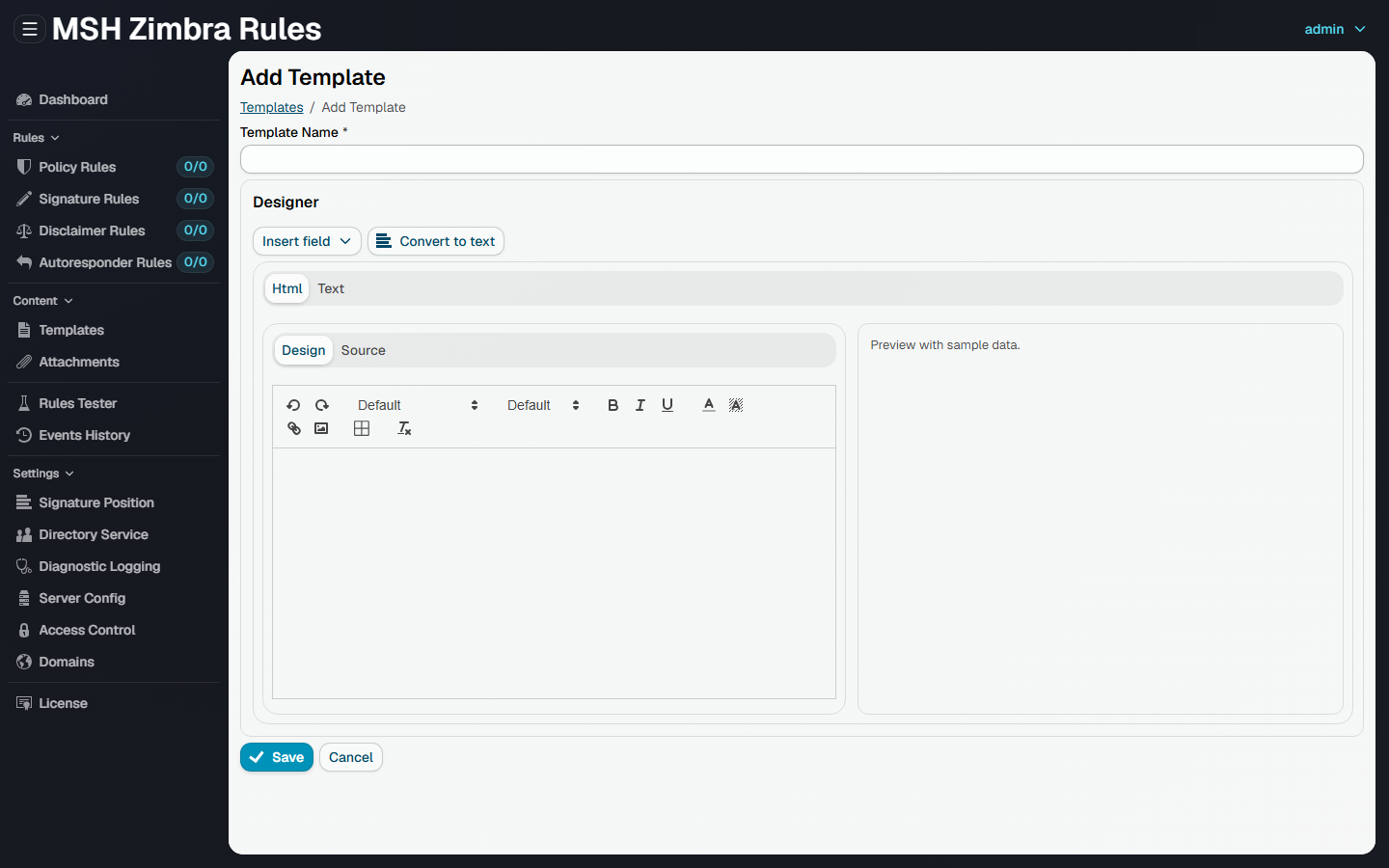
Designer
Templates can be created using a visual designer or by editing raw HTML code. Convert to text and Convert to Html switch between the plain-text and HTML versions of the template, and Format Html pretty-prints the HTML source.
You can insert user or message attributes into templates. Attributes are placeholders that will be replaced with user or message data when the template is applied. See Variables for the full list of available placeholders.
Images inserted through the designer are used as-is - they are not converted to CID attachments or Base64. Only external URLs pointing to publicly accessible internet resources should be used, as the recipient's email client will load them directly from that address.
While you design, a real-time preview with sample data is shown next to the editor.
Import from files
You can import templates from HTML or TXT files. This is useful when you have pre-designed templates you want to reuse. Upload the HTML file, optionally a plain-text version, and the image files referenced by the HTML.
Images
- Attach images (recommended) - images referenced in the HTML template are attached to the email message as inline attachments (CID). The recipient's email client displays them directly in the message body without requiring an internet connection.
- Embed images - images are converted to Base64 and inserted directly into the HTML. No separate attachments are created, but the message size increases proportionally to the size of the images.
- Don't embed images - images are left as-is. If the template references external URLs, those links remain unchanged and the images are loaded from the internet when the recipient opens the email.
Managing templates
Use the Actions menu to Edit..., Clone..., Remove or Remove All templates.
Additional resources
- How to use Variables - lists all user and message attribute placeholders.