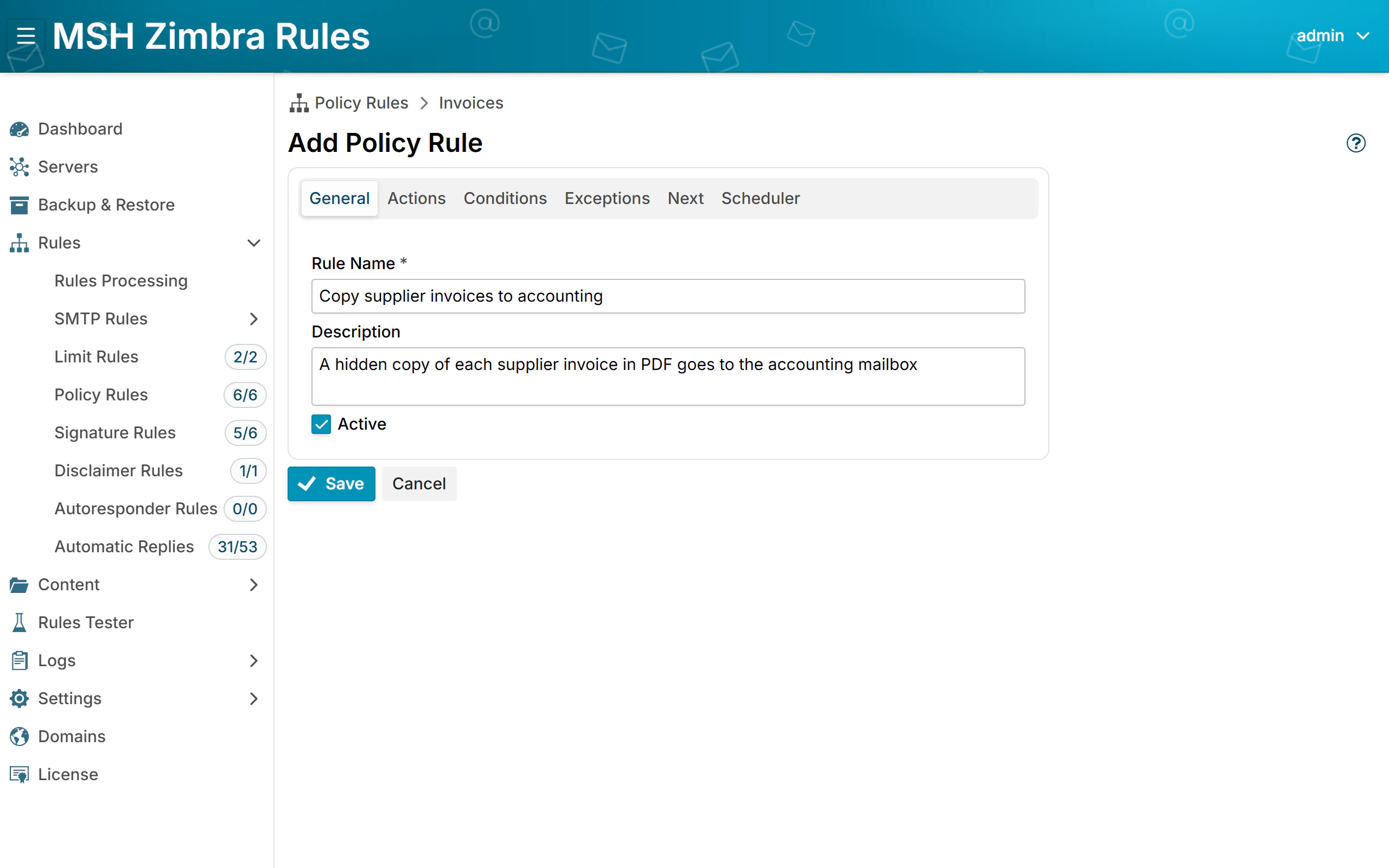
Forward Supplier Invoices to Accounting Automatically in Zimbra
Suppliers send their invoices to whoever ordered: the project lead, the office manager, someone in sales. Accounting then chases them through a dozen personal mailboxes, and an invoice that sat in the wrong inbox for a month gets paid late. A policy rule of MSH Zimbra Rules recognizes a supplier invoice when it arrives and copies it to the accounting mailbox, or forwards it to the accounting system. The person it was sent to still gets it as before.
What you will build
A policy rule group Invoices with one rule, or two when an accounting system outside Zimbra takes the invoices by e-mail:
| Rule | Action | Use it when |
|---|---|---|
| Copy supplier invoices to accounting | Bcc to the accounting mailbox | Accounting works from a mailbox in Zimbra |
| Forward supplier invoices to the accounting system | Forward to the system's address | An accounting or invoice capture system takes invoices by e-mail |
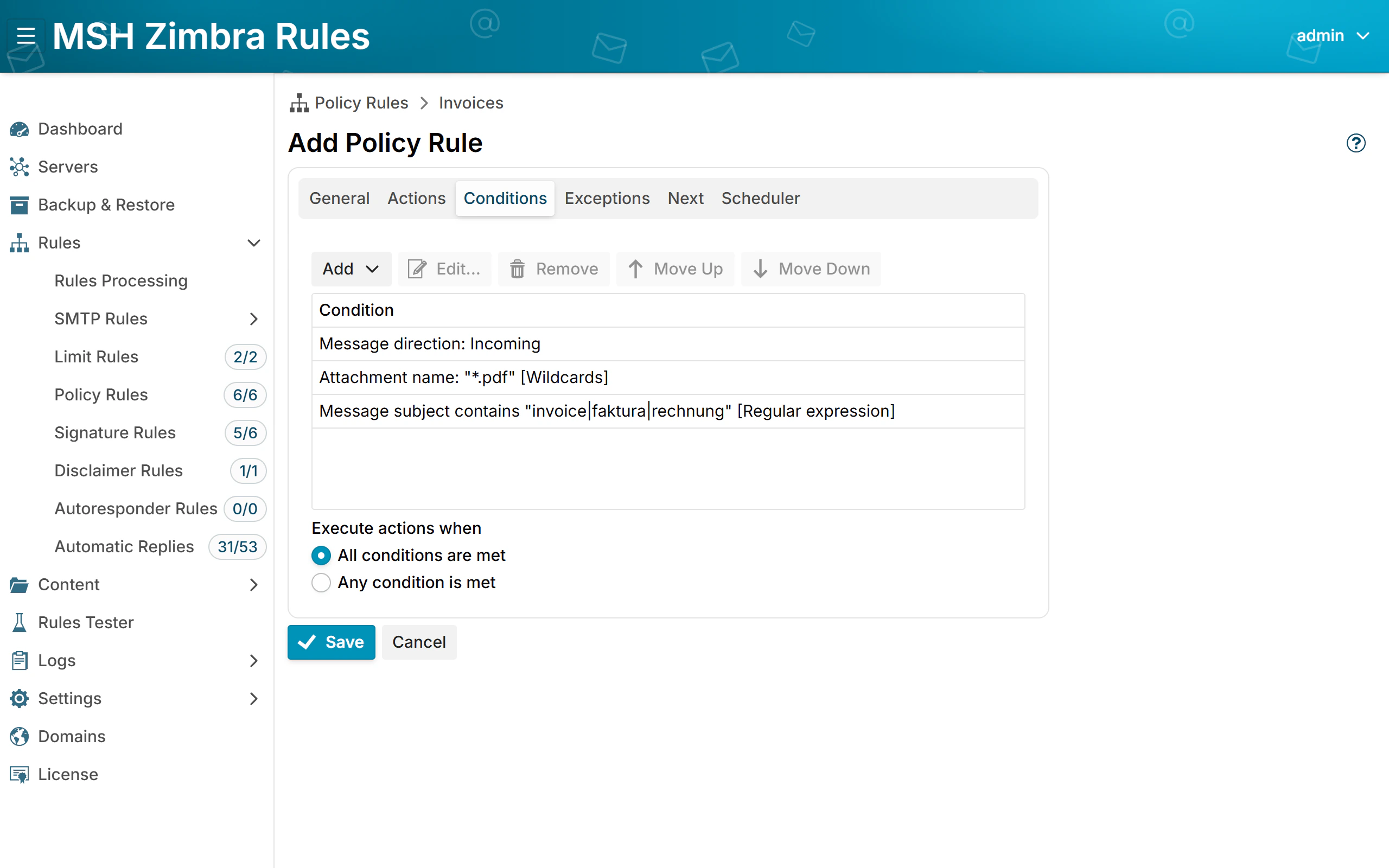
Both rules use the same three conditions, so a message counts as an invoice when it:
- comes from outside to one of your users,
- has a PDF attachment, and
- has invoice in the subject, in the languages your suppliers write.
The Message direction condition needs your domains, so check that they are listed on the Directory Service page.
Step 1 - Recognize an invoice
Open Rules > Policy Rules, add a group Invoices, and in it a rule
Copy supplier invoices to accounting. On Conditions, with
All conditions are met:
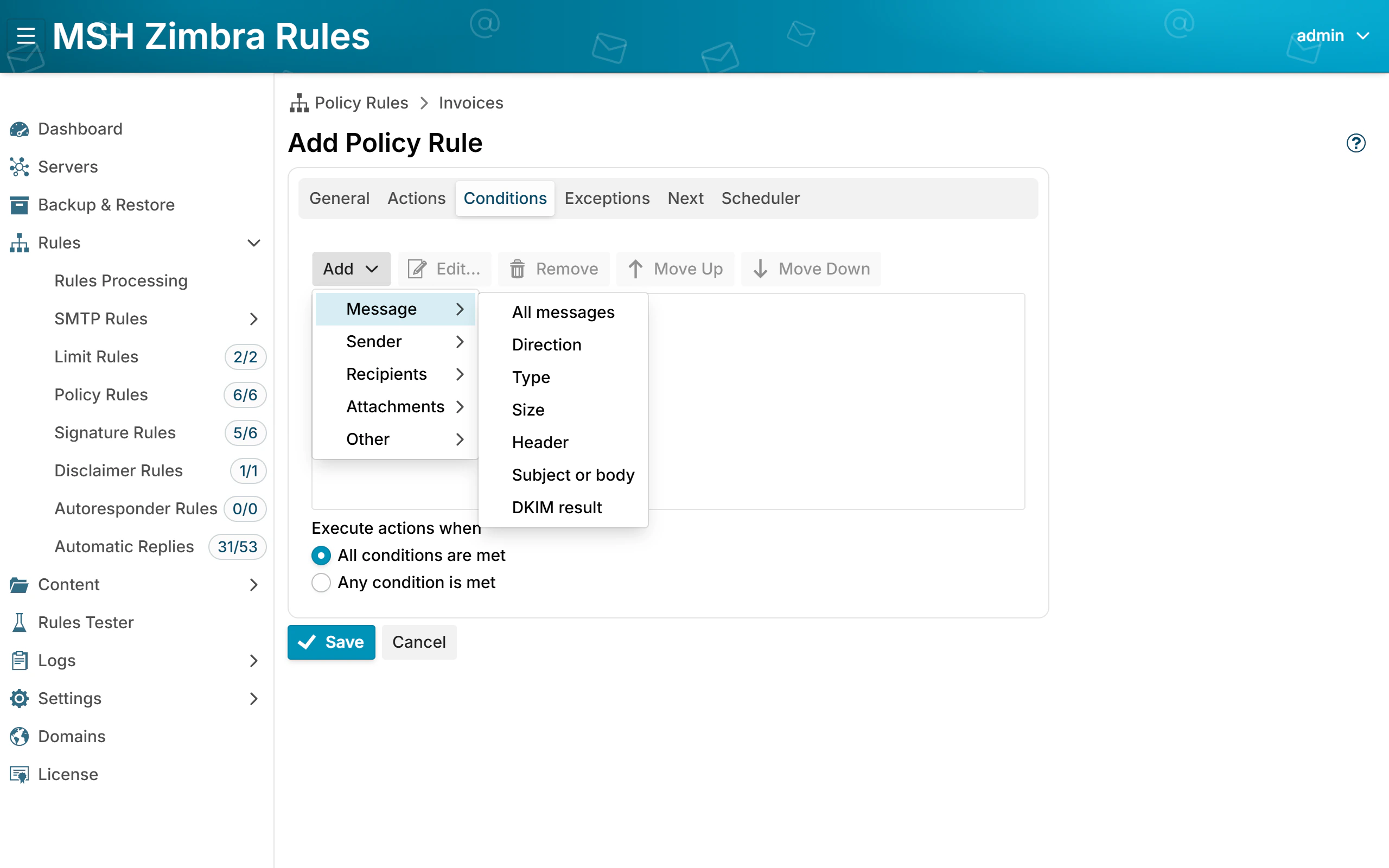
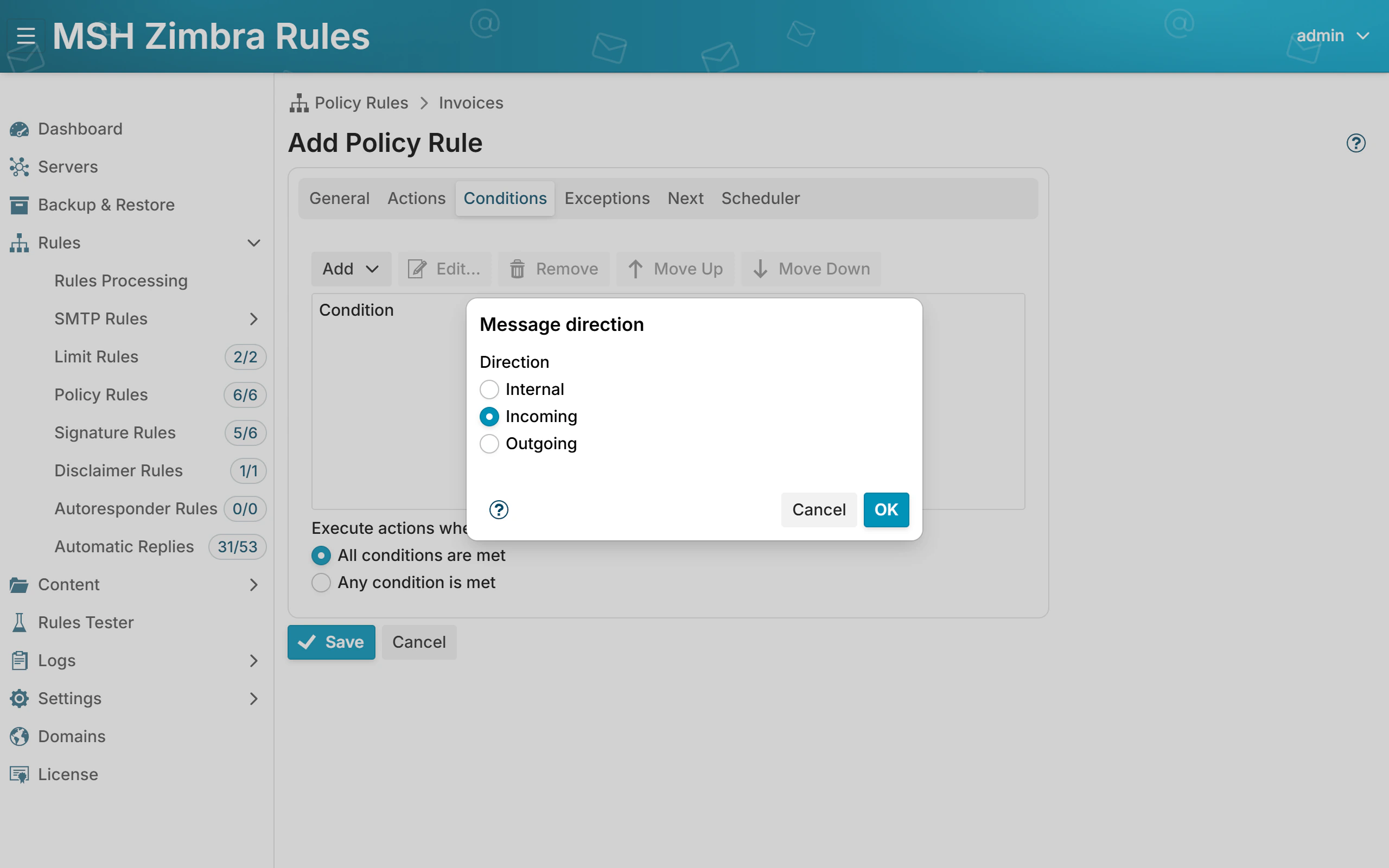
- Message > Direction, Incoming: mail from outside to your users. An invoice that a colleague forwards to another colleague is Internal and does not match, so it is not copied a second time.
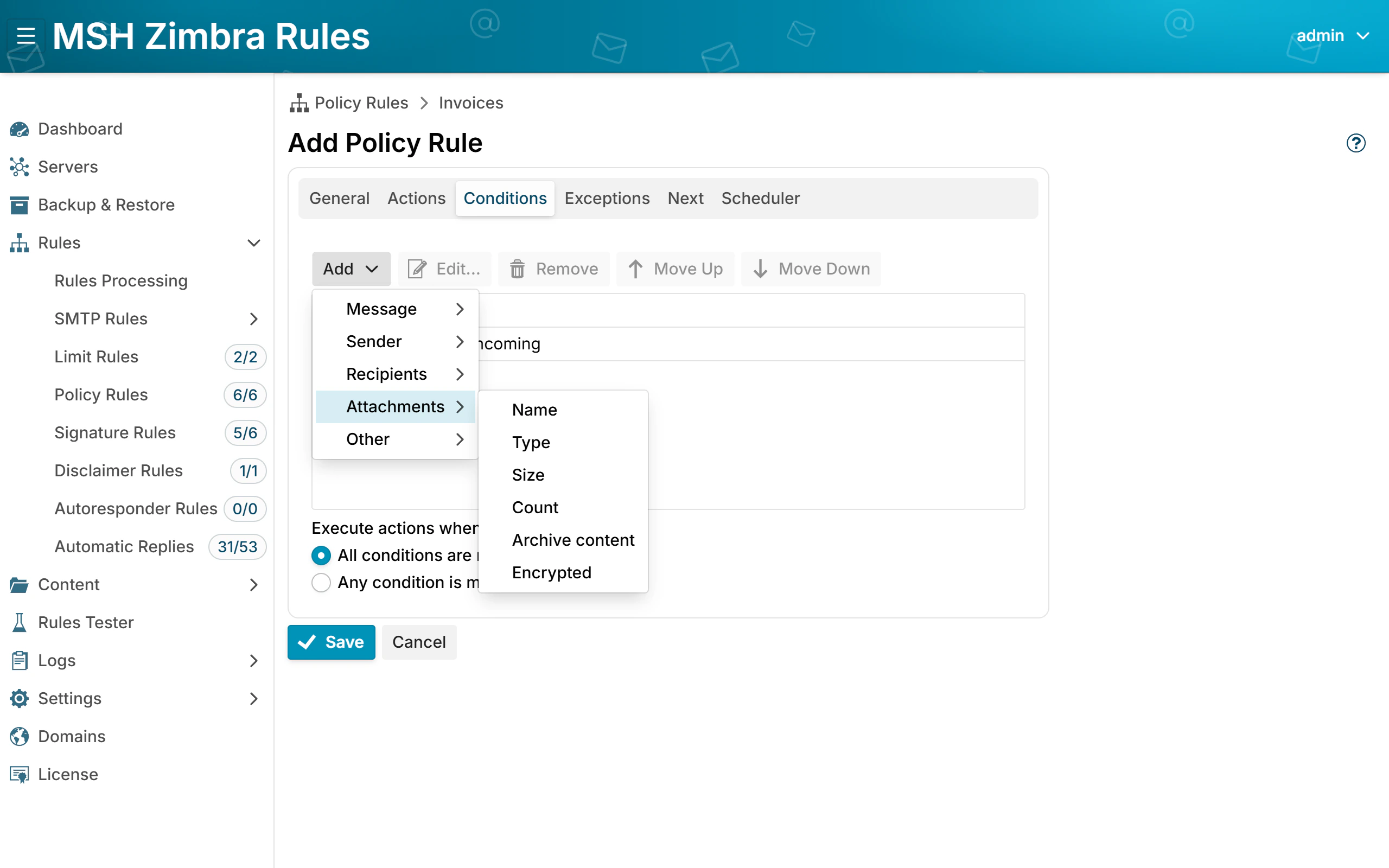
- Attachments > Name,
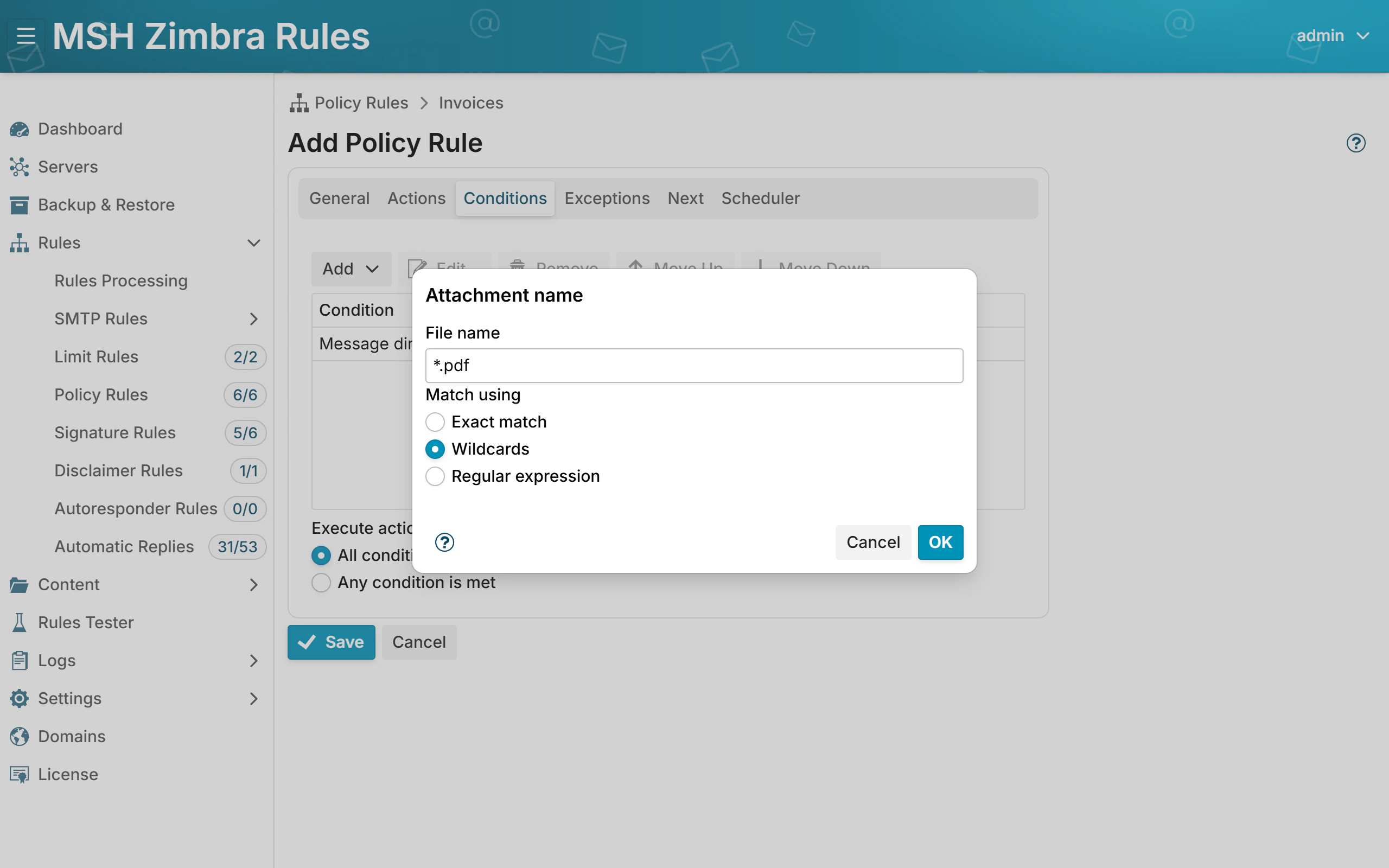
*.pdf, Wildcards. Upper case counts too:INV-2026-1149.PDFmatches. - Message > Subject or body,
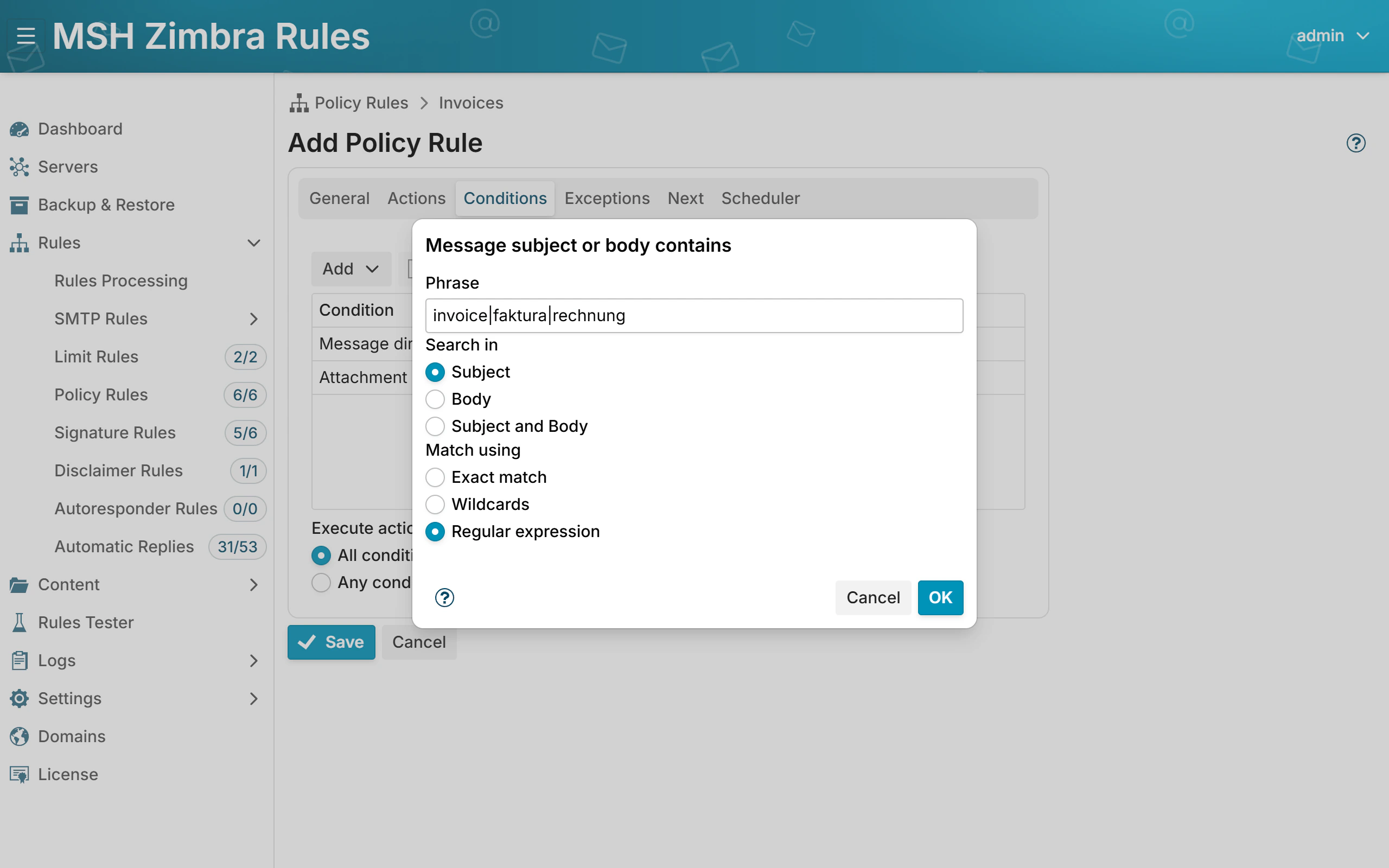
invoice|faktura|rechnung, Search in Subject, Match using Regular expression. The|separates alternatives, and case does not matter, soINVOICEmatches as well. Put in the words your suppliers use.
Why Name and not Attachments > Type with application/pdf: the type is what
the sender's mail program declares, and some send a PDF as application/octet-stream.
Such an invoice does not match the Type condition, but it matches the name *.pdf.
Search the subject only. The body of a newsletter or a reminder often mentions invoices too, and a supplier's reminder Invoices are coming next week without a PDF does not match anyway.
Step 2 - Copy it to the accounting mailbox
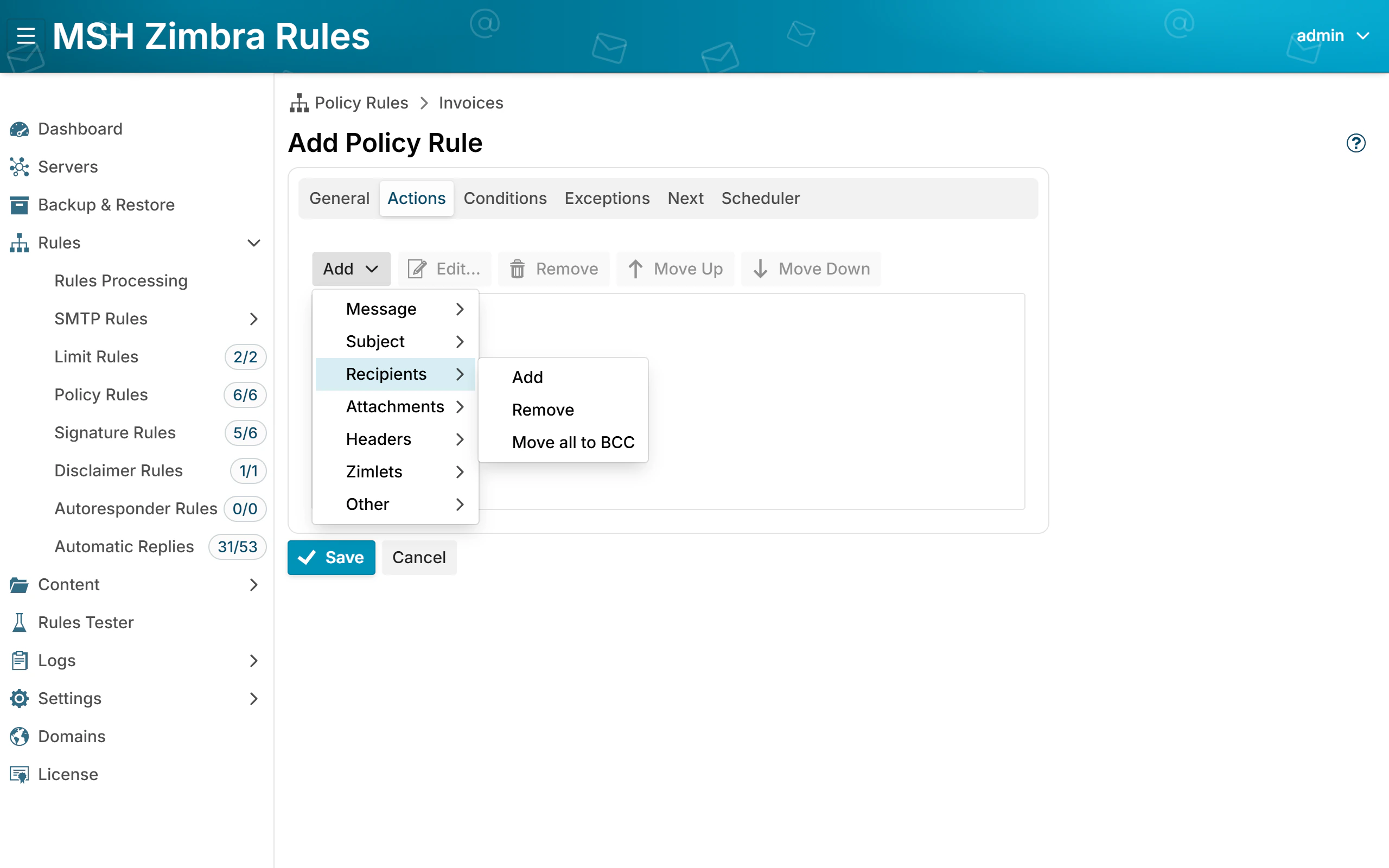
On Actions, add Recipients > Add with the accounting mailbox, for example
invoices@example.com, and Add as Bcc. Then Save.
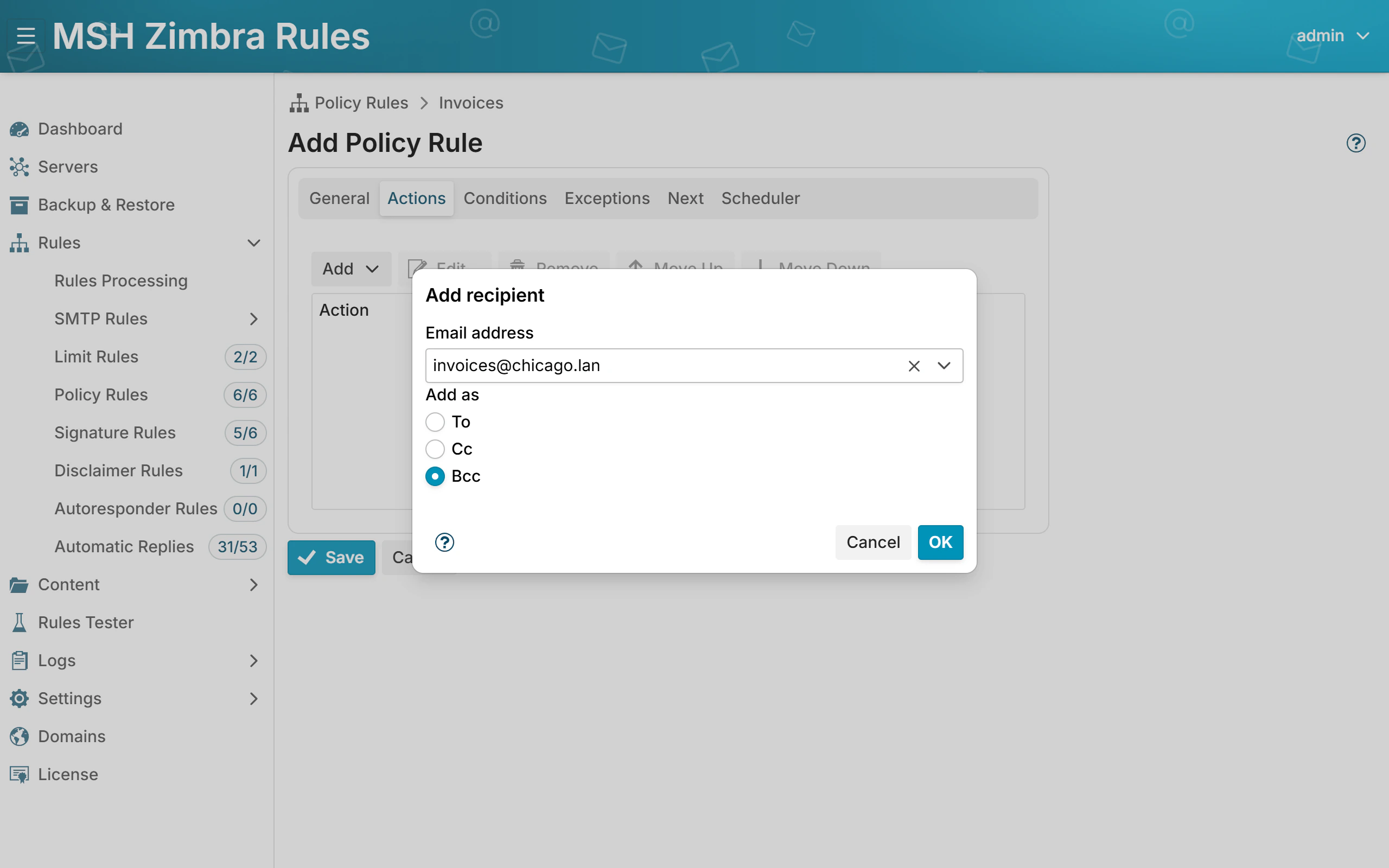
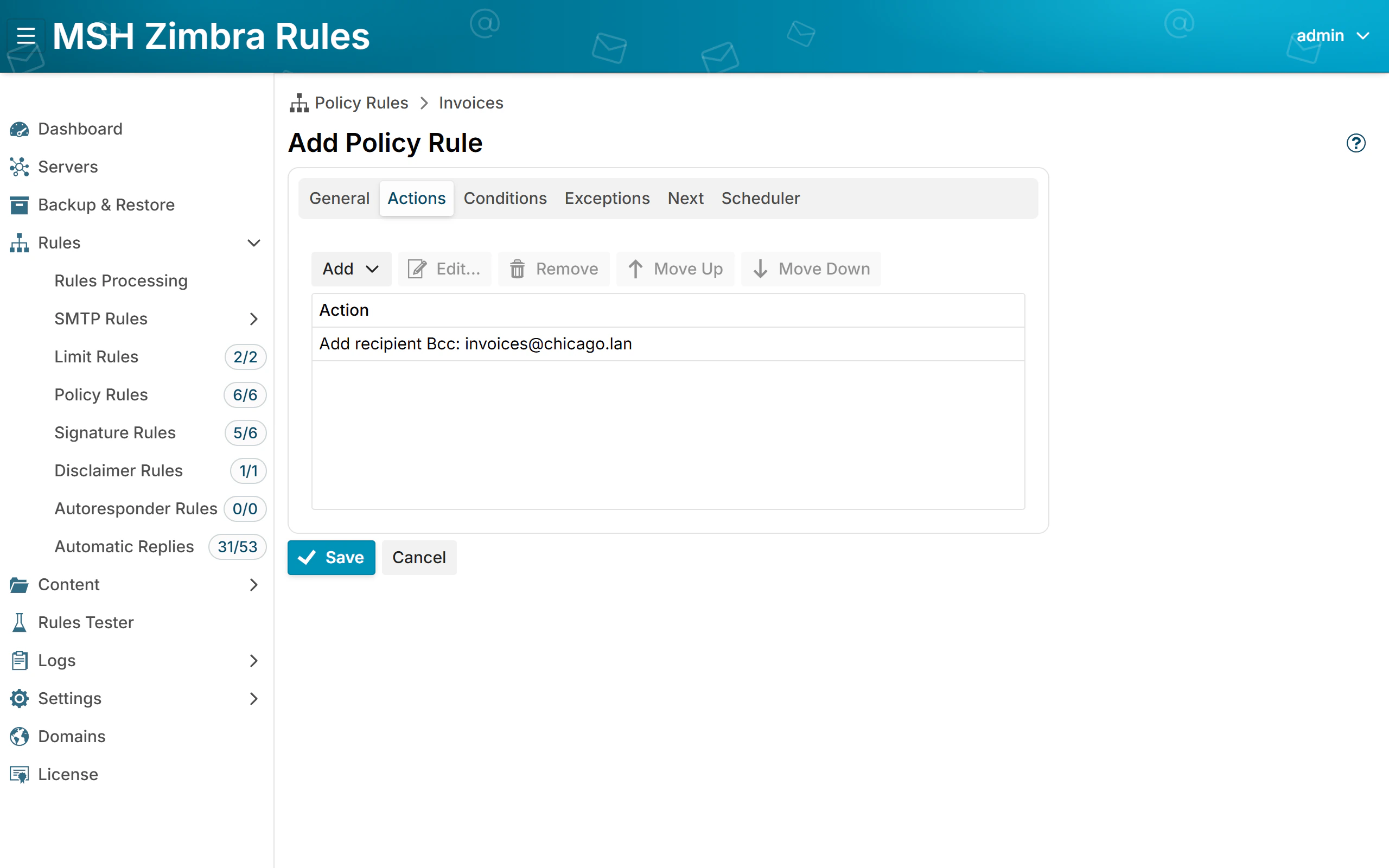
A Bcc recipient is added to the envelope of the message only, not to its headers. So the employee gets the invoice exactly as before and sees no trace of the copy, and accounting gets the same message, PDF included. The archiving article explains this in more detail: How the copy travels.
The accounting mailbox can be an account of its own or an alias of an existing one. Saved rules reach the mail servers usually within a minute. Invoices that arrive in that minute are not copied yet.
Step 3 - Or forward it to an accounting system
Many accounting and invoice capture systems give you an e-mail address for incoming invoices. Send them a forward, not a Bcc copy. A Bcc copy leaves your server with the supplier's address as sender, and your server is not allowed to send for the supplier's domain: SPF fails, and a supplier whose domain has a strict DMARC policy gets the copy refused or put into spam. A forward is a new message from your own address.
The note on top
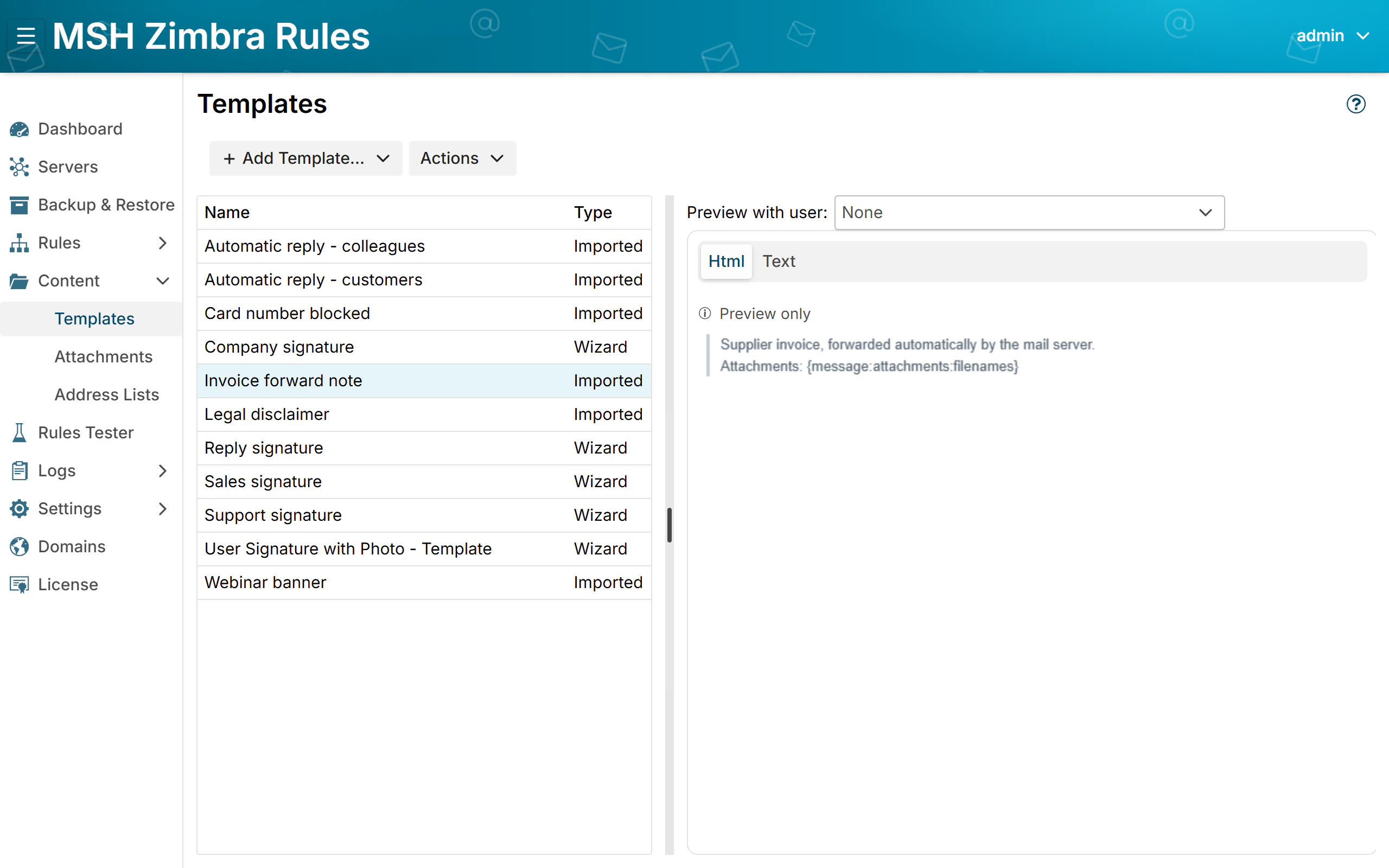
The Forward action puts a template above the
forwarded invoice, and it cannot be saved without one. Add a short one first in
Content > Templates, for example Invoice forward note:
Supplier invoice, forwarded automatically by the mail server.
Attachments: {message:attachments:filenames}
Do not use {message:envelope:recipients} in it. It lists every recipient of the
message, the hidden ones included: the accounting mailbox of step 2, an archive that
gets a Bcc copy of someone's mail, and so on. The system you forward to would see them.
The rule
Add a second rule to the group, Forward supplier invoices to the accounting system,
with the same three conditions as in step 1, and:
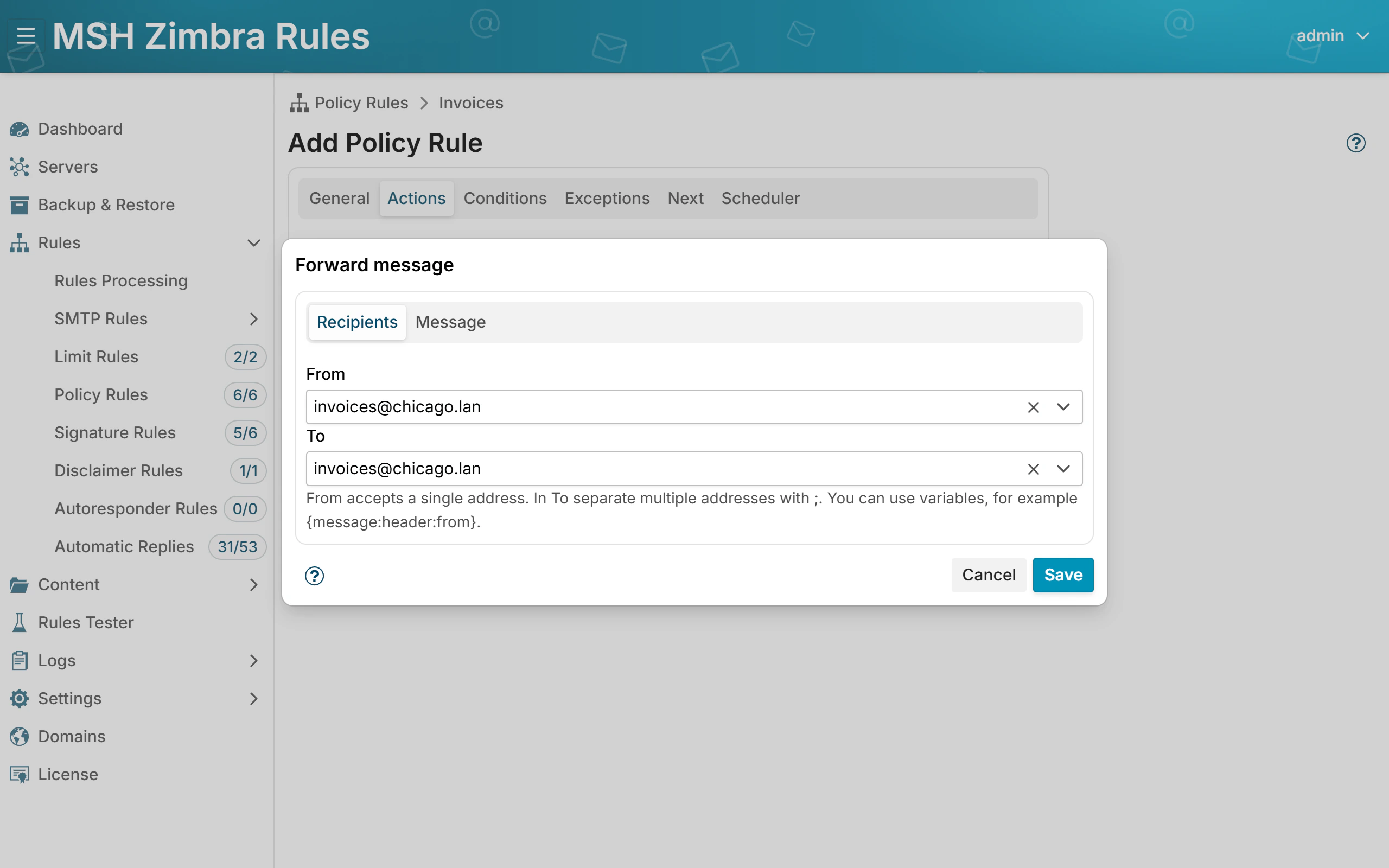
- Actions: Message > Forward:
- From: an address of your own domain that the system accepts as sender, for
example
invoices@example.com, - To: the address the system gave you,
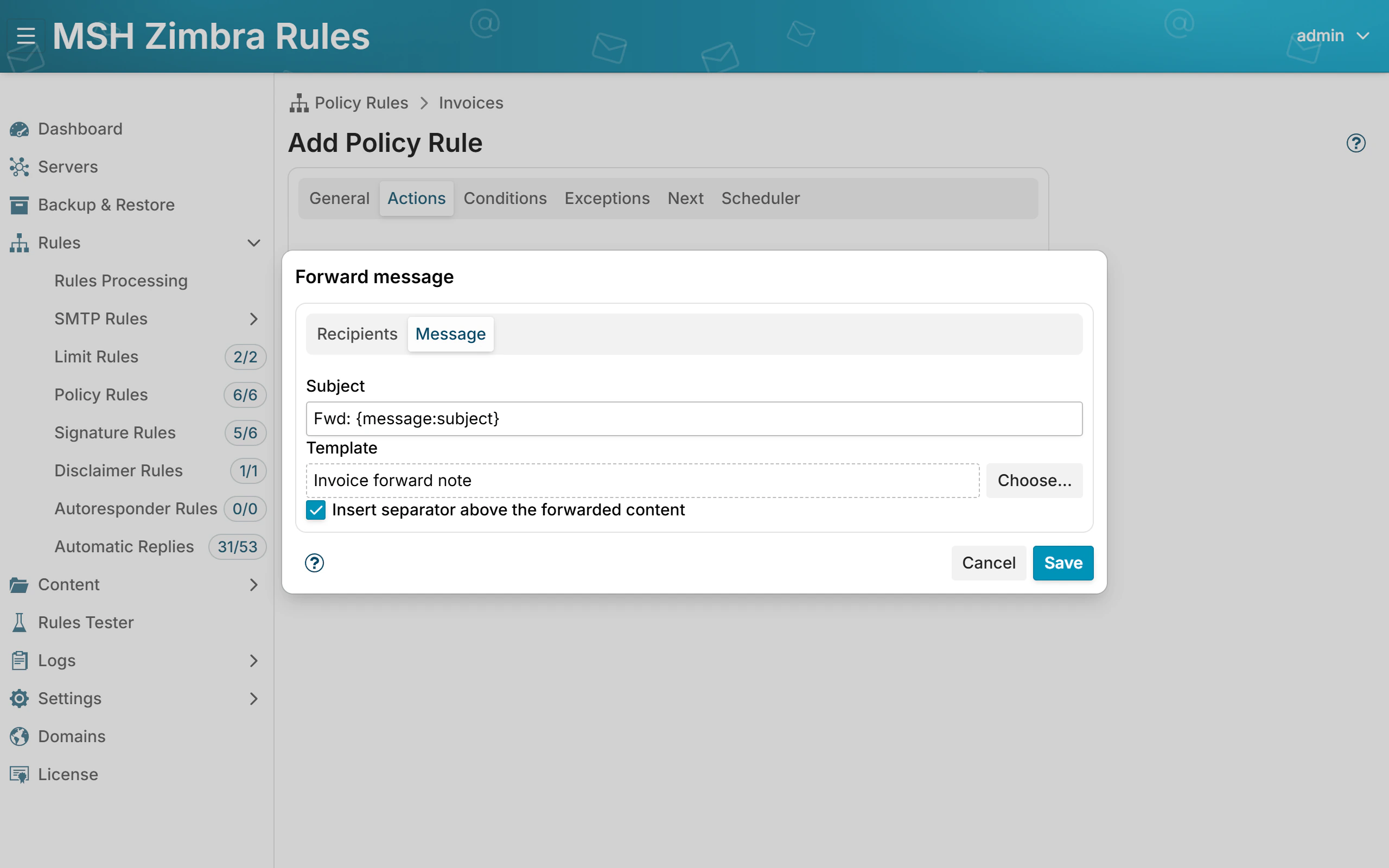
- on Message: Subject
Fwd: {message:subject}(the default), TemplateInvoice forward note, and the separator ticked.
- From: an address of your own domain that the system accepts as sender, for
example
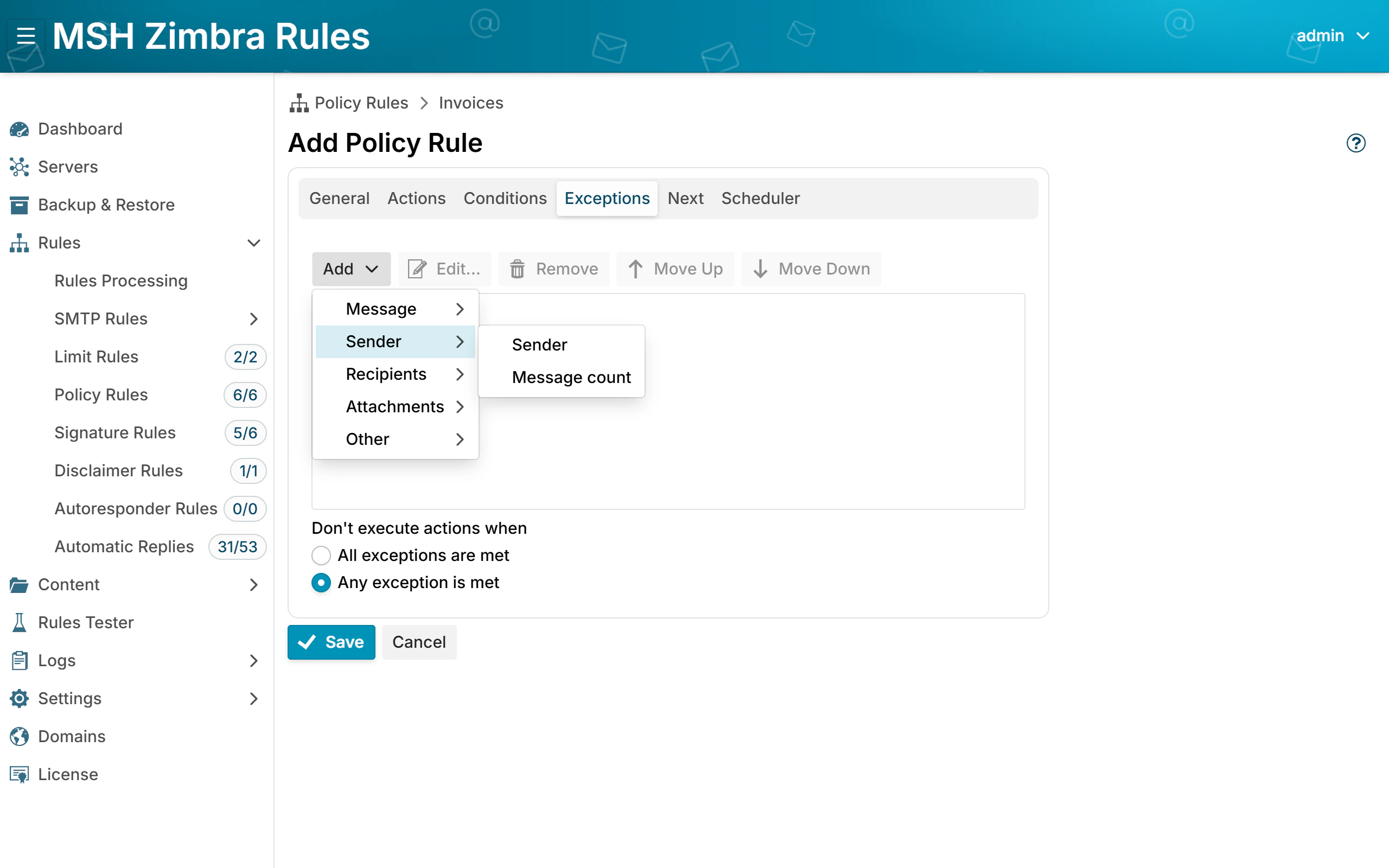
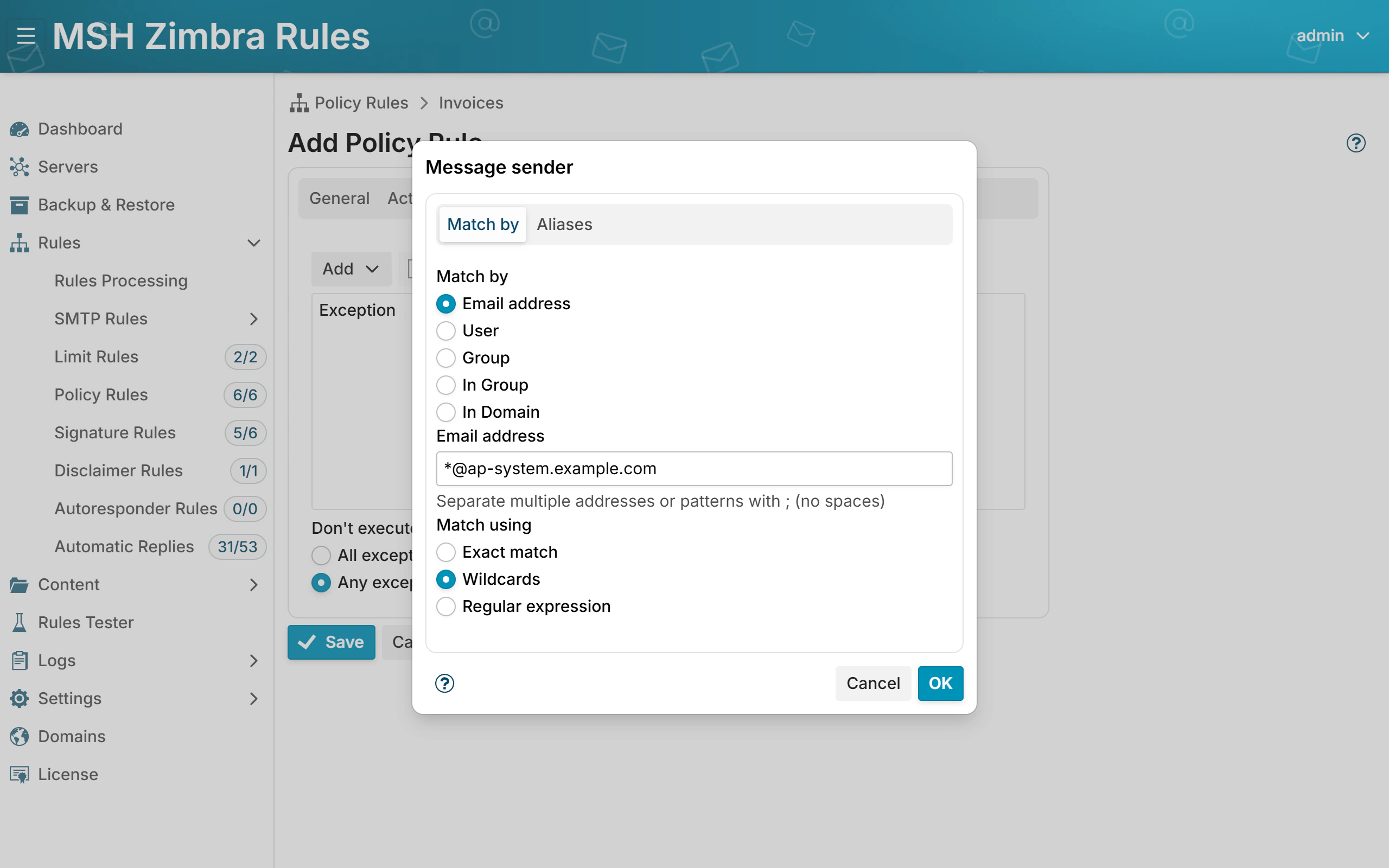
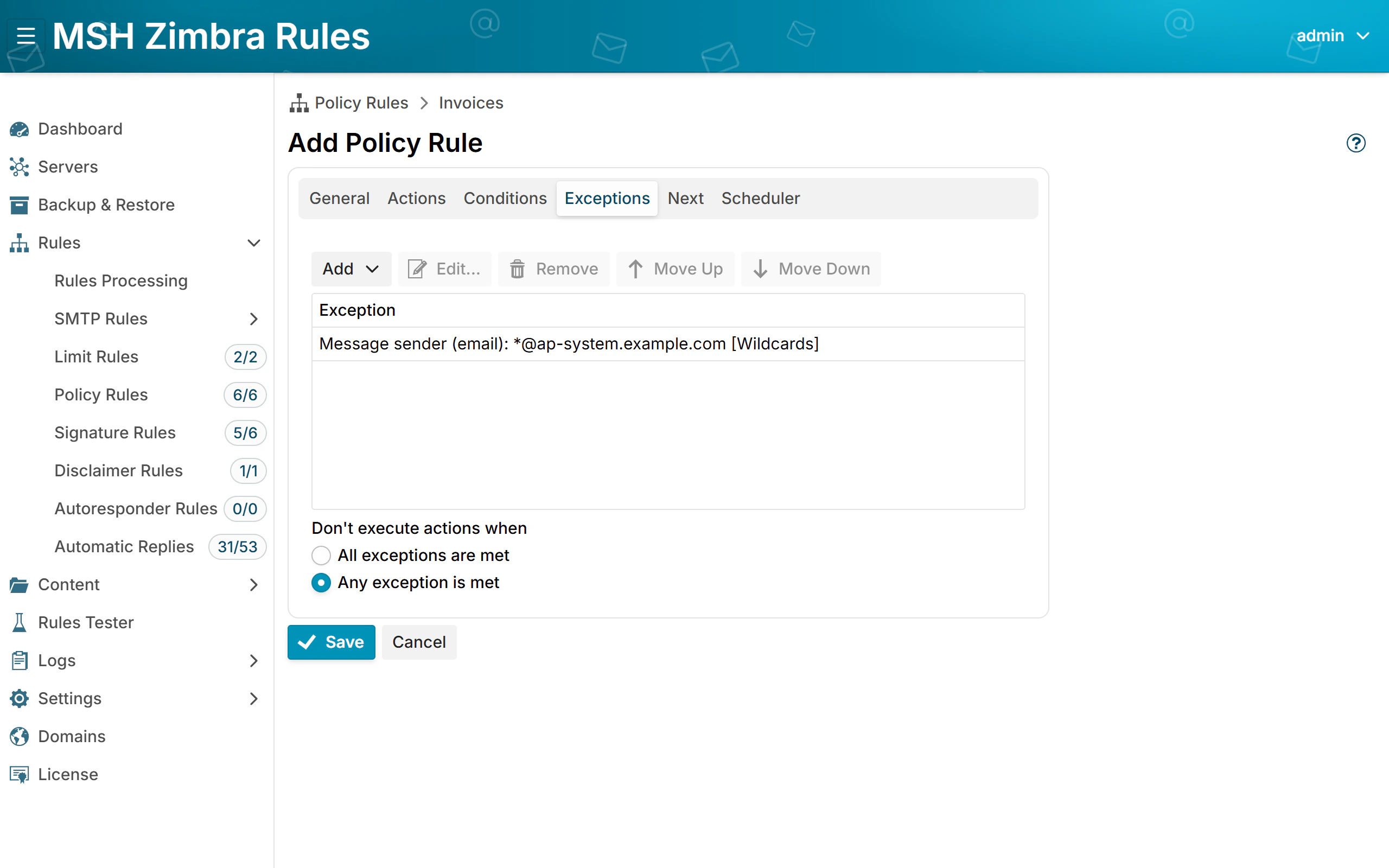
- Exceptions: Sender > Sender, Email address with the system's domain,
for example
*@ap-system.example.com, Wildcards. Many systems confirm each invoice by e-mail, with the PDF and the word invoice in the subject. Without the exception the rule would forward the confirmation back to the system, which would confirm it again.
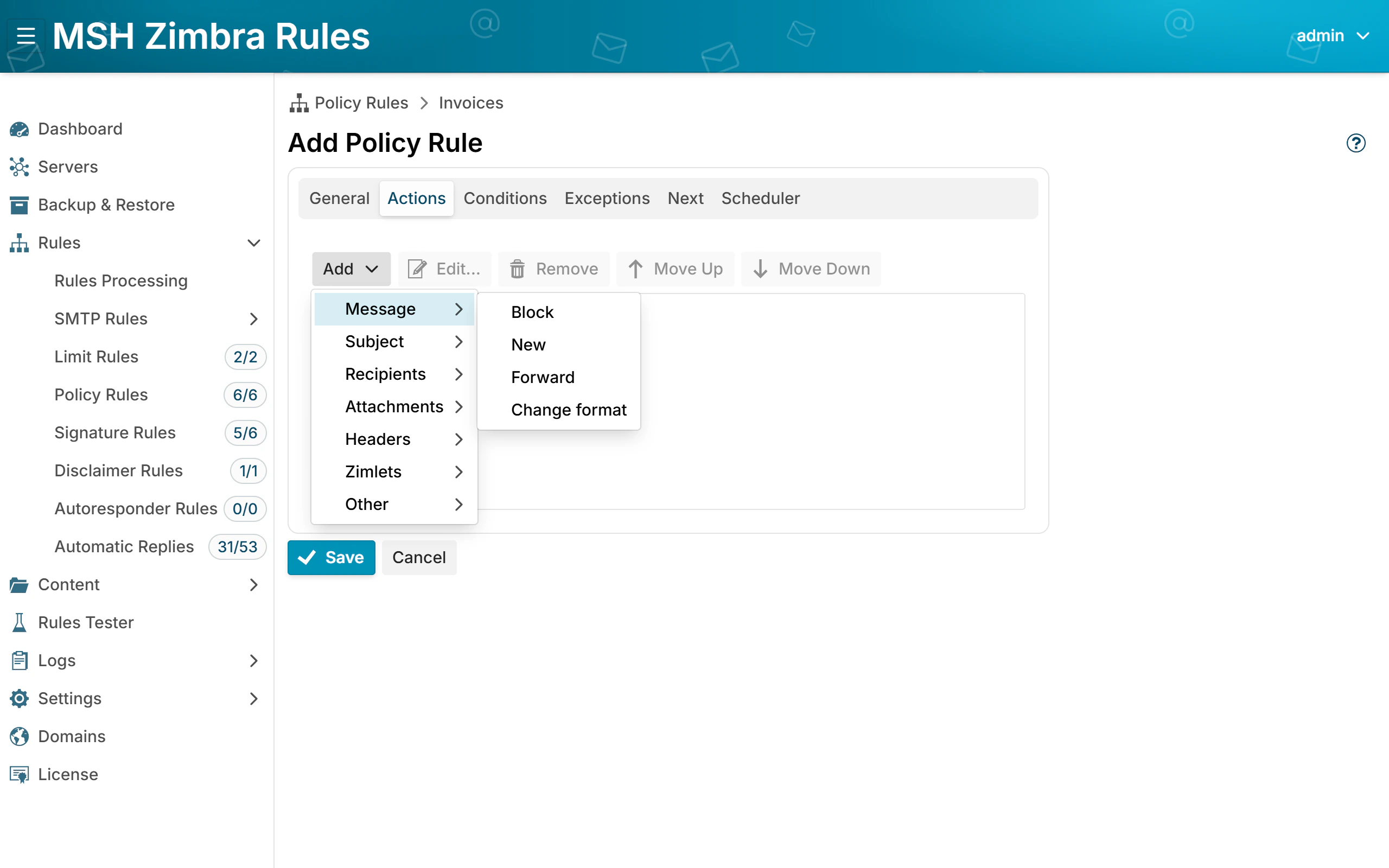
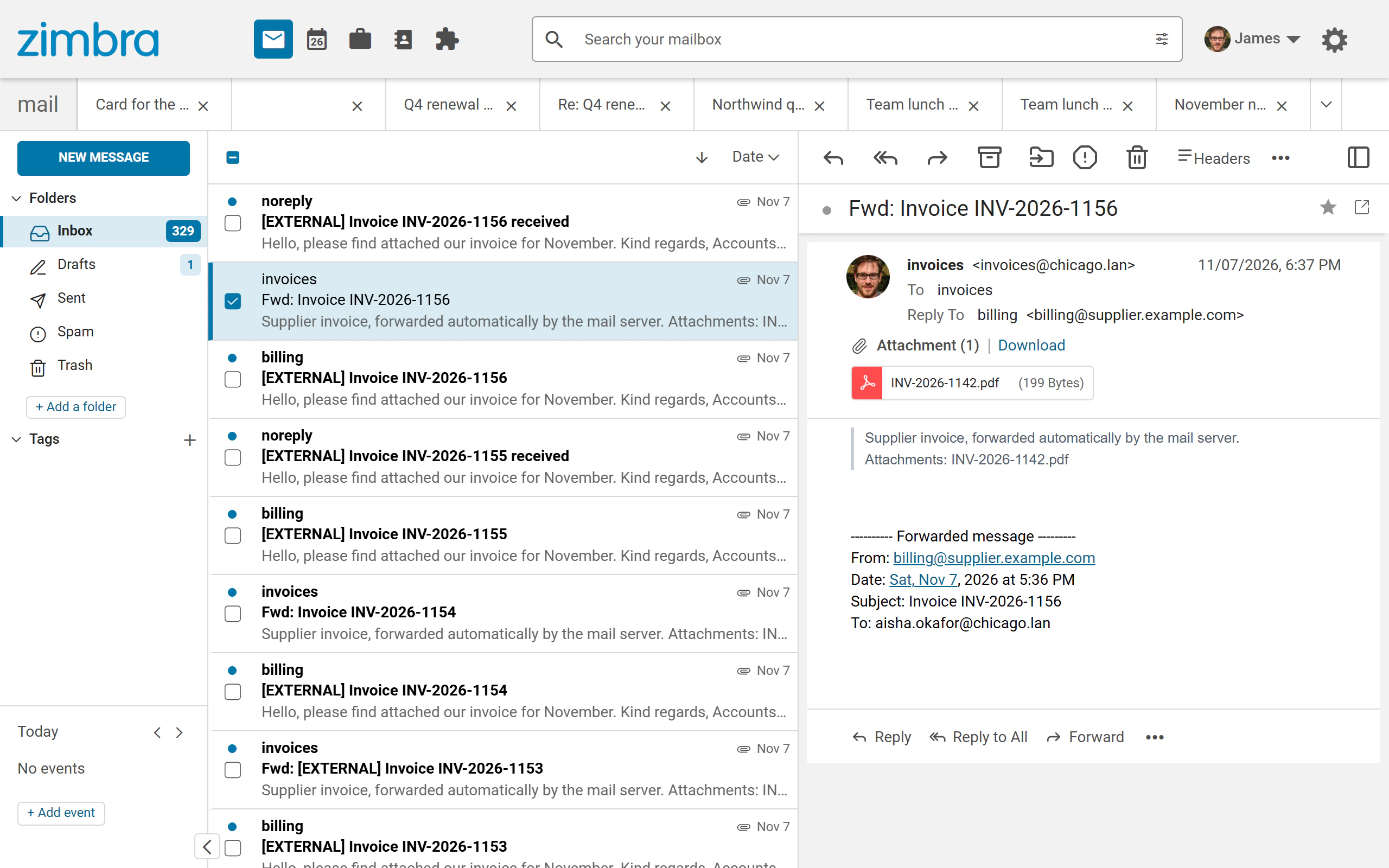
What the system gets:
- one message from your address, with a Reply-To of the supplier, so that a reply from accounting goes to the supplier and not back to you,
- the note, then the usual forward header with the supplier's address, the date, the original subject and the recipient, then the supplier's text,
- the PDF as an attachment.
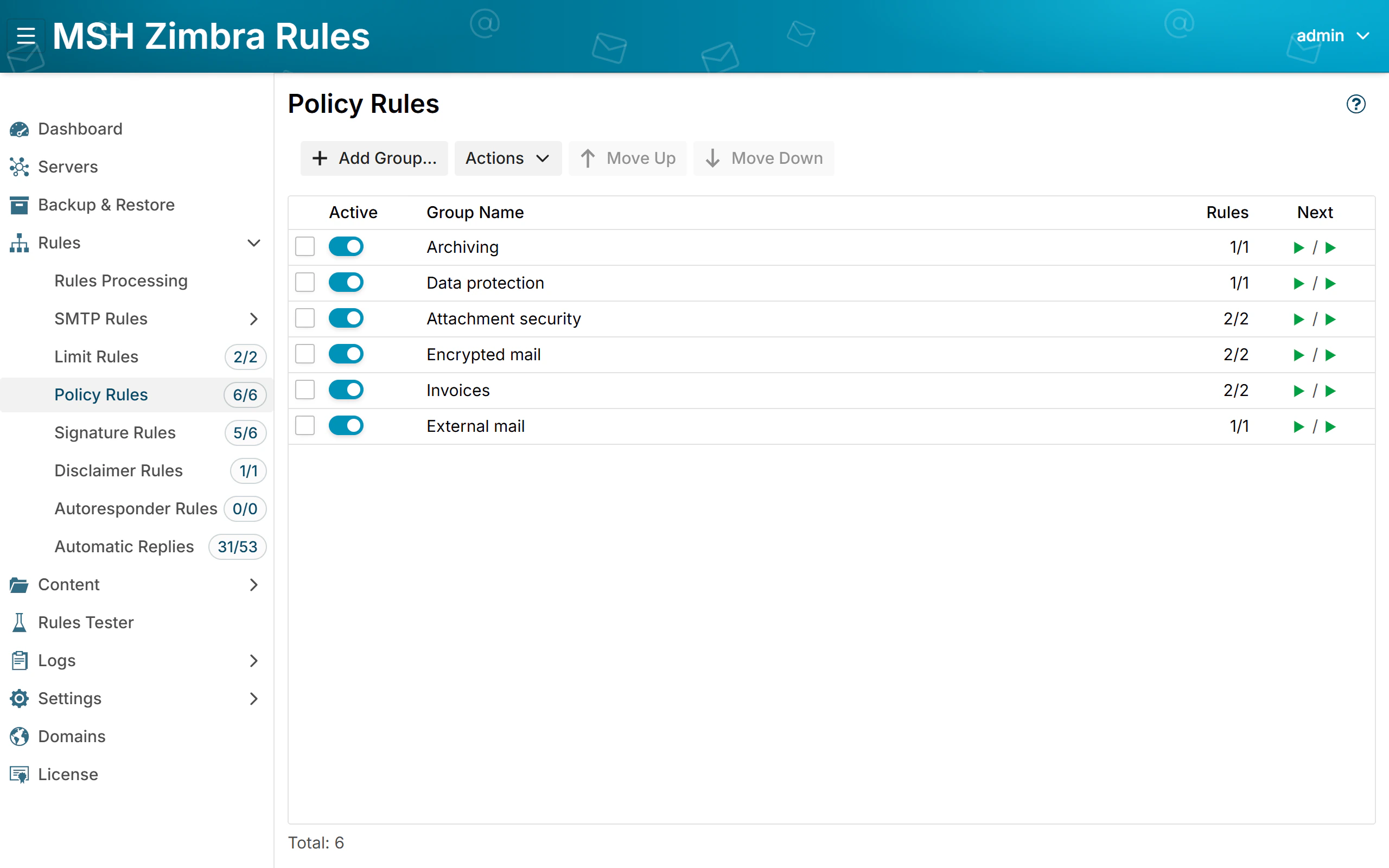
Put the group above rules that change the subject
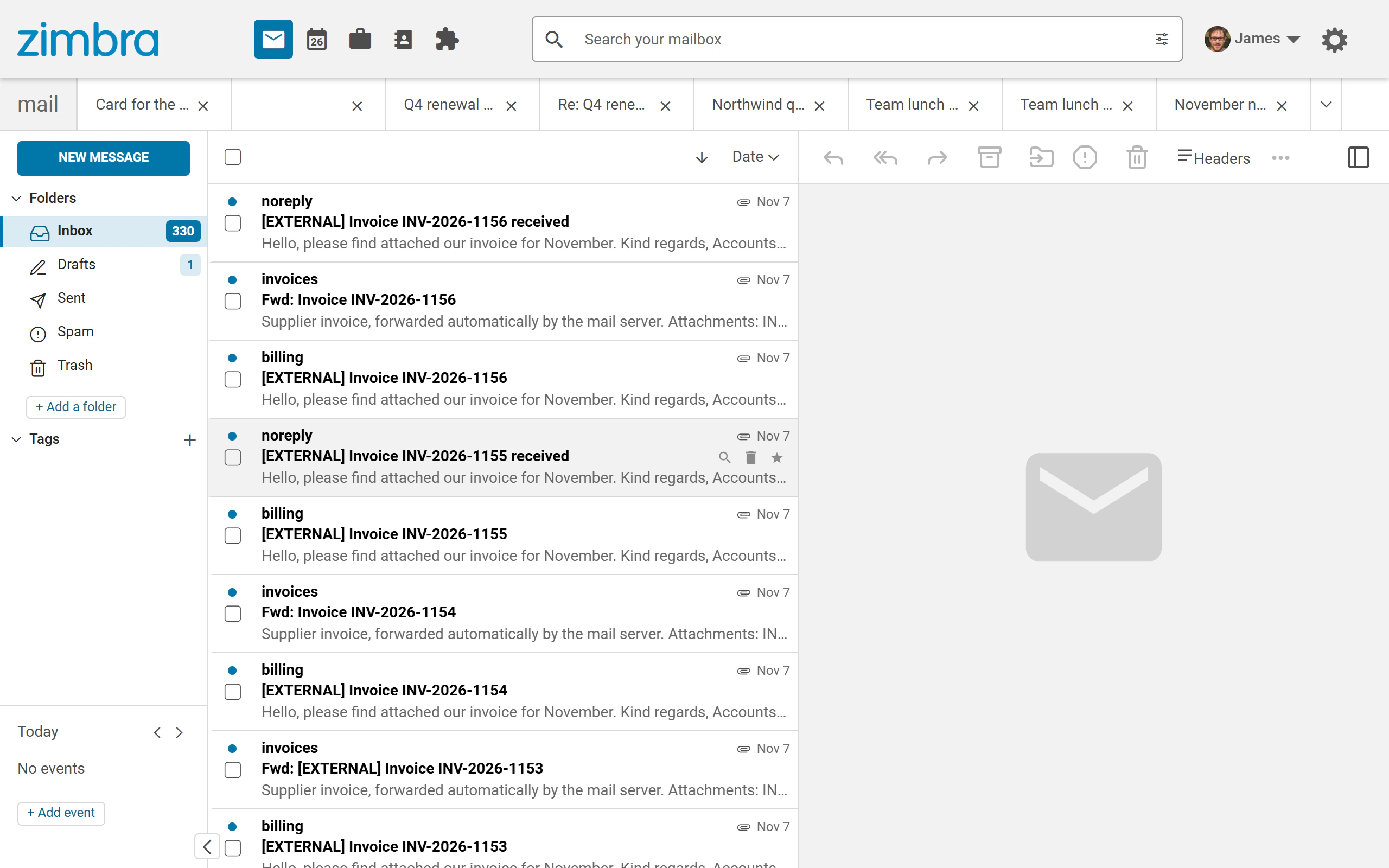
The forward's subject is the subject as the groups above Invoices left it. Below a
group that puts [EXTERNAL] before the subject of mail from outside, the system gets
Fwd: [EXTERNAL] Invoice INV-2026-1153. Select the group Invoices and click
Move Up until it is above such groups, and the system gets
Fwd: Invoice INV-2026-1154. The conditions see the subject as the supplier wrote it in
either place.
No duplicates, no loops
| Situation | What happens |
|---|---|
| The supplier sends the invoice to two people, in To and Cc | One copy and one forward: the rule runs once for each message, not for each recipient |
The supplier writes to invoices@example.com directly | One copy: the Bcc adds an address that is already a recipient |
| An employee forwards an invoice to a colleague | Not copied again: the message is Internal |
| The accounting system confirms an invoice by e-mail | Not forwarded back, thanks to the exception |
| The forward itself | It goes through the rules like any message, but a Forward action never runs on a message that a Forward created. It carries the header X-MSH-Type: forward-message. |
Check it
Send an invoice to one of your users from a mailbox outside the company: a PDF attached, Invoice in the subject. Then:
- Open the accounting mailbox. The copy is there, and with the forward rule, the forward too.
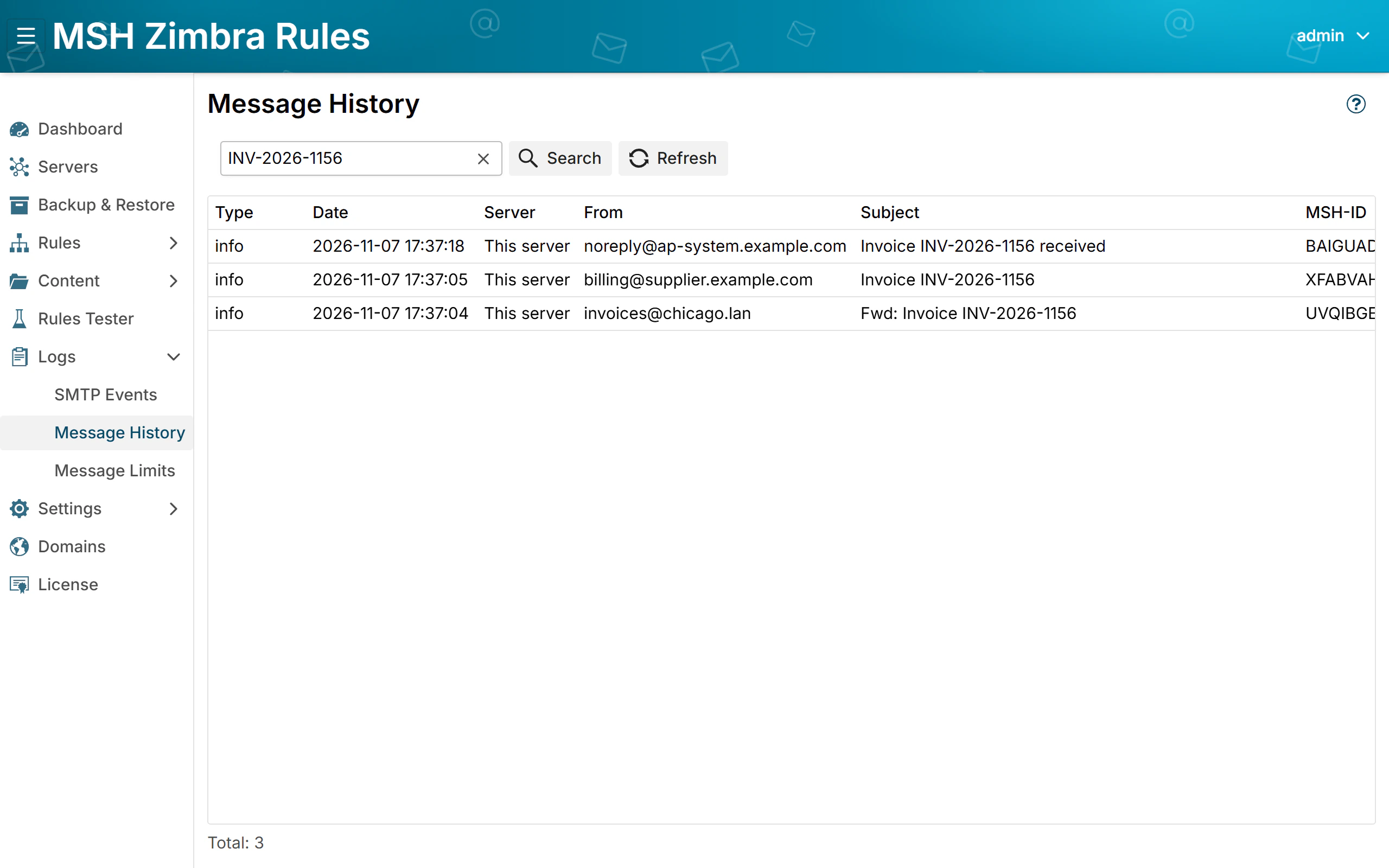
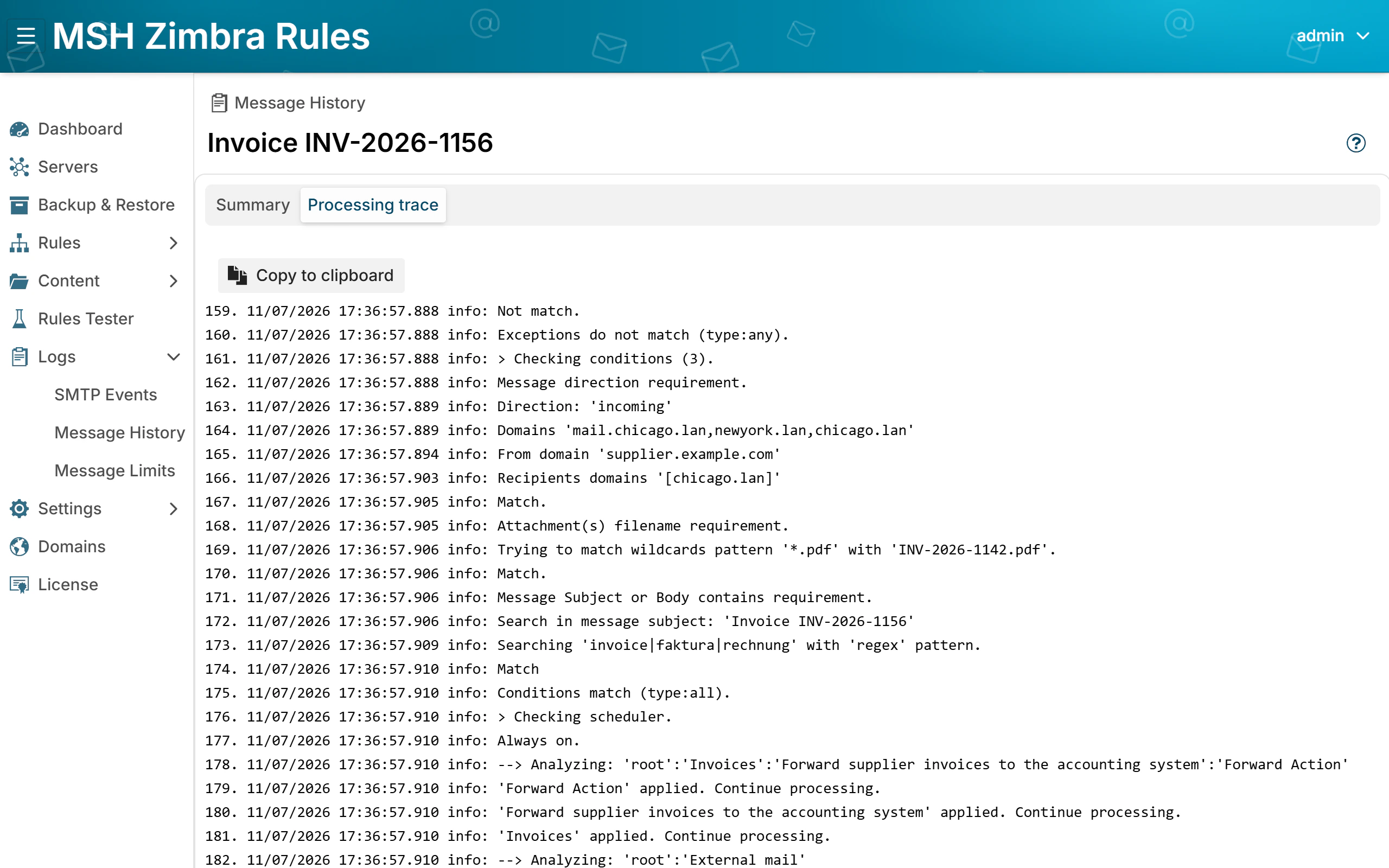
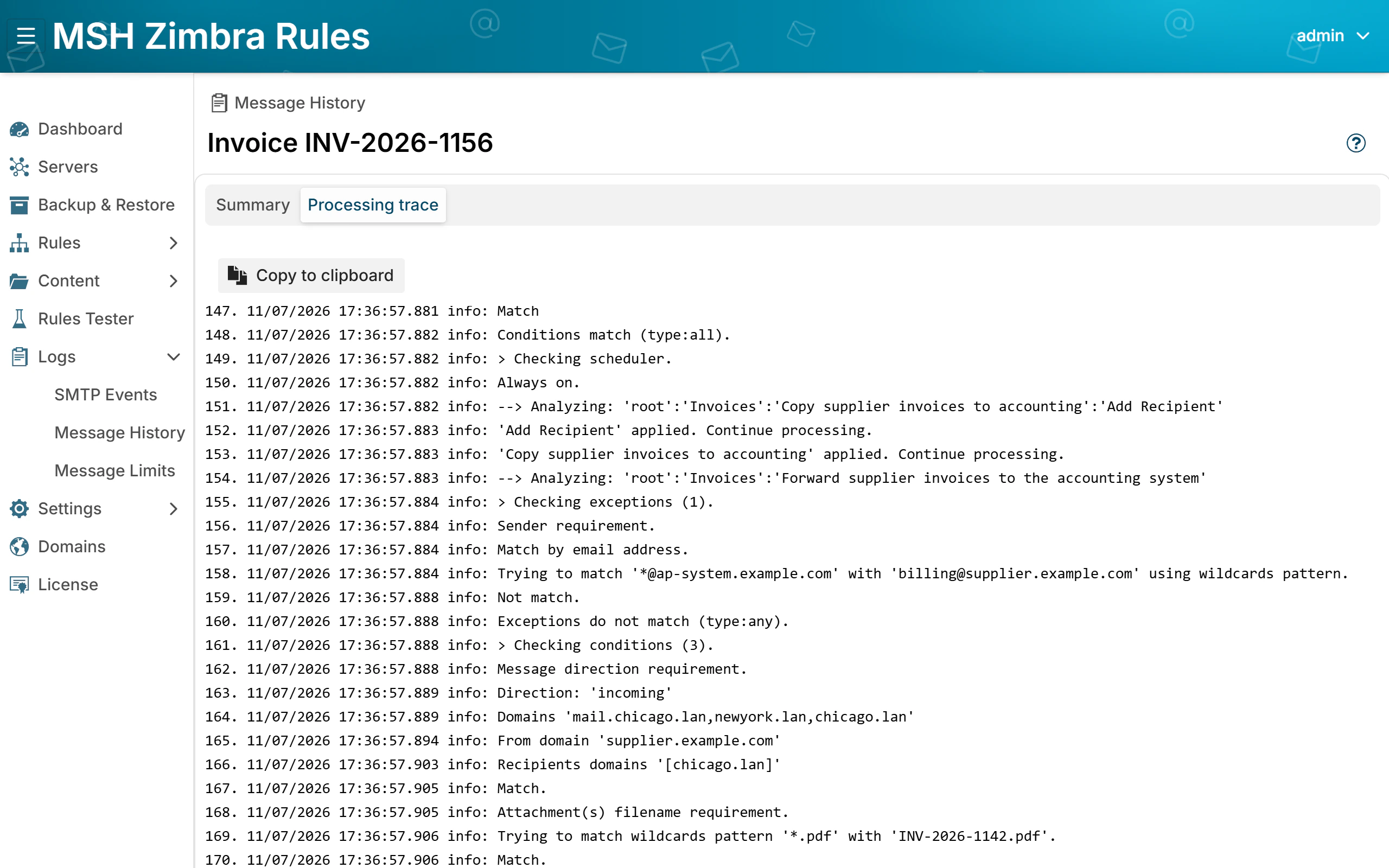
- In Logs > Message History, search for the subject and open the message. On
Processing trace, the three conditions match, then
'Add Recipient' appliedand'Forward Action' applied. Message History lists messages only while Diagnostic logging is on.
Variations
- Only known suppliers. Add Sender > Sender with Email address and
Wildcards, several domains separated by
;, for example*@supplier-one.com;*@supplier-two.com. With that condition you can leave out the subject words, for suppliers whose subjects say only Document 4711. - Not the replies. A customer who replies Re: Invoice ... about your own invoice,
with your PDF attached, matches as well. Add to both rules an exception Message >
Subject or body, Subject, Regular expression
^(re|aw|sv):. Case does not matter here either, soRE:is left out too. - One team only. Add Recipients > Recipient with In Group, for example Purchasing, so that only invoices to that team are copied.
- Copy and forward. Keep both rules active: accounting keeps a copy in Zimbra, and the system gets the forward.
Related reading
- Attachment name and Attachment type - the two ways to look at attachments
- Message direction - Incoming, Internal and Outgoing
- Add recipient and Forward message - the two actions
- Copy a User's Mail to an Archive Mailbox in Zimbra - the same Bcc copy for all mail of a person
Want to try it on your own server? Start a free trial.