Access control
The Access Control page lets you manage the accounts used to log in to the administrator panel. It is available to administrators only.
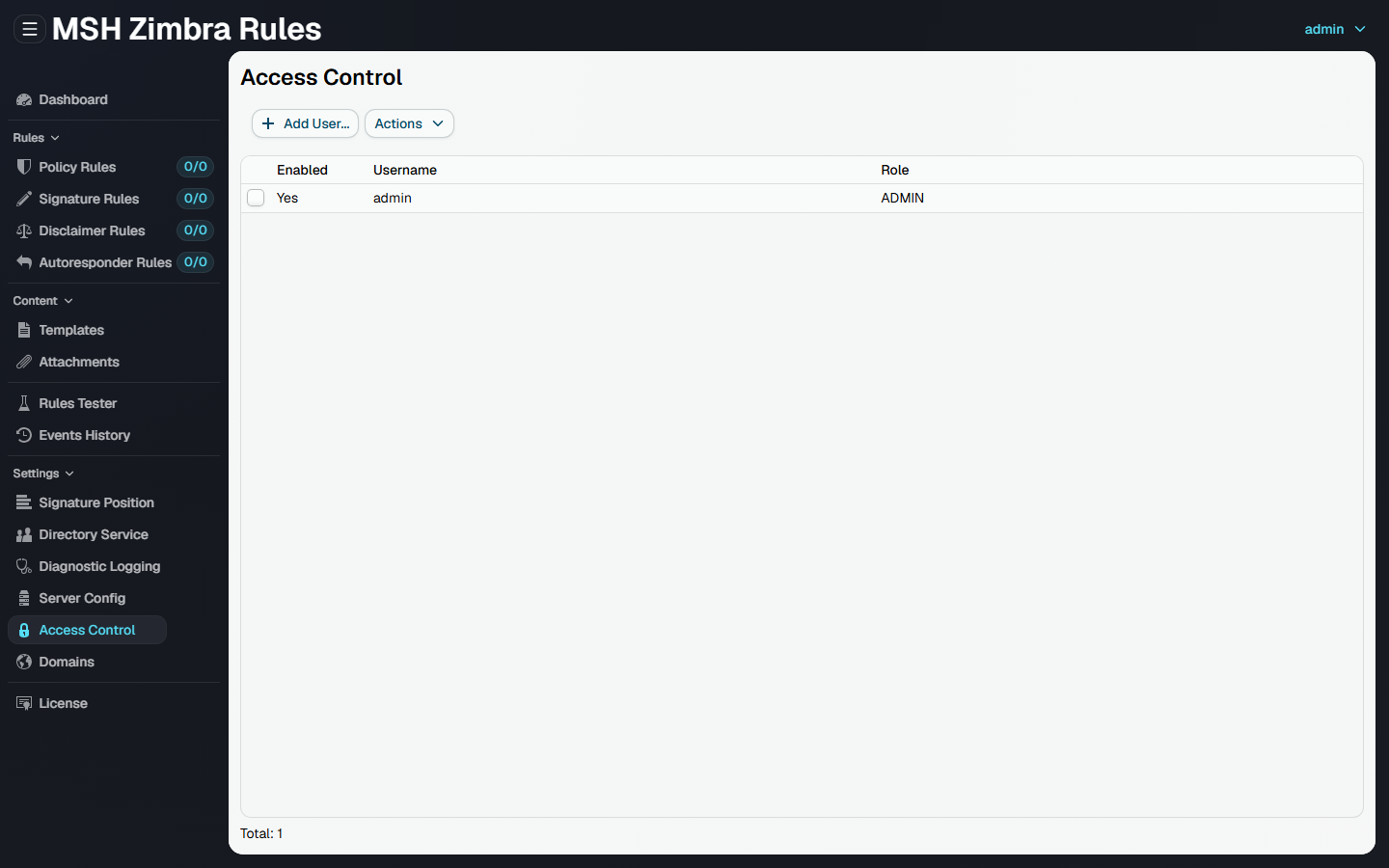
The list shows each account with its username, role, and whether it is enabled.
On the first start the application creates a default administrator account admin with password admin, see Log in.
Add user
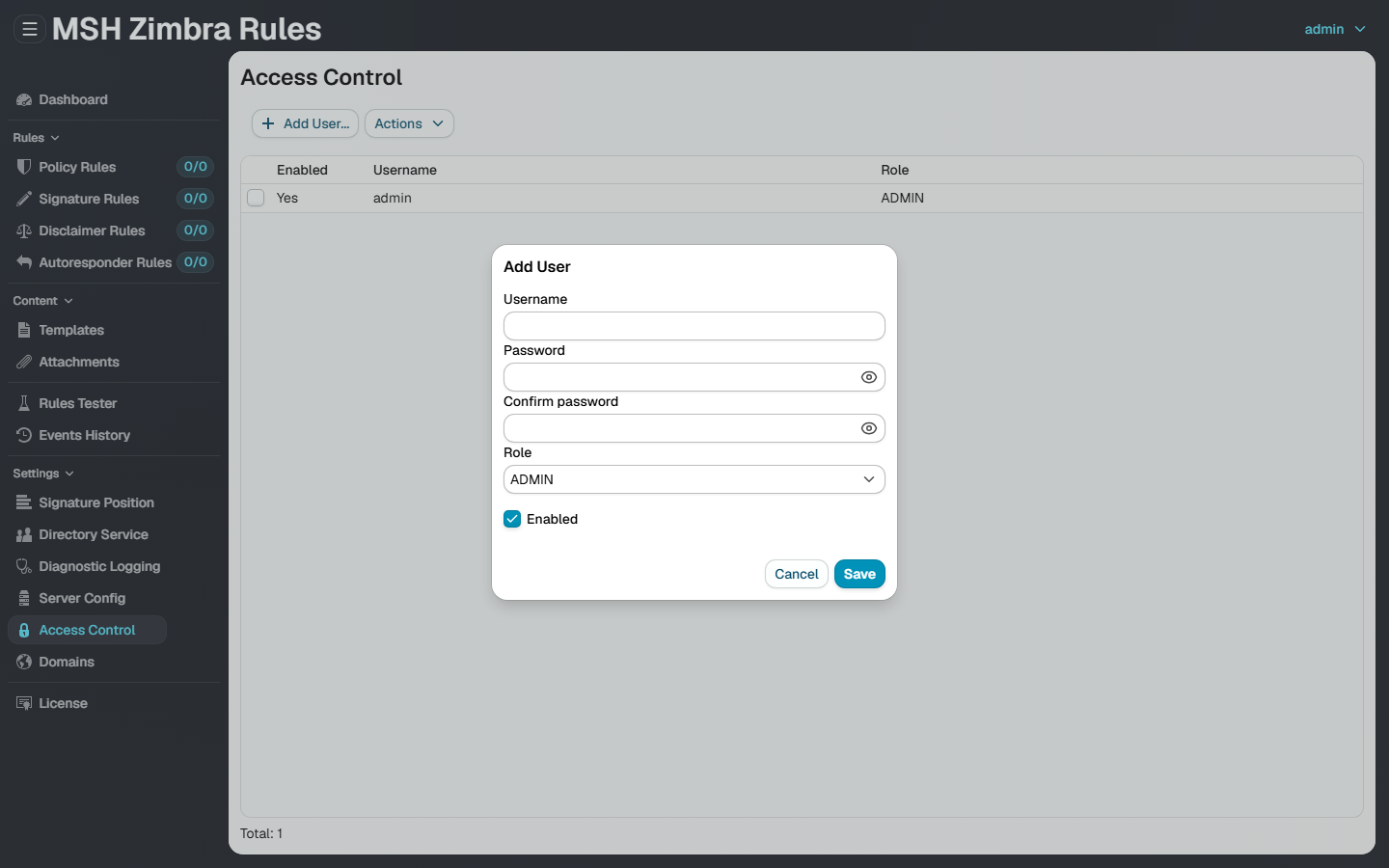
Click Add User... and provide:
- Username and Password (with confirmation).
- Role -
ADMINorUSER, see Roles. - Enabled - a disabled account cannot log in.
Roles
There are two roles:
- ADMIN - administrators manage the installation: the servers, backups, server-wide settings and the accounts on this page, in addition to everything a user can do.
- USER - users work with the rules and their content: they create and edit rules, templates and attachments, test rules and look at the message history.
The table lists every page of the navigation and which role can open it.
| Section | Page | ADMIN | USER |
|---|---|---|---|
| Dashboard | ✅ | ✅ | |
| Servers | ✅ | ❌ | |
| Backup & Restore | ✅ | ❌ | |
| Rules | Rules Processing | ✅ | ❌ |
| Rules | Policy Rules | ✅ | ✅ |
| Rules | Signature Rules | ✅ | ✅ |
| Rules | Disclaimer Rules | ✅ | ✅ |
| Rules | Autoresponder Rules | ✅ | ✅ |
| Content | Templates | ✅ | ✅ |
| Content | Attachments | ✅ | ✅ |
| Rules Tester | ✅ | ✅ | |
| Message History | ✅ | ✅ | |
| Settings | Signature Position | ✅ | ❌ |
| Settings | Directory Service | ✅ | ❌ |
| Settings | Diagnostic Logging | ✅ | ❌ |
| Settings | Server Config | ✅ | ❌ |
| Settings | Access Control | ✅ | ❌ |
| Settings | Domains | ✅ | ✅ |
| License | ✅ | ✅ |
The pages a user cannot open are not shown in their navigation, and they are refused on the server as well, also when the address is opened directly.
A few parts of the shared pages also differ by role:
- Dashboard - the Application users card, which links to this page, is shown to administrators only.
- Notices - the notices about suspended rules processing, a missing server and message counts that are not shared are shown to users too, but only administrators get the link to the page that fixes the cause.
Edit and remove
Select an account and use the Actions menu to Edit..., Enable / Disable, or Remove it. When editing, leave the password fields blank to keep the current password.
Change the default admin password right after installation.
Additional resources
- Log in - how to open the administrator panel
- Reset credentials - if you forget your username or password