Answer support mail with a reference number in Zimbra
A customer who writes to support@ wants to know that the message arrived and when an
answer will come. With MSH Zimbra Rules, every new request gets a
confirmation with a reference number at once, and the support team finds the same number
in the subject of the request in their mailboxes. No ticket system is needed: the number
is the identifier MSH Zimbra Rules already gives every message.
What the customer gets
A customer writes to support@example.com with the subject Cannot log in to the
customer portal. A moment later this confirmation arrives:
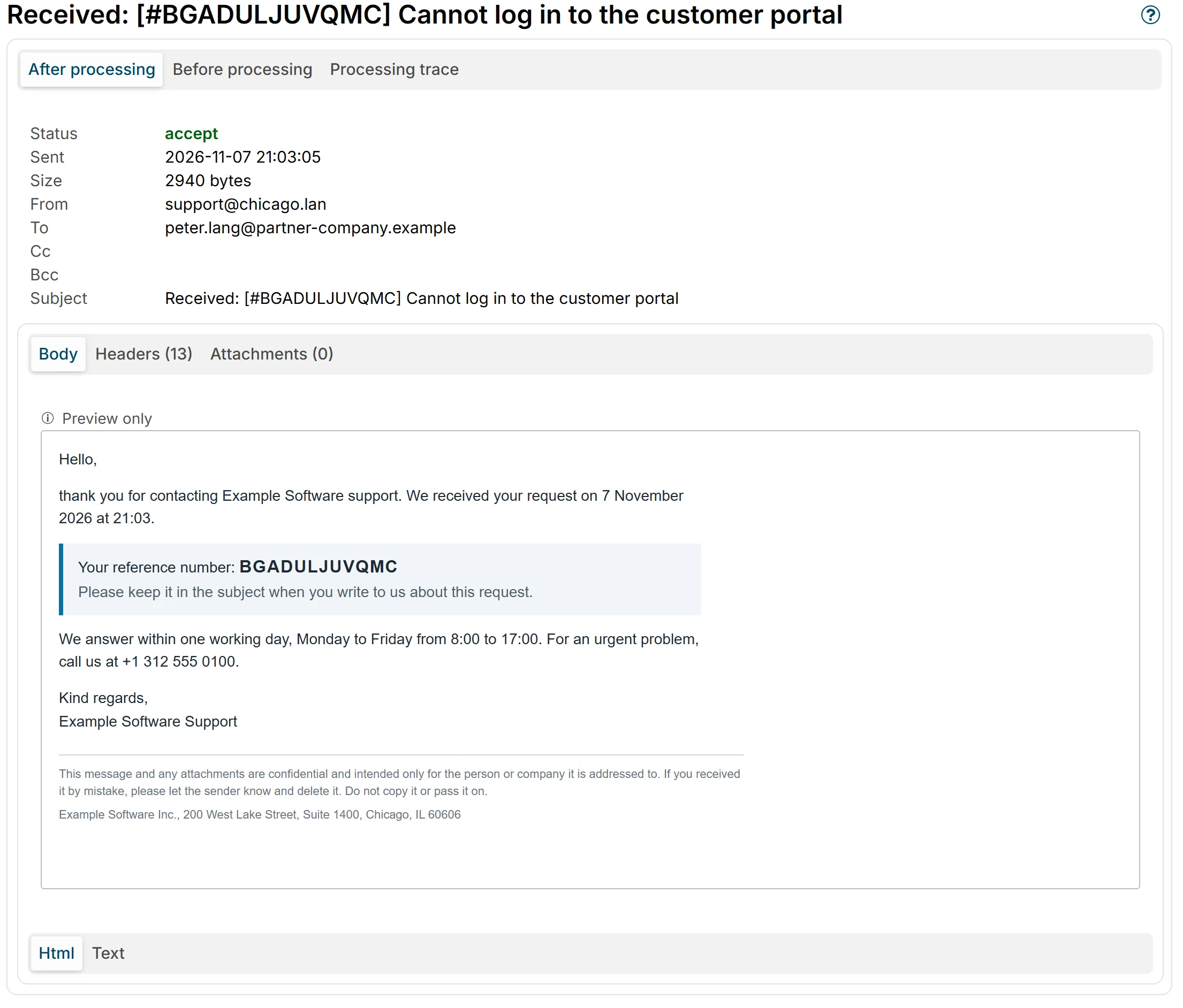
- The subject repeats the request, with the reference number: Received: [#BGADULJUVQMC] Cannot log in to the customer portal. A reply to it keeps the number.
- The text has the date of the request, the reference number, the response time and a phone number for urgent problems.
- The confirmation comes from
support@, and gets the company's disclaimer like any other message that leaves the server.
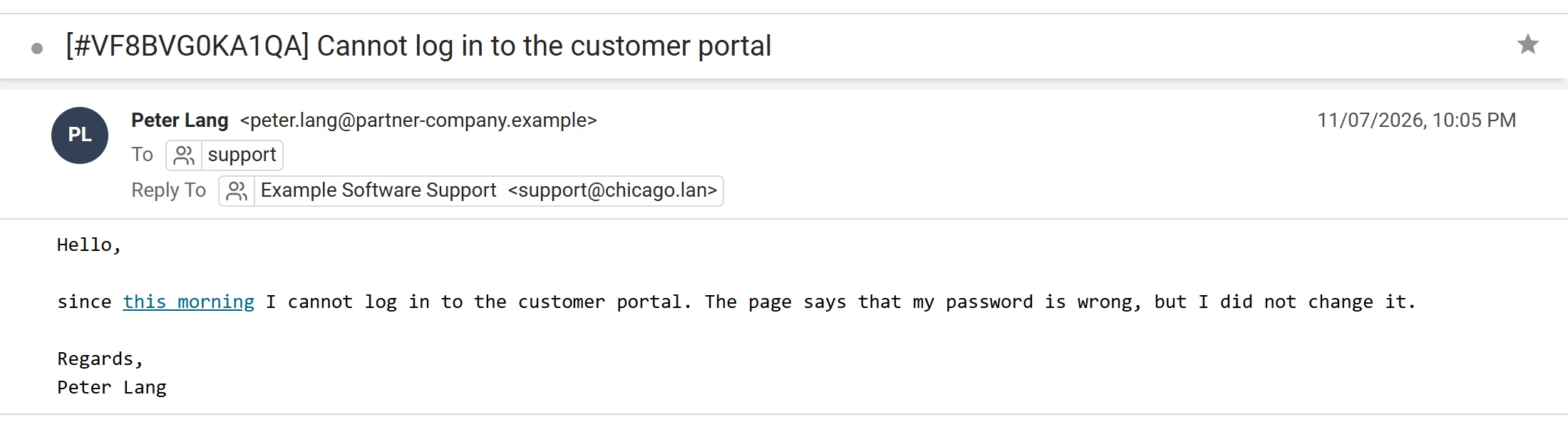
The support team gets the request with the same number in front of the subject:
Where the number comes from
MSH Zimbra Rules gives every message an identifier of 12 letters and digits, such as
BGADULJUVQMC, and writes it into the X-MSH-Id header of the message. Templates and
rules read it with the variable {message:header:x-msh-id}. It is unique, and it is the
MSH-ID of the message on the Message History
page: searching there for the number finds the request.
Two rules use it:
| Rule | What it does |
|---|---|
| Policy rule Support: reference in the subject | Puts [#number] in front of the subject of each new request to support@ |
| Autoresponder rule Support: confirm with a reference number | Sends the customer the confirmation with the same number |
Policy rules run before autoresponder rules, so the confirmation already gets the subject with the number.
Step 1 - The reply template
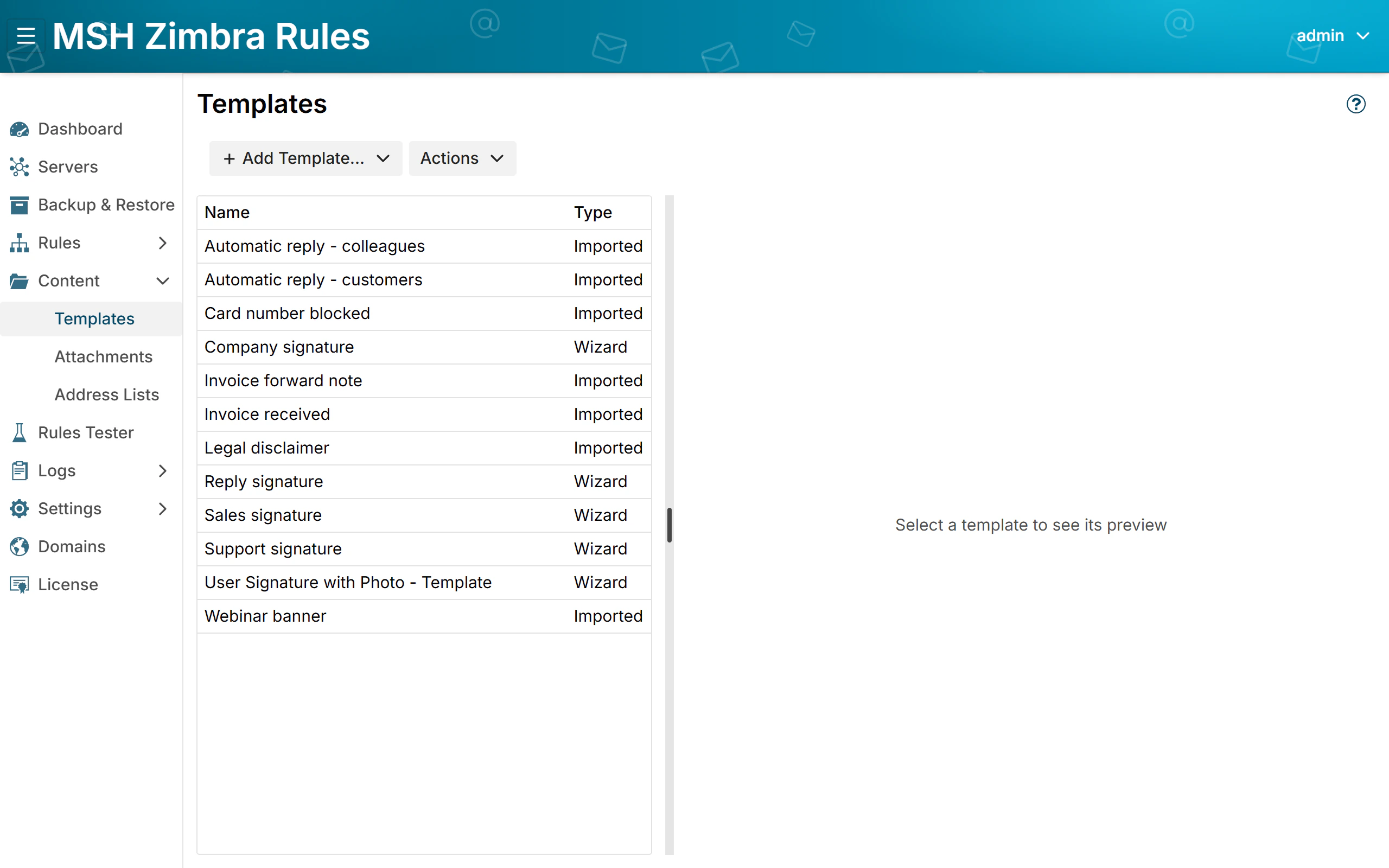
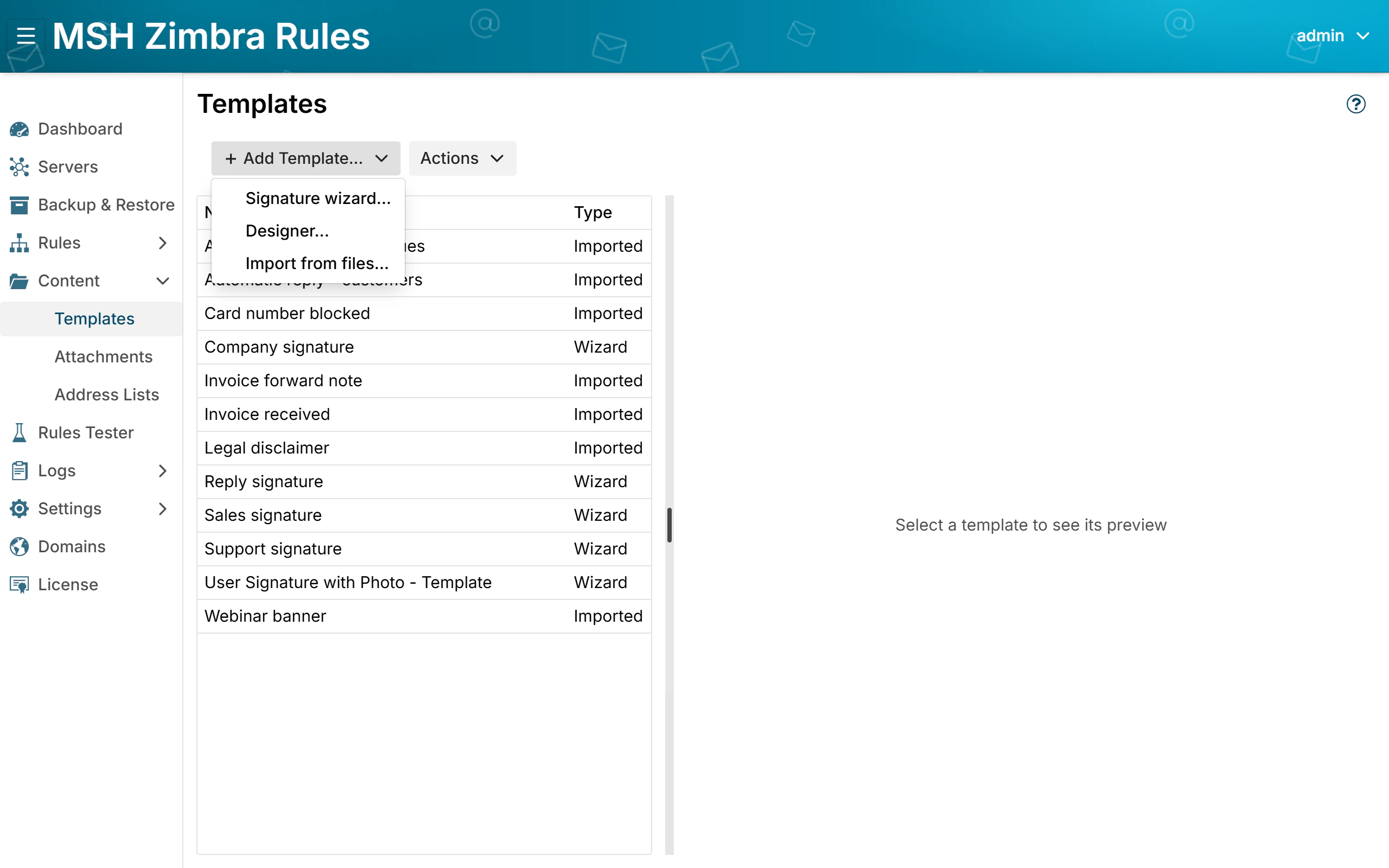
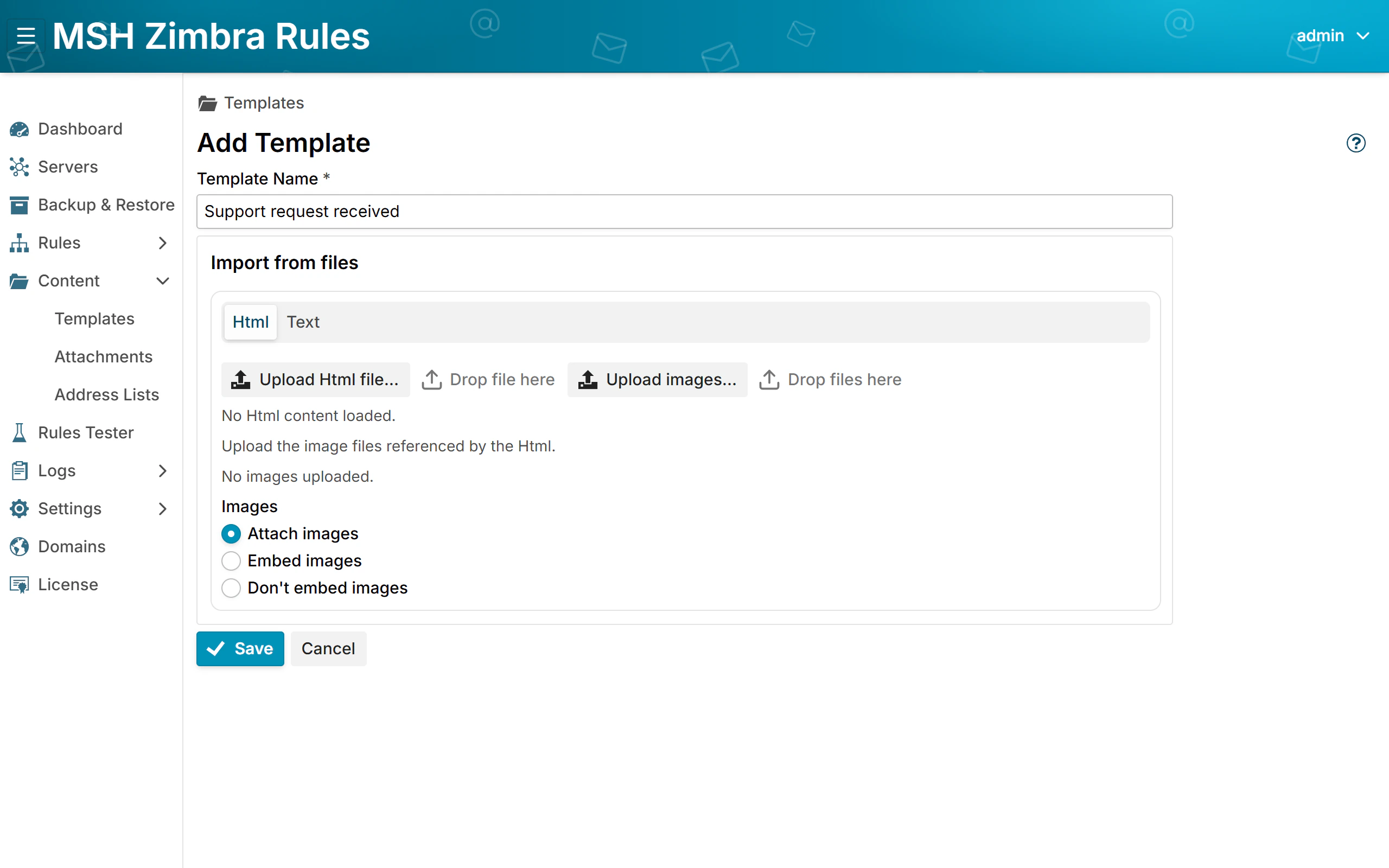
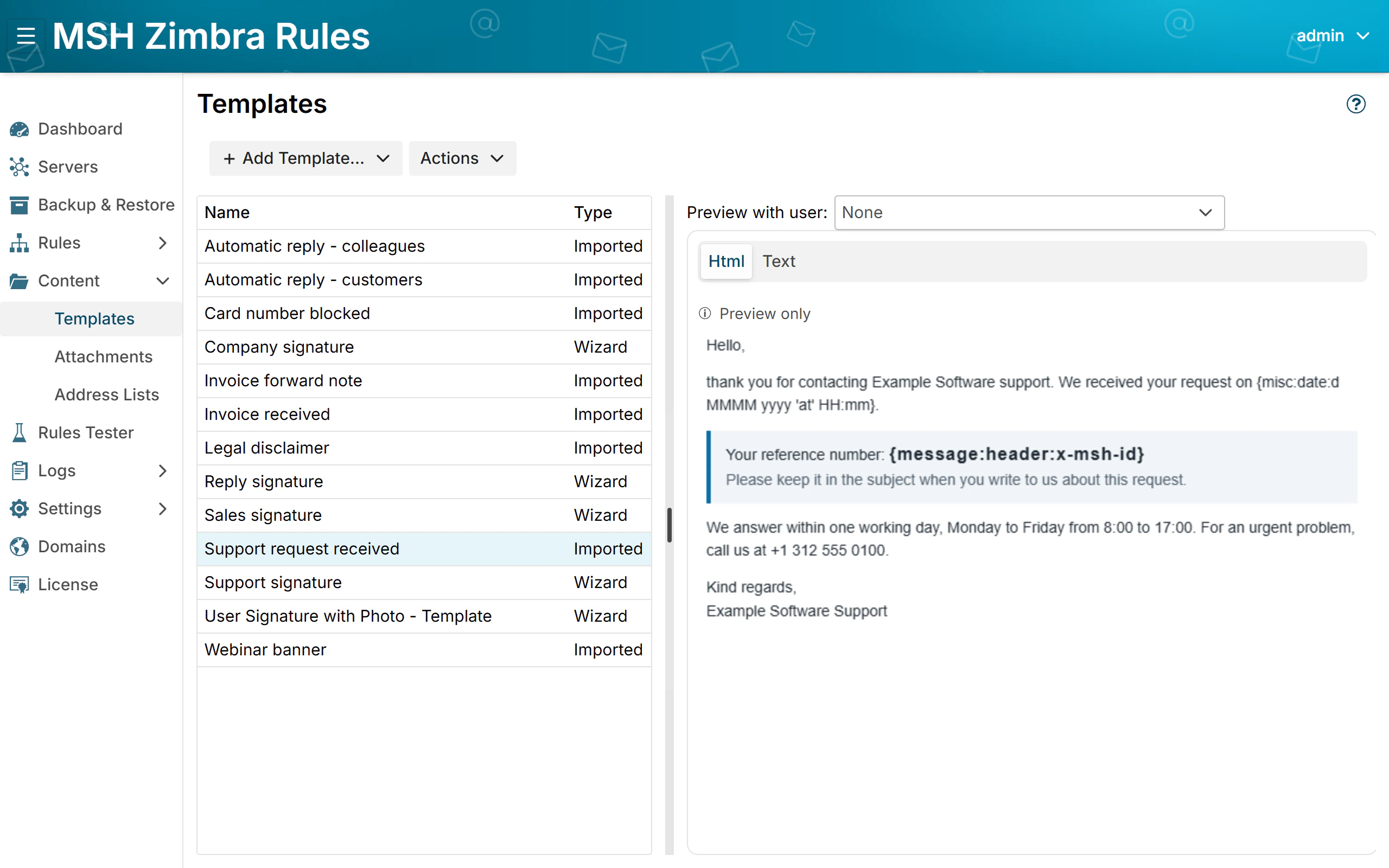
In Content > Templates, add a template, for example Support request received.
The template of an autoreply can use the message and misc
variables:
| Variable | Gives |
|---|---|
{message:header:x-msh-id} | The reference number, BGADULJUVQMC |
{misc:date:d MMMM yyyy 'at' HH:mm} | When the request came in, 7 November 2026 at 21:03, in the time zone of the mail server. Text in quotes is printed as it is. |
{message:subject} | The subject of the request, with the number once step 2 is in place |
The text of the example:
Hello,

thank you for contacting Example Software support. We received your request on {misc:date:d MMMM yyyy 'at' HH:mm}.

Your reference number: {message:header:x-msh-id}
Please keep it in the subject when you write to us about this request.

We answer within one working day, Monday to Friday from 8:00 to 17:00. For an urgent problem, call us at +1 312 555 0100.

Kind regards,
Example Software Support
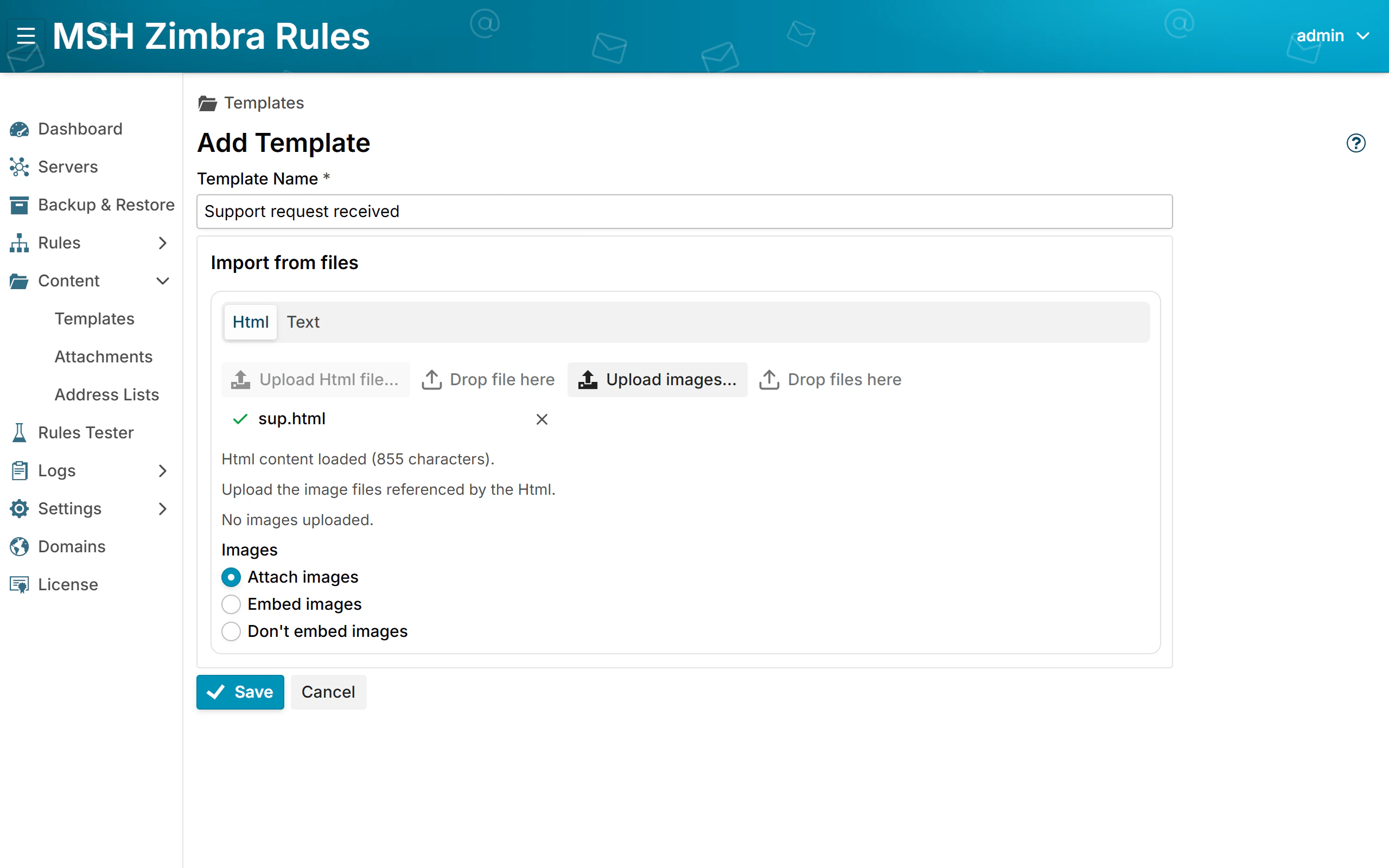
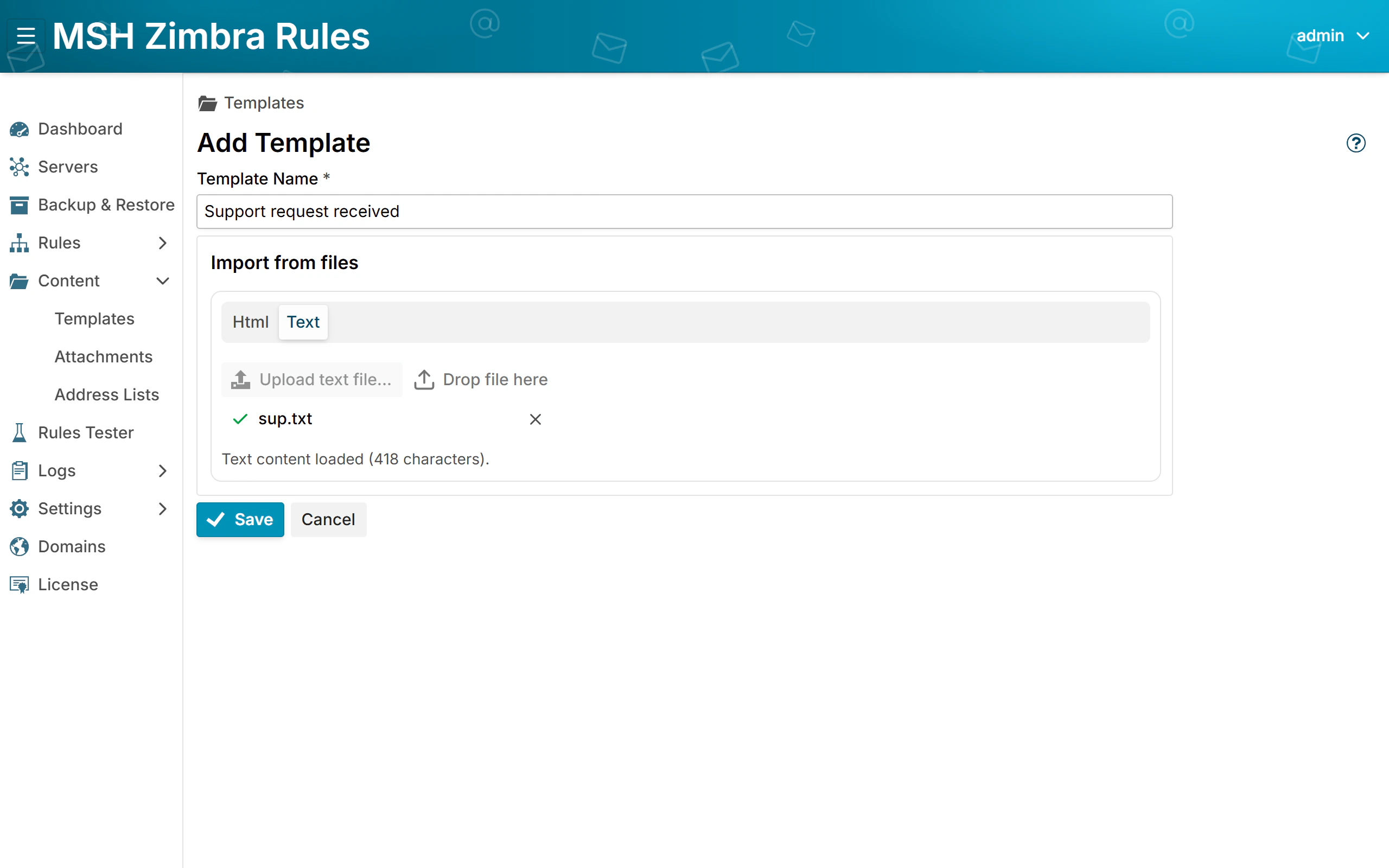
A template has an Html and a text version. Import both from files, or design the Html one in the designer. See Templates.
Step 2 - The number in the subject
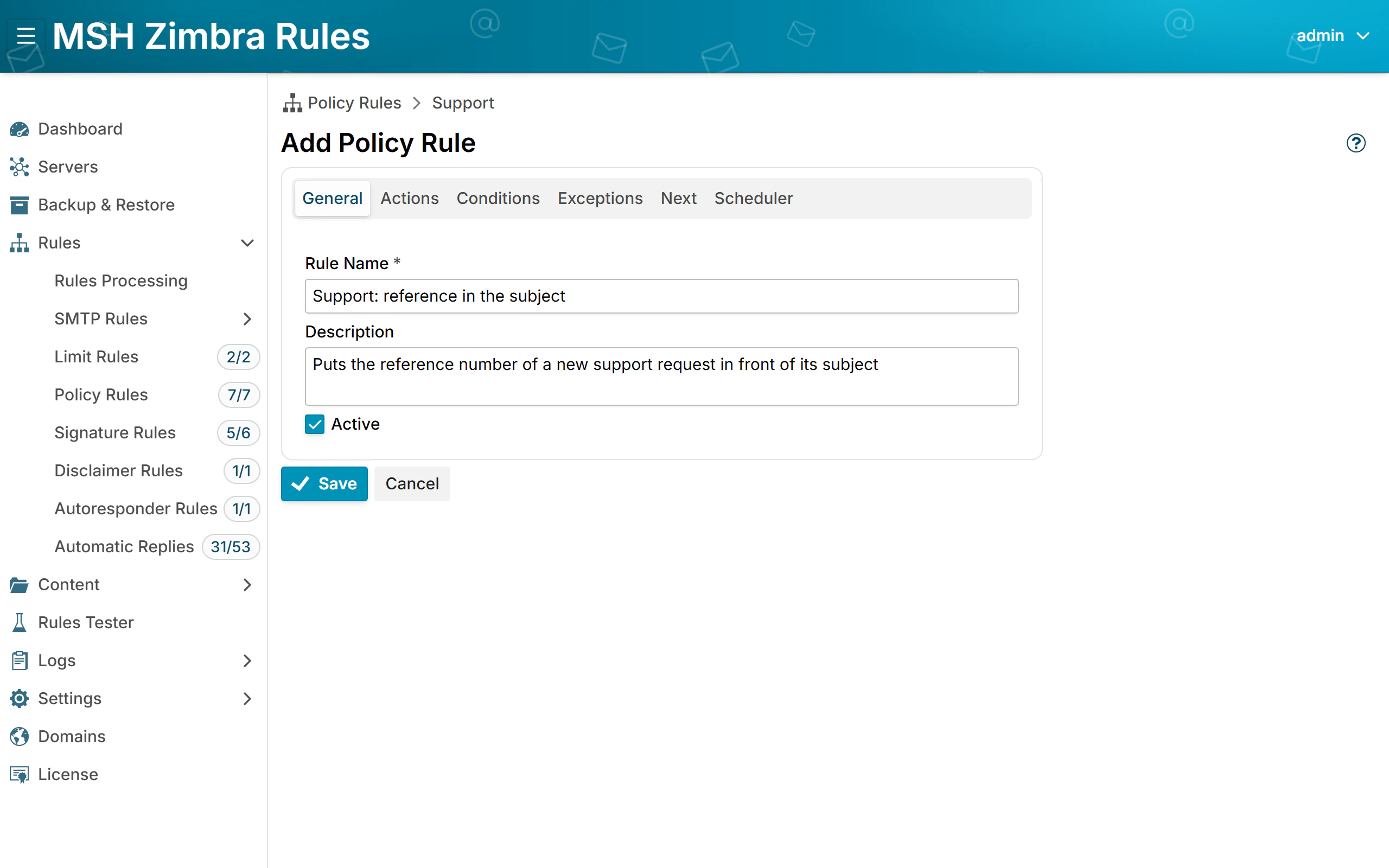
Open Rules > Policy Rules, add a group Support and in it a rule
Support: reference in the subject:
- Conditions (all): Recipients > Recipient, Group, the support list, here Support; and Message > Direction, Incoming.
- Exceptions: Message > Subject or body, Subject,
Regular expression
#[A-Z0-9]{12}. A follow-up that already carries a number keeps it and gets no second one. - Actions: Subject > Modify, Use the original subject and prepend text to
it, the text
[#{message:header:x-msh-id}]with a space at the end.
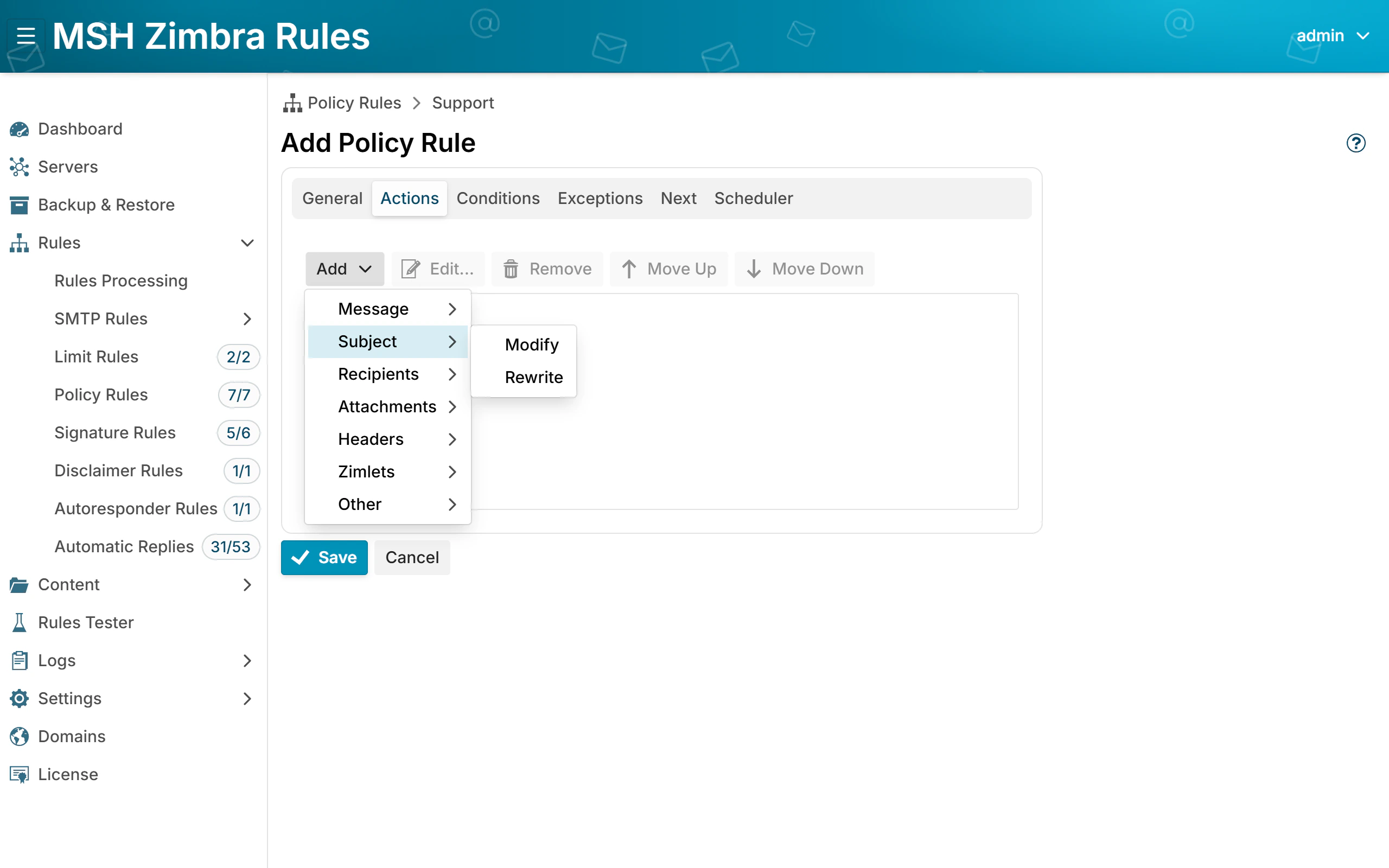
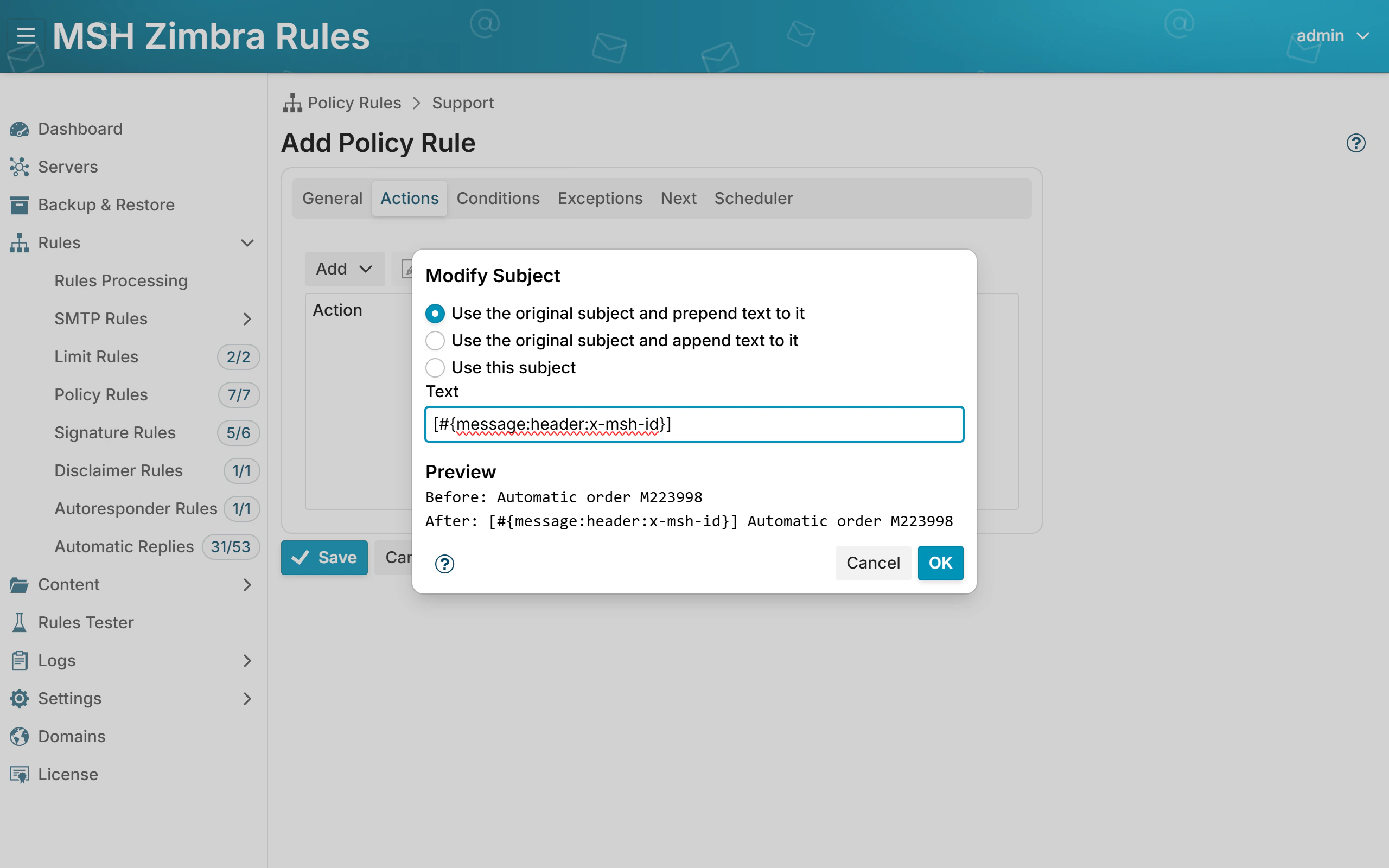
The rules see the subject as the message arrived, while the actions change it. So the exception does not stop the rule on a new request: only a subject that came in with a number skips it.
Step 3 - The autoresponder rule
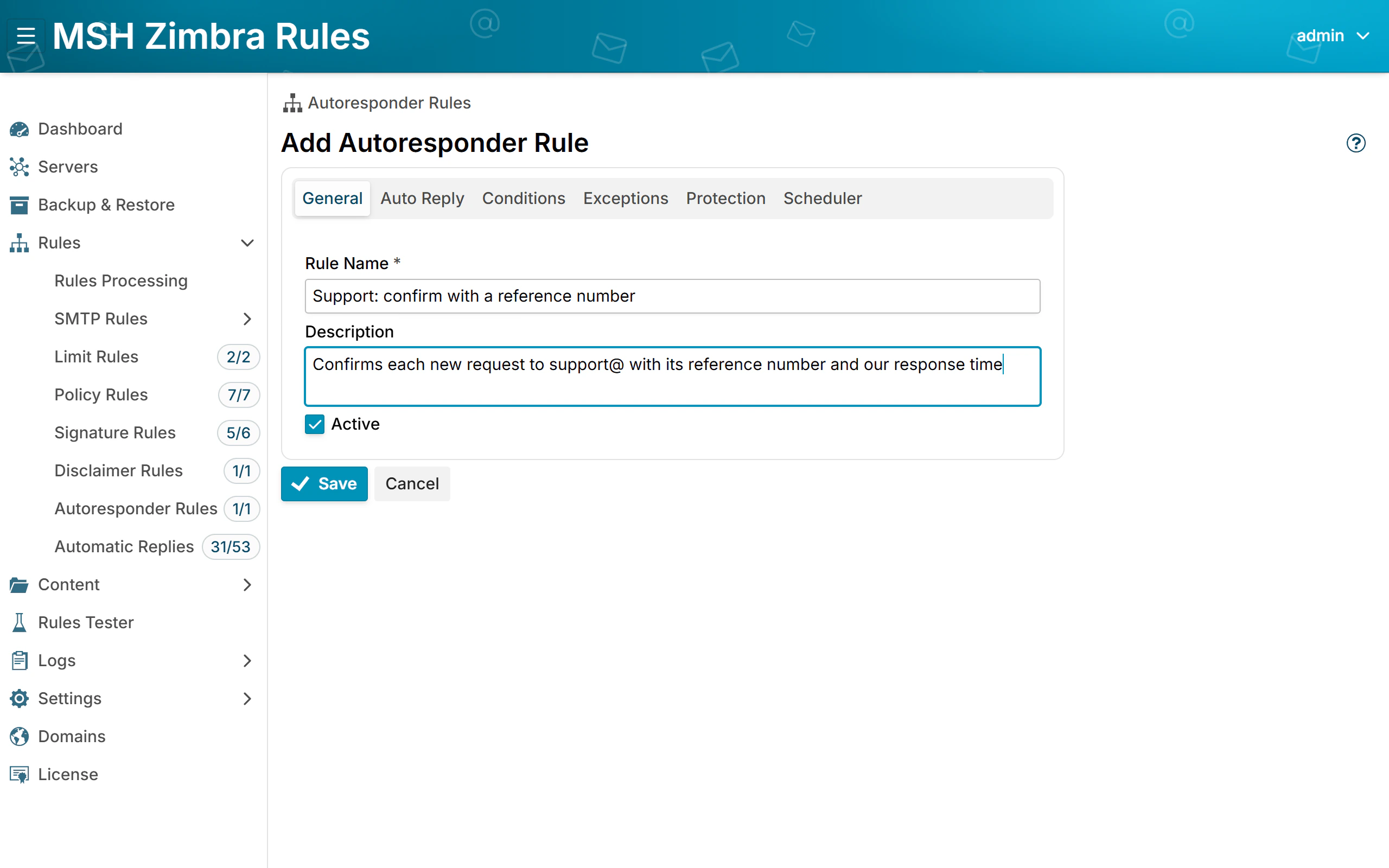
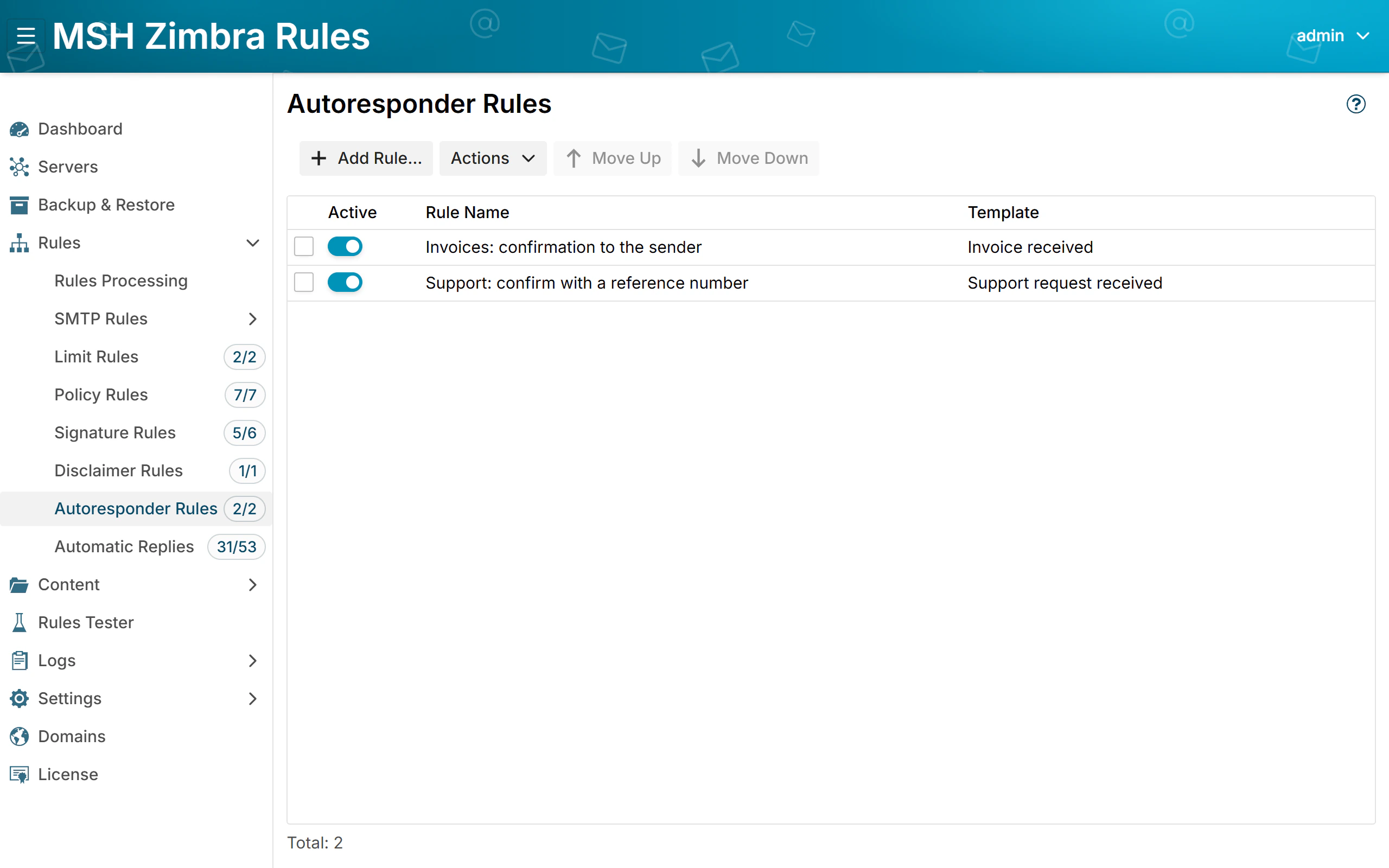
Open Rules > Autoresponder Rules, click Add Rule... and name the rule
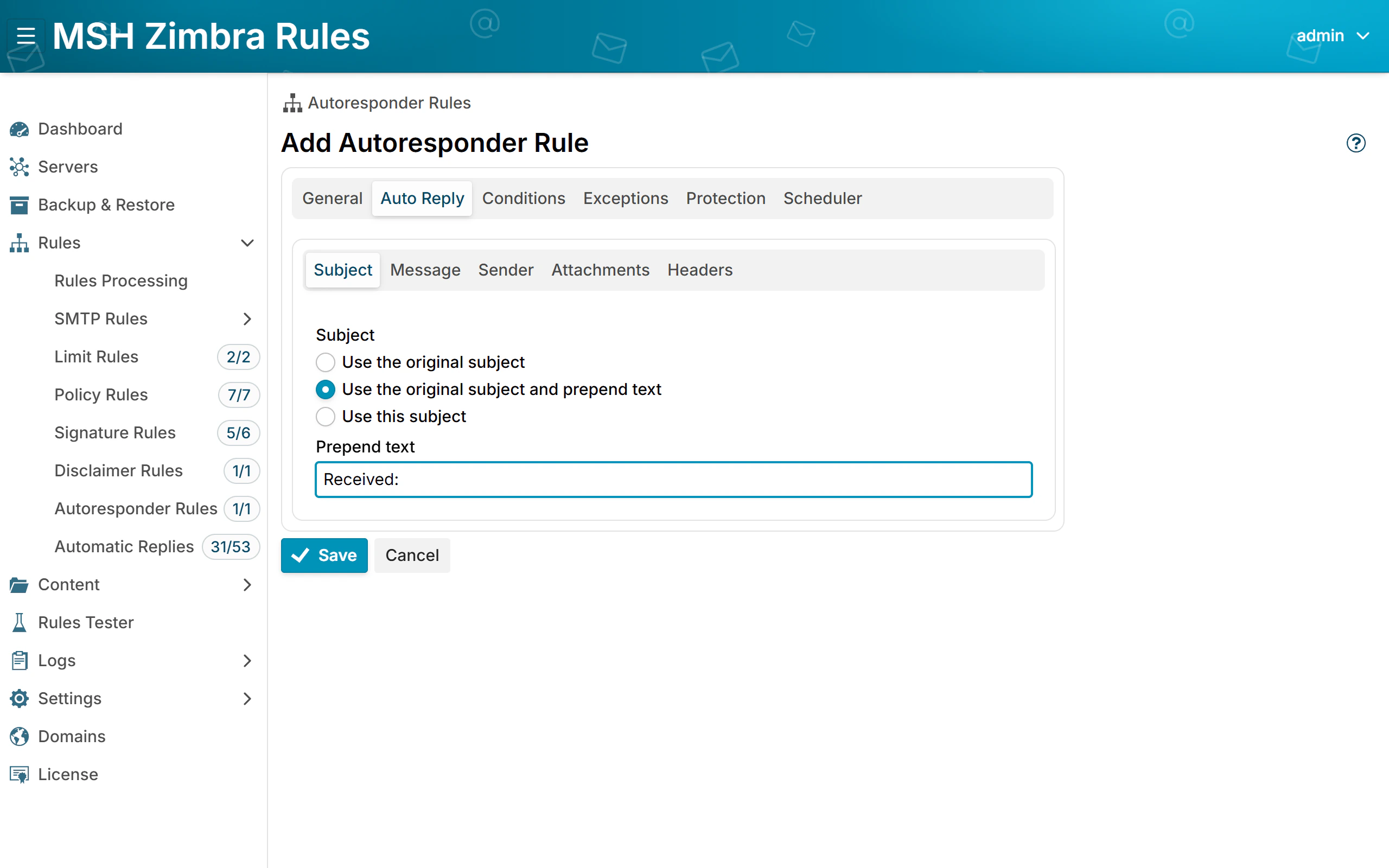
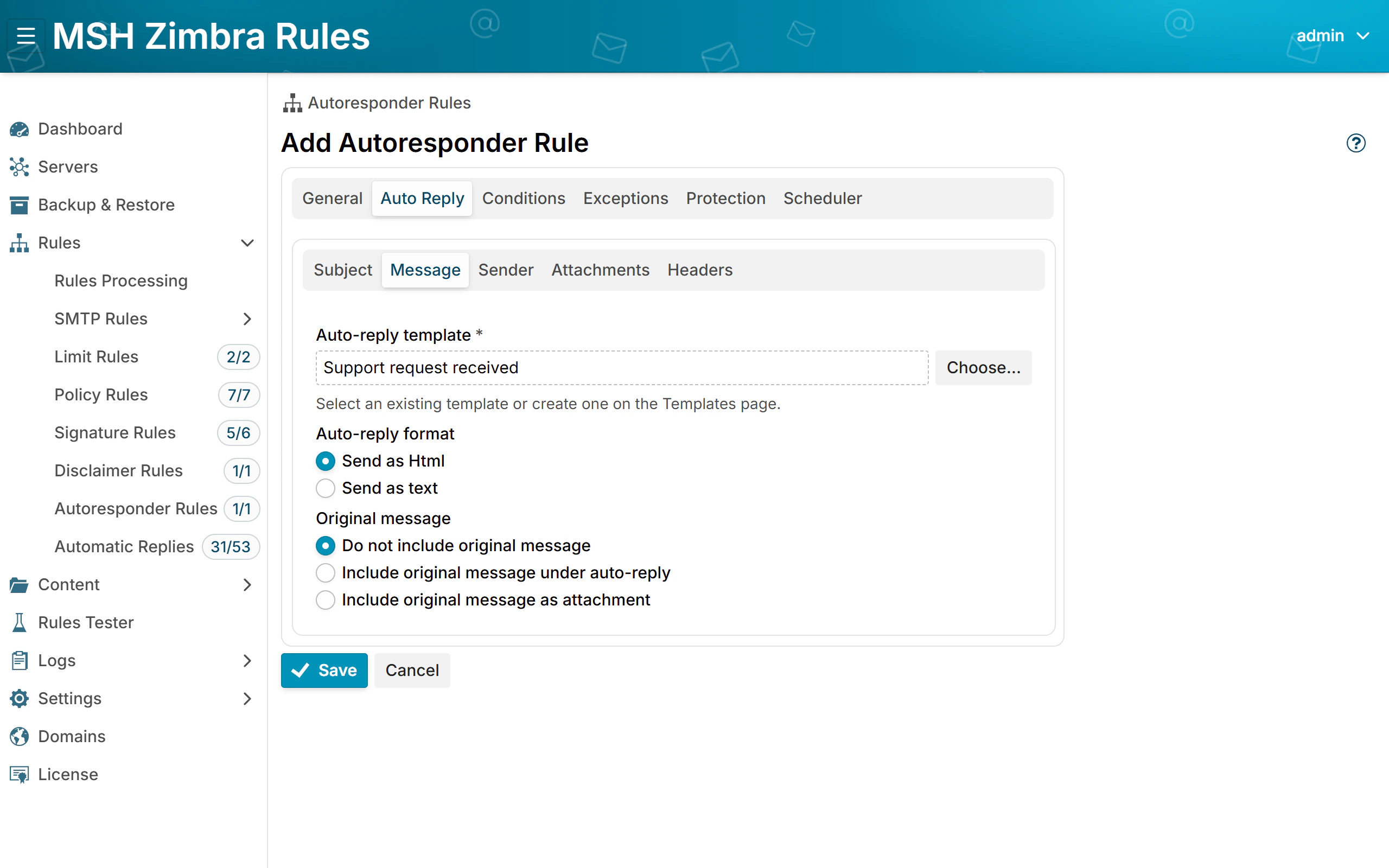
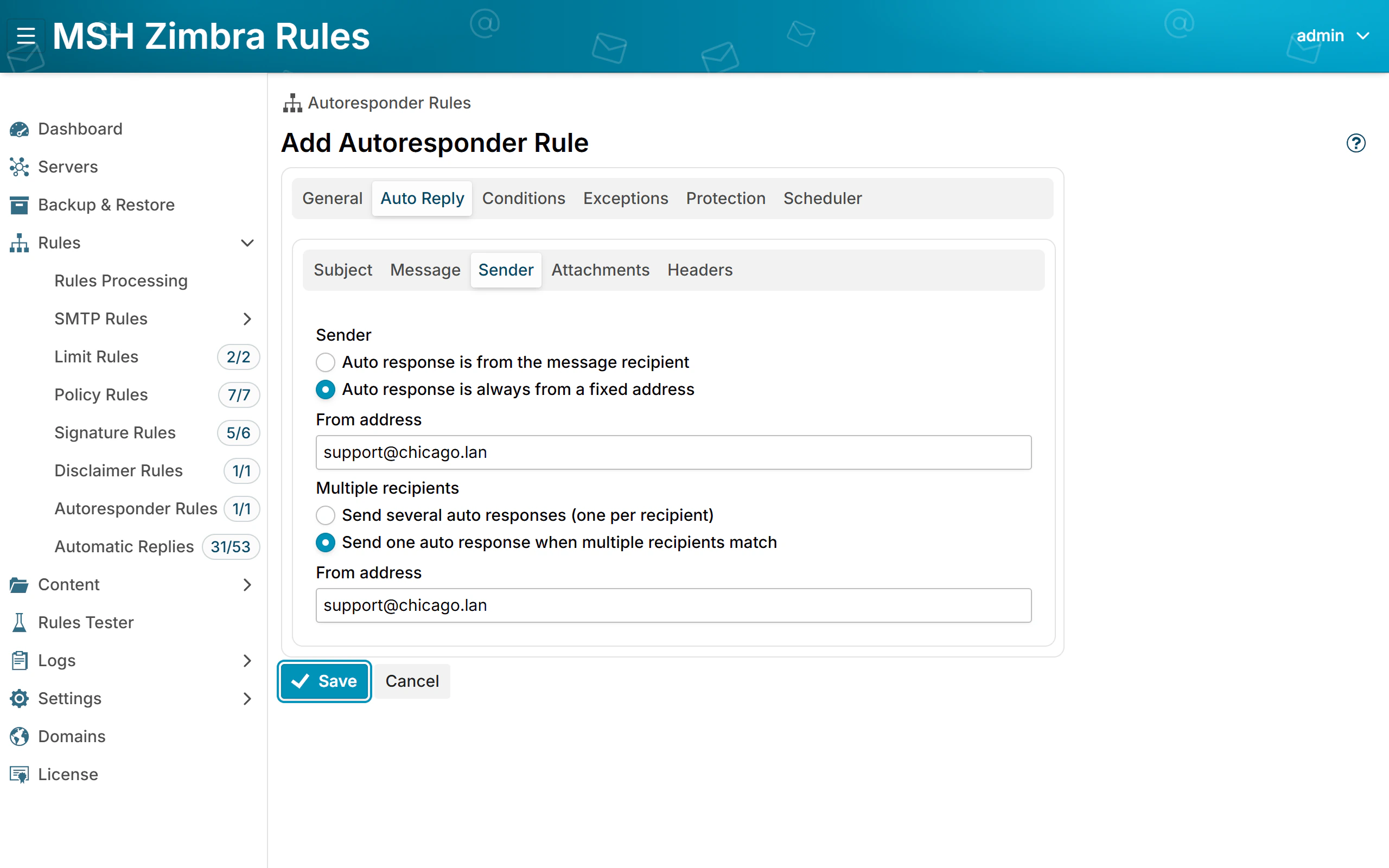
Support: confirm with a reference number. On Auto Reply:
- Subject: Use the original subject and prepend text,
Received:. The variables are not filled in here, but the original subject already has the number from step 2. - Message: the template of step 1, Send as Html.
- Sender: Auto response is always from a fixed address,
support@example.com, and Send one auto response when multiple recipients match, also fromsupport@example.com.
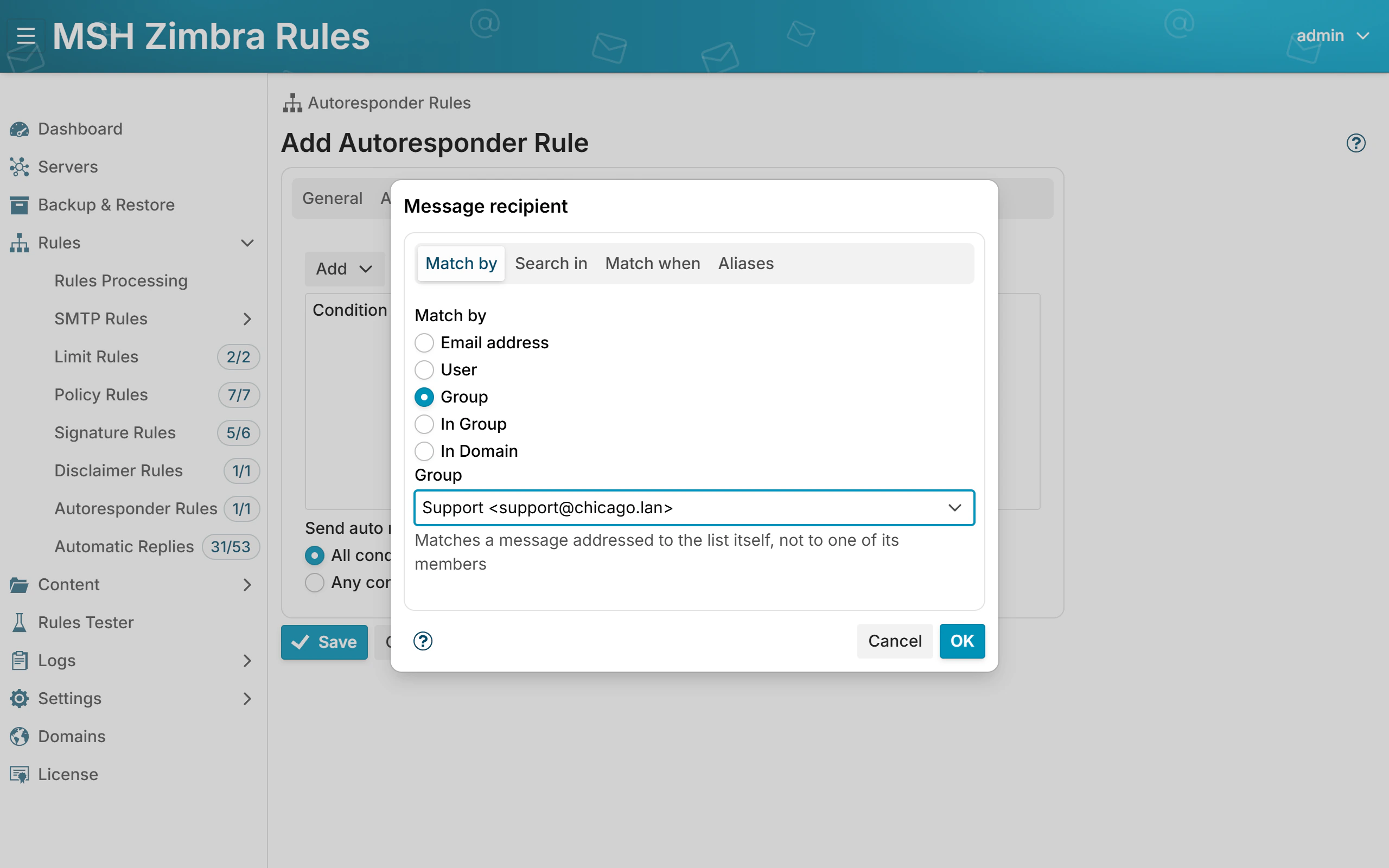
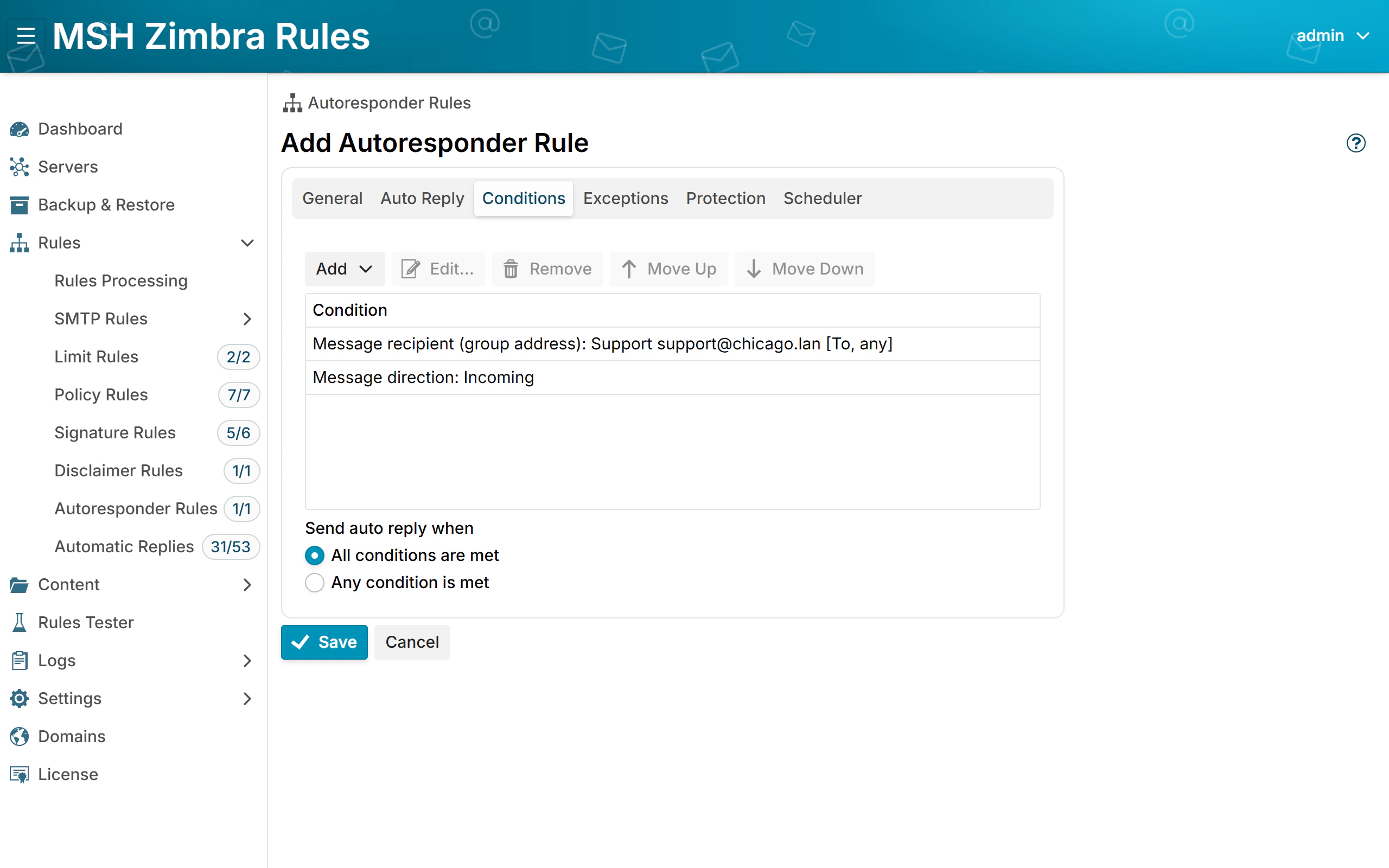
Then decide who gets the confirmation:
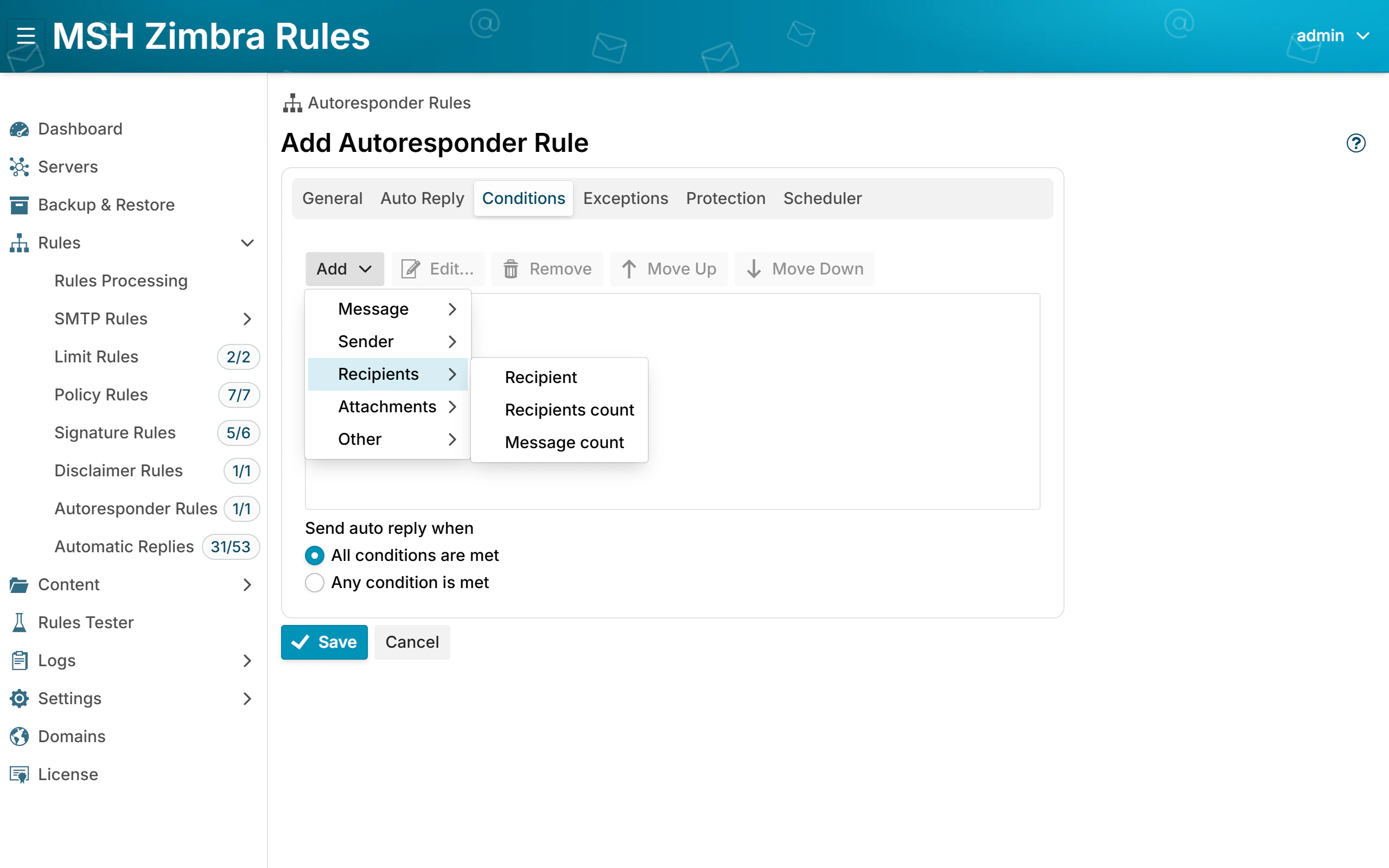
- Conditions (all): Recipients > Recipient, Group, Support; and Message > Direction, Incoming, so that colleagues writing to the list get no confirmation.
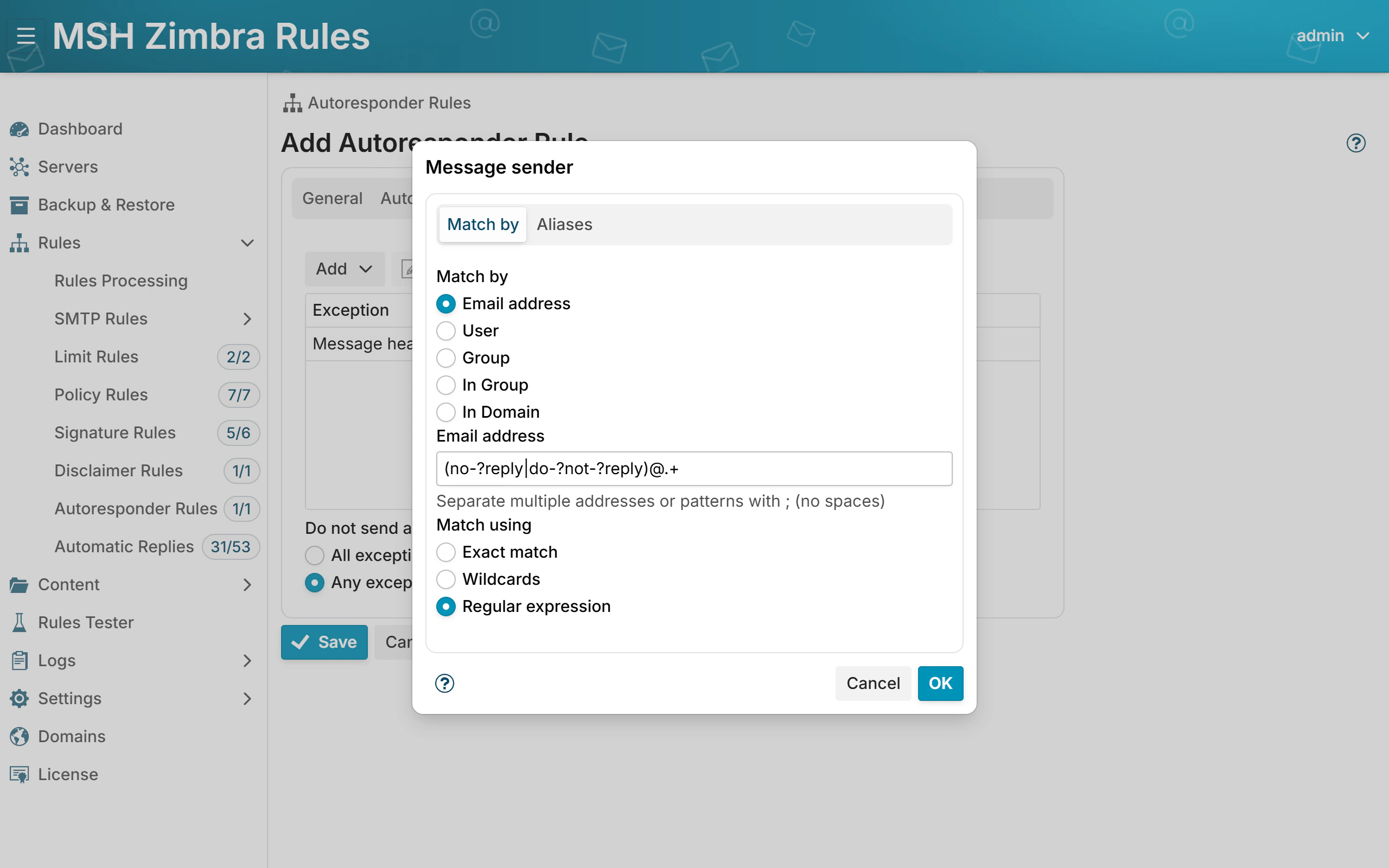
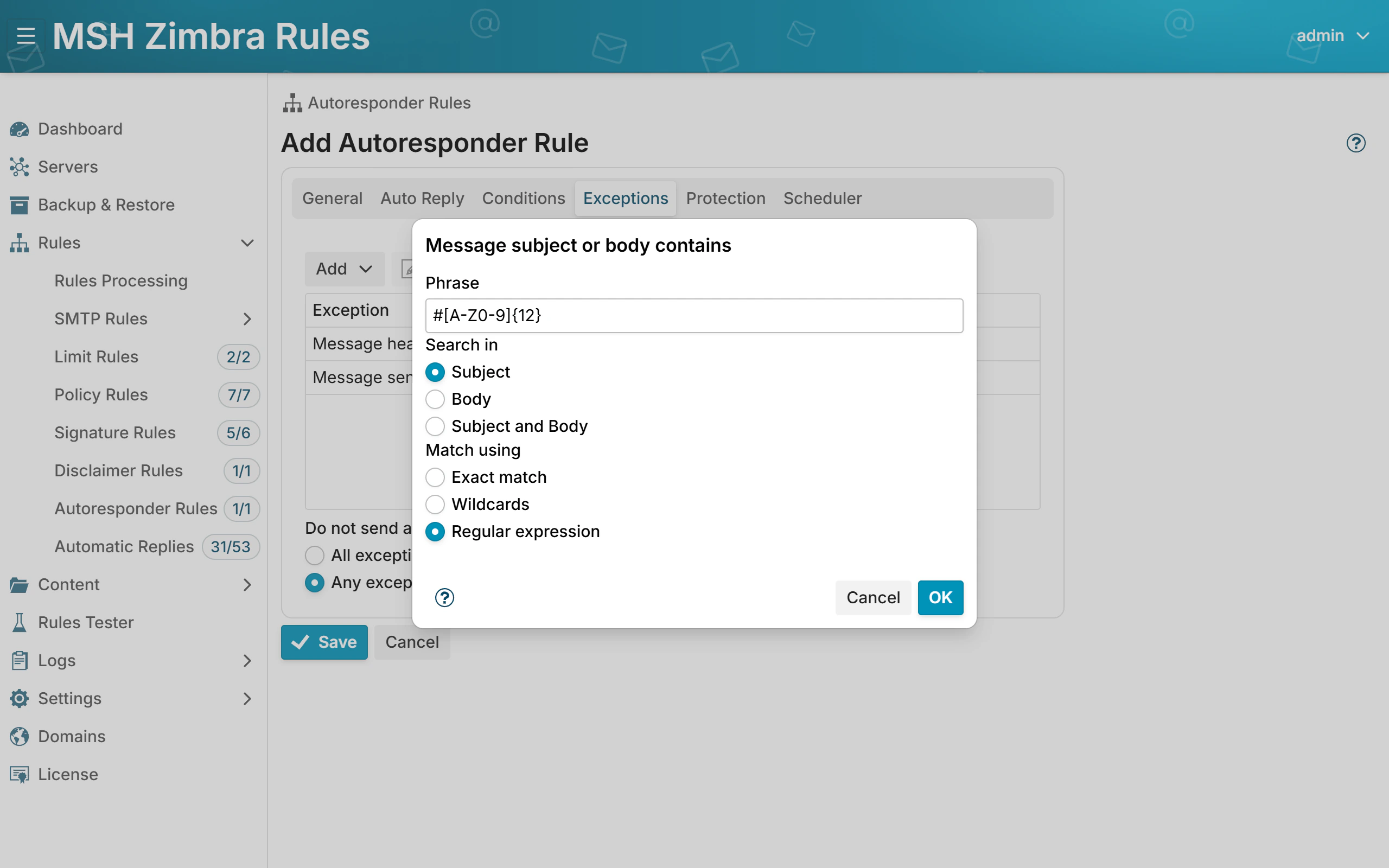
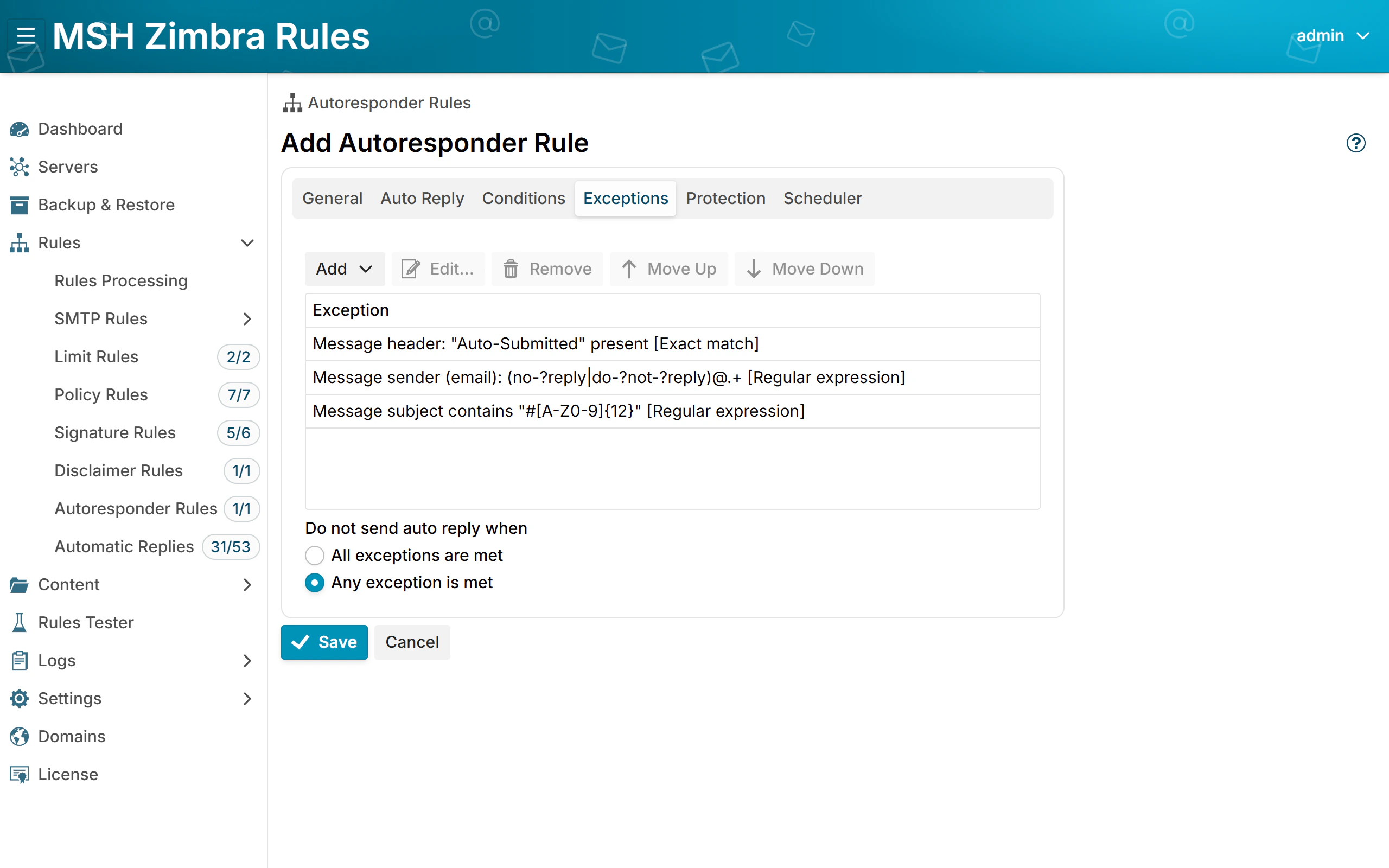
- Exceptions (any):
- Message > Header
Auto-Submittedpresent. A new autoresponder rule already has this one. - Sender > Sender, Email address, Regular expression
(no-?reply|do-?not-?reply)@.+. The expression must match the whole address, so it ends with.+. - Message > Subject or body, Subject, Regular expression
#[A-Z0-9]{12}: a follow-up gets no new confirmation.
- Message > Header
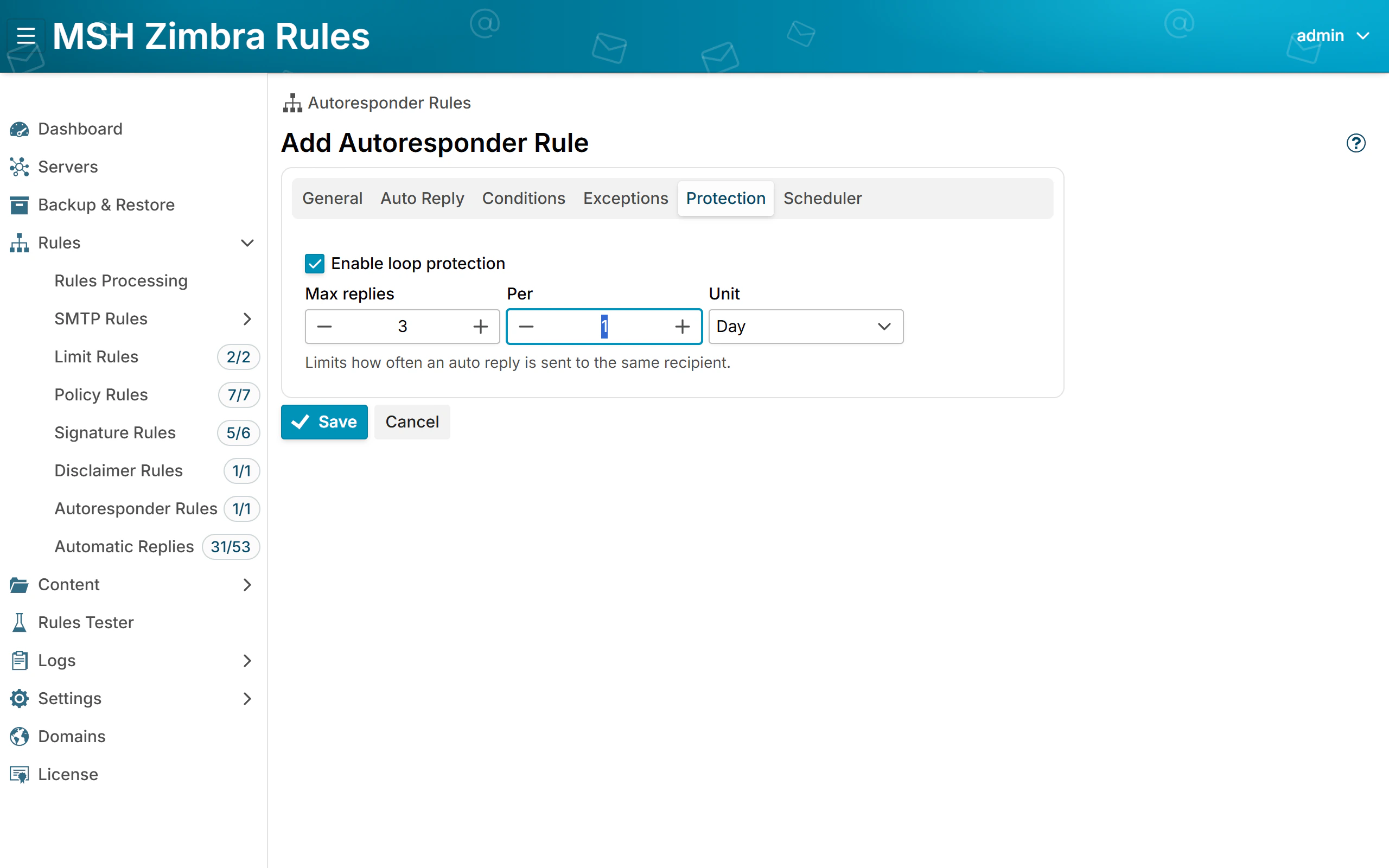
- Protection: at most
3replies per1Day to the same address. A customer who sends a second new request on the same day still gets its number, and a loop stops after three replies.
Who gets no confirmation
| Message to support@ | Confirmation | Number in the subject |
|---|---|---|
| A new request from a customer | Yes | Yes |
The customer's reply to the confirmation, Re: Received: [#…] … | No | Keeps the one it has |
Mail from noreply@ or no-reply@ | No | Yes, harmless |
| An automatic reply or list mail from outside | No, see Messages that get no autoreply | Yes |
| A bounce of the mail server | No | No, it does not come from outside |
| A colleague writing to the list | No | No |
A rule that tags mail from outside
The confirmation gets the subject as the policy rules left it. If a rule of yours puts
[EXTERNAL] before the subject of mail from outside, the customer gets
Received: [#…] [EXTERNAL] Cannot log in…. Add the support list as an exception to that
rule: Recipients > Recipient, Group, Support. Or warn your users with a
banner instead of a subject tag, see
Add an external email warning banner in Zimbra.
Check it
- The confirmation. In the Rules Tester, send a custom
message from an outside address to
support@. The confirmation is listed as a message of its own, with its subject and text, and nothing leaves the server. - The number. Search Logs > Message History for the number: the request comes up, with its processing trace. Message History lists messages only while Diagnostic logging is on.
Good to know
- Bounces come back to the list. The confirmation is sent from
support@. If the address of the request does not exist, for example spam with a made-up sender, the bounce goes tosupport@and so to every member of the list. - The number is per message. Each new message without a number gets a new one. A customer who writes a new message instead of replying starts a new request.
- The date is the time of the mail server, in its time zone.
Variations
- Different text out of hours. Add a second rule with another template, we answer on the next working day, and use the Scheduler of both rules to split the week.
- Several lists. Use one rule per address,
support@,sales@,billing@, each with its own template and response time. - The request quoted. On Auto Reply > Message, Include original message under auto-reply puts the customer's text under the confirmation.
Related reading
- Autoresponder rules - what is never answered, and the autoreply and the other rules
- Auto reply - subject, message, sender and headers of the reply
- Protection - how often an address gets a reply
- Modify subject - the action of step 2
- Variables - the message and misc variables
Want to try it on your own server? Start a free trial.