Move rules between servers with Backup and Restore
Rules are best built and tested on a staging server, away from real mail, and then brought to production in one piece. A new server should start with the rules of the old one, not with a weekend of clicking. In MSH Zimbra Rules both are done with Backup & Restore: Export writes the chosen parts of the configuration into a zip file, and Import reads it on another server, or on the same one. This article moves the rules of one server to another, and shows which parts to leave behind.
Three reasons to use it
| Situation | Export | Import |
|---|---|---|
| Staging to production | The rules and their content only | Those sections, Replace what is here |
| A new server | Everything the new server needs, see Moving to a new server | Replace what is here |
| A backup before big changes | The default selection | Only the sections that went wrong, Replace what is here |
Backup & Restore is open to administrators only, see Access control.
What the backup holds, and what it does not
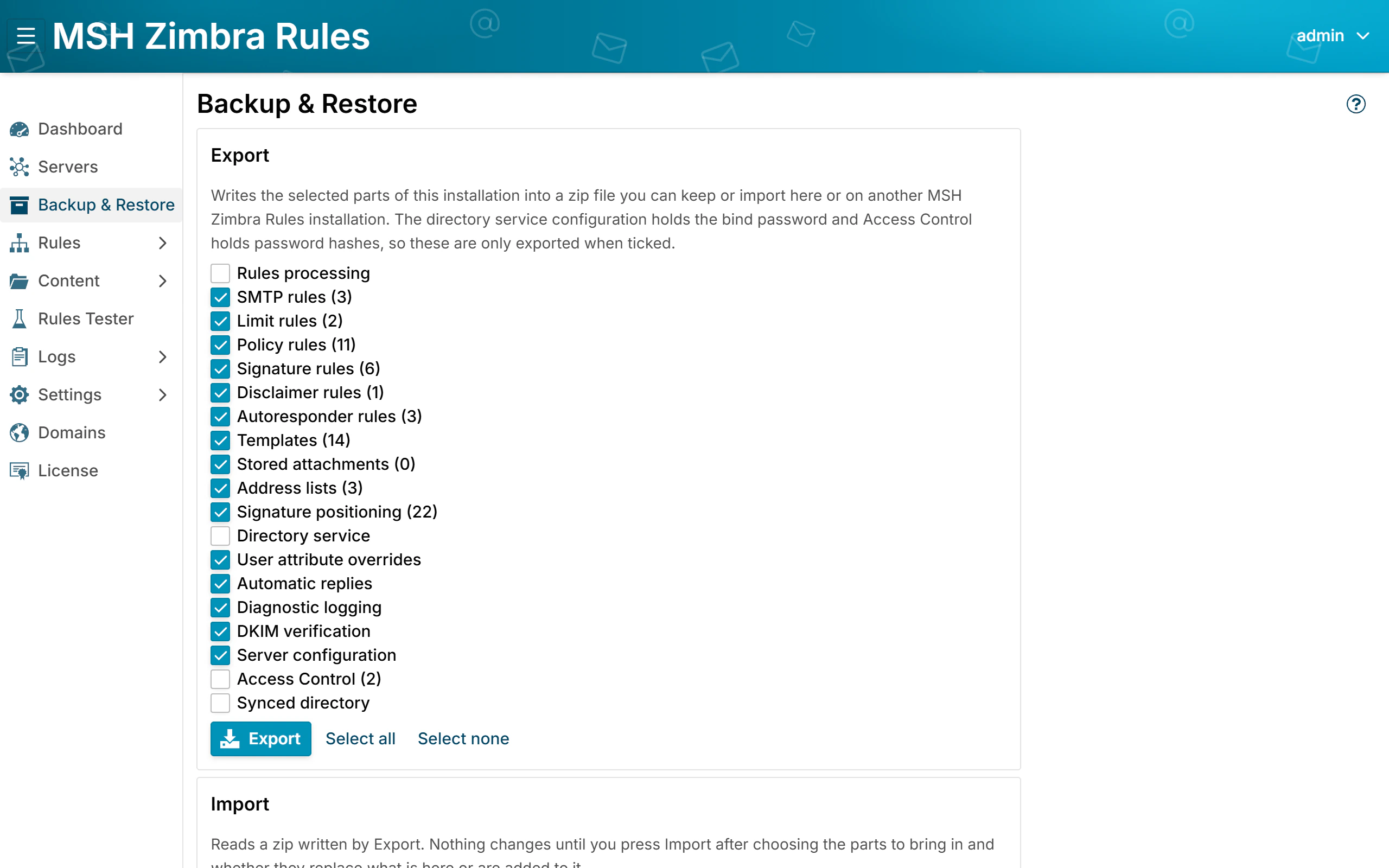
The backup has one section per part of the configuration: the rules of each type, the templates, the stored attachments, the address lists, the signature positions, the settings pages and the accounts of the administrator panel. The full list says what each one holds.
Some sections are unticked by default, for a reason:
- Rules processing - the switches of Rules processing. Switches saved while processing was off would stop the rules of the server you import into.
- Directory service - the LDAP connection. Each server usually has its own. The bind password is never in the backup: after an import into another server, enter it on the Directory service page before you sync.
- Access Control - the accounts of the administrator panel, with their password hashes. Keep a backup that holds them as safely as the passwords themselves.
- Synced directory - the users and groups of the last sync. The next sync brings them back anyway.
Not in the backup at all:
- the license: each installation has its own License Id, see License,
- Message History and SMTP Events, which are logs, not configuration,
- the counters of Message Limits, which start from zero on the new server,
- the Zimbra side of the installation: the milter in Postfix and the zimlets. Install them on the new server as the installation guide describes.
Step 1 - Make the backup
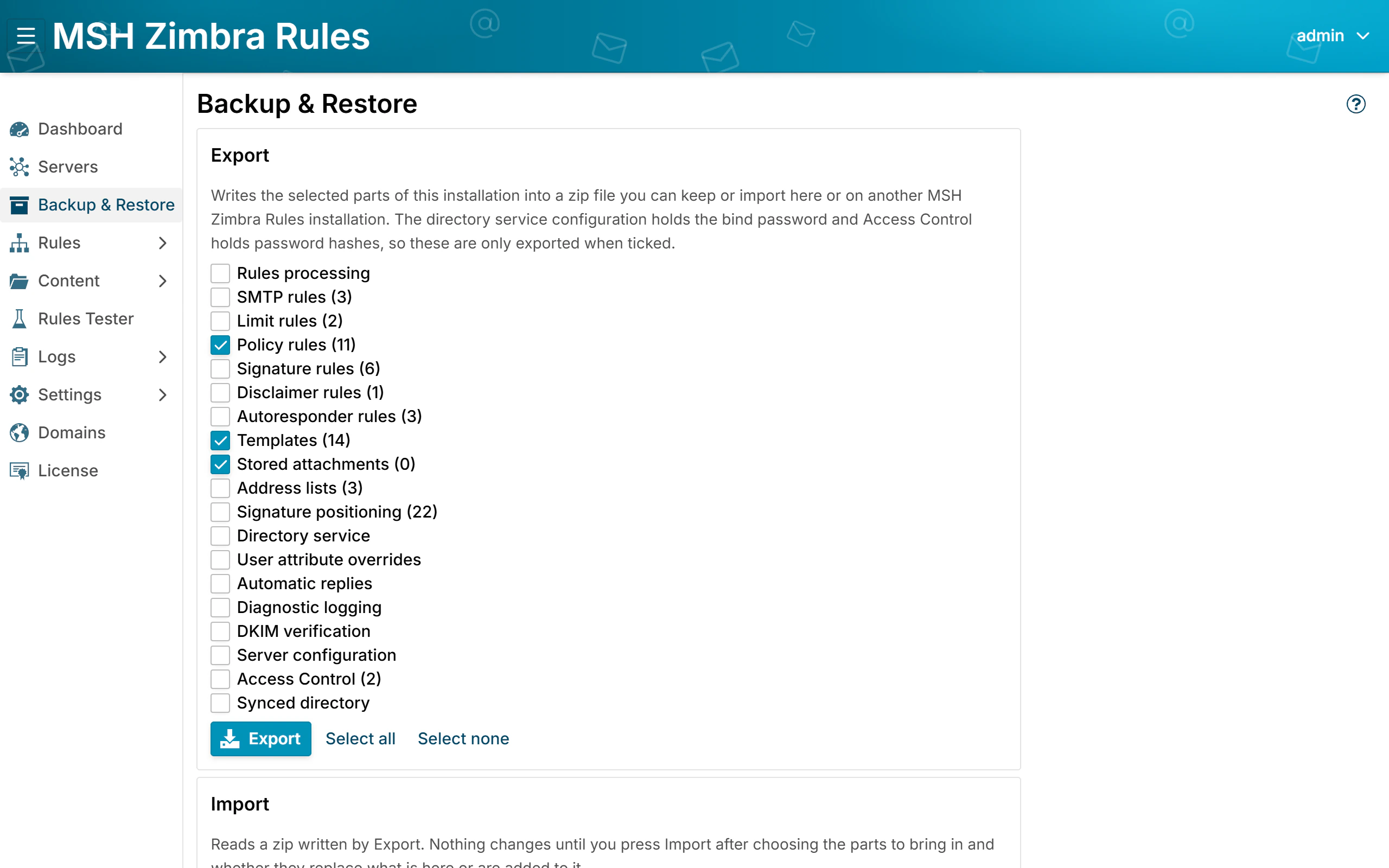
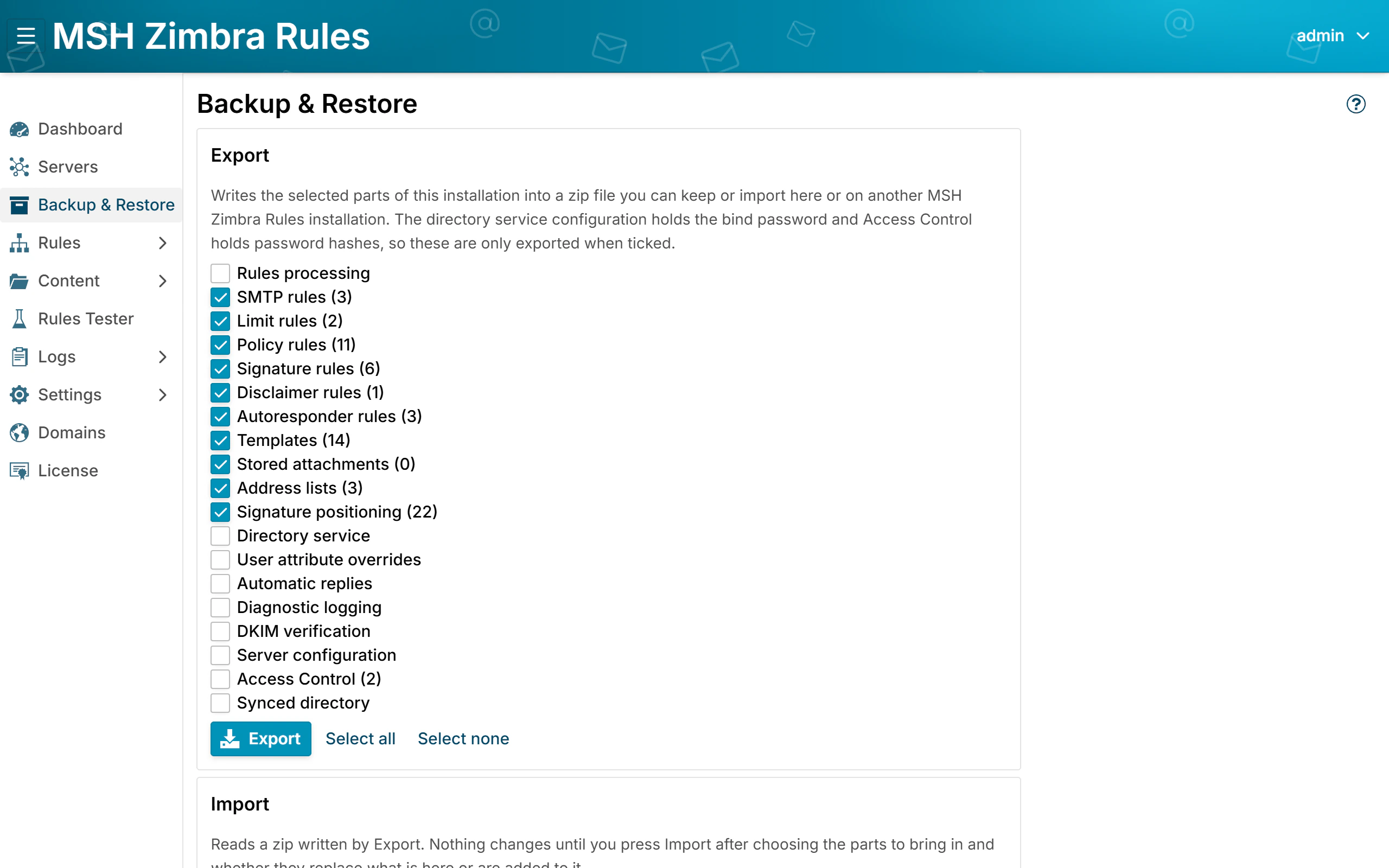
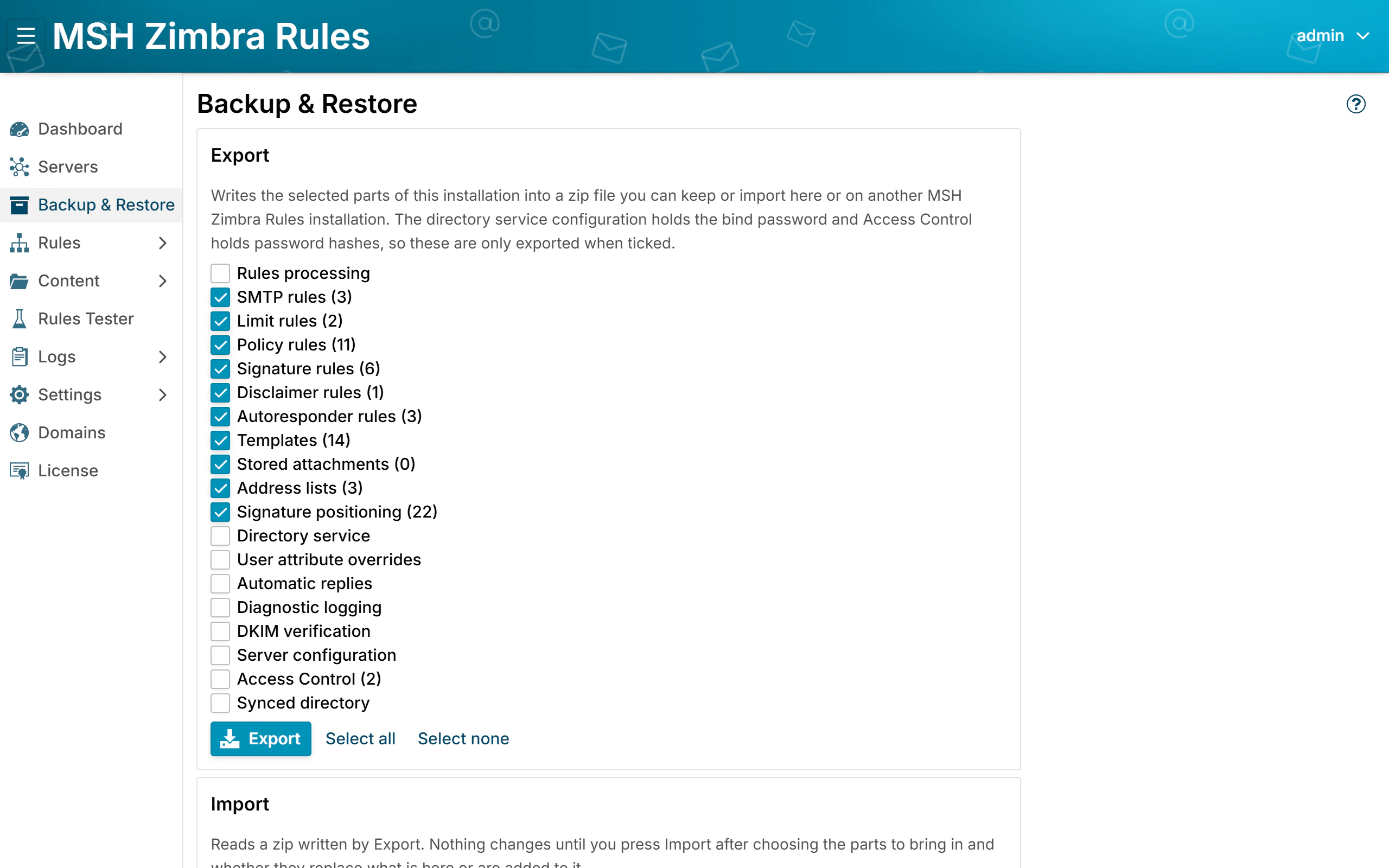
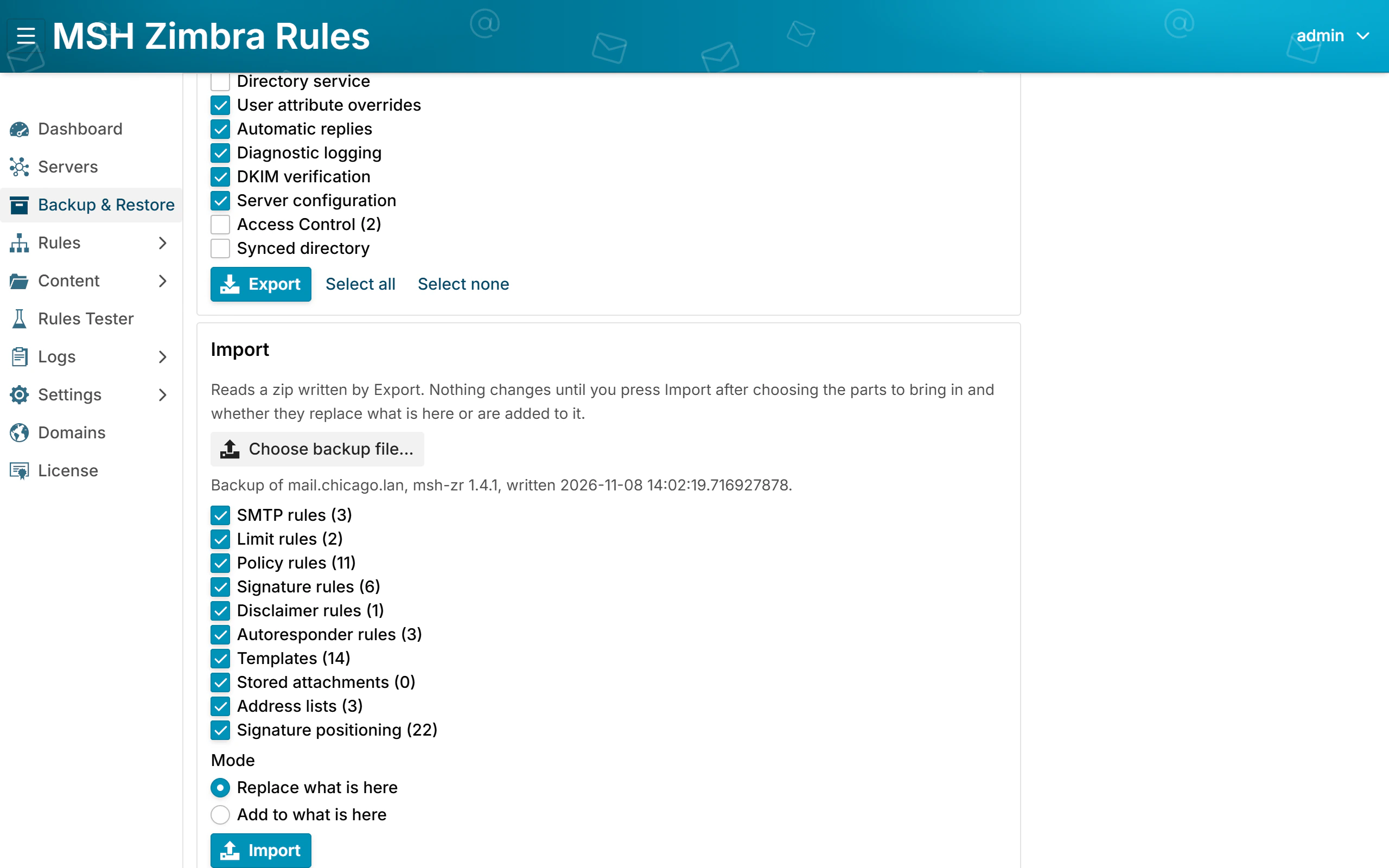
On the staging server, export only what you built there: the rules and the content they use. Leave out the settings of the server itself, and the data of its users:
- Server configuration, Diagnostic logging and DKIM verification belong to the server.
- User attribute overrides and Automatic replies hold what users set for themselves. Each is one set of data and is always replaced as a whole on import, also in Add to what is here mode, so the test users of staging would overwrite the real users of production.
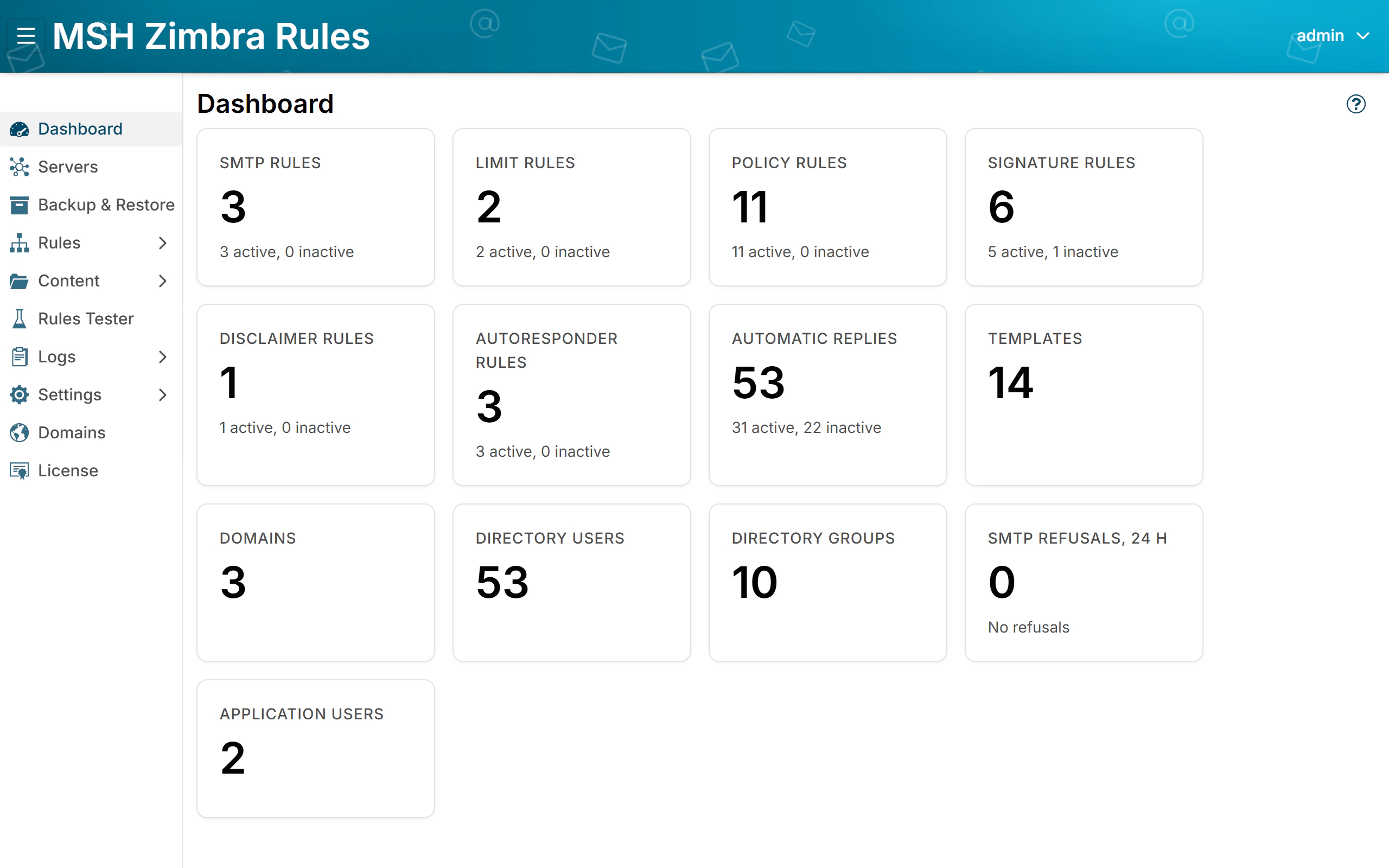
Step 2 - Restore it on the other server
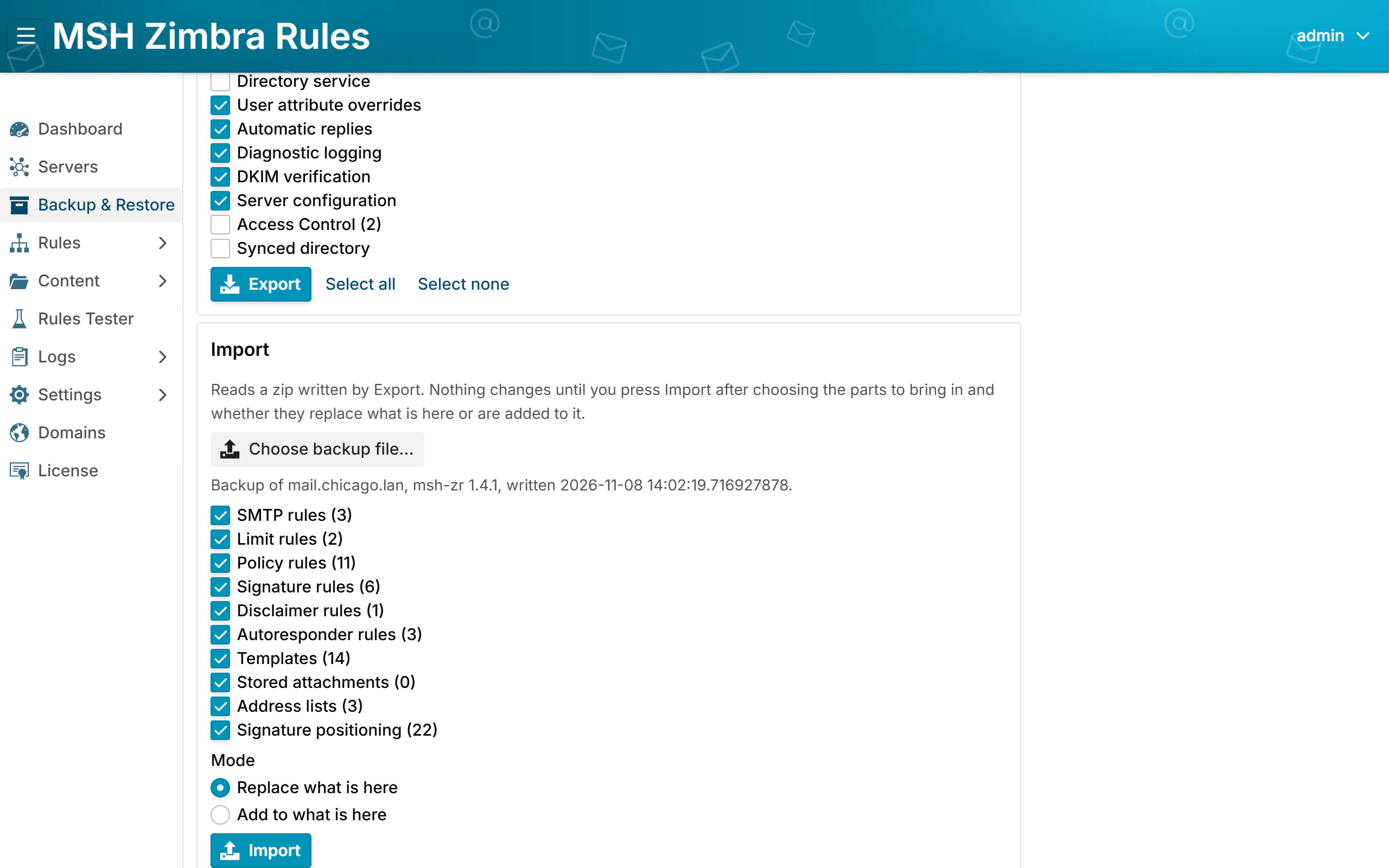
On the production server, open Backup & Restore and go to Import. The mode decides what happens to the rules already there:
- Add to what is here adds the rules of the backup after the existing ones. Production that already has an older copy of the same rules ends up with both.
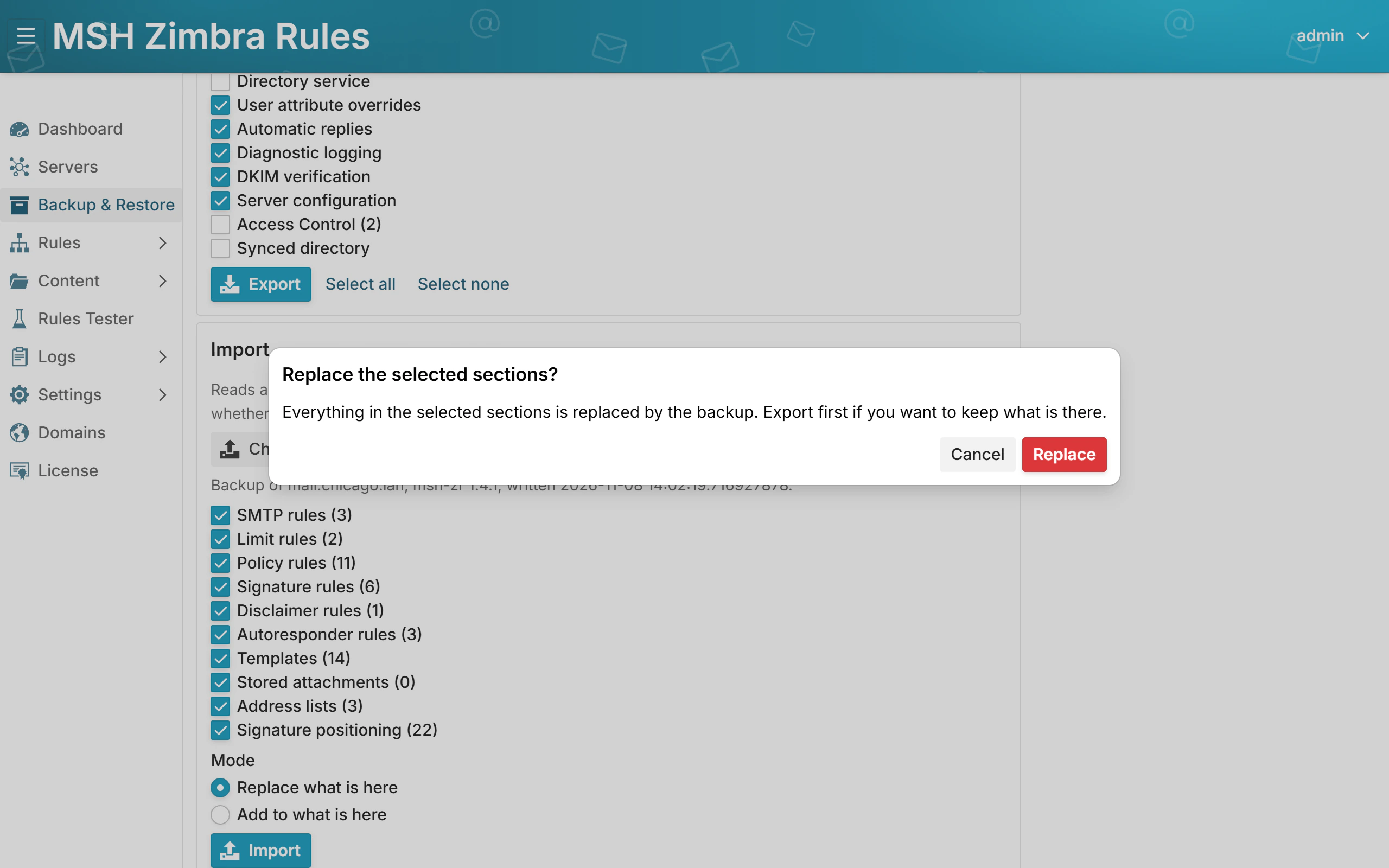
- Replace what is here empties the selected sections and fills them from the backup, so production has exactly the rules of staging. Sections you do not tick stay as they are.
To bring staging's rules to production, choose Replace what is here. Export the rules of production first, as in step 1, to have a way back.
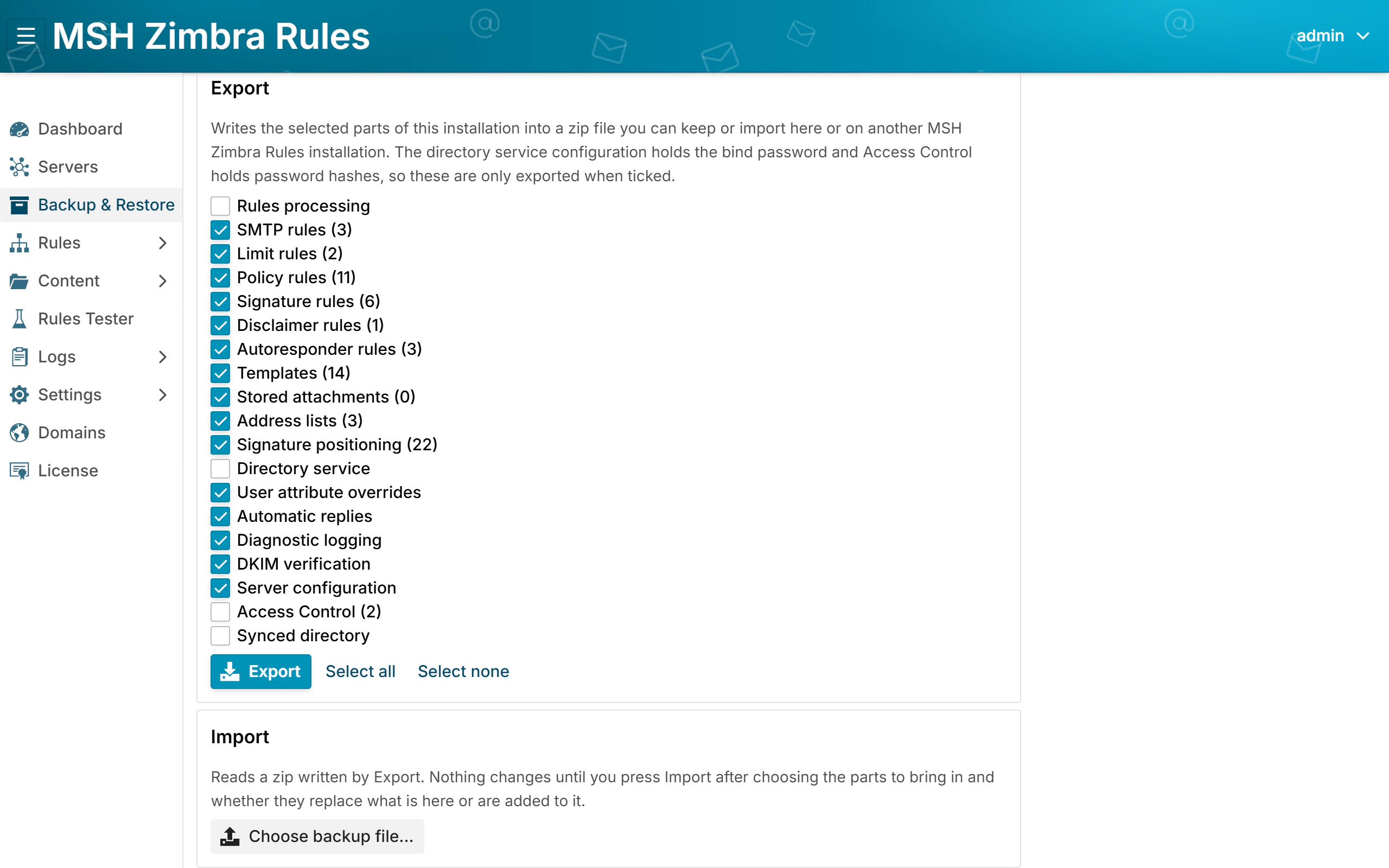
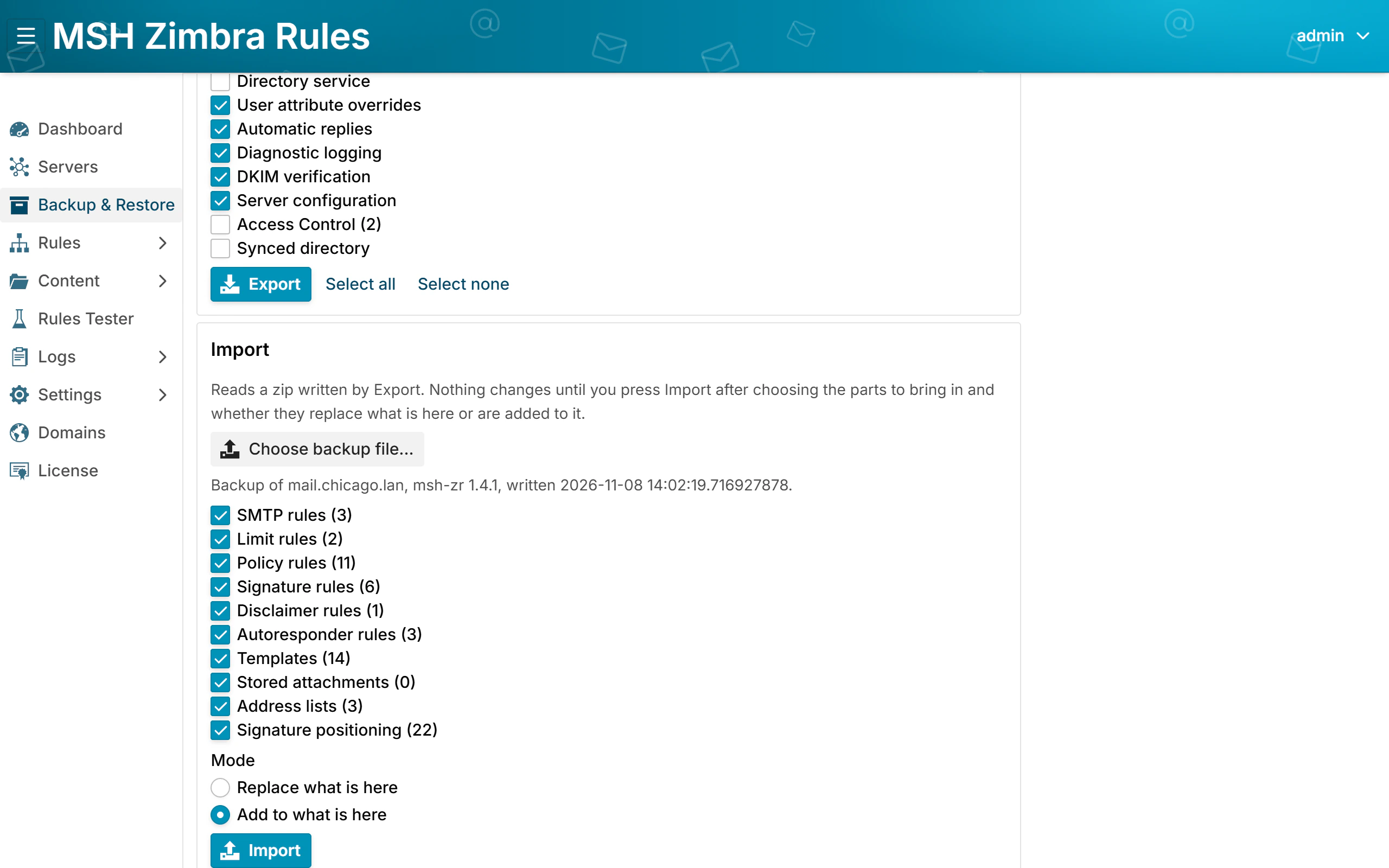
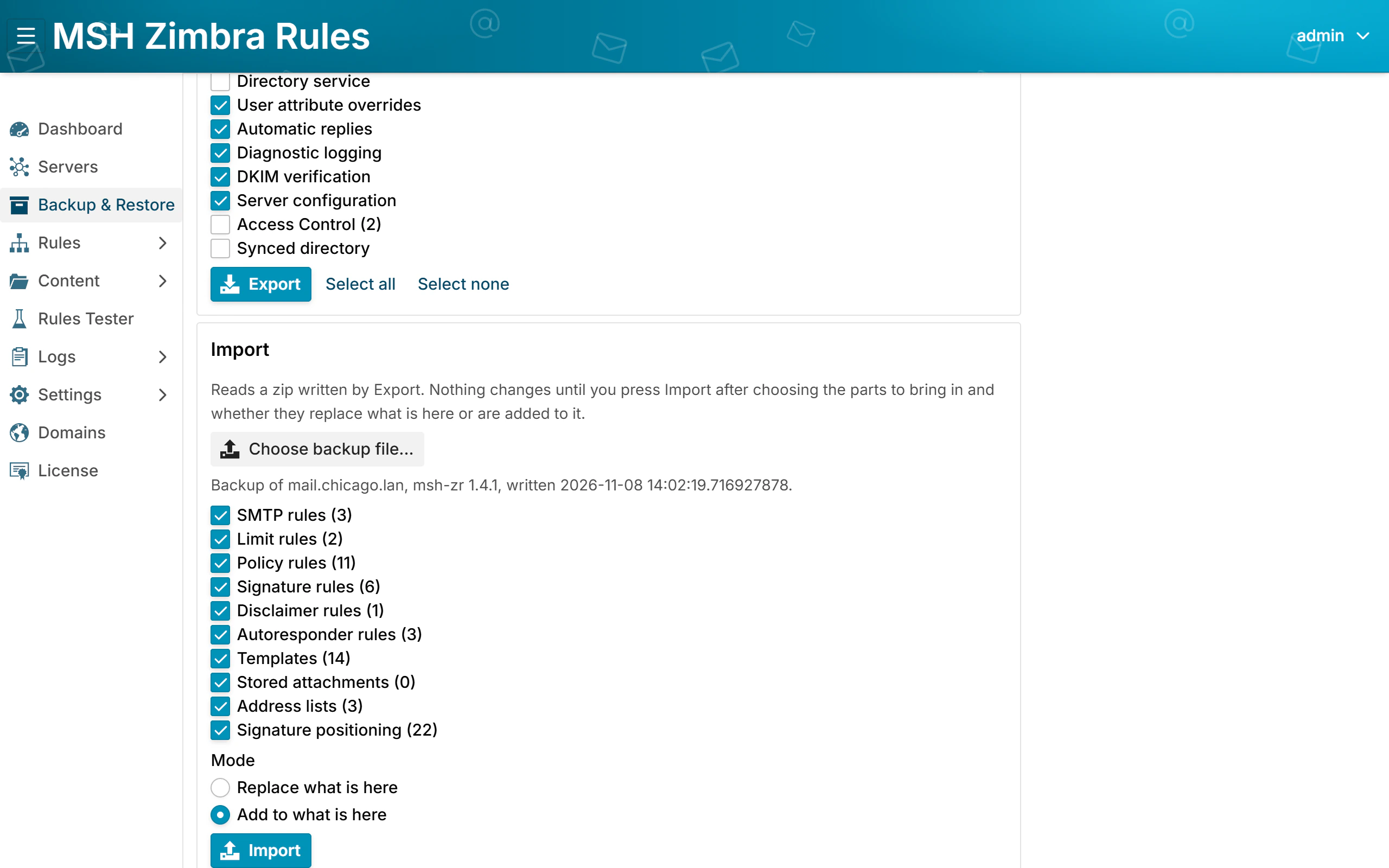
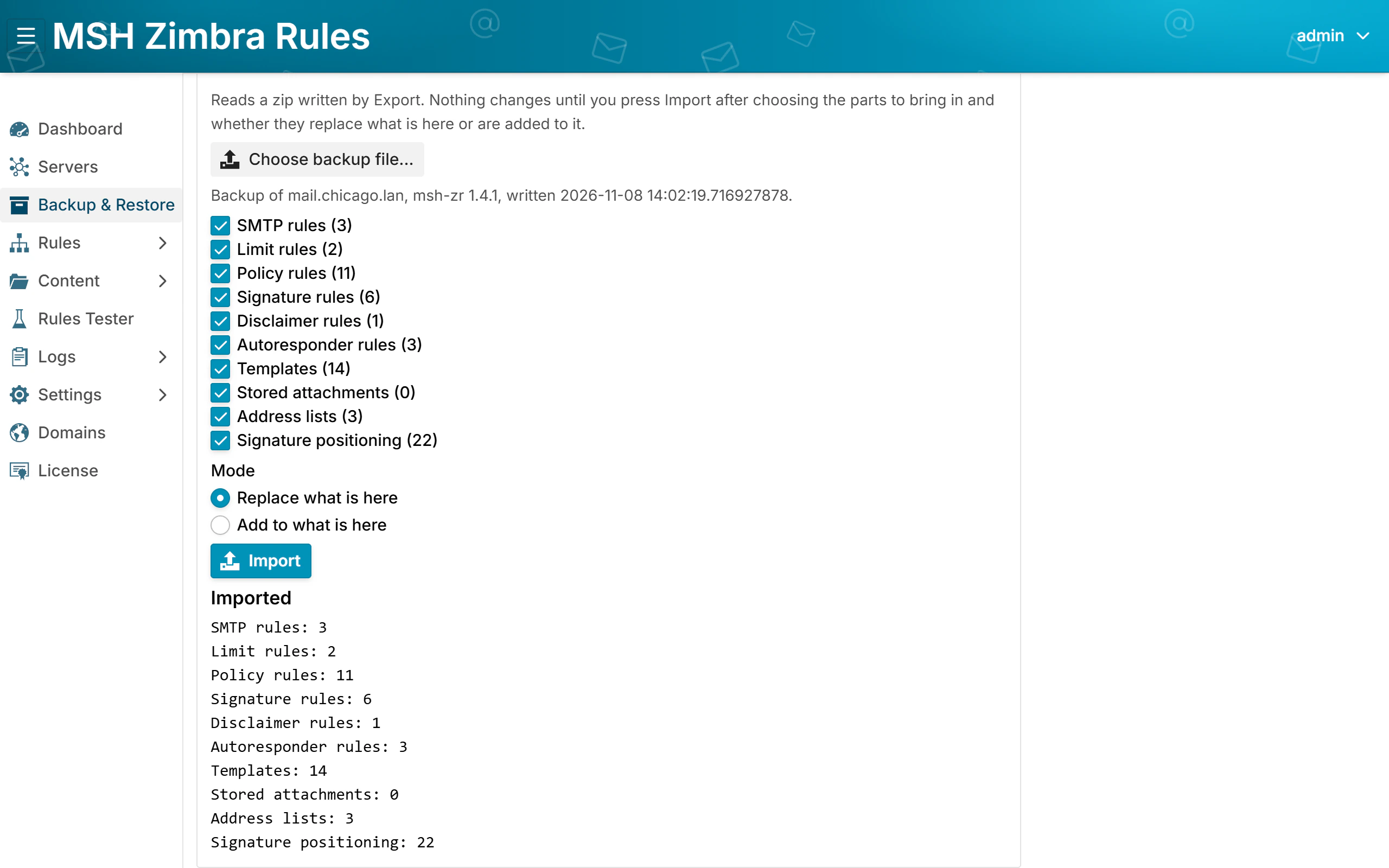
The import is one transaction: if it fails, nothing is changed. It is refused when the backup comes from a newer version of MSH Zimbra Rules, so update the older server first. The rules work on real mail as soon as the import finishes.
Step 3 - Check the result with the Rules Tester
Matching numbers mean every item arrived, not that the rules do the same thing on the
new server. A condition on a group or a domain depends on the directory of that server.
Run a message whose result you know through the
Rules Tester: here, mail from a customer must get the
[EXTERNAL] tag of the External mail group.
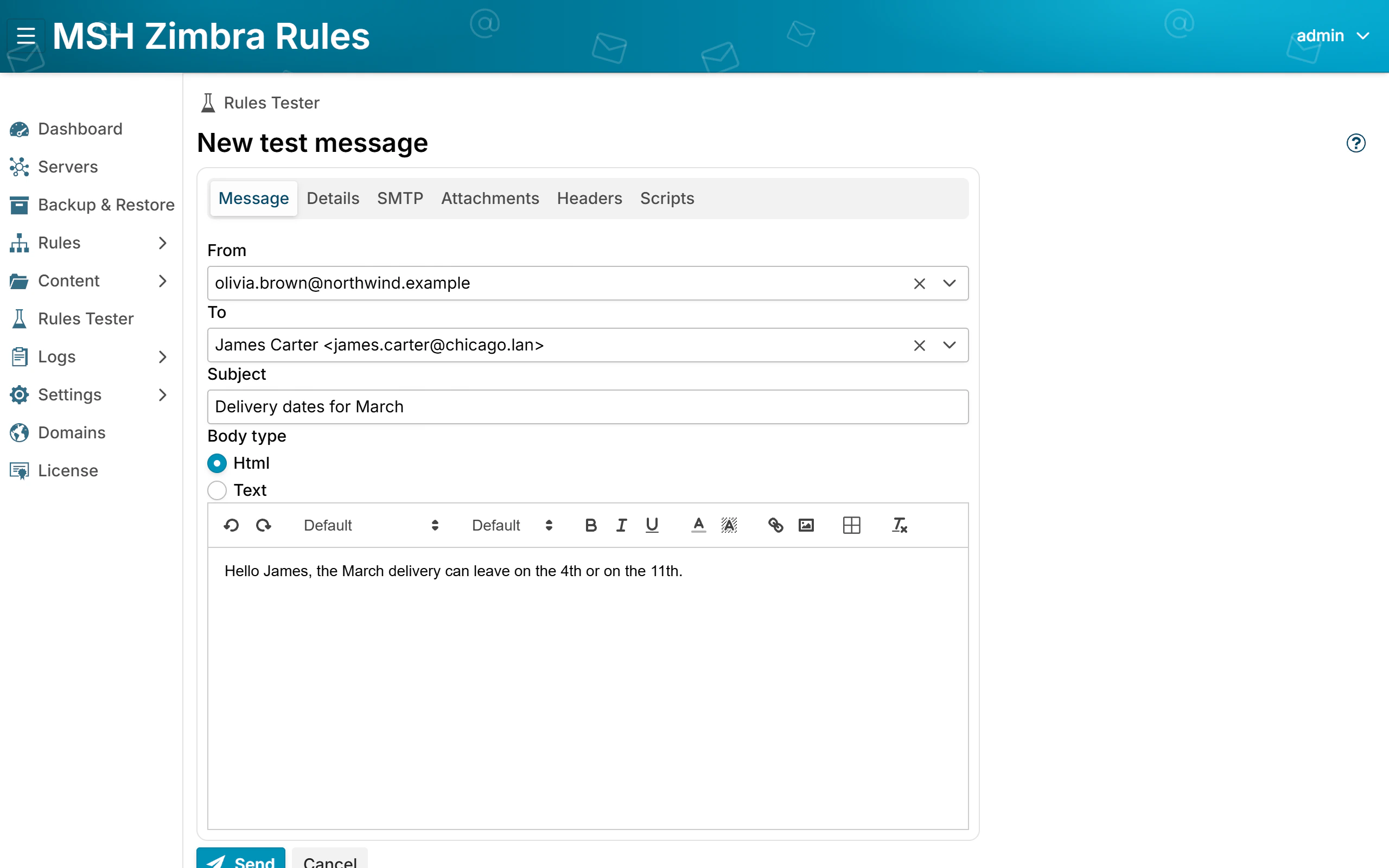
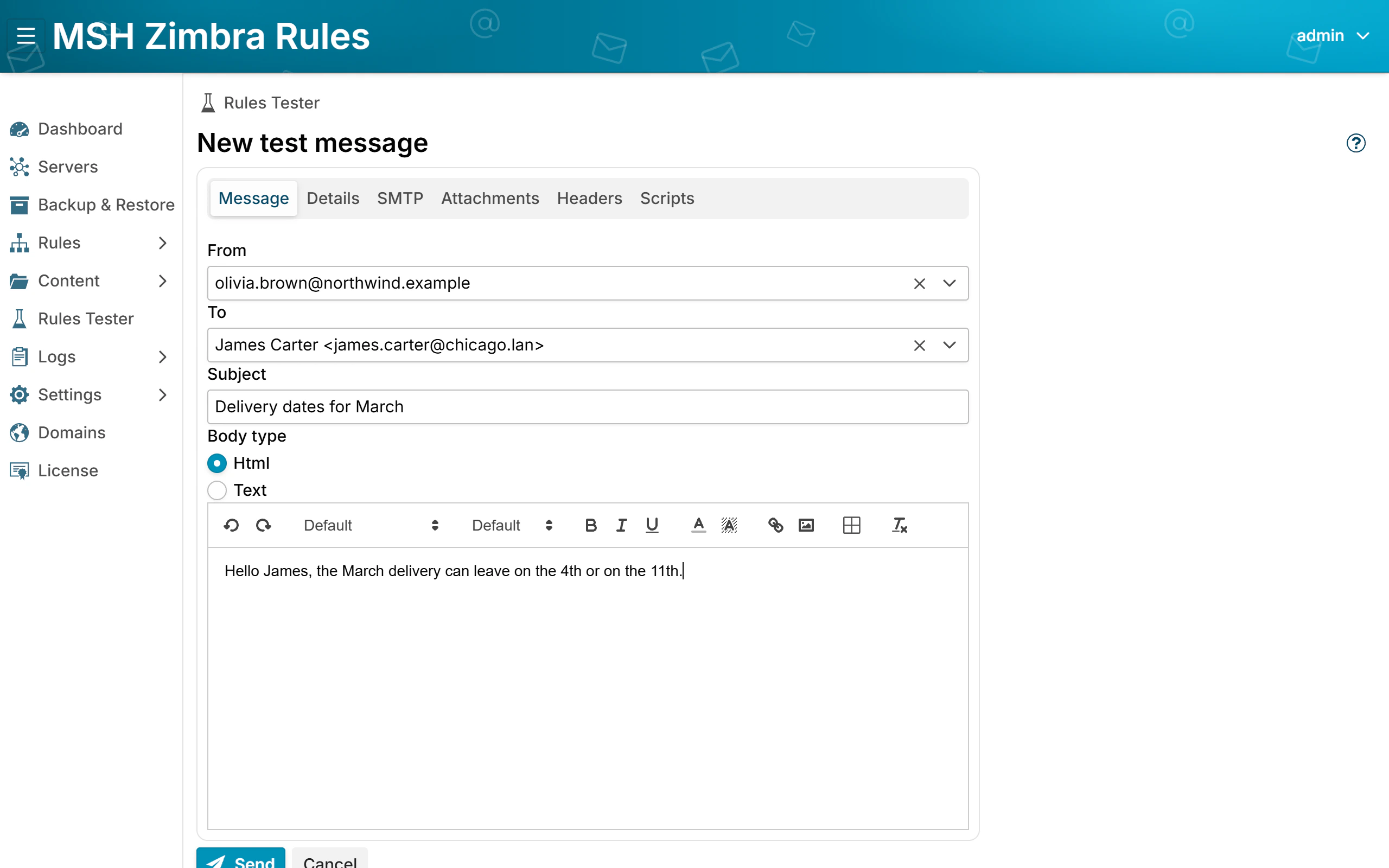
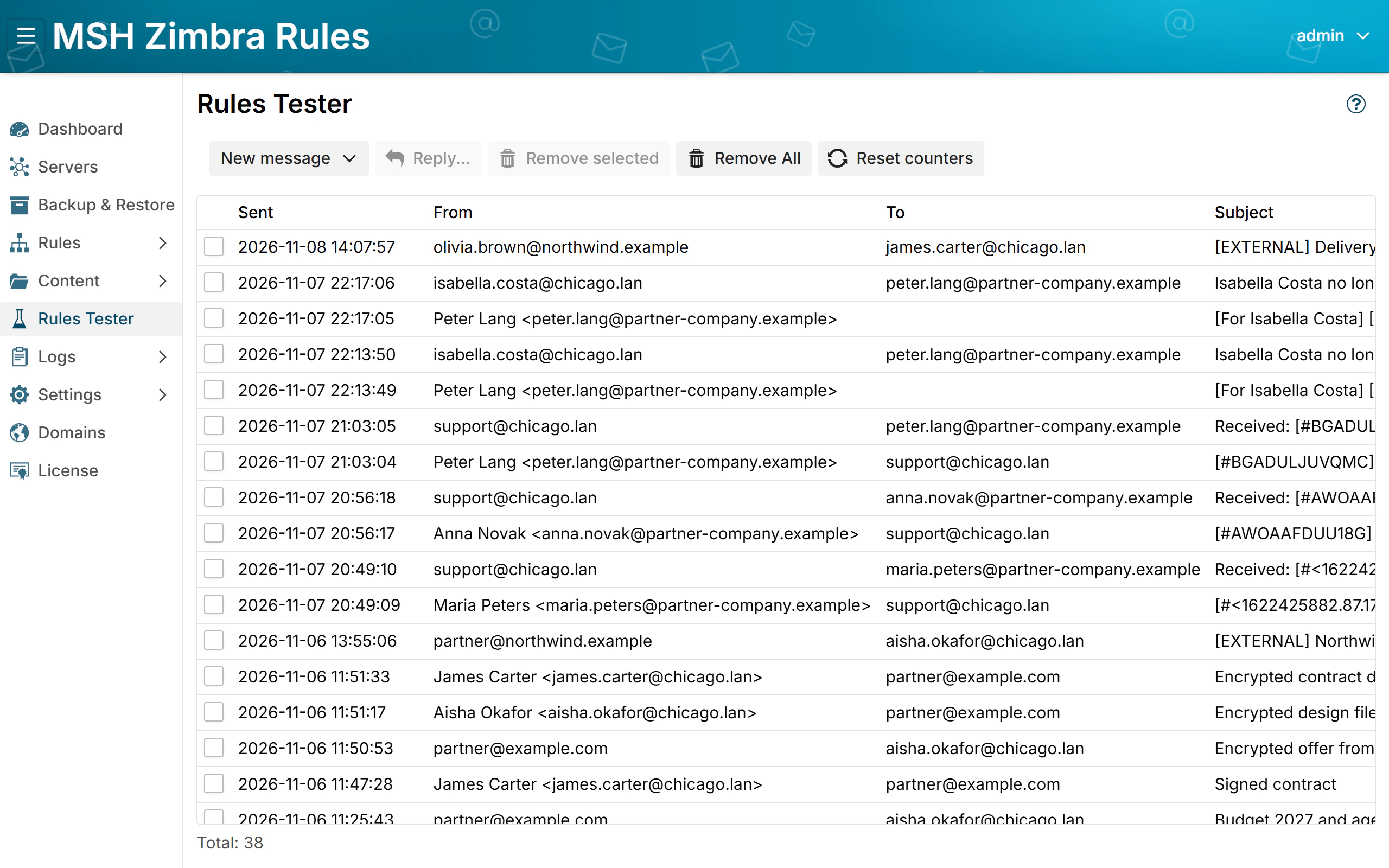
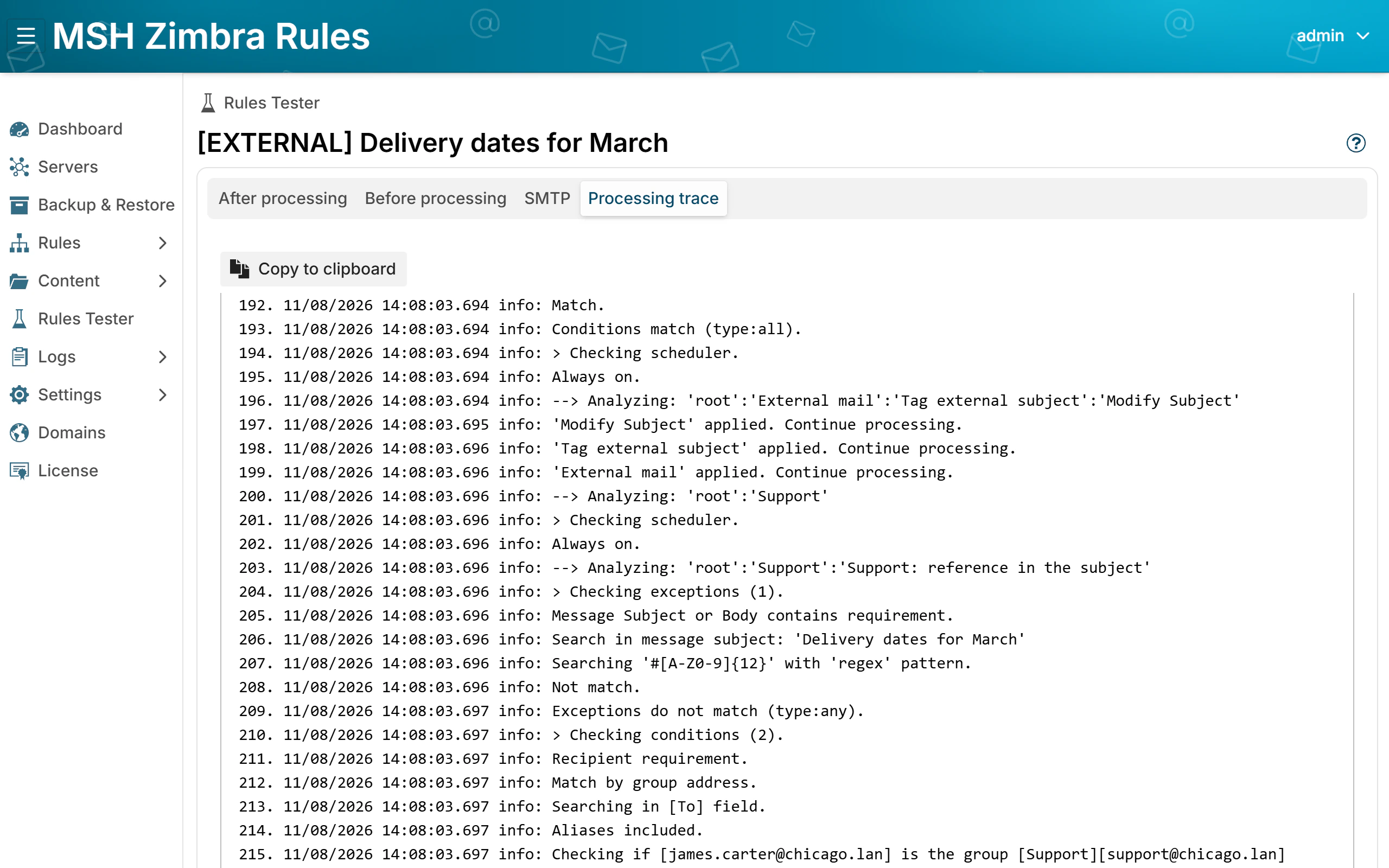
Test one message for each kind of rule you moved: a signature, a disclaimer, an automatic reply, a blocked attachment. Then remove the test messages with Remove selected. Test a rule in the Rules Tester before it goes live shows how to read the trace.
Moving to a new server
For a new server that takes over from the old one, export more than the rules:
- On the old server, click Select all. Tick Directory service and Access Control too if the new server is to use the same LDAP connection and the same administrator accounts. Tick Rules processing only if all rule types are switched on.
- On the new server, install MSH Zimbra Rules, then import the file with Replace what is here.
- On Directory service, enter the bind password and run a sync. Users and groups are matched against it, also in the rules you imported.
- Check the result in the Rules Tester, as in step 3, before the new server takes mail.
User attribute overrides and Automatic replies belong to users: values of accounts that are not in the directory of the new server are deleted by its next sync.
A backup before big changes
Before you rework a rule group or clean up the templates, export with the default selection and keep the file. If the change goes wrong, import the file with Replace what is here, ticking only the sections you changed. The rest of the server stays as it is.
Related reading
- Backup & Restore - every section, how Add mode handles items that already exist, and the checks before an import
- Rules tester - testing messages without sending them
- Directory service - the bind password and the sync after an import
- Test a rule in the Rules Tester before it goes live - reading the processing trace
Want to try it on your own server? Start a free trial.