Backup & Restore
The Backup & Restore page exports the configuration of the installation into a zip file and imports such a file back - into the same installation, for example after a reinstall, or into another MSH Zimbra Rules server. It is available to administrators only and is listed under Dashboard in the navigation.
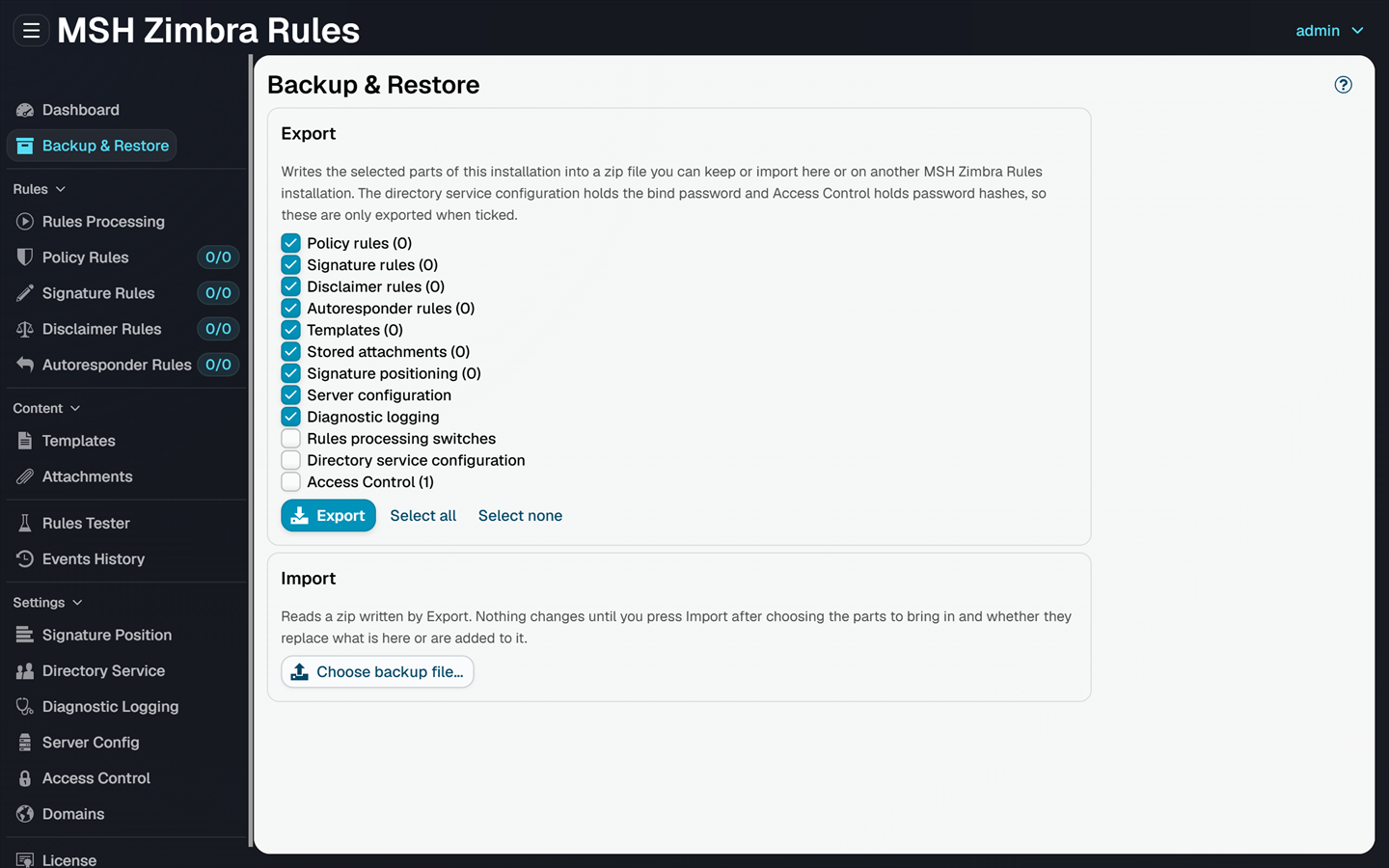
The page has two parts, Export and Import. Both let you choose which sections of the configuration to include.
Sections
| Section | What it holds |
|---|---|
| Policy rules | Policy rules with their groups, conditions, actions and schedules |
| Signature rules | Signature rules with their conditions and schedules |
| Disclaimer rules | Disclaimer rules with their conditions and schedules |
| Autoresponder rules | Autoresponder rules with their conditions, schedules and headers |
| Templates | Templates |
| Stored attachments | Attachments, including their files |
| Signature positioning | The patterns from Signature position |
| Server configuration | The settings from Server config |
| Diagnostic logging | The settings from Diagnostic logging |
| Rules processing switches | The switches from Rules processing |
| Directory service configuration | The settings from Directory service, including the bind password |
| Access Control | The administrator panel accounts from Access control, including their password hashes |
The number next to a section is how many items it holds. Users, groups and domains synced from the directory are not part of a backup - run a sync from the Directory service page after importing the directory service configuration.
Directory service configuration and Access Control carry credentials, so they are unticked by default on both export and import. Tick them only when you need them, and keep a backup that contains them as safely as you would keep the passwords themselves.
Rules processing switches are unticked by default too: importing switches saved while processing was off would stop the rules of the installation you import into.
Export
- Tick the sections you want to include. Select all and Select none tick or untick every section at once.
- Click Export. The browser downloads a file named
msh-zr-<host>-<yyyyMMdd-HHmm>.zip.
Policy and autoresponder rules can use templates and stored attachments, and signature and disclaimer rules can use templates. Ticking a rules section ticks the sections it depends on as well. If you untick them again, the page warns that the rules can only be imported where those templates and attachments are already present.
Import
- Click Choose backup file... and select a zip written by Export. The page shows which server and msh-zr version wrote the backup, and when.
- Tick the sections to import. Only the sections contained in the backup are listed.
- Choose the Mode:
- Add to what is here (default) - the existing configuration stays and the backup is added to it.
- Replace what is here - the selected sections are emptied and filled from the backup. You are asked to confirm first; export the current configuration beforehand if you want to keep it.
- Click Import.
Nothing changes until you click Import. The database changes are made in a single transaction, so an import that fails leaves the configuration as it was. When the import finishes, the page lists how many items were imported per section, followed by notes about anything that was handled differently from a plain copy.
How Add mode handles existing items
- Rules are added after the existing rules of the same type under new ids.
- Templates and stored attachments that are already present with the same content are not imported again; the imported rules use the existing ones. One whose id is already used by different content is imported under a new id with
(imported)appended to its name, and the imported rules point at it. - Signature positioning patterns that already exist are skipped, the others are added.
- Server configuration, Diagnostic logging, Rules processing switches and Directory service configuration are single sets of settings, so they are always replaced.
- Access Control users whose user name already exists are skipped and keep their current password.
A stored attachment whose file is missing from the backup is imported without it; upload the file again on the Attachments page.
Checks before an import
The Import button stays disabled, and the page lists the reason, when:
- no section is selected,
- the backup comes from a newer database schema than this installation - update msh-zr first,
- Access Control is to be replaced by users that include no enabled administrator, which would leave nobody able to sign in as administrator,
- an imported rule would use a template or stored attachment that is neither in the selected sections nor already in this installation - tick the missing section, or untick the rules that need it.
A file that is not a zip, not an msh-zr backup, or written by a newer version of msh-zr is refused as soon as it is uploaded.
Additional resources
- Access control - manage administrator panel accounts
- How to reset credentials - if you are locked out of the administrator panel