Handle mail for people who have left the company in Zimbra
When someone leaves, customers and partners keep writing to the old address for weeks. With MSH Zimbra Rules, each of them gets a short reply with the new contact, the message itself goes to the colleague who took over, and both end on a date you set. Nobody has to log in to the old mailbox.
In this example Isabella Costa, an onboarding specialist, has left, and James Carter takes care of her customers.
What senders and the colleague get
Peter Lang, a customer, writes to isabella.costa@example.com. He gets this reply at
once:
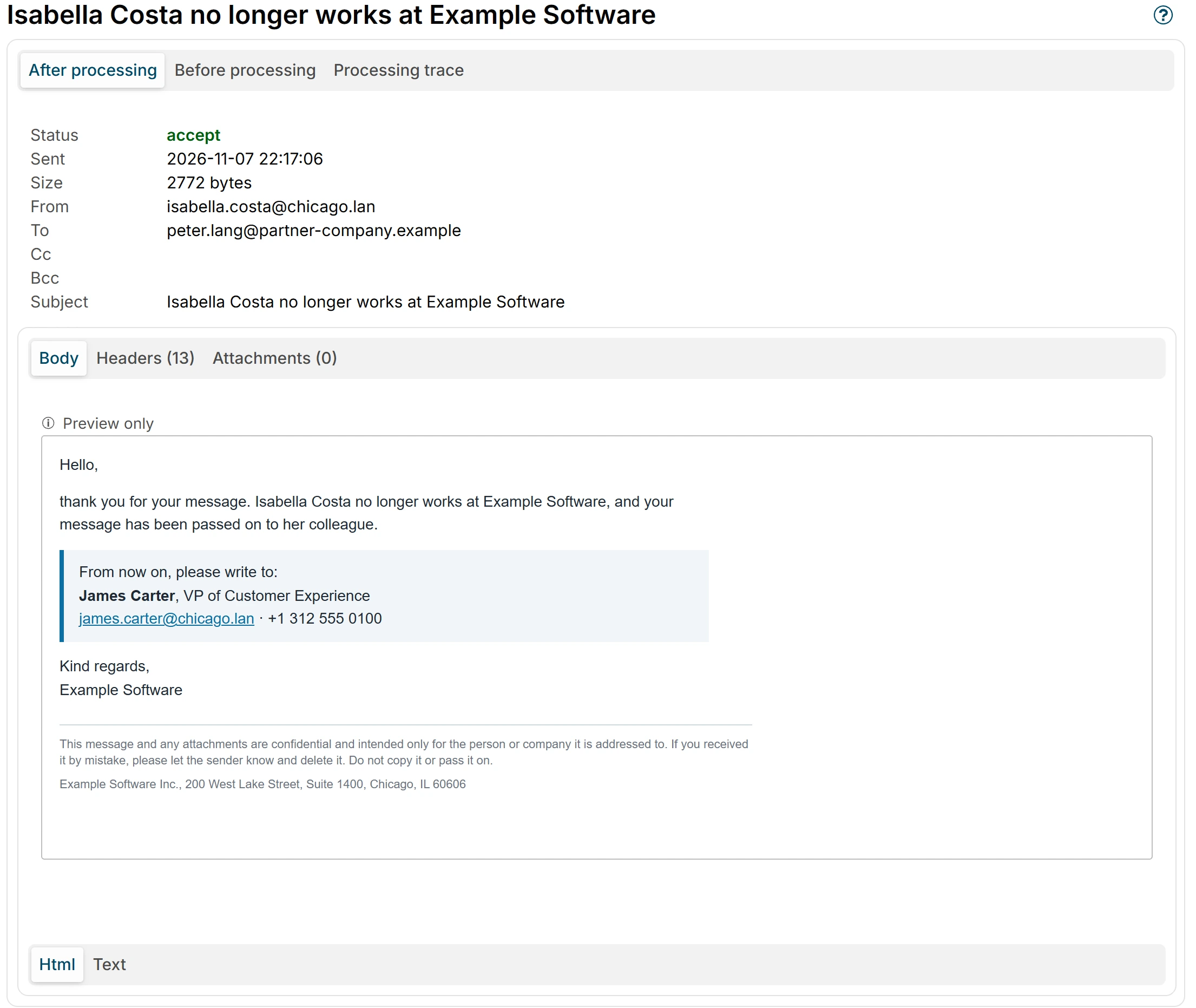
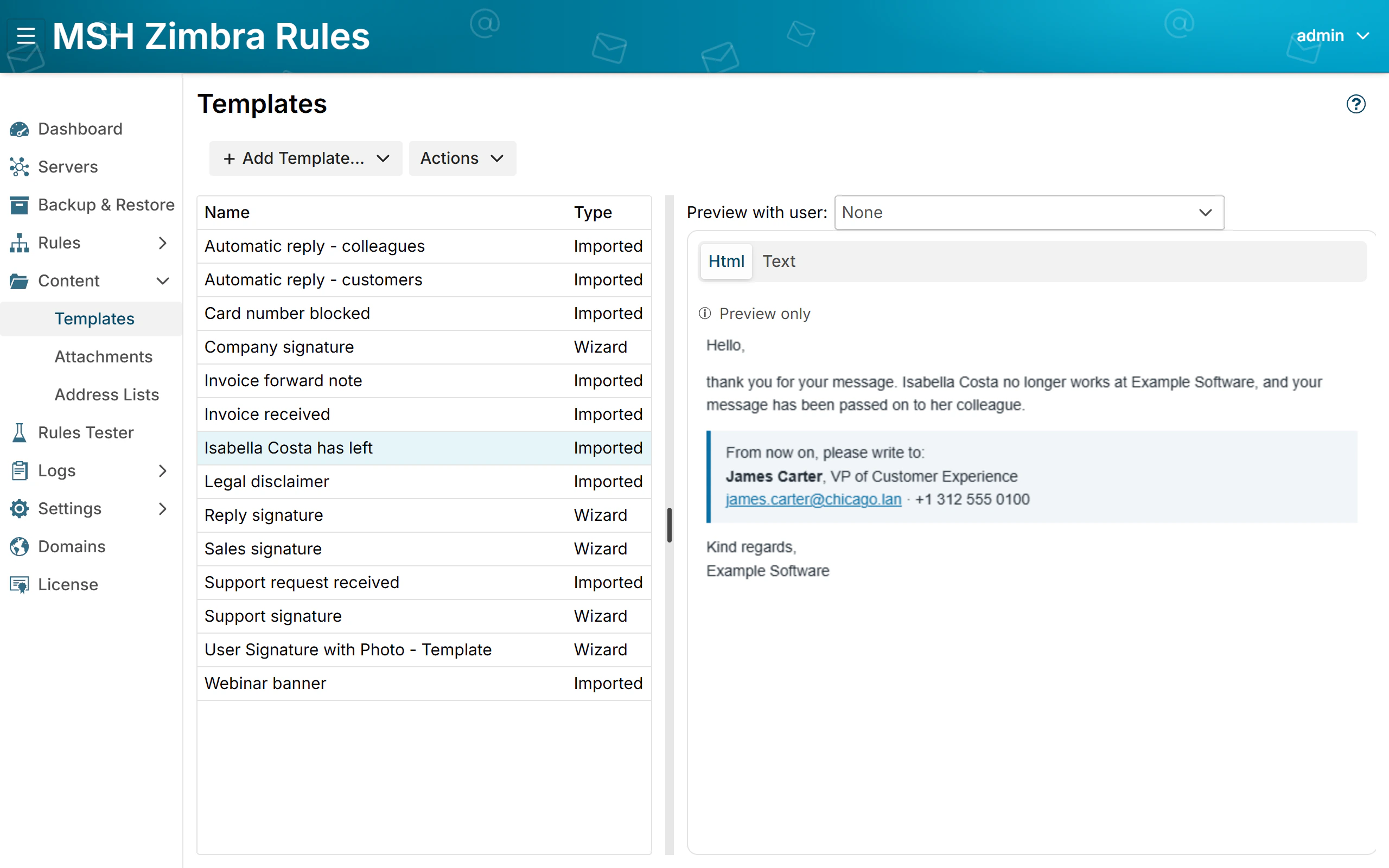
- The reply says that Isabella no longer works at the company, that the message has been passed on, and whom to write to from now on.
- It comes from Isabella's address, so a reply to it reaches James as well.
- It gets the company disclaimer, but not Isabella's personal signature.
James gets Peter's message, with a note in front of the subject:
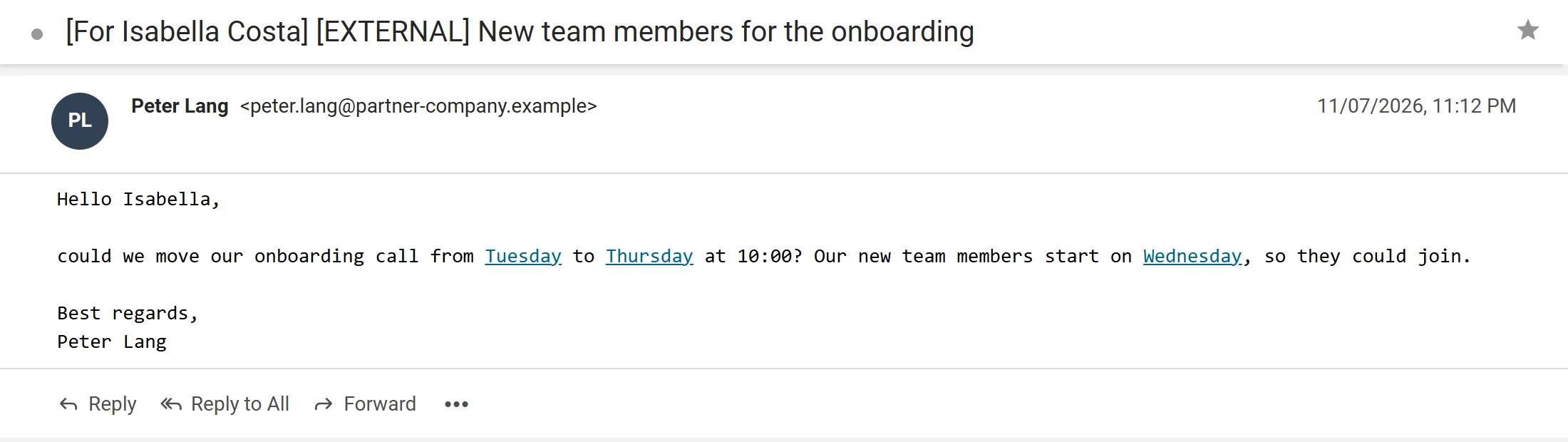
He can answer Peter directly: the message is the original one, from Peter's address.
Before you start: keep the account
The rules pick the person from the directory, and Zimbra bounces mail to an address that has no account, so keep the account. Lock it, so that nobody can log in while mail to it is still accepted:
sudo su - zimbra -c "zmprov ma isabella.costa@example.com zimbraAccountStatus locked"
Take the person off the distribution lists, too. A message to a list carries the list's address while the rules run, and is split into its members only afterwards, so the rules below do not see it and the copy goes to the old mailbox:
sudo su - zimbra -c "zmprov gam isabella.costa@example.com"
sudo su - zimbra -c "zmprov rdlm support@example.com isabella.costa@example.com"
gam lists the lists the account is on, rdlm removes it from one of them.
Step 1 - The reply template
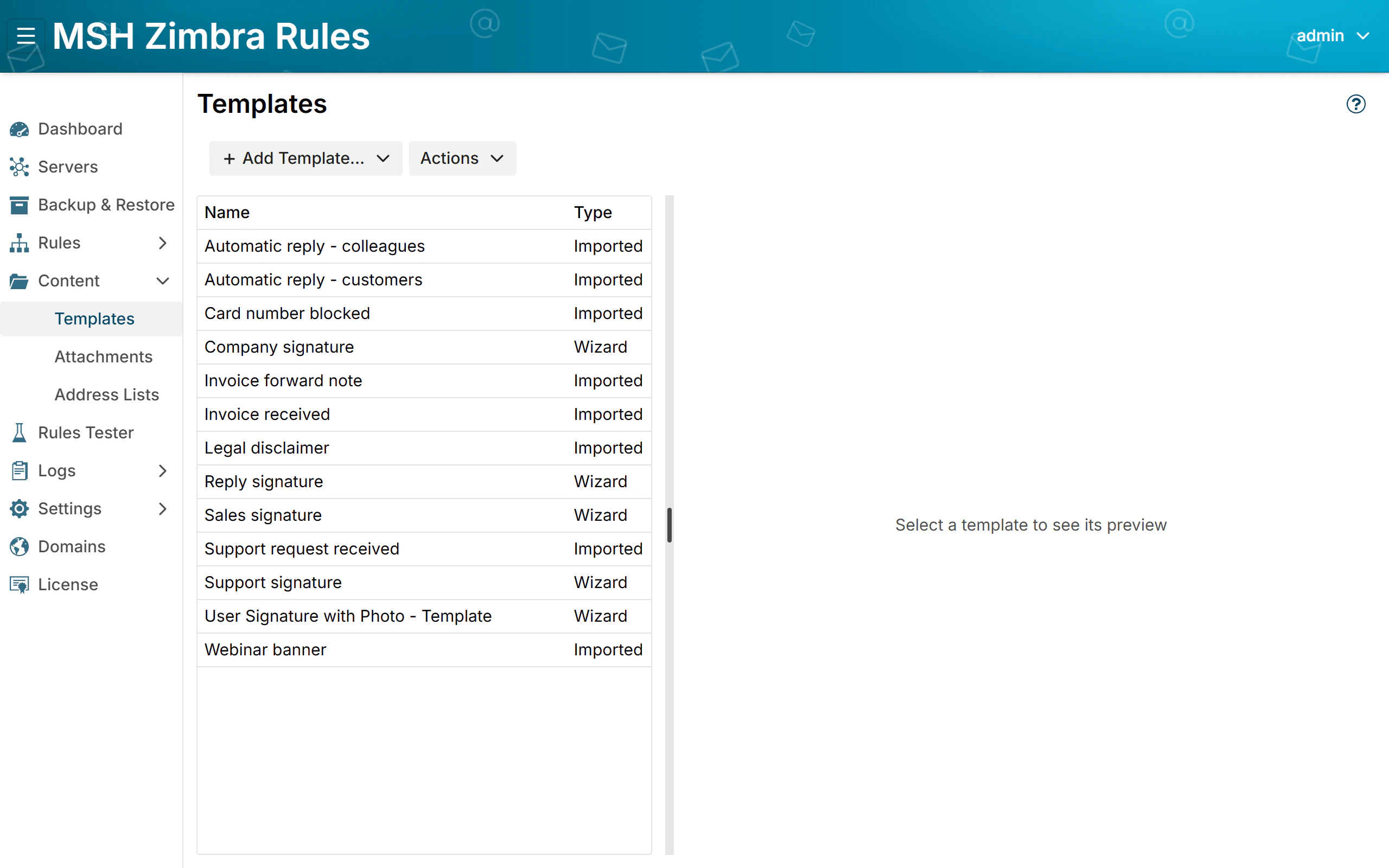
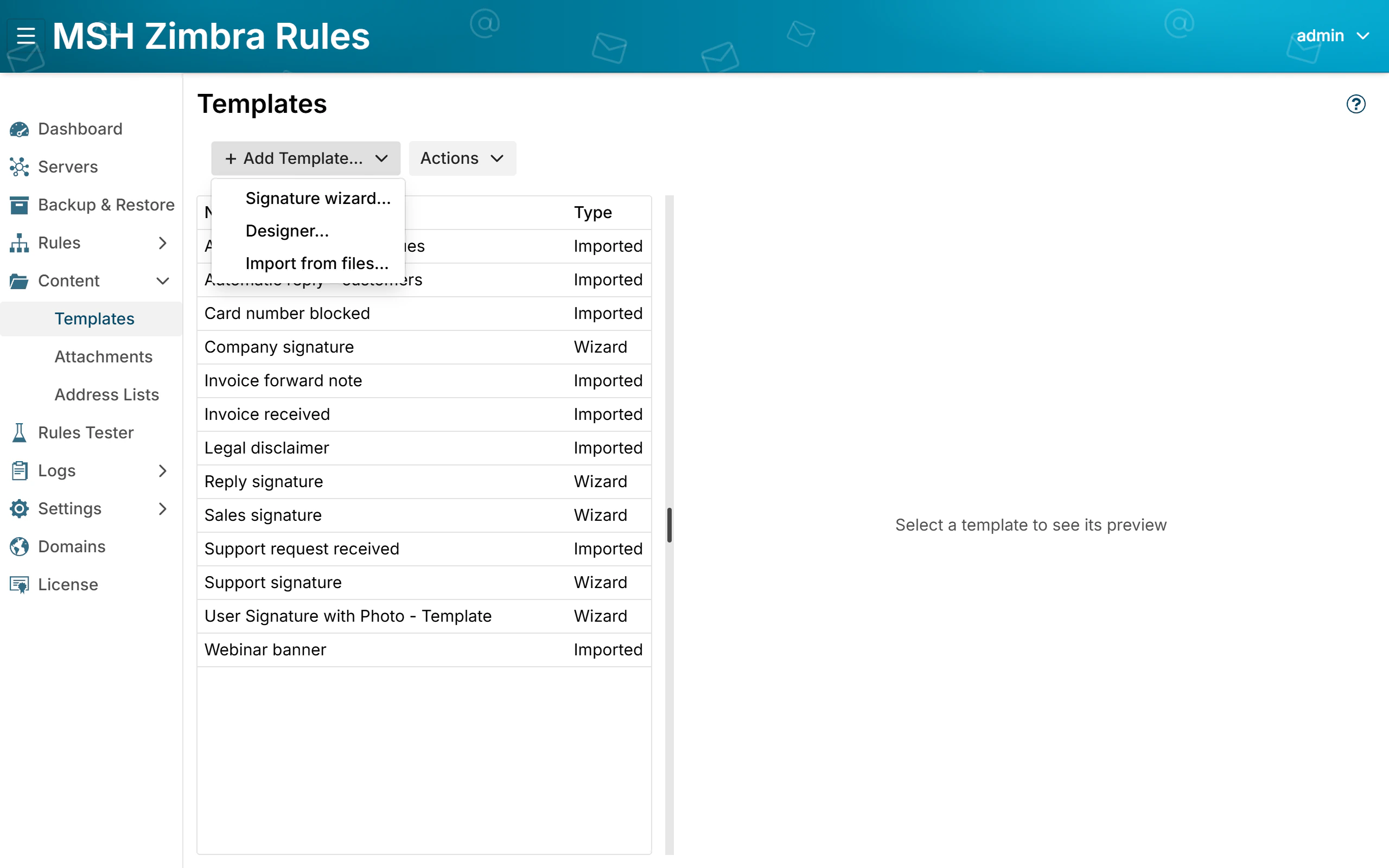
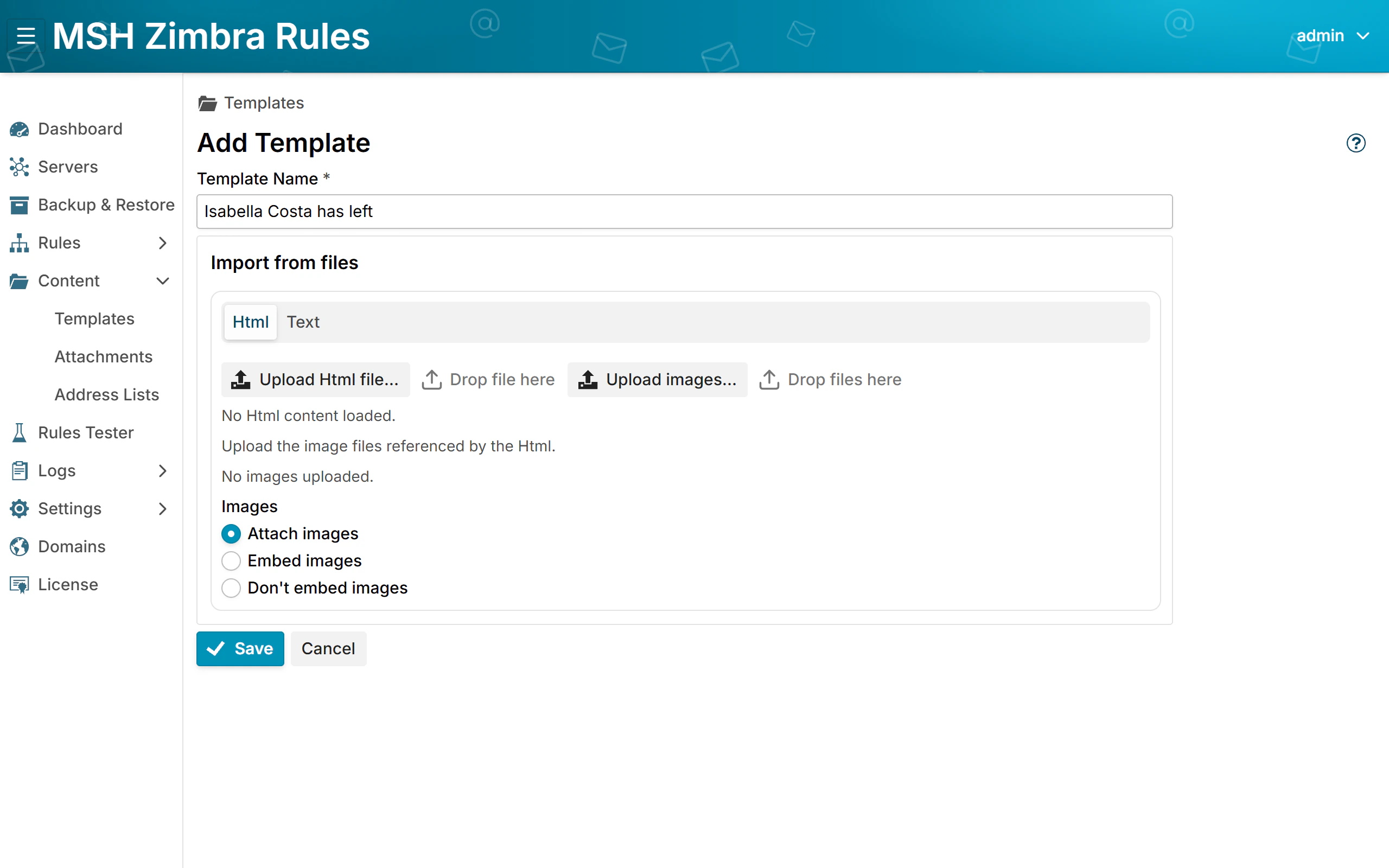
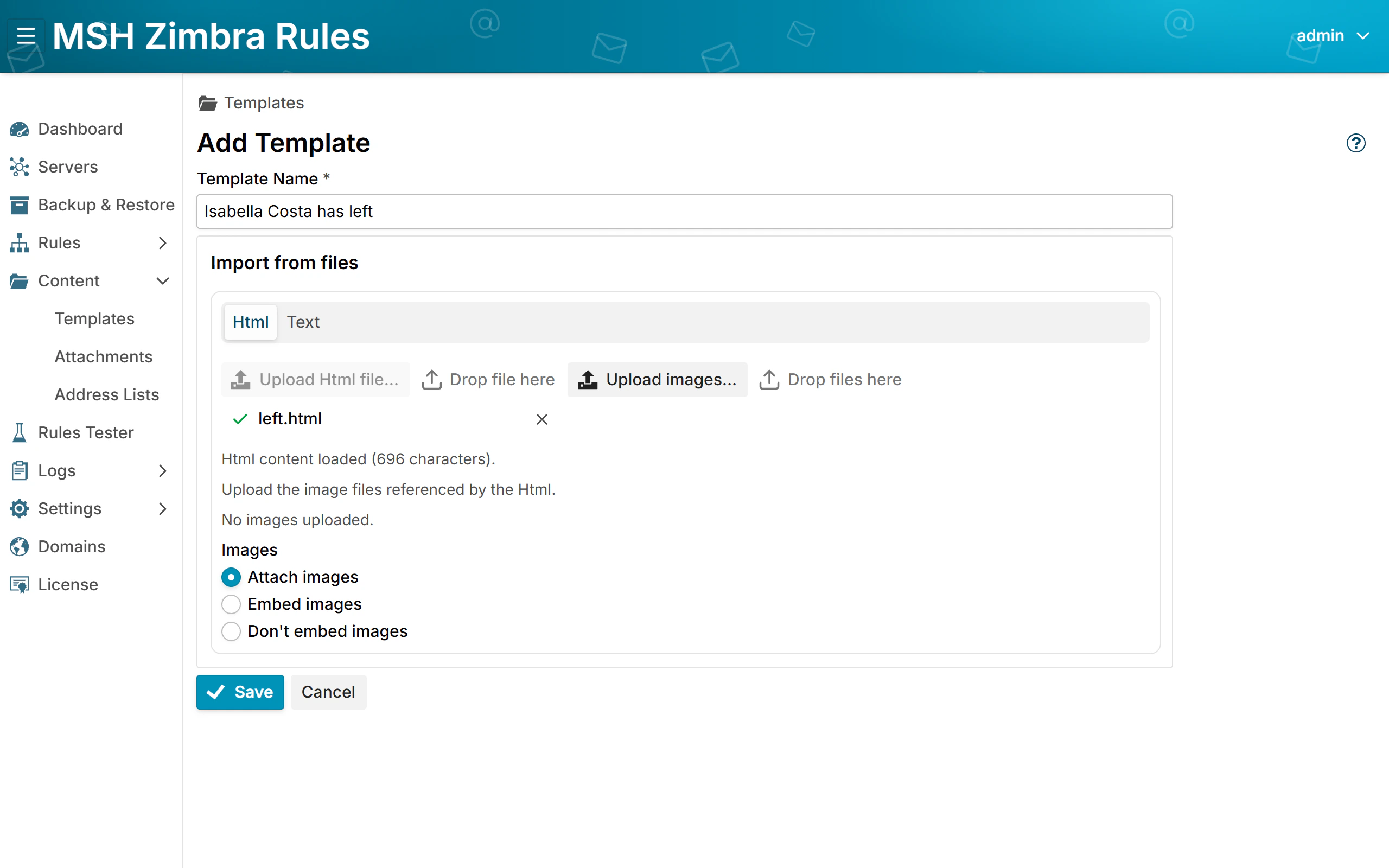
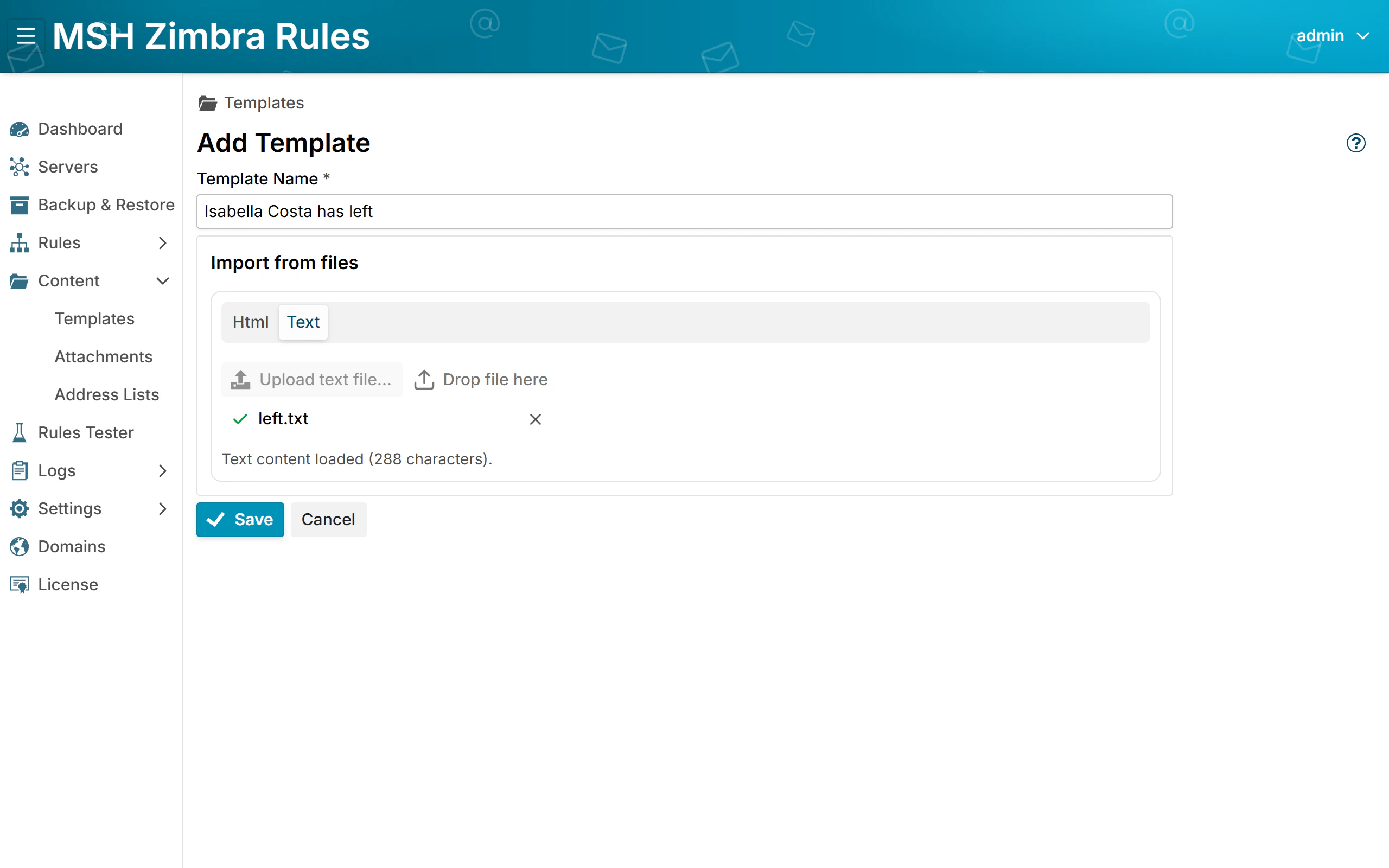
In Content > Templates, add a template, for example Isabella Costa has left,
with an Html and a text version:
Hello,

thank you for your message. Isabella Costa no longer works at Example Software, and your message has been passed on to her colleague.

From now on, please write to:
James Carter, VP of Customer Experience
james.carter@example.com - +1 312 555 0100

Kind regards,
Example Software
Step 2 - Pass the mail on to the colleague
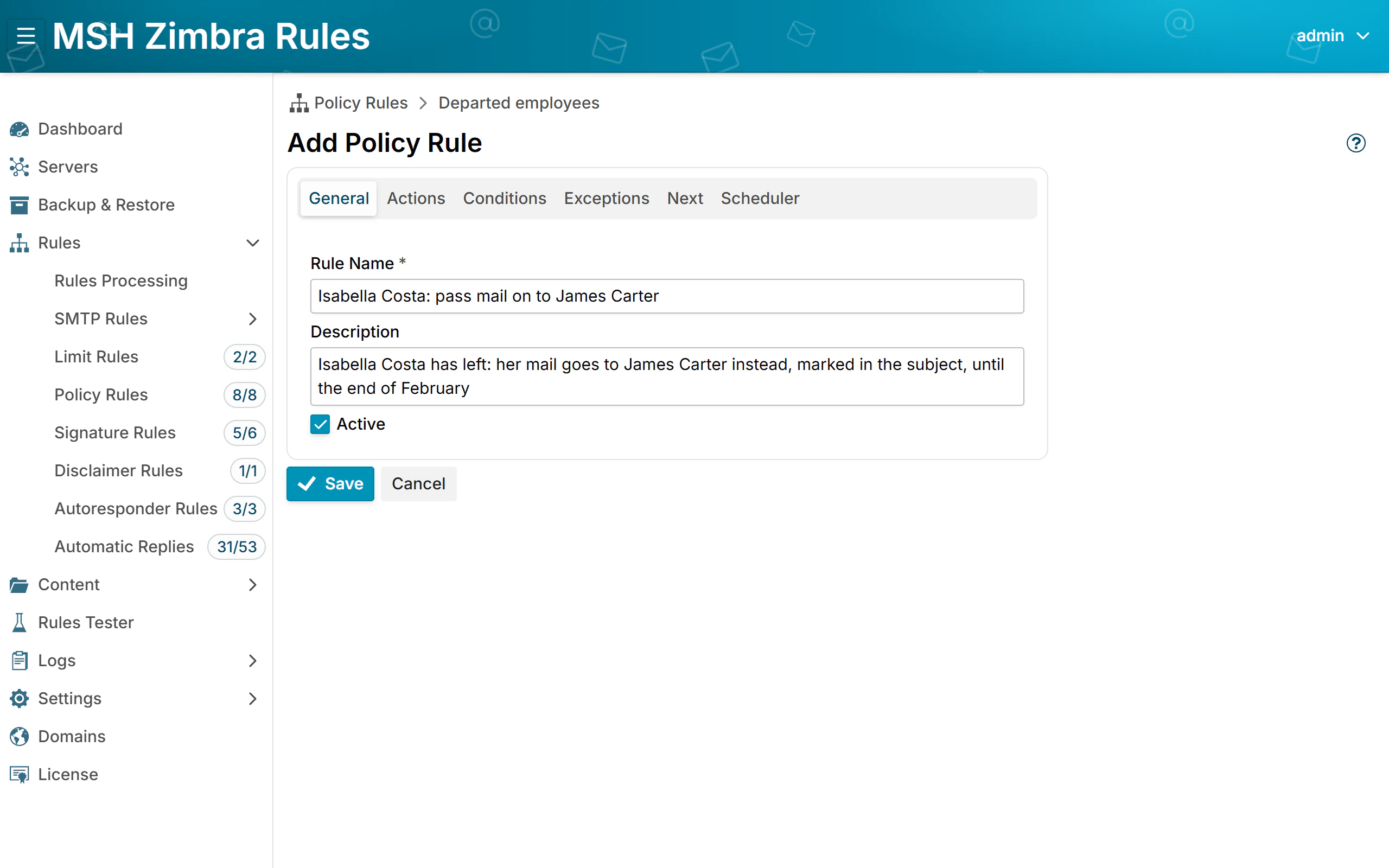
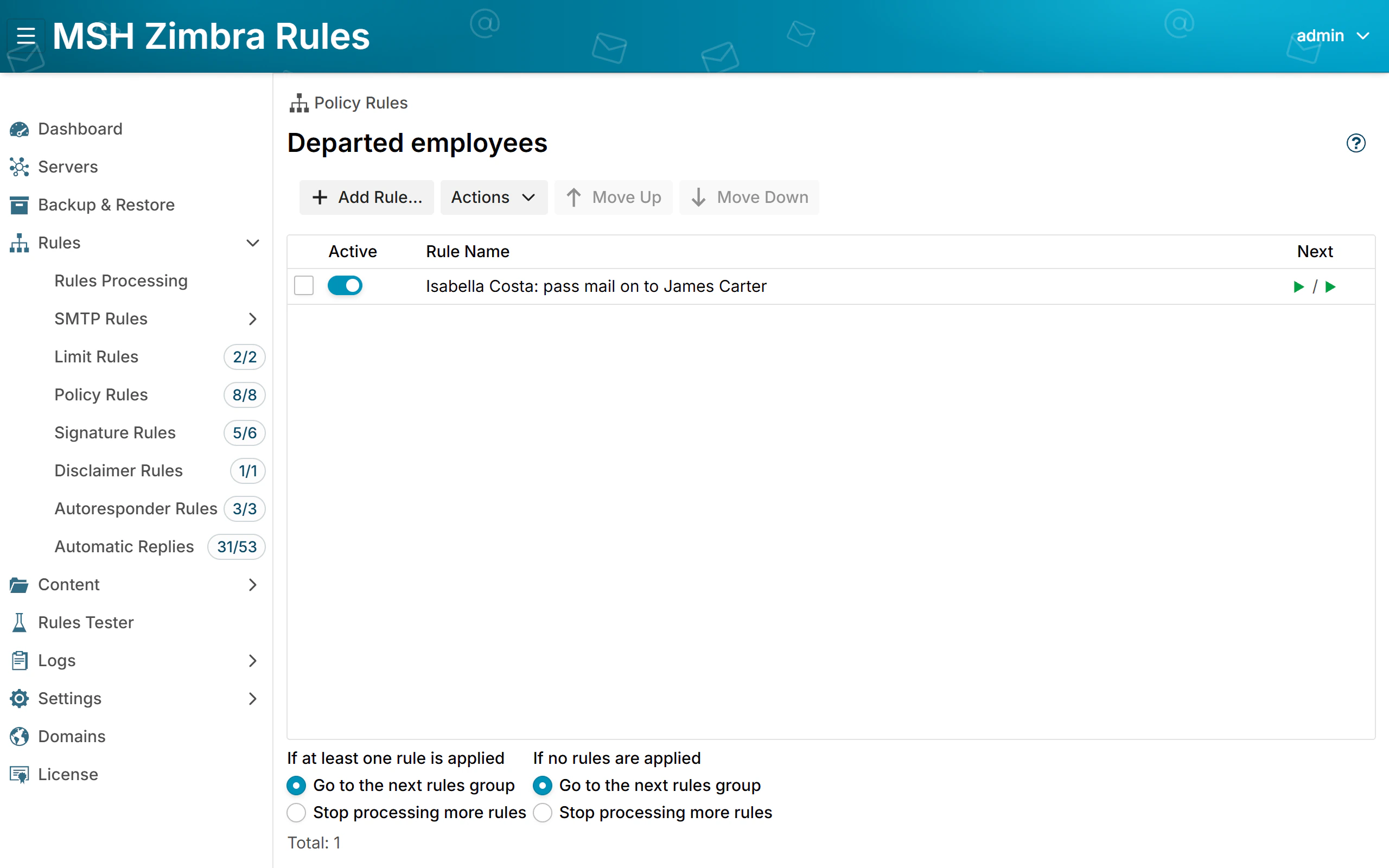
Open Rules > Policy Rules, add a group Departed employees and in it a rule
Isabella Costa: pass mail on to James Carter:
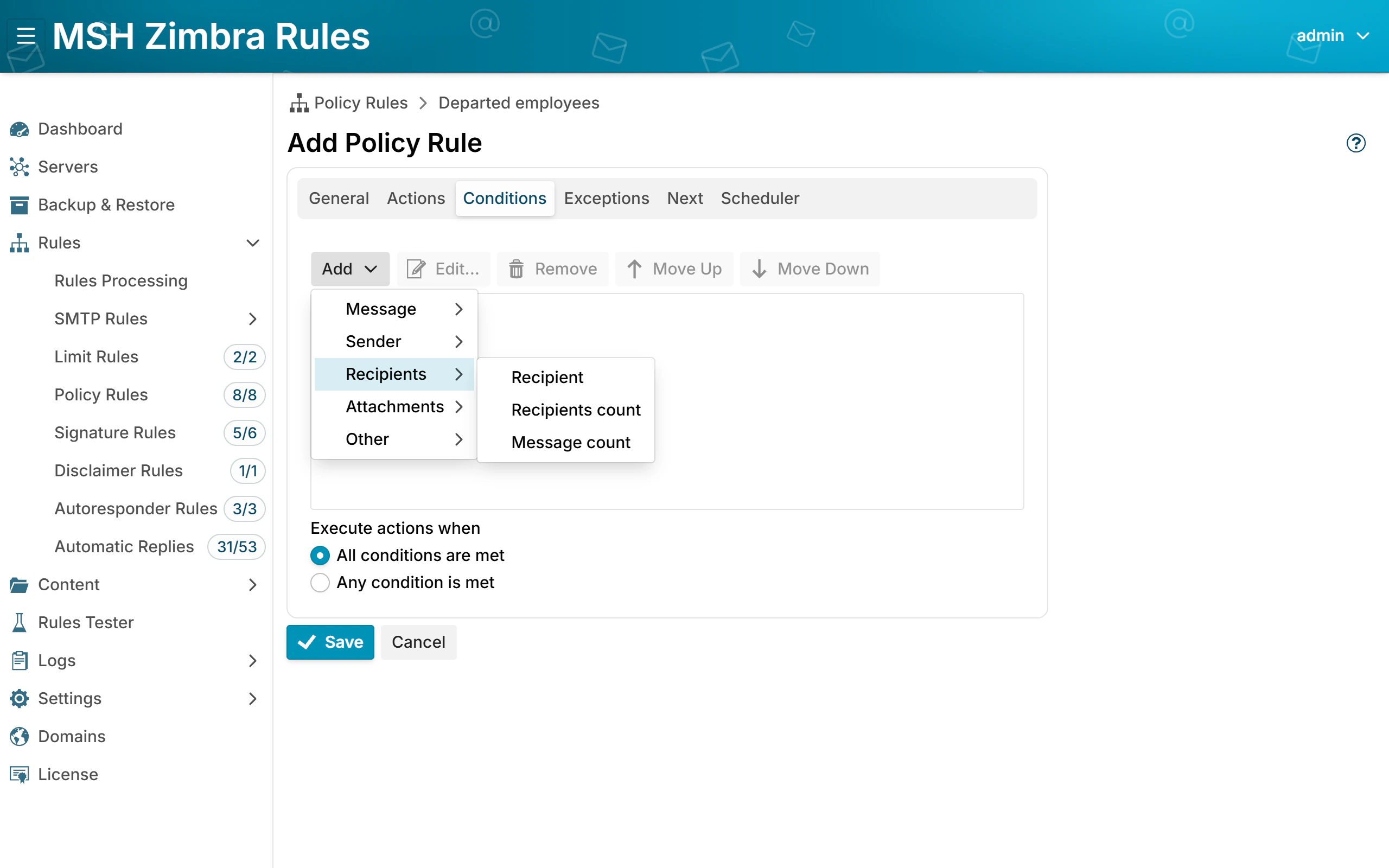
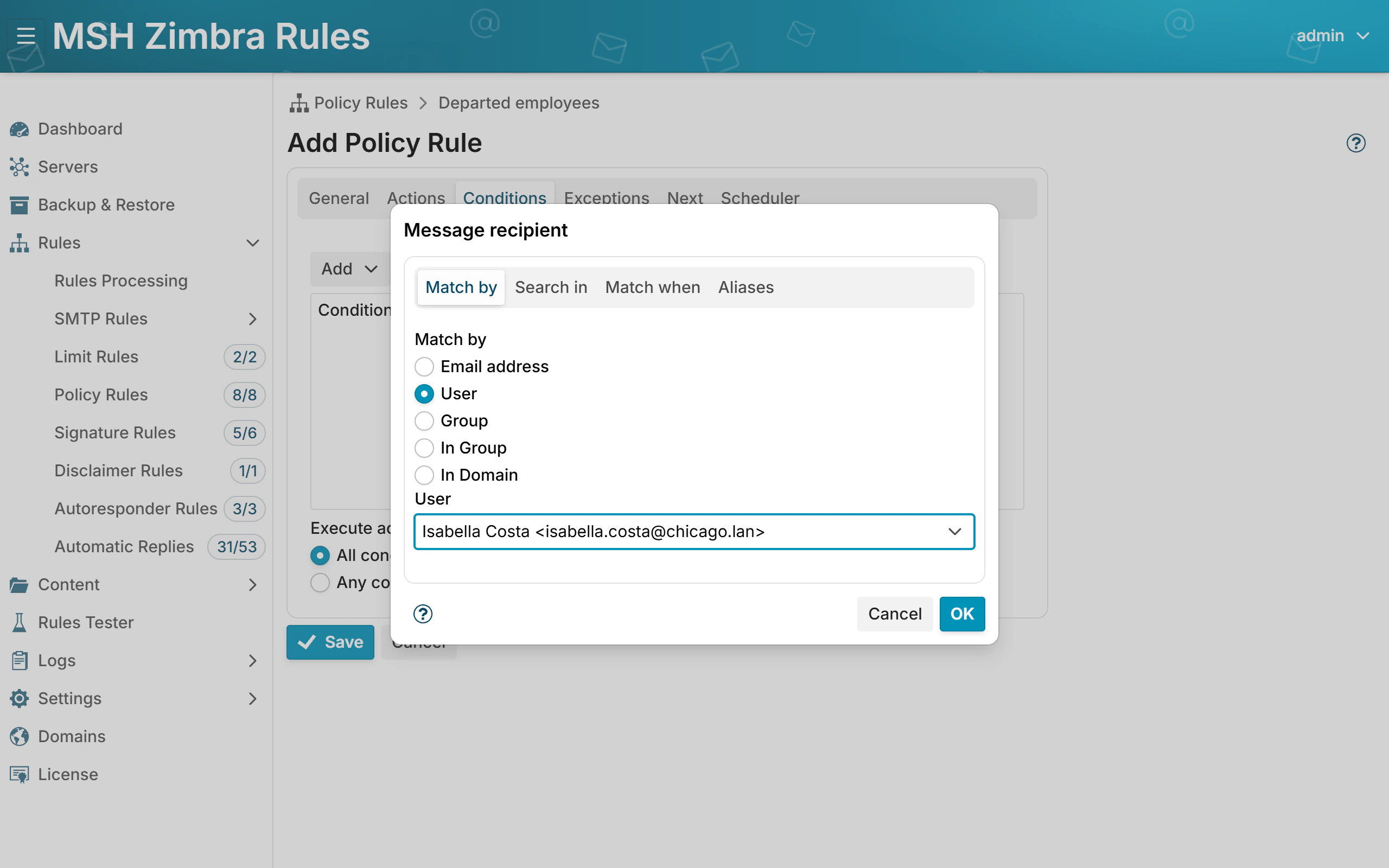
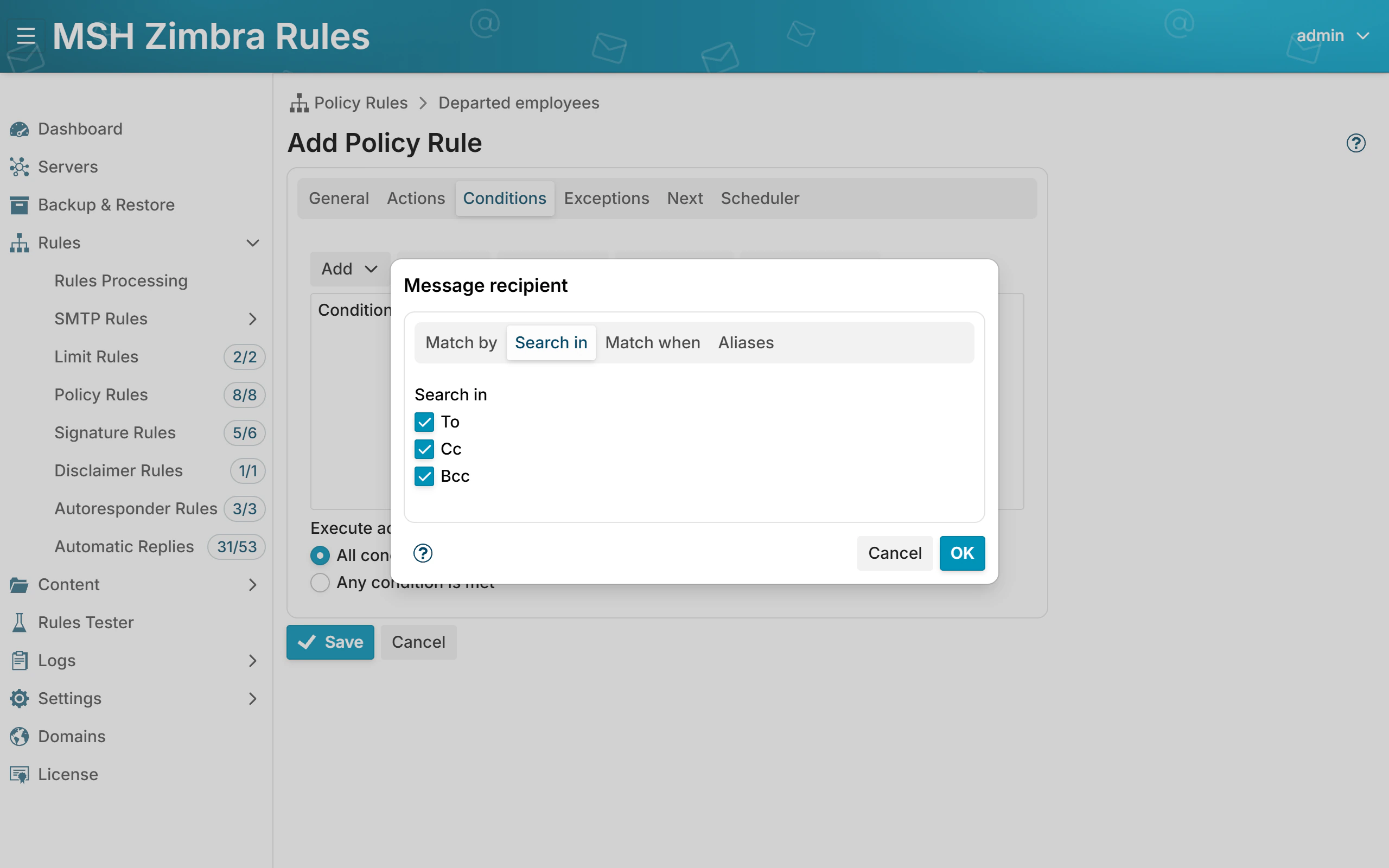
- Conditions: Recipients > Recipient, User, the person who left, and on the Search in tab To, Cc and Bcc. Only To is ticked by default.
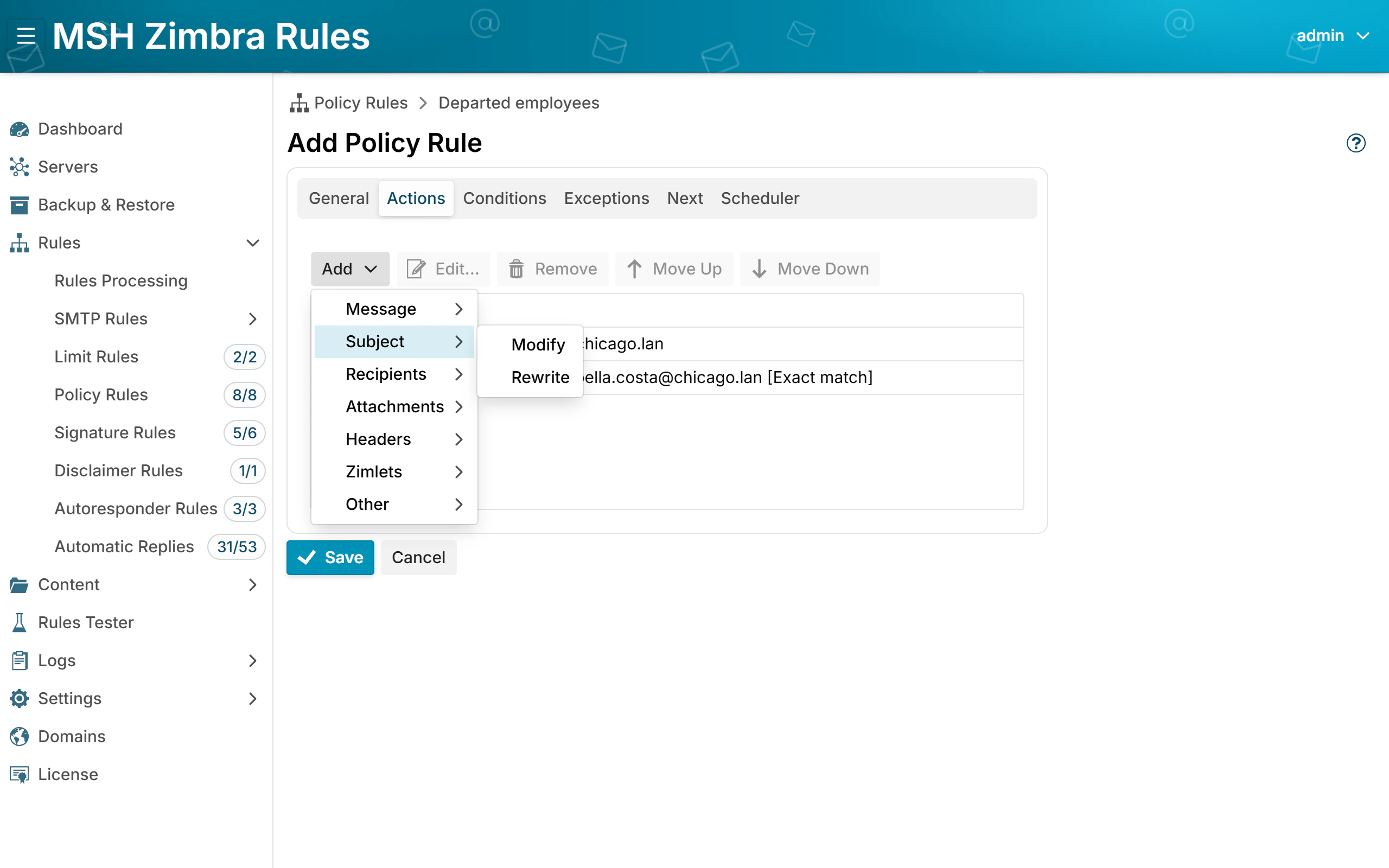
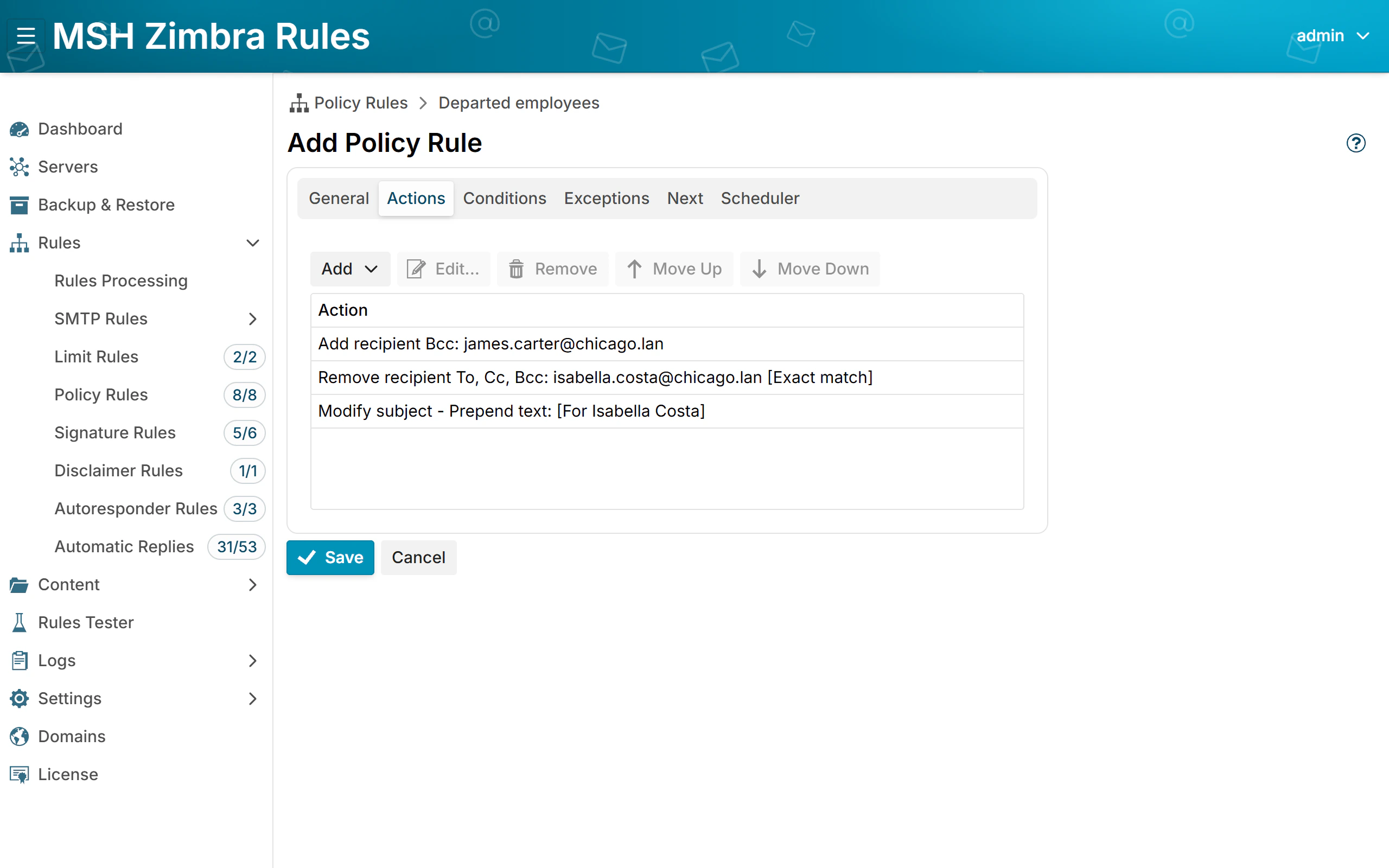
- Actions, in this order:
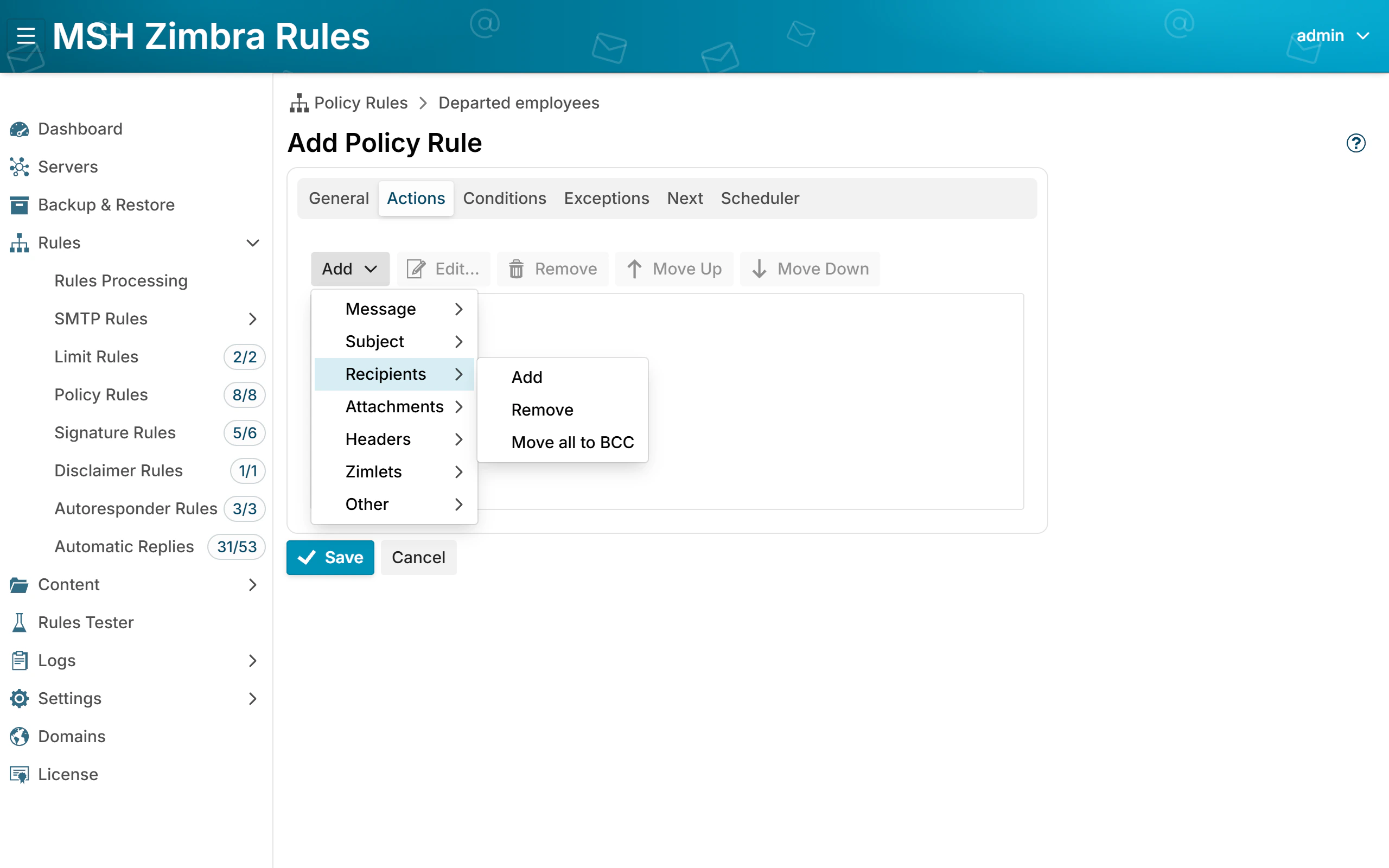
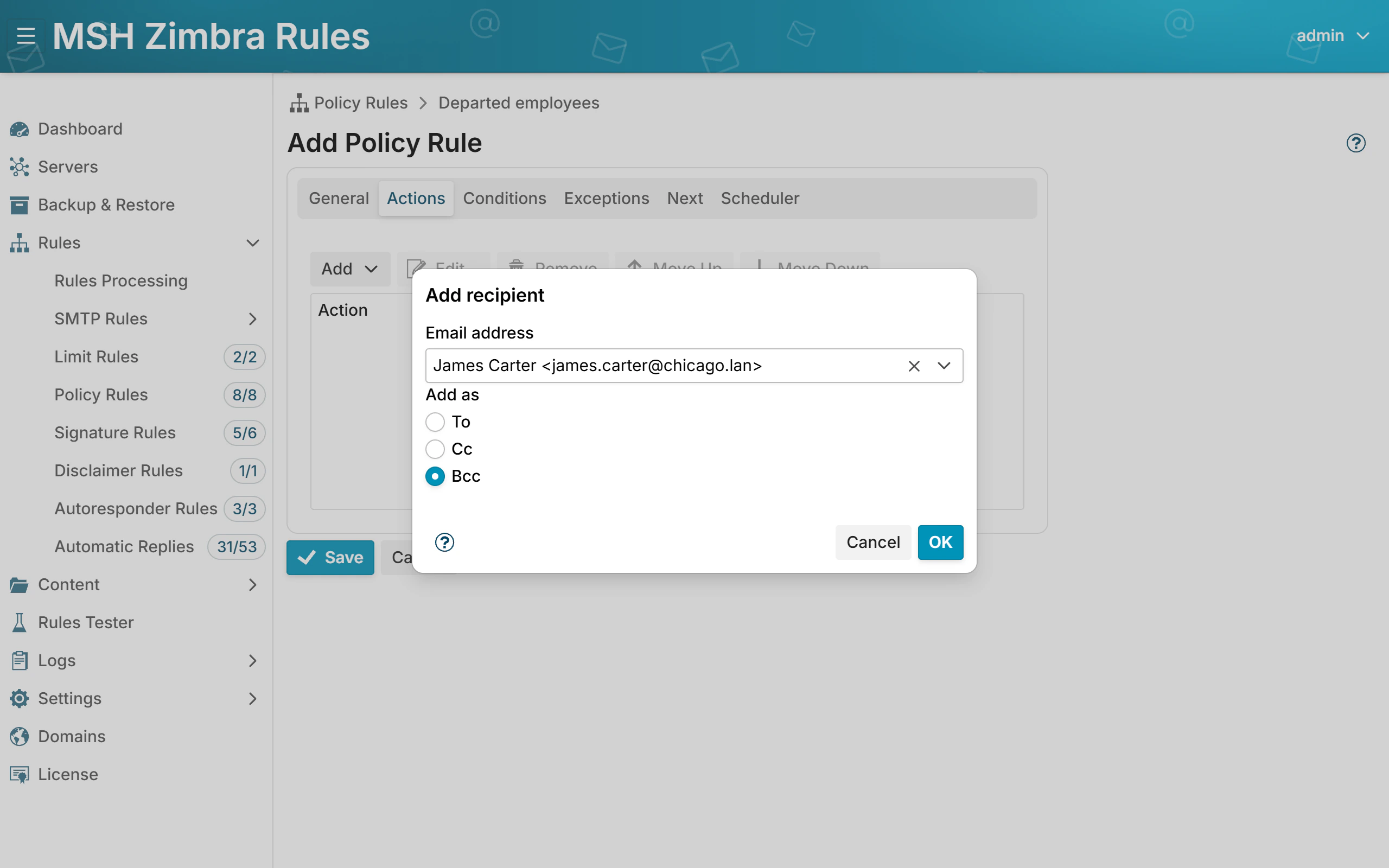
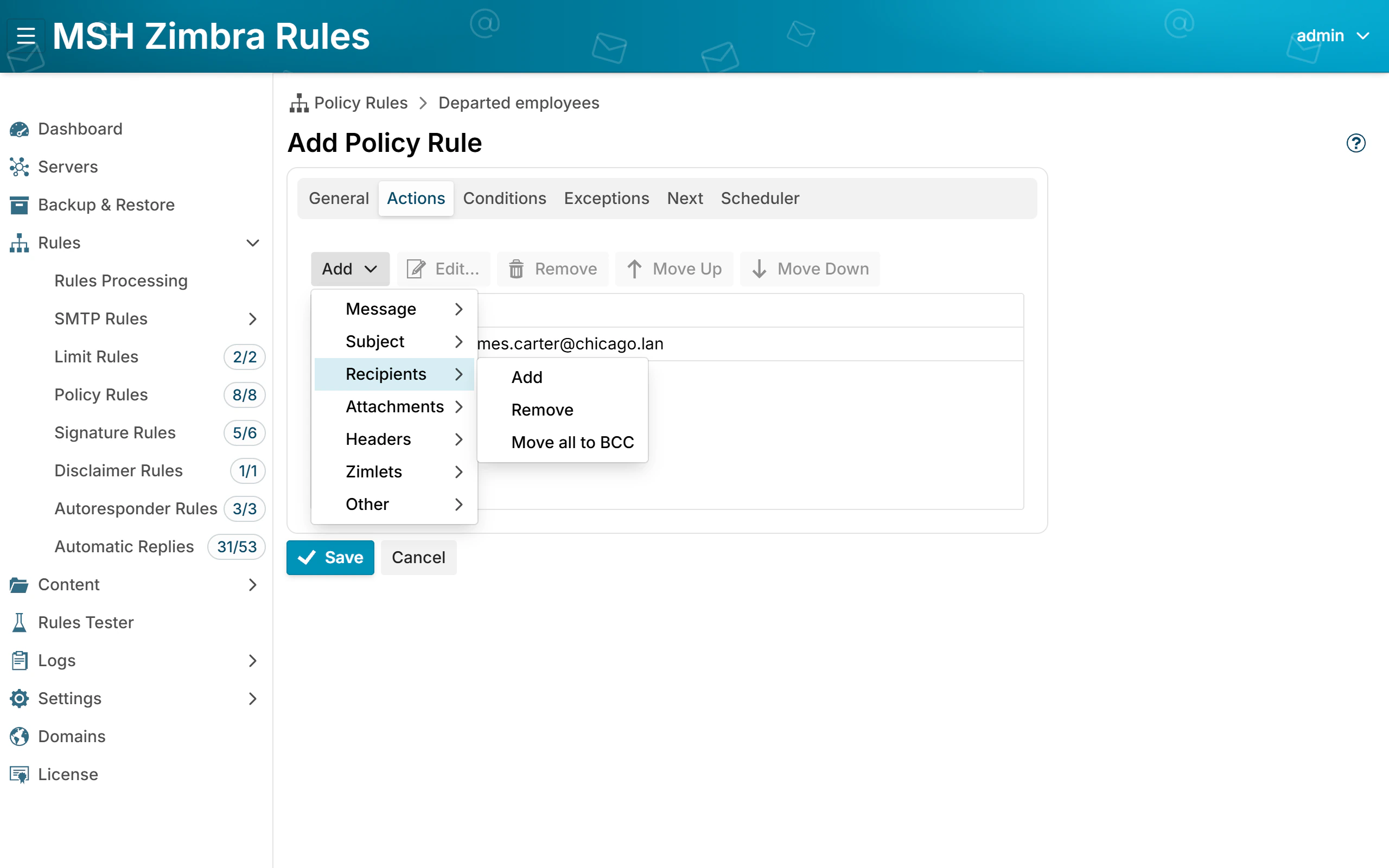
- Recipients > Add, the colleague, Add as Bcc.
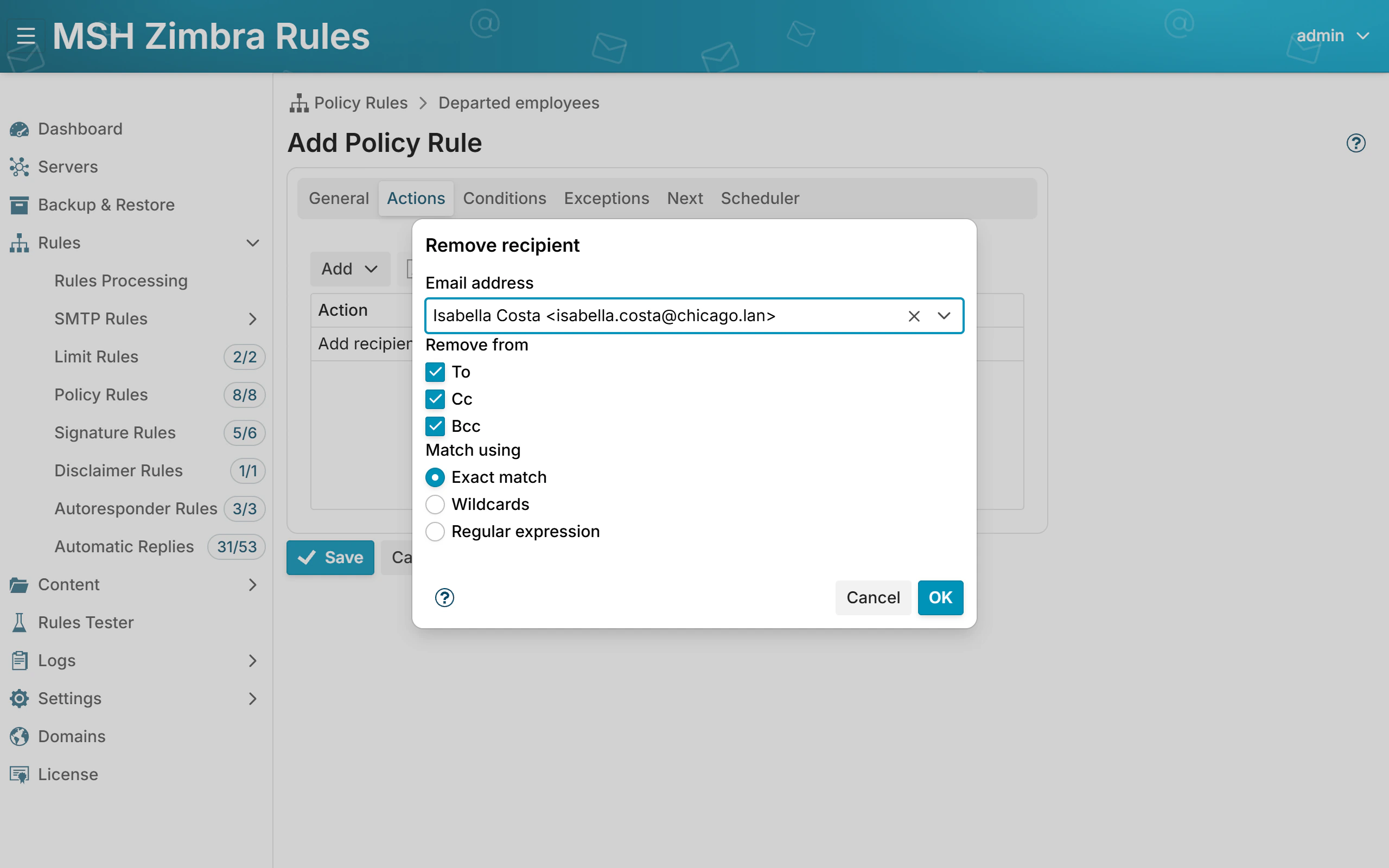
- Recipients > Remove, the address of the person who left, from To, Cc and Bcc.
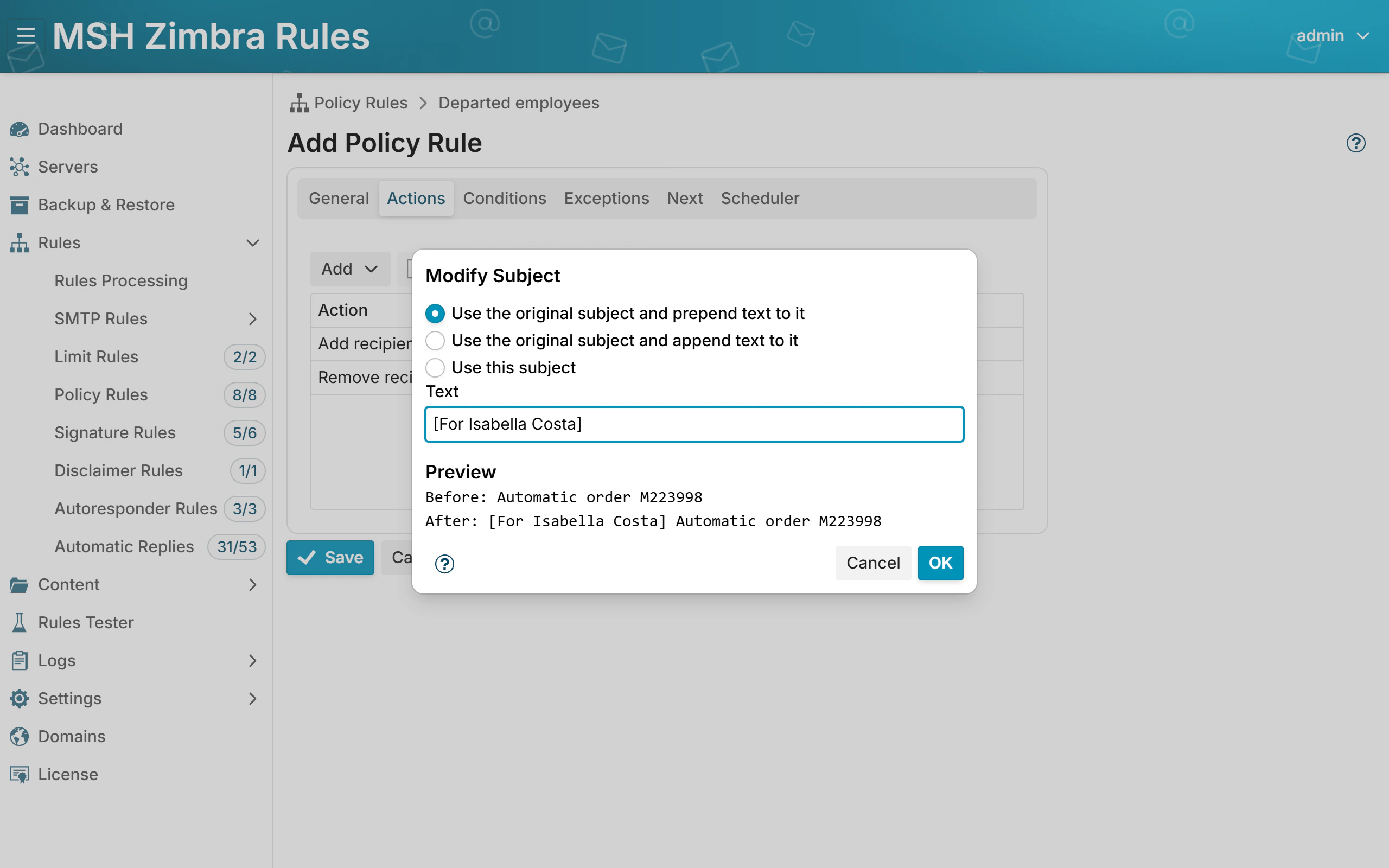
- Subject > Modify, Use the original subject and prepend text to it,
[For Isabella Costa]with a space at the end.
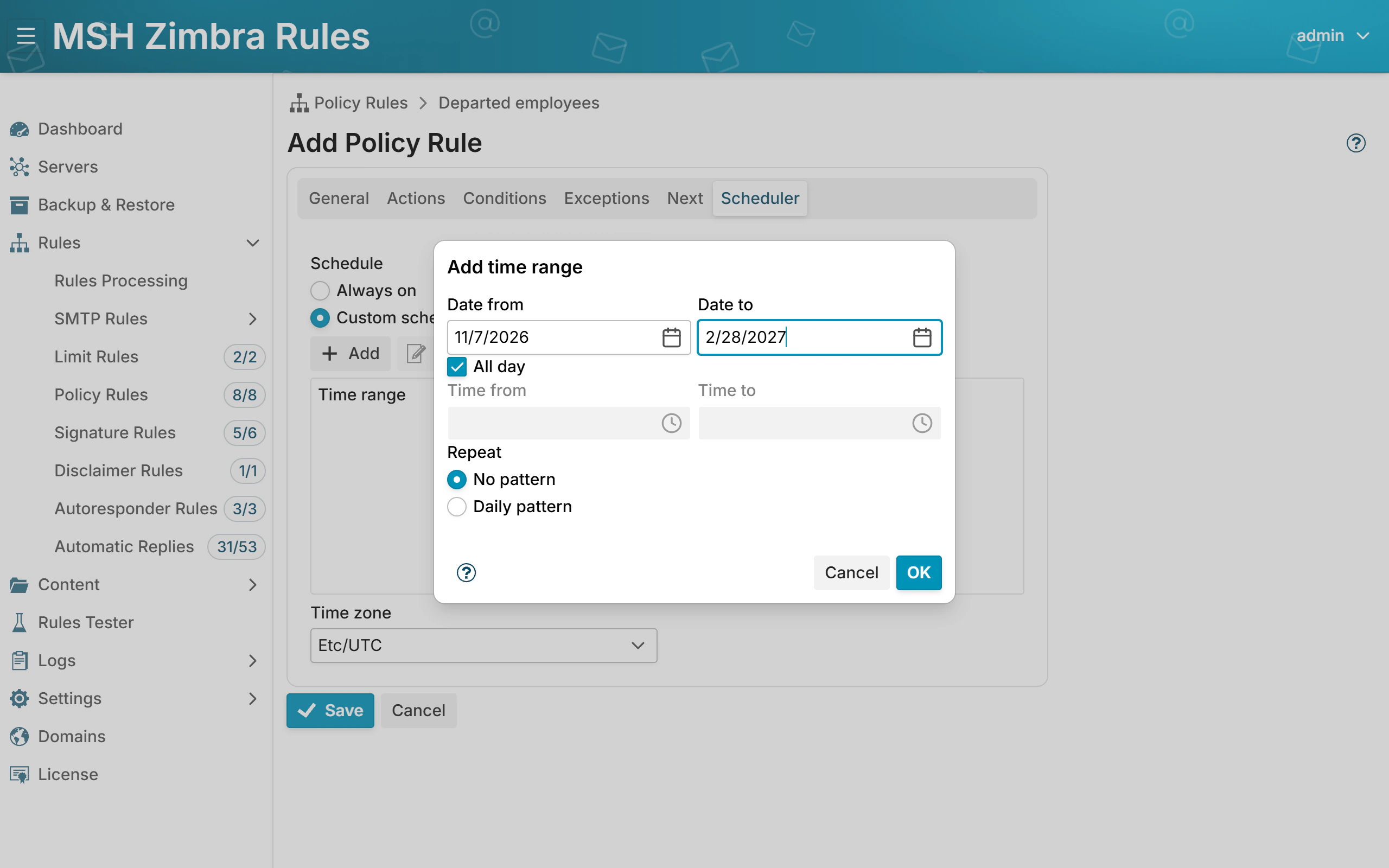
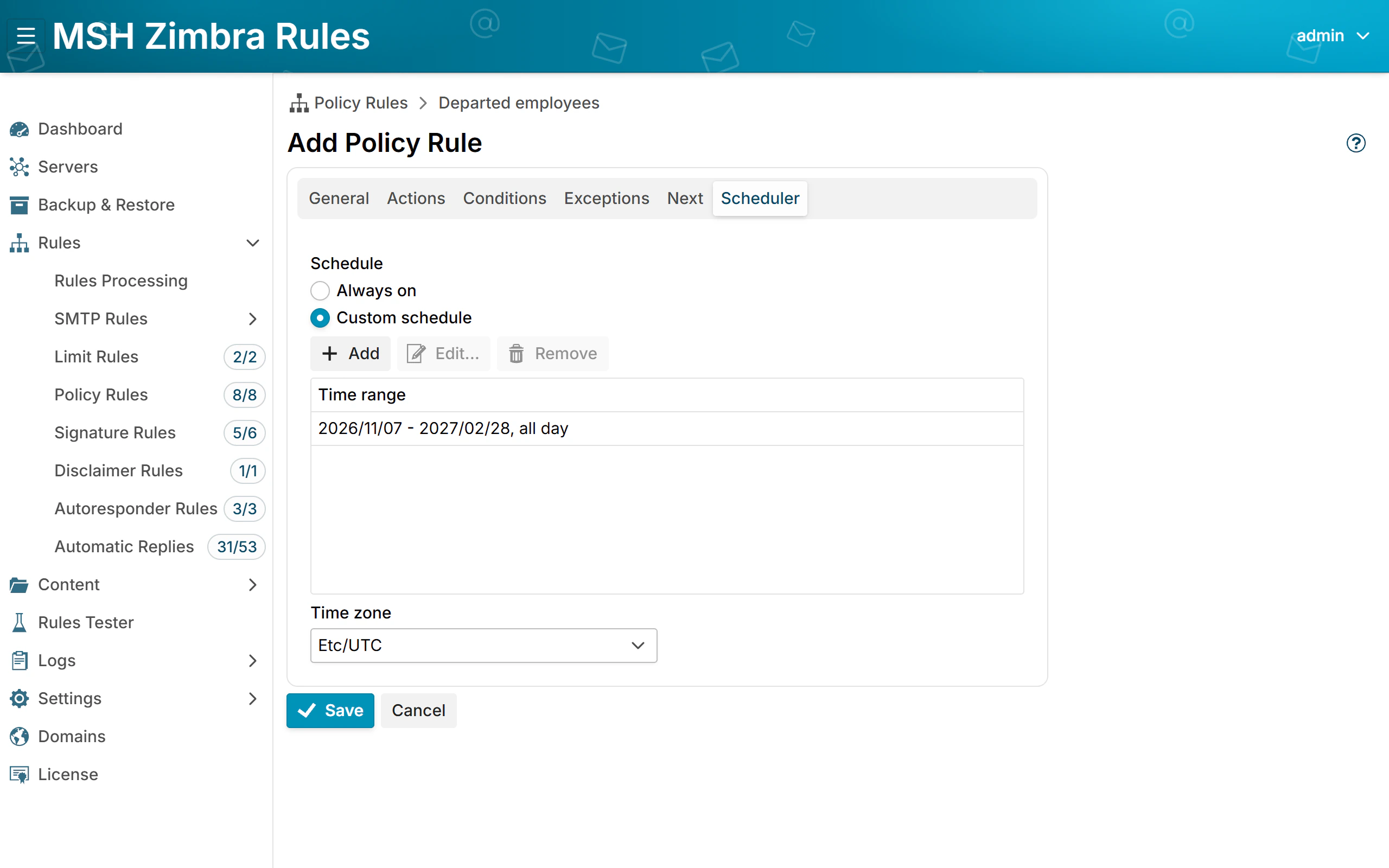
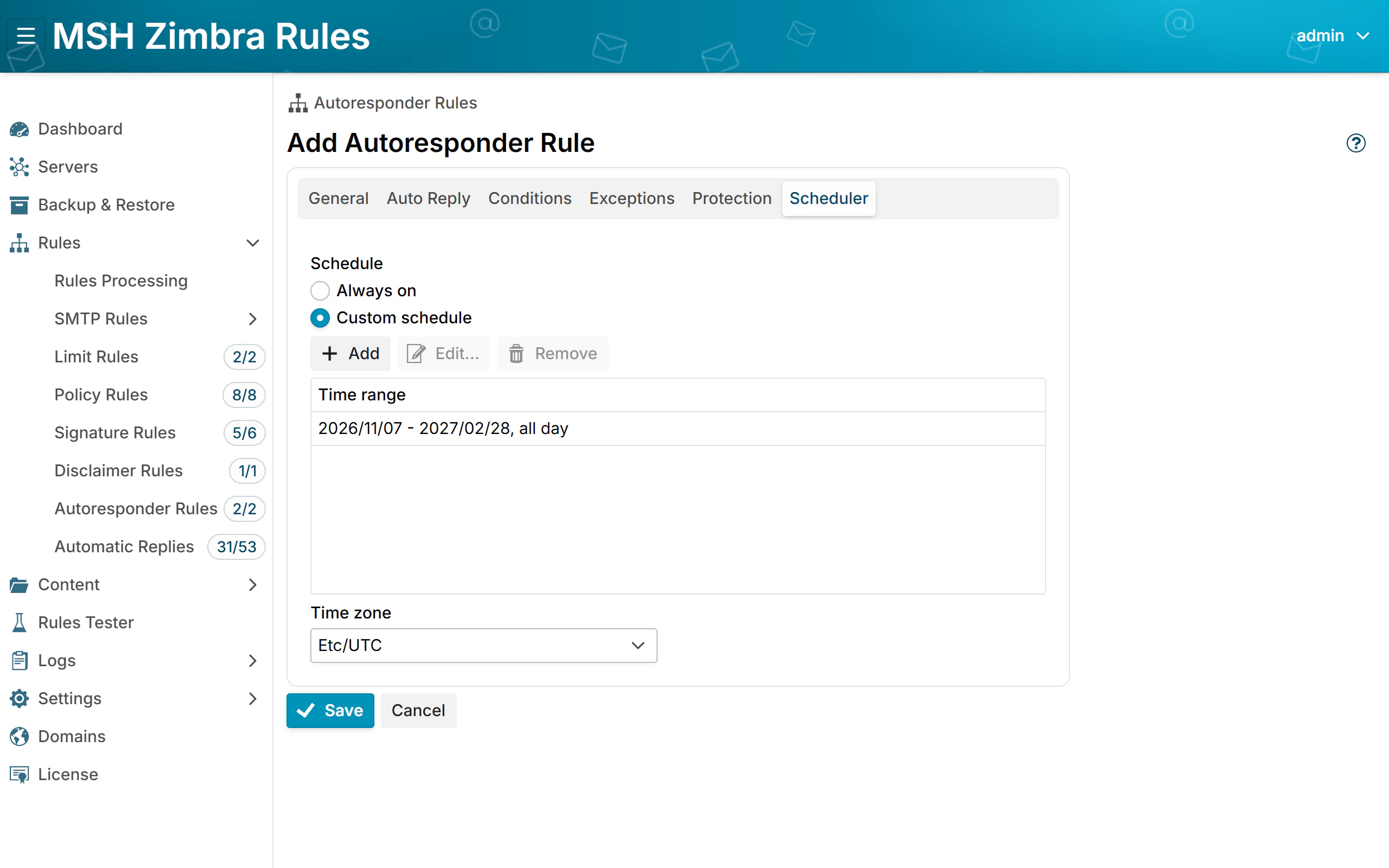
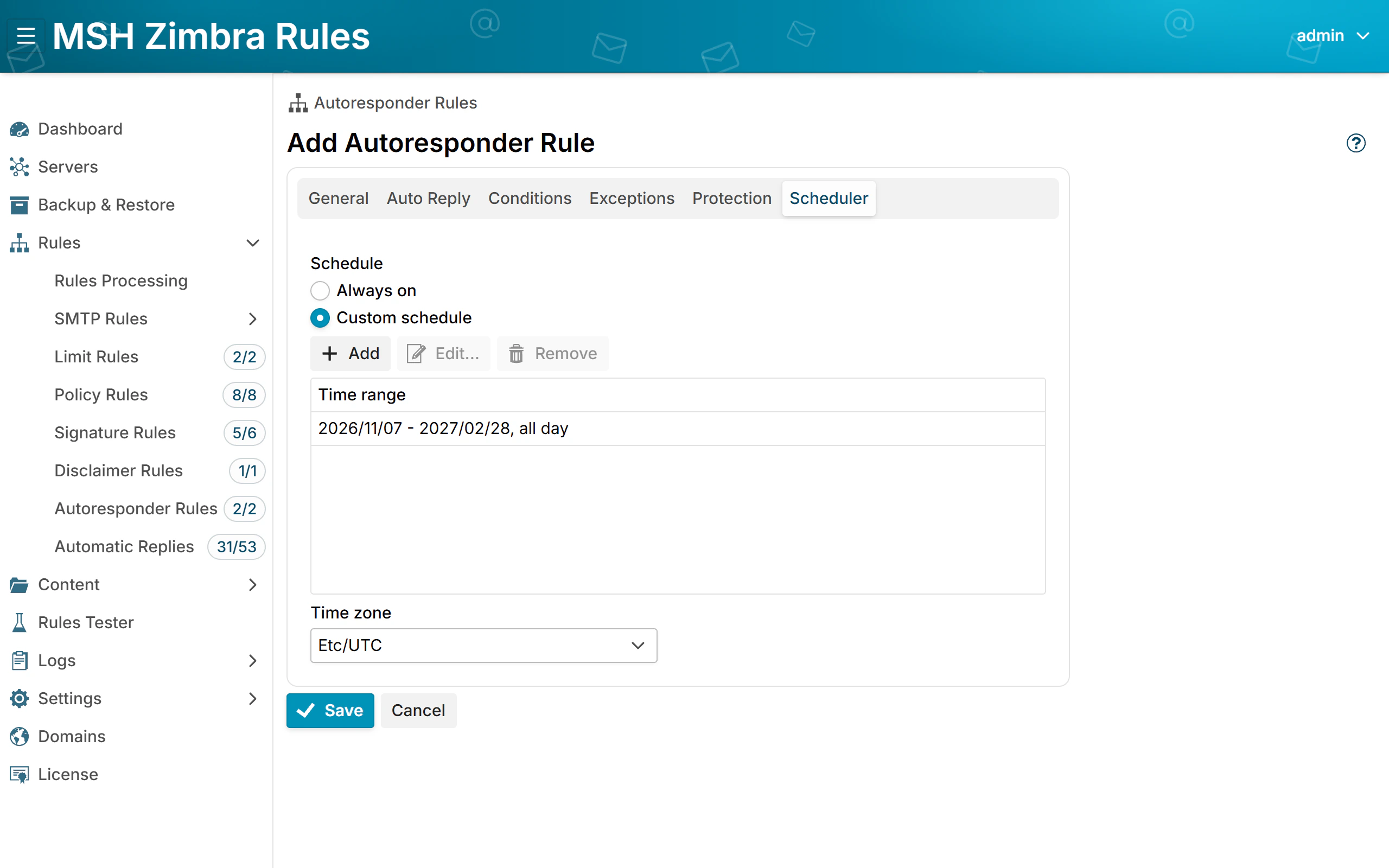
- Scheduler: Custom schedule, a time range from the last working day to the date the rule should stop, here 28 February, and your Time zone.
Why three actions:
- Add before Remove: the message keeps a recipient at every moment.
- Remove takes the address out of the message, the delivery and the To and Cc headers alike. There is no way to drop only the delivery, so the colleague would see no hint of whom the message was for. The subject note gives it back.
- With only the first action, the rule copies instead of passing on: the colleague gets the mail, the old mailbox keeps receiving it too, and the headers stay as written. Use that when the old mailbox has to stay complete, for example for a handover.
Policy rule groups run from the top. If a group above Departed employees is set to Stop processing more rules, move this group up. See Rules group.
Step 3 - The automatic reply
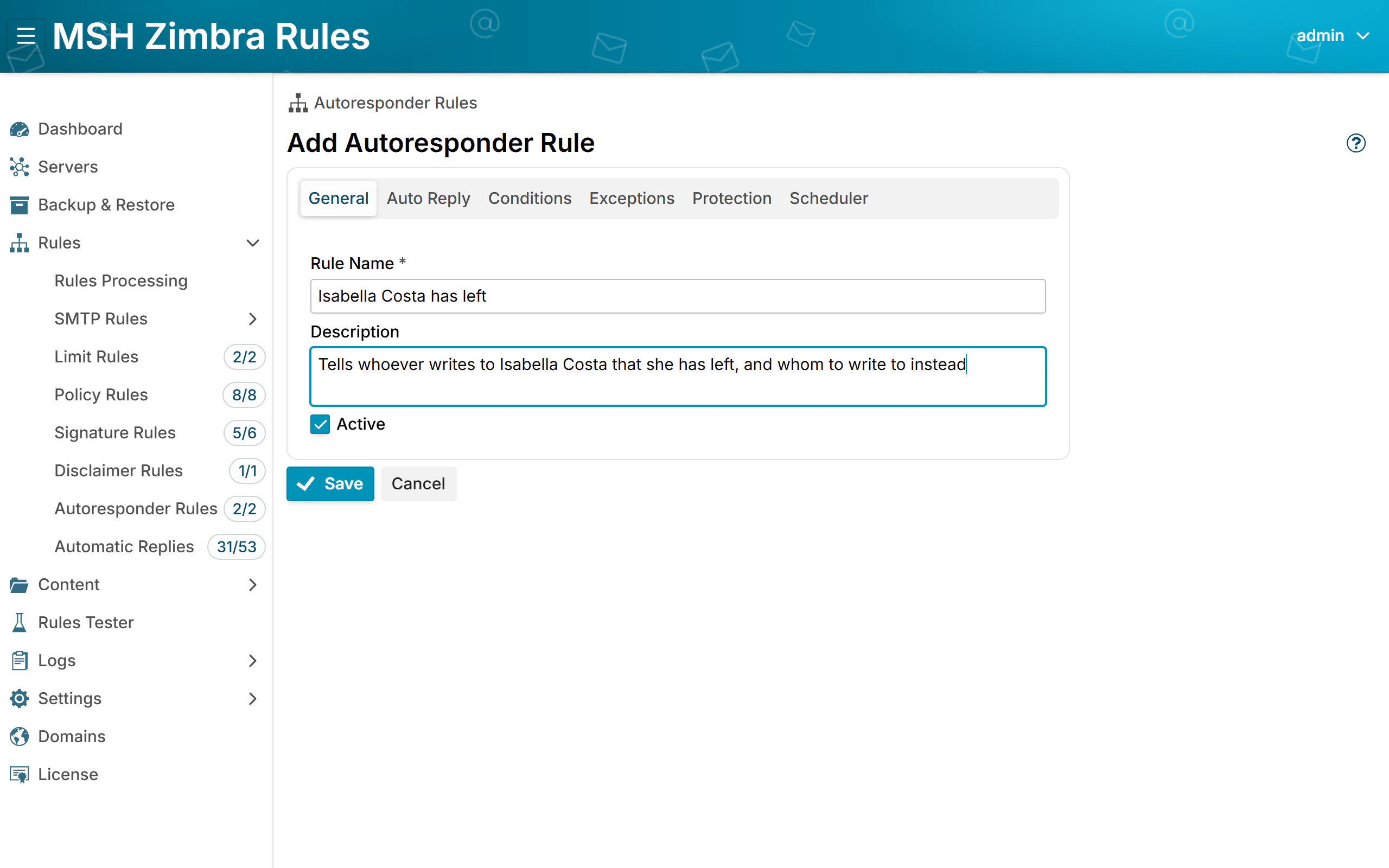
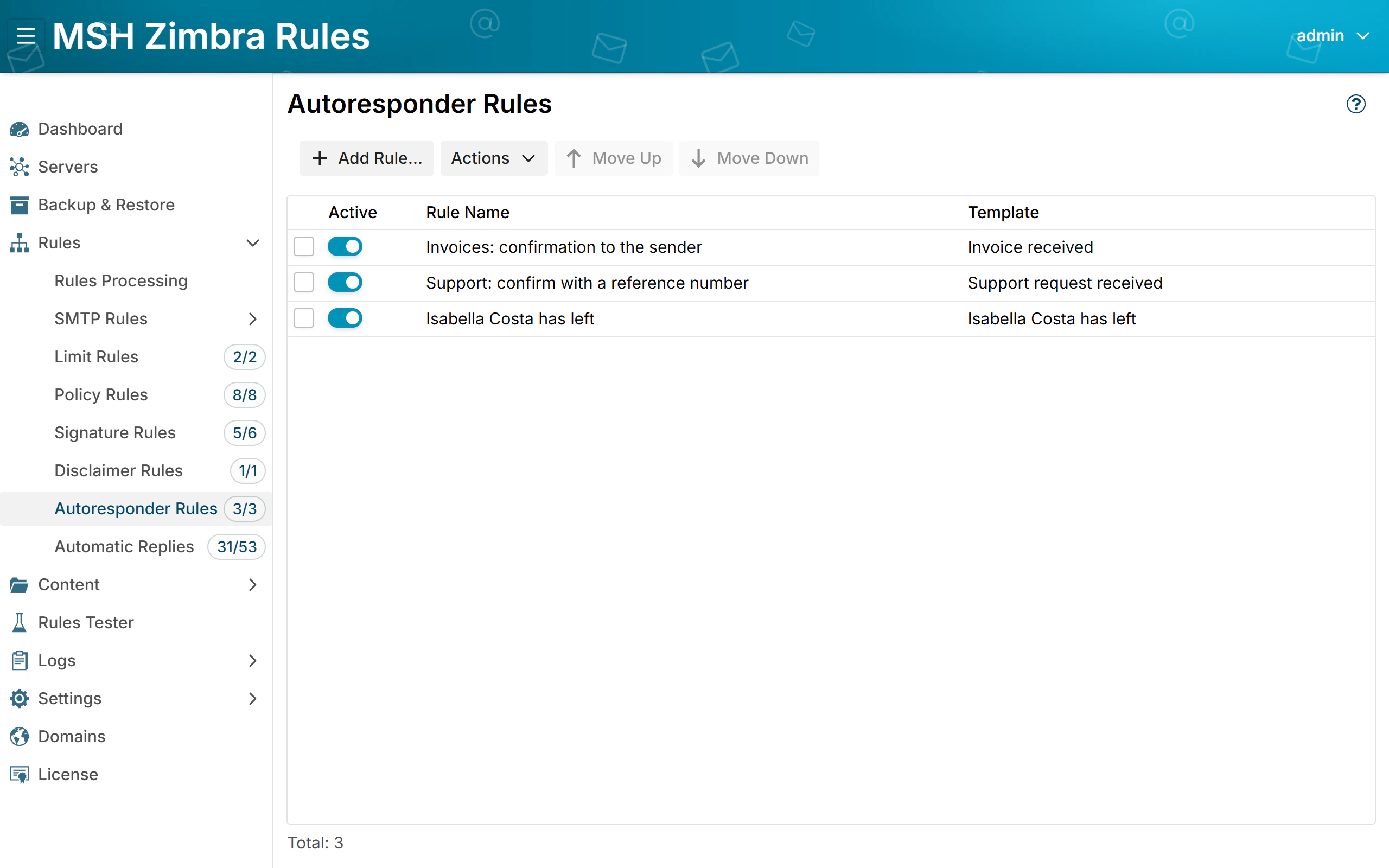
Open Rules > Autoresponder Rules, click Add Rule... and name the rule
Isabella Costa has left:
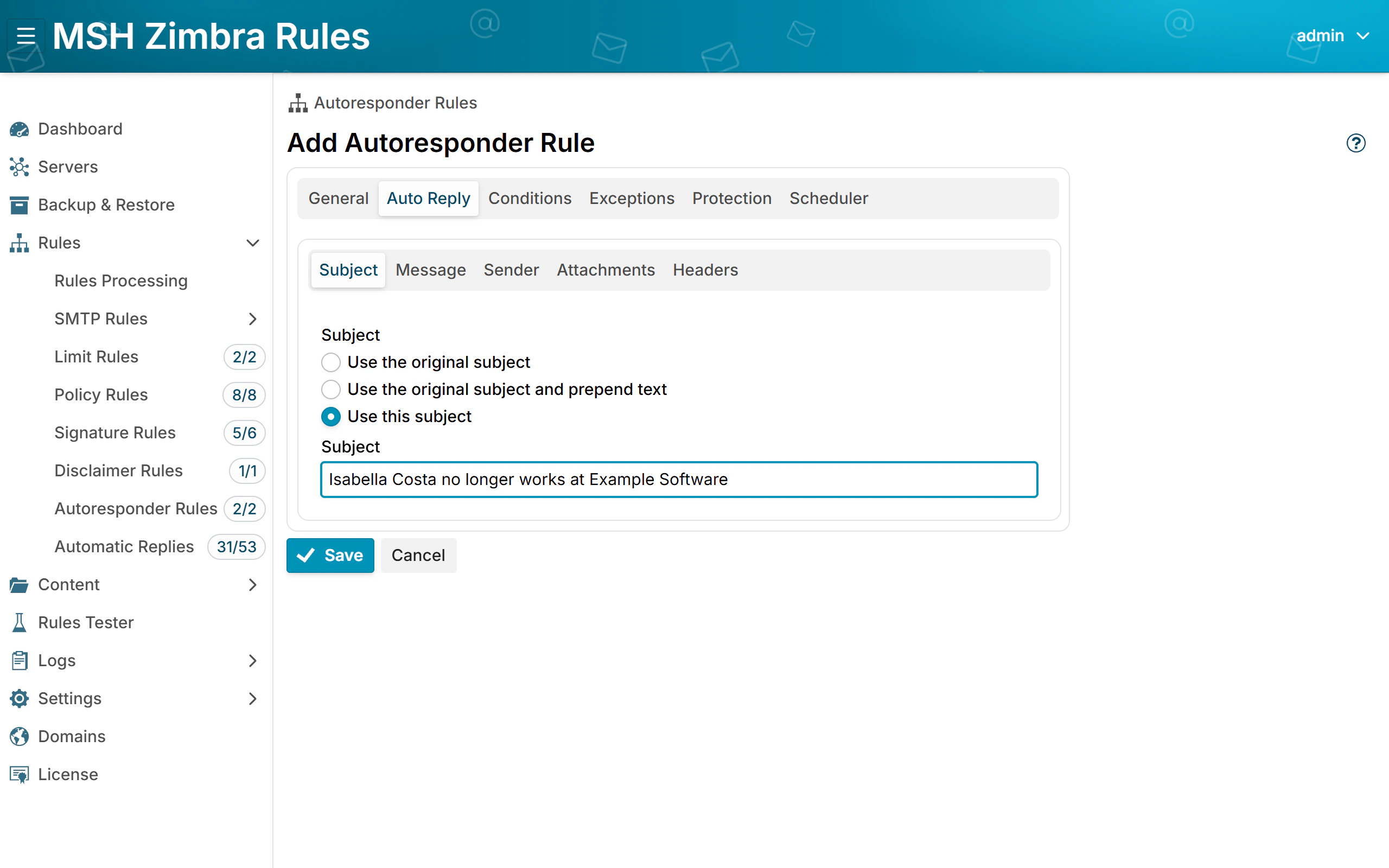
- Auto Reply > Subject: Use this subject,
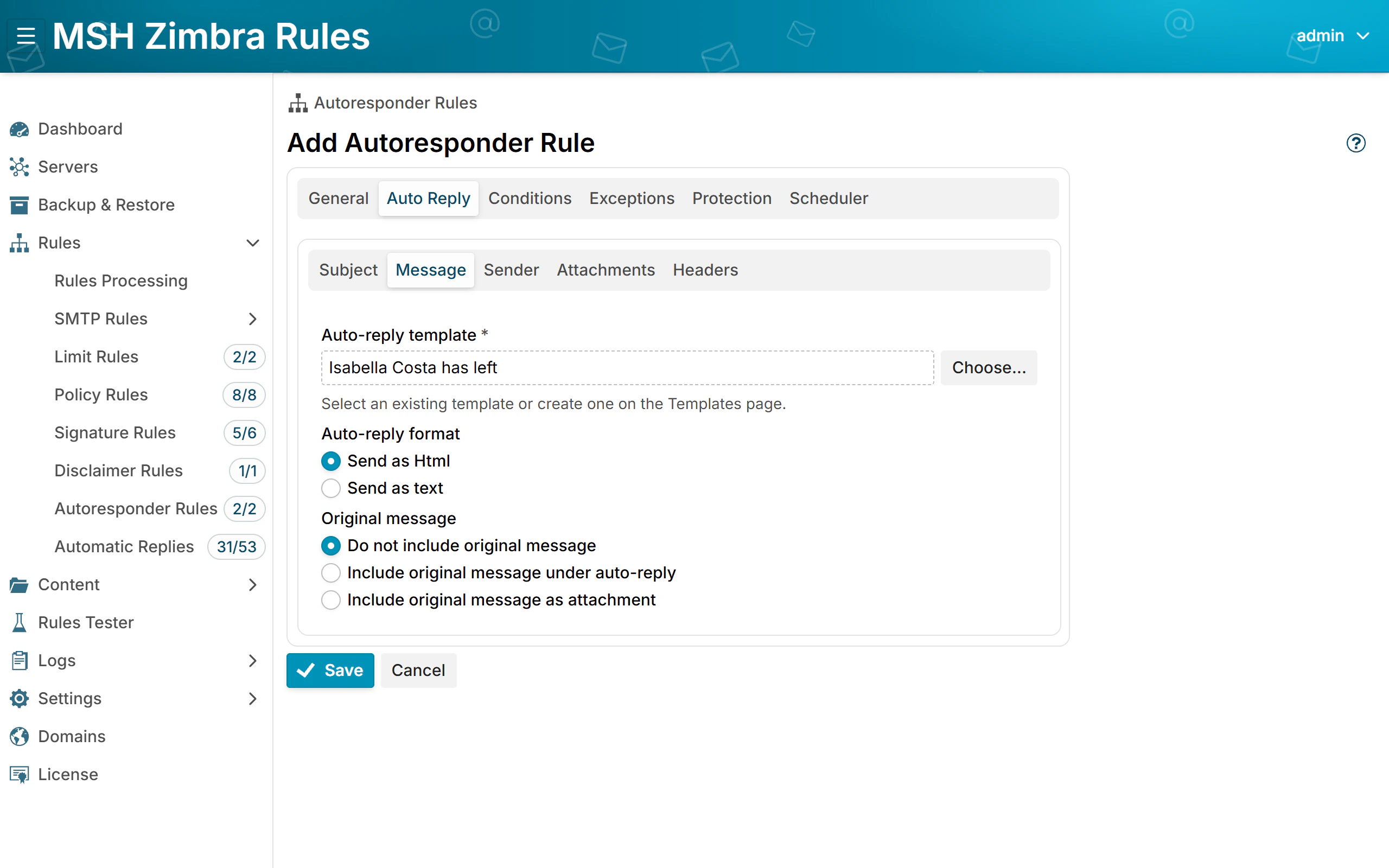
Isabella Costa no longer works at Example Software. - Auto Reply > Message: the template of step 1, Send as Html, and Do not include original message.
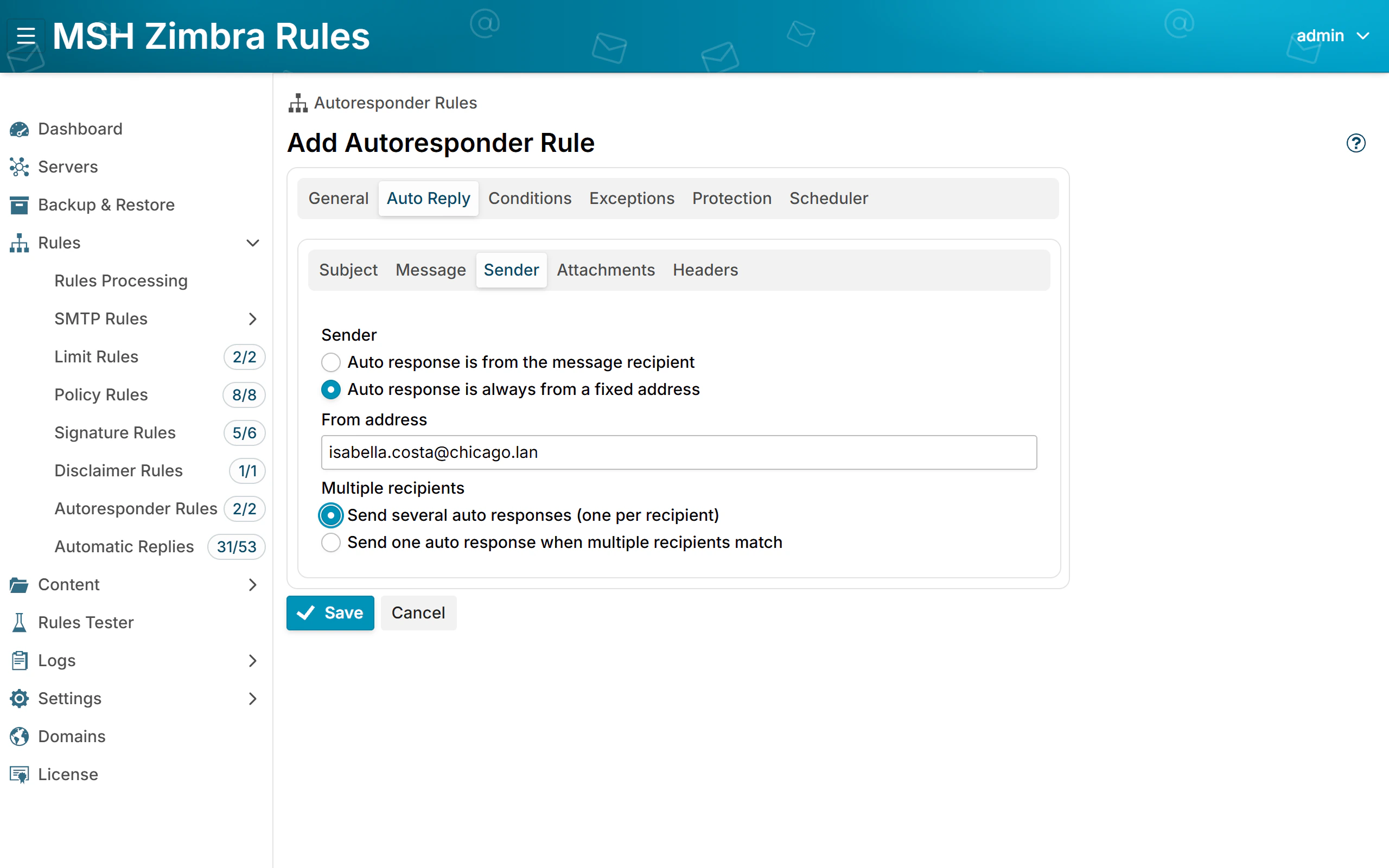
- Auto Reply > Sender: Auto response is always from a fixed address, the address of the person who left. The default, from the message recipient, takes a recipient the message has after the policy rules ran, and step 2 removed the person who left: a message to James with Isabella in Cc would be answered from James's address.
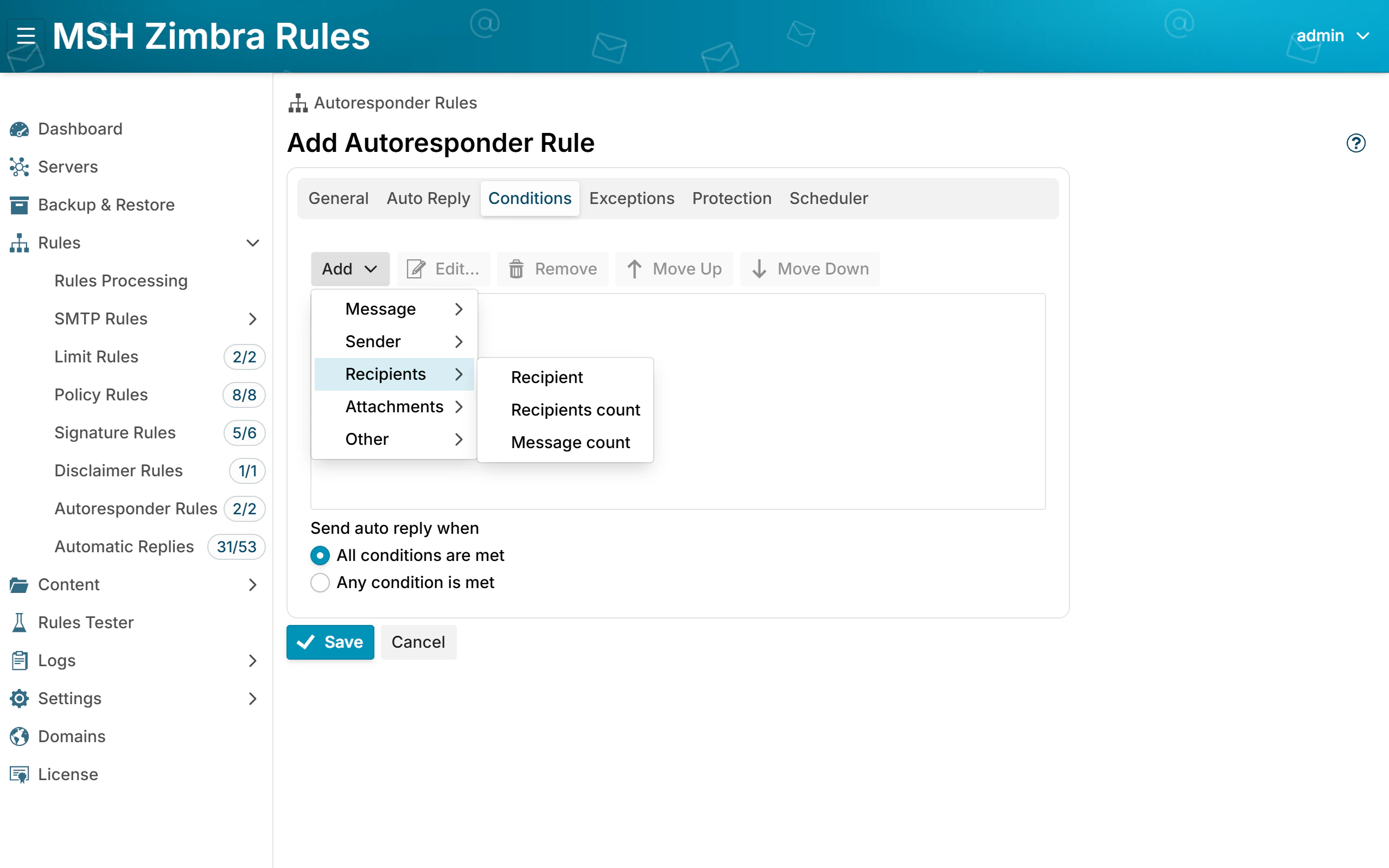
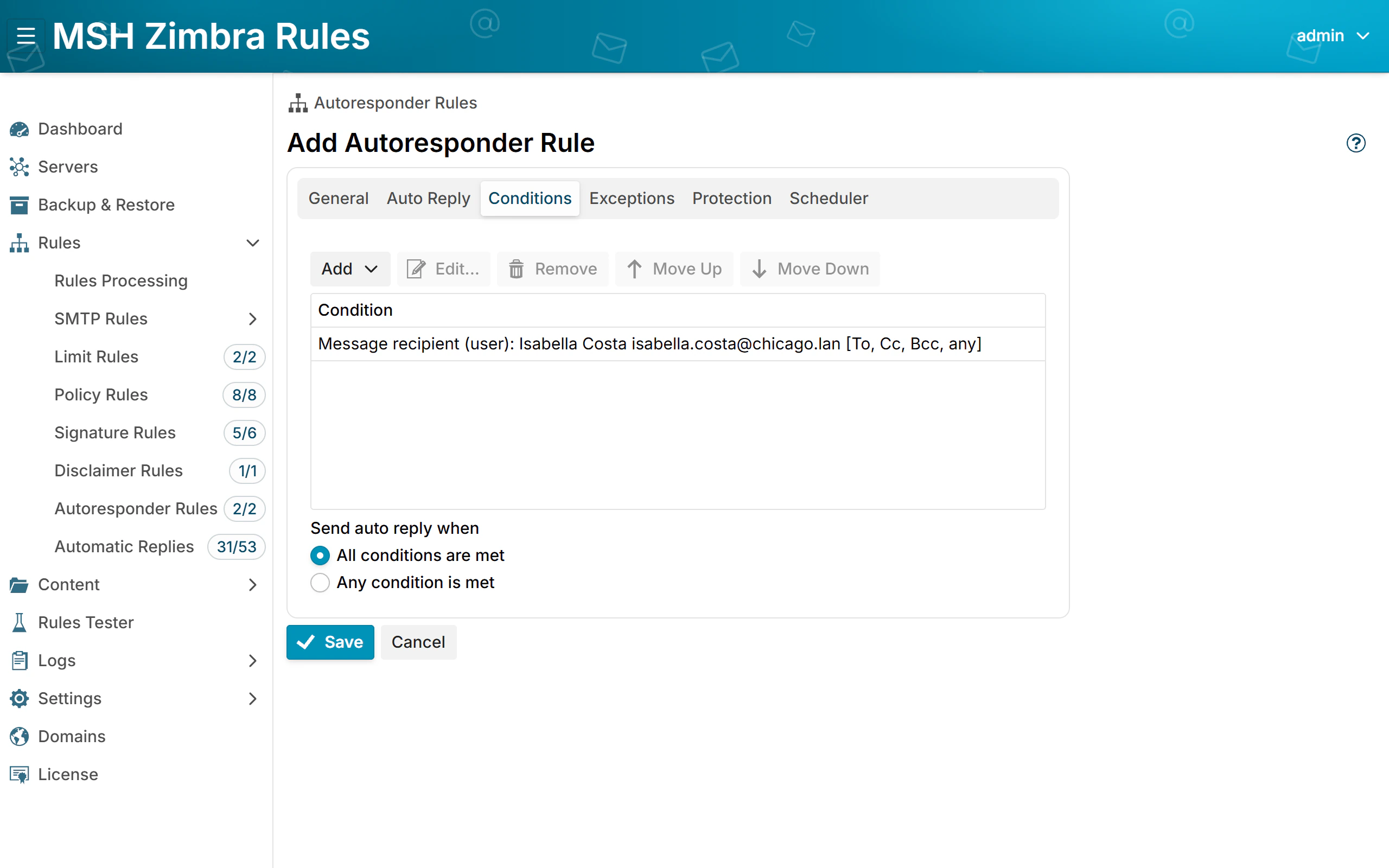
- Conditions: Recipients > Recipient, User, the person who left, with To, Cc and Bcc on Search in, as in step 2.
- Exceptions: keep the Auto-Submitted header one that a new rule comes with.
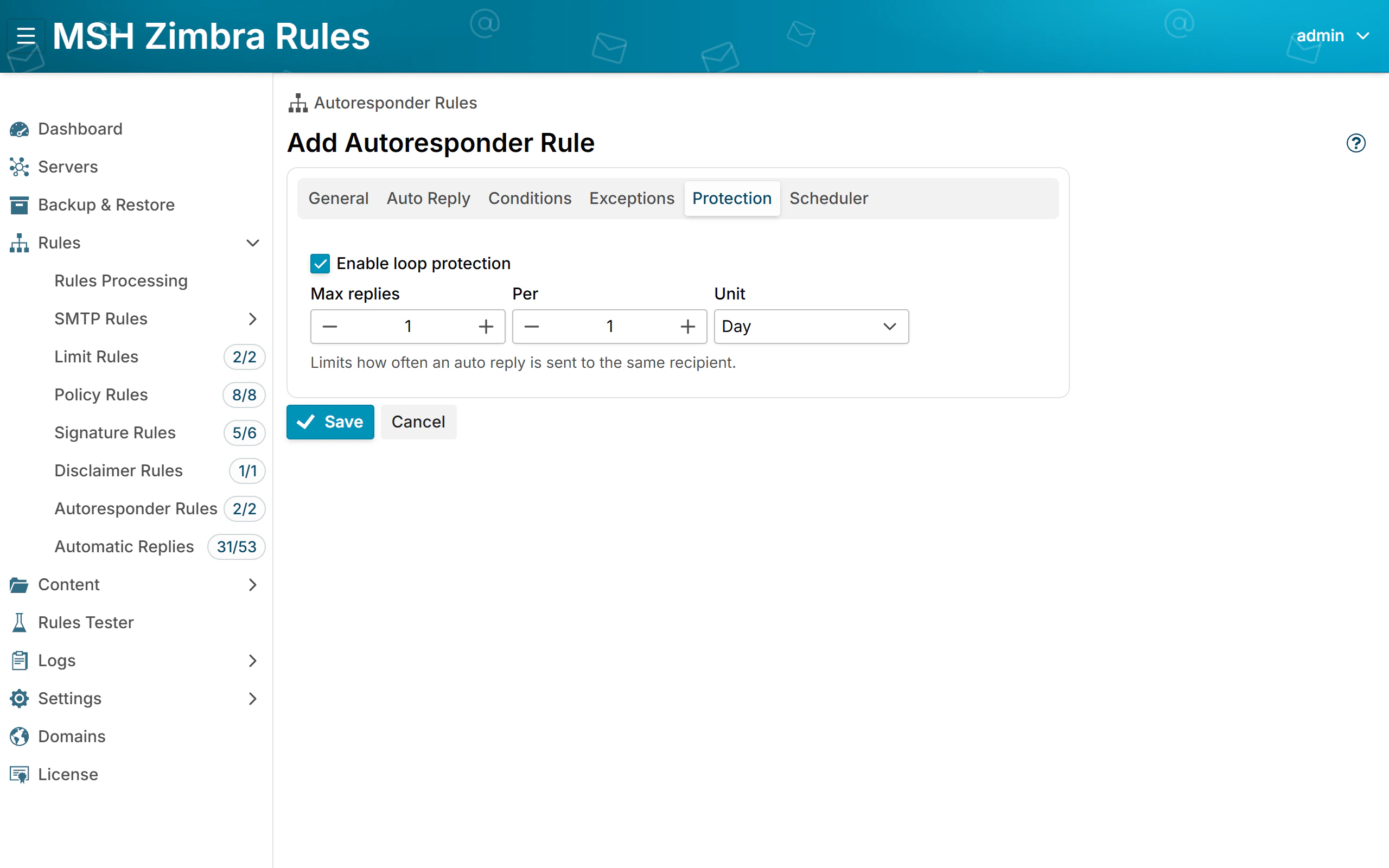
- Protection: keep the default, one reply per day to the same address.
- Scheduler: the same time range and time zone as in step 2.
Step 4 - No personal signature on the reply
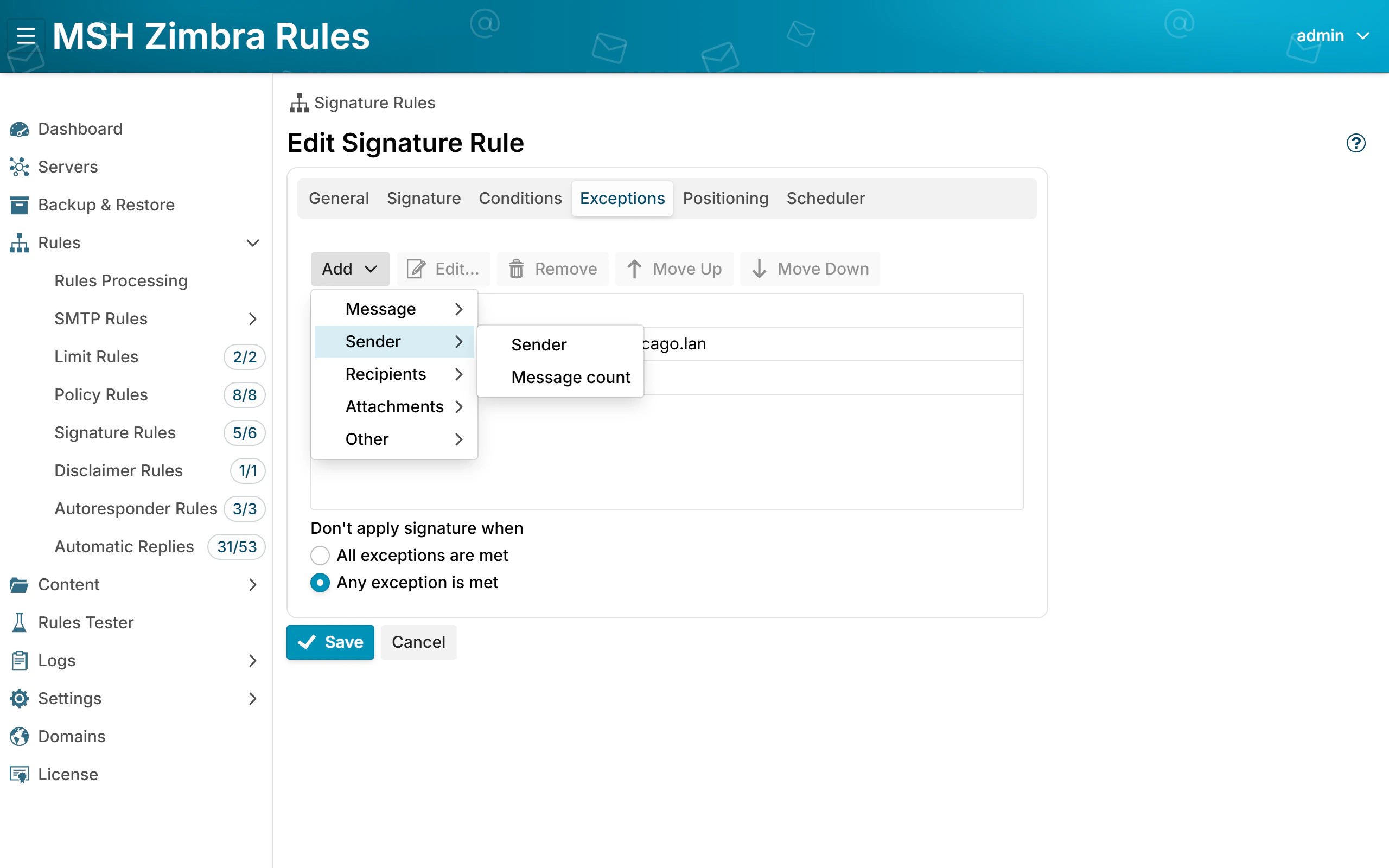
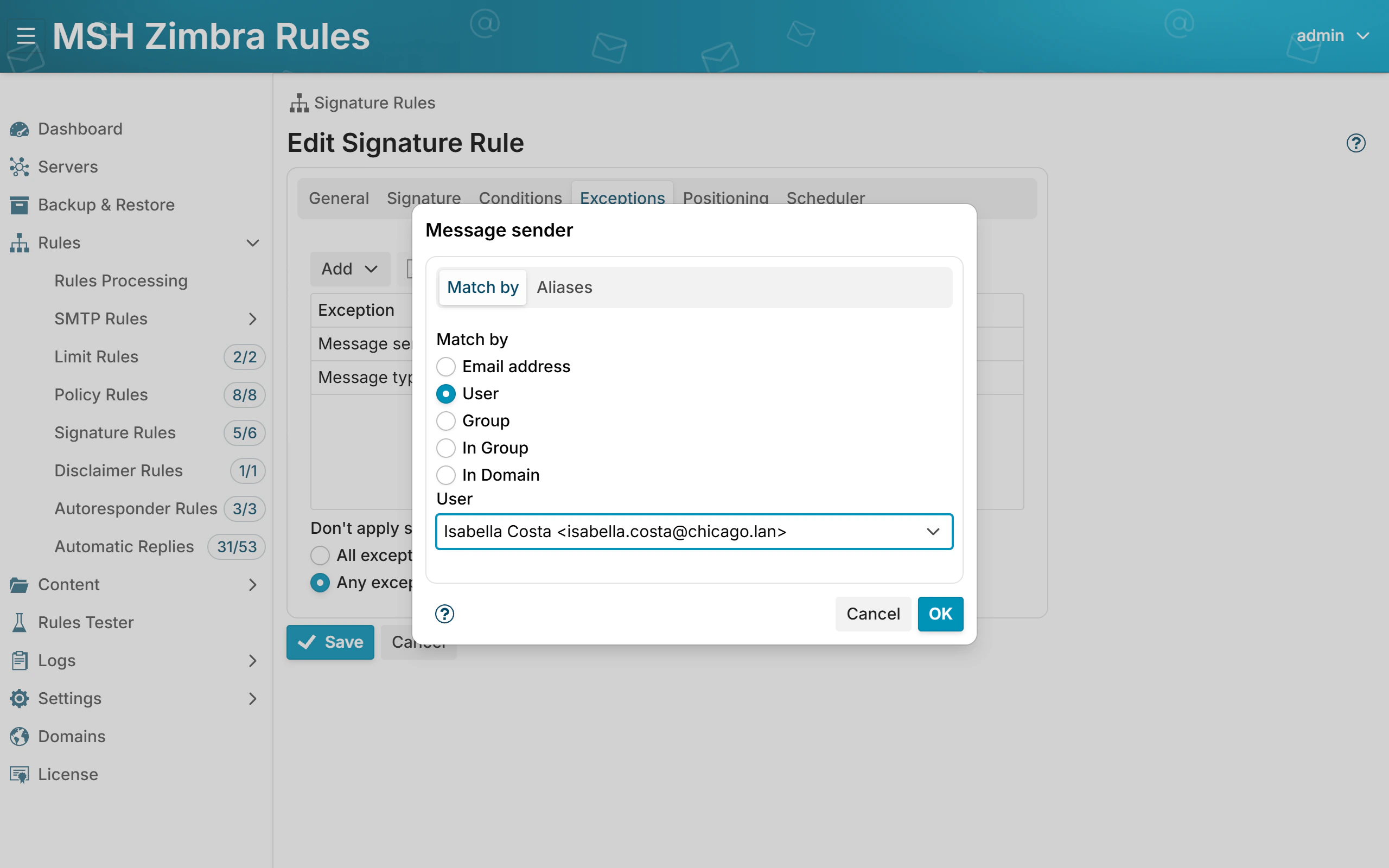
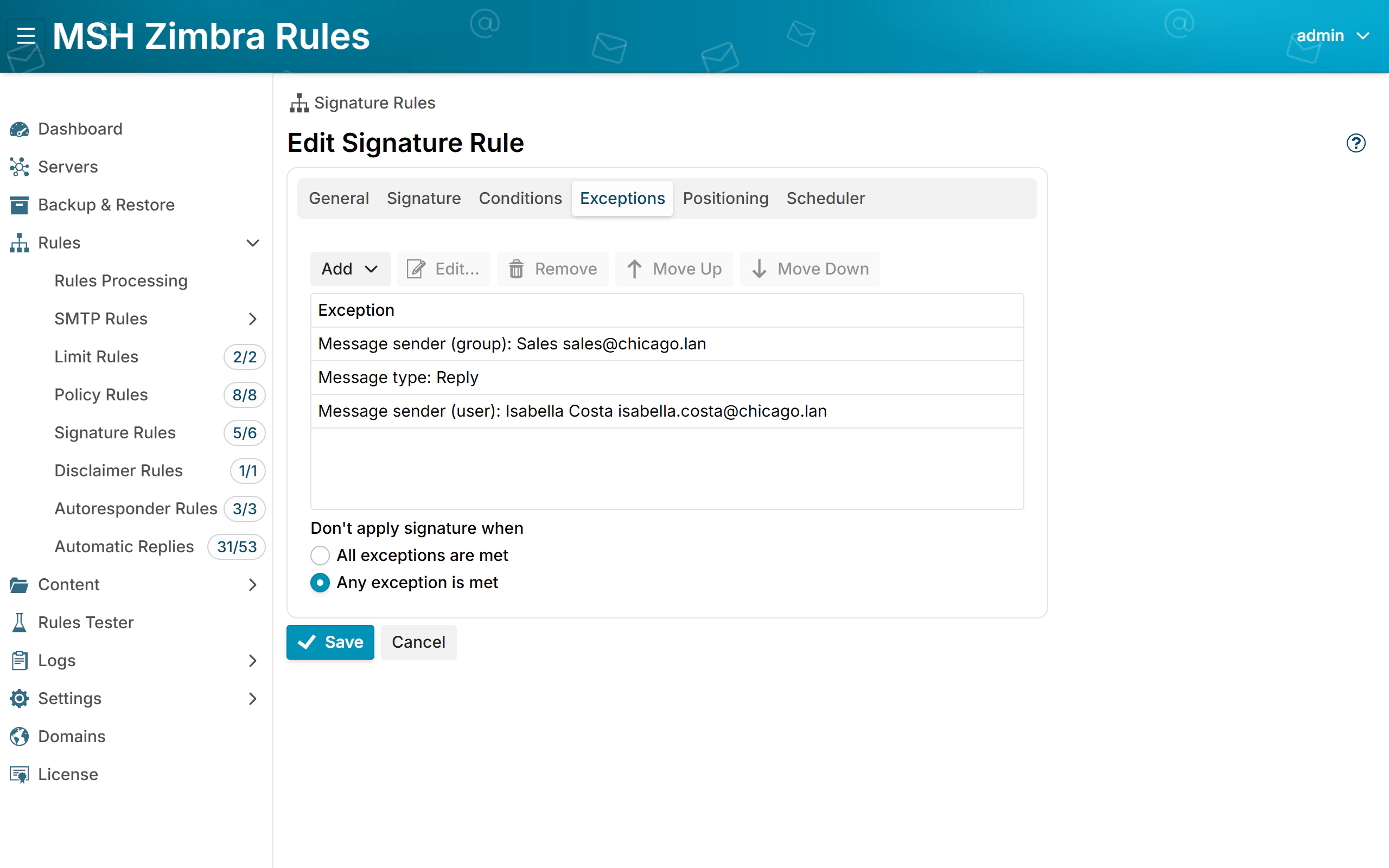
The reply comes from the person's address, so the signature rules sign it like any of their messages: no longer works here, followed by their title and mobile number. Add the person as an exception to each signature rule that signs their mail: Exceptions > Sender > Sender, User. With Any exception is met, the other exceptions of the rule stay as they were.
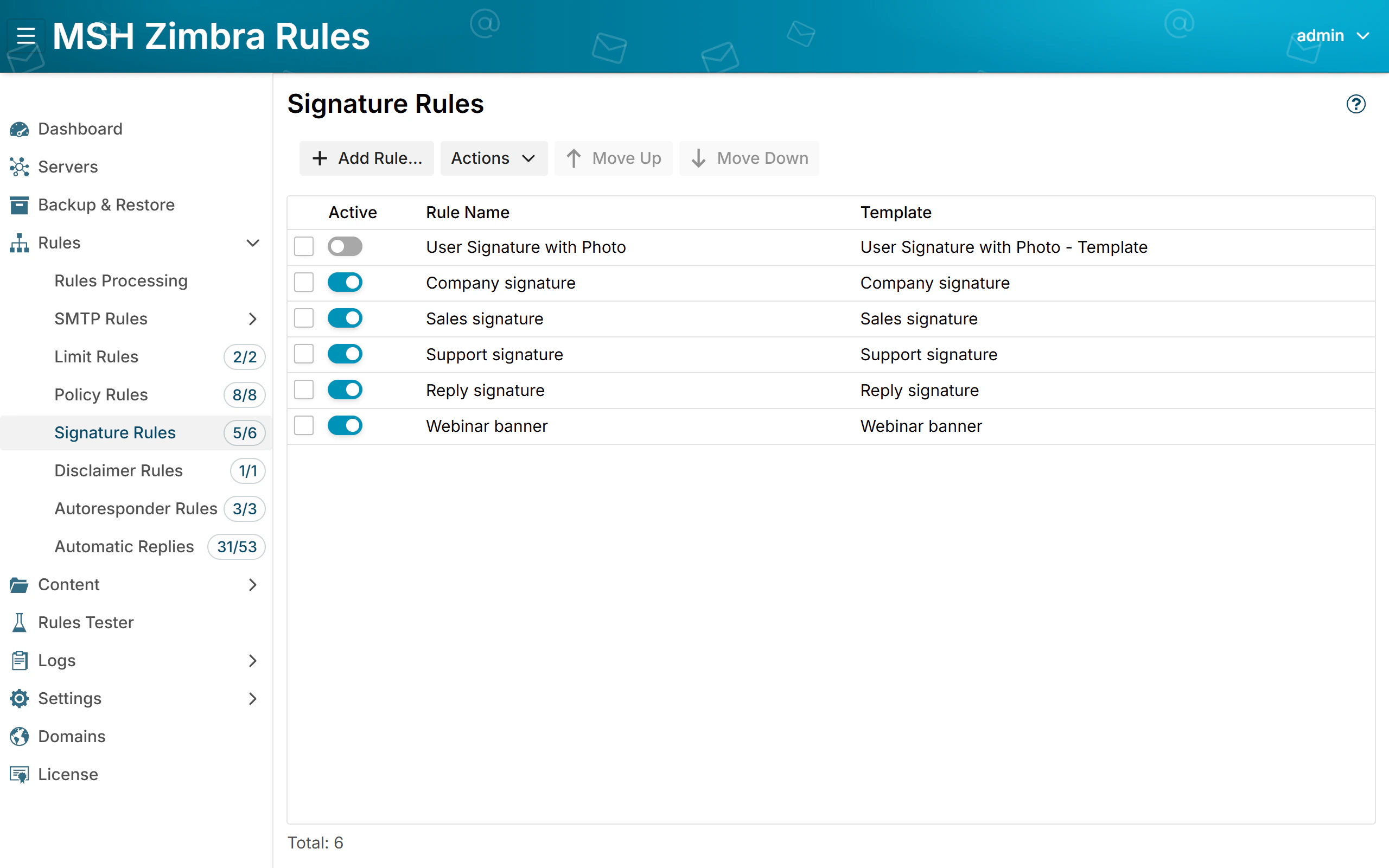
Not sure which rule signs the person's mail? Send a test message from their address in
the Rules Tester: the Processing trace shows each
signature rule with applied or not applied.
What the reply leaves out
A reply goes to anyone who writes, so it says only what every sender may know:
| Leave out | Because |
|---|---|
| Why the person left, and when | Nobody outside needs it, and it may be personal |
| A private address or phone number of the person | Former employees are not your contact for customers |
| Account closed, mailbox disabled | Tells a stranger how your mail server is set up |
| The original message | Do not include original message keeps a reply to a spammer from repeating it |
| The person's signature | Step 4 |
Give a business contact instead: the colleague, or a team address such as
onboarding@example.com that keeps working when the colleague moves on too.
Who gets what
| Message | The colleague | The reply |
|---|---|---|
| A customer writes to the person | Gets it, with [For Isabella Costa] | Yes |
| A message to the colleague with the person in Cc | Gets it once | Yes |
| The same sender writes again on the same day | Gets it | No, Protection |
| An automatic reply or list mail | Gets it | No, see Messages that get no autoreply |
| A message to a distribution list the person is still on | No, it lands in the old mailbox | No |
Check it
- The reply and the message. In the Rules Tester, send a custom message from an outside address to the person who left. The list shows the message as the colleague gets it, with the note in the subject and the person no longer in To, and the reply as a message of its own, with its text. Nothing leaves the server.
- The delivery. In Logs > Message History, open a real message to the person:
its Processing trace shows
'Add Recipient' appliedand'Remove Recipient' applied. Message History lists messages only while Diagnostic logging is on.
When the date comes
Both rules stop on the last day of their time range, in the time zone you chose. From the next day, mail to the address goes to the locked mailbox again, unanswered. Before that date, decide what happens to the address:
-
Keep the rules longer. Edit the time range of both rules.
-
Hand the address over. Export what the old mailbox should keep, delete the account, and add its address as an alias of the colleague, so mail reaches them without any rule:
sudo su - zimbra -c "zmprov da isabella.costa@example.com"sudo su - zimbra -c "zmprov aaa james.carter@example.com isabella.costa@example.com"Deleting the account deletes its mailbox, so do the export first.
-
Let the address go. Delete the account: senders then get a bounce saying the address does not exist.
Then remove the two rules and the person's signature exception.
Good to know
- Every recipient sees the change. A message has one set of headers for all its recipients. When someone writes to the colleague and the person who left together, both the subject note and the missing address show in everyone's copy of that message.
- Bounces stay in the old mailbox. When a reply cannot be delivered, for example to a made-up sender of spam, the bounce goes to the person's address and is not passed on. The locked mailbox fills slowly with these: give it a quota that leaves room.
- One reply, many messages. Loop protection counts per sender: a customer who writes five times in a day gets one reply, and all five messages reach the colleague.
Variations
- Several people. Add a pair of rules per person to the same group and the same autoresponder list, each with its own template and date.
- A team address. Pass the mail on to a distribution list such as
onboarding@instead of one colleague, and name the list in the reply. - Mail from inside only. Colleagues usually know who left. Add Message > Direction, Incoming to the conditions of the autoresponder rule to answer only mail from outside.
Related reading
- Remove recipient and Add recipient - the actions of step 2
- Auto reply - subject, message and sender of the reply
- Scheduler - time ranges and time zones
- Copy a user's mail to an archive mailbox in Zimbra - keeping a copy of a person's mail, for example before they leave
- Answer support mail with a reference number in Zimbra - another autoresponder rule, with the no-reply senders left out
Want to try it on your own server? Start a free trial.