Scheduler
The scheduler allows you to define specific time frames during which the rule is active. You can set multiple time ranges and specify the timezone for accurate scheduling.
When multiple custom entries are defined, they are combined using OR - the rule is active when the message sent date matches any of the entries. For example, one entry for Saturday and another for Sunday makes the rule active on the whole weekend.
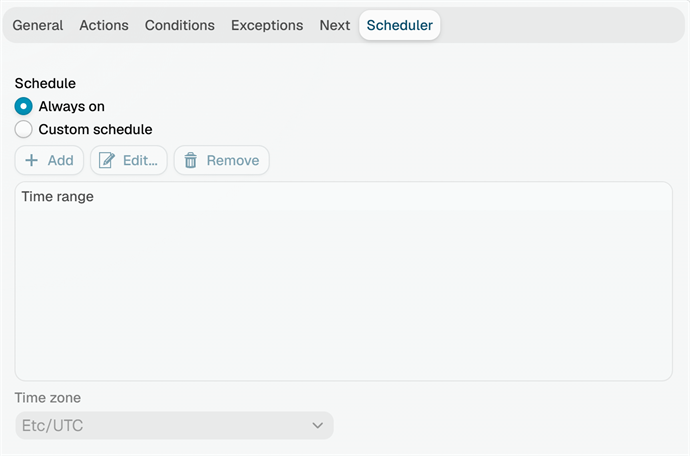
The tab is set to Always on by default. Choose Custom schedule to limit the rule: Add opens the time range dialog, Edit and Remove change or delete the selected entry, and the time zone below the list becomes available.
Select time range
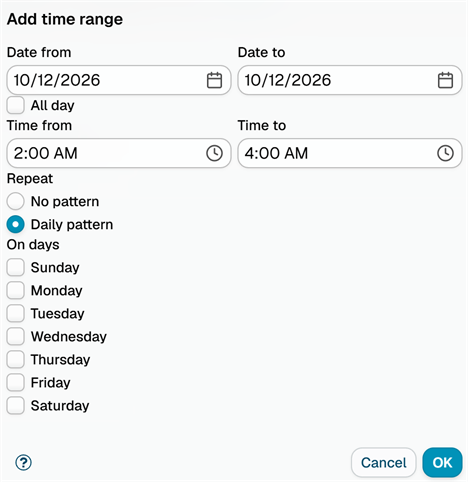
Time range can be defined using the following options:
- Time range - The rule is active only on selected dates within the specified time range.
- All day - The rule is active for the entire day without any time restrictions.
- No pattern - The rule is active every day within the specified time range.
- Daily pattern - The rule is active only on selected days of the week within the specified time range.
Select time zone
Select the timezone that the time ranges will be based on. This ensures that the rule is applied correctly according to the specified local time.